
Table of Contents
Connecting the Cisco 7505 to Your Network
Connecting the Cisco 7505 to Your Network
After you have installed your Cisco 7505, you need to connect it to the network. This chapter discusses how to connect each interface type to your network and how to connect the console and auxiliary cables to your console terminal and auxiliary equipment.
Following are guidelines to assist you in properly connecting the external network cables:
- Make certain that you connect the correct interface types.
- All FSIP serial ports use a high-density, 60-pin receptacle. Each port requires a serial cable to connect to the network. The cable determines the electrical interface type and mode of the port to which it is connected. The network end of each cable type is the industry-standard connector normally used for the interface type. (For example, the EIA/TIA-232 port adapter cable has a standard DB-25 connector at the network end.)
Note EIA/TIA-232 and EIA/TIA-449 were known as recommended standards RS-232 and RS-449 before their acceptance as standards by the Electronic Industries Association (EIA) and Telecommunications Industry Association (TIA).
- Each FSIP cable has a label molded into the connectors that identifies the electrical interface type and mode. EIA/TIA-232 and EIA-530 are the only interface types that use the same type of connector, a DB-25. If you are using EIA/TIA-232 DTE mode and EIA-530, check the labels carefully.
- Generally, cables for DTE mode use a plug at the network end, and cables for data communications equipment (DCE) mode use a receptacle at the network end. An exception is the V.35 cable, which is available with either a plug or receptacle in either mode.
- You must provide cables and equipment for the following interfaces:
- Console and auxiliary port. EIA/TIA-232, DB-25 male-to-female cable.
- EIP. Ethernet IEEE 802.3 media attachment unit (MAU) and attachment unit interface (AUI).
- FEIP. Fast Ethernet IEEE 802.3u 100BaseT MAU, transceivers, and RJ-45 or Media Independent Interface (MII) cables.
- FIP. FDDI, 62.5/125-micron, multimode fiber-optic cable FDDI, 8.7 to 10/125-micron, single-mode fiber-optic cable, FDDI optical bypass switching equipment, and FDDI optical bypass switch cable (for CX-FIP-MM and CX-FIP-SS only).
- HIP. High-Speed Serial Interface (HSSI) cable.
- TRIP. Token Ring 802.5, MAU and Type 1 and Type 3 lobe cable.
- The following cables are available from Cisco Systems: interface cables for the CIP, FSIP, HIP, and MIP, as spares only. For detailed cable considerations, refer to the Cisco 7505 Hardware Installation and Maintenance publication, which is available on Cisco Connection Documentation CD-ROM or as a printed copy.
- Verify the interface numbers (also called port addresses) on the rear of the chassis and the specific cables you will connect to each. Each port has a unique address composed of the interface processor slot number and the port number on the interface processor.
- Avoid crossing high-power cables with interface cables. Crossing high-power cables with interface cables can cause interference in some interface types; however, it will not always be possible to avoid this.
- If possible, do not remove cable strain-relief systems. Most interfaces provide some type of strain relief to prevent the cables from being accidentally disconnected. Among these types of strain relief are the slide fasteners on Ethernet cables, the cable retention clip on the power supply cord, and the screw-type fasteners on serial cables. Use all strain-relief devices provided to prevent potential problems caused by inadvertent cable disconnection. Use the cable-management brackets supplied with the chassis.
- To prevent unnecessary problems or component damage, verify proper interface cabling before applying power.
- Verify all cabling limitations before applying power to the system. When setting up your system, you must consider a number of factors related to the cabling required for your connections. For example, when using EIA/TIA-232 connections, be aware of the distance and electromagnetic interference limitations. For detailed cable considerations, refer to the Cisco 7505 Hardware Installation and Maintenance publication, which is available on Cisco Connection Documentation CD-ROM or as a printed copy.
- Check the power cable and power supply for compatibility with your power service. Check the labels on the equipment and ensure that the power service at your site is suitable for the chassis you are connecting.

Warning Before working on a chassis or working near power supplies, unplug the power cord on AC units or disconnect the power at the circuit breaker on DC units. (For translated version of this warning, refer to the appendix "Translated Safety Warnings.")
The following sections discuss how to connect cables to all of the available interfaces on the Cisco 7505 interface processors and the main system processors.
An Ethernet transceiver or MAU should already be connected to your network. Connect each Ethernet port on the EIP to an Ethernet transceiver with a transceiver cable, or to an attachment unit with an AUI, as shown in Figure 4-1.
Figure 4-1 Connecting Cables to the EIP
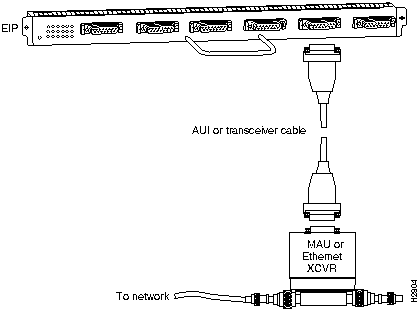
On each EIP port, slide the metal bracket up over two posts on the cable connector, or tighten the thumbscrews to secure the cable in the port and provide strain relief. Some miniature transceivers (usually the 10BaseT type) connect directly to the Ethernet port on the EIP and do not require an interface cable.
Token Ring MAU connectors provide a direct connection between the TRIP and the ring, as shown in Figure 4-2.
Figure 4-2 Connecting Cables to the TRIP
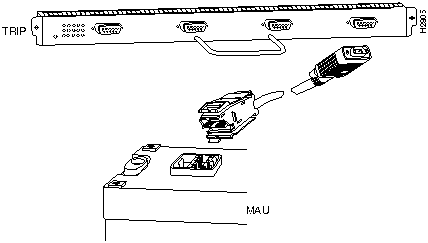
Note Depending on your Token Ring network, it might be necessary to make Token Ring connections to the TRIP after you turn on the Cisco 7505 and configure the system.
For an MII connection, a 100BaseT transceiver or MAU should already be connected to your network. An RJ-45 connection does not require an external transceiver. On a single 100BaseT port adapter, you can use either the RJ-45 connection or the MII connection. If you have two port adapters on your FEIP, you can use the RJ-45 connection on one and the MII connection on the other, as shown in Figure 4-3.
Figure 4-3 Connecting Cables to the FEIP
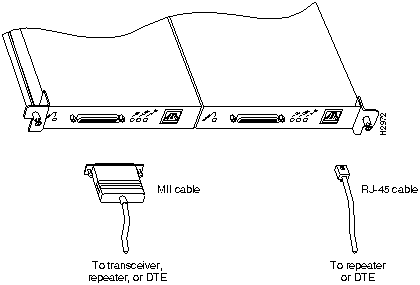
If you have RJ-45 connections, attach the Category 5 UTP cable directly to the RJ-45 port on the FEIP. If you have MII connections, attach an MII cable directly to the MII port on the FEIP, or attach a 100BaseT or 100BaseF transceiver, with the media appropriate to your application, to the MII port on the FEIP. RJ-45 and MII cables are not available from Cisco Systems, but are available from other cable vendors.
Attach the network end of your RJ-45 or MII cable to your 100BaseT or 100BaseF transceiver, switch, hub, repeater, DTE, or similar external 100BaseT equipment.
Specific CIP connection requirements for bus and tag or Enterprise System Connection (ESCON) cables are discussed in detail in the configuration note Channel Interface Processor (CIP) Installation and Configuration, which is available on Cisco Connection Documentation CD-ROM or as a printed copy (Document Number 78-1342-xx, where xx is the latest version of the document). This configuration note also ships with CIP-related spares.
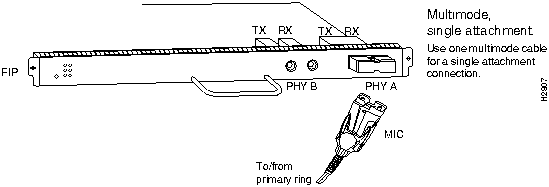
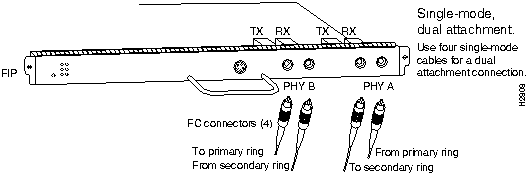
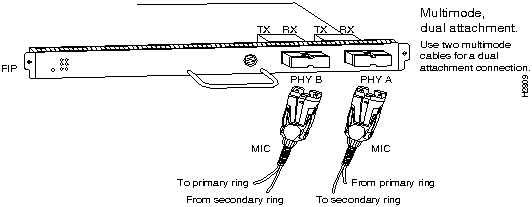
Both single-mode and multimode, single and dual attachment connections can be combined on one FIP. Fiber-optic cable connects directly to FIP ports. Single-mode uses separate transmit and receive cables. All single-mode products meet the Class 1 Laser Emission Requirement from the Center for Devices and Radiological Health (CDRH) FDDI. Multimode uses one transmit/receive cable for each physical sublayer (PHY) interface. Connect single-mode, single attachment as shown in Figure 4-4.
Figure 4-4 Connecting FIP Cables for Single-Mode, Single Attachment
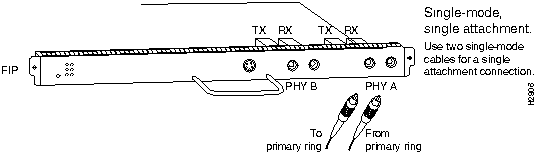

Warning Invisible laser radiation may be emitted from the aperture ports of the single-mode FDDI card when no cable is connected. Avoid exposure and do not stare into open apertures. (For translated versions of this warning, refer to the appendix "Translated Safety Warnings.")
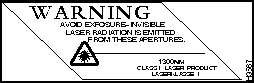
The aperture port contains an FDDI warning label, as shown in Figure 4-5.
Figure 4-5 Warning Label on the FIP
Connect multimode, single attachment as shown in Figure 4-6.
Figure 4-6 Connecting FIP Cables for Multimode, Single Attachment
Connect single-mode, dual attachment as shown in Figure 4-7.
Figure 4-7 Connecting FIP Cables for Single-Mode, Dual Attachment

Warning Invisible laser radiation may be emitted from the aperture ports of the single-mode FDDI card when no cable is connected. Avoid exposure and do not stare into open apertures. (For translated versions of this warning, refer to the appendix "Translated Safety Warnings.")
Connect multimode, dual attachment as shown in Figure 4-8.
Figure 4-8 Connecting FIP Cables for Multimode, Dual Attachment
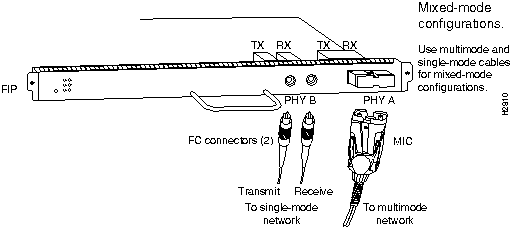
For mixed-mode configurations, the primary ring signal is received on the multimode PHY A receive port and transmitted from the single-mode PHY B transmit port.
For mixed-mode configurations, connect the cables to the FIP ports as follows:
- Connect the cable coming in from the primary ring to the PHY A receive port, and connect the signal going out to the secondary ring to the PHY A transmit port.
- Connect the cable coming in from the secondary ring to the PHY B receive port. This also connects the signal going out to the primary ring to the PHY B transmit port.
Your configuration may be opposite, with multimode connections on PHY B and single-mode connections on PHY A.
Connect the cables as shown in Figure 4-9.
Figure 4-9 Connecting FIP Cables for Mixed-Mode Configurations

Warning Invisible laser radiation may be emitted from the aperture ports of the single-mode FDDI card when no cable is connected. Avoid exposure and do not stare into open apertures. (For translated versions of this warning, refer to the appendix "Translated Safety Warnings.")
Connect the optical bypass switch as follows:
- Step 1 Connect the cable coming in from the primary ring (from PHY B at the preceding station) to the PHY A receive port on the network (ring) side of the bypass switch.
Note Refer to Figure 4-10 if you are connecting to the multimode/multimode FIP (CX-FIP-MM), and to Figure 4-11 if you are connecting to a single-mode/single-mode FIP (CX-FIP-SS).
Figure 4-10 Connecting Optical Bypass for CX-FIP-MM
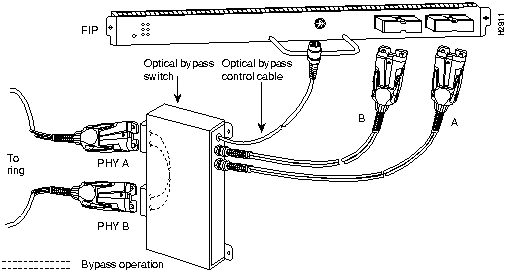
Figure 4-11 Connecting Optical Bypass for CX-FIP-SS
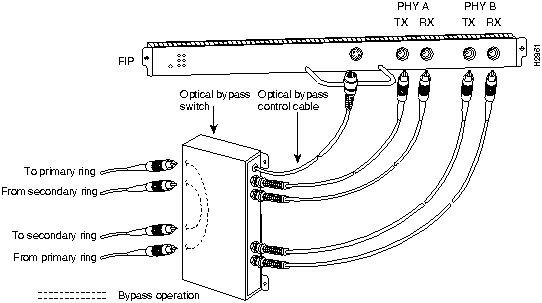
- Step 2 Connect the cable coming from the secondary ring (from PHY A at the preceding station) to the PHY B receive port on the network (ring) side of the bypass switch.
- Step 3 Unless the documentation that accompanies the bypass switch instructs otherwise, consider the bypass switch to be an extension of the FIP ports and connect the switch cables from A to A and B to B. The network cables are already connected to the bypass switch following the standard B-to-A/A-to-B scheme.
- Step 4 Connect the optical bypass switch control cable. If the control cable on your optical bypass switch uses a mini-DIN connector, connect the cable directly to the mini-DIN optical bypass port on the FIP. If the bypass switch uses a standard DIN connector, use the optical bypass adapter cable (CAB-FMDD), which is supplied with each FIP.
All FSIP ports support any available interface type and mode. The serial adapter cable determines the electrical interface type and mode of the port to which it is connected. EIA/TIA-232, EIA/TIA-449, V.35, and X.21 interfaces are available in DTE mode with a plug at the network end and in DCE mode with a receptacle at the network end. EIA-530 is available only in DTE mode with a plug. Connect the FSIP serial cables as shown in Figure 4-12.
Figure 4-12 Connecting Cables to the FSIP
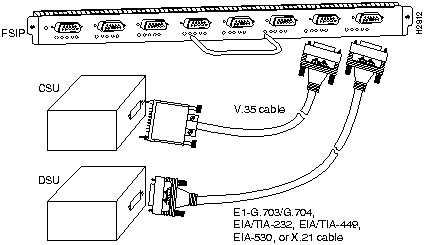
When connecting serial devices, consider the adapter cables as an extension of the router for external connections. Therefore, use DTE cables to connect the router to remote DCE devices such as modems or DSUs, and use DCE cables to connect the router to remote DTE devices such as a host, PC, or another router.
A pair of metric thumbscrews is included with each port adapter cable. If you want to connect to a remote device that uses metric hardware, replace the standard 4-40 thumbscrews at the network end of the port adapter cable with the M3 metric thumbscrews.
Note The serial port adapter cable determines the electrical interface type and mode of the FSIP port. When you connect a remote DTE device (which means that the FSIP port is a DCE interface), you must set the clock rate with clockrate command. For a complete description of this command, refer to the appropriate configuration publications, which are listed in the section "If You Need More Configuration Information," in the chapter "Performing a Basic Configuration of the Cisco 7505."
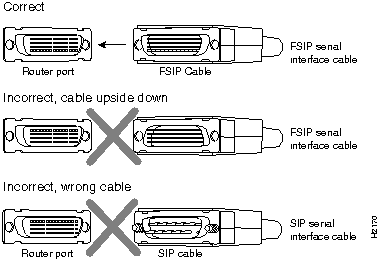
 Caution If you replace a SIP with an FSIP, you must also replace all interface cables. Also, the backshell on the FSIP universal serial cable connector is not stiff enough to prevent you from inserting the interface cable connector into the FSIP port upside down.
Figure 4-13 shows the correct and incorrect ways to attach serial interface cables to the FSIP.
Figure 4-13 Correct and Incorrect Methods for Connecting FSIP Cables
The HIP port functions as a DTE when it is connected to a DSU for a standard High-Speed Serial Interface (HSSI) connection. It can also be connected to a collocated router with a null-modem cable. To connect the router to an HSSI network, use an HSSI interface cable between the HIP port and the DSU. HSSI cable ends are identical. Connect them as shown in Figure 4-14.
Figure 4-14 Connecting an HSSI Cable to the HIP
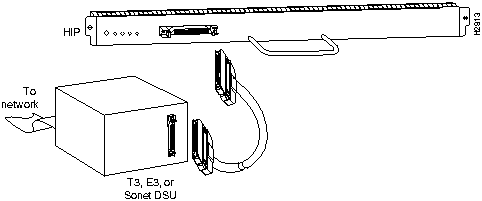
Note Use only the HSSI cable shipped with the HIP. Do not use a SCSI-II-type cable.
To connect two routers back to back in order to verify the operation of the HSSI port or to build a larger node, use a null-modem cable between available HSSI ports in two separate routers, as shown in Figure 4-15.
Figure 4-15 Connecting a Null-Modem Cable to the HIP

The two routers must be in the same location. When you configure the ports, you must enable the internal transmit clock on each HSSI interface with the hssi internal-clock command. When you disconnect the cable, use the no hssi internal-clock command. For complete descriptions of these commands, refer to the appropriate configuration publications, which are listed in the section "If You Need More Configuration Information," in the chapter "Performing a Basic Configuration of the Cisco 7505."
All AIP Asynchronous Transfer Mode (ATM) interfaces are full duplex. You must use the appropriate ATM interface cable to connect the AIP with an external ATM network. The AIP provides an interface to ATM switching fabrics for transmitting and receiving data up to 155 megabits per second (Mbps) bidirectionally. The actual data rate is determined by the physical layer interface module (PLIM).
Note For more complete AIP information, you can also refer to the Asynchronous Transfer Mode Interface Processor (AIP) Installation and Configuration publication (Document Number 78-1214-xx, where xx is the latest version of the document, which is available on Cisco Connection Documentation CD-ROM or as a printed copy).
The AIP can support PLIMs that connect to the following physical layers:
- Transparent Asynchronous Transmitter/Receiver Interface (TAXI) 4B/5B 100-Mbps multimode fiber-optic
- SONET/SDH 155-Mbps multimode fiber-optic---STS-3C or STM-1
- SONET/SDH 155-Mbps single-mode fiber-optic---STS-3C or STM-1
- E3 34-Mbps coaxial cable
- DS3 45-Mbps coaxial cable
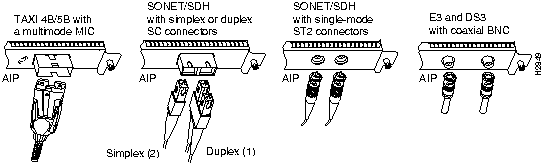
Connect AIP cables as shown in Figure 4-16.
Figure 4-16 Connecting Cables to the AIP

Warning Invisible laser radiation may be emitted from the aperture ports of the single-mode FDDI card when no cable is connected. Avoid exposure and do not stare into open apertures. (For translated versions of this warning, refer to the appendix "Translated Safety Warnings.")
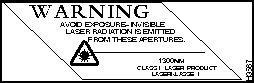
The aperture port contains a warning label, as shown in Figure 4-17.
Figure 4-17 Warning Label on the AIP
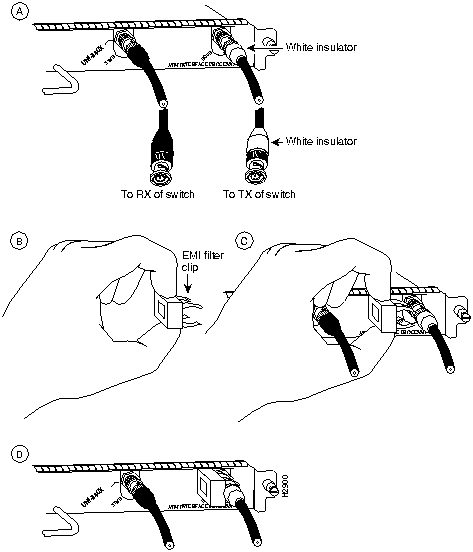
Note The E3 and DS3 PLIMs require cable CAB-ATM-DS3/E3. If you have an E3 PLIM, you must install the CAB-ATM-DS3/E3 cable and EMI filter clip. If you do not have an E3 PLIM, proceed to the appropriate section for your configuration.
 Caution To ensure compliance with EMI standards, the E3 PLIM connection requires an EMI filter clip (CLIP-E3-EMI) on the receive port (RCVR); the DS3 PLIM connection does not require this clip. The following procedure and figure discuss the EMI filter clip assembly that is required for the E3 PLIM. Do not operate the E3 PLIM without this assembly.
Following is the procedure for installing the CAB-ATM-DS3/E3 cable and the EMI filter clip:
- Step 1 Attach the CAB-ATM-DS3/E3 cable to the transmit (XMTR) and receive (RCVR) ports on the E3 PLIM, as shown in A in Figure 4-18.
- One portion of the cable has a white insulator on both ends to ensure that the receive-to-transmit and transmit-to-receive relationship is maintained between the E3 PLIM and your ATM switch. The white banded portion of the cable should attach between receive and transmit or transmit and receive ports of the E3 PLIM and your ATM switch, respectively.
- Step 2 Hold the EMI filter clip as shown in B in Figure 4-18.
- Step 3 Attach the EMI filter clip to the receive cable as shown in C in Figure 4-18.
Note Make certain the EMI filter clip makes mechanical contact with the metal sleeve on the cable connector and the metal sleeve on the E3 PLIM connector.
- Step 4 To ensure that the clip is not pulled off when adjacent interface processors are removed, position the clip parallel to the orientation of the AIP as shown in D in Figure 4-18.
Figure 4-18 Attaching the EMI Filter Clip
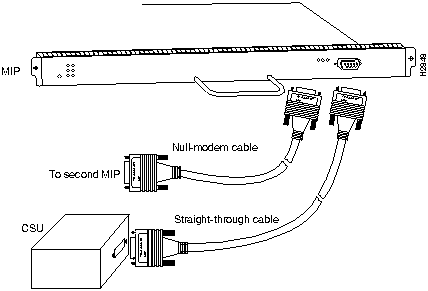
Two standard T1 serial cables are available from Cisco Systems and other vendors for use with the MIP: null-modem and straight-through. These T1 interface cables are used to connect your MIP to additional MIPs or external T1 CSUs, respectively.
You must use null-modem cables for MIP-to-MIP connections and straight-through cables for MIP-to-CSU connections. The T1 cables used to connect the MIP with external T1 equipment have DB-15 male connectors on each end.
Four E1 cables are available from Cisco Systems and other vendors for use with the MIP: BNC, Twinax, DB-15, and RJ-45. The E1 cables used to connect the MIP with external E1 equipment have a DB-15 male connectors on the MIP end.
Connect the MIP cables as shown in Figure 4-19.
Figure 4-19 Connecting Cables to the MIP
The console port on the RSP1 is a DCE, DB-25 receptacle for connecting a data terminal, which you need to configure to communicate with your system. The auxiliary port is a DTE, DB-25 receptacle for connecting a modem or other DCE device (such as a CSU/DSU or other router) to the system.
Before connecting the console port, check your terminal's documentation to determine its baud rate, which must match the default baud rate (9600 baud) of the console port on the RSP1. Set up the terminal as follows: 9600 baud, 8 data bits, no parity, 2 stop bits. On the RSP1, the console port is located to the left of the auxiliary port.
Connect the console and auxiliary ports as shown in Figure 4-20.
Figure 4-20 Connecting Cables to the Console and Auxiliary Ports
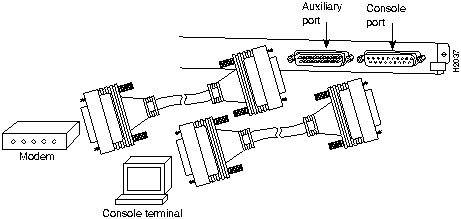
Note Both the console and auxiliary ports are asynchronous serial ports; any devices connected to these ports must be capable of asynchronous transmission. This is the most common type of serial device; for example, most modems are asynchronous devices.
To connect a 600W AC-input power supply, simply connect the power cable between the AC-input power supply and the AC source, then secure the strain relief clip to the cable.
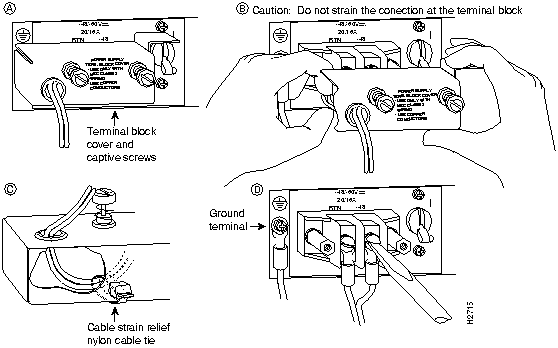
For the 600W DC-input power supply, you will need a medium flat-blade screwdriver, a nylon cable tie, and wire cutters. Refer to Figure 4-21. Following is the procedure for connecting a 600W DC-input power supply:
- Step 1 Ensure that the DC-input power cable is disconnected from the DC power source and that the power switch on the power supply is in the OFF (O) position.
 Warning Before performing any of the following procedures, ensure that power is removed from the DC circuit. To ensure that all power is OFF, locate the circuit breaker on the panel board that services the DC circuit, switch the circuit breaker to the OFF position, and tape the switch handle of the circuit breaker in the OFF position. (For translated versions of this warning, refer to the appendix "Translated Safety Warnings.")
- Step 2 Loosen the captive screws on the terminal block cover so the cover is free of the terminal block, shown in A in Figure 4-21.
- Step 3 Attach and tighten the ground wire to the ground terminal, shown in D in Figure 4-21.
- Step 4 Feed the 10-AWG, RTN and --48V wires through the large hole in the face of the terminal block cover, shown in B in Figure 4-21. Feed a sufficient length (approximately 3 inches) of these two wires away from you, through the terminal block cover.
- Step 5 Attach and tighten the RTN and --48V leads to the terminal block, shown in D in Figure 4-21. Verify that you are connecting the appropriate leads to the correct terminal block posts. The color coding is up to you and must match the connections at the DC power source.
- Step 6 Using a nylon cable tie that you provide, fasten the RTN and --48V leads to the terminal block cover, as shown in C in Figure 4-21. Insert the nylon cable tie through the small hole on the bottom of the terminal block cover and around the two leads. Carefully cut off the excess nylon cable tie with the wire cutters; do not cut the wires.
 Warning The illustration shows the DC power supply terminal block. Wire the DC power supply using the appropriate lugs at the wiring end, as illustrated. The proper wiring sequence is ground to ground, positive to positive (line to L), and negative to negative (neutral to N). Note that the ground wire should always be connected first and disconnected last. (For translated versions of this warning, refer to the appendix "Translated Safety Warnings.")
Figure 4-21 Connecting the DC-Input Power Cable (DC-Input Power Supply Only)

Warning After wiring the DC power supply, remove the tape from the circuit breaker switch handle and reinstate power by moving the handle of the circuit breaker to the ON position. (For translated versions of this warning, refer to the appendix "Translated Safety Warnings.")
- Step 7 Bundle the RTN and --48V wires behind the terminal block cover so that the cover fits over the wires and the terminal block, as shown in B in Figure 4-21. Take care not to strain the leads on the terminal block or crimp the wires behind the cover.
- Step 8 Position the terminal block cover and tighten its screws, as shown in A in Figure 4-21.
- Step 9 Connect the DC-input power cable to the DC power source.
The DC-input power supply connection is complete. If you need more specific information on DC-input power attachments, refer to the configuration note 600W DC-Input Power Supply Replacement Instructions (Document Number 78-1455-xx) or the Cisco 7505 Hardware Installation and Maintenance publication, which are available on Cisco Connection Documentation CD-ROM or in printed copies.
After you finish installing your Cisco 7505 hardware and connecting all cables, and before you turn on the power, verify the following:
- All cables are attached, and all cable strain relief is used correctly.
- All processor modules are installed correctly as follows:
- All the ejector levers should be lying flat against the module faceplates.
- All the captive installation screws should be securely tightened.
- The power cable is securely attached between the power source and the power supply.

Caution To prevent damage to the chassis, processor modules, or power supply, and to prevent short circuit and shock hazards, verify that your input power cabling is attached correctly. Do not turn on power until you are ready to configure the system.
For complete hardware and network troubleshooting information, refer to the Cisco 7505 Hardware Installation and Maintenance and Troubleshooting Internetworking Systems publications, which are available on Cisco Connection Documentation CD-ROM or in printed copies.
After your hardware installation is complete, and all required cables are connected, proceed to the chapter "Performing a Basic Configuration of the Cisco 7505."
Copyright 1988-1996
©
Cisco Systems Inc.



