
Table of Contents
Installing the Cisco 7505
Installing the Cisco 7505
This chapter includes procedures for rack-mounting and installing the Cisco 7505.
If you choose not to rack-mount the chassis, proceed to the section "General Installation." Before you begin the optional rack-mount installation, have the following tools and parts on hand:
- Number 1 and number 2 Phillips screwdrivers
- 1/4-inch and 3/16-inch flat-blade screwdrivers
- Tape measure
- Level (optional)
- Two chassis ears (rack brackets)
- Four M4 x 10-mm Phillips flat-head screws to secure the ears to the chassis
- Eight 10-32 x 3/8-inch slotted binderhead screws to secure the chassis ears to the rack-mounting strips (rails)

Warning To prevent bodily injury when mounting or servicing this unit in a rack, you must take special precautions to ensure that the system remains stable. The following guidelines are provided to ensure your safety:
- This unit should be mounted at the bottom of the rack if it is the only unit in the rack.
- When mounting this unit in a partially filled rack, load the rack from the bottom to the top with the heaviest component at the bottom of the rack.
- If the rack is provided with stabilizing devices, install the stabilizers before mounting or servicing the unit in the rack.
For translated versions of this warning, refer to the appendix "Translated Safety Warnings."
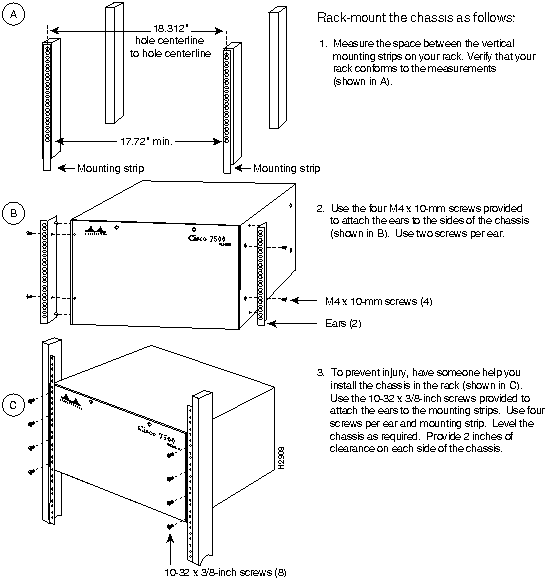
Figure 3-1 illustrates the rack-mount procedure.
Figure 3-1 Rack-Mounting the Cisco 7505
Before you install the Cisco 7505, consider future maintenance requirements. For example, allow adequate clearance for installing or replacing interface processors, adding network connection cables or equipment, and so forth. The installation location should already be determined, and the chassis should already be placed in the area where you will install it.
When installing the chassis on a table, ensure that you have planned a clean, safe location for the chassis and have considered the following:
- The location does not block the chassis inlet (left side) and exhaust (right side) vents. Allow at least two inches of clearance on each side of the chassis.
- Multiple chassis can be installed in equipment racks with only an inch or more of vertical clearance between each chassis. Do not place them side by side. Allow at least two inches of clearance on each side of the chassis, and avoid placing other devices or equipment nearby that can force heated exhaust air into the inlet vents of the chassis.
- Do not place the chassis on the floor. Floors accumulate dust, which is drawn into the chassis interior by the fans. Excessive dust in the chassis interior can cause overtemperature conditions and component failures. A raised platform or sturdy table provides a cleaner environment than the floor.
If you do not mount the chassis in a rack, follow these steps to install the chassis on a bench or tabletop:
- Step 1 Make sure that the area in which you will install the chassis is free of debris and dust.
- Step 2 Make sure your path between the chassis and where you will place it is unobstructed.
- Step 3 On the chassis, ensure that all captive screws (on the processor modules, and so forth) are tightened and the components are secure.
 Caution To prevent damage to the chassis and components, never attempt to lift or tilt the chassis with the handles on the interface processors. These handles are not designed to support the weight of the chassis.
The cable-management brackets attach to the interface processor end of the chassis. To install the brackets, you need a number 1 Phillips screwdriver, two cable-management brackets, and six M3 x 8-mm Phillips panhead screws.
Use the brackets to keep network interface cables untangled and orderly and to prevent cables from hindering access to interface processors in the lower slots.
Install the brackets before connecting network interface cables to the interface processor ports; otherwise, you will probably need to disconnect the cables to install the screws that secure the brackets.
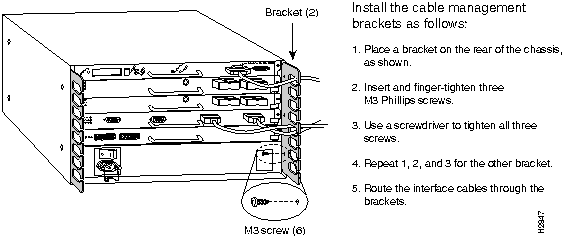
Refer to Figure 3-2 as you route interface cables through the brackets and connect the cables to the interface processor ports.
Figure 3-2 Installing Cable-Management Brackets
If necessary, feed nylon or plastic cable ties through the holes provided in the brackets to secure small-gauge cables or cable bundles. Loop cables where possible, but do not exceed the recommended minimum bend radius for your optical-fiber cables.
Copyright 1988-1996
©
Cisco Systems Inc.



