


|
|

Installing the EISA PC Adapter Hardware
This chapter provides instructions for installing the workgroup CDDI/FDDI EISA PC adapters and the dual attachment optional adapter in your EISA PC.
An overview of the installation procedures follows:
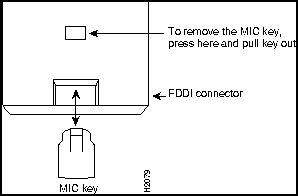
The FDDI dual attachment adapter and FDDI dual attachment option are shipped with a small key on the media interface connector (MIC) identifying the port as an A port.
To remove the MIC key on the main adapter board proceed as follows:
Figure 3-1 : MIC Connector Key on Dual Attachment Configuration This section explains how to insert the EISA PC adapter and dual attachment option into the workstation.
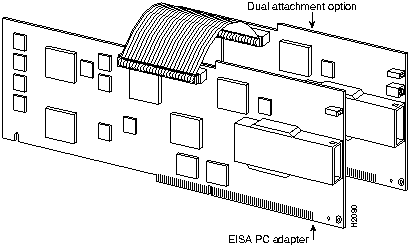
Figure 3-2 shows the single attachment adapter and dual attachment option adapter with the ribbon cable attached (faceplate not shown).
Figure 3-2 : Connecting the EISA PC Adapter and Dual Attachment Option Adapter After you install the EISA PC adapter, you must configure the adapter base address and interrupt number.
To configure the EISA slot, proceed as follows:
To connect the EISA PC adapter to the network proceed as follows:
Connecting to a Bypass Switch Connector (CDDI/FDDI DAS Adapters Only)
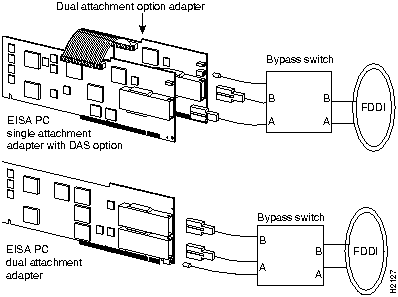
You can connect an optical bypass switch connector to the dual attachment adapter to maintain connectivity to the FDDI ring. (For additional information see Appendix D, "Optical Bypass Switch Connector Pinout Information.") If a station enters a fault condition or is powered down or rebooted, the ring will not wrap if a bypass switch is present on the faulty station.
Figure 3-3 shows how the bypass switch connects to the network and adapters.
Figure 3-3 : Connecting to a Bypass Switch To make sure the workgroup EISA PC adapter is working properly, plug in power to the workstation and check the LEDs on the adapters.
The Status LED indicates the EISA PC adapter status. If this LED is green, the adapter has passed its internal diagnostics. This LED must be on for the adapter to function properly.
If the LED is red, the EISA PC adapter has failed a critical diagnostic self-test. After you install the network driver, if the LED is still red, run the FDDI Status utility to determine the cause of the failure, then call a technical support representative. (For additional information, see Appendix B, "Using the FDDI Status Utility.")
The RINGOP LED monitors ring operation.
In a single attachment configuration, the lit green LED indicates that the adapter is connected to the CDDI/FDDI ring.
In a dual attachment configuration, the RINGOP LEDs work together to provide a visual indication of the state of your network. Use the RINGOP LED information in Table 3-1 to help determine whether your network is functioning properly.
Table 3-1 : RINGOP LED Indicators
1. RINGOP A refers to the RINGOP LED on the dual attachment option or the lower RINGOP LED on the dual attachment adapter.
2. RINGOP B refers to the RINGOP LED on the single attachment adapter or the upper RINGOP LED on the dual attachment adapter.
Copyright 1988-1996 © Cisco Systems Inc.



RINGOP B2 - Off
RINGOP B2 - Green
RINGOP B2 - Orange
RINGOP A1 - Off
Ring is not operational.
Station is in WRAP_B. Ring is operational SAS. RING A is not connected DAS.
Ring is not operational. The station connected to PHY B is attempting to connect, but has failed.
RINGOP A1 - Green
Station is in WRAP_A. RING B is not connected.
Station is in THRU mode. Ring is operational.
Station is in WRAP_A. The station connected to PHY B is attempting to connect, but has failed.
RINGOP A1 - Orange
Ring is not operational. The station connected to PHY A is attempting to connect, but has failed.
Station is in WRAP_B. The station connected to PHY A is attempting to connect, but has failed. This is normal if the station is dual-homed.
Ring is not operational. The stations connected to PHYs A and B are attempting to connect, but have failed.
