


|
|

Installing the EISA PC Adapter NetWare Driver
This chapter explains how to install the workgroup CDDI/FDDI EISA PC apapter NetWare driver in your PC. The installation instructions are separated into these sections:
Your workgroup CDDI/FDDI EISA PC Driver disk contains all the files you need to install the client and server drivers. The following NetWare loadable modules (NLMs) required by NetWare server Versions 4.x and 3.1x are located in the \novell\server \4.x or \novell\server \3.1x directories on the EISA PC Driver diskette and are shipped under license from Novell.
PATCHMAN.NLM
LSLENH.NLM
MSM31X.NLM
FDDITSM.NLM
MONITOR.NLM
ETHERTSM.NLM
Always use the latest version of these files. Novell is constantly updating these files, so the version shipped with your version of Novell NetWare may be more recent than the version included on the workgroup CDDI/FDDI EISA Driver disk. Before overwriting any files, compare the revision date to confirm that you are copying the most recent version to your server.
For the latest information the NetWare drivers, refer to the readme.txt file on the CDDI/FDDI EISA PC Adapter Driver disk.
The NetWare driver supports the following frame formats:
Before installing the NetWare driver, you must do the following:
The EISA PC adapter driver installation instructions vary depending on the version of NetWare software installed on your server. Proceed to the section describing the driver installation for the NetWare revision installed on your server:
Installing the Driver on a NetWare 4.x Server
The NetWare 4.x instructions are separated into two parts:
Go to the section describing your NetWare server installation.
Driver Installation Instructions for Initial Installation
of a NetWare 4.x Server
Follow these steps to modify the NetWare 4.1x installation script to configure and install the EISA PC adapter driver.
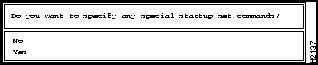
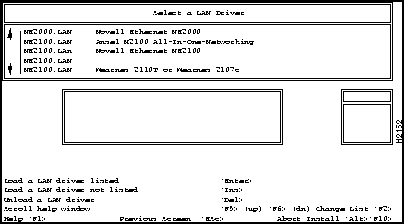
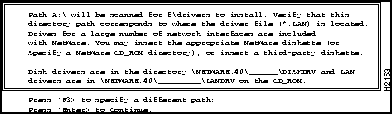
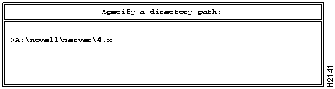
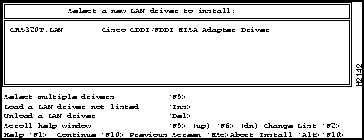
Figure 4-1 : Special Startup Set Commands Prompt Screen Figure 4-2 : Startup Set Commands Entry Screen Figure 4-3 : Load LAN Driver Entry Screen Figure 4-4 : Default Driver Path Screen
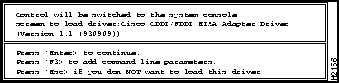
Figure 4-5 : Driver Selection Path Screen Figure 4-6 : Driver Selection Screen Figure 4-7 : Installation Confirmation Screen
Driver Installation Instructions for an
To install the EISA adapter driver on an existing NetWare 4.x server, perform the following steps:
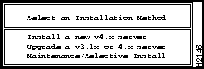
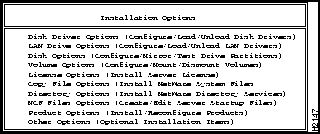
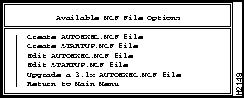
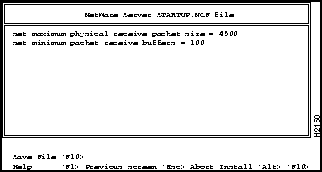
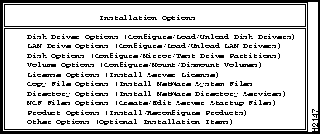
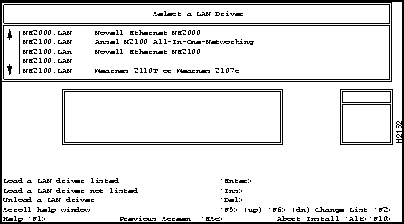
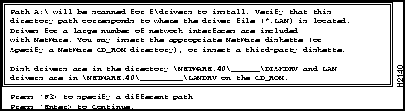
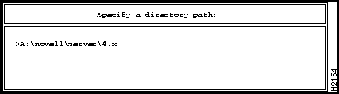
Figure 4-8 : Select an Installation Method Screen Figure 4-9 : Installation Options Screen Figure 4-10 : Available NCF File Options Screen Figure 4-11 : Server Boot Path Dialog Screen Figure 4-12 : NetWare Server STARTUP.NCF File Editing Screen Figure 4-13 : Installation Options Screen Figure 4-14 : Select a LAN Driver Screen Figure 4-15 : Default Driver Path Screen
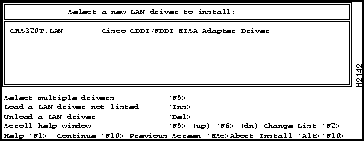
Figure 4-16 : Driver Selection Path Dialog Screen Figure 4-17 : Driver Selection Screen Figure 4-18 : Installation Confirmation Screen
Installing the Driver on a NetWare 3.12 Server
To install the CDDI/FDDI EISA adapter driver on an installed and configured NetWare 3.12 server, perform the following steps:
Installing the Driver on a NetWare 3.11 Server
To install the CDDI/FDDI EISA adapter driver on an installed and configured NetWare 3.11 server, perform the following steps:
Editing the autoexec.ncf to Load a Driver
The autoexec.ncf file must be modified to load the following:
The load command format follows:
load crs320T slot=[physical slot number] name=[variable] frame=[frame format]
See examples of load and bind commands for four different protocol types in the section "Binding Protocol to Frame Format Examples."
Binding Protocol to Frame Format Examples
The bind command is used to logically associate the driver to the protocol stack. In each protocol bind that follows, the adapter is assumed to be in slot 5:
Before the changes made to the files can take effect you must restart the server using the NetWare down and exit commands, as follows:
Each client PC attached to the NetWare network server using the workgroup CDDI/FDDI EISA PC adapter must have the client drivers installed.
Installing the client drivers involves the following tasks:
To install the client driver files on your EISA PC, use the DOS copy command to copy the following files to the server root directory from the \novell\client directory of the workgroup CDDI/FDDI EISA Driver disk.
CRS320T.COM
(For example: COPY A:\NOVELL\CLIENT\CRS320T.COM C:\)
Editing Client autoexec.bat to Load the Drivers
Modify the autoexec.bat to include the following lines to execute the Novell drivers and the CDDI/FDDI EISA adapter drivers when the client reboots:
C:\LSL.COM
Make sure there are no shared-memory conflicts with other boards or programs, such as TSR (terminate-stay-resident) programs.
When loading EMM386.EXE in the config.sys, add x=c800-c9ff if the EISA PC adapter was assigned address c800 by the EISA configuration utility.
The client driver can be loaded high by using the DOS loadhigh command. This allocates more space for application programs. You will need to use a memory manager, such as EMM386.EXE or QEMM.EXE, to use the upper memory.
Editing Client net.cfg to Link a Driver to a Frame Format
Modify the net.cfg file to link Novell drivers and EISA NetWare driver and the proper frame format for the network protocol type supported.
The net.cfg file must be modified as follows:
FDDI_802.2 Used with IPX and OSI
If you are using the FDDI_802.2 frame format, add the following lines to the net.cfg:
The space before the word frame in the second line of the previous example is required to properly format the command. The client driver default frame format is FDDI_802.2. A net.cfg file is not needed if the frame format is FDDI_802.2.
FDDI SNAP Used with TCP/IP and AppleTalk
If you are using the FDDI_SNAP frame format, add the following lines to the net.cfg:
The space before the word frame in the second line of the previous example is required to properly format the command.
Before the changes made to the autoexec.bat and net.cfg files can take effect, you must reboot the client workstation as follows:
Copyright 1988-1996 © Cisco Systems Inc.
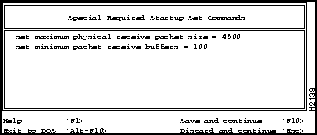
set minimum packet receive buffers = 100

Existing NetWare 4.x Server

set minimum packet receive buffers = 100

MSM31X.NLM
FDDITSM.NLM
set minimum packet receive buffers = 100

load c:\netware\fdditsm
PATCHMAN.NLM
LSLENH.NLM
MSM31X.NLM
FDDITSM.NLM
ETHERTSM.NLM
MONITOR.NLM
set minimum packet receive buffers = 100

load c:\netware\lslenh
load c:\netware\msm31x
load c:\netware\fdditsm
with Different Frame Formats
bind ipx to cisco net=12
load isis
load crs320T slot=5 name=cisco frame=FDDI_802.2
bind CLNP to cisco
load crs320T slot=5 name=cisco frame=FDDI_SNAP
bind IP to cisco addr=[IP address of this server interface]
load crs320T slot=5 name=cisco frame=FDDI_SNAP
bind appletlk to cisco net=12-12
LSL.COM
IPXODI.COM
NETX.EXE
C:\CRS320T.COM
C:\IPXODI.COM
C:\NETX.EXE
frame FDDI_802.2
frame FDDI_SNAP
