
Table of Contents
Installing the Router
Installing the Router
This chapter provides the following procedures for installing the router properly:
- Installing the chassis in an equipment rack (optional) or on a tabletop
- Installing the cable management brackets (optional but strongly recommended)
- Making external connections
- Starting up the router
The rack-mount kit provides the hardware for mounting the chassis in a standard 19-inch-wide equipment rack or in a Telco-type rack. If you are installing an equipment shelf or using mounting hardware other than that supplied with the chassis, review the guidelines in the section "Equipment Racks" in the chapter "Preparing for Installation," then proceed to the section "General Installation Guidelines and Procedure" in this chapter, after the router is installed in the rack. A cable management kit is also included with the chassis. Install these fixtures to keep network interface cables untangled and orderly, and to maintain clear access to interface processors in the lower interface processor slots.
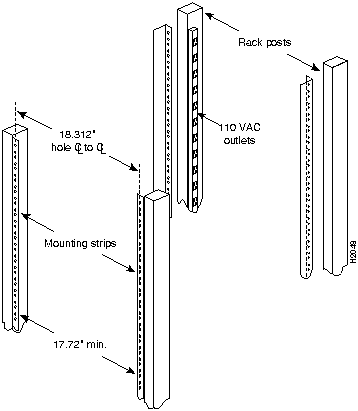
The rack-mount kit included with the router is for a standard 19-inch, two- or four-post rack or a two-post Telco-type rack. The chassis mounts to two rack posts with ears that attach to the sides of the chassis. The inside width between the two posts or mounting strips (left and right) must be at least 17.72 inches. (See Figure 3-1.) The chassis ears attach to either the front or back of the chassis, so that you can position either the interface processor or noninterface processor end at the front of the rack. Install the cable management fixtures after you install the chassis in the rack.
Some equipment racks provide a power strip along the length of one of the mounting strips. Figure 3-1 shows a typical 19-inch equipment rack with a power strip along one of the back posts. If your rack has this feature, consider the position of the strip when planning fastener points and ensure that you will be able to pull processor modules straight out of the slots. Also, if you will install the cable management brackets, ensure that the power strip will not block the sides of the brackets and prevent you from routing the cables through them. When possible, install the interface processor end of the chassis away from the power strip to avoid problems accessing cables and interface processors. (See the section "Equipment Racks" in the chapter "Preparing for Installation.")
The inlet and exhaust ports for cooling air are located in the sides of the chassis, so multiple routers can be stacked in a rack with little or no vertical clearance. If necessary, you can remove the four chassis feet. The chassis is 10.50 inches high when the feet are removed.
Figure 3-1 Typical 19-Inch Equipment Rack Posts and Mounting Strips
Have the following tools available before you begin the rack installation:
- Number 1 and number 2 Phillips screwdrivers
- 1/4-inch and 3/16-inch, flat-blade screwdrivers
- Tape measure
- Level (optional)
The rack-mount kit includes the following parts:
- Two chassis ears
- Four M4 x 10-mm Phillips flathead screws to secure the ears to the chassis
- Eight 10-32 x 3/8-inch slotted binderhead screws to secure the chassis ears to the rack rails
When installing the router in an enclosed rack, removing the door temporarily may provide additional clearance. We recommend that you have someone assist you by supporting the chassis while you mount it in the rack by securing the chassis ears to the rack-mounting strips.
The chassis should be unpacked, and you should have already verified the router configuration.
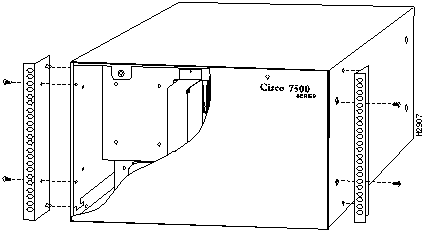
Each chassis ear has two studs that fit into holes in the chassis. The chassis has two pairs of holes on each side: one pair near the interface processor end and one pair near the noninterface processor end. Both ears must be installed at the same end on each side. (See Figure 3-2.) Install the ears near the end of the router that will be in the front of the rack. For example, if you will install the chassis with the interface processor end of the router at the front and the noninterface processor end in the back of the rack, install the ears near the interface processor end of the chassis.
Figure 3-2 Installing the Ears on the Chassis

Warning After attaching the chassis ears, and to avoid personal injury, we recommend that two people install the chassis in the rack. (One person should support the chassis in the rack while the second person installs the fasteners.)
To install the ears on the chassis, follow these steps:
- Step 1 On the rack, measure the space between the inner sides of the left and right front posts or mounting strips to ensure that it is at least 17.72 inches wide. (The chassis is 17.65 inches wide with the ears installed and must fit between the mounting strips.)
- Step 2 Refer to Figure 3-2 and locate the guides in the chassis sides.
- Step 3 While referring to Figure 3-2, turn the chassis so that the end that will be in the front of the rack is facing toward you. For example, Figure 3-2 shows the correct orientation for the router if the noninterface processor end will face out the front of the rack.
- Step 4 On the sides of the chassis, locate the stud holes and tapped holes nearest you.
- Step 5 Attach the first chassis ear to the right side of the chassis. Hold the ear in the orientation shown by the right ear in the Figure 3-2; with the studs pointing toward the chassis and the mounting holes facing you.
- Step 6 Insert the studs into the holes on the side of the chassis, as shown in Figure 3-2.
- Step 7 Use a number 2 Phillips screwdriver to secure two M4 x 8-mm Phillips flathead screws to the chassis, then repeat this procedure for the other ear. Ensure that the strip of mounting holes on each ear is approximately flush with the end of the chassis. (See Figure 3-2.)
- Step 8 Proceed to the next section to install the chassis in the rack.
 Warning To prevent personal injury, review the safety precautions in the chapter "Preparing for Installation," before installing the router in a rack.
The ears secure the chassis to two rack posts, and the rest of the chassis is cantilevered off the ears. After installing the ears on the chassis, mount the router by securing the ears to two posts or mounting strips in the rack with the eight slotted screws provided. Because the ears support the weight of the entire chassis, be sure to use all eight slotted screws to fasten the two chassis ears to the rack posts. Figure 3-3 shows a typical installation in a standard, 19-inch equipment rack with four mounting posts. Figure 3-4 shows a typical installation in a Telco-type rack, which usually has two center posts and is bolted to the floor. If you are mounting the router in a rack with four posts, use all eight slotted screws to mount the chassis on the front posts.
Figure 3-3 Installing the Chassis in a Four-Post 19-Inch Rack
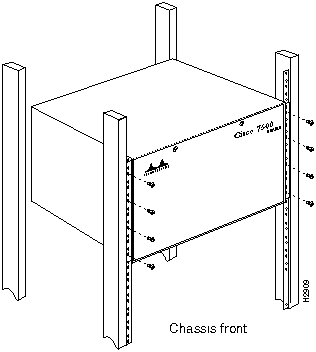
We recommend that you allow at least one or two inches of vertical clearance between the router and any equipment directly above and below it. However, if necessary to save vertical space in the rack, you can remove the four chassis feet either before or after you install the chassis in the rack. (It is easier to grip the underside of the chassis to lift it when the feet are in place). Each rubber foot is secured to the chassis bottom with a slotted screw. If removal is necessary, use a 3/16-inch, flat-blade screwdriver to remove the feet, then put the feet in a safe place in case you need them later.
Note Unless you have a way of supporting the chassis in the rack while you install the fasteners, get another person to assist you so that one person can support the chassis while the other installs the fasteners.
 Warning To maintain a low center of gravity, ensure that heavier equipment is installed near the bottom of the rack. Otherwise, because the two front posts support the entire weight of the chassis, the rack could become top-heavy and fall over if it is not stabilized with heavier equipment at the bottom or anchored to the floor.
Figure 3-4 Installing the Chassis in a Telco Rack
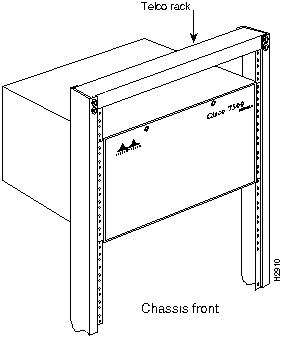

Warning To prevent tipping the rack, when installing the router in Telco-type racks, ensure that the rack is bolted to the floor and, if necessary, anchored with appropriate fixtures.
To install the chassis in the rack, follow these steps:
- Step 1 On the chassis, ensure that all captive screws (on the processor modules and on the access cover) are tightened and the components are secure.
- Step 2 Make sure that your path to the rack is unobstructed. If the rack is on wheels, ensure that the brakes are engaged or that the rack is otherwise stabilized.
 Warning To prevent damage to the chassis or personal injury, never attempt to lift or tilt the chassis with the handles on the interface processor carriers or with the cable management brackets. The handles and brackets are not designed to support the weight of the chassis. To prevent personal injury, two people should perform the following four steps.
- Step 3 Two people should perform the following four steps. Position the chassis so that the end with the ears attached is closest to you, then lift the chassis and move it to the rack. Avoid sudden twists or moves to prevent injury.
- Step 4 Insert the rear of the chassis into the rack, pushing it back until the ears meet the front mounting strips or posts on both sides of the equipment rack.
- Step 5 While keeping the chassis ears flush against the posts or mounting strips, slide the router up or down until the holes in the ears are aligned with those in the mounting strips.
- Step 6 From the front of the rack, insert all eight 8-32 x 3/8 slotted screws (four on each side) through the chassis ears and into the mounting strip.
- Step 7 When all screws are inserted, use a 1/4-inch, flat-blade screwdriver to tighten each one.
- Step 8 Omit this step if the cable management brackets are already installed on the router. When the router is secure, install the cable management brackets at the interface processor end of the router. If the router is installed in an enclosed rack, ensure that the rack door will close properly after the device and cables are installed. Refer to the section "Rack-Mounting the Chassis," earlier in this chapter.
- Step 9 You can remove the four chassis feet to gain an extra 1/2-inch of vertical space below the chassis. However, we recommend that you allow at least 1 or 2 inches of vertical clearance above and below the chassis, which is greater than the height of the feet. If necessary, use a 1/4-inch, flat-blade screwdriver to remove the feet.
- Step 10 Connect the power cable to the power supply according to the procedures in the section "Connecting Power," in this chapter.
This completes the rack installation. Proceed to "Installing the Cable Management Brackets" in this chapter to continue the installation.
The router should already be in the area where you will install it, and your installation location should already be determined; if not, refer to the section "Site Requirements" in the chapter "Preparing for Installation."
When installing the router on a tabletop, ensure that you have planned a clean, safe location for the chassis and have considered the following:
- The location does not block the chassis sides, which are the inlet and exhaust vents for cooling air. Allow at least two inches of clearance on each side of the chassis.
- Multiple chassis can be installed in equipment racks with only an inch or more of vertical clearance, but do not place them side by side. Allow at least two inches of clearance on each side of the chassis, and avoid placing other devices or equipment nearby that can force heated exhaust air into the router inlet vents.
- Do not place the router on the floor. Floors accumulate dust, which would be drawn into the chassis interior by the fans. Excessive dust inside the chassis interior can cause overtemperature conditions and component failures. A raised platform or sturdy table provides a cleaner environment than the floor.
- When deciding where to install any equipment, consider future maintenance requirements. Allow adequate clearance for maintenance (installing/replacing interface processors, or making/adding network connection cables or equipment).
If you do not mount the router in a rack, follow these steps to install the router on a bench or tabletop:
- Step 1 Make sure that the area in which you will install the router is free of debris and dust. Also make sure your path between the router and its new location is unobstructed.
- Step 2 On the chassis, ensure that all captive screws (on the processor modules and on the access cover) are tightened and the components are secure.
 Warning To prevent damage to the chassis or personal injury, never attempt to lift or tilt the chassis with the interface processor handles, which are not designed to support the weight of the chassis.
- Step 3 Lift the chassis by placing your hands around the chassis sides and lifting the chassis from underneath. Avoid sudden twists or moves to prevent injury.
- Step 4 Place the router in a location where the air inlet vents on the side of the chassis are not obstructed, nor are they drawing in exhaust air from other equipment.
- Step 5 Ensure that the new location allows adequate clearance around the chassis for maintenance.
- Step 6 After the router is in place, proceed to the next section to connect the interface cables.
The cable management brackets (shown in Figure 3-5) attach to the inner sides of the chassis at the interface processor end. Use the brackets to keep network interface cables untangled and orderly, and to prevent cables from hindering access to interface processors in the lower interface processor slots. Install the brackets before connecting network interface cables to the interface processor ports; otherwise, you will probably need to disconnect the cables to install the screws that secure the brackets. Route interface cables through the cable management brackets as you connect them to the interface processor ports. If necessary, wrap cable ties through the holes provided to secure small-gauge cables.
Figure 3-5 Cable Management Brackets
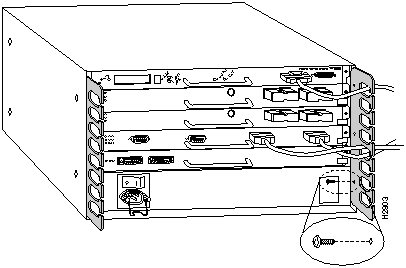
You will need the following tools and parts to install the cable management brackets; the brackets and panhead screws are included with the chassis:
- Number 1 Phillips screwdriver
- Two cable management brackets and nylon cable ties
- Six M3 x 8-mm Phillips panhead screws
Follow these steps to install the two cable management brackets on the router:
- Step 1 Assemble the two cable management brackets and the six M3 x 8-mm Phillips panhead screws.
- Step 2 At the interface processor end of the router, place a bracket on an inner side of the chassis and align the three holes in the bracket with the holes in the chassis. (See Figure 3-5.)
- Step 3 Insert and finger-tighten three M3 Phillips screws from the inner side of the chassis, through the bracket and into the chassis.
- Step 4 When all three screws are inserted, use the number. 1 Phillips screwdriver to tighten the screws.
- Step 5 Repeat steps 2 through 4 for the second bracket.
- Step 6 When installing the network interface cables, route the cable to the cable management brackets as shown in Figure 3-5. If you are using very thin cables that slip through the bracket openings, insert cable ties through the holes in the bracket and wrap them around the cables to secure them.
This completes the cable management bracket installation. Proceed to the next section to connect the interface cables.
Connect a 600W, AC-input power supply as follows.
- Step 1 Push the cable-retention clip down, away from the AC receptacle, and plug in the power cable.
- Step 2 To secure the cable in the power supply AC receptacle, push the cable-retention clip up until it snaps into place around the connector. The cable-retention clip provides strain relief for the AC power cable.
- Step 3 Connect the AC power supply cable to the AC source.
You will need a medium flat-blade screwdriver and a nylon cable tie for the following procedure. Connect a 600W, DC-input power supply as follows:
- Step 1 Before proceeding, make certain the DC-input power cable is disconnected from the DC power source and the power switch on the power supply is in the off (O) position.
 Warning Before working on the chassis or near power supplies, disconnect the power at the circuit breaker on DC units.
- Step 2 Loosen the captive screws on the terminal block cover so it is free of the terminal block. (See Figure 3-6a.)
- Step 3 Attach the 10-AWG ground wire to the ground terminal. (See Figure 3-6d.)
- Step 4 Feed the 10-AWG, RTN and --48V wires through the large hole in the face of the terminal block cover. (See Figure 3-6b.) Feed a sufficient length (approximately 3 inches) of these two wires away from you, through the terminal block cover.
- Step 5 Attach and tighten the RTN and --48V leads to the terminal block. (See Figure 3-6d.) Verify that you are connecting the appropriate leads to the correct terminal block posts. The color coding is up to you, but should match the connections at the DC power source. Make certain there are no loose strands that could cause a short circuit of the power supply and power source.
- Step 6 Using a nylon cable tie that you provide, fasten the RTN and --48V leads to the terminal block cover, as shown in Figure 3-6c. Insert the nylon cable tie through the small hole at the bottom of the terminal block cover and around the two leads.
- Step 7 Bundle the RTN and --48V wires behind the terminal block cover so that the cover fits over the wires and the terminal block. (See Figure 3-6b.) Take care not to strain the leads on the terminal block or crimp the wires behind the cover. (See Figure 3-6a.)
Figure 3-6 Removing and Replacing the Terminal Block Cover and Power Cable Leads
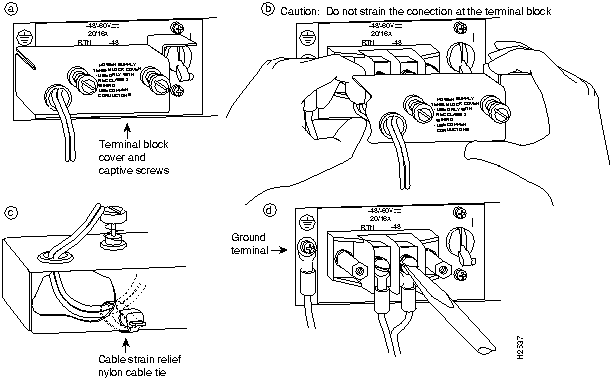
- Step 8 Position the cover over the terminal block and tighten the captive screws. (See Figure 3-6a.)
 Warning To prevent a short-circuit or shock hazard after wiring the DC-input power supply, replace the terminal block cover.
- Step 9 Connect the three DC-input power cable leads to the DC power source.
The following sections describe the basic network connections you will make to the router. Using the Configuration Worksheet will help you to make connections and later configure each interface without having to access the rear of the chassis to check port addresses. Complete the Port and Slot Worksheet (Table 2-15) if you have not already done so.
The following guidelines will assist you in properly connecting the external network cables to the router interface ports.

Warning Invisible laser radiation may be emitted from the aperture ports of the single-mode FDDI and Synchronous Optical Network (SONET) products when no fiber cable is connected. Avoid exposure and do not stare into open apertures. This product meets the Class 1 Laser Emission Requirement from the Center for Devices and Radiological Health (CDRH) FDDI.
- Make certain that you connect the correct interface types.
- All FSIP serial ports are a high-density 60-pin receptacle. Each port requires a serial port adapter cable to connect to the external network. The cable determines both the electrical interface type and mode of the port to which it is connected. The network end of each adapter cable type is the industry-standard connector normally used for the interface type. (For example, the EIA/TIA-232 port adapter cable has a standard DB-25 connector at the network end.) Following are guidelines for connecting serial interface cables:
- A label that identifies the electrical interface type and mode is molded into the cable connectors.
- EIA/TIA-232 and EIA-530 are the only interface types that use the same type of connector, a DB-25. If you are using both EIA/TIA-232 DTE mode and EIA-530, check the labels carefully.
- Generally, cables for DTE mode use a plug at the network end, and cables for DCE mode use a receptacle at the network end. An exception is the V.35 cables, which are available with either a plug or receptacle in either mode.
- Verify the interface numbers (also called port addresses) on the rear of the chassis and the cables you will connect to each.
- Each port has a unique address composed of the interface processor slot number and the port number on the interface processor. For a description of interface addresses, refer to the section "Addresses and Port Numbers" in the chapter "Product Overview."
- Avoid crossing high-power cables with interface cables.
- Crossing high-power cables with interface cables can cause interference in some interface types. It will not always be possible to avoid this, but try to prevent it whenever possible.
- Install and use the cable management brackets.
- We recommend that you install and use the cable management brackets that are included with the router; these brackets will help keep your cables organized and untangled, and will enable access to interface processors without having to disconnect interface cables from adjacent interface processors unnecessarily. (See the section "Rack-Mounting the Chassis" in this chapter.)
- Use all available cable strain-relief systems.
- Most interfaces provide some type of strain relief to prevent the cables from being accidentally disconnected. Among these types of strain relief are the slide or screw-type fasteners on Ethernet cables, the cable retention clip on the AC power supply cable, the nylon cable tie on the DC power supply cable, and the screw-type fasteners on serial cables. The cable management brackets can also help to provide strain relief, especially when you use cable ties to secure the cables to the brackets. Use all strain-relief devices provided to prevent potential problems caused by inadvertent cable disconnection.
- Verify proper interface cabling before starting the system.
- Before applying power to the system, prevent unnecessary problems or component damage by double-checking your cabling.
- Verify all cabling limitations before applying power to the system.
- When setting up your system, you must consider a number of factors related to the cabling required for your connections. For example, when using EIA/TIA-232 connections, be aware of the distance and electromagnetic interference limitations. For cabling distances and other requirements, refer to the section "Site Requirements" in the chapter "Preparing for Installation."
- Check the power cable and power supply for compatibility with your power service.
- Check the labels on the equipment and ensure that the power service at your site is suitable for the chassis you are connecting. If you are not sure, refer to the section "AC and DC Power" in the chapter "Preparing for Installation."
 Warning A voltage mismatch can cause equipment damage and may pose a fire hazard. If the voltage indicated on the label is different from the source power voltage, do not connect the chassis to that power source.
Have the following tools available to secure interface cables and complete the installation:
- Number 1 Phillips screwdriver
- 3/16-inch flat-blade screwdriver
- Cable management kit
- Nylon cable ties
The sections that follow provide illustrations of the connections between the router interface ports and your network(s). Network interface equipment, such as Ethernet transceivers, MAUs, and CSUs, should be available and in place already. If they are not, refer to the section "Preparing Network Connections" in the chapter "Preparing for Installation," for descriptions of the equipment you need for each interface type to complete the connection to your network.
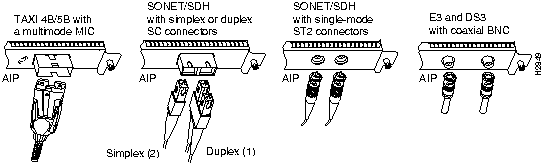
All AIP interfaces are full-duplex. You must use the appropriate ATM interface cable to connect the AIP with an external ATM network.
The AIP provides an interface to ATM switching fabrics for transmitting and receiving data at rates of up to 155 Mbps bidirectionally; the actual rate is determined by the physical layer interface module (PLIM). Figure 3-7 illustrates the types of connections available for the AIP.
Note The PLIM in your AIP determines which connection you can use.
The AIP can support the following physical layers:
- TAXI 4B/5B 100 Mbps multimode fiber optic
- SONET/SDH 155 Mbps multimode fiber optic---STS-3C or STM-1
- SONET/SDH 155 Mbps single-mode fiber optic---STS-3C or STM-1
- E3 34 Mbps coaxial cable
- DS3 45 Mbps (± 20 parts per million [ppm]) coaxial cable
Figure 3-7 ATM Connections to the AIP---Partial Views of the AIP

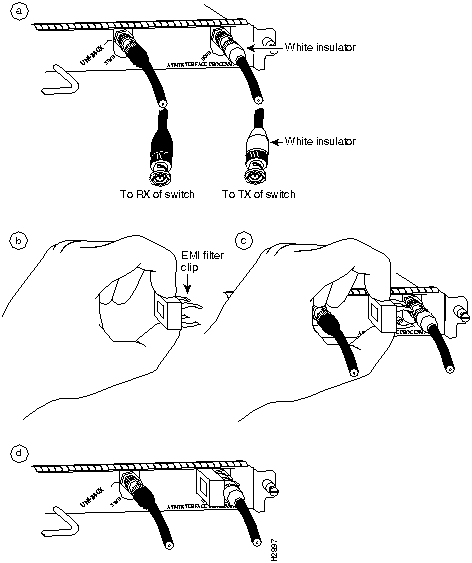
Caution To ensure compliance with EMI standards, the E3 PLIM connection requires an EMI filter clip (CLIP-E3-EMI) on the receive port (RCVR); the DS3 PLIM connection does not require this clip. Figure 3-8 shows the EMI filter clip assembly that is required for the E3 PLIM. Do not operate the E3 PLIM without this assembly.
Note The E3 and DS3 PLIMs require cable CAB-ATM-DS3/E3. If you have an E3 PLIM, you must follow steps 1 through 3 to install the CAB-ATM-DS3/E3 cable and EMI filter assembly. If you do not have an E3 PLIM, proceed to the appropriate section for your configuration.
- Step 1 Attach the CAB-ATM-DS3/E3 cable to the transmit (XMTR) and receive (RCVR) ports on the E3 PLIM. (See Figure 3-8a.)
- One portion of the cable has a white insulator on both ends to ensure that the receive-to-transmit and transmit-to-receive relationship is maintained between the E3 PLIM and your ATM switch. The portion of the cable with the white insulators should attach between receive and transmit or transmit and receive ports of the E3 PLIM and your ATM switch, respectively.
- Step 2 Hold the EMI filter clip as shown in Figure 3-8b and attach it to the receive cable as shown in Figure 3-8c. The EMI clip should make a mechanical connection between the metal sleeve on the PLIM connector and the metal sleeve on the cable connector.
- Step 3 To ensure that the clip is not pulled off when adjacent interface processors are removed, position the clip parallel to the orientation of the AIP. (See Figure 3-8d.)
Figure 3-8 Installing the CAB-ATM-DS3/E3 Cable and EMI Filter Clip Assembly
For more information on the AIP, refer to the sections "Distance Limitations and Interface Specifications" and "ATM Connection Equipment" in the chapter "Preparing for Installation," and the section "Configuring the AIP" in the chapter "Maintaining the Router."
You can also refer to the Asynchronous Transfer Mode Interface Processor (AIP) Installation and Configuration publication (Document Number 78-1214-xx), which is available on Cisco Connection Documentation CD-ROM or in print.
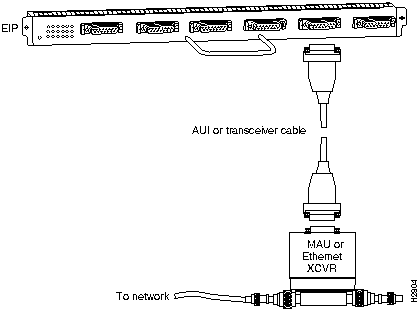
An Ethernet transceiver or MAU should already be connected to your network. Connect each Ethernet port on the EIP to an Ethernet transceiver with a transceiver cable, or to an attachment unit with an attachment unit interface (AUI). Figure 3-9 shows an example of a typical connection. Some transceivers connect directly to the Ethernet port on the EIP (usually the 10BaseT type) and do not require an interface cable. On each EIP port, slide the metal bracket up over two posts on the cable connector, or tighten the thumbscrews to secure the cable in the port and provide strain relief. For descriptions of the connection equipment and connector locks, refer to the section "Ethernet Connection Equipment" in the chapter "Preparing for Installation."
Figure 3-9 Ethernet Connections
For an MII connection, a 100BASE-T transceiver or MAU should already be connected to your network. The RJ-45 connection does not require an external transceiver.
On a single 100BASE-T port adapter, you can use either the RJ-45 connection or the MII connection. If you have two 100BASE-T port adapters on your FEIP, you can use the RJ-45 connection on one and the MII connection on the other.
Note Do not simultaneously connect MII and RJ-45 cables to one 100BASE-T port adapter. RJ-45 and MII cables are not available from Cisco Systems.
If you have RJ-45 connections, attach the Category 5 UTP cable directly to the RJ-45 port on the FEIP. (See Figure 3-10.) If you have MII connections, attach an MII cable directly to the MII port on the FEIP or attach a 100BASE-T or 100BASE-F transceiver, with the media appropriate to your application, to the MII port on the FEIP.
Figure 3-10 Fast Ethernet Connections
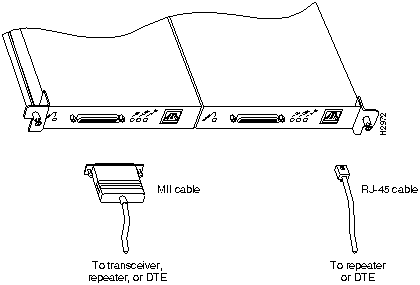
Attach the network end of your RJ-45 or MII cable to your 100BASE-T or 100BASE-F transceiver, switch, hub, repeater, DTE, or whatever external 100BASE-T equipment you have.

Caution To prevent problems on your FEIP and network, do not simultaneously connect RJ-45 and MII cables to one 100BASE-T port adapter. On a single 100BASE-T port adapter, only one network connection can be used at one time. Only connect cables that comply with EIA/TIA-588 standards.
Connecting bus and tag or Enterprise System Connection (ESCON) cables between the CIP and a host processor is beyond the scope of this publication. The specific CIP connection requirements are discussed in detail in the Channel Interface Processor (CIP) Installation and Configuration publication (Document Number 78-1342-xx). This configuration note, which ships with the CIP installed in your chassis, is available on Cisco Connection Documentation CD-ROM or in print.
Each Token Ring interface connects to the ring through a MAU or a multistation access unit (MSAU), which should already be connected to the ring. Connect the Type 1 or Type 3 lobe cables to the appropriate TRIP ports and tighten the thumbscrews to secure the cable in the port and provide strain relief. Then connect the network end of each lobe cable to the MAU or MSAU. For descriptions of the connection equipment, refer to the section "Token Ring Connection Equipment" in the chapter "Preparing for Installation."
Figure 3-11 Token Ring Connections
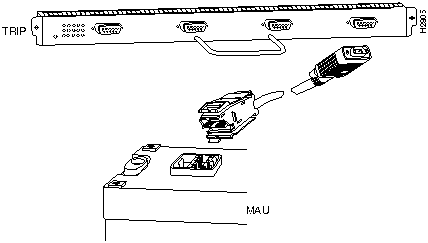
The speed of each Token Ring port must match the speed of the ring to which it is connected. The default speed for all TRIP ports is 4 Mbps, which you can change to 16 Mbps on any port with the configuration command ring-speed n, where n is the speed (4 or 16) in Mbps. Before you enable the Token Ring interfaces, ensure that each is set for the correct speed, to avoid bringing down the ring.
The following sample session changes the ring speed on Token Ring port 1/2 from the default 4 Mbps to 16 Mbps:
Router## configure terminal
Router(config)# int tokenring 1/2
Router(config-if)# ring-speed 16
Router(config-if)# ^Z
Router# copy running-config startup-config
[OK]

Caution To prevent problems on the ring, each TRIP port must be configured for the same ring speed as the ring to which it is connected: either 4 or 16 Mbps. If the port is set for a different speed, it will cause the ring to beacon, which effectively brings the ring down and makes it inoperable.
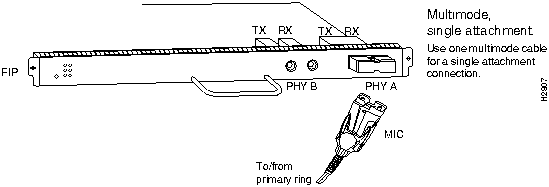
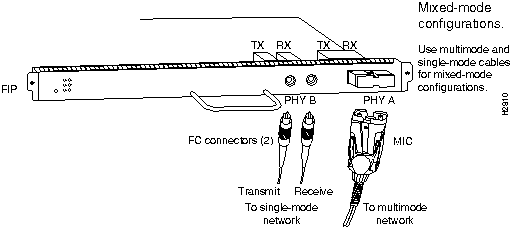
Both single-mode and multimode connections are available and can be combined on one FIP. The fiber-optic cable connects directly to the FIP ports. Single-mode uses separate transmit and receive cables. You will need two single-mode cables for a single attachment connection or four cables for a dual attachment connection. Multimode uses one integrated transmit/receive cable for each physical interface (one for PHY A and one for PHY B). You will need one multimode cable for a single attachment connection, and two cables for a dual attachment connection. Figure 3-17, which shows the connections for a dual attachment connection that uses both single-mode and multimode fiber, illustrates the types of connections used for both fiber modes. For cable and connector descriptions, refer to the section "FDDI Connection Equipment" in the chapter "Preparing for Installation."
Note Each station in a ring refers to its neighbor stations as upstream or downstream neighbors. The stream is based on the signal flow on the primary ring. A station receives the primary signal from its upstream neighbor and transmits the primary signal to its downstream neighbor.
This section also provides instructions for connecting an optical bypass switch to a dual attachment multimode network connection. Because the method of connecting optical bypass switches varies between different manufacturer's models, refer to the documentation for your particular bypass switch for correct connection instructions. If you are installing an optical bypass switch, proceed to "Installing an Optical Bypass Switch" in this chapter.

Warning Invisible laser radiation may be emitted from the aperture ports of the single-mode FDDI products when no fiber cable is connected. Avoid exposure and do not stare into open apertures. This product meets the Class 1 Laser Emission Requirement from CDRH FDDI.
A FIP that is connected as a single attachment station (SAS) typically is connected to the ring through a concentrator. The FIP receives and transmits the signal through the same physical interface, usually PHY A. Depending on whether you are connecting to a single-mode or multimode fiber network, connect the FIP as follows:
- Single-mode---Connect one single-mode interface cable to the PHY A transmit port and one to the PHY A receive port. (See Figure 3-12.) Connect the opposite end of each cable to the concentrator transmit and receive ports as specified by the concentrator manufacturer.
- Multimode---Connect the multimode interface cable between one of the M ports on the concentrator and the PHY A port on the FIP. (See Figure 3-13.) Be sure to observe and match the port labels on the MIC and the FIP ports; connect receive on the cable to PHY A receive. Follow the concentrator manufacturer's instructions for connecting the opposite end of the cable.
If you are connecting other FIPs as dual attachment stations (DASs), proceed to the following section.
Figure 3-12 Single Attachment Station---Single-Mode Fiber Network Connections
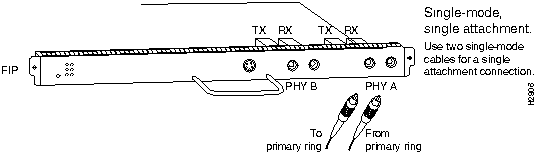
Figure 3-13 Single Attachment Station---Multimode Fiber Network Connections
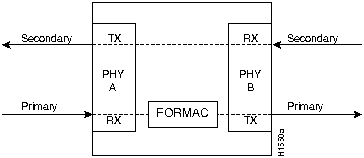
A FIP that is connected as a DAS connects to both the primary and secondary rings. The signal for each ring is received on one physical interface (PHY A or PHY B) and transmitted from the other. The standard connection scheme (which is shown in Figure 3-14) for a DAS dictates that the primary ring signal comes into the FIP on the PHY A receive port and returns to the primary ring from the PHY B transmit port. The secondary ring signal comes into the FIP on the PHY B receive port and returns to the secondary ring from the PHY A transmit port. Failure to observe this relationship will prevent the FDDI interface from initializing. Figure 3-17 shows the connections for a dual attachment that uses both multimode and single-mode fiber.
Figure 3-14 FDDI DAS Ports
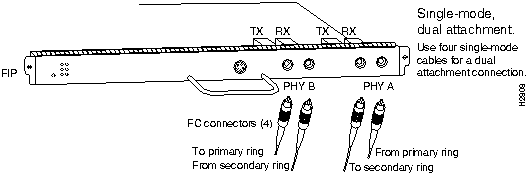
Depending on whether you are connecting to a single-mode or multimode fiber network, connect the FIP as follows:
- Single-mode---Observe the standard connection scheme described previously and refer to Figure 3-15 while you connect the interface cables as follows:
- Connect the cable coming in from the primary ring (from PHY B at the primary ring upstream station) to the FIP PHY A receive port.
- Connect the cable going out to the primary ring (to PHY A at the primary ring downstream station) to the FIP PHY B transmit port.
- Connect the cable coming in from the secondary ring to the FIP PHY B receive port.
- Connect the cable going out to the secondary ring to the FIP PHY A transmit port.
Figure 3-15 Dual Attachment Station---Single-Mode Fiber Network Connections
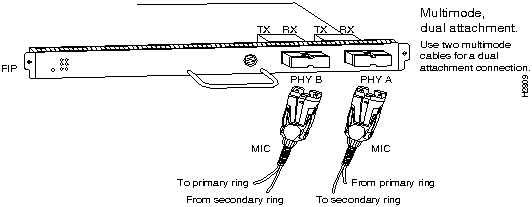
- Multimode---Each of the integrated transmit/receive multimode interface cables attaches to both the primary and secondary ring; each one receives the signal from one ring and transmits to the other ring. (See Figure 3-16.) To help avoid confusion, use the receive label on the cable MIC as a key and connect the cables to the FIP ports as follows:
- Connect the cable coming in from the primary ring to the PHY A receive port. This also connects the signal going out to the secondary ring to the PHY A transmit port.
- Connect the cable coming in from the secondary ring to the PHY B receive port. This also connects the signal going out to the primary ring to the PHY B transmit port.
Figure 3-16 Dual Attachment Station---Multimode Fiber Network Connections
- Mixed mode---Follow the cabling guidelines described previously to connect the multimode and single-mode interface cables. Figure 3-17 shows that the primary ring signal is received on the multimode PHY A receive port and transmitted from the single-mode PHY B transmit port. Your configuration may be opposite, with multimode on PHY B and single-mode on PHY A. Connect the cables to the FIP ports as follows:
- Connect the cable coming in from the primary ring to the PHY A receive port, and connect the signal going out to the secondary ring to the PHY A transmit port.
- Connect the cable coming in from the secondary ring to the PHY B receive port. This also connects the signal going out to the primary ring to the PHY B transmit port.
Figure 3-17 FDDI Dual Attachment Network Connections---Single-Mode and Multimode
If you are connecting an optical bypass switch, proceed to the next section. Otherwise, proceed to "Connecting the Console Terminal" in this chapter.
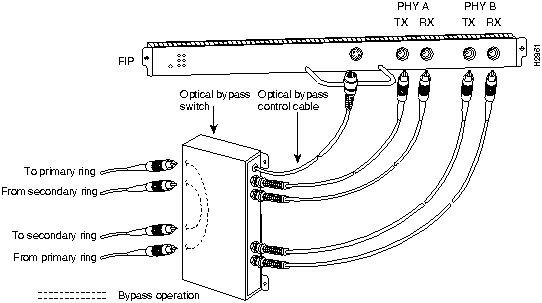
An optical bypass switch is a device installed between the ring and the station that provides additional fault tolerance to the network. If a FIP that is connected to a bypass switch fails or shuts down, the bypass switch activates automatically and allows the light signal to pass directly through it, bypassing the FIP completely. A port for connecting an optical bypass switch is provided only on the multimode/multimode FIP (CX-FIP-MM, shown in Figure 3-18) and the single-mode/single-mode FIP (CX-FIP-SS, shown in Figure 3-19).
The optical bypass control port on the FIP is a six-pin mini-DIN receptacle. Some optical bypass switches use DIN connectors, and some use a mini-DIN. A DIN-to-mini-DIN cable (CAB-FMDD) is included with the FIP to connect optical bypass switches that use the larger DIN connector. Up to 100 milliamperes (mA) of current can be supplied to the bypass switch.
Following are general instructions for connecting an optical bypass switch to the FIP; however, your particular bypass switch may require a different connection scheme. Use these steps as a general guideline, but refer to the instructions provided by the manufacturer of the switch for specific connection requirements.
- Connect the bypass switch to the ring. Unless the documentation that accompanies the bypass switch instructs otherwise, observe the same guidelines for connecting the A/B ports on the bypass switch that you would to connect the ring directly to the FIP ports. Use the receive label on the multimode and single-mode cables as a key and connect the cables to the network (ring) side of the bypass switch as follows:
- Connect the cable coming in from the primary ring (from PHY B at the preceding station) to the PHY A receive port on the network (ring) side of the bypass switch. This also connects the signal going out to the secondary ring to the PHY A transmit port.
- Connect the cable coming in from the secondary ring (from PHY A at the preceding station) to the PHY B receive port on the network (ring) side of the bypass switch. This also connects the signal going out to the primary ring to the PHY B transmit port.
- Connect the bypass switch to the FIP. Unless the documentation that accompanies the bypass switch instructs otherwise, consider the bypass an extension of the FIP ports and connect A to A and B to B. The network cables are already connected to the bypass switch following the standard B-to-A/A-to-B scheme.
- Connect an interface cable between the PHY A port on the station (FIP) side of the bypass switch and the FIP PHY A port.
- Connect an interface cable between the PHY B port on the station (FIP) side of the bypass switch and the FIP PHY B port.
- Connect the bypass switch control cable. If the control cable on your optical bypass switch uses a mini-DIN connector, connect the cable directly to the mini-DIN optical bypass port on the FIP. If the switch uses a standard DIN connector, use the optical bypass adapter cable supplied with each FIP. Connect the DIN end of the adapter cable to the DIN end of the control cable, and connect the mini-DIN end of the adapter cable to the mini-DIN optical bypass port on the FIP.
Figure 3-18 Optical Bypass Switch Connections for the CX-FIP-MM
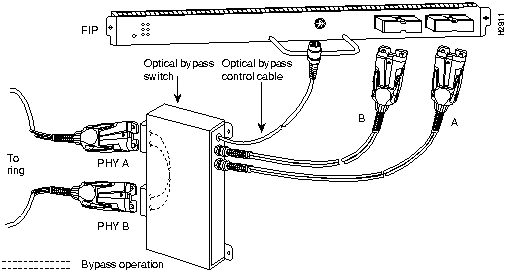
Figure 3-19 Optical Bypass Switch Connection for the CX-FIP-SS
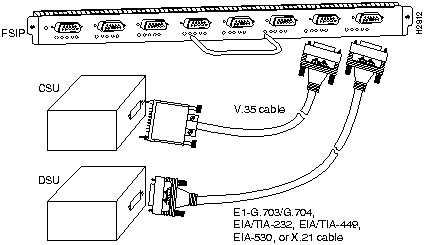
All FSIP ports support any available interface type and mode. The serial adapter cable determines the electrical interface type and mode of the port to which it is connected. EIA/TIA-232, EIA/TIA-449, V.35, and X.21 interfaces are available in DTE mode with a plug at the network end and in DCE mode with a receptacle at the network end. EIA-530 is available only in DTE mode with a plug. For descriptions and illustrations of each connector type, refer to the section "Serial Connection Equipment" in the chapter "Preparing for Installation." For cable serial pinouts, refer to the appendix "Cabling Specifications."
When connecting serial devices, consider the adapter cables as an extension of the router for external connections; therefore, use DTE cables to connect the router to remote DCE devices such as modems or DSUs, and use DCE cables to connect the router to remote DTE devices such as a host, PC, or another router. (See Figure 3-20.) The optional or additional connection equipment required depends on the interface type of each port.
Figure 3-20 Serial Port Adapter Cable Connections
Note The serial port adapter cable determines the electrical interface type and mode of the FSIP port. When connecting a remote DTE device (which means that the FSIP port is a DCE interface), you must set the clock rate with the clockrate command. For an example configuration using this command, refer to the section "Configuring Timing (Clock) Signals" in the chapter "Maintaining the Router." For complete command descriptions and instructions, refer to the related software documentation.
 Caution To prevent system problems, do not install a Serial Interface Processor (SIP), (also called the SX-SIP or PRE-FSIP) in your Cisco 7505 chassis. This early interface processor is not supported on the CyBus and cannot be used in the Cisco 7505 chassis.
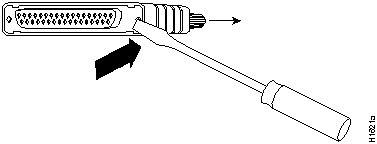
A pair of metric thumbscrews is included with each port adapter cable except V.35. If you will connect serial cables to a remote device that uses metric hardware, replace the standard 4-40 thumbscrews at the network end of the cable with the M3 thumbscrews. To remove thumbscrews, use the flat side of a large (1/4-inch) flat-blade screwdriver to push the tip of the screw into the connector housing and out the other side. (See Figure 3-21.) If the screw resists, use pliers to pull it out. Insert the new thumbscrew and push it into the connector housing until it pops into place.
Figure 3-21 Replacing Standard 4-40 Thumbscrews With M3 Metric Thumbscrews
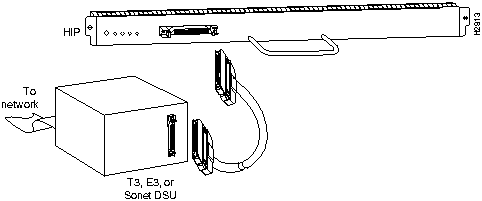
The HIP HSSI port functions as a DTE when it is connected to a DSU for a standard HSSI connection. It can also be connected to a collocated router with a null modem cable. To connect the router to a HSSI network, use a HSSI cable between the HIP port and the DSU. Both ends of the HSSI cable are the same, so you can connect either end to the HIP or DSU. (See Figure 3-22.)
Figure 3-22 HSSI Network Connection
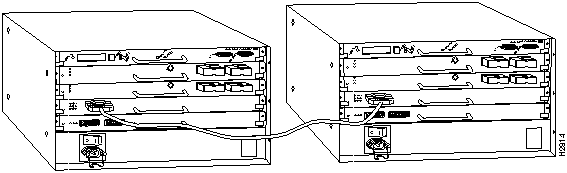
To connect two routers back to back in order to verify the operation of the HSSI port or to build a larger node, use a null modem cable between available HSSI ports in two separate routers. The two routers must be in the same location, and can be two Cisco 7505s, two Cisco 7000 series routers, or one of each. When you configure the ports, you must enable the internal transmit clock on the HSSI interface in both routers with the hssi internal-clock command. Negate this command, when you disconnect the cable, with the no hssi internal-clock command. For more information, refer to the related software command reference publications.
Figure 3-23 HSSI Null Modem Connection
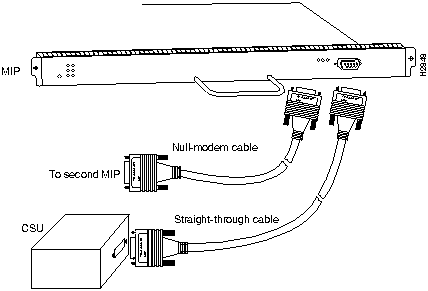
Two standard T1 serial cables are available from Cisco Systems and other vendors for use with the MIP: null-modem and straight-through. These interface cables are used to connect your MIP to additional MIP s or external CSUs, respectively.
You must use null-modem cables for MIP-to-MIP connections and straight-through cables for MIP-to-CSU connections. The T1 cables used to connect the MIP with external T1 equipment have DB-15 male connectors on each end.
Four E1 cables are available from Cisco Systems and other vendors for use with the MIP: BNC, Twinax, DB-15, and RJ-45. The E1 cables used to connect the MIP with external equipment have a DB-15 male connector on the MIP end.
Connect the MIP cables as shown in Figure 3-24.
Figure 3-24 MultiChannel (MIP) Network Connection
The system console port on the RSP1 is a DCE DB-25 receptacle for connecting a data terminal, which you will need to configure and communicate with your system. The console port is located on the RSP1 to the right of the auxiliary port and is labeled Console, as shown in Figure 3-25.
Before connecting the console port, check your terminal's documentation to determine the baud rate of the terminal you will be using. The baud rate of the terminal must match the default baud rate (9600 baud). Set up the terminal as follows: 9600 baud, 8 data bits, no parity, and 2 stop bits (9600, 8N2)
Use the console cable provided to connect the terminal to the console port on the RSP1, then follow the steps in the section "Starting the Router" in this chapter.
Figure 3-25 Console and Auxiliary Port Connections
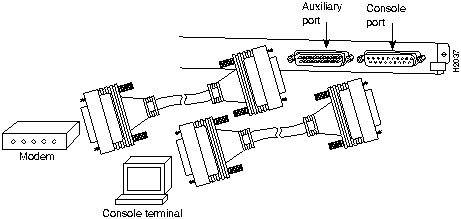
Note Both the console and auxiliary ports are asynchronous serial ports; any devices connected to these ports must be capable of asynchronous transmission. (Asynchronous is the most common type of serial device; for example, most modems are asynchronous devices.)
The auxiliary port is a DB-25 plug DTE port for connecting a modem or other DCE device (such as a CSU/DSU or other router) to the router. The port is located on the RSP1 above the console port and is labeled Auxiliary. An example of a modem connection is shown in Figure 3-25.
When all interfaces are connected, perform a final check of all connections, then power up the router as follows:
- Step 1 Check the following components to make sure they are secure:
- Each interface processor is inserted all the way into its slot, and all of the captive installation screws are tightened.
- All interface cable connections are secured.
- Any installed PCMCIA cards are secure in their slots.
- The system power cable is connected and secured with the cable retention clip or appropriate strain relief.
- Step 2 Check the console terminal and make sure it is turned on.
- Step 3 When you have checked all of the connection points above, turn on the power supply by pushing the system power (rocker-type) switch to on (|). The DC OK indicator on the interface processor end of the router should go on.
- Step 4 Listen for the system fans; you should immediately hear them operating.
- Step 5 On the RSP1, the normal LED indicator goes on. If this indicator is not on after system initialization, an error occurred. Refer to the chapter "Troubleshooting the Installation" for troubleshooting procedures.
- Step 6 During the boot process, the LED indicators on most of the interfaces go on and off in irregular sequence. Some may go on, go out, and go on again for a short time. Some will stay on during the entire boot process (such as the EIP receive LED, which stays on as it detects traffic on the line) if an interface is already configured and brought up. Wait until the system boot is complete before attempting to verify the status of interface processor indicators.
- Step 7 When the system boot is complete (a few seconds), the RSP1 begins to initialize the interface processors. During this initialization, the indicators on each interface processor behave differently (most flash on and off). The enabled LED on each interface processor goes on when initialization has been completed, and the console screen displays a script and system banner similar to the following:
        GS Software (GS7), Version 10.3(3)
Copyright (c) 1986-1995 by Cisco Systems, Inc.
Compiled Wed 10-May-95 11:06
- Step 8 When you start up the router for the first time, the system automatically enters the setup command facility, which determines which interfaces are installed and prompts you for configuration information for each one. On the console terminal, after the system displays the system banner and hardware configuration, you will see the following System Configuration Dialog prompt:
         --- System Configuration Dialog ---
At any point you may enter a questions mark `?' for help.
Refer to the `Getting Started' Guide for additional help.
Default settings are in square brackets `[]'. continue with
configuration dialog? [yes]:
- You have the option of proceeding with the setup command facility to configure the interfaces, or exit from setup and use configuration commands to configure global (system-wide) and interface-specific parameters. You do not have to configure the interfaces immediately; however, you cannot enable the interfaces or connect them to any networks until you have configured them.
Many of the interface processor LEDs will not go on until you have configured the interfaces. In order to verify correct operation of each interface, complete the first-time startup procedures and configuration, then refer to the LED descriptions in the appendix "Reading LED Indicators" to check the status of the interfaces.
Your installation is complete. Proceed to the appropriate software publications to configure your interfaces.
Note If the system does not complete each of these steps, proceed to the chapter "Troubleshooting the Installation," for troubleshooting recommendations and procedures.
The Flash memory (PCMCIA) card that shipped with your Cisco 7505 contains the Cisco IOS software image. In some cases, you might need to insert a new Flash memory card and copy images or backup configuration files onto it. Before you can use a new Flash memory card, you must format it.
Note The following procedure assumes you have already booted your router.
 Caution The following formatting procedure erases all information on the Flash memory card. To prevent the loss of important data that might be stored on a Flash memory card, proceed carefully. If you wish to save the data on a Flash memory card, upload the data to a server before you format the card.
Use the following procedure to format a new Flash memory card:
- Step 1 Using the procedure in the section "Replacing a Flash Memory Card" in the chapter "Maintaining the Router," insert the Flash memory card into Slot 0. (If Slot 0 is not available, use Slot 1.)
- Step 2 To format the card, use the format slot0 bootflash: (or format slot1 bootflash:) command as follows:
Router# format slot0 bootflash:
All sectors will be erased, proceed? [confirm] y
Enter volume id (up to 30 characters): MyNewCard
64.63.62.61.60.59.58.57.56.55.54.53.52.51.50.49.48.47.46.45.44.43.42.41.40.39.38.
37.36.35.34.33.32.31.30.29.28.27.26.25.24.23.22.21.20.19.18.17.16.15.14.13.12.11.
10.9.8.7.6.5.4.3.2.1.
Router#
Note In the previous command example, the dots (.) indicate the sector was already erased. If asterisks (*) had appeared instead of dots, these would have indicated that data was found in the sector and it was erased.The bootflash: argument is required to allow the Flash memory card to be a boot memory device. For this example, an 8-MB Flash memory card was used and the system counted the card's sectors backward from 64 to 1. For 16-MB Flash memory cards, the system counts backward from 128 to 1, and for the 20-MB Flash memroy cards, the system counts backward from 160 to 1.
The new Flash memory card is now formatted and ready to use.
Note For complete command descriptions and configuration information, refer to the Router Products Command Reference Addendum (for Cisco IOS Release 10.3) and the Router Products Configuration Guide Addendum (for Cisco IOS Release 10.3).
With the Flash memory card formatted, you can now copy a bootable image into it. To copy an image, use the following procedure, which assumes the following:
- You have an RSP1 with a good image in the onboard Flash SIMM so you can start the router
- The bootable image you wish to copy to the Flash memory card exists on a TFTP server to which you have access (know its name and have connectivity to it), and at least one interface is available over which you can access this server
Note To assure access to a TFTP sever, you will need to configure at least one interface using the setup command facility. For instructions on using this procedure, refer to the Router Products Configuration Guide Addendum (for Cisco IOS Release 10.3) or Router Products Getting Started Guide Addendum (for Cisco IOS Release 10.3) publications.
- You know the filename of the image you wish to copy into the Flash memory card
Following is the procedure for copying a bootable file (called new.image) into the Flash memory card:
- Step 1 Boot the router and allow it to initialize.
- Step 2 Insert an unformatted Flash memory card and format it using the procedure in the section "Formatting a Flash Memory Card," then proceed to Step 3.
Note If you have already formatted a Flash memory card, you can use it instead; however, you cannot boot from a Flash memory card formatted on another type of system. You must reformat it to use it as a boot source.
- Step 3 To enable the router, copy the image new.image to the Flash memory card, make this image in the Flash memory card (in Slot 0) the default boot image, and reboot the router, use the following series of commands:
Router> en
Password:
Router# copy tftp:new.image slot0:new.image
Address or name of remote host [1.1.1.1]? <Return>
Accessing file "new.image" on 1.1.1.1 ...FOUND, size = 644
!!!
Copying from "new.image" to "slot0:new.image"
Loading myfile1 from 1.1.1.1 (via Ethernet0/0): !
[OK - 644/1024 bytes]
!
Checking slot0 CRC . Done
!!
Router# config terminal
Router(config)# boot system flash slot0:new.image
Router(config)# ^z
Router# copy running-config startup-config
Router# reload
When the system reloads it will boot the image new.image from the Flash memory card in Slot 0.
As future releases of Cisco IOS images become available, you will receive these images either as a netbooted file, a file on floppy disk, or a file on a Flash memory card.
The following scenario describes how to use a newly released image on a Flash memory card, in a system that has an older image on a Flash memory card in Slot 0 (and a default boot image in the onboard Flash SIMM).
For this scenario, the filenames are as follows:
- the new image on the new Flash memory card is image.new
- the old image in the Flash memory card in Slot 0 is image.old
- the bootable image in onboard Flash memory is image.boot
You will copy the new image from the new Flash memory card onto the Flash memory card that contains the old image.
Note The scenario assumes that the new image will fit on the Flash memory card in Slot 0, alongside the old image. If there is not enough available space, use the delete command to delete files from the Flash memory card to make sufficient room for the new image; however, do not delete the image.old file. If, after you have deleted files, the two files cannot coexist on the Flash memory card in Slot 0, remove this card (place it in an anti-static bag and store it in a safe place), then insert the new Flash memory card (with the file image.new) in Slot 0. Proceed to Step 5 and use the command boot system flash slot0:image.new to designate the file image.new as the default boot image.
- Step 1 Boot the router. By default, the file image.boot will be used.
- Step 2 Enable the router as follows:
Router> en
Password:
Router#
- Step 3 Insert the new Flash memory card in Slot 1.
- Step 4 Use the following command to copy the file image.new in Slot 1, to the Flash memory card in Slot 0, only if there is enough memory space for the two images to coexist. If there is not enough memory space, proceed to Step 5.
Router# copy slot1:image.new slot0:image.new
- Step 5 Use the following commands to designate the file image.new (which is in the Flash memory card in Slot 0) as the default boot image:
Router# config t
Router(config)# boot system flash slot0:image.new
Router(config)# ^z
Router# copy running-config startup-config
Router# reload
When the system reloads it will boot the file image.new from the Flash memory card in Slot 0.
Copyright 1988-1995
©
Cisco Systems Inc.



