


|
|

This chapter provides maintenance procedures for the router, its processor modules, and its replacable (spare) parts. Your router is configured to your order and ready for installation and startup when it leaves the factory. In the future, as your communication requirements change, you may want to upgrade your system, add components, or change the initial configuration. This chapter describes the procedures for installing, replacing, and reconfiguring interface processors, and for adding and replacing internal system components and spare parts. Software and microcode component upgrades require specific part numbers and other frequently updated information; therefore, only basic replacement guidelines are included in this publication.
Detailed, up-to-date instructions (called configuration notes) are shipped with the replacement parts, spare parts, or upgrade kits.
The replaceable system components fall into two categories: those that support OIR and those that do not (requiring you to turn off the system power before replacement). Because interface processors support OIR, you can remove and replace them while the system is operating; however, you must shut down the system power before removing the RSP1 or either of the internal components (the fan tray or power supply).
Access to the internal components also requires that you remove the cover panel and power harness cover in the noninterface processor end of the router, which exposes the power supply backplane connection. If the power is not shut down, the high current present in the wiring, and on the backplane if the backplane cover is removed, becomes a hazard. Therefore, always make sure that the system power switch is turned off before removing any internal components or interior chassis panels.
This chapter contains information on the following:

All interface processors support OIR, which allows you to install, remove, replace, and rearrange the interface processors without turning off the system power. This feature is not supported for the RSP1 because it is required for system operation. When the system detects that an interface processor has been installed or removed, it automatically runs diagnostics and discovery routines, acknowledges the presence or absence of the interface processor, and resumes system operation without any operator intervention. This section provides installation and removal procedure for all interface processors.
This section also includes instructions for replacing spare parts on the interface processors, configuring jumpers, and using basic configuration commands that you may need when setting up new interfaces.
An EPROM component on each interface processor contains a default microcode image. New features and enhancements to the system or interfaces are often implemented in microcode upgrades. The Cisco 7505 supports downloadable microcode for most maintenance upgrades, which enables you to download new microcode images remotely and store them in Flash memory. You can then use software commands to instruct the system to load a specific microcode image from Flash or to load the default microcode image from ROM. System software upgrades also can contain upgraded microcode images, which will load automatically when the new software image is loaded. Although most upgrades support the downloadable microcode feature and are distributed on floppy disk, some may require ROM replacement. If replacement is necessary, refer to the section "Microcode Component Replacement" in this chapter. Also, specific up-to-date replacement and configuration instructions will be provided with the replacement component in the upgrade kit.
On the FSIP interface processor, you can replace a port adapters if one fails, and with software commands you can change the rate or direction of timing signals, change the default NRZ to NRZI format, or change the default 16-bit error detection cyclic redundancy check (CRC) to 32-bit CRC on individual interfaces.
The OIR feature allows you to remove and replace interface processors while the system is operating; you do not need to notify the software or shut down the system power. All interface processors support OIR. The RSP1, which is a required system component and is always installed in the top slot, should not be removed and replaced without first shutting down the system.

Each RSP1 and interface processor contains a bus connector with which it connects to the system backplane. The bus connector is a set of tiered pins, in three lengths. The pins send specific signals to the system as they make contact with the backplane. The system assesses the signals it receives and the order in which it receives them to determine what event is occurring and what task it needs to perform, such as reinitializing new interfaces or shutting down removed ones. For example, when you insert an interface processor, the longest pins make contact with the backplane first, and the shortest pins make contact last. The system recognizes the signals and the sequence in which it receives them. The system expects to receive signals from the individual pins in this logical sequence, and the ejector levers help to ensure that the pins mate in this sequence.
When you remove or insert an interface processor, the backplane pins send signals to notify the system, which then performs as follows:
OIR functionality enables you to add, remove, or replace interface processors with the system online, which provides a method that is seamless to end users on the network, maintains all routing information, and ensures session preservation.
When you insert a new interface processor, the system runs a diagnostic test on the new interfaces and compares them to the existing configuration.
If this initial diagnostic test fails, the system remains off line for another 15 seconds while it performs a second set of diagnostic tests to determine whether or not the interface processor is faulty and if normal system operation is possible.
If the second diagnostic test passes, which indicates that the system is operating normally and the new interface processor is faulty, the system resumes normal operation but leaves the new interfaces disabled. If the second diagnostic test fails, this usually indicates that the new interface processor has created a problem on the bus and should be removed.
The system brings online only interfaces that match the current configuration and were previously configured as up; all other interfaces require that you configure them with the configure command. On interface processors with multiple interfaces, only the interfaces that have already been configured are brought online.
For example, if you replace a single-PCA CIP with a dual-PCA CIP, only the previously configured interface is brought online automatically; the new interface remains in the administratively shutdown state until you configure it and bring it online.

The function of the ejector levers (see the section "Online Insertion and Removal---An Overview" in this chapter) is to align and seat the card connectors in the backplane. Failure to use the ejector levers and insert the interface processor properly can disrupt the order in which the pins make contact with the backplane. Follow the FSIP installation and removal instructions carefully, and review the following examples of incorrect insertion practices and results:
It is also important to use the ejector levers when removing an interface processor to ensure that the board connector pins disconnect from the backplane in the logical sequence expected by the system. Any RSP1 or interface processor that is only partially connected to the backplane can hang the bus. Detailed steps for correctly performing OIR are included in the following procedures for installing and removing interface processors.

Following are detailed steps for removing and replacing interface processors and successfully performing OIR. Figure 5-1 shows the functional details of the ejector levers, which you must use properly when inserting or removing interface processors.
Figure 5-1 Ejector Levers and Captive Installation Screws
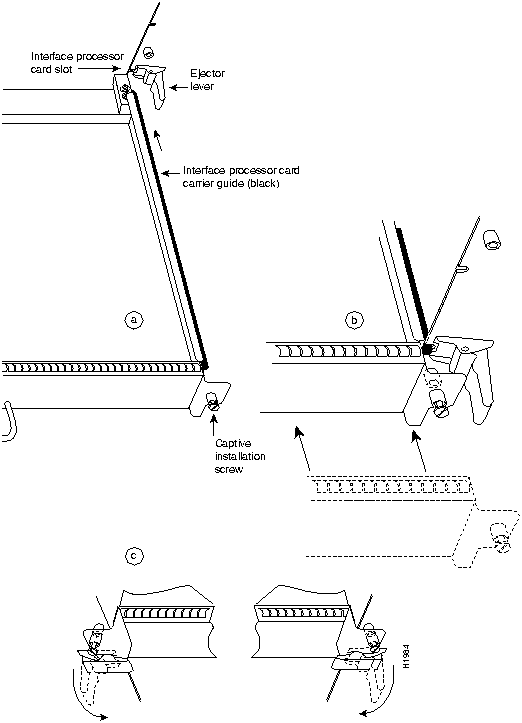
You will need a number 1 Phillips or 3/16-inch flat-blade screwdriver to remove any blank interface processor carriers (fillers) and to tighten the captive installation screws that secure the interface processor in its slot. (Most interface processor carriers use slotted screws, but some were manufactured with Phillips screws.) Whenever you handle interface processors, use a wrist strap or other grounding device to prevent ESD damage. (See the section "Preventing Electrostatic Discharge Damage" in the chapter "Preparing for Installation.")
To remove a interface processor, follow these steps:

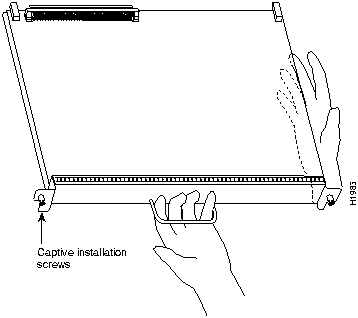
You can install interface processors in any of the four slots, numbered 0 through 3 from the bottom slot upward when viewing the chassis from the interface processor end. (See Figure 1-1.) The top slot contains the RSP1. Blank interface processor fillers are installed in slots without interface processors to maintain consistent air flow through the interface processor compartment.
Following are installation steps for the interface processors, which support OIR and can be removed and installed while the system is operating. You must turn off the system power before removing or installing an RSP1. After you have turned off the system power, the installation steps for the RSP1 are the same as those for the interface processors.
Figure 5-2 Handling an Interface Processor during Installation


When you remove and replace interface processors, the system provides status messages across the console screen. The messages are only informational. In the following sample display, the events logged by the system show that an EIP was removed from slot 0, the system reinitialized the remaining interface processors, and marked the EIP that was removed from slot 0 as down. When the EIP was reinserted, the system marked the interfaces as up again.
Router#
%OIR-6-REMCARD: Card removed from slot 0, interfaces disabled
%LINK-5-CHANGED: Interface Ethernet0/1, changed state to administratively down
%LINK-5-CHANGED: Interface Ethernet0/5, changed state to administratively down
Router#
%OIR-6-INSCARD: Card inserted in slot 0, interfaces administratively shut down
%LINK-5-CHANGED: Interface Ethernet0/1, changed state to up
%LINK-5-CHANGED: Interface Ethernet0/5, changed state to up
Each interface processor contains default microcode (firmware), which is an image of board-specific software instructions on a single EPROM on each board. Microcode operates with the system software and controls features and functions that are unique to an interface processor type. New features and enhancements to the system or interfaces are often implemented in microcode upgrades. Although each processor type contains the latest available microcode version (in ROM) when it leaves the factory, updated microcode images are periodically distributed with system software images to enable new features, improve performance, or fix bugs in earlier versions. The latest available microcode version for each interface processor type is bundled with each new system software maintenance upgrade; the bundled images are distributed as a single image on floppy disk.
Although most upgrades support the downloadable microcode feature and are distributed on floppy disk, some images may require EPROM replacement. If necessary, use the following instructions to replace an interface processor EPROM in case Flash memory is damaged or otherwise not available, or to change the default microcode on a board for any other reason. The replacement procedures are the same for each board with the exception of the FSIP, which uses a PLCC-type package for the microcode.
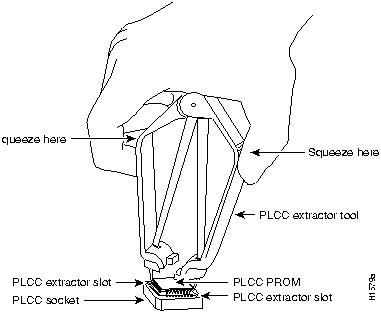
You must use a PLCC extractor to remove the FSIP microcode component. (See Figure 5-3.) You cannot use a small flat-blade screwdriver to pry it out of the socket as with the older type of ICs. A PLCC IC does not have legs or pins that plug into the socket; instead, the contacts are on the sides of the IC and along the inner sides of the socket. When the IC is seated in the socket, the top of the IC is flush with the top of the socket. Forcing a small screwdriver or other tool between the IC and the sides of the socket to pry out the IC will damage the component or the socket or both, and you will have to replace them.
Figure 5-3 Removing a Microcode Component from a PLCC-Type Package
You need the following tools to replace the microcode component:
Following are the steps for replacing the microcode EPROM on any interface processor. Refer to the illustrations of the individual interface processors in the section "Interface Processors" in the chapter "Product Overview" for socket locations.

The system automatically reloads the microcode when you insert an interface processor online or restart the system. The system default is to load the ROM-based microcode for all processor types. However, because microcode upgrades are usually distributed as files to be stored and loaded from Flash memory, the system may be configured to bypass the ROM image for a particular processor type and load an image from a Flash file instead. (This can be true for any or all processor types.) To determine whether the interface processor you just upgraded is loading the new ROM microcode or an image from Flash, issue the show controller cyBus command. The first line of the status display for each interface processor displays the currently-loaded and running microcode version for that particular processor type. The following example shows that the EIP in slot 0 is running EIP Microcode Version 10.1:
Router# show cont cybus
 EIP 0, hardware version 5.1, microcode version 10.1
  Interface 0 - Ethernet0/0, station addr 0000.0c02.d0ec (bia 0000.0c02.d0cc)
If the microcode version in the display is different from the ROM version you just installed, use the microcode card-type rom configuration command to change the configuration so the system loads the ROM microcode for that processor type. Verify that the new microcode version is loading from ROM and, if necessary, correct the configuration with the following steps:
Router> enable
Password:
Router# configure terminal
Enter configuration commands, one per line.  End with CNTL/Z.
Router(config)# microcode eip rom
Router(config)# microcode reload
Router(config)# ^Z
Router# copy running-config startup-config
[OK]
Router#
The replacement procedure is complete. If the enabled indicator does not go on after a second installation attempt, or if any of the interfaces fail to return to their previous state, refer to the troubleshooting procedures in the chapter "Troubleshooting the Installation."
This section describes the following maintenance aspects of the RSP1:
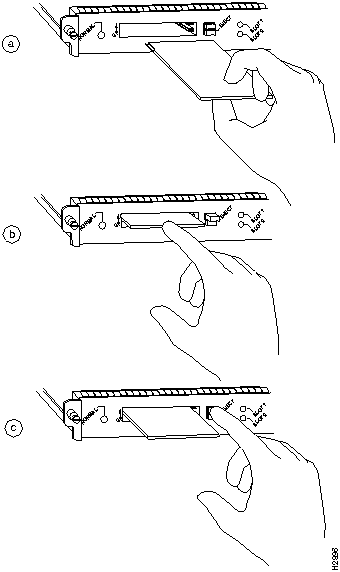
It might become necessary for you to replace or install a PCMCIA (Flash memory) card in your RSP1. The RSP1 has two PCMCIA slots: slot 0 (bottom) and slot 1 (top). (See Figure 5-5 on the following page.) The following procedure is generic and can be used for a Flash memory card in either slot position.
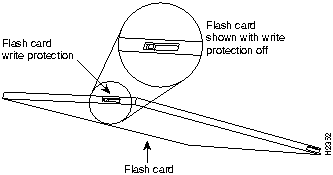
Before you install a card, verify that the Flash memory card is set with write protection off. The write protect switch is located on the front edge of the card when oriented with the printing right side up and the edge connector end away from you. (See Figure 5-4.)
Figure 5-4 Locating the Flash Memory Card Write Protection Switch
Following is the procedure for installing and removing a Flash memory card:
Figure 5-5 Installing and Removing a Flash Memory Card
This section describes the software (virtual) configuration register that is used with the RSP1.
Following is the information included in this section:
Settings for the 16-bit software configuration register are written into the NVRAM. Following are some reasons for changing the software configuration register settings:
Table 5-1 lists the meaning of each of the software configuration memory bits, and Table 5-2 defines the boot field.

Table 5-1 Software Configuration Register Bit Meanings
| Bit Number(1) | Hexadecimal | Meaning |
|---|---|---|
| 00 to 03 | 0x0000 to 0x000F | Boot field (see Table 5-2) |
| 06 | 0x0040 | Causes system software to ignore NVRAM contents |
| 07 | 0x0080 | OEM bit enabled(2) |
| 08 | 0x0100 | Break disabled |
| 09 | 0x0200 | Use secondary bootstrap |
| 10 | 0x0400 | Internet Protocol (IP) broadcast with all zeros |
| 11 to 12 | 0x0800 to 0x1000 | Console line speed (default is 9600 baud) |
| 13 | 0x2000 | Boot default Flash software if network boot fails |
| 14 | 0x4000 | IP broadcasts do not have network numbers |
| 15 | 0x8000 | Enable diagnostic messages and ignore NVRAM contents |
Table 5-2 Explanation of Boot Field (Software Configuration Register Bits 00 to 03)
| Boot Field | Meaning |
|---|---|
| 00 | Stays at the system bootstrap prompt |
| 01 | Boots the first system image in onboard Flash memory |
| 02 to 0F | Specifies a default netboot filename Enables boot system commands that override the default netboot filename |
To change the configuration register while running the system software, follow these steps:
Router> enable
Password:
Router#
Router# configure terminal
Enter configuration commands, one per line.  End with CNTL/Z.
Router(config)# config-register 0xvalue
Configuration register is 0x141 (will be 0x101 at next reload)
The lowest four bits of the software configuration register (bits 3, 2, 1, and 0) form the boot field. (See Table 5-2.) The boot field specifies a number in binary form. If you set the boot field value to 0, you must boot the operating system manually by entering the b command at the bootstrap prompt as follows:
rommon 1> b [tftp] flash filename
Definitions of the various b command options follow:
For more information about the b [tftp] flash filename command, refer to the set of router products configuration publications.
If you set the boot field value to 0x2 through 0xF, and there is a valid system boot command stored in the configuration file, then the router boots the system software as directed by that value. If you set the boot field to any other bit pattern, the router uses the resulting number to form a default boot filename for netbooting. (See Table 5-3.)
In the following example, the software configuration register is set to boot the router from onboard Flash memory and to ignore Break at the next reboot of the router:
Router# configure terminal
Enter configuration commands, one per line.  End with CNTL/Z.
Router(config)# config-register 0x102
Router(config)# boot system flash [filename]
Router(config)# ^z
Router# copy running-config startup-config
The server creates a default boot filename as part of the automatic configuration processes. To form the boot filename, the server starts with the name cisco and adds the octal equivalent of the boot field number, a hyphen, and the processor-type name. Table 5-3 lists the default boot filenames or actions for the processor.
Table 5-3 Default Boot Filenames
| Action/File Name | Bit 3 | Bit 2 | Bit 1 | Bit 0 |
|---|---|---|---|---|
| Bootstrap mode | 0 | 0 | 0 | 0 |
| Default software | 0 | 0 | 0 | 1 |
| cisco2-RSP | 0 | 0 | 1 | 0 |
| cisco3-RSP | 0 | 0 | 1 | 1 |
| cisco4-RSP | 0 | 1 | 0 | 0 |
| cisco5-RSP | 0 | 1 | 0 | 1 |
| cisco6-RSP | 0 | 1 | 1 | 0 |
| cisco7-RSP | 0 | 1 | 1 | 1 |
| cisco10-RSP | 1 | 0 | 0 | 0 |
| cisco11-RSP | 1 | 0 | 0 | 1 |
| cisco12-RSP | 1 | 0 | 1 | 0 |
| cisco13-RSP | 1 | 0 | 1 | 1 |
| cisco14-RSP | 1 | 1 | 0 | 0 |
| cisco15-RSP | 1 | 1 | 0 | 1 |
| cisco16-RSP | 1 | 1 | 1 | 0 |
| cisco17-RSP | 1 | 1 | 1 | 1 |
Bit 8 controls the console Break key. Setting bit 8 (the factory default) causes the processor to ignore the console Break key. Clearing bit 8 causes the processor to interpret the Break key as a command to force the system into the bootstrap monitor, thereby halting normal operation. A break can be sent in the first 60 seconds while the system reboots, regardless of the configuration settings.
Bit 9 controls the secondary bootstrap program function. Setting bit 9 causes the system to use the secondary bootstrap; clearing bit 9 causes the system to ignore the secondary bootstrap. The secondary bootstrap program is used for system debugging and diagnostics.
Bit 10 controls the host portion of the IP broadcast address. Setting bit 10 causes the processor to use all zeros; clearing bit 10 (the factory default) causes the processor to use all ones. Bit 10 interacts with bit 14, which controls the network and subnet portions of the broadcast address.
Table 5-4 shows the combined effect of bits 10 and 14.
Table 5-4 Configuration Register Settings for Broadcast Address Destination
| Bit 14 | Bit 10 | Address (<net> <host>) |
|---|---|---|
| Off | Off | <ones> <ones> |
| Off | On | <zeros> <zeros> |
| On | On | <net> <zeros> |
| On | Off | <net> <ones> |
Bits 11 and 12 in the configuration register determine the baud rate of the console terminal.
Table 5-5 shows the bit settings for the four available baud rates. (The factory-set default baud rate is 9600.)
Table 5-5 System Console Terminal Baud Rate Settings
| Baud | Bit 12 | Bit 11 |
|---|---|---|
| 9600 | 0 | 0 |
| 4800 | 0 | 1 |
| 1200 | 1 | 0 |
| 2400 | 1 | 1 |
Bit 13 determines the server response to a bootload failure. Setting bit 13 causes the server to load operating software from Flash memory after five unsuccessful attempts to load a boot file from the network. Clearing bit 13 causes the server to continue attempting to load a boot file from the network indefinitely. By factory default, bit 13 is cleared to 0.
To enable booting from Flash memory, set configuration register bits 3, 2, 1, and 0 to a value between 2 and 15 in conjunction with the boot system flash [filename] configuration command.
To enter configuration mode while in the system software image and specify a Flash filename from which to boot, enter the configure terminal command at the enable prompt, as follows:
Router# configure terminal
Enter configuration commands, one per line.  End with CNTL/Z.
Router(config)# boot system flash [filename]
To disable Break and enable the boot system flash command, enter the config-register command with the value shown in the following example:
Router(config)# config-reg 0x0102
Router(config)# ^Z
Router#
Copying a new image to Flash memory might be required whenever a new image or maintenance release becomes available. You cannot copy a new image into Flash memory while the system is running from Flash memory.
Use the command copy tftp:filename [ bootflash | slot0 | slot1 ]:filename for the copy procedure. Where tftp:filename is the source of the file and [ bootflash | slot0 | slot1 ]:filename is the destination in onboard Flash memory or on either of the Flash memory cards. An example of the copy tftp:filename command follows:
Router# copy tftp:myfile1 slot0:myfile1
Address or name of remote host [1.1.1.1]? <Return>
Accessing file "myfile1" on 1.1.1.1 ...FOUND, size = 644
!!!
Copying from "tftp:myfile1" to "slot0:myfile1"
Loading myfile1 from 1.1.1.1 (via Ethernet0/0): !
[OK - 644/1024 bytes]
!
Checking slot0 CRC . Done
!!
Router#
Following are additional commands related to the Flash memory on the RSP1 and on Flash memory cards. You can determine which PCMCIA slot you are accessing using the pwd command as follows:
Router# pwd
slot1
You can move between Flash memory media using the cd [ bootflash | slot0 | slot1 ] command as follows:
Router# cd slot0
slot0
Router# cd slot1
Router# pwd
slot1
You can list the directory of any Flash memory media using the dir [ bootflash | slot0 | slot1 ] command as follows:
Router# dir
-#- -length- -----date/time------ name
1   4601977  May 19 1994 09:42:19 myfile1
6   679      May 19 1994 05:43:56 todays--config
7   1        May 19 1994 09:54:53 fun1
You can delete a file from any Flash memory media using the delete command as follows:
Router# delete slot0:fun1
Router# dir
-#- -length- -----date/time------ name
1   4601977  May 19 1994 09:42:19 myfile1
6   679      May 19 1994 05:43:56 todays--config
The configuration register setting 0x2101 tells the system to boot the default image (the first image) from onboard Flash memory, but does not reset the Break disable or checking for a default netboot filename. The configuration register setting 0x2102 tells the system to boot from Flash memory if netboot fails, disable Break, and check for a default netboot filename. For more information on the copy tftp:filename [ bootflash | slot0 | slot1 ]:filename command, and other related commands, refer to the set of router products configuration and command reference publications.
An overview of recovering a lost password follows:
To recover a lost password, follow these procedures.
> o/r
> i
--- System Configuration Dialog ---
Press RETURN to get started!
Router>
Router#
Router# configure terminal
Enter configuration commands, one per line.  End with CNTL/Z.
Router(config)#
The system DRAM resides on four single in-line memory modules (SIMMs) on the RSP1. The default DRAM configuration is 16 MB. This section provides the steps for increasing the amount of DRAM by replacing the SIMMs with SIMMs that you obtain from an approved vendor.
Although the SIMM specifications are defined in the manufacturers' part numbers, the SIMMs must meet the following requirements:
You need the following parts and tools to replace SIMMs. If you need additional equipment, contact a customer service representative for ordering information.
The system DRAM resides on up to four SIMMs on the RSP1. The DRAM SIMM sockets are U4 and U12 for bank 0, and U18 and U25 for bank 1. The default DRAM configuration is 16 MB (two 8-MB SIMMs in bank 0). (See Figure 5-6.)
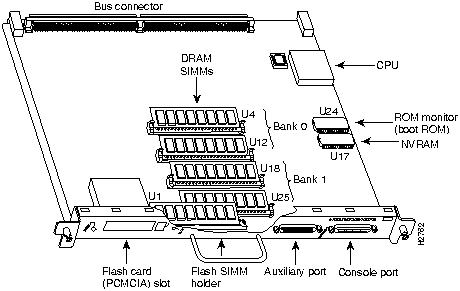
Before proceeding, ensure that you have met the following prerequisites:
To upgrade DRAM, you install SIMMs in one or both DRAM SIMM banks. Table 5-6 lists the various configurations of DRAM SIMMs that are available to you. This information is also available on CCO. Note which banks are used given the combinations of available SIMM sizes and the maximum DRAM you require.
Table 5-6 DRAM SIMM Configurations
| DRAM Bank 0 U4 and U12 |
Quantity | DRAM Bank 1 U18 and U25 | Quantity | Total DRAM |
| 2 MBx36 | 2 8-MB SIMMs | -- | -- | 16 MB |
| 2 MBx36 | 2 8 MB SIMMs | 2 MBx36 | 2 8-MB SIMMs | 32 MB |
| 4 MBx36 | 2 16-MB SIMMs | -- | -- | 32 MB |
| 4 MBx36 | 2 16-MB SIMMs | 4 MBx36 | 2 16-MB SIMMs | 64 MB |
| 8 MBx36 | 2 32-MB SIMMs | -- | -- | 64 MB |
| 8 MBx36 | 2 32-MB SIMMs | 8 MBx36 | 2 32-MB SIMMs | 128 MB |

Place removed SIMMs on an antistatic mat and store them in an antistatic bag. You can use the SIMMs that you remove in compatible equipment. To prevent ESD damage, handle SIMMs by the card edges only.
Follow these steps to remove the existing SIMMs:
Figure 5-7 Releasing the SIMM Spring Clips
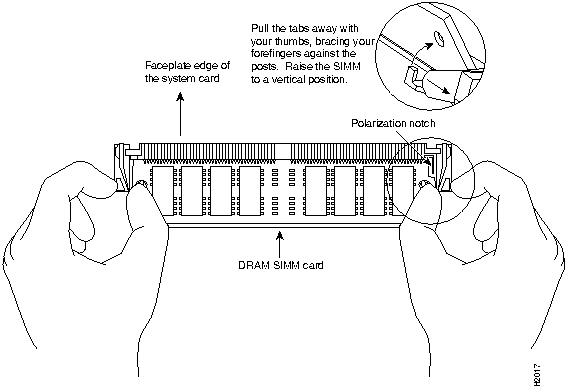
This completes the SIMM removal procedure. Proceed to the next section to install the new SIMMs.
SIMMs are sensitive components that are susceptible to ESD damage. Handle SIMMs by the edges only; avoid touching the memory modules, pins, or traces (the metal fingers along the connector edge of the SIMM).(See Figure 5-8.)


Follow these steps to install the new SIMMs:

This completes the SIMM replacement procedure.
To replace the RSP1 in the chassis, proceed to the section "Installing Interface Processors" earlier in this chapter, then restart the system for an installation check.
If the system fails to boot properly, or if the console terminal displays a checksum or memory error, check the following:
If after several attempts the system fails to restart properly, contact a service representative for assistance. Before you call, make note of any error messages, unusual LED states, or any other indications that might help solve the problem.
Configuration of the AIP is a two step process: you will configure the AIP, then you will configure the ATM switch. To configure your ATM switch, refer to the appropriate user document. To configure the AIP, complete the following tasks. The first two tasks are required, and then you must configure at least one PVC or SVC. The VC options you configure must match in three places: on the router, on the ATM switch, and at the remote end of the PVC or SVC connection.
On power up, a new AIP is shut down. To enable the AIP, you must enter the no shutdown command in the configuration mode. (See the section "Using the Configure Command," which follows.) If you installed a new AIP or want to change the configuration of an existing interface, you must enter the configuration mode. When the AIP is enabled (taken out of shutdown) with no additional arguments, the default interface configuration file parameters are as listed in Table 5-7.
Table 5-7 AIP Configuration Default Values
| Parameter | Configuration Command | Default Value |
|---|---|---|
| MTU | mtu bytes | 4,470 bytes |
| Exception queue buffers | atm exception-queue | 32 |
| ATM virtual path filter | atm vp-filter hexvalue | 0x7B (hexadecimal) |
| Receive buffers | atm rxbuff | 256 |
| Transmit buffers | atm txbuff | 256 |
| Maximum number of VCs | atm maxvc | 2,048 |
| AAL encapsulation | atm aal aal5 | AAL5 |
| ATM raw cell queue size | atm rawq-size | 32 |
| ATM VCs per VP | atm vc-per-vp | 1,024 |
| E3 interface framing | atm framing g751 | G.804 |
After you verify that the new AIP is installed correctly (the Enabled LED goes On), you can use the configure command to configure the new ATM interface. Be prepared with the information you will need, such as the interface IP address, MTU size, AAL mode, and desired rate queues.
Following are instructions for a basic configuration: enabling an interface and specifying IP routing. You might also need to enter other configuration subcommands, depending on the requirements for your system configuration and the protocols you plan to route on the interface. For complete descriptions of configuration subcommands and the configuration options available for ATM, refer to the appropriate router system software publications.
The Cisco 7505 identifies an interface address by its interface processor slot number (slots 0 to 4) and port number (port numbers 0 to 7, depending on the interface processor type) in the format slot/port. Because each AIP contains a single ATM interface, the port number is always 0. For example, the slot/port address of an ATM interface on an AIP installed in interface processor slot 1 would be 1/0.
The following steps describe a basic configuration. Before using the configure command, you must enter the privileged level of the EXEC command interpreter with the enable command. The system will prompt you for a password if one is set. Press the Return key after each configuration step unless otherwise noted.
Router# configure terminal
Router(config)# interface atm 1/0
Router(config)# ip address 10.1.2.3 255.255.255.0
Router(config)# no shutdown
Router# copy running-config startup-config
A rate queue defines the maximum speed at which an individual VC transmits data to a remote ATM host.
There are no default rate queues. Every VC must be associated with one rate queue. The AIP supports up to eight different peak rates. The peak rate is the maximum rate, in kilobits per second, at which a VC can transmit. After attachment to this rate queue, the VC is assumed to have its peak rate set to that of the rate queue.
You can configure each rate queue independently to a portion of the overall bandwidth available on the ATM link. The combined bandwidths of all rate queues should not exceed the total bandwidth available for the AIP physical layer interface. The total bandwidth depends on the PLIM. (See the section entitled "ATM Connection Equipment" in the chapter "Preparing for Installation.")
The rate queues are broken into a high (0 through 3) and low (4 through 7) bank. When the rate queues are configured, the AIP will service the high priority banks until they are empty and then service the low priority banks.
VCs get the entire bandwidth of the associated rate queue. If over subscription occurs, the other rate queues in bank A will miss the service opportunities. In the worst case, a 10-Mbps rate queue will take 100 Mbps if there are 10 VCs attached to it and all of them have packets to send at the same time.
To configure rate queue 1 at 10 Mbps, use the atm rate-queue queuenumber rate command in interface configuration mode as follows:
Router(config-if)# atm rate-queue 1 10
where the queue number is in the range of 0 to 7 and the rate (in Mbps) in the range of 1 to 155. The no form of the command removes the rate queue.
You must create a rate queue before you can create PVCs or SVCs. If all rate queues are unconfigured, a warning message will appear, as follows:
%WARNING:(ATM4/0): All rate queues are disabled
If the combined queue rates exceed the AIP physical layer interface bandwidth maximum, a warning message will appear, as follows:
%WARNING(ATM4/0): Total rate queue allocation nMbps exceeds maximum of nMbps
The AIP default values may be changed to match your network environment. Perform the tasks in the following sections if you need to customize the AIP:
The AIP interface is referred to as atm in the RP configuration commands. An interface is created for each AIP found in the system at reset time. To select a specific AIP interface, use the interface atm command, as follows:
interface atm n / i
where n is the slot number and i is the interface number.
To set the maximum transmission unit (MTU) size, use the following command:
mtu         bytes
no mtu
where bytes is in the range of 64 through 9188 bytes and the default is 4470 bytes. (4470 bytes exactly matches FDDI and HSSI interfaces for autonomous switching.) The no form of the command restores the default.
In STM-1 mode, the AIP sends idle cells for cell-rate decoupling. In STS-3C mode, the AIP sends unassigned cells for cell-rate decoupling. The default SONET setting is STS-3C. To configure for STM-1, use the following command:
atm sonet stm-1
To change back to STS-3C, use the no atm sonet stm-1 command.
To configure an ATM interface for local loopback (useful for checking that the AIP is working), use the following command:
        loopback plim
no loopback plim
The no form of the command turns off loopback.
The atm rxbuff command sets the maximum number of reassemblies that the AIP can perform simultaneously. The AIP allows up 512 simultaneous reassemblies; the default is 256. The no form of the command restores the default.
The E3 interface supports G.804 and G.751 framing. The default is G.804. To set the framing to G.751, use the following command:
        atm framing g751
no atm framing g751
The no atm framing g751 command resets the E3 interface to the default G.804 framing.
To set the number of transmit buffers for simultaneous fragmentation, use the following command:
        atm txbuff n
no atm txbuff
where n is in the range 0 to 512. The default is 256.
By default, the AIP uses the recovered receive clock to provide transmit clocking. To specify that the AIP generates the transmit clock internally for SONET, E3, and DS3 PLIM operation, use the following command:
atm clock internal
A VC is a point-to-point connection between remote hosts and routers. A VC is established for each ATM end node with which the router communicates. The characteristics of the VC are established when the VC is created and include the following:
Each VC supports the following router functions:
By default, fast switching is enabled on all AIP interfaces. These switching features can be turned off with interface configuration commands. Autonomous switching must be explicitly enabled per interface.
All PVCs, configured into the router, remain active until the circuit is removed from the configuration. The PVCs also require a permanent connection to the ATM switch.
All virtual circuit characteristics apply to PVCs. When a PVC is configured, all the configuration options are passed on to the AIP. These PVCs are writable into the nonvolatile RAM (NVRAM) as part of the RP configuration and are used when the RP image is reloaded.
Some ATM switches have point-to-multipoint PVCs that do the equivalent of broadcasting. If a point-to-multipoint PVC exists, then that PVC can be used as the sole broadcast PVC for all multicast requests.
To configure a PVC, you must perform the following tasks:
When you create a PVC, you create a virtual circuit descriptor (VCD) and attach it to the VPI and VCI. A VCD is an AIP-specific mechanism that identifies to the AIP which VPI/VCI to use for a particular packet. The AIP requires this feature to manage the packets for transmission. The number chosen for the VCD is independent of the VPI/VCI used.
When you create a PVC, you also specify the AAL and encapsulation. A rate queue is used that matches the peak and average rate selections, which are specified in kilobits per second. Omitting a peak and average value causes the PVC to be connected to the highest bandwidth rate queue available. In that case, the peak and average values are equal.
To create a PVC on the AIP interface, use the atm pvc command. To remove a PVC, use the no form of this command.
atm pvc vcd vpi vci         aal-encap [peak] [average] [cell-quota]
no atm pvc vcd
For example:
Router(config)# interface atm 2/0
Router(config-if)# atm pvc 2048 255 128 aal5snap 10 10 2046
vcd---A per-AIP unique index value describing this VC in the range of 1 to MAXVC.
vpi---The ATM network VPI to use for this VC in the range of 0 through 255.
vci---The ATM network VCI to use for this VC in the range of 0 through 65,535.
encapsulation---The encapsulation type to use on this VC from the following:
protocol-type-for-mux---A protocol type compatible with the MUX is required from the following protocols: ip, decnet, novell, vines, xns.
peak-rate---(Optional) The maximum rate, in Kbps, at which this VC can transmit.
average-rate---(Optional) The average rate, in Kbps, at which this VC will transmit.
cell quota---(Optional) The cell-quota is an integer value, in the range 1 through 2047, describing the maximum number of credits that a VC can accumulate. The AIP makes use of this in multiples of 32 cells. Every cell transfer consumes one cell credit. One cell transfer credit is issued to a VC in the average rate speed.
The atm pvc command creates PVC n and attaches the PVC to VPI and VCI. The AAL used is specified by aal and encapsulation by encap. A rate queue is used that matches the peak and average (avg) rate selection. The peak and avg rate selection values are specified in Kbps. Not specifying a peak and avg value causes the PVC to default to the highest bandwidth rate queue available.
The defaults for peak-rate and average-rate is that peak = average, and the PVC is automatically connected to the highest bandwidth rate queue available. A VCD is an AIP specific mechanism that identifies to the AIP which VPI/VCI to use for a particular packet. The AIP requires this feature to manage the packets for transmission.
The vp filter (vp_filter) configures the hexadecimal value used in the vp filter register in the reassembly operation. When a cell is received, the right half (most-significant byte) of the filter is exclusively NORed with the incoming VPI. The result is then ORed with the left half (least-significant byte) of the filter (the mask). If the result is all ones, then reassembly is done using the VCI/MID table. Otherwise, reassembly is done using the VPI/VCI table. The vp filter mechanism allows a way of specifying which VPI (or range of VPIs) will be used for AAL3/4 processing, all other VPIs mapping to AAL5 processing. In the case where only AAL5 processing is desired, the vp filter should be set to the default VPI of 0x7B (hexadecimal). AAL5 processing will be performed on the first 127 VPIs in that case. Currently you can only configure one VPI for all the AAL3/4 packets.
Examples follow:
atm vp-filter 1
All incoming cells with VPI = 1 will be reassembled via AAL3/4 processing. AAL3/4 is supported with Cisco IOS Release 10.2 and later.
atm vp-filter 0
All incoming cells with VPI = 0 will be reassembled via AAL3/4 processing. All other cells will be reassembled via AAL5 processing.
Cisco IOS Release 10.0, or later, supports a mapping scheme that identifies the ATM address of remote hosts/routers. This address can be specified either as a virtual circuit descriptor (VCD) for a PVC or an NSAP address for SVC operation.
Enter mapping commands as groups; multiple map entries can exist in one map list. First create a map list, then associate the list with an interface. Enter the map-list name command; then enter the protocol, protocol address, and other variables, as follows:
map-list         name

protocol protocol address atm-vc vcd | atm-nsap nsap [broadcast]
The broadcast keyword specifies that this map entry receives the corresponding protocol broadcast requests to the interface (for example, any network routing protocol updates). If you do not specify broadcast, the ATM software is prevented from sending routing protocol updates to the remote hosts.
After you create the map list, specify the ATM interface to which it applies with the interface command, as follows:
interface atm slot/port
Associate the map list to an interface with the following command:
map-group name
You can create multiple map lists, but only one map list can be associated with an interface. Different map lists can be associated with different interfaces. The following is an example of the mapping a list to an interface:
interface atm4/0
ip address 131.108.168.110 255.255.255.0
map-group atm
atm rate-queue 1 100
atm pvc 1 0 8 aal5snap
atm pvc 2 0 9 aal5mux decnet
decnet cost 1
!
map-list atm
ip 131.108.168.112 atm-vc 1 broadcast
decnet 10.2 atm-vc 2 broadcast
After configuring the new interface, use the show commands to display the status of the new interface or all interfaces.
ATM show commands are available to display the current state of the ATM network and the connected VCs.
To show current VCs and traffic information, use the following command:
show atm vc [vcd]
Specifying a VCD will display specific information about that VCD.
To show current information about an ATM interface, use the following command:
show atm int interface
The show atm int interface command will display ATM specific information about an interface.
To show current ATM traffic, use the following command:
show atm traffic
The show atm traffic command displays global traffic information to and from all ATM networks connected to the router.
To show the current ATM mapping, use the following command:
show atm map
The show atm map command displays the active list of ATM static maps to remote hosts on an ATM network.
Following are descriptions and examples of the show commands that display AIP information.
Router# show cont cbus
 AIP 4, hardware version 1.0, microcode version 170.30
  Microcode loaded from system
  Interface 32 - ATM4/0, PLIM is 4B5B(100Mbps)
    15 buffer RX queue threshold, 36 buffer TX queue limit, buffer size 4496
    ift 0007, rql 12, tq 0000 0620, tql 36
    Transmitter delay is 0 microseconds
Router# show atm vc
Intfc.   VCD   VPI   VCI   Input   Output  AAL/Encaps    Peak  Avg. Burst
ATM4/0.1 1     1     1     305     0       AAL3/4-SMDS   0     0     0
ATM4/0   2     2     2     951     0       AAL5-SNAP     0     0     0
ATM4/0   3     3     3     0       0       AAL5-SNAP     0     0     0
ATM4/0   4     4     4     162     0       AAL5-MUX      0     0     0
ATM4/0   6     6     6     2722    0       AAL5-SNAP     0     0     0
ATM4/0   7     7     7     733     0       AAL5-SNAP     0     0     0
Router# show atm vc 4
ATM4/0: VCD: 4, VPI: 4, VCI: 4, etype:0xBAD, AAL5 - MUX, Flags: 0x34
PeakRate: 0, Average Rate: 0, Burst: 0 *32cells, Vcmode: 0xE200
InPkts: 164, OutPkts: 0, InFast: 0, OutFast: 0, Broadcasts: 0
Router# show atm vc 1
ATM4/0.1: VCD: 1, VPI: 0, VCI: 1, etype:0x1, AAL3/4 - SMDS, Flags: 0x35
PeakRate: 0, Average Rate: 0, Burst: 0 *32cells, VCmode: 0xE200
MID start: 1, MID end: 16
InPkts: 0, OutPkts: 0, InFast: 0, Broadcasts: 0
Router# show atm int atm 4/0
ATM interface ATM4/0:
AAL enabled:  AAL5, Maximum VCs: 1024, Current VCs: 6
Tx buffers 256, Rx buffers 256, Exception Queue: 32, Raw Queue: 32
VP Filter: 0x7B, VCIs per VPI: 1024
PLIM Type:4B5B - 100Mbps, No Framing, TX clocking: LINE
4897 input, 2900 output, 0 IN fast, 0 OUT fast
Rate-Queue 1 set to 100Mbps, reg=0x4EA
Config. is ACTIVE
Router# show atm map
Map list atm :
vines 3004B310:0001 maps to VC 4, broadcast
ip 131.108.168.110 maps to VC 1, broadcast
clns 47.0004.0001.0000.0c00.6e26.00 maps to VC 6, broadcast
appletalk 10.1 maps to VC 7, broadcast
decnet 10.1 maps to VC 2, broadcast
Router# show atm traffic
4915 Input packets
0 Output packets
2913 Broadcast packets
0 Packets for non-existent VC
0 Packets with CRC errors
0 OAM cells received
0 Cells lost
Router> show version
Cisco Internetwork Operating System Software
Cisco IOS (tm) GS Software (RSP-I-M), Version 10.3(3)
Copyright (c) 1986-1995 by cisco Systems, Inc.
Compiled Wed 10-May-95 14:03 by mpo
ROM: System Bootstrap, Version 5.2(12251)
Router uptime is 20 minutes
System restarted by reload
System image file is "myfile.1", booted via tftp from 111.111.111.120
RSP1 (R4600) processor with 16384K bytes of memory.
R4600 processor, Implementation 32, Revision 2.0
Last reset from s/w peripheral
G.703/E1 software, Version 1.0.
Bridging software.
X.25 software, Version 2.0, NET2, BFE and GOSIP compliant.
6 Ethernet/IEEE 802.3 interfaces.
1 AIP controller (1(ATM)
1 ATM network interface
125K bytes of non-volatile configuration memory.
(display text omitted)
Router# write term
!
(display text omitted)
!
interface atm2/0
ip address 131.110.162.110 255.255.255.0
atm rate-queue 1 100
atm rate-queue 2 5
atm pvc 1 1 1 aal5mux ip
atm pvc 3 3 3 aal5snap
atm pvc 4 4 5 aal5snap 4000 3000
appletalk address 10.1
appletalk zone atm
!
(display text omitted)
The FSIP supports EIA/TIA-232, EIA/TIA-449, V.35, and X.21 electrical interfaces in both DTE and DCE mode, and EIA-530 interfaces in DTE mode. The port adapter cable connected to each port determines the electrical interface type and mode of the port. To change the electrical interface type or mode of a port, you replace the port adapter cable and use software commands to reconfigure the port for the new interface. At system startup or restart the FSIP polls the interfaces and determines the electrical interface type of each port (according to the type of port adapter cable attached). However, it does not necessarily repoll an interface when you change the adapter cable online.
To ensure that the system recognizes the new interface type, you must shut down and reenable the interface after changing the cable. When setting up a new DCE interface or changing the mode of an interface from DTE to DCE, or when setting up a loopback test, you must also set the clock rate on the interface. If necessary, you can also use software commands to invert the clock to compensate for phase shifts caused by circuit delays or variances in cable lengths.
The default configuration for serial ports is DCE mode, NRZ format, and 16-bit CRC error detection. All serial interfaces support nonreturn to zero inverted (NRZI) format and 32-bit error detection, both of which are enabled with a software command.
This section contains brief descriptions and examples of software commands that you may need when installing or changing the configuration of serial interface ports. For complete command descriptions and instructions, refer to the related software documentation.
To use an FSIP port as a DCE interface, you must connect a DCE port adapter cable and set the clock speed with the clockrate command. You must also set the clock rate to perform a loopback test. This section describes how use software commands to set the clock rate on a DCE port and, if necessary, how to invert the clock to correct a phase shift between the data and clock signals.
All DCE interfaces require a noninverted internal transmit clock signal, which is generated by the FSIP. The default operation on an FSIP DCE interface is for the DCE device (FSIP) to generate its own clock signal (TxC) and send it to the remote DTE. The remote DTE device returns the clock signal to the DCE (FSIP port). When using DCE interfaces, you must connect a DCE-mode adapter cable to the port and specify the rate of the internal clock with the clockrate configuration command followed by the bits-per-second value.
In the following example, the first serial interface on an FSIP in interface processor slot 2 (2/0) is defined as having a clock rate of 2 Mbps.
Router# configure terminal
Enter configuration commands, one per line.  End with CNTL/Z.
Router(config)# interface serial 2/0
Router(config-if)# clockrate 2000000
Router(config-if)# ^z
Router#
Following are acceptable clockrate settings:
1200 , 2400, 4800, 9600, 19200, 38400 , 56000, 64000, 72000, 125000, 148000, 500000, 800000, 1000000, 1300000 , 2000000, and 4000000
Speeds above 64 kbps (64000) are not appropriate for EIA/TIA-232; use EIA/TIA-449 on faster interfaces. And, the faster speeds might not work if your cable is too long. If you change an interface from DCE to DTE, you can use the no clockrate command to remove the clock rate although it is not necessary to do so. The port automatically recognizes the DTE cable and ignores the clock rate until a DCE cable is attached to the port again.
The FSIP ports support full duplex operation at DS1 (1.544 Mbps) and E1 (2.048 Mbps) speeds. Each four-port module is controlled by a dedicated MC68040 processor and can support up to 4 T1 or 3 E1 interfaces. (See the section "Fast Serial Interface Processor" in the chapter "Product Overview.") An eight-port FSIP, which has two modules, can support up to 8 T1 or 6 E1 interfaces.
Because each four-port module shares a processor, you can delegate bandwidth to a single port and leave the other ports idle to optimize speed and bandwidth on a single interface. For example, you can configure each of the four ports on a module to operate at 2 Mbps, or configure one port to operate at 8 Mbps and leave the remaining three ports idle. The type of interface, the amount of traffic, and the types of external network devices connected to the ports affect actual rates.
Systems that use long cables may experience high error rates when operating at the higher speeds. Slight variances in cable length, temperature, and network configuration can cause the data and clock signals to shift out of phase. Inverting the clock can often correct this shift. The invert-transmit-clock configuration command inverts the TxC clock signal for DCE interfaces. This prevents phase shifting of the data with respect to the clock. To change the clock back to its original phase, use the no invert-transmit-clock command.
In the example that follows, the clock is inverted for the first serial port on an FSIP in interface processor slot 2:
Router# configure terminal
Enter configuration commands, one per line.  End with CNTL/Z.
Router(config)# interface serial 2/0
Router(config-if)# invert-transmit-clock
Router(config-if)# ^z
The default for all interface types is for nonreturn to zero (NRZ) format; however, all types also support nonreturn to zero inverted (NRZI). NRZ encoding is most common. NRZI encoding is used primarily with EIA/TIA-232 connections in IBM environments. To enable NRZI encoding on any interface, specify the slot and port address of the interface followed by the command nrzi-encoding. In the example that follows, the first serial port on an FSIP in interface processor slot 2 is configured for NRZI encoding:
Router# configure terminal
Enter configuration commands, one per line.  End with CNTL/Z.
Router(config)# interface serial 2/0
Router(config-if)# nrzi-encoding
Router(config-if)# ^z
To disable NRZI encoding on a port, specify the slot and port address and use the no nrzi-encoding command. For a brief overview of NRZ and NRZI, refer to the section "NRZ and NRZI Formats" in the chapter "Preparing for Installation." For complete command descriptions and instructions, refer to the related software documentation.
All interfaces (including the HIP) use a 16-bit cyclic redundancy check (CRC) by default, but also support a 32-bit CRC. To determine if your HIP will support a 32-bit CRC, use the show diag command. If the resulting display indicates Part Number 81-0050-01, Hardware Version 1.0, you cannot use the CRC-32 feature. If the display indicates Part Number 81-0050-02, Hardware Version 1.1, you can use the CRC-32 feature. CRC is an error-checking technique that uses a calculated numeric value to detect errors in transmitted data. Because 32-bit CRC transmits longer data streams at faster rates, it provides better ongoing error detection with less retransmits. However, both the sender and the receiver must use the same setting. The default for all serial interfaces is for 16-bit CRC. To enable 32-bit CRC on an interface, specify the slot and port address of the interface followed by the command crc32. In the example that follows, the first serial port on an FSIP in interface processor slot 2 is configured for 32-bit CRC:
Router# configure terminal
Enter configuration commands, one per line.  End with CNTL/Z.
Router# interface serial 2/0
Router(config-if)# crc32
Router(config-if)# ^z
To disable 32-bit mode and return to the default 16-bit setting on a specific interface, specify the slot and port address of the interface and use the no crc32 command. For a brief overview of CRCs, refer to the section "Cyclic Redundancy Checks (CRCs)" in the chapter "Preparing for Installation." For complete command descriptions and instructions, refer to the related software documentation.
The E1-G.703/G.704 interface supports 4-bit CRC in framed mode only. CRC-4 is not enabled by default. To enable CRC-4 on the E1-G.703/G.704 interface, specify the slot and port address of the interface followed by the crc4 command. In the example that follows, the top port on an FSIP in interface processor slot 3 is configured for CRC:
Router# configure terminal
Enter configuration commands, one per line.  End with CNTL/Z.
Router# interface serial 3/0
Router(config-if)# crc4
Router(config-if)# ^z
To disable CRC-4 and return to the default of no CRC error checking, specify the slot and port address and use the no crc4 command. For complete command descriptions and instructions, refer to the related software documentation.
The port adapter cable connected to each FSIP port determines the electrical interface type and mode of the port. The FSIP ports are not configured for either DTE or DCE mode by default. When there is no cable attached to a port, the software identifies the port as Universal, Cable Unattached rather than either a DTE or DCE interface. When a cable is attached, the port recognizes the mode and automatically uses the clock signal from the appropriate source (external for DTE or internal for DCE).
Although you do not have to configure a clock source for the ports, you do have to define the clock speed the first time you configure a port as a DCE interface. Because the ports automatically use the appropriate clock source for the type (mode) of cable it detects, you can configure a clock rate for a DCE interface and later replace the DCE cable with a DTE cable; the FSIP will ignore the internal clockrate unless it detects that a DCE cable is attached. This configuration allows you to perform a loopback test on a serial port without a port adapter cable attached.
Following is an example of the show controller cybus command that shows an interface port (2/0) that has an EIA/TIA-232 DTE cable attached, and a second port (2/1) that does not have a cable attached:
Router# show controller cybus
 FSIP 2, hardware version 3, microcode version 1.0
  Interface 16 - Serial2/0, electrical interface is RS-232 DTE
    31 buffer RX queue threshold, 101 buffer TX queue limit, buffer size 1520
    Transmitter delay is 0 microseconds
  Interface 17 - Serial2/1, electrical interface is Universal (cable unattached)
    31 buffer RX queue threshold, 101 buffer TX queue limit, buffer size 1520
To change the electrical interface type or mode of a port on line, replace the serial adapter cable and use software commands to restart the interface and, if necessary, reconfigure the port for the new interface. At system startup or restart, the FSIP polls the interfaces and determines the electrical interface type of each port (according to the type of port adapter cable attached). However, it does not necessarily repoll an interface when you change the adapter cable on line. To ensure that the system recognizes the new interface type, shut down and reenable the interface after changing the cable.
Perform the following steps to change the mode or interface type of a port by replacing the adapter cable. If you are replacing a cable with one of the same interface type and mode, these steps are not necessary; simply replace the cable without interrupting operation.
Router> en
Password:
Router# configure terminal
Enter configuration commands, one per line.  End with CNTL/Z.
Router# int serial 2/5
Router(config-if)# shutdown
Router(config-if)# ^z
Router# copy running-config startup-config
Router# configure terminal
Enter configuration commands, one per line.  End with CNTL/Z.
Router# int serial 2/5
Router(config-if)# no shutdown
Router(config-if)# ^z
These steps will prompt the system to poll the interface and recognize the new interface immediately. When configuring a port for a DCE interface for the first time, or when setting up a loopback test, you must set the clock rate for the port. When you connect a DCE cable to a port, the interface will remain down, the clock LEDs will remain off, and the interface will not function until you set a clock rate (regardless of the DCE mode default). If you are changing the mode of the interface from DCE to DTE, you do not need to change the clock rate for the port.
After you replace the DCE cable with a DTE cable and the system recognizes the interface as a DTE, it will use the external clock signal from the remote DCE device and ignore the internal clock signal that the DCE interface normally uses. Therefore, when you configure the clock rate on a port for either a DCE interface or loopback, you can leave the clock rate configured and still use that port as a DTE interface.
Serial port adapters provide the high-density ports for FSIP serial interfaces. Each port adapter provides two ports, and each port supports any one of the available interface types: EIA/TIA-232, EIA/TIA-449, V.35, X.21, and EIA-530. (See the section "Universal Serial Port Adapters" in the chapter "Product Overview.") The adapter cable connected to the port determines the electrical interface type and mode (DTE or DCE) of the interface. Each FSIP is shipped from the factory with four or eight port adapters installed. Port adapters are spares; if you have spares on hand and have a failure, you can replace interfaces without having to return the FSIP to the factory. You cannot, however, add ports to an FSIP by installing additional port adapters. The four-port FSIP supports only one 4-port module. To change the electrical interface type or mode of a port, you need only replace the adapter cable and reset the interface. When setting up DCE port, you must also set the clock rate. Although DCE is the default mode, you do not need to specify the mode when configuring DTE interfaces. When the port recognizes the DTE interface cable, it automatically uses the clock signal from the remote DCE device.

All serial interface types support NRZI format and 32-bit CRC, both of which you set with software commands. (Refer to the section "Configuring the FSIP," earlier in this chapter.) For complete command descriptions and instructions, refer to the related software documentation.
You need the following tools to complete this procedure:
Two or four port adapters (each port adapter provides two ports) are installed on each FSIP at the factory, so in order to install a new port adapter (or to replace an existing one), you need to remove an existing port adapter. Each four-port module on an FSIP is driven by a CPU; four-port FSIPs contain one processor, and eight-port FSIPs contain two processors. You cannot add additional ports to a four-port FSIP to upgrade it to eight ports.
Follow these steps to remove and replace the FSIP:
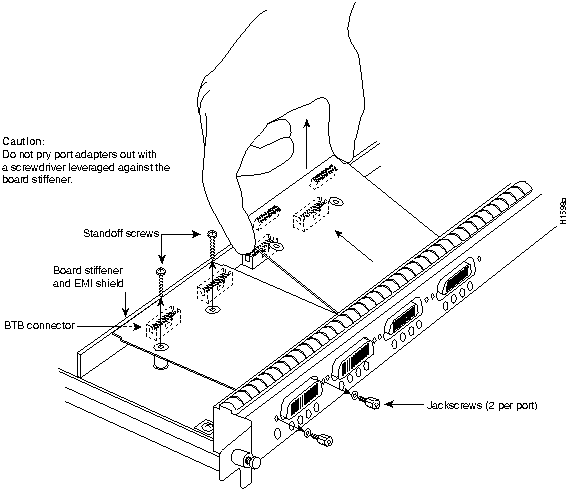
Port adapters are installed on each FSIP at the factory. You must remove an existing port adapter in order to replace or install a new one. Each port adapter is anchored to the FSIP with two double-row vertical board-to-board (BTB) connectors and two Phillips-head screws that extend down into the standoffs. (See Figure 5-9.) The port adapter is also anchored to the carrier faceplate with four jackscrews with lock washers (two per port).

To remove a port adapter from the FSIP perform the following steps:
Figure 5-9 Removing FSIP Port Adapters


The FSIP should already be out of the chassis and have an empty space available for the new port adapter. If it is not, refer to the two previous sections to remove the FSIP from the chassis and remove a port adapter from the FSIP. Refer to Figure 5-10 while performing the following steps.

Figure 5-10 Installing FSIP Port Adapters
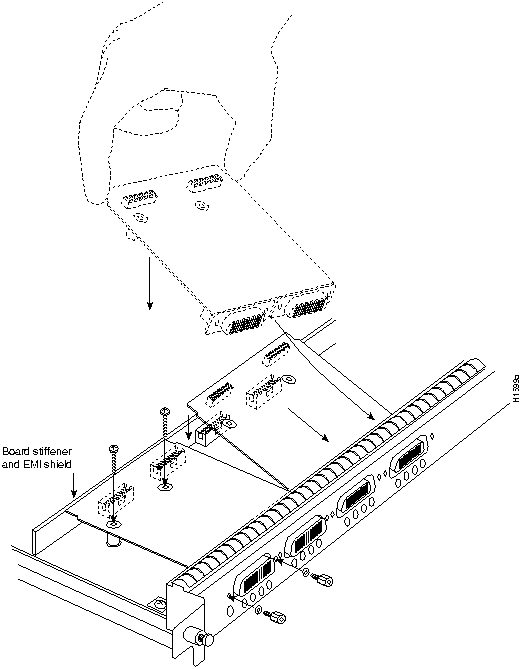
There should now be four or eight port adapters installed on the FSIP. If there are not, do not install the FSIP until you install all port adapters or until you install a blank interface processor filler in the FSIP slot.


This completes the port adapter replacement procedure. For complete command descriptions and instructions, refer to the related software documentation.
If you installed a new MIP or if you want to change the configuration of an existing controller, you must enter the configuration mode. If you replaced the MIP that was previously configured, the system will recognize the new MIP and bring it up in the existing configuration.
After you verify that the new MIP is installed correctly (the enabled LED is on), use the
privileged-level configure command to configure the new MIP controller. Be prepared with the information you will need, such as the following:
For a summary of the configuration options available and instructions for configuring the MIP controller, refer to the Router Products Configuration Guide and Router Products Command Reference publications, which are available on Cisco Connection Documentation CD-ROM or in print.
By default, channelized E1 port adapters are set with capacitive coupling between the receive (Rx) shield and chassis ground. This provides direct current (DC) isolation between the chassis and external devices, as stated in the G.703 specification. Jumper J6 controls this function. To make changes, remove the E1 port adapter from the motherboard, place one of the spare jumpers on J6 pins one and two or pins two and three (refer to Table 5-8), and replace the port adapter on the motherboard. Pin 1 of J6 is designated with a square. (See Figure 5-11.)
Figure 5-11 Location of Jumper J6 on the E1 Port Adapter---Partial View
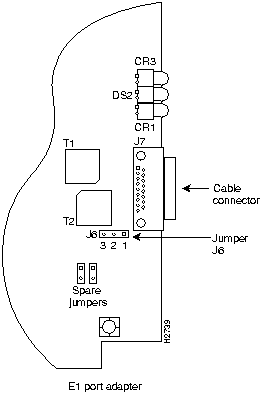
Table 5-8 Jumper Settings and Functions
| Jumper | Pins and Impedance | Function | |
|---|---|---|---|
| J6 | 1 and 2 for 120 ohm2 and 3 for 75 ohm | Controls capacitive coupling for either 120-ohm or 75-ohm operation. An installed jumper directly connects the Rx shield to chassis ground. | |

After you set jumper J6, proceed to the section "Removing and Replacing MIP Port Adapters" in this chapter.
Following are instructions for a configuration: enabling a controller and specifying IP routing. You might also need to enter other configuration subcommands, depending on the requirements for your system configuration and the protocols you plan to route on the interface.
The channel-groups must be mapped before the MIP controller can be configured.
For complete descriptions of configuration subcommands and the configuration options available, refer to the Router Products Configuration Guide and Router Products Command Reference publications.
Before you use the configure command, you must enter the privileged level of the EXEC command interpreter with the enable command. The system will prompt you for a password if one is set.
The system prompt for the privileged level ends with a pound sign (#) instead of an angle bracket (>). At the console terminal, enter the privileged level as follows:
Router> enable
Password:
Router#
Following are commands used to map the channel-group, with the default variable listed first:
| Commands for T1: | Commands for E1: |
|---|---|
| controller t1 slot/applique | controller e1 slot/applique |
| clock source [line | internal] | Not required for E1 |
| linecode [ami | b8zs] | linecode [hdb3 | ami] |
| framing [sf | esf] | framing [crc4 | no-crc4] |
| loopback [local | remote] | loopback |
| shutdown | shutdown |
| channel-group number timeslots list [speed {56 | 48 | 64}] For speed, 56 is the default. | channel-group number timeslots list [speed {56 | 48 |64}] For speed, 64 is the default. |
Number is the channel-group 0 to 23 for T1 and 0 to 29 for E1.
Timeslots list is a number between 1 to 24 for T1 and 1 to 31 for E1. It conforms to D3/D4 numbering for T1. Timeslots may be entered individually and separated by commas or as a range that is separated by a hyphen (for example, 1-3, 8, 9-18). For E1 and T1, 0 is illegal.
Speed specifies the DSO speed of the channel-group: T1 default is 56 kbps and E1 default is 64 kbps.
The following steps describe a basic T1 configuration. Press the Return key after each configuration step.
Router# conf t
Enter configuration commands, one per line. End with CNTL/Z. Router(config)#
Router(config)# cont t1 4/1
Router(config-controller)# clock source line
Router(config-controller)# framing esf
Router(config-controller)# linecode b8zs
Router(config-controller)#
%CONTROLLER-3-UPDOWN: Controller T1 4/1, changed state to up
Router(config-controller)#
Router(config-controller)# channel-group 0 timeslots 1,3-5,7

Router(config-controller)#

%LINEPROTO-5-UPDOWN: Line protocol on Interface Serial4/1:0, changed state to down
%LINEPROTO-5-UPDOWN: Line protocol on Interface Serial4/1:0, changed state to up
Router(config-controller)#

Router(config-controller)#
Router(config-controller)# int serial 4/1:0
Router(config-if)# ip address 1.1.15.1 255.255.255.0
Router(config-if)#
Router# copy running_config startup_config
Router# disable
Router>
The following steps describe a basic E1 configuration. Press the Return key after each step.
Router# conf t

        Enter configuration commands, one per line. End with CNTL/Z. Router(config)#
Router(config)# cont e1 4/1
Router(config-controller)# framing crc4
Router(config-controller)# linecode hdb3
Router(config-controller)#
%CONTROLLER-3-UPDOWN: Controller E1 4/1, changed state to up
Router(config-controller)#
Router(config-controller)# channel-group 0 timeslots 1,3-5,7

Router(config-controller)#

%LINEPROTO-5-UPDOWN: Line protocol on Interface Serial4/1:0, changed state to down
%LINEPROTO-5-UPDOWN: Line protocol on Interface Serial4/1:0, changed state to up
Router(config-controller)#

Router(config-controller)#
Router(config-controller)# int serial 4/1:0
Router(config-if)# ip address 1.1.15.1 255.255.255.0
Router(config-if)#
Router# copy running-config startup-config
Router# disable
Router>
After configuring the new interface, use the show commands to display the status of the new interface or all interfaces.
Following are descriptions and examples of the show commands. Descriptions are limited to fields that are relevant for verifying the configuration.
Router> show version
GS Software (GS7), Version 10.3(3)

Copyright (c) 1986-1995 by cisco Systems, Inc.

Compiled Wed 10-May-95 15:52
System Bootstrap, Version 4.6(1) [fc2], SOFTWARE
Router uptime is 42 minutes
System restarted by reload
System image file is "myfile.1", booted via tftp from 111.111.111.111

RSP1 (Risc 4600) processor with 16384K bytes of memory. X.25 software, Version 2.0, NET2,
BFE and GOSIP compliant. Bridging software.
1 Route Switch Processor.
1 EIP controller (6 Ethernet).
1 TRIP controller (4 Token Ring).
1 FSIP controller (4 Serial).
1 MIP controller (1 T1). (or 1 E1, and so forth)
6 Ethernet/IEEE 802.3 interfaces.
4 Token Ring/IEEE 802.5 interfaces.
6 Serial network interfaces.
1 FDDI network interface.
128K bytes of non-volatile configuration memory.
8192K bytes of flash memory sized on embedded flash.
Configuration register is 0x100
Router# show controller cbus
FIP 0, hardware version 2.2, microcode version 10.1
 Microcode loaded from system
  Interface 0 - Fddi0/0, address 0000.0c03.648b (bia 0000.0c03.648b)
  15 buffer RX queue threshold, 37 buffer TX queue limit, buffer size 4496
  ift 0006, rql 13, tq 0000 01A0, tql 37
(text omitted from example)
MIP 2, hardware version 1.0, microcode version 10.0

 Microcode loaded from system

 Interface 16 - T1 2/0, electrical interface is Channelized T1

   10 buffer RX queue threshold, 14 buffer TX queue limit, buffer size 1580 ift 0001, rql
   7, tq 0000 05B0, tql 14

   Transmitter delay is 0 microseconds

Router#
Router# show cont t1
T1 3/1 is up.
  No alarms detected.
  Framing is ESF, Line Code is AMI, Clock Source is line
  Data in current interval (0 seconds elapsed):
     0 Line Code Violations, 0 Path Code Violations 0 Slip Secs, 0 Fr Loss Secs,
     0 Line Err Secs, 0 Degraded Mins 0 Errored Secs, 0 Bursty Err Secs,
     0 Severely Err Secs, 0 Unavail Secs
  Total Data (last 79 15 minute intervals):
     0 Line Code Violations, 0 Path Code Violations, 0 Slip Secs, 0 Fr Loss Secs,
     0 Line Err Secs, 0 Degraded Mins, 0 Errored Secs, 0 Bursty Err Secs,
     0 Severely Err Secs, 0 Unavail Secs
Router#
Router# show cont e1
E1 3/1 is up.
  No alarms detected.
  Framing is E1-crc, Line Code is hdb3
  Data in current interval (0 seconds elapsed):
     0 Line Code Violations, 0 Path Code Violations 0 Slip Secs, 0 Fr Loss Secs,
     0 Line Err Secs, 0 Degraded Mins 0 Errored Secs, 0 Bursty Err Secs,
     0 Severely Err Secs, 0 Unavail Secs
  Total Data (last 79 15 minute intervals):
     0 Line Code Violations, 0 Path Code Violations, 0 Slip Secs, 0 Fr Loss Secs,
     0 Line Err Secs, 0 Degraded Mins, 0 Errored Secs, 0 Bursty Err Secs,
     0 Severely Err Secs, 0 Unavail Secs
Router#
Router# show config
Using 1708 out of 130048 bytes
!
version 10.3(3)
!
hostname Router
!
enable password *****
!
clns routing
!
controller T1 3/1 (for E1, E1 3/1, and so forth)
framing esf (for E1, crc4, and so forth)
linecode b8zs (for E1, hdb3, and so forth)
channel-group 0 1,3,5,7
channel-group 1 2,4,6,8-10
!
interface Ethernet 1/0
ip address 131.108.43.220 255.255.255.0
no mop enabled
!
interface Ethernet1/1
no ip address
shutdown
!
interface Ethernet1/2
no ip address
shutdown
!
interface Ethernet1/3
   (display text omitted)
Router> show protocols
Global values:
   Internet Protocol routing is enabled
CLNS routing is enabled (address 41.0000.0000.0000.0001.0000.0000.00) Fddi0/0 is down,
line protocol is down
Internet address is 1.1.20.1, subnet mask is 255.255.255.0
CLNS enabled
Ethernet1/0 is up, line protocol is up
Internet address is 131.108.43.220, subnet mask is 255.255.255.0
(display text omitted)
The following procedure describes how to use the show commands to verify that the new MIP interface is configured correctly:
If the interface is down and you configured it as up, or if the displays indicate that the hardware is not functioning properly, ensure that the network interface is properly connected and terminated. If you still have problems bringing the interface up, contact a customer service representative for assistance.
This completes the configuration procedure for the new MIP interface.
Port adapters provide the ports for the E1 and T1 interfaces. Each port adapter provides one port. Each MIP is shipped from the factory with one or two port adapters installed. You cannot add ports to an MIP by installing an additional port adapter. MIP port adapters are not FRUs; however, you need to remove an existing E1 port adapter in order to access jumper J6.
Before proceeding, refer to the section "Removing Interface Processors" in this chapter.

You need the following tools to complete this procedure:
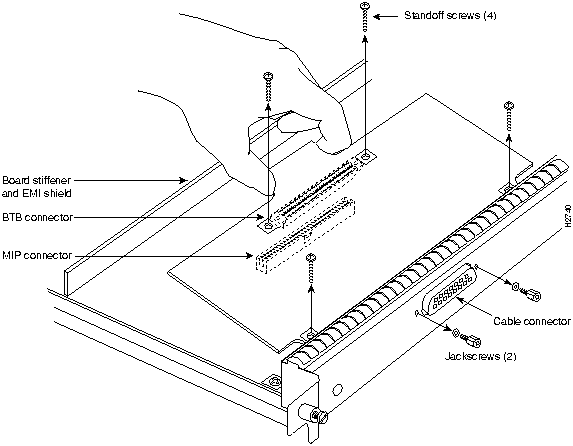
Port adapters are installed on each MIP at the factory. Each port adapter is anchored to the MIP with one plastic double-row vertical board-to-board (BTB) connector and four Phillips screws that extend through standoffs, into the motherboard. (See Figure 5-12.) The port adapter is also anchored to the carrier faceplate with two jackscrews and two lock washers.

To remove an E1 port adapter from the MIP, refer to Figure 5-12 and perform the following steps:
Figure 5-12 Removing a Port Adapter


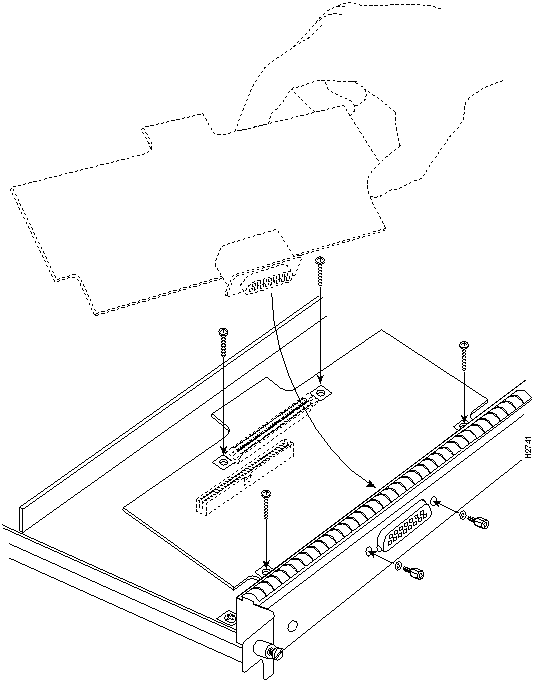
If necessary, refer to the previous section to remove an E1 port adapter from the MIP. Refer to Figure 5-13 while you perform the following steps:

Figure 5-13 Installing a Port Adapter

When you insert the new MIP, the console terminal will display several lines of status information about OIR as it reinitializes the interfaces. Change the state of the interfaces to up and verify that the configuration matches that of the interfaces you replaced.
Use the configure command or the setup command facility to configure the new interfaces. You do not have to do this immediately, but the interfaces will not be available until you configure them and bring them up.
After you configure the interfaces, use the show controller cbus, show controller T1, show controller E1 commands to display the status of the new interface. For brief descriptions of commands refer to the section "Using Show Commands to Verify the MIP Status" in this chapter.
For complete command descriptions and instructions refer to the appropriate software publications.
Spare parts are in two categories: those that support OIR and those that require you to shut down the system power before replacement. Because interface processors support OIR, you can remove and replace them while the system is operating; however, you must shut down the system power before removing the RSP1 or either of the internal spares (the fan tray and power supply). (See Figure 5-14.)
This section contains replacement procedures for the following spares:
Figure 5-14 shows the locations of each of the internal spares inside the service (noninterface processor) end of the chassis. This document does not include replacement instructions for chassis spares or packing materials. However, specific replacement instructions, called configuration notes, accompany all spares.
Figure 5-14 Internal Chassis Components
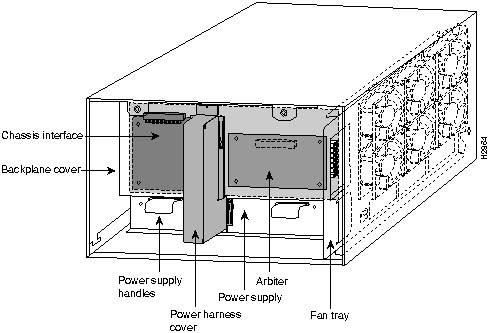
In addition to the internal spares, the following assemblies are also available as spares:

To replace internal spares, all of which are inside the service (noninterface processor) end of the router, you must remove the chassis cover panel and expose the chassis interior. To replace the power supply components, you must also remove the power harness cover, which exposes the backplane power connection.
If the power is not shut down before removing the chassis cover panel, the high current on the fan tray and fan control board becomes a hazard. When the power harness cover is removed, the high current present in the wiring and on the backplane also becomes a hazard. Removing the cover panel when the system is operating also compromises the EMI integrity of the system. Therefore, always turn off the system power before removing the cover panel, and remove the cover panel only when it is necessary to replace internal components.
The fan tray comprises six individual fans (the fan array) and a fan control printed circuit board mounted on a metal tray; the entire assembly is called the fan tray. The fans draw cooling air through the inlet vents on the left side of the chassis (when viewing the chassis from the noninterface processor end) and forces the air out through the exhaust vents on the right side of the chassis. The fan control board distributes power to the fans, controls the fan speed, and monitors and reports fan failures to the system through the backplane. To remove the fan tray, you need only remove a single pan-head screw that anchors the tray to the interior chassis frame; an edge connector on the fan control board also snaps into a socket connector on the backplane cover. The fan tray slides into the right side of the chassis (when viewing the chassis from the noninterface processor end).
The power harness cover shields the wiring harness that delivers DC power from the power supply to the backplane. A tab at the bottom of the cover fits into a slot in the chassis floor; a single Phillips screw secures the top of the harness cover to the backplane cover. Because the harness cover straddles both the power supply and backplane cover, you must remove it to access the power supply.
For the AC-input power supply, an external modular power cable delivers AC source power to the external AC receptacle on the interface processor end of the power supply. For the DC-input power supply, a three-lead, 10-AWG power cable that you provide delivers DC source power to the terminal block on the power supply.
The power harness, which is part of the power supply, carries DC voltages from the power supply to a polarized connector on the backplane. The backplane distributes the operating voltages to all of the internal chassis components. The power supply rests on the floor of the chassis, under the card cage and backplane. Two Phillips-head screws secure the power supply to the interior chassis frame.
To remove the power supply, you need to disconnect the power cable, remove the power harness cover, disconnect the power harness from the backplane, and remove the two Phillips screws that attach the power supply to the chassis. The noninterface processor end of the power supply has handles for pulling it out of the chassis. Before inserting a power supply, remove the cable retention clip (or secure it with tape); otherwise, it will catch on the chassis floor and prevent the chassis from sliding into the power supply bay.
The backplane cover shields the noninterface processor side of the backplane as well as the arbiter and chassis interface. Eight long Phillips screws extend through the backplane cover, arbiter, chassis interface, and standoffs to secure the backplane cover, arbiter, and chassis interface to the backplane.
You need the following tools to replace any one of the internal spares:
The two captive slotted screws are the only fasteners on the cover panel. Five shallow tabs at the bottom edge of the panel fit into slots at the base of the chassis opening. The tabs act as a pivot point for pulling the top of the panel away from the chassis opening, and as guides to align the panel when replacing it. If the chassis cover does not seal the end of the chassis, the flow of cooling air inside the chassis can be misrouted, which can result in an overtemperature condition.


Follow these steps to remove and replace the chassis cover panel:
Figure 5-15 Removing and Replacing the Chassis Cover Panel
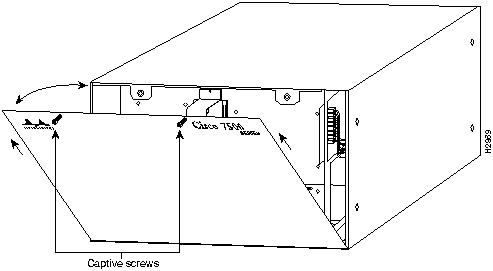
This completes the chassis cover panel removal and replacement procedure.
The fans on the fan tray provide cooling air to the internal system components. If the system detects that a fan has failed, it will display a 2-minute warning, then shut down the system until all of the fans are operational.
When viewing the chassis from the noninterface processor end, the fan tray is on the far right. (See Figure 5-16.) A cutout in the front of the tray provides a handle for pulling the tray out of the chassis. An M4 Phillips-head screw anchors a tab on the bottom edge of the tray to the interior chassis frame, just below the right power supply ear.
When the fan tray is fully inserted in the chassis, an edge connector on the fan control board slides into the backplane electrical connector. The bottom of the tray is a metal runner that guides the tray along a metal track on the chassis floor. Also, a bracket on the chassis ceiling helps guide the tray into the chassis.

Follow these steps to replace the fan tray.
Figure 5-16 Replacing the Fan Tray
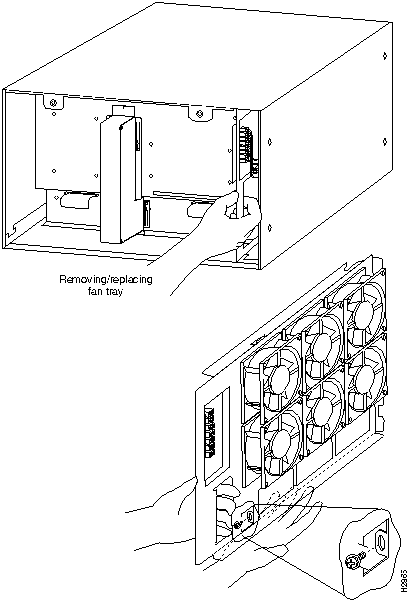
This completes the fan tray replacement.
Figure 5-17 Fan Tray Tracks and Guides
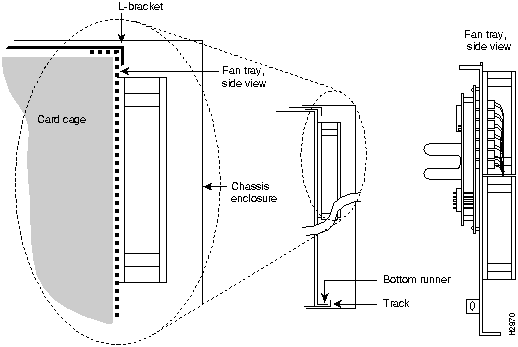
You must remove the power harness cover to access the power supply. A single M3 Phillips screw secures the power harness cover to the backplane cover.

Follow these steps to remove and replace the power harness cover:
This completes the power harness cover removal and replacement procedures.
Figure 5-18 Removing the Power Harness Cover
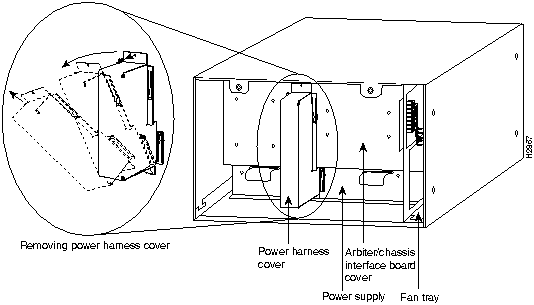
The power supply rests on the floor of the chassis under the card cage and backplane. To remove the power supply, you must remove the chassis access cover at the noninterface processor end of the router, remove the power harness cover, and disconnect the harness from the backplane receptacle. Always pull the harness out by the connector, not by the wires. Before removing the power harness cover, ensure that the system power is turned off; otherwise, the backplane voltages become a hazard.
On the AC receptacle, located on the interface processor end of the AC-input power supply, a cable-retention clip snaps up and around the modular power cable connector to prevent the cable from accidentally being pulled out or from falling out. (See Figure 5-19.) When inserting the power supply, this clip can get snagged on the chassis floor. Before inserting the supply, remove the clip or tape it up out of the way.
On the DC-input power supply a nylon cable tie provides the cable strain relief. Replace this strain relief with a new nylon cable tie after you install the new DC-input power supply.
In addition to a number 2 Phillips screwdriver, you need a pair of wire cutters for this procedure.

Figure 5-19 AC-Input Power Supply---Interface Processor End
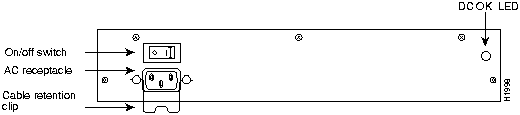
Follow these steps to remove the power supply.

This completes the power supply removal procedure.
Follow these steps to replace the power supply:

This completes the power supply replacement procedure.
Figure 5-20 Removing and Replacing the Power Supply
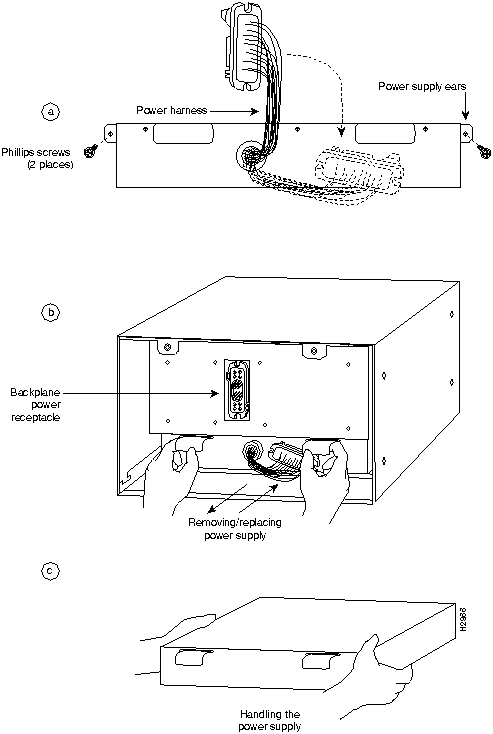

|
Copyright 1988-1995 © Cisco Systems Inc.