
Table of Contents
Troubleshooting the Installation
Troubleshooting the Installation
Your router went through extensive testing and burn in before leaving the factory. However, if you encounter problems starting up, use the information in this chapter to help isolate the cause. Problems with the initial startup will most likely be caused by the source power or an interface processor that has become dislodged from the backplane. Although an overtemperature condition is unlikely at initial startup, the environmental monitoring functions are included because they also monitor internal voltages.
Note The procedures in this chapter assume that you are troubleshooting the initial system startup, and that the router is in the original factory configuration. If you have removed or replaced components or changed any default settings, the recommendations in this section might not apply.
At the initial system boot, you should verify the following:
- The external power cable is connected and the proper source power is being delivered to the system.
- The system fans are operating.
- The system software boots successfully.
- The RSP1 and all interface processors are properly installed in their slots, and each initializes (is enabled by the system software) without problems.
When each of these conditions is met, the hardware installation is complete, and you should proceed to the appropriate software documentation to configure the system and the individual interfaces. If the startup sequence fails before these conditions are met, use the procedures in this chapter to isolate and, if possible, resolve the problem.
If you are unable to easily solve the problem, contact a customer service representative for assistance and further instructions. Before you call, have the following information ready to help your service provider assist you as quickly as possible:
- Date you received the router
- Chassis serial number (located on a label on the right rear deck of the chassis)
- Type of software and release number
- Brief description of the problem you are having
- Brief explanation of the steps you have already taken to isolate and resolve the problem
- Maintenance agreement or warranty information
Figure 4-1 shows the general troubleshooting strategy described in this chapter. Refer to this chart as necessary to follow the steps to isolate problems to a specific subsystem, and resolve the problem if possible.
Figure 4-1 Troubleshooting Strategy for Startup Problems
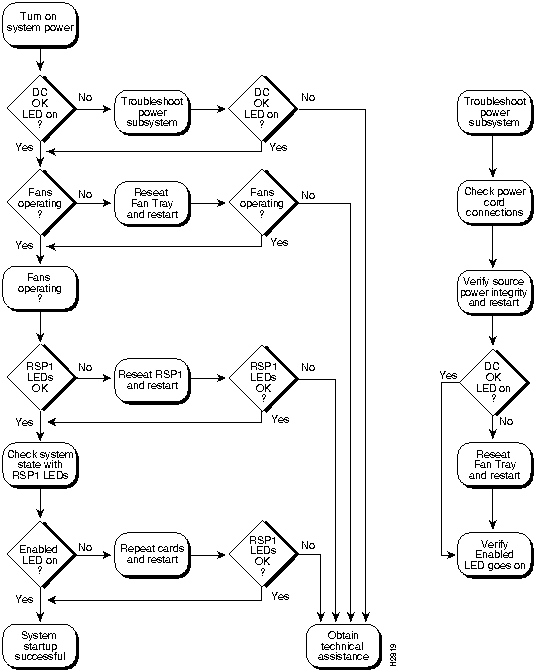
This section describes the troubleshooting methods used in this chapter and defines how the router is divided into subsystems for more efficient problem solving. A description of a normal startup sequence contains pointers to sections in this chapter that contain troubleshooting procedures for specific components so that you can determine where your system is having trouble and then troubleshoot that specific component or subsystem.
The key to problem solving is to try to isolate the problem to a specific subsystem. The first step in solving startup problems is to compare what the system is doing to what it should be doing. Because a startup problem is usually attributable to a single component, it is more efficient to first isolate the problem to a subsystem rather than troubleshoot each component in the system. For these troubleshooting procedures, consider the following subsystems:
- Power subsystem---This subsystem comprises the power supply, the external power cable, and the internal power harness that connects to the backplane.
- Cooling subsystem---This subsystem comprises the fan-tray spare, which includes the six individual fans in the array, the fan control board, and the tray itself. All six fans should be operating whenever the system power is on. The system automatically shuts down if any one or more of the fans is operating outside the specified range, or shuts down completely. The variable speed feature allows the fans to operate at a slower speed and provide quieter operation when the internal chassis temperature is within the normal operating range. If the internal temperature exceeds a specified temperature, the fan speed increases to move more cooling air through the chassis. As a result, it may be difficult to determine whether or not the fans are operating in noisy, air-conditioned rooms. When viewing the chassis from the noninterface processor end, the fan array spans the right wall of the chassis interior. If you determine that the fans are not operating, contact a customer service representative immediately. There are no installation adjustments that you should make if it does not function properly at initial startup.
- Processor subsystem---This subsystem includes the RSP1 and all interface processors. The RSP1 contains the system operating software (in onboard Flash memory or on a Flash memory card), and the enabled LED on each interface processor indicates whether or not the RSP1 was able to initialize it. Remember that an interface processor that is partially installed in the backplane will cause the system to hang and crash.
The following sections will help you isolate a problem to one of these subsystems and direct you to the appropriate troubleshooting section.
When you start up the router for the first time, you should observe the startup sequence described in the section "Starting the Router" in the chapter "Installing the Router." This section contains a more detailed description of the normal startup sequence and describes the steps to take if the system does not perform that sequence as expected.
By checking the state of the LEDs on the power supply and processor modules (the RSP1 and interface processors), you can determine when and where the system failed in the startup sequence. Use the following descriptions to isolate the problem to a subsystem, then proceed to the appropriate sections (indicated in each description) to try to resolve the problem.
When you start up the system by turning on the main system power switch on the interface processor end of the power supply, the following should occur:
- The DC OK LED should go on immediately, and it should remain on as long as the system is receiving source power and the power switch is in the on (|) position. If this LED does not go on, or if it goes off while the power switch is still on, there could be a problem with either the source power, the internal DC power that the power supply distributes to the internal components, or the cooling subsystem.
- The green DC OK LED indicates the status of the power supply and internal DC voltages. The DC OK LED stays on when all of the following conditions are met:
- Power supply is on and the power source is providing either 100 to 240 VAC, 50 to 60 Hz or --40 to --52 VDC, in North America, or --56 to --72 VDC, in the European Community
- Power supply is providing the +5, +12, --12, and +24 VDC to internal components
- All internal DC voltages are within tolerance
- If the AC or DC source power or any of the internal DC voltages exceeds allowable tolerances, the DC OK LED will not go on, or will go off shortly after you turn on the power. Because both the RSP1 (which uses +5, +12, --12 VDC), and the fan tray (which uses +24 VDC) are required for operation, a problem with any of the internal DC lines can prevent the system from starting up or continuing operation.
- For example, if there is a problem with the +24 VDC line that supplies the fan tray, the system will start up but also recognize that the fans are not operating. The system will initiate a fan failure shutdown sequence, display the appropriate warning messages, then shut down after two minutes. If there is a problem with any of the other DC lines, the RSP1 will not be able to initialize the system software, so the system might attempt to start up and fail during the boot sequence.
- Depending on when the DC OK LED goes off, proceed as follows:
- If the DC OK LED stays off (if it never goes on) when you turn on the power switch, there is a problem with either the AC source power or the DC power that is distributed to the internal components. Proceed to the section "Troubleshooting the Power Subsystem" in this chapter.
- If the DC OK LED goes on temporarily, then goes off within 30 seconds, the system is most likely shutting itself down because it detected an out-of-tolerance power or temperature condition within the power supply. Proceed to the section "Troubleshooting the Power Subsystem" in this chapter.
- If the DC OK LED goes on, and the system starts up as expected but then displays the following message and shuts down after two minutes, there is a problem with the fan tray. Proceed to the section "Troubleshooting the Cooling Subsystem" in this chapter.
%ENVM-2-FAN: Fan array has failed, shutdown in 2 minutes
- If the DC OK LED stays off yet the system starts up correctly, displays the preceding message, and shuts down after about two minutes, there is a problem with the +24 VDC line to the fan tray. Proceed to the section "Troubleshooting the Power Subsystem" in this chapter.
- Immediately after you turn on the power switch, you should hear the fans operating. If you are in an unusually noisy environment, such as an air-conditioned wiring closet with other equipment noise, place your hand near the left side of the chassis (when facing the interface processor end); you should feel the exhaust air that is being forced out the side of the chassis.
- If the DC OK LED is on but the fans are not operating, there is a problem with the fan tray or with one of the fans. (The system will shut itself down if it detects that any of the fans are not functioning properly.) Proceed to the section "Troubleshooting the Cooling Subsystem" in this chapter.
- If the DC OK LED is on at startup and fans are operating, but the system shuts down after two minutes, there is a problem with the fan tray. Proceed to the section "Troubleshooting the Cooling Subsystem" in this chapter.
- When you turn on the system power, the LEDs on the RSP1, which is located in the top processor slot (see Figure 1-1) should go on and off as follows:
- The RSP1 normal LED goes on after the system has completed a successful boot to indicate normal system operation. This LED should remain on during system operation.
- The CPU halt LED should always remain off. This LED goes on only if the system detects a processor hardware failure.
- If the normal LED on the RSP1 does not go on, or if the CPU halt LED goes on and stays on, proceed to the section "Troubleshooting the Cooling Subsystem" in this chapter.
- The enabled LED on each interface processor goes on when the RSP1 has completed initialization of the interface processor for operation. This LED indicates that the interface processor is receiving power and has been recognized by the RSP1; it does not indicate the state of the individual interfaces. It does, however, indicate that an interface processor contains a valid microcode version. If an enabled LED fails to go on, proceed to the section "Troubleshooting the Interface Processors" in this chapter.
Note While the system is starting up and initializing the individual interface processors, the status LEDs on the interface processors will flash on and off or light intermittently; this is normal behavior. The LEDs do not indicate the true status of the interfaces until the system has initialized the interface processors and you have enabled the individual interfaces.
When the LEDs indicate that the system has initialized successfully, the system banner (similar to the following example) should be displayed on the console screen. If it is not displayed, refer to the section "Connecting the Console Terminal," in the chapter "Installing the Router," to verify that the terminal is set correctly and that it is properly connected to the RSP1 console port.
System Bootstrap, Version 4.6(5), SOFTWARE
Copyright (c) 1986-1995 by cisco Systems
RSP1 processor with 16384 Kbytes of memory
(display text omitted)
F3: 2012356+47852+194864 at 0x1000
              Restricted Rights Legend
Use, duplication, or disclosure by the Government is
subject to restrictions as set forth in subparagraph
(c) of the Commercial Computer Software - Restricted
Rights clause at FAR sec. 52.227-19 and subparagraph
(c) (1) (ii) of the Rights in Technical Data and Computer
Software clause at DFARS sec. 252.227-7013.
              cisco Systems, Inc.
              170 Tasman Drive
              San Jose, CA 95134
GS Software (GS7), Version 10.3(3) [fc3], RELEASE SOFTWARE
Copyright (c) 1986-1995 by cisco Systems, Inc.
(display text omitted)
Press RETURN to get started!
Check the following to help isolate the problem:
- On the interface processor end of the power supply, is the DC OK LED on?
- If yes, the AC or DC source is good, and the power supply is functional.
- If no but the fans are operating and LEDs on the processor modules are on, suspect a faulty power supply LED. The RSP1 uses +5, +12, --12 VDC, and the fan tray uses +24 VDC; therefore, if both the RSP1 and the fans are operating, all internal DC lines are within tolerance.
- If no and there is not other obvious activity, first suspect that the power switch is not fully in the On (|) position. Push the right side of the switch and ensure that it is completely pushed into the On (|) position. (Refer to the section "Starting the Router" in the chapter "Installing the Router.")
- If the system power switch is set correctly and the DC OK LED remains off, suspect the AC or DC source or the power cable. Turn the power switch off, connect the power cable to another power source if one is available, and turn the switch back on. If the LED then goes on, the problem is the first power source.
- If the LED fails to go on after you connect the power supply to a new power source, swap the power cable with a replacement if one is available and turn the switch back on. If the DC OK LED then goes on, return the first power cable for replacement. (AC and DC power cables for the Cisco 7010 power supplies are compatible with the Cisco 7505 power supplies.)
- Ensure that the fan tray is seated properly. Refer to the section "Removing and Replacing the Fan Tray," in the chapter "Maintaining the Router," to remove and reseat the fan tray. Ensure that the fan control board edge connector is inserted fully in the backplane socket. After you replace the chassis cover panel, try starting the system again.
- If the LED still fails to go on when connected to a different power source with a new power cable, the power supply is probably faulty. If a spare power supply is available, replace the existing power supply with the spare and restart the system. (Refer to the section "Removing and Replacing the Power Harness Cover and Power Harness" in the chapter "Maintaining the Router.") If the DC OK LED then goes on, return the faulty power supply for replacement.
If you are unable to resolve the problem or if you determine that either the power supply or power cable is faulty, contact a service representative for instructions.
Check the following to help isolate the problem:
- When you start up the system, do the fans go on?
- To determine whether the fans are operating, listen for the fan motors. In noisy environments, place your hand next to the left side of the chassis (when facing the interface processor end of the router) to feel for air being forced out the side vents.
- If yes, the +24 VDC line to the fan tray is good, but there might be a problem with the software or an individual fan.
- If no, there is a problem with the fan tray or the +24 VDC power. Ensure that the DC OK LED is on. If the LED is off, there could be a problem with the +24 VDC supply to the fan tray. Proceed to the section "Troubleshooting the Power Subsystem" in this chapter.
- If no and the DC OK LED is on, ensure that the fan tray is seated properly. Refer to the section "Removing and Replacing the Fan Tray" in the chapter "Maintaining the Router" to remove and reseat the fan tray. Ensure that the fan control board edge connector is inserted fully in the backplane socket. After you replace the chassis cover panel, try starting the system again.
- Do the system and the fans start up but shut down after about two minutes?
- If you have changed the configuration register boot field settings or altered the configuration file boot instructions, the system could be booting a software image (earlier than 9.17[6]) that does not recognize the signals from the fan control board (and therefore assumes that the cooling subsystem is not operating). Make certain that you are booting a software image appropriate for the Cisco 7505 and RSP1.
- The following message, if displayed, indicates that one or more fans has failed or is operating out of tolerance.
%ENVM-2-FAN: Fan array has failed, shutdown in 2 minutes
- If one or more fans or the fan control board fails, you must replace the fan tray.
- The following message, if displayed, indicates that the system has detected an overtemperature condition or out-of-tolerance power inside the chassis.
Queued messages:
%ENVM-1-SHUTDOWN: Environmental Monitor initiated shutdown
- If an environmental shutdown results from an out-of-tolerance power condition, the DC OK LED will go off before the system shuts down. (Refer to the section "Troubleshooting the Power Subsystem" in this chapter.)
- Although an overtemperature condition is unlikely at initial startup, ensure that heated exhaust air from other equipment is not entering the inlet vents, and that there is sufficient clearance around the sides of the chassis to allow cooling air to flow. Refer to the guidelines in the chapter "Preparing for Installation" for preventive site configurations.
- This message could also indicate a faulty component or temperature sensor. Before the system shuts down, use the show environment or show environment table command to display the internal chassis environment. (Refer to the chapter "Product Overview" for detailed descriptions.)
If you are still unable to resolve the problem, contact a service representative for further instructions.
The processor subsystem comprises the RSP1 and interface processors. The RSP1 is a required system component. The system cannot operate unless the RSP1 is installed properly; however, because the CyBus interface processors support OIR, the system can operate without any interface processors installed if none of their connectors are in partial contact with the backplane pins; an interface processor that is partially connected to the backplane will send incomplete signals to the processor, which will fault the bus and cause the system to hang. Therefore, first ensure that the RSP1 is installed properly and the system software has initialized successfully. Then, if necessary, you can troubleshoot individual interface processors.
These procedures assume that the RSP1 and router are in the original factory configuration, and that you have not changed any configuration register settings or made changes to your configuration file.
If you have made such changes, refer to the section "Configuring the RSP1," in the chapter "Maintaining the Router," to ensure that the software configuration register is set to the factory defaults. For example, the software configuration register boot field should be set to boot from ROM.
If the RSP1 LEDs do not go on as expected, check the following items to help isolate the problem.
- Do all of the RSP1 LEDs remain off when system power switch is turned on?
- If all RSP1 LEDs stay off, first refer to the sections "Troubleshooting the Power Subsystem" and "Troubleshooting the Cooling Subsystem" (in this chapter) to ensure that both the fan and power supply are functioning properly.
- If the power supply and fans appear operational but none of the RSP1 LEDs are on, suspect that an improperly connected RSP1 or interface processor has hung the bus. Turn the system power switch off and, on each processor module, loosen the captive installation screws and use the ejector levers to eject and reseat each board. (For a description and illustration of the ejector levers, refer to the section "Installing and Configuring Processor Modules" in the chapter "Maintaining the Router.") Tighten all captive installation screws, then restart the system.
- Is the RSP1 normal LED on?
- If yes, the system software has initialized successfully, and the system is operational.
- Is the CPU halt LED on?
- If yes, the system software is unable to start up. Turn the system power off and then on again.
- If you have a spare RSP1, turn off the system power and replace the installed RSP1 with the spare.
- If after several attempts the CPU halt LED continues to go on, try to estimate the amount of time that elapses between power on and when the LED goes on, and contact a service representative.
- Is the RSP1 halt CPU LED on?
- If yes, the system has detected a processor hardware failure. Contact a service representative for instructions.
Check the following to help isolate the problem:
- Are all interface processor enabled LEDs on?
- If yes, the system is operational. Proceed to the instructions for configuring the interfaces in the appropriate software documentation.
- Are any interface processor enabled LEDs on?
- If none of the enabled LEDs are on, first check the RSP1 normal LED, which will be on if the system booted successfully.
- If the enabled LED on an individual interface processor is off, suspect that the interface processor has pulled away from the backplane. You do not have to turn off the system power to remove and replace an interface processor. Use the ejector levers to eject and then reseat the interface processor, then tighten both of the captive installation screws. (For a description and illustration of the ejector levers, refer to the section "Online Insertion and Removal---An Overview" in the chapter "Product Overview.") After the system reinitializes the interfaces, the enabled LED on the interface processor should go on.
If you experience trouble with the startup that is not resolved with these procedures, contact a service representative for assistance and further instructions.
Copyright 1988-1995
©
Cisco Systems Inc.



