


|
|

Preparing to Install the CiscoWorks NetView Interface
This chapter describes how to prepare for your installation and provides a worksheet to help you gather the necessary information. This chapter contains the following information:
Verifying CiscoWorks NetView Interface Requirements
Before you install the CiscoWorks NetView Interface software, ensure that your hardware and software requirements have been met.
The files you need to install the CiscoWorks NetView Interface are contained on two
CD-ROM discs. The first CD-ROM contains the CiscoWorks NetView Interface software. The second CD-ROM contains the SunLink SNA Peer-to-Peer RunTime Environment (RTE) software. The CiscoWorks NetView Interface uses SNA Peer-to-Peer RTE, along with SunNet Manager (SNM) and CiscoWorks to support the NetView functionality. You must have SNM 2.0 and CiscoWorks 1.0(2) installed in order for the CiscoWorks NetView Interface software to install and operate properly.
You need to define the line and physical unit (PU) in both the local SunLink configuration and the SNA host configuration. These parameters should match.
Example configuration macros for the IBM Network Control Program (NCP GEN) are listed in Appendix A, "Sample Configuration Files."
The IBM mainframe should be configured by the IBM system administrator before you configure the SunLink files to the required specifications. The configuration instructions appear in Chapter 4, "Configuring the CiscoWorks NetView Interface."
The CiscoWorks NetView Interface has some specific hardware requirements that differ from the CiscoWorks software.
The CiscoWorks NetView Interface requires one of the following connections:
Keep in mind the following restrictions:
The CiscoWorks NetView Interface requires the following software:
The Configuration Management application of CiscoWorks requires Cisco Systems device software version of Software Release 8.2 or later. For other system and device requirements, refer to the CiscoWorks User Guide.
To perform the tasks associated with installing and configuring CiscoWorks, you must log into your system as the superuser. The superuser is a privileged user who is allowed to perform functions restricted from normal users. The login name of the superuser is typically root.
To become the superuser, you must know the superuser password. In the following examples, the superuser password is rootpassword.
If you are not logged in, enter the following commands to log in as the superuser:
The UNIX prompt changes to a pound sign (#), indicating that you are logged in as the superuser.
If you are already logged in, but not as the superuser, enter the following commands to change your login to obtain superuser status:
The UNIX prompt changes to a pound sign (#), indicating that you are logged in as the superuser.
Gathering Data for Installation
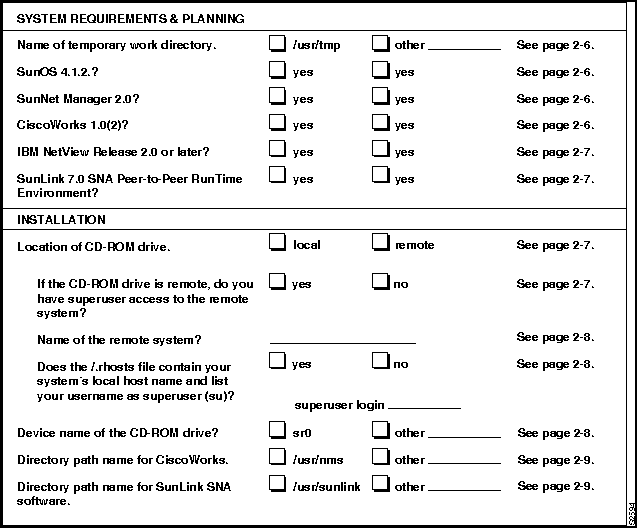
Before you install the CiscoWorks NetView Interface, use the CiscoWorks NetView Interface Installation Worksheet to identify installation requirements and obtain the information required for running the installation scripts.
The CiscoWorks NetView Interface Installation Worksheet, if properly filled out, will contain the values you need to enter when running the ./extract_unbundled script to install the CiscoWorks NetView Interface. Complete all preparations so that you can install your CiscoWorks NetView Interface software correctly.
Appendix B, "Blank Worksheets," contains a blank tear-out worksheet for you to use while gathering data.
Filling in the CiscoWorks NetView Interface Installation Worksheet
The CiscoWorks NetView Interface Installation Worksheet is shown on the next page. Retrieve the blank CiscoWorks NetView Interface Installation Worksheet provided in Appendix B before continuing. Use it as you proceed through the descriptions to record your information.
Each item in this worksheet is described in the following section.
CiscoWorks NetView Interface Installation Worksheet
This section explains each question in the Installation Worksheet. The information is required for installing CiscoWorks NetView Interface. To obtain and verify system information for some items in the worksheet, you must be logged in as the superuser. For information on how to log in as the superuser, refer to the section "Becoming the Superuser," earlier in this chapter.
Name of Temporary Work Directory
The installation needs a temporary work directory. By default the installation uses /usr/tmp. If this directory does not have enough space or the directory has no write permission, the installation will prompt you for another temporary work directory. Check the appropriate box on your worksheet, or if applicable, enter the name of another temporary work directory.
Your Sun system must have SunOS Version 4.1.2 in order for CiscoWorks NetView Interface to be installed. To find out whether your system is using SunOS 4.1.2, enter the following command at the UNIX prompt:
The SunOS version number is displayed:
If SunOS Version 4.1.2 is not installed, you need to install it before you continue with the CiscoWorks NetView Interface installation. Check the appropriate box on your worksheet.
SunNet Manager Version 2.0 Requirements
SunNet Manager Version 2.0 or later must be installed on your Sun system before you can install CiscoWorks. To find out whether the SunNet Manager (SNM) software is installed on your system, enter the following command:
If the SNMHOME environment variable was defined, the SNM software version is displayed. If SNM is not installed, you need to install it before you continue with the CiscoWorks NetView Interface installation. Check the appropriate box on your worksheet.
CiscoWorks Version 1.0(2) Requirements
CiscoWorks Version 1.0(2) must be installed on your Sun system before you can install CiscoWorks NetView Interface. To find out whether the CiscoWorks software is installed on your system, enter the following command:
If the NMSROOT environment variable was defined, the CiscoWorks software version is displayed. If no version command is available, you will receive a directory path and a message stating the command was not found. You must upgrade from CiscoWorks 1.0 to 1.0(2) before you continue with the installation.
If CiscoWorks is not installed or if you have CiscoWorks 1.0, you need to install Version
IBM NetView Software Version Requirements
Your IBM mainframe must have IBM NetView Release 2.0 or later to work with the CiscoWorks NetView Interface. If you do not have the correct version installed on your IBM mainframe, you need to install it before your CiscoWorks NetView Interface software will work properly. Check the appropriate box on your worksheet.
SunLink SNA Peer-to-Peer RunTime Environment Software Requirements
As part of the CiscoWorks NetView Interface installation, you must install the SunLink 7.0 SNA Peer-to-Peer RunTime Environment software to work with the CiscoWorks NetView Interface. Be sure to answer yes to install this software, unless you have already installed the software. Check the appropriate box on your worksheet.
CiscoWorks NetView Interface installs the SNA Peer-to-Peer RunTime Environment software during the installation from either a local or remote CD-ROM drive. Identify whether you plan to install from a local or remote CD-ROM drive.
Check the appropriate box on your worksheet.
Superuser Access to CD-ROM Remote System
Because the CiscoWorks NetView Interface mounts the CD-ROM software, you must be the superuser (root) on that system. If you do not have superuser access to the remote system, contact the system administrator of the remote system to obtain a login account with superuser access to that system.
If necessary, enter the superuser login on your worksheet.
If you are installing CiscoWorks NetView Interface from a CD-ROM drive attached to a remote system, obtain the complete host name of the remote system and make sure that this host name is listed in the /etc/hosts file on your system.
Enter the remote system's host name on your worksheet.
Contents of .rhosts File for CD-ROM Drive
The .rhosts file enables users to log in to another user's account on a remote system. If you plan to install the SunLink portion of the CiscoWorks NetView Interface from a CD-ROM drive attached to a remote system, the .rhosts file on that system must contain your local system's host name and your username specified as superuser (root). To find out if this is true, access the .rhosts file by using a text editor such as vi or textedit. Check the appropriate box on your worksheet.
For more information on the .rhosts file, refer to the SunOS Network Environment manual.
Device Name of the CD-ROM Drive
The installation script requires you to specify the device name for the CD-ROM drive. You can either obtain the device name from your UNIX system administrator or view the contents of the /dev directory on your system by performing the following steps:
Step 1: Change to the /dev directory:
Step 2: Verify that you are in the /dev directory by using the following command:
Step 3: List the devices available to your system to find out whether you have a device name similar to sr0 (CD-ROM drives usually have device names similar to sr0, sr1, and so on).
Step 4: To display the remainder of the list of devices, press the space bar.
Step 5: If you cannot identify an appropriate device name for your CD-ROM drive, contact your UNIX system administrator for help in obtaining device information.
Check the appropriate box on your worksheet or, if applicable, specify the name of the device.
Directory Path Name for CiscoWorks
Specify the directory where you have the CiscoWorks software installed. If you did not set $NMSROOT, the system uses the default directory of /usr/nms. If you set $NMSROOT, the default directory will be the directory where the software is installed.
Check the appropriate box on the worksheet. If applicable, specify the directory path name where you have the CiscoWorks software installed.
Directory Path Name for SunLink SNA Peer-to-Peer Software
If you have previously purchased the SunLink SNA Peer-to-Peer software, specify the directory where you have this software installed. If the default directory path name is not
Check the appropriate box on the worksheet. If applicable, specify the directory path name where you have the SunLink software installed or indicate where you plan to install it.
Copyright 1988-1996 © Cisco Systems Inc.

login: root
Password: <rootpassword>
#
hostname% su
Password: <rootpassword>
#
% uname -r
% 4.1.2
hostname% $SNMHOME/bin/snm_version
% $NMSROOT/bin/nmversion
1.0(2) before you continue with the CiscoWorks NetView Interface installation. The installation script will fail if CiscoWorks 1.0(2) is not installed. Check the appropriate box on your worksheet.
hostname%
cd /dev
hostname%
pwd
hostname%
ls | more
/usr/sunlink, indicate which directory the software is installed.
