


|
|

Configuring the CiscoWorks NetView Interface
This chapter contains the following configuration tasks for the CiscoWorks NetView Interface:
During the CiscoWorks NetView Interface process, CiscoWorks registers with the SNA Peer-to-Peer gateway to receive network events. The capture and conversion of events is controlled by the instructions found in the SNA Peer-to-Peer event table and machine table.
The SNA Peer-to-Peer RTE consists in part of an SNA Peer-to-Peer gateway. This gateway uses a configuration file (which is used by the p2pconf program) that defines the PU definition and the information necessary for establishing IBM connectivity.
The SNA Peer-to-Peer RTE also consists of a PCA gateway which uses an event table and machine table to map and convert the events received by the PCA. The PCA registers itself with SNM to receive all the network traps and events. The session between the System Services Control Point (SSCP) and the physical unit (PU) is called an SSCP-PU session. This session is used to transmit NMVT to SNA NetView.
To complete the tasks described in this chapter, you should be very familiar with SunOS and understand the management issues involved with SNA Peer-to-Peer gateways. You should also be familiar with system administrator tasks such as connecting hosts, adding remote users, and understanding login conventions. If you are not familiar with Sun products, contact your Sun system administrator for assistance with these configuration tasks.
The SNA tasks in this chapter require a knowledge of SNA. If you do not have this type of experience, perform these tasks with the assistance of your IBM VTAM system administrator or support personnel in your organization with the required experience.
This chapter contains overview information on how to configure the SNA Peer-to-Peer RTE product. You will need to refer to the 7.0 SunLink SNA Peer-to-Peer Administrator's Guide for detailed instructions. This chapter is provided for you so you can clearly understand what is required to configure the CiscoWorks NetView Interface. Use this chapter along with your Sun documentation.
There is no configuration necessary for the RUNCMD Server. The only requirement is that the RUNCMD Server should be started before a RUNCMD request can be made. Refer to Chapter 5, "Starting and Stopping the CiscoWorks NetView Interface," for information on starting the RUNCMD Server.
Gathering Data for Configuration
Before you configure the CiscoWorks NetView Interface, be prepared to fill in the information necessary found on the Configuration File Parameters Worksheet. This worksheet identifies the configuration requirements for both the IBM host and the SNA Peer-to-Peer software that CiscoWorks NetView Interface uses. Each variable name should match across the columns. For example, max_btu_rcv in the SNA Peer-to-Peer configuration file should match the MAXDATA on the PU definition in the IBM VTAM file.
Use the information found in this worksheet when you run the install.snap2p script to configure the CiscoWorks NetView Interface and edit your customized p2pconf file.Complete all preparations so that you can configure your CiscoWorks software correctly.
Configuration File Parameters Worksheet
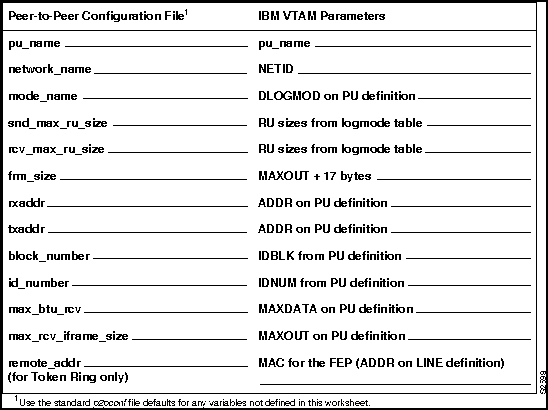
If you choose not to use the worksheet, continue to the section "Configuring CiscoWorks Owner and Group IDs" to complete the task of synchronizing the login and passwords allowed to use the CiscoWorks software.
For additional information on the configuration variables, refer to the 7.0 SunLink SNA Peer-to-Peer Administrator's Guide.
Configuring CiscoWorks Owner and Group IDs
In order for the CiscoWorks NetView Interface to successfully collect information from CiscoWorks, the owner and group IDs in both programs must match. The CWNVconfigure script configures the CiscoWorks NetView Interface to match the CiscoWorks IDs. Run this script after the installation is completed and prior to running the install.snap2p script.
To run the CWNVconfigure script, perform the following steps:
Step 1: At the command prompt, enter the following commands:
hostname%
cd /user/tmp/unbundled
hostname%
CWNVconfigure
Step 2: The CWNVconfigure script displays the following script:
******* CiscoWorks NetView Interface 1.0 CONFIGURATION ****
CONFIGURATION SETUP:
This section of the CiscoWorks NetView Interface 1.0 configuration
will ask you the directory path where the CiscoWorks product
has been installed. The script sets up the same owner and
group id for the CiscoWorks NetView Interface 1.0 software.
Is CiscoWorks installed at your site?[yes]
Step 3: Press Return to indicate CiscoWorks is installed.
What directory does the CiscoWorks software reside in? [/usr/nms]
Step 4: Press Return to indicate CiscoWorks is installed in the default directory indicated in the brackets.
Setting the permissions for CiscoWorks NetView Interface 1.0

software ...
chown cscworks.CscWorks /usr/nms/bin/cmpconf
chown cscworks.CscWorks /usr/nms/bin/contacts
chown cscworks.CscWorks /usr/nms/bin/getconf
chown cscworks.CscWorks /usr/nms/bin/ifstatus
chown cscworks.CscWorks /usr/nms/bin/neticmp
chown cscworks.CscWorks /usr/nms/bin/netif
chown cscworks.CscWorks /usr/nms/bin/netmenu
chown cscworks.CscWorks /usr/nms/bin/netroute
chown cscworks.CscWorks /usr/nms/bin/netset
chown cscworks.CscWorks /usr/nms/bin/netstatus
chown cscworks.CscWorks /usr/nms/bin/shomibvar
chown cscworks.CscWorks /usr/nms/bin/showif
chown cscworks.CscWorks /usr/nms/bin/tracepath
chown cscworks.CscWorks /usr/nms/bin/showflash
chown cscworks.CscWorks /usr/nms/bin/CWNVversion
chown cscworks.CscWorks /usr/nms/bin/CWevent.table
chown cscworks.CscWorks /usr/nms/bin/CWmachine.table
Refer to the CiscoWorks NetView Interface 1.0 configuration chapter
for the next step of the configuration.
Continue with the next section to configure the CiscoWorks NetView Interface.
Configuring the IBM SNA Configuration
This section briefly describes what is required to configure the IBM SNA configuration. This section should be completed by the IBM system administrator or NetView operator that has access to the NCP/VTAM configuration file.
Refer to the IBM document SNA Formats for more detailed information.
An SNA network is a hierarchical network where many end-point devices communicate with a few host systems. To add a new device to the SNA network, an SNA host system administrator must update the SNA host network configuration (NCP/VTAM GEN).
The NCP/VTAM GEN lists all the SNA resources connected to an SNA communications controller. Four macros define the resources associated with a PU 2 device emulated by the SunLink SNA Peer-to-Peer RunTime Environment.
The CiscoWorks NetView Interface requires at least one PU. The following section provides a sample SNA configuration based on a point-to-point, 9600 baud line. Refer to your SunLink documentation for instructions on matching the configurations of your SunLink configuration file and SNA host file.
The four macros that define the PU 2 device to emulate an IBM SNA Server are described in Table 4-1.
| Macro Name | Description |
|---|---|
| GROUP | Specifies certain command characteristics and functions for a group of links and devices. |
| LINE | Represents the physical line connecting to the PU 2 device. Several PU 2 devices can share one line; this is called a multipoint line. A line with only one PU 2 device is called a point-to-point line. A line which uses a dial-in connection is a switched line. |
| PU | Represents the PU 2 device. This macro identifies the station address on the line for this PU 2 device. |
The SunLink SNA Peer-to-Peer RTE implements PU type 2.0/2.1 and LU 6.2. The gateway is broken into two process: APPC and SDLC.
The SNMP events and traps are converted and forwarded to NetView on an SCCP to PU session. The CiscoWorks NetView Interface, with the use of Sun's SNA Peer-to-Peer RTE, communicates with IBM's Control Point Management Service (CPMS) via NMVT. This enables the Sun running SNA Peer-to-Peer RTE as an SNA boundary-function-attached (BFA) type 2.1 node. This allows the Sun SNA Peer-to-Peer Gateway to be a service point application, which in turn enables the NetView operator to send RUNCMD requests to the Sun.
The NCP/VTAM generation file defines the information needed to connect to a Sun network.
Your IBM system administrator or NetView administrator will need to edit the NCP/VTAM file to reflect the appropriate macro and operand definitions. Ensure that the Sun SNA Peer-to-Peer configuration file variables match the NCP/VTAM variables.
The following is a section of the NCP/VTAM generation file for the IBM host configuration:
** GROUP macro **************************************************
GRPCW01  GROUP  DIAL=NO,
    LNCTL=SDLC,
    TYPE=NCP,
    ISTATUS=ACTIVE,
** LINE operands moved up to GROUP macro ************************
    CLOCKING=EXT,
    DISCNT=NO,
    SERVLIM=5,
    TRANSFER=9,
    SPDSEL=NO,
** PU operands moved up to GROUP macro **************************
    IRETRY=YES,
    MAXDATA=521,
    MAXOUT=7,
    PASSSLIM=11,
** LU operands moved up to GROUP macro ***************************
    MODETAB=ISTINCLM,
    SSCPFM=USSSCS,
    USSTAB=HIS3270,
    PACING=1,
    VPACING=1
** LINE macro ****************************************************
CWLIN01  LINE  ADDRESS=(01,FULL),
    SPEED=9600
    NRZI=NO,
    DUPLEX=FULL
** PU macro ******************************************************
CWPU01  PU  ADDR=C1
    PUTYPE=2
    IDNUM=017
    TERMID=12345
** LU macros ******************************************************
* None
******************************************************************
The previous IBM host configuration supports one PU 2 connected to the communications controller with a 9600 baud point-to-point line. The following terms are defined for your line connection and PU 2 designation:
Configuration Tasks to Complete for install.snap2p
This section briefly discusses what tasks are required prior to the configuration of the SNA Peer-to-Peer RTE. For more detailed information and instructions, refer to the 7.0 SunLink SNA Peer-to-Peer Administrator's Guide.
You must complete several tasks before, during, or after you run the installation (install.snap2p) script. These tasks are described below:
FIRSTAGTINSTALL=FALSE
.
Also change the value of the DESTAGTDIR variable to the directory where SNM is installed. For example,
DESTAGTDIR=/usr/snm
.
Running the install.snap2p Script
The first task is to configure the snap2p configuration file. There are two options for configuration:
This manual describes the install.snap2p script option, which is the easiest option. If you prefer not to use the install.snap2p script, refer to Appendix A of the 7.0 SunLink SNA Peer-to-Peer Administrator's Guide, for instructions on the proper procedure to follow for the second option.
Basically, the install.snap2p file installs three standalone components:
You can install these components independently if you choose. This is described in the
7.0 SunLink SNA Peer-to-Peer Administrator's Guide.The install.snap2p script adds the interface device drivers required for SDLC connection and LLC device entries if Token Ring is used.
To run the install.snap2p script, perform the following steps:
Step 1: Log in as the superuser by entering su and the root password.
Step 2: From a UNIX shell, enter the following at the command prompt:
hostname#
/usr/sunlink/snap2p/install.snap2p
Refer to Chapter 2 of the 7.0 SunLink SNA Peer-to-Peer Administrator's Guide for detailed information on the install.snap2p script and Token Ring configuration.
Booting Off the Rebuilt Kernel
After the completion of install.p2p, you have installed the SNA Peer-to-Peer gateway and rebuilt the kernel, installed PCA and the SNA Peer-to-Peer agent, then you need to reboot off the rebuilt kernel.
To rename your original kernel and copy the new kernel to the new directory, perform the following steps:
Step 1: Become the superuser by entering su and the root password.
Step 2: To rename your original kernel, enter the following command:
#
cp /vmunix /vmunix.old
Step 3: To copy the new kernel to the correct directory, enter the following command:
#
cp /usr/kvm/sys/sun4/NEW_KERNEL/vmunix /vmunix
Step 4: Reboot your machine using L1A or other method of rebooting.
For additional detail, refer to the 7.0 SunLink SNA Peer-to-Peer Administrator's Guide for instructions on how to rename your original kernel, copy the new kernel to the new directory, and boot the new kernel.
Verifying the SunLink SNA Peer-to-Peer RTE Installation
To verify that the software modules required by SunLink SNA Peer-to-Peer RTE were successfully installed, refer to Chapter 2 in the 7.0 SunLink SNA Peer-to-Peer Administrator's Guide. The section entitled "Installation Verification" explains how to verify this installation.
Adding a Gateway to the Network
Before you proceed with the configuration process, you must incorporate the SNA Peer-to-Peer gateway into an existing network of Sun workstation.
The install.maps script creates an ASCII file /etc/appcs. The /etc/appcs file contains configuration information that identifies a Sun computer running an SNA Peer-to-Peer gateway. The install.maps script will also handle if you are running Network Information Services (NIS).
Defining a Gateway if Running NIS
If your network is using NIS, perform the following steps to establish and maintain mappings between gateway names and machine locations:
Step 1: Become the superuser and change directories to the /usr/sunlink/mapper directory:
%
su
Password:
#
cd /usr/sunlink/mapper
Step 2: Run install.maps on the NIS Server.
Defining a Gateway if Running Local
If your network is using a local server, follow this process to establish and maintain mappings between gateway names and machine locations:
Step 1: Become the superuser and change directories to the /usr/sunlink/mapper directory:
%
su
Password:
#
cd /usr/sunlink/mapper
Step 2: Run install.maps on each client computer.
Step 3: Create and maintain maps in a file called /etc/appcs on each of the client computers.
Configuring the SNA Peer-to-Peer Configuration File
The SNA Peer-to-Peer configuration file, or p2pconf input file, enables the SNA Peer-to-Peer gateway to communicate with a remote SNA node. You need to configure one of the sample input files SunLink ships with the SNA Peer-to-Peer product to provide the parameters to connect to the IBM communication controller. This file is read during initialization of the PU.
Since this file defines SNA resources, these objects must be configured in both the SNA host's VTAM definition statement in the NCP GEN list and in this SNA Peer-to-Peer configuration file.
The SNA Peer-to-Peer RTE is shipped with several sample p2pconf input files. You can use these sample files to create a customized p2pconf input file. Refer to Chapter 3 in the
7.0 SunLink SNA Peer-to-Peer Administrator's Guide for information on modifying your p2pconf input file. You can use the Configuration File Parameters Worksheet earlier in this chapter to plan the values for the system configuration file.
To configure your p2pconf file, perform the following steps:
Step 1: Change to the directory where the sample files are stored. The file is located in the /snap2p/p2petc directory:
%
cd /usr/sunlink/snap2p/p2petc
Step 2: Copy one of the sample configurations to your directory. If you are using Token Ring, use sun_neg_configtr.1 file as your base file to make changes.
%
cp sun_neg_config new_filename
Step 3: Edit the new file using your favorite text editor.
Modifying the SNA Peer-to-Peer Configuration Input File
The SNA Peer-to-Peer configuration file, or p2pconf file, requires the following variable definitions:
The configuration file variables are discussed briefly below. For detailed information about variable defaults, formats, and comparable VTAM variables, refer to Chapter 3 in the
7.0 SunLink SNA Peer-to-Peer Administrator's Guide.
The PU definition variables define the operating parameters of the PU. Keep in mind the following when you define the variables:
The node definition variables define the node ID so the SNA Peer-to-Peer gateway can connect to a type 2.1 note instead of a subarea network.
Keep in mind the following when you define the variables:
DEFINE_LOCAL_LU:/DEFINE_PARTNER_LU:
The LU portion of the definition is not used, but is required by the SNA Peer-to-Peer RTE. The LU definition includes variables that define a local LU and partner LU. Since many of the variables do not have defaults, refer to the SunLink manual for format parameters. Keep in mind the following when you define these variables:
The mode definition variables define a mode. These variables correspond to the IBM MODE entries. Keep in mind the following when you define these variables:
The DLC definition variables define a Data Link Control (DLC) layer. Depending on your network, you may be defining SDLC or Token Ring connections. Refer to your appropriate DLC variables below.
SDLC
Keep in mind the following when you define the following SDLC variables:
The XID3 variable defines the format of the information field of the DLC XID command and response. For more detail on the number of bytes and content of the XID formats, refer to the IBM SNA Formats publication.
Token Ring
Keep in mind the following when you define the following Token Ring variables:
The ALS definition variables define and Adjacent Link Station (ALS).You must define ALS variables for each DLC definition in your input file. Depending on your network, you may be defining SDLC or Token Ring connections. Refer to your appropriate ALS variables below.
SDLC
Keep in mind the following when you define these SDLC variables:
Token Ring
Keep in mind the following when you define these Token Ring variables:
The DB_MSG variables define debugging parameters. Use the default of no debugging where all variables are set to zero.
To turn on debugging, change the variables from zero to one. The flags variable must be set to 6. You must also create a debugging file name. For more information on DB_MSG, refer to the section "Performing a Gateway Trace" in Appendix C.
Configuring the Protocol Conversion Application (PCA)
The Protocol Conversion Application (PCA) is an SNM application that converts SNM events and traps into a format readable by the SNA Physical Unit Management Services (PUMS). This format, known as an SNA alert, can then be sent to IBM's NetView.
PCA enables you to set which events to forward to IBM NetView and what information to place in the SNA alert. For more detailed information about PCA, refer to Chapter 6 in the 7.0 SunLink SNA Peer-to-Peer Administrator's Guide.
In order for you to start and stop the PCA, it must be represented on your SNM Console with a special glyph, or icon. A glyph represents the device on the console.
To configure the PCA, complete the following tasks. These tasks are described in detail in the subsequent sections; they are not described in this manner in the Sun documentation.
Step 1: Add the new software directories to your .cshrc path.
Step 2: Create a PCA glyph in SNM.
Step 3: Create PCA glyph properties in SNM.
Step 4: Edit the CWevent.table for event conversion support.
Adding Software Directories to Your .cshrc Path
In order for your PCA to start properly and for access to the RUNCMD server, you must add the path information to your .cshrc file.
To add new path information to your .cshrc file, edit your path statement to include the following directories:
The path command changes your path environment to search for the software directories listed above when executing a command.
In order for PCA tasks to be performed, you must have a workstation dedicated to running the PCA software. To make it easier for the network manager, you can assign a unique PCA glyph to your Sun workstation.
This section briefly discusses the steps to create the PCA glyph on your network. Refer to your SunNet Manager documentation for further information on glyph creation.
To create a PCA glyph on your network map, perform one of the following procedures:
Refer to the SunNet Manager 2.0 User's Guide for detailed instructions on how to use the Change Type and Create commands.
In order for the PCA glyph you created in the previous section to have meaning, you need to define the element, or device, that the glyph represents. This definition is created using the SunNet Manager's Properties command.
To define or modify the PCA glyph properties, perform the following steps:
Step 1: Move your mouse over the PCA glyph and select the SNM Glyph menu.
Step 2: From the Glyph menu, select Properties to open the properties window.
Step 3: Add or modify the following options on the Properties window:
Step 4: Click on Apply to save the changes and close the Properties sheet.
Your PCA glyph now contains the information necessary to complete the protocol conversion of events and traps.
Editing Your Cisco Tables for Event Conversion Support
The CiscoWorks NetView Interface ships two tables that define event conversion. The PCA CWevent.table and the CWmachine.table. These tables define the actions for the CiscoWorks NetView Interface. These actions include which events to convert to SNA alerts and send to NetView.
Refer to the section "Creating a Customized Event Table for PCA" in Chapter 6 for instructions on customizing your event table.
To add your PU name to the CWevent.table for IBM connectivity, perform the following steps. Refer to Appendix A, "Sample Configuration Files," for the CWevent.table file.
Step 1: At the UNIX prompt, edit the CWevent.table file. This example uses the vi editor:
Step 2: Press the colon (:) key.
Step 3: Type the following command:
Step 4: Press the colon (:) key again and enter wq.
The defaults for the files are described in the Table 4-2.
Table 4-2 : PCA Table Defaults
Comparing IBM and SunLink Files
This section describes the parameters that should match for the successful communication of events and traps to occur. Refer to Table 4-3 for the comparison of the two file variables.
You can also refer to the 7.0 SunLink SNA Peer-to-Peer Administrator's Guide for the table that describes the p2pconf file variables with matching VTAM parameters.
Table 4-3 : CiscoWorks NetView Interface and NCP Configuration Values
If the above variables listed in Table 4-3 do not match, no communication can occur between CiscoWorks NetView Interface and IBM NetView. Contact your IBM system administrator or NetView administrator to make any NCP/VTAM changes required.
Copyright 1988-1996 © Cisco Systems Inc.


%
vi $NMSROOT/bin/CWevent.table
1,$:s/puname/
your_puname
/g
Filename
Defaults
CWevent.table
All SNMP trap information is mapped.
All event information uses the default mapping entry.
CWmachine.table
All device information is recorded.
SNA Peer-to-Peer
Configuration Parameters
NCP Macro
NCP Parameter
DEFINE_PU
pu_name
network_name
PU
MVS startup file
name
NETID
DEFINE_MODE
mode_name
snd_pac_window
rcv_pac_window
snd_max_ru_size
rcv_max_ru_size
PU
DLOGMOD
SSNDPAC
SRCVPAC
RUSIZES
RUSIZES
DEFINE_DLC
frm_size
window_size
rxaddr
txaddr
full duplex
nrzi
block_number
id_number
GROUP/LINE/PU
GROUP/LINE/PU
PU
PU
GROUP
GROUP
PU
PU
MAXDATA
MAXOUT
ADDR
ADDR
DUPLEX
NRZI
IDBLK
IDNUM
