
Table of Contents
Hardware Installation
Hardware Installation
This chapter provides detailed instructions for installing the FastHub 116T on a table or shelf, or in a rack, connecting the FastHub 116T to the network.
After unpacking the FastHub 116T and ensuring all items are included (see the "Fast Install Guide" chapter for a packing list), the first step is to mount the FastHub 116T on a rack, shelf, or table.
Rack mount ears are integrated on the FastHub 116T front panel for maximum support and ease of installation. To install the FastHub 116T in a rack, follow these steps.
- Step 1 Position the FastHub 116T on the rack.
 Caution Do not connect the power cord to the FastHub 116T and to the power source until the FastHub 116T is installed in the rack.
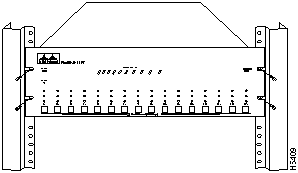
- Step 2 Match the holes in the rack with the holes in the FastHub 116T mounting ears as shown in Figure 3-1.
Figure 3-1 FastHub 116T Installed in a Rack
- Step 3 Attach the FastHub 116T to the rack with the four provided screws.
- Step 4 Connect the power cord to the FastHub 116T and to the power outlet.
- Step 5 Turn the FastHub 116T on using the power switch on the rear panel.
The power LED will turn on and the FastHub 116T will begin operation.
Follow these instructions to install the FastHub 116T on a table or shelf.
- Step 1 Attach the four rubber feet included in the cushioning kit to the bottom of the unit.
- Step 2 Place the FastHub 116T on the table or shelf close to a power source.
- Step 3 Connect the power cord to the FastHub 116T and to the power outlet.
- Step 4 Turn the FastHub 116T on using the power switch on the rear panel.
The power LED will turn on and the FastHub 116T will begin operation.
You can interconnect 100Base-T compatible hubs and adapters using the Fast Ethernet ports on the front panel. Follow these instructions to connect devices using the Fast Ethernet ports:
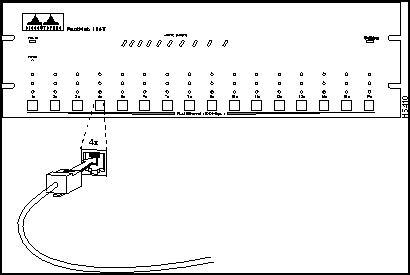
- Step 1 Insert the RJ-45 connector into one of the Fast Ethernet ports as shown in Figure 3-2.
Figure 3-2 Inserting the RJ-45 Connector
- Step 2 Insert the other end of the cable into a 100Base-TX compatible adapter installed in a server or into the Fast Ethernet port of another Catalyst 1700 or 100Base-TX compatible hub.
Note Verify that the RJ-45 cable is wired for Ethernet. A straight-through cable is used to connect to an adapter in a server or workstation.
When interconnecting two FastHub 116Ts or a FastHub 116T and a Catalyst 1700 or another 100Base-TX compatible hub, a crossover cable must be used. See the figure "Crossover Cable Schematic" in the "FastHub 116T Connector Pinouts" appendix. (Only one connection can exist between hubs.)
- Step 3 Repeat steps 1 and 2 to connect other Fast Ethernet ports to a 100Base-TX compatible adapter or hub.
- The Link LEDs light when both FastHub 116T and the connected hubs and adapters are turned on. If the Link LEDs do not light, there may be a cable problem or a problem in the adapter installed in the server. (Refer to the "Troubleshooting" chapter for more details).
- After these devices are connected, you can connect FastHub 116T to the rest of your network.
- The workstation or server is now connected to the FastHub 116T.
Copyright 1988-1996 © Cisco Systems Inc.



