


|
|

This chapter will help you confirm that you have correctly installed the hardware and software for your SBus adapter. Please make sure that you have followed all the steps in the chapter "Installing the SBus Adapter Software" and the chapter "Installing the SBus Adapter Hardware."
This section assumes that you have rebooted your SPARCstation. Refer to your SPARCstation manual for the correct way to reboot your system.
During the initialization process, you will see messages that indicate that the hardware is installed properly. The Institute for Electrical and Electronics Engineering (IEEE) and FDDI addresses that are unique to each SBus adapter are read from the FDDI interface. The following display is from a SunOS 4.1.x startup:
CRES,cddi at SBus slot 0 0x800000 and SBus slot 0 0xa00000 pri 7 (sbus
level 4)

FDDI0 SBus Adapter Driver Rev: 4.1 Hw Rev: 3.5 Fw Rev: 4.4

fddi0 diagnostic test passed: 0x0

fddi0 address 0:40:b:40:80:97 (0:2:d0:2:1:e9)

fddi0 ring up
Once the system is initialized, the login prompt will appear. Log in to your system as usual.
Two diagnostic LEDs are mounted on the SBus adapter. These indicate status and ring operation.
The status LED monitors the adapter's status. If this LED is on, the adapter has passed its internal diagnostics. This LED must be on for the adapter to function properly.
The ringop LED monitors ring operation. If this LED is on, the adapter is connected to the CDDI/FDDI ring. If this LED is not on, check that the adapter is connected to the concentrator and to the RJ-45 wall outlet. If both connections are good, then check to see if there is a cable fault and if the concentrator is operational.
Confirming the SBus FDDI Operation
You can verify that the adapter recognizes the IP address, netmask, and the broadcast addresses that you set up.
Confirming IP, Netmask, and Broadcast Addresses
The ifconfig command displays slightly different information depending on the operating system software. Following are examples of the ifconfig command used with SunOS and Solaris system software.
SunOS ifconfig Command Example
Use the ifconfig command to display the current FDDI configuration. The following message should appear:
The IP address 198.133.219.226 is the address you assigned in the /etc/hosts file.
Solaris ifconfig Command Example
Use the ifconfig command to display the current FDDI configuration. The following message should appear:
The IP address 198.133.219.235 is the address you assigned in the /etc/hosts file.
Confirming Connections to Network Devices
You can use the ping command to determine if your adapter is connected to the network or other devices on the network. Typically, you will want to ping the following devices:
Enter the ping command, as follows:
Performance Measurement Using the ttcp Utility
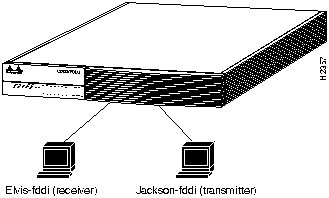
The performance of the SBus adapter can be monitored using the following test setup (which is similar to Figure 5-1) and the ttcp utility.
Figure 5-1 : Hardware Test Configuration Using ttcp
In the following examples, refer to Figure 5-1.
The Transmission Control Protocol (TCP) measurements format of the ttcp command is as follows.
The User Datagram Protocol (UDP) measurements format of the ttcp command is as follows:
Confirming the Operation of the SNMP Agent
You can confirm an SNMP agent from a network management station. Refer to your network management station manual for information on how to confirm that the SNMP agent is functioning properly.
Copyright 1988-1996 © Cisco Systems Inc.
console# ifconfig fddi0

fddi0: flags=863<UP,BROADCAST,NOTRAILERS,RUNNING>

  inet 198.133.219.226 netmask ffffff00 broadcast

    198.133.219.0


console#
console# ifconfig fddi0

fddi0: flags=843<UP,BROADCAST,RUNNING,MULTICAST> mtu 4352

  inet 198.133.219.235 netmask ffffff00 broadcast

    198.133.219.255

console#
console# ping console-fddi

console-fddi is alive
Elvis-fddi:
ttcp -r -v -R51000
Jackson-fddi:
ttcp -t -v -S51000 Elvis-fddi
Elvis-fddi:
ttcp -r -u -v -R51000
Jackson-fddi:
ttcp -t -u -v -S51000 Elvis-fddi
EXAMPLE nice -20 ttcp -r -v -R51000
