


|
|

Installing and Upgrading the CSC-C2FCIT FDDI Card and Appliques
Product Numbers:
CSC-C2FCIT=
APP-LMM=
APP-LMS=
APP-LSM=
APP-LSS=
MC-C2FCIT-V10.3=
This publication provides instructions for installing the Fiber Distributed Data Interface (FDDI) modules in the AGS+ router. These modules include the FDDI interface card with translational bridging (CSC-C2FCIT) and the four available fiber-optic transceiver appliques, which provide single-mode and/or multimode network interfaces. The C2FCIT card operates with the second- generation ciscoBus card (CSC-CCTL2).
This publication also includes instructions for upgrading the C2FCIT microcode when required.
The sections following are included in this publication:
If you encounter a new problem and determine that it is not the result of this installation or upgrade, refer to the AGS+ Hardware Installation and Maintenance publication for initial system startup troubleshooting procedures, or to the Troubleshooting Internetworking Systems publication for additional suggestions for resolving the problem.
The FDDI interface modules described in this document include the single-port FDDI communications interface card with translational bridging (CSC-C2FCIT) and the four available fiber-optic transceiver appliques. While incorporating all of the functions of the C2FCI card, the C2FCIT card provides higher speeds than the C2FCI card as well as the following translational bridging capabilities: FDDI to FDDI (transparent), FDDI to Ethernet, and FDDI to Token Ring.
The C2FCIT card must be installed in an AGS+ router that is running Software Release 9.1 or later and that contains a CSC/3 or CSC/4 processor card. The router must also contain a ciscoBus2 (CSC-CCTL2) card (which is indicated by C2 in the product number).
C2FCIT cards can be installed in any of the four available ciscoBus slots in the system card cage. A maximum of four C2FCIT cards is allowed in the AGS+, with one FDDI applique per C2FCIT card. The FDDI appliques are installed in the rear of the chassis in an applique card cage (Product Number MAS-CCG).
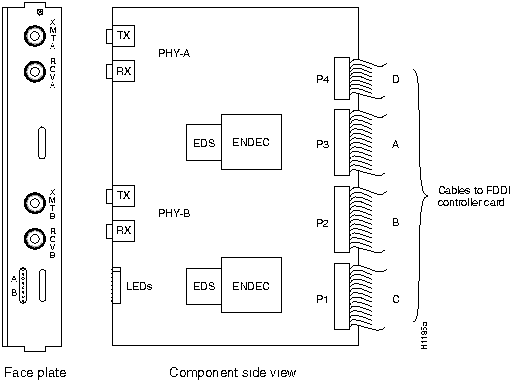
The C2FCIT card (see Figure 1) is one of the two AGS+ FDDI interfaces for both single-mode and multimode network interfaces. (The other FDDI interface card is the CSC-C2FCI.) The C2FCIT card is connected to the ciscoBus and Multibus backplanes in the AGS+ router.
The CCTL2 card is backward compatible with the FCI, HSCI/Ultra, and MEC cards, providing all have Microcode Version 10.0 or later, and the system is running Software Release 9.1 or later. An FCI, HSCI, or MEC card with Microcode Version 10.0 or later will include in its name C2 (C2FCI, C2HSCI/Ultra, and C2MEC), which indicates that the card has Microcode Version 10.0 or later and can be used with the CCTL2 ciscoBus card.
Figure 1 : CSC-C2FCIT (FDDI) Card---Component-Side View
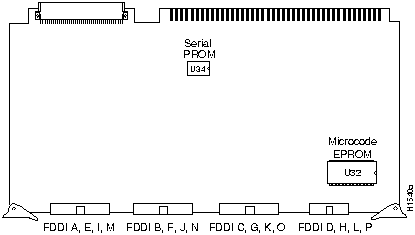
The distance limitations for single-mode and multimode FDDI stations are listed in Table 1. Both FDDI modes provide 11 decibels (dB) of optical power.
Table 1 : FDDI Maximum Transmission Distances
| Transceiver Type | Maximum Distance Between Stations |
|---|---|
| Single-mode | Up to 6.2 mi (10 km) |
| Multimode | Up to 1.2 mi (2 km) |
The fiber-optic transceivers reside on circuit cards called appliques that provide the interface between external network connections and the internal CSC-FCI card. The four applique configurations are shown in Figures 2 through 5; each provides a unique combination of single-mode and/or multimode FDDI interfaces.
Following are the four FDDI applique mode combinations:
Both the single-mode and multimode transceivers provide a Class A dual attachment interface that can be connected to either a Class A or Class B station. Class A is a dual attachment station (DAS) with primary and secondary rings; Class B is a single attachment station (SAS) with only a primary ring.
The single-mode transceiver provides connectivity to single-mode FDDI fiber for distances up to 6.2 miles (10 kilometers). The connector is a simplex FC-type interface that accepts standard 8.2 to 10/125 micron (±0.5) single-mode fiber-optic cable.
The multimode connectors are FDDI-standard physical (PMD) connectors. The connectors accept FDDI standard 62.5/125 micron multimode fiber-optic cable using the media interface connector (MIC). The MIC can also accept alternate cable sizes, such as 50, 85, or 100micron multimode fiber. Use care when using alternate fiber sizes, to avoid violating optical power budget restrictions.
The multimode/multimode applique also provides a DIN port for connecting an optional optical bypass switch, which allows the light signal to pass directly from the receive port to the transmit port. When this optical bypass is used, the signal is not repeated, and significant signal loss may occur when transmitting to stations at maximum distances.
Figure 2 : Multimode/Multimode---APP-LMM
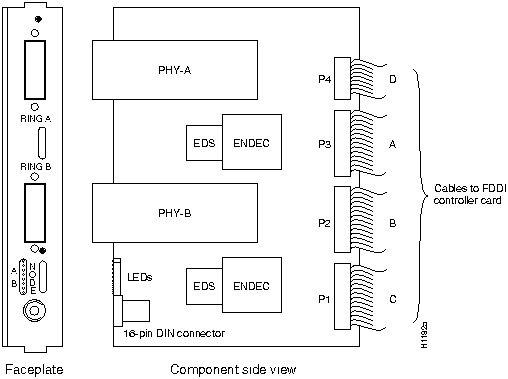
Figure 3 : Multimode/Single Mode---APP-LMS
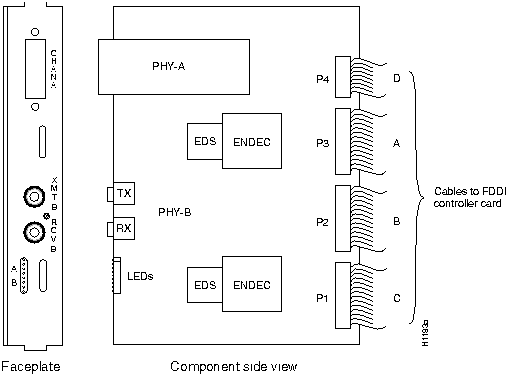
Figure 4 : Single Mode/Multimode---APP-LSM
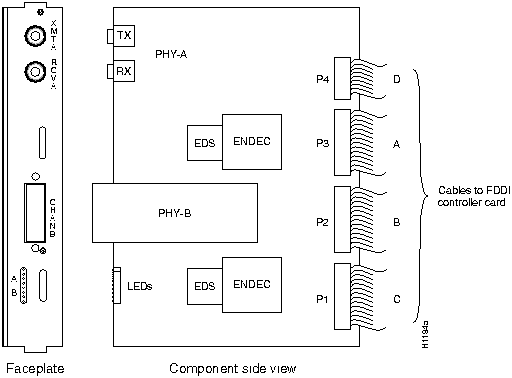
Figure 5 : Single Mode/Single Mode---APP-LSS
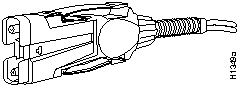
Following are the connectors typically used with single-mode and multimode FDDI applications.
Figure 6 shows the fiber-optic network interface cable FC-type connector typically used for single-mode FDDI applications with the APP-LSS, APP-LSM, and APP-LMS FDDI appliques.
Figure 6 : Single-Mode FDDI Network and Chassis Connector

Figure 7 shows the fiber-optic MIC used for network and chassis connections with the APP-LMM, APP-LMS, and APP-LSM FDDI appliques.
Figure 7 : Multimode MIC for Network and Chassis Connections
Following are safety guidelines, system configuration and compatibility requirements, and lists of the parts and tools required for installation. Before installing any FDDI cards or appliques, review this section to ensure that you can perform the installation or upgrade without interruption.
Follow these guidelines when working with any electrical equipment:
In addition, use the guidelines that follow when working with any equipment that is connected to telephone wiring or other network cabling.
Following are the physical requirements and limitations that you must consider before installing new FDDI components in your system. For example, to obtain optimum performance, you must ensure that the new components are compatible with the existing system configuration and that you place interface cards in the proper card-cage slots.
Your AGS+ must meet the following general compatibility requirements before you install a C2FCIT card and associated appliques:
Preventing Electrostatic Discharge Damage
Electrostatic discharge (ESD) is a discharge of stored static electricity that can damage equipment and impair electrical circuitry. It occurs when electronic components are improperly handled and can result in complete or intermittent failures.
Following are guidelines for preventing ESD damage:
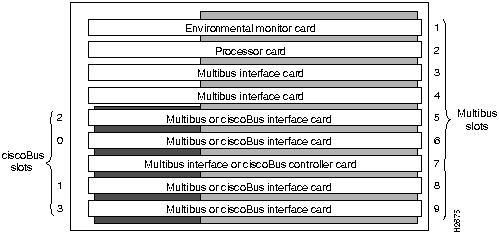
The AGS+ card cage, shown in Figure 8, has nine slots, five of which are designated ciscoBus slots. The center ciscoBus slot is reserved for the ciscoBus card, leaving four ciscoBus slots available for ciscoBus interface cards.
Figure 8 : AGS+ Card Cage and Backplanes---Front View
The AGS+ uses a slot priority scheme that assigns a priority to each ciscoBus card according to the ciscoBus slot in which the card resides. The card in ciscoBus slot 0 receives the highest ciscoBus priority, while the card in ciscoBus slot 3 receives the lowest ciscoBus priority.
Slot priorities are set to accommodate the amount of traffic generated by each interface card and the amount of card buffering required. Each ciscoBus interface card is placed in a specific slot with regard to other ciscoBus interface cards, if any. The order of priority is the same for both first- and second-generation ciscoBus cards, except that the cards with the designation C2 can only be used with the CSC-CCTL2.
Following is a list of ciscoBus interface cards in order of priority, from highest to lowest:
Install CSC-MEC or C2MEC cards in the lowest-numbered slots, beginning with slot 0 (which has the highest priority), followed by CSC-C2CTR cards. After all CSC-MEC and CSC-C2CTR cards are installed, install CSC-HSCI and C2HSCI cards with the APP-LHS applique in the lowest-numbered slots available. Follow with the CSC-FCI and C2FCI cards. Next, install CSC-C2FCIT cards. Last, install the CSC-HSCI and C2HSCI cards with the APP-ULA (UltraNet) applique. Always install cards in the lowest-numbered available slot. For example, if you are using only CSC-C2HSCI cards (with APP-ULA), place the first in slot 0, the second in slot 1, and so forth.
Table 2 lists the maximum port and card configurations for all of the ciscoBus cards currently available. Use this table as a guide when installing new ciscoBus cards and reconfiguring your AGS+.
Table 2 : Maximum Port and Card Configurations for ciscoBus Interface Cards
Calculating the Chassis Power Budget
In an AGS+ chassis shipped on or after October 1, 1991, the total power drawn by all installed cards must not exceed 300 watts (W) per chassis. In chassis shipped before this date, the total power cannot exceed 260W. (The earlier chassis contained a 5amp [A] circuit breaker, rather than the 7.5A circuit used in the later chassis configuration.) Table 3 lists the power requirements for each card available for the AGS+.
Table 3 : Interface Card Power Requirements
Before installing new cards, check the power requirements of the existing system and the new card(s) to avoid exceeding the power budget. Calculate the power requirements of an existing system by adding the values for each card in the chassis; the sum is the power requirement. Determine the available power budget, subtract that sum from 300W (260W for chassis shipped before 10/1/91); the result is the power budget available for new cards.
The following example shows how to determine if you can add two new CSC-C2FCIT cards to an AGS+ (with all values in watts):
List of Required Parts and Tools
The following parts are necessary to install each new FDDI interface:
If you are upgrading the C2FCIT microcode, you also need one or more replacement components. For instructions, proceed to the section "Upgrading Microcode" on page 28.
Verify that you received all the parts for the interfaces you will install. In general, each interface card requires one applique, and every two appliques require one applique card cage. If any parts are missing, contact a customer service representative.
Following are the tools required for installing interface cards and appliques:
Whenever you install new hardware components, the system automatically invokes the setup command facility the first time the system is started. You can use setup to configure the new interfaces, or exit from the setup command facility and configuring the new interfaces with the configure EXEC command.
Before installing new interfaces, be prepared with the information you will need such as the protocols you plan to route on each interface, IP addresses if you will configure the interfaces for IP, and which interfaces, if any, will use bridging.
For detailed descriptions of setup and initial configuration procedures, refer to the Router Products Getting Started Guide and Router Products Command Reference publications. The Router Products Getting Started Guide and the Router Products Configuration and Reference publications provide detailed descriptions and sample sessions of both the setup command and the configure command.
Installing Cards and Appliques
Following are the procedures described in this section:
Before proceeding, ensure that your system and equipment meet the requirements listed in the section "Installation Prerequisites" on page 7.
Following is the procedure for accessing the chassis interior.
Figure 9 : Chassis Front and Top Panels
Following is the procedure for installing the C2FCIT card:
The FDDI applique is installed in an applique card cage in the rear of the chassis; access to the rear of the chassis requires removing the front panel and top cover of the chassis. (See Figure 9.) The following procedure is required only if an FDDI applique is not already installed.
Installing the FDDI Applique in the Applique Card Cage
Following is the procedure for installing the FDDI applique in the applique card cage.
Figure 10 : FDDI Applique and Applique Card Cage---Exploded View
Installing the Applique Card Cage in the Chassis
The applique card cage can only be installed in one of the two large plate areas on the right side of the rear panel of the chassis. (For the remainder of this procedure, orient the card cage and chassis as shown in Figure 11.)
Figure 11 : Installing the FDDI Applique and Card Cage in the AGS+ Chassis
Installing a Short Ground Strap
The ground strap, which is included with all appliques, grounds the applique to the chassis to prevent EMI noise on your network interface. The applique card cage containing the FDDI appliques should already be installed in the chassis and secured with five screws. Refer to Figure 12 while you install the short ground strap.
Figure 12 : Short Ground Strap Installation
Installing a Long Ground Strap
Ground straps, which are included with all appliques, ground the applique to the chassis to prevent EMI noise on your network interface. The applique card cage containing the FDDI appliques should already be installed in the chassis and secured with four screws. Refer to Figure 13 while you install the long ground strap.
Figure 13 : Long Ground Strap Installation,
Connecting Internal and External Cables
The four internal ribbon cables (permanently attached to the FDDI applique) attach to the four connectors on the front edge of the C2FCIT card. The FDDI network interface cables attach to the FDDI applique and provide the external connections to your network. Before beginning these procedures, position the chassis with the open card cage facing you.
Connecting the Internal FDDI Ribbon Cables
The four internal ribbon cables are fixed to the applique and must be routed and attached to ports on the C2FCIT card. The ribbon cables are labeled alphabetically depending on the number of appliques you will install. The C2FCIT card connectors are shown in Figure 14, and the ribbon cable connectors are listed in Table 4. The ribbon cable orientation and labeling for the FDDI applique is shown in Figure 15.
The ribbon cables from your FDDI applique are labeled as follows:
Connect the four applique ribbon cables to the C2FCIT card as follows.
Table 4 : FDDI Applique Ribbon Cable and CSC-C2FCIT Connector Designations
Figure 14 : Orientation of the FDDI Connectors on the CSC-C2FCIT Card
Figure 15 : Orientation of the Ribbon Cables on the FDDI Applique
Connecting the External Fiber-Optic Cables
Following is the procedure for connecting the external FDDI cables. Refer to Figure 6 for an illustration of the single-mode FDDI connector and to Figure 7 for illustrations of the single-mode and multimode FDDI connectors.
Table 5 : Optical Bypass Switch Pinout
After you have installed your new FDDI module, verify the installation (before replacing the front panel) by taking the following steps.
Two separate sets of LEDs provide status about the installation: those on the CCTL2 card and those on the FDDI applique. The LEDs on the CCTL2 card will verify the presence (and correct installation) of the C2FCIT cards in the ciscoBus backplane, while the LEDs on the applique report the state of the FDDI interfaces.
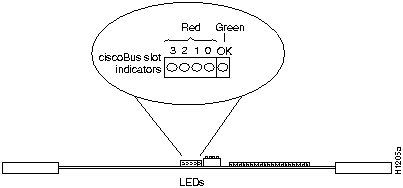
The C2FCIT card contains no LEDs or indicators. The LEDs on the CCTL2 card indicate when a ciscoBus interface is present in a ciscoBus slot. The front edge of the CCTL2 card contains a bank of five LEDs as shown in Figure 16, one red LED for each interface slot in the ciscoBus, and a green (boot) LED to indicate a successful boot procedure.
One red LED will be on for each correctly connected ciscoBus card using the correct version of microcode. It will not be on if the card is incorrectly connected or if the microcode version is wrong.
On power up, all five LEDs are on, indicating that the CCTL2 card is active. Once the system is booted, and the ciscoBus controller card microcode has completed its discovery phase, the only red LEDs will be those on that indicate the presence of a card in a ciscoBus slot. The green LED is also on to indicate a successful boot operation. Figure 16 illustrates which LED will be on to indicate the presence of a card in the ciscoBus slot. The numbers above each LED (3, 2, 1, and0 from left to right) indicate the ciscoBus slot number assigned to that LED.
Figure 16 : CCTL2 Card LED Indicators---Front-Edge View
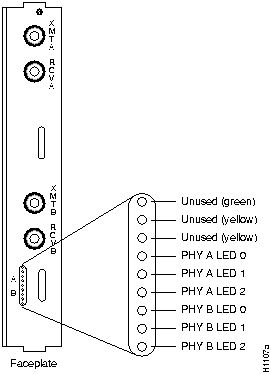
Each FDDI applique contains a bank of nine LEDs, which indicate the current line state of each of the two physical connections on the card. The applique LEDs are shown in Figure 17, and their line states are listed in Table 6.
Table 6 : Line State Indications for PHY-A or PHY-B LEDs
When the ring is operational (when the line protocol is up), the LEDs for each physical connection (A and B) will oscillate between ILS, ALS, and MLS. ILS will predominate, so LED 2 will glow most brightly; LED 0 will be slightly dimmer; and LED 1 will be almost completely dark. The X3T9.5 FDDI specification explains the meaning of these line states in detail.
Figure 17 : FDDI Applique Faceplate Showing the LEDs (APP-LSS shown)
When the LEDs show that the applique is installed correctly, use EXEC show commands to verify that the new FDDI interface is properly recognized by the system. When the system is started, the interface cards query the appliques for interface information.
The EXEC command show controller fddi displays the current internal status of the C2FCIT card(s). The first line of the display shows the FDDI interface hardware version (type) and microcode version. It also indicates that the system has identified your new interface; however, it does not indicate the state of the line or protocol.
Following is sample output of the show controller fddi command:
The EXEC command show controller cbus displays the current internal status of the ciscoBus card, as well as the status of all other ciscoBus cards being used (including the C2FCIT).
Following is sample output of the show controller cbus command:
To obtain more information about the interfaces, such as the state of the lines and protocol types, use the EXEC command show interface fddi unit (where unit is the unit address of the desired interface) to display statistics about a particular FDDI interface in the router.
The first line of the show interface fddi unit command display names the interface (FDDI) and its unit number (0) and indicates whether the hardware and line protocol are up or down.
Following is sample output of the show interface fddi unit command:
Some aspect of the hardware is not functioning properly if the line protocol is down (in the first line of the above sample output). Ensure that the network interface is properly connected and terminated.
In addition to the show commands already described, two new commands are available with the Software Release 9.1 or later C2FCIT card: [no] fddi encapsulate and [no] fddi if-cmt. The command fddi encapsulate is used to put the C2FCIT interface into encapsulation mode when bridging. In this mode, the C2FCIT card will interoperate with earlier C2FCI or C2FCIT encapsulating interfaces on the same ring when bridging.
The command no fddi encapsulate will turn off the encapsulation mode and return the C2FCIT interface back to its native "pure" transparent (nonencapsulating) mode.
The fddi encapsulate command can only be used with C2FCIT interfaces because the C2FCI card is always in encapsulating bridge mode.
The command fddi if-cmt is used to enable the new configuration management (CMT) feature that is now in the microcode on the C2FCIT card. This feature is on by default, but may be turned off with the no fddi if-cmt command. This command would typically be used when you are working with a new piece of FDDI equipment and bringing the ring up presents a problem. The "cmt-plus" microcode will be disabled using the no fddi if-cmt command, and the debug fddi-cmt-events feature will be turned on. This enables the main system code rather than the CMT microcode to perform the CMT function while debugging output is generated.
After the FDDI module installation (or microcode upgrade) tests successfully, take the following steps:
This completes the installation of the FDDI card and FDDI applique.
This procedure is required only if you need to change or upgrade the microcode EPROM device on your CSC-C2FCIT card from Microcode Versions 10.0 (the initial release), 10.1, or 10.2 to Version 10.3. Microcode Version 10.3 requires Software Release 9.1(1) or later.
Before proceeding, use the show version command to ensure that the current system software is Software Release 9.1(1) or later. As shown in the following partial display, the first line of the show version output indicates the current software version, which is 9.1(8) in this example:
Following are the tools and parts you need to upgrade the C2FCIT card:
Following is the procedure for removing the C2FCIT card from the chassis.
Following is the procedure for replacing components on the C2FCIT card:
Figure 18 : Microcode Components on the C2FCIT Card
To verify the microcode version for the C2FCIT card after the system boots successfully, use the show controller fddi command as follows:
For descriptions of additional commands and examples, refer to the Router Products Configuration Guide publication. If you have any problems, contact a customer service representative.
Cisco Information Online (CIO) is Cisco Systems' primary, real-time support channel. You can use your product serial number to activate CIO for a single user during your warranty period. Maintenance customers and partners can self-register on CIO to obtain additional content and services.
Available 24 hours a day, 7 days a week, CIO provides a wealth of standard and value-added services to Cisco's customers and business partners. CIO services include product information, software updates, release notes, technical tips, the Bug Navigator, configuration notes, brochures, descriptions of service offerings, and download access to public and authorized files.
CIO serves a wide variety of users through two interfaces that are updated and enhanced simultaneously---a character-based version and a multimedia version that resides on the World Wide Web (WWW). The character-based CIO (called "CIO Classic") supports Zmodem, Kermit, Xmodem, FTP, Internet e-mail, and fax download options, and is excellent for quick access to information over lower bandwidths. The WWW version of CIO provides richly formatted documents with photographs, figures, graphics, and video, as well as hyperlinks to related information.
You can access CIO in the following ways:
For a copy of CIO's Frequently Asked Questions (FAQ), contact
Copyright 1988-1996 © Cisco Systems Inc.



C2FCIT/(C2)FCI 1
Ports (Cards)
(C2)MEC
Ports (Cards
(C2)HSSI
Ports (Cards)
C2CTR
Ports (Cards)
0
(0)
24
(4)
0
(0)
0
(0)
1
(1)
18
(3)
0
(0)
0
(0)
0
(0)
18
(3)
1
(1)
0
(0)
0
(0)
18
(3)
0
(0)
4
(1)
2
(2)
12
(2)
0
(0)
0
(0)
1
(1)
12
(2)
1
(1)
0
(0)
1
(1)
12
(2)
0
(0)
4
(1)
0
(0)
12
(2)
2
(2)
0
(0)
0
(0)
12
(2)
1
(1)
4
(1)
0
(0)
12
(2)
0
(0)
8
(2)
1
(1)
6
(1)
0
(0)
6
(2)
0
(0)
6
(1)
1
(1)
6
(2)
3
(3)
6
(1)
0
(0)
0
(0)
0
(0)
6
(1)
3
(3)
0
(0)
2
(2)
6
(1)
1
(1)
0
(0)
2
(2)
6
(1)
0
(0)
4
(1)
0
(0)
6
(1)
2
(2)
4
(1)
1
(1)
6
(1)
1
(1)
4
(1)
1
(1)
6
(1)
2
(2)
0
(0)
3
(3)
0
(0)
0
(0)
2
(1)
2
(2)
0
(0)
1
(1)
2
(1)
1
(1)
0
(0)
2
(2)
2
(1)
0
(0)
0
(0)
3
(3)
2
(1)
4
(4)
0
(0)
0
(0)
0
(0)
3
(3)
0
(0)
1
(1)
0
(0)
2
(2)
0
(0)
2
(2)
0
(0)
1
(1)
0
(0)
3
(3)
0
(0)
0
(0)
0
(0)
4
(4)
0
(0)
1 The designator C2 in parentheses indicates that the card has Microcode Version 10.0 or later installed. The designator C2 not in parentheses indicates that the card ships with Microcode Version 10.0 or later by default.
Card
Power (Watts)
CSC/3
31
CSC/4
35
CSC-ENVM
10
CSC-MC+
3
CSC-MCI
281
CSC-SCI
20
CSC-R16M
34
CSC-1R or CSC-2R
30
CSC-CCTL
29
CSC-CCTL2
34
CSC-(C2)FCI
50
CSC-FCIT
36
CSC-(C2)MEC(2, 4, or 6)
221
CSC-(C2)HSCI
48
CSC-C2CTR with 1 applique (2 ports)
30
CSC-C2CTR with 2 appliques (4 ports)
42
1 Add 4W for each external Ethernet transceiver.
One CSC-ENVM card
1 x 10 = 10
One CSC/4 processor card
1 x 35 = 35
One CSC-CCTL2 card
1 x 34 = 34
Two CSC-C2MEC6 cards
2 x 22 = 44
One CSC-MCI 2E card
1 x 28 = 28
14 Ethernet transceivers
14 x 4 = 56
Power requirement of present system
207
Available power budget
300 -- 207 = 93
Two CSC-FCIT cards
2 x 36 = 72
New cards within power budget
72 < 93

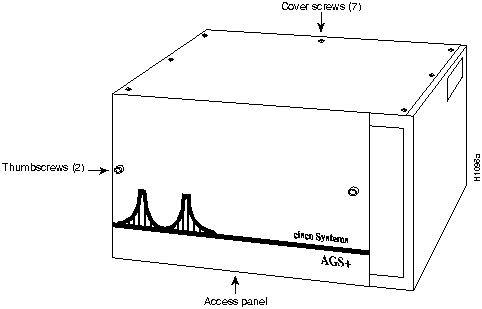


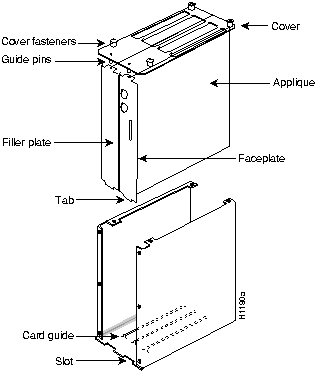
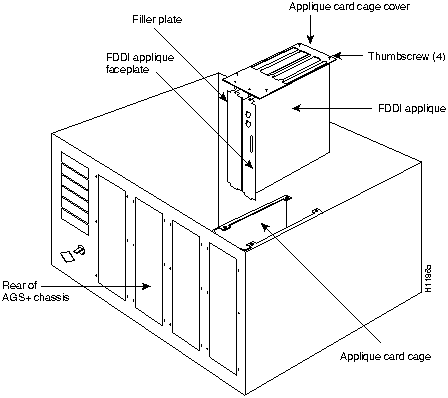


Figure 15) to the 26-pin connector labeled FDDI A, E, I, or M on the left front edge of the C2FCIT card shown in Figure 14.
Figure 15) to the 26-pin connector labeled FDDI B, F, J, or N in Figure 14.
FDDI Ribbon Cable
From Connector
To CSC-C2FCIT Connector
FDDI A, E, I, or M
P3
FDDI A, E, I, or M
FDDI B, F, J, or N
P2
FDDI B, F, J, or N
FDDI C, G, K, or O
P1
FDDI C, G, K, or O
FDDI D, H, L, or P
P4
FDDI D, H, L, or P

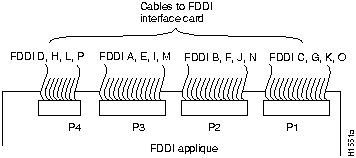

Table 5.
Pin No.
Description
1
+5V to secondary switch
2
+5V to primary switch
3
Ground to enable primary switch
4
Ground to enable secondary switch
5
Sense circuit---1 kohm to +5V
6
Ground---sense circuit return


0
1
2
State
On
On
On
Line State Unknown (LSU)
On
On
Off
Halt Line State (HLS)
On
Off
On
Master Line State (MLS)
On
Off
Off
Active Line State (ALS)
Off
On
On
Noise Line State (NLS)
Off
On
Off
Quiet Line State (QLS)
Off
Off
On
Idle Line State (ILS)
Off
Off
Off
Elasticity Buffer Overflow/Underflow (OVUF)
Router# show controller fddi

Fddi0 - hardware version 7.0, microcode version 10.3
  Phy-A registers:
    cr0 4, cr1 4, cr2 0, status 3, cr3 0
Phy-B registers:
    cr0 2, cr1 0, cr2 0, status 5, cr3 0
  FORMAC registers:
    irdtlb  73DF, irdtneg F85E, irdthtt 8473, irdmir  FFFF0BDC
    irdtrth F85F, irdtmax FBC5, irdtvxt 8585, irdstmc 0810
    irdmode 6A20, irdimsk 0000, irdstat 8060, irdtpri 0000
  FDDI-T registers
    ccb:   002C  cmd:   0006  fr:   000F  mdptr: 0000  mema: 0000
    icb:   00C0  arg:   0003  app:  0004  mdpg:  0000  af:   0700
    clm:   E002  bcn:   E016  clbn: 0168  rxoff: 0020  en:   0001
    clmbc: 8011  bcnbc: 8011  robn: 0005  park:  0000  fop:  94F0

    txchn: 0000  pend:  0000  act:  0000  tail:  0000  cnt:  0000
    state: 0003  check: 0000  eof:  0000  tail:  0000  cnt:  0000
    rxchn: 0000  buf0:  03C0  nxt0: 03A8  eof:   0000  tail: 0000
    eofch: 0000  buf1:  03B4  nxt1: 039C  pool:  0052  err:  005C

    head:  096C  cur:   0000  t0:   0030  t1:    0001  t2:   007D
    tail:  096C  cnt:   0001  t3:   0000  rxlft: 002E  used: 0000
    txq_s: 0016  txq_f: 0016  Aarm: 0000  Barm:  1388  fint: 94F0
Router#
Router# show controller cbus

ciscoBus 0, controller type 6.0, microcode version 11.0
 512 Kbytes of main memory, 128 Kbytes cache memory
 88 1520 byte buffers, 32 4480 byte buffers, 50 4484 byte buffers
 1044 byte system buffer
 Restarts: 0 line down, 0 hung output, 0 controller error
FDDI-T 0, controller type 7.0, microcode version 10.3
  Interface 0 is Fddi0, station address 0000.0c01.72c0 (bia 0000.0c01.72c0)
    50 buffer RX queue threshold, 51 buffer TX queue limit,
buffer size 4484 ift 0006, rql 46, tq 0000 0000, tql 50
Router# show interface fddi 0

Fddi 0 is up, line protocol is up

  Hardware type is cBus Fddi, hardware address is aa00.0400.0134

  Internet address is 111.111.1.1, subnet mask is 255.255.255.0

  MTU 4532 bytes, BW 100000 Kbit, DLY 100 usec, rely 255/255, load 1/255

  Encapsulation is SNAP, loopback is not set, keepalive is not set

  ARP type: SNAP

  Phy-A state is active, neighbor is B, cmt signal bits 08/20C, status ILS

    Brk 1, Con 1, Tra 0, Nxt 11, Sig 10, Join 1, Vfy 1, Act 1
  Phy-B state is active, neighbor is A, cmt signal bits 20C/08, status ALS

    Brk 1, Con 1, Tra 0, Nxt 11, Sig 10, Join 1, Vfy 1, Act 1
  CFM is through A, token rotation 5000 usec, ring operational 0:01:42
  Upstream neighbor aa00.0400.6608, downstream neighbor 0000.0000.0000
  Last input 0:00:00, output 0:00:00, output hang never
  Last clearing of "show interface" counters never
  Output queue 0/40, 0 drops; input queue 0/75, 31 drops
  Five minute input rate 9000 bits/sec, 9 packets/sec
  Five minute output rate 3000 bits/sec, 6 packets/sec
    6813620 packets input, 1756956503 bytes, 31 no buffer
    Received 1794204 broadcasts, 0 runts, 0 giants
    691 input errors, 0 CRC, 691 frame, 0 overrun, 0 ignored, 0 abort
    6047443 packets output, 551753389 bytes, 190 underruns
    0 output errors, 0 collisions, 5 interface resets, 0 restarts
      8 transitions
Router#
router# show version

GS Software (GS3-BFX), Version 9.1(8)
Copyright (c) 1986-1993 by cisco Systems, Inc.
Compiled Wed 03-Feb-93 02:24




router# show controller fddi

Fddi0 - hardware version 7.3, microcode version 10.3
  Phy-A registers:
    cr0 4, cr1 0, cr2 0, status 6, cr3 0
  Phy-B registers:
    cr0 4, cr1 4, cr2 0, status 6, cr3 0
  FORMAC registers:
    irdtlb  73A4, irdtneg F85E, irdthtt 5D49, irdmir  FFFF0BDC
    irdtrth F85F, irdtmax FBC5, irdtvxt 8585, irdstmc 0810
    irdmode 6A20, irdimsk 0000, irdstat 8060, irdtpri 0000
  FDDI-T registers
    ccb:   0026  cmd:   0006  fr:   000F  mdptr: 0000  mema: 0000
    icb:   0090  arg:   0003  app:  0004  mdpg:  0000  af:   0700
    clm:   E002  bcn:   E016  clbn: 0150  rxoff: 002A  en:   0001
    clmbc: 8011  bcnbc: 8011  robn: 0000  park:  0000  fop:  9078

    txchn: 0000  pend:  0000  act:  0000  tail:  0000  cnt:  0000
    state: 0003  check: 0000  eof:  0000  tail:  0000  cnt:  0000
    rxchn: 0000  buf0:  048C  nxt0: 0468  eof:   0000  tail: 0000
    eofch: 0000  buf1:  0450  nxt1: 0498  pool:  0050  err:  005C

    head:  0A44  cur:   0498  t0:   0030  t1:    0025  t2:   0028
    tail:  0A44  cnt:   0001  t3:   0000  rxlft: 0041  used: 0000
    txq_s: 001C  txq_f: 001C  Aarm: 0000  Barm:  1388  fint: 9078
http://www.cisco.com
.
cio.cisco.com
(198.92.32.130).
ciohelp@cisco.com
. For additional information, contact
cioteam@cisco.com
.
tac@cisco.com
. To obtain general information about Cisco Systems, Cisco products, or upgrades, contact 800 553-6387, 408 526-7208, or
csrep@cisco.com
.

