


|
|

Upgrading CSC-HSCI Cards to Microcode Version 1.2 or 10.1
Product Numbers: MC-HSCI-V1.2=, MC-HSCI-V10.1=
This document describes how to upgrade High-Speed Serial Communications Interface (CSC-HSCI) cards to Microcode Versions 1.2 and 10.1. Microcode Version 1.2 is compatible only with the first generation ciscoBus controller card (CSC-CCTL). Microcode Version 10.1 is compatible with, and required for use with, the second-generation ciscoBus controller (CSC-CCTL2). If you are replacing a first-generation ciscoBus controller (CSC-CCTL) with a CSC-CCTL2, you must upgrade the microcode on all ciscoBus interface cards to Version 10.0 or later. Compatibility requirements for the CSC-CCTL2 are described in the section "Verifying CCTL2 Compatibility---Microcode Version 10.1 Only."
The upgrade procedure is the same for both microcode versions; only the component part numbers are different. References to part number tables are provided in the appropriate steps in the procedure. In the following sections of this document, the term HSCI is used to indicate both the CSC-HSCI (first-generation ciscoBus) and CSC-C2HSCI (second-generation ciscoBus) cards unless otherwise indicated.
To ensure that you have the proper tools and parts to complete this procedure without interruption, read the following requirements and procedures.
Your current system must meet the following compatibility requirements before you install the new microcode:
The latest version of the Microcode Release Note publication (Part Number 78-1069-nn) provides the latest information on both the recommended and minimum required microcode versions for using all cards with System Software Releases 8.2, 8.3, 9.1, and 9.21. If the latest version implements features that you are not using in your system and you already have the minimum required version installed, there is no requirement to update the microcode. However, new microcode versions occasionally fix bugs and provide performance enhancements in addition to implementing new features. You will obtain maximum performance and reliability by upgrading to the recommended version.
Electrostatic discharge damage (ESD) occurs when electronic printed circuit cards are improperly handled and can result in complete or intermittent failures. ESD can impair electronic circuitry and equipment. Always follow ESD prevention procedures when removing and replacing cards. Following are steps for handling printed circuit cards:

The CSC-CCTL2 is required to run ciscoBus network interface cards with the C2 designator, as listed in Table 1. The C2 indicates that a ciscoBus card is running Microcode Version 10.0 or later and is, therefore, compatible with the second-generation ciscoBus controller, the CSC-CCTL2. When you upgrade the microcode on an HSCI card to Version 10.1, the name of the card also changes from CSC-HSCI to CSC-C2HSCI to indicate that it is CCTL2-compatible. If you are installing a new CSC-CCTL2, you must upgrade all ciscoBus interface cards to Microcode Version 10.0 or later.
Table 1 CSC-CCTL2 Interface Card Compatibility Requirements
| CCTL Controller | CCTL2 Controller | Description |
|---|---|---|
| CSC-CCTL | CSC-CCTL2 | ciscoBus controller |
| CSC-FCI | CSC-C2FCI | Fiber Distributed Data Interface (FDDI) |
| CSC-C2FCIT | FDDI with translational bridging | |
| CSC-HSCI | CSC-C2HSCI | High-Speed Serial Interface (HSSI) |
| CSC-C2CTR | ciscoBus Token Ring interface, 4/16Mbps | |
| CSC-MEC | CSC-C2MEC | Multiport Ethernet Controller interface |
Display a description of the current ciscoBus controller and ciscoBus interface cards with the EXEC command show controller cbus. The name and controller type of each ciscoBus card, the ciscoBus slot in which it is installed, and the microcode version of each is displayed (additional, statistical information is also displayed for each interface card, but is omitted from the example). When installing Microcode Version 10.0 (or later) on any ciscoBus interface card, the ciscoBus controller (listed first) must be a controller type 6.0 or later, and all other ciscoBus interface cards must be running Microcode Version 10.0 or later (or you must upgrade the microcode on those cards at the same time). The following sample display shows a CCTL2 controller with all ciscoBus interface cards upgraded to Microcode Version 10.0:
router# show cont cbus
cBus 1, controller type 6.0, microcode version 10.0
  512 Kbytes of main memory, 128 Kbytes cache memory
    (text omitted)
FDDI-T 0, controller type 7.1, microcode version 10.0
  Interface 0 - Fddi0, station address 0000.0c02.6aa3 (bia
  (text omitted)
CTR 1, controller type 9.0, microcode version 10.0
  Interface 8 - TokenRing0, station address 0000.3040.e004 (bia
  (text omitted)
HSCI 2, controller type 10.0, microcode version 10.0
  Interface 16 - Hssi0, electrical interface is Hssi DTE
      (text omitted)
MEC 3, controller type 5.1, microcode version 10.0
  Interface 24 - Ethernet2, station address 0000.0c02.61b7
  (text omitted)
Display the current software release and the type of processor card installed with the EXEC command show version. The current system software release is displayed in the first line of the output followed by a list of the installed interface cards. There is no minimum system software release requirement for Microcode Version 1.2 (CCTL-compatible); however, if you are installing Version 10.1 (CCTL2-compatible), you must be running System Software Release 9.1 or later. In the following example, the system is running System Software Release 9.1:
router# show version
GS Software (GS3-BFX), Version 9.1(6765) [trunkd 116]
Copyright (c) 1986-1992 by cisco Systems, Inc.
To perform this upgrade, you need the following:

Follow this procedure to upgrade the HSCI card. Before opening the chassis, refer to the section "System Compatibility" and ensure that your system meets the minimum requirements for the microcode version you are installing.

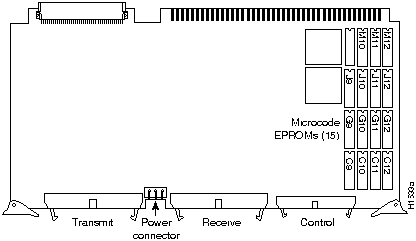
Figure 1 CSC-HSCI Controller Type 5.1---Component-Side View
Table 2 CSC-HSCI Microcode Component Numbers by Version
| Socket Location | 1.0 | 1.1 | 1.2 |
|---|---|---|---|
| C9 | 17-0786-01 C9 | 17-0786-02 C9 | 17-0786-03 C9 |
| C10 | 17-0787-01 C10 | 17-0787-02 C10 | 17-0787-03 C10 |
| C11 | 17-0788-01 C11 | 17-0788-02 C11 | 17-0788-03 C11 |
| J12 | 17-0789-01 J12 | 17-0789-02 J12 | 17-0789-03 J12 |
| J9 | 17-0790-01 J9 | 17-0790-02 J9 | 17-0790-03 J9 |
| J10 | 17-0791-01 J10 | 17-0791-02 J10 | 17-0791-03 J10 |
| J11 | 17-0792-01 J11 | 17-0792-02 J11 | 17-0792-03 J11 |
| C12 | 17-0793-01 C12 | 17-0793-02 C12 | 17-0793-03 C12 |
| M10 | 17-0794-01 M10 | 17-0794-02 M10 | 17-0794-03 M10 |
| M11 | 17-0795-01 M11 | 17-0795-02 M11 | 17-0795-03 M11 |
| M12 | 17-0796-01 M12 | 17-0796-02 M12 | 17-0796-03 M12 |
| G10 | 17-0797-01 G10 | 17-0797-02 G10 | 17-0797-03 G10 |
| G9 | 17-0798-01 G9 | 17-0798-02 G9 | 17-0798-03 G9 |
| G12 | 17-0799-01 G12 | 17-0799-02 G12 | 17-0799-03 G12 |
| G11 | 17-0800-01 G11 | 17-0800-02 G11 | 17-0800-03 G11 |
Table 3 CSC-C2HSCI Microcode Component Numbers by Version
| Socket Location | 1.0 | 1.1 | 10.0 | 10.1 |
|---|---|---|---|---|
| C9 | 17-0786-01 C9 | 17-0786-02 C9 | 17-1335-01 C9 | 17-1335-02 C9 |
| C10 | 17-0787-01 C10 | 17-0787-02 C10 | 17-1336-01 C10 | 17-1336-02 C10 |
| C12 | 17-0788-01 C11 | 17-0788-02 C11 | 17-1337-01 C11 | 17-1337-02 C11 |
| J12 | 17-0789-01 J12 | 17-0789-02 J12 | 17-1338-01 J12 | 17-1338-02 J12 |
| J9 | 17-0790-01 J9 | 17-0790-02 J9 | 17-1339-01 J9 | 17-1339-02 J9 |
| J10 | 17-0791-01 J10 | 17-0791-02 J10 | 17-1340-01 J10 | 17-1340-02 J10 |
| J11 | 17-0792-01 J11 | 17-0792-02 J11 | 17-1341-01 J11 | 17-1341-02 J11 |
| C12 | 17-0793-01 C12 | 17-0793-02 C12 | 17-1342-01 C12 | 17-1342-02 C12 |
| M10 | 17-0794-01 M10 | 17-0794-02 M10 | 17-1343-01 M10 | 17-1343-02 M10 |
| M11 | 17-0795-01 M11 | 17-0795-02 M11 | 17-1344-01 M11 | 17-1344-02 M11 |
| M12 | 17-0796-01 M12 | 17-0796-02 M12 | 17-1345-01 M12 | 17-1345-02 M12 |
| G10 | 17-0797-01 G10 | 17-0797-02 G10 | 17-1346-01 G10 | 17-1346-02 G10 |
| G9 | 17-0798-01 G9 | 17-0798-02 G9 | 17-1347-01 G9 | 17-1347-02 G9 |
| G10 | 17-0799-01 G12 | 17-0799-02 G12 | 17-1348-01 G12 | 17-1348-02 G12 |
| G11 | 17-0800-01 G11 | 17-0800-02 G11 | 17-1349-01 G11 | 17-1349-02 G11 |
After you reinstall the HSCI card and reconnect the internal ribbon cables, verify the installation before you replace the front panel by observing the following LEDs:
The HSCI card has no LEDs; status indicators for the HSSI interface are located on the applique connected to the card. You will have to be able to access the rear of the chassis to observe the LEDs on the applique.
The ciscoBus controller card (CSC-CCTL or CSC-CCTL2) is always installed in the center ciscoBus slot (Multibus slot number 7) as shown in Figure 2. After you verify that the LEDs come on correctly, use the EXEC show controller cbus command to display the new microcode version.
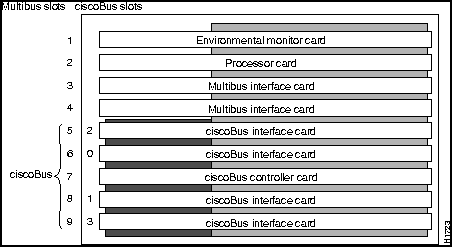
The bank of indicators used on the CSC-CCTL is different from that on the CSC-CCTL2. Descriptions of both types of ciscoBus controllers follow; review them to anticipate how the indicators should come on. Before turning on the chassis power to check the installation, note the ciscoBus slot number(s) that contain the CSC-MEC card(s) you just reinstalled.
The CSC-CCTL contains a bank of 16 LEDs as shown in Figure 3: four sets of four LEDs, one set for each interface slot in the ciscoBus. Figure 3 shows the LEDs as viewed with the card installed in the card cage---edge on, component side up. In the illustration, the numbers above each LED indicate the corresponding ciscoBus slot number (slot numbers and locations are shown in Figure 2). Only the first (far left) LED in each set of four is used as an indicator that comes on when an interface is present in a ciscoBus slot.
At power-up, all the LEDs come on indicating that the CSC-CCTL card is active. When the system boot is completed, only those LEDs that indicate the presence of a card in the corresponding ciscoBus slot should remain on; the LEDs for empty ciscoBus slots should be off.

Figure 3 CSC-CCTL Card Indicators, Edge-On View
The CSC-CCTL2 contains a bank of 5 LEDs, one red indicator for each ciscoBus slot and one green OK indicator. Figure 4 shows the indicators as viewed with the card installed in the card cage---edge on, component side up. In the illustration, the numbers above each LED indicate the corresponding ciscoBus slot number (slot numbers and locations are shown in Figure 2). At power-up, all the LEDs come on, indicating that the CSC-CCTL2 card is active. When the system boot is completed, only those LEDs that indicate the presence of a card in the corresponding ciscoBus slot should remain on; the LEDs for empty ciscoBus slots should go out.
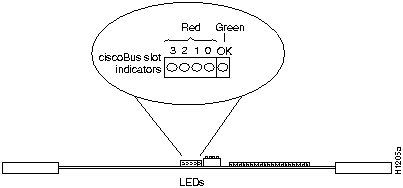
Figure 4 CSC-CCTL2 Card Indicators, Edge-On View
The APP-HSA and APP-ULA appliques contain a bank of 12 LEDs which report the state of the HSSI interface. Figure 5 shows these LEDs and the normal operating state of each. The green OK indicator comes on after the software has performed its startup verification. The red ER indicator comes on if any of the internal cables (between the HSCI and the applique) are crossed.
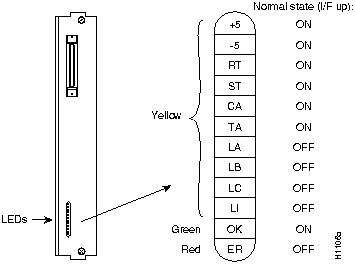
Figure 5 APP-HSA and APP-ULA Indicators
To check your upgrade installation, first verify the ciscoBus controller card LEDs, then the applique LEDs with the following steps. Before turning on the system power, ensure that you are able to access the rear of the chassis to observe the LEDs on the applique.
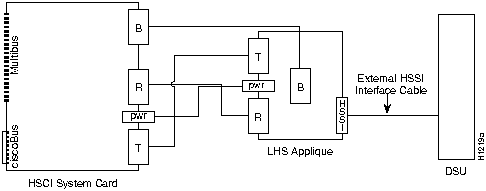
Figure 6 HSCI Internal Ribbon Cable Routing Diagram

To display the new microcode version, enter the EXEC command show controller cbus. The first line of the display for each installed HSCI card should indicate the new microcode version, as follows:
cBus 1, controller type 3.0, microcode version 2.0
  (text omitted)
HSCI 2, controller type 10.0, microcode version 1.2
  Interface 16 - Hssi0, electrical interface is Hssi DTE
      (text omitted)
cBus 1, controller type 6.0, microcode version 10.0
(text omitted)
HSCI 2, controller type 10.0, microcode version 10.1
  Interface 16 - Hssi0, electrical interface is Hssi DTE
      (text omitted)
When the installation checks out successfully, replace the access cover and finger-tighten the two thumb fasteners.
This completes the CSC-HSCI and CSC-C2HSCI microcode upgrade.


|
Copyright 1988-1995 © Cisco Systems Inc.