


|
|

Serial Port Communications Interface (SCI)
Product Numbers: CSC-3S, CSC-4S, and CSC-4T
The serial port communications interface (SCI) card provides multiple, channel-independent serial interface ports, at up to 4 megabits per second (Mbps), to the AGS+, AGS, and MGS chassis. The number of interfaces provided by the card depends on the microcode installed on the card. If the microcode version is less than 5.0, the card will provide 4 ports, each of which can operate in full-duplex (FDX) mode. If the microcode version is 5.0 or later, the card can only provide 3 ports, but each of the ports can be configured for either full- or half-duplex (HDX) operation. (HDX operation requires the Version 2 NRZI applique, which is identified by the letters "NRZI/H" on the label on the outside of the applique plate.)
The SCI card provides its serial interface ports on two 50-pin connectors. Each connector supports two synchronous serial ports. (On the three port version of the card, the second port on the second connector is disabled.) The 50-pin cable that attaches to the connector is split so that appliques of varying types can share the same cable. Figure 1 illustrates the numbering scheme for the four serial ports (labeled S0 through S3 from right to left).

The serial ports can be ordered with software support for low-speed (up to 64 kilobits per second [Kbps] for the three-port SCI card) or high-speed (up to 4 Mbps for the four-port SCI card only) data rates.
After installation, you can obtain information on your SCI card by using the EXEC command show controller mci. The output displays the controller type, its microcode version number, and information on the configuration of each port on the interface card.
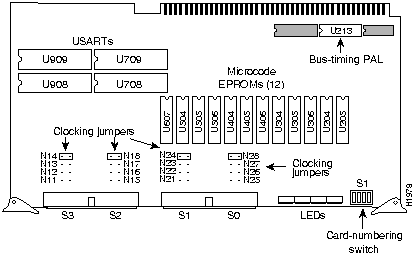
Figure 1 SCI Card---Component-Side View
Table 1 shows the chassis limitations of the SCI interface cards.
Table 1 Number of SCI Cards per Chassis
| Chassis | No./Controllers |
|---|---|
| AGS+ | 7 |
| AGS | 4 |
| MGS | 2 |
Table 2 Number of CSC-R Cards per Chassis
| Chassis | No./Controllers |
|---|---|
| AGS+ | 3 |
| AGS | 4 |
| MGS | 1 |
When upgrading your router from a CSC/2 processor card to a CSC/3 or CSC/4 processor card, the SCI card may require modifications for proper operation. For CSC/3 and CSC/4 compatibility, the component at location U213 should be part number 17-0675B. If you require this part, contact a service representitive for assistance.
Before installing any new cards, read this entire document for complete installation instructions and information on configuring the card for proper operation.
Before beginning any procedures, turn OFF power to the system and unplug the power cord.
Electrostatic discharge (ESD) is a discharge of stored static electricity that can damage equipment and impair electrical circuitry. It occurs when electronic components are improperly handled and can result in complete or intermittent failures.
Following are guidelines for preventing ESD damage:

The sections that follow provide instructions for opening the A chassis, MGS and C chassis.
The following tools are required for accessing the chassis interior:
Access to the A chassis interior requires that you remove the front panel to access the cards or the top cover to access the rest of the chassis components. The following procedure includes instructions for both.

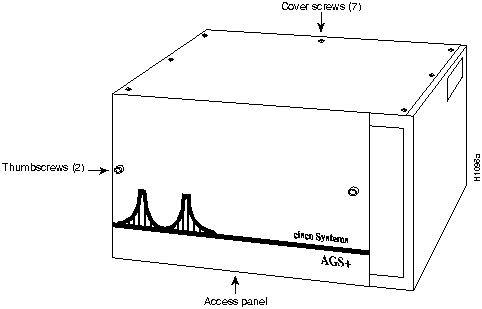
Figure 2 Chassis Front and Top Panels
Access to the MGS chassis interior requires that you remove either the card cage access panel to access the cards or the top cover to access the rest of the chassis components. Following is the procedure for accessing the MGS chassis interior.

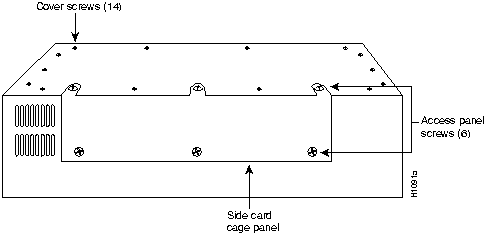
Figure 3 Screw Locations on the MGS Chassis Exterior---Side View
All SCI cards have ejectors that allow them to be easily extracted from their slots. Cards in the A-type chassis and M chassis can be accessed by removing front or side panels. Cards in the C chassis are accessed by removing the top cover.
Be sure to turn off power to the system before gaining access to and removing any cards.
To remove a card do the following:
To install the SCI card in a chassis do the following:

Table 3 shows the switch (S1) settings for card numbering. The card numbers within the set of MCI and SCI cards installed in the chassis must be unique. These card numbers must also be unique among the other cards installed. Card number 0 can be used only if no ciscoBus controller card is installed; the ciscoBus controller card is card number 0 by default.
Table 3 Switch (S1) Settings for Card Numbering
| Card No. | S1-1 | S1-2 | S1-3 | S1-4 |
|---|---|---|---|---|
| 0(1) | Off | Off | Off | Off |
| 1 | Off | Off | Off | On |
| 2 | Off | Off | On | Off |
| 3 | Off | Off | On | On |
| 4 | Off | On | Off | Off |
| 5 | Off | On | Off | On |
| 6 | Off | On | On | Off |
| 7 | Off | On | On | On |
Jumpers N22, N26, N12, and N16 control the serial ports 0 through 3 in DCE mode. In addition to changing these jumpers for DCE operation, you must configure the clock rate on each serial interface of the interface card by using the clockrate speed interface subcommand (where speed is the bit rate of the interface in bits per second [bps]). The applique must be DCE (or configured as DCE) to generate the clock signals.
Following is sample output of the clockrate speed command:
Router# configure terminal
Enter configuration commands, one per line.
Edit with DELETE, CRTL/W, and CRTL/U;end with CTRL/Z
interface serial 0
clockrate 64000
^Z
Router# write memory
[ok]
Router#
The no clockrate command removes the clock rate if data terminal equipment (DTE) mode is desired. Refer to the appropriate configuration and reference publication for more information on these commands. Following are the acceptable clockrate speed settings, appearing as they are entered with the clockrate speed command:
1200, 2400, 4800, 9600, 19200, 38400, 56000, 6400, 7200, 12500, 148000, 500000, 800000, 1000000, 1300000, 2000000, and 4000000
The fastest speeds might not work if your cable is too long. Speeds faster than 148 kbps are not recommended for RS-232 or RS-232 SDLC signaling. It is recommended that you use the RS-232 and NRZI appliques only at speeds up to 64 kbps; for speeds above 64 kbps, use RS-449, X.21, or HD V.35.
Most DTE interfaces require a Normal External Transmit Clock signal. All DCE interfaces require an Internal Transmit Clock (noninverted) signal. The clocking options are controlled by jumper areas N11 through N28.
Occasionally, delays occur between the Serial Clock Transmit External (SCTE) clock and the transmitted data that may push the data transition out to the point where using an inverted clock is appropriate (jumpers N13, N17, N23, and N27); however, an inverted clock is not recommended.
Typical delays indicate that the inverted clock may be appropriate above 1.3 megabits per
second (Mbps), depending upon the DTE clock-to-data skews and setup required, and allowing some margin for temperature, cable, and other variables. Some DCE devices will not accept SCTE, so Serial Clock Transmit (SCT) must be used. Inverting the clock may be the only way to compensate for the cable length and circuit delays in the DTE and DCE.
Table 4 shows the jumper settings for clock options. The last two columns of these tables (DTE and DCE) indicate the setting that should be used with either a DTE or DCE applique. Unless specifically noted, all products are shipped with the factory default setting to work with the DTE applique, which requires external clocking; the channel service unit/digital service unit (CSU/DSU) provides the clocking for the circuit. DTE operation with the NRZI applique requires a special cable (Part Number 72-0751-01, order number CAB-R232NZ=).
Table 4 Jumper Settings for Clock Options
| Jumper Pair | Signal Description | Interface | DTE | DCE |
|---|---|---|---|---|
| N 24 | Normal External Transmit Clock | Serial 0 | X(1) | -- |
| N 23 | Inverted External Transmit Clock | Serial 0 | x | -- |
| N 22 | Normal Internal Transmit Clock | Serial 0 | -- | X |
| N 21 | Inverted Internal Transmit Clock | Serial 0 | -- | x |
| N 28 | Normal External Transmit Clock | Serial 1 | X1 | -- |
| N 27 | Inverted External Transmit Clock | Serial 1 | x | -- |
| N 26 | Normal Internal Transmit Clock | Serial 1 | -- | X |
| N 25 | Inverted Internal Transmit Clock | Serial 1 | -- | x |
| N 14 | Normal External Transmit Clock | Serial 2 | X1 | -- |
| N 13 | Inverted External Transmit Clock | Serial 2 | x | -- |
| N 12 | Normal Internal Transmit Clock | Serial 2 | -- | X |
| N 11 | Inverted Internal Transmit Clock | Serial 2 | -- | x |
| N 18 | Normal External Transmit Clock | Serial 3 | X1 | -- |
| N 17 | Inverted External Transmit Clock | Serial 3 | x | -- |
| N 16 | Normal Internal Transmit Clock | Serial 3 | -- | X |
| N 15 | Inverted Internal Transmit Clock | Serial 3 | -- | x |
The SCI card contains a bank of 16 LEDs. (Four are currently used.) Figure 4 shows the LEDs that are used and the serial port each LED represents. At startup, all LEDs flash and then only those LEDs that indicate active interfaces will stay on. An interface is considered active if Carrier Detect (CD) is present on that serial interface and the interface is enabled. A problem is indicated if all LEDs remain on after the system boots, or if the LED of a active interface does not stay on after the system boots.

Figure 4 LED Indicators---Partial Front-Edge View


|
Copyright 1988-1995 © Cisco Systems Inc.