
Table of Contents
Upgrading CSC-SCI Cards from Microcode
Version 1.0, 1.1, 1.2 or 1.3 to Version 1.4 or 1.4A
Upgrading CSC-SCI Cards from Microcode
Version 1.0, 1.1, 1.2 or 1.3 to Version 1.4 or 1.4A
Product Numbers: MC-SCI-V1.4= and MC-SCI-V1.4A=
This publication describes the microcode upgrade procedures for the Serial-Port Communications Interface (SCI) cards to microcode Version 1.4 or 1.4A. To perform the upgrade, you will replace up to 17 integrated circuit components. The new components are shipped with the SCI Microcode Version 1.4 and 1.4A kits. This upgrade is for SCI cards currently at Microcode Version 1.0, 1.1, 1.2 or 1.3. The SCI card should be a Rev. 2 (type 2.0).
Verify that your card type and microcode version. Use the show controller mci command.
The first line displayed contains the controller type and the microcode version. Following is sample output indicating card type 2.0 (Rev. 2) and Microcode Version 1.3:
MCI X, controller type 2.0, microcode version 1.3
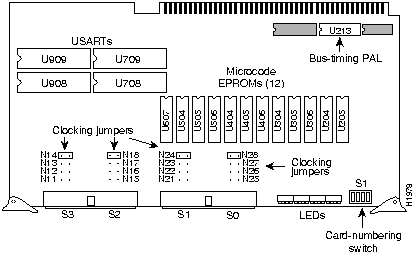
Figure 1 SCI Card Components
For the SCI microcode upgrades, the following statements apply:
- If you are upgrading from Version 1.0, 1.1, or 1.2, you will need the MC-SCI-V1.4 kit. You will need to use all 17 components in the MC-SCI-V1.4 kit.
- If you are upgrading from Version 1.3, you will need the MC-MCI-V1.10A kit, which has fewer components than the MC-SCI-V1.4 kit.
- If you are upgrading from a CSC/2 processor card to a CSC/3 or CSC/4 processor card, along with the SCI microcode, you will need the bus-timing programmable array logic (PAL) device (Part Number 17-0675 in MC-SCI-V1.4), which listed in Table 1.
Electrostatic discharge (ESD) is a discharge of stored static electricity that can damage equipment and impair electrical circuitry. It occurs when electronic components are improperly handled and can result in complete or intermittent failures.
Following are guidelines for preventing ESD damage:
- Before you open a chassis, ensure that power to the unit is turned off, but that the power cord is connected to the wall receptacle. Having the power cord connected will ensure a ground path for any ESD voltages.
- Always use an ESD wrist strap or ankle strap and ensure that it makes good skin contact.
- Connect the equipment end of the strap to an unpainted surface of the chassis frame or another proper grounding point or surface. We recommend that you attach it to the inside bottom of the chassis, or to the rear panel (inside or outside), without making contact with any connectors or appliques.
- Avoid contact between equipment and clothing. The wrist strap only protects the equipment from ESD voltages on the body; ESD voltages on clothing can still cause damage.
- Handle printed circuit cards and appliques by the edges only; avoid touching the components, traces, or any connector pins.
- Place a removed card component-side-up on an antistatic surface or in a static shielding bag. If the component will be returned to the factory, immediately place it in a static shielding bag.
- Do not remove the wrist strap until the installation is complete.

Caution For safety, periodically check the resistance value of the antistatic strap. The measurement should be within the range of 1 and 10 Mohms.
You must remove the front access panel to access the cards in the card cage. You must remove the top cover to access the other chassis components. The following procedures include instructions for both. Use the procedure that applies to your chassis type.
The following tools are required for accessing the chassis interior:
- Screwdrivers: small and medium flat blade and No.1 and No. 2 Phillips
- ESD-preventive wrist strap
Following is the procedure for accessing the A-type chassis interior.

Warning Before accessing the chassis interior, turn OFF power to the chassis and unplug the power cord because hazardous voltages may exist in or near the power supply. Use extreme caution when working near the power supply.
- Step 1 Turn OFF power to the chassis and unplug it from AC power.
- Step 2 If the chassis is rack mounted, disconnect all external cables from the chassis rear panel. Note where these cables were connected, for reinstallation.
- Step 3 Remove the chassis from the rack and transfer it to a desktop or work table.
- Step 4 If you will need to handle any electronic components (cards, and so forth), attach appropriate ESD protection and attach the AC power cord, but to prevent a shock hazard, make certain the chassis power is OFF.
- Step 5 To access cards in the card cage, loosen the two thumbscrews and remove the front panel from the chassis. (See Figure 2.) If you wish to access cards in the card cage only, skip the next step.
- Step 6 To access other system components, locate and remove the seven No. 1 Phillips screws securing the top cover. (See Figure 2.) Set the top cover and screws aside.
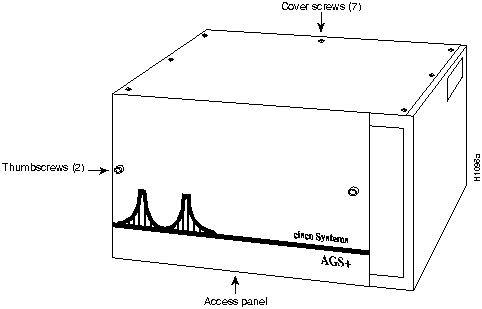
Figure 2 Chassis Front and Top Panels
Note To reassemble the chassis, reverse all steps.
Following is the procedure for accessing the MGS chassis interior.

Warning Before accessing the chassis interior, turn OFF power to the chassis and unplug the power cord because hazardous voltages may exist in or near the power supply. Use extreme caution when working near the power supply.
- Step 1 Turn OFF power to the chassis and unplug it from AC power.
- Step 2 If the chassis is rack mounted, disconnect all external cables from the chassis rear panel. Note where these cables were connected, for reinstallation.
- Step 3 Remove the chassis from the rack and transfer it to a desktop or work table.
- Step 4 If you need to handle any electronic components (cards, and so forth) attach appropriate ESD protection and attach the AC power cord, but to prevent a shock hazard, make certain the chassis power is OFF.
- Step 5 To access the cards in the card cage, locate the three flat-blade screws that secure the card cage access panel. (See Figure 3.) These screws are located on the top of the MGS chassis access panel.
- Step 6 Using the flat-blade screwdriver, turn each of these screws 1/4 to 1/2 turn counterclockwise until the screw pops up.
- Step 7 Using the No. 2 Phillips screwdriver, loosen the three screws at the bottom edge of the card cage cover. (Do not remove these screws completely.) Carefully remove the card cage cover and set it aside.
- Step 8 To access the other chassis components, use the No. 1 Phillips screwdriver to remove the 14 screws that secure the top cover of the MGS chassis. (See Figure 3.) Set the top cover aside.
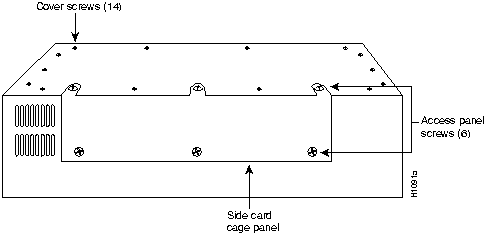
Figure 3 Screw Locations on the MGS Chassis Exterior---Side View
Note To reassemble the chassis, reverse all steps.
To perform this procedure, you need some or all of the following:
- If you are upgrading from Version 1.0, 1.1, or 1.2, you will need the MC-SCI-V1.4 kit.
- If you are upgrading from Version 1.3, you will need the MC-SCI-V1.4A kit.
- If you are upgrading from a CSC/2 processor card to a CSC/3 or CSC/4 processor card, along with the SCI microcode, you will need the bus-timing programmable array logic (PAL) device (Part Number 17-0675 in MC-SCI-V1.4), which is listed in Table 1.
- ESD-preventive wrist strap.
- Chip extractor (IC removal tool). If one is not available, a flat-blade screwdriver can be utilized.
- Needlenose pliers.

Caution To prevent ESD damage, refer to the section "Preventing Electrostatic Discharge Damage."
Following is the procedure for upgrading the SCI card. Before beginning, refer to Figure 1 and locate the components you will replace. The component sockets and the part numbers of both the old and new (replacement) microcode versions are listed in Table 1.
- Step 1 Turn OFF power to the system power, but to channel ESD voltages to ground, do not disconnect the power cord.
- Step 2 Attach an ESD-preventive wrist strap.
- Step 3 Open the chassis using one of the procedures in the section "Opening the Chassis."
- Step 4 Put on the wrist strap provided with the upgrade kit, or use your own grounding strap. Attach the equipment end to an unpainted area on the chassis.
- Step 5 Disconnect the internal ribbon cables that are attached to the front of the SCI card. If other cables (to other cards) are in front of the SCI card and prevent you from removing it, note the card and port locations of each before disconnecting them (to avoid misrouting cables when you reinstall the card).
- Step 6 Use your thumbs to pull the ejector tabs out and away from the card edge to loosen it; then pull the card out of its slot. Place the card on an antistatic mat.
- Step 7 Locate the components to be replaced. (Refer to Figure 4 and Table 1.)
- Step 8 Remove each of the old components with the chip extractor. If one is not available, use a flat-blade screwdriver to gently pry each components out of its socket.
- Step 9 Insert the new components into the appropriate sockets.
- Step 10 Align the notch on the component with the notch on the corresponding socket.
(See Figure 4.)
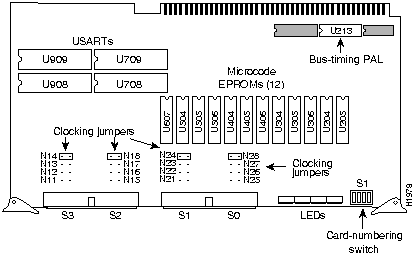
Figure 4 SCI Card Components
Table 1 SCI Card Replacement Component s
| U607 |
13/220A |
13/220A |
17-0437 |
17-0437-01 U607 |
17-0437-02 U6071 |
17-0437-02 U607(1) |
| U504 |
13/221A |
13/221A |
17-0438 |
17-0438-01 U504 |
17-0438-02 U504 |
17-0438-02 U504 |
| U505 |
13/222A |
13/222A |
17-0439 |
17-0439-01 U505 |
17-0439-02 U505 |
17-0439-02 U505 |
| U506 |
13/223A |
13/223A |
17-0440 |
17-0440-01 U506 |
17-0440-02 U506 |
17-0440-02 U506 |
| U404 |
13/224A |
13/224A |
17-0441 |
17-0441-01 U404 |
17-0441-02 U404 |
17-0441-02 U404 |
| U405 |
13/225A |
13/225B or 17-0442 |
17-0442(B) |
17-0442-02 U405 |
17-0442-03 U405 |
17-0442-03 U405 |
| U406 |
13/226A |
13/226B or 17-0443 |
17-0443(B) |
17-0443-02 U406 |
17-0443-03 U406 |
17-0443-03 U406 |
| U304 |
13/227A |
13/227A |
17-0444 |
17-0444-01 U304 |
17-0444-02 U304 |
17-0444-02 U304 |
| U305 |
13/228A |
13/228A |
17-0445 |
17-0445-01 U305 |
17-0445-02 U305 |
17-0445-02 U305 |
| U306 |
13/229A |
13/229A |
17-0446 |
17-0446-01 U306 |
17-0446-02 U306 |
17-0446-02 U306 |
| U204 |
13/230A |
13/230A |
17-0447 |
17-0447-01 U204 |
17-0447-02 U204 |
17-0447-02 U204 |
| U205 |
13/231A |
13/231A |
17-0448 |
17-0448-01 U205 |
17-0448-02 U205 |
17-0448-02 U205 |
| U213 |
13/107A |
13/107 |
13/107 |
17-0675-01 U213, 17-0675B-01 U213 or 13-107B-01 U213 |
17-0675-01 U213(2), 17-0675B-01 U213 or 13-107B-01 U213 |
-- |
| U708 |
R68561P |
R68561P |
R68561P |
R68561AP-01 U708 |
R68561AP-01 U708(3) |
-- |
| U709 |
R68561P |
R68561P |
R68561P |
R68561AP-01 U709 |
R68561AP-01 U709 |
-- |
| U908 |
R68561P |
R68561P |
R68561P |
R68561AP-01 U908 |
R68561AP-01 U908 |
-- |
| U909 |
R68561P |
R68561P |
R68561P |
R68561AP-01 U909 |
R68561AP-01 U909 |
-- |
- (1)
- The new component numbers contains a six-digit part number, a two-digit version identifier, and a socket location number. For example, the component number 17-0437-01 U607 contains part number 17-0437, version identifier 02 (which corresponds to Microcode Version 1.4 or 1.4A), and socket location U607.
- (2)
- The 17-0675 bus-timing PAL is required only if you have upgraded from a CSC/2 to a CSC/3 or CSC/4 processor, along with this MCI microcode upgrade. If your system used a CSC/3 or CSC/4 before the MCI microcode upgrade, the 17-0675 PAL component is not required.
- (3)
- These Rockwell components are used only for the MC-SCI-1.4 upgrade. The MC-SCI-V1.4A upgrade does not require these Rockwell components.
- Step 11 Be careful not to bend or crush any of the pins when inserting the new components. If any pins become bent, use needlenose pliers to straighten the pins; then carefully reinsert the component. If a component is installed backwards when power is turned ON, the component will be damaged. Contact a customer service representative for a replacement.
- Step 12 When all of the components have been replaced, reinsert the card, reconnect the internal cables, replace the access panel, and restart the system.
- Step 13 Enter the EXEC command show controller mci. The first line of the display for each installed SCI card should be as follows:
MCI X, controller type 2.0, microcode version 1.4
- Step 14 Using the display from the show controller mci command to verify that the microcode version is 1.4.
This completes the microcode upgrade procedure.

Copyright 1988-1995
©
Cisco Systems Inc.



