|
|

Cisco 7200 Series Network Processing Engine Replacement Instructions
Product Number: NPE-150=
This document explains how to remove and replace the network processing engine in the Cisco 7200 series routers. It includes instructions for powering down a router, removing an installed network processing engine, and installing a new network processing engine in the router. This document also includes steps for verifying that the installed network processing engine initializes the system after you power up the router.
The following sections are included in this document:
The Cisco Internetwork Operating System (Cisco IOS) software running your router contains extensive features and functionality. The effective use of many of these features is easier if you have more information at hand.
Cisco documentation and additional literature are available on a CD-ROM called Cisco Connection Documentation, Enterprise Series, which ships with your chassis. The CD is updated and shipped monthly, so it might be more up to date than printed documentation. To order additional copies of the Cisco Connection Documentation, Enterprise Series CD, contact a Cisco Sales or Customer Service representative. You can also access Cisco technical documentation on the World Wide Web URL http://www.cisco.com.
For additional information on configuring the Cisco 7200 series routers, the following documentation resources are available to you:
The following sections give brief overviews of the Cisco 7200 series routers and the network processing engine.
The Cisco 7200 series consists of the four-slot Cisco 7204 and the six-slot Cisco 7206. The Cisco 7200 series routers support multiprotocol, multimedia routing and bridging with a wide variety of protocols and any combination of Ethernet, Fast Ethernet, Token Ring, Fiber Distributed Data Interface (FDDI), and serial media. Network interfaces reside on port adapters that provide a connection between the routers' three Peripheral Component Interconnect (PCI) buses and external networks. Port adapters can be placed in any available port adapter slot, in any desired combination.
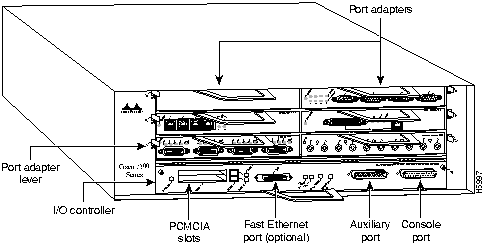
The front of the Cisco 7200 series routers provides access to an Input/Output (I/O) controller and up to four or six network interface port adapters. The I/O controller has a local console port for connecting a data terminal (or data terminal equipment [DTE]) and an auxiliary port for connecting a modem (or other data communications equipment [DCE]) or other devices for configuring and managing the router; two Personal Computer Memory Card International Association (PCMCIA) slots for Flash memory cards; and an optional Fast Ethernet port. The Fast Ethernet port provides a 100-Mbps connection to the network. Figure 1 shows the Cisco 7204. Figure 2 shows the Cisco 7206.
Figure 1 : Cisco 7204---Front View
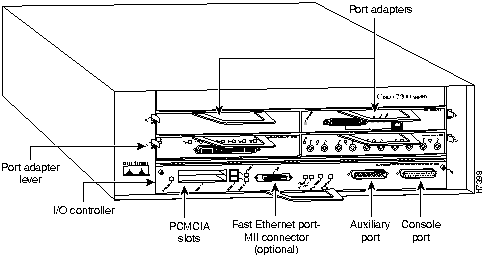
Figure 2 : Cisco 7206---Front View
The port adapters installed in the Cisco 7200 series routers are of the same type as those installed on the second-generation Versatile Interface Processors (VIP2s) in the Cisco 7000 family routers. The port adapters installed in the Cisco 7200 series routers support online insertion and removal (OIR).
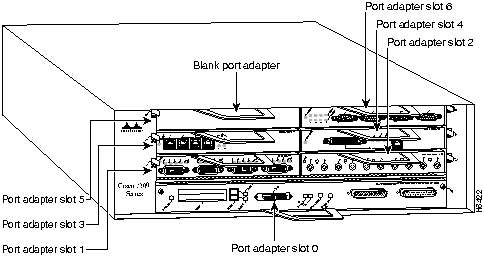
Port adapter slots in the Cisco 7200 series are numbered from left to right, beginning with port adapter slot 1 and continuing through port adapter slot 4 for the Cisco 7204, and slot 6 for the Cisco 7206. Port adapter slot 0 is the Fast Ethernet port on the I/O controller. Figure 3 shows the port adapter slot numbering for the Cisco 7206.
Figure 3 : Port Adapter Numbering---Cisco 7206 Shown
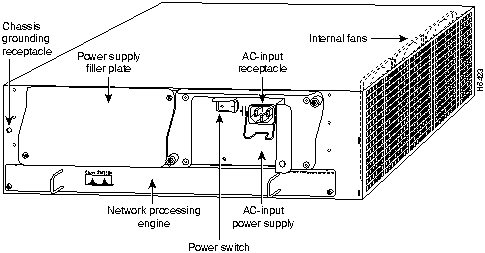
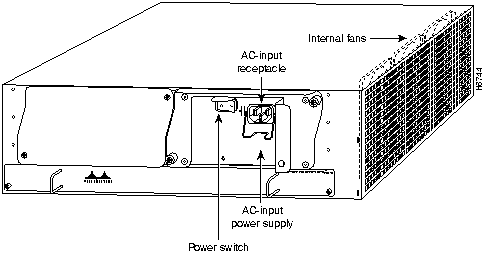
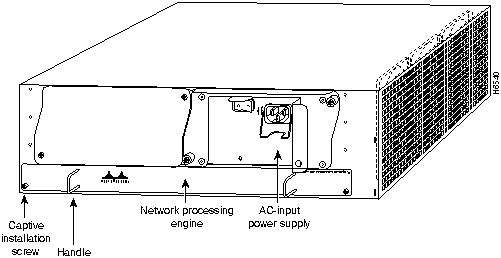
The rear of the Cisco 7200 series routers provides access to the network processing engine and up to two 280W, AC-input or DC-input power supplies (refer to Figure 4).
Figure 4 : Cisco 7200 Series Router---Rear View
The network processing engine has no external connectors or LEDs. There are two handles for removing and installing the network processing engine and two captive installation screws for securing it to the chassis.
A fully configured Cisco 7200 series router operates with only one installed power supply; however, a second, optional power supply provides hot-swappable, load-sharing, redundant power. The power supply has the router's main power switch and either an AC-input power receptacle, or a hardwired DC-input power cable (depending on the type of installed power supply). Adjacent to the power supply bays there is a 10 x 32-inch chassis ground receptacle that provides a chassis ground connection for ESD equipment or a grounding wire (refer to Figure 4).
Three internal fans draw cooling air into the chassis interior and across internal components to maintain an acceptable operating temperature (refer to Figure 4). The three fans are enclosed in a tray that is located in the subchassis.
The I/O controller, port adapters, power supplies, and network processing engine slide into their respective chassis slots and connect directly to the router's midplane; there are no internal cables to connect. The midplane distributes DC power from the power supplies to the I/O controller, port adapters, fan tray, and network processing engine.
Network Processing Engine Overview
The network processing engine, shown in Figure 5, maintains and executes the system management functions for the Cisco 7200 series routers. The network processing engine also shares the system memory and environmental monitoring functions for the router with the I/O controller.
The network processing engine consists of the following components:
Figure 5 : Cisco 7206 Network Processing Engine
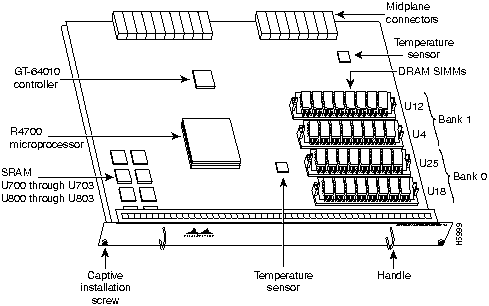
Table 1 lists the network processing engine memory components.
Table 1 : Network Processing Engine Memory Components
| Type | Size | Quantity | Description | Location |
|---|---|---|---|---|
| DRAM | 16 to 128 MB | 2 to 4 | 4-, 8-, 16-, or 32-MB SIMMs (based on maximum DRAM required). | Bank 1: U12 and U4
Bank 0: U25 and U18 |
| SRAM | 1 MB | 8 | Eight chips each being 128K words x 9 bits wide | Sockets U700 through U703
Sockets U800 through U803 |
| Unified cache | 512 KB | 4 | Secondary cache for the R4700 RISC processor | Sockets U12, U10, U14, and U26 |
Table 2 lists the network processing engine factory-installed DRAM configurations and their product numbers.
Table 2 : DRAM SIMM Configurations
| Total DRAM | DRAM Bank 0 | Quantity | DRAM Bank 1 | Quantity | Product Number |
|---|---|---|---|---|---|
| 16 MB | U18 and U25 | 2 8-MB SIMMs | U4 and U12 | -- | MEM-NPE-16MB1 |
| 24 MB | U18 and U25 | 2 8-MB SIMMs | U4 and U12 | 2 4-MB SIMMs | MEM-NPE-24MB |
| 32 MB | U18 and U25 | 2 16-MB SIMMs | U4 and U12 | -- | MEM-NPE-32MB1 |
| 64 MB | U18 and U25 | 2 32-MB SIMMS | U4 and U12 | -- | MEM-NPE-64MB1 |
| 128 MB | U18 and U25 | 2 32-MB SIMMs | U4 and U12 | 2 32-MB SIMMs | MEM-NPE-128MB1 |
This section provides a list of parts and tools you need to remove and replace the network processing engine in the Cisco 7200 series routers. This section also includes safety and ESD-prevention guidelines to help you avoid injury to yourself and damage to the equipment.
You need the following tools and parts to remove and replace the network processing engine. If you need additional equipment, contact a service representative for ordering information.
Following are safety guidelines that you should follow when working with any equipment that connects to electrical power or telephone wiring.
Electrical Equipment Guidelines
Follow these basic guidelines when working with any electrical equipment:
Use the following guidelines when working with any equipment that is connected to telephone wiring or to other network cabling:
Preventing Electrostatic Discharge Damage
Electrostatic discharge (ESD) damages equipment and impairs electrical circuitry. ESD occurs when printed circuit boards are improperly handled and results in complete or intermittent failures.
The network processing engine, I/O controller, and port adapters consist of a printed circuit board that is fixed in a metal carrier. Electromagnetic interference (EMI) shielding, connectors, and a handle are integral components of the carrier. Handle the network processing engine, I/O controller, and port adapters by their carrier edges and handle; never touch the printed circuit board or connector pins.
Figure 6 shows the location of a printed circuit board when it is installed in a network processing engine or I/O controller metal carrier. Do not touch the printed circuit board when handling either component.
Figure 6 : Handling the Network Processing Engine and the I/O Controller---Side View
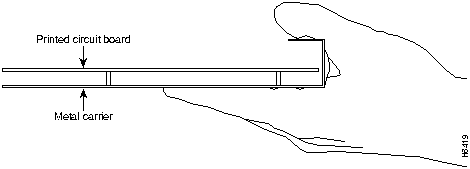
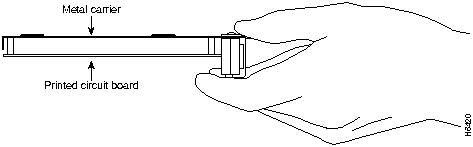
Figure 7 shows the location of a printed circuit board when it is installed in a port adapter metal carrier. Do not touch the printed circuit board when handling a port adapter.
Figure 7 : Handling a Port Adapter---Side View
Although the metal carrier helps to protect the printed circuit boards from ESD, wear a preventive antistatic strap whenever handling the network processing engine, I/O controller, or port adapters. Ensure that the strap makes good skin contact and connect the strap's clip to an unpainted chassis surface to safely channel unwanted ESD voltages to ground.
If no wrist strap is available, ground yourself by touching the metal part of the chassis.
Following are guidelines for preventing ESD damage:
Ensuring Easy Access to the Router
If your Cisco 7200 series router is installed in a standard 19-inch rack or in a 19-inch Telco rack, cables from other equipment in the rack may obstruct access to the rear of the router. Also, rack power strips or other permanent fixtures may obstruct access to the router. Review the following guidelines to ensure easy access to the rear of the router when it is installed in a rack. If the router is not installed in a rack, or if you already have clear access to the rear of the router, proceed to the following section "Removing and Replacing the Network Processing Engine."
Use the following guidelines to ensure easy access to the rear of the router when it is installed in a rack:
Removing and Replacing the Network Processing Engine
The following sections explain how to remove and replace the network processing engine in the Cisco 7200 series routers. It involves the following tasks:
These tasks are described in detail in the following subsections.
Powering Down the Router and Disconnecting Input Power
To power down a Cisco 7200 series router that has an installed AC-input power supply, complete the following steps:
To disconnect AC-input power to a Cisco 7200 series router, complete the following steps:
Figure 8 : Disconnecting Power from a Cisco 7200 Series AC-Input Power Supply
This completes the procedure for powering down the router and disconnecting input power. Proceed to the section "Removing the Network Processing Engine."
Removing the Network Processing Engine
To remove the network processing engine from a Cisco 7200 series router, complete the following steps:
Figure 9 : Cisco 7200 Series Network Processing Engine Captive Screws and Handles
This completes the procedure for removing an installed network processing engine. Proceed to the section "Replacing the Network Processing Engine."
Replacing the Network Processing Engine
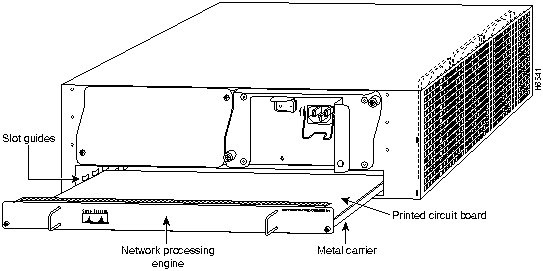
To install a new network processing engine in the router, complete the following steps:
Figure 10 : Aligning the Network Processing Engine between the Slot Guides
This completes the procedure for replacing the network processing engine in a Cisco 7200 series router. Proceed to the section "Reconnecting Input Power and Powering Up the Router."
Reconnecting Input Power and Powering Up the Router
The following procedures explain how to reconnect AC-input power to a Cisco 7200 series router, power up the router, and verify a successful system boot.
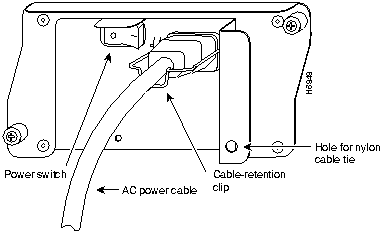
To connect AC-input power to a Cisco 7200 series router, complete the following steps:
Figure 11 : Connecting AC-Input Power to a Cisco 7200 Series Router
This completes the steps for connecting AC input power to a Cisco 7200 series router. To power up a Cisco 7200 series router that has an installed AC-input power supply, complete the following steps:
This completes the procedures for reconnecting input power and powering up the router. This also completes the procedure for replacing the network processing engine in the Cisco 7206.
Removing and Installing an AC-Input Power Supply
The weight of power supplies installed in a Cisco 7200 series router might make it difficult for you to pull the network processing engine from its chassis slot. If this is the case, consider removing installed power supplies from the chassis and then removing the network processing engine. The following sections explain how remove and install an AC-input supply in a Cisco 7200 series router.
Removing an AC-Input Power Supply from a Cisco 7200 Series Router
To remove an AC-input power supply from a Cisco 7200 series router, complete the following steps:
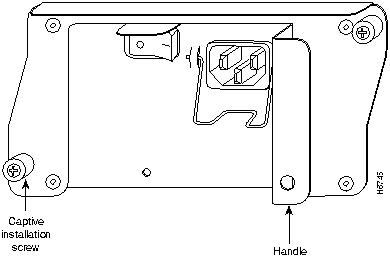
Figure 12 : AC-Input Power Supply Captive Installation Screws and Handle
This completes the procedure for removing an AC-input power supply from a Cisco 7200 series router. Proceed to the following section "Installing an AC-Input Power Supply."
Installing an AC-Input Power Supply
To install an AC-input power supply in a Cisco 7200 series router, complete the following steps:
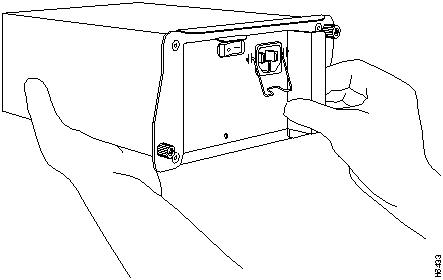
Figure 13 : Holding the AC-Input Power Supply
This completes the procedures for replacing an AC-input power supply in a Cisco 7200 series router.
Copyright 1988-1996 © Cisco Systems Inc.





Cisco Internetwork Operating System Software
IOS (tm) 7200 Software (C7200-J-M), Version 11.1(6)CA [kpfjrgiu 100]
Copyright (c) 1986-1996 by cisco Systems, Inc.
Compiled Sun 21-Apr-96 04:10 by