


|
|

Second-Generation Channel Interface Processor (CIP2) Installation and Configuration
This document contains instructions for installing (or replacing) the second-generation Channel Interface Processor (CIP2) in the Cisco 7000 series routers and the Cisco 7500 series routers.
Prior to these Cisco IOS releases being available, CIP2 is supported with a special microcode image. This microcode image is available through download from Cisco Connection Online (CCO), on diskettes shipped with the CIP2 when shipped separately from a system (as a spare), or is already in Flash memory on a preconfigured system. For instructions on placing CIP2 microcode in Flash memory, see the section "CIP2 Microcode" on page 37.
Once CIP2 microcode has been copied into Flash memory, a configuration command must be specified to instruct the Cisco IOS to use this microcode image instead of the microcode image bundled with your version of the Cisco IOS. For instructions on configuring the Cisco IOS to use a CIP2 microcode image from Flash memory, refer to the section "Configuring Microcode" on page 39.
For additional specific CIP2 software and hardware requirements, refer to the section "Software and Hardware Prerequisites" on page 13. For complete and detailed descriptions of CIP2-related interface and configuration commands, configuration options, and requirements, refer to the publications listed in the section "If You Need More Information" on page 2.
This document includes the following sections:
The Cisco Internetwork Operating System (Cisco IOS) software running your router contains extensive features and functionality. The effective use of many of many of these features is easier if you have more information at hand. For additional information on configuring and maintaining the Cisco 7000 series and Cisco 7500 series routers and CIP2, the following documentation resources are available to you:
cs-rep@cisco.com
. You can also refer to the Cisco Information Packet that shipped with your router.
This section discusses channel attachment and the CIP2, its LED functions, and its memory and cable requirements.
A mainframe channel (referred to as a channel) is an intelligent processor that manages the protocol on the communications media and controls the data transfer to and from the main central processing unit (CPU) storage. Devices called input/output processors (IOPs) communicate between the host CPU and the channel. One IOP controls multiple channels, and there is no relationship between the number of CPUs and the number of IOPs.
The channel relieves the mainframe CPU of direct communication with input/output (I/O) devices, which saves processing cycles and allows data processing and communications tasks to run concurrently. Channels use one or more channel paths as the links between mainframes and I/O devices. I/O devices are connected directly to control units, which provide the logical capabilities required to operate and control the I/O devices.
The CIP2 provides up to two channel-attached interfaces for Cisco 7000 series and Cisco 7500 series routers, eliminating the need for a separate front-end processor.
The CIP2 interfaces are combinations of a bus and tag (also called an original equipment manufacturer's interface [OEMI] and a parallel I/O interface) adapter and an Enterprise Systems Connection (ESCON) adapter.
The bus and tag adapter is called the Parallel Channel Adapter (PCA), and the ESCON adapter is called the ESCON Channel Adapter (ECA). The PCA and ECA connect directly to the CIP2, and any combination of the two adapters can be used.
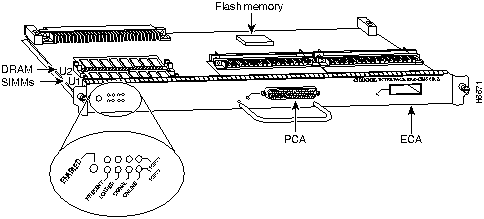
The CIP2 (see Figure 1) consists of a motherboard that is mounted on a metal carrier and one or two ECA and/or PCA interfaces. (The CIP2's reads Channel Interface Processor 2.) The ECA and PCA interfaces attach to the motherboard by means of a multipin connector located at the rear edge of the adapter. The CIP2 has two DRAM SIMMs (see Figure 1) and comes configured with 32 MB of DRAM as the minimum standard (default) memory configuration. The CIP2 also has a Flash memory device for storing the CIP2 microcode boot image. (See Figure 1.)
Figure 1 : Channel Interface Processor, Horizontal Orientation
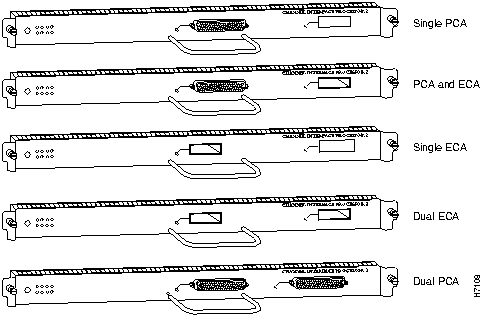
There are three CIP2 carrier types, which offer the following five interface adapter combinations:
Add an equal sign (=) to the product number when you order interface processors as spares.
The ECA has a female, duplex connector, and the PCA has a female, DB-78 connector. Figure 2 shows the ECA and PCA interface combinations.
Figure 2 : CIP2 Interface Adapter Combinations
Each CIP2 model is available in the following configurations of dynamic random-access memory (DRAM) single in-line memory modules (SIMMs):
CIP2 LED Indicators and Sequences
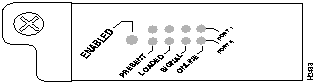
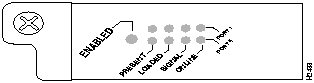
Following are the functions of the CIP2 LEDs. (See Figure 3.)
Figure 3 : CIP2 LED Indicators
Following are the sequences for the CIP2 LED indicators. The enabled LED is not part of the following sequences. On cold boots, the following LED sequences apply:
The following LED sequence indicates that the CIP2 is waiting for commands from the RP (or RSP).
On warm boots, the LEDs flash briefly. On downloads, the following three LED sequences apply; the first indicates that the system is downloading volatile programmable logic device (VPLD) code:
The following sequence indicates that the CIP2 is downloading microcode:
The following sequence indicates that the CIP2 is starting to execute the microcode:
ESCON and Bus and Tag Specifications
Table 1 lists the specifications for the ESCON and bus and tag interfaces.
Table 1 : ESCON and Bus and Tag Specifications
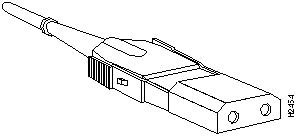
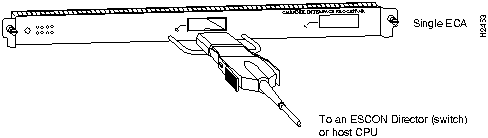
The ECA interface uses 62.5/125 micrometer, multimode, fiber-optic cable with male duplex connectors at each end. (See Figure 4.) ESCON cables are not available from Cisco Systems. Refer to the ESCON specifications in Table 1, and contact your cable supplier or the vendor of your host CPU to order the correct ESCON cable.
Figure 4 : ESCON Interface Duplex Connector for the ECA
Following are descriptions and illustrations of the bus and tag cables.
Y Cable
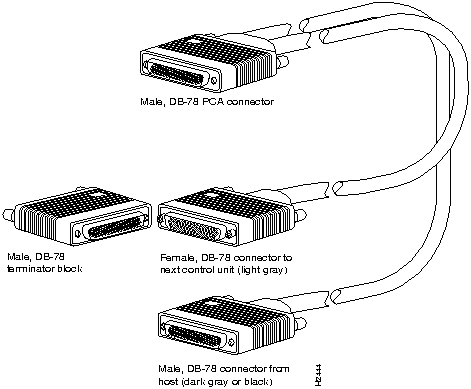
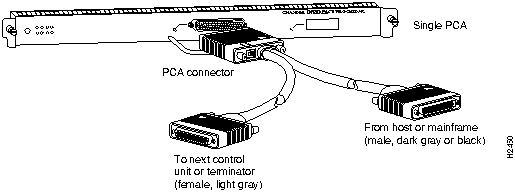
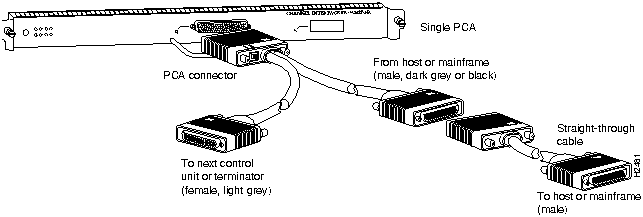
The bus and tag cable with three 78-pin connectors (shown in Figure 5) has a DB-78 male (PCA) connector on the CIP2 end, a DB-78 female connector on the next-control-unit end, and a DB-78 male connector on the from-host end.
Figure 5 : PCA Bus and Tag Cable (CAB-PCA-Y)
The model number is CAB-PCA-Y (referred to as the Y cable) The male connector might be labeled IN and is typically black, but can also be a dark gray. The female connector might be labeled OUT and is typically light gray. The female OUT cable is nearest to the select/bypass switch, which is discussed on the following page. (The IBM part number is 89F8392; however, this is subject to change.)
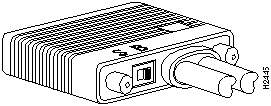
Note the switch marked S (for select mode) and B (for bypass mode). The switch is located on the rear of the PCA connector. (See Figure 6.) The select/bypass switch is required to allow the cable to be separated from the PCA without "opening" the select-out loop.
Figure 6 : Select/Bypass Switch on the Rear of the PCA Connector (CAB-PCA-Y Bypass Shown)
In select mode the PCA is operational, and the select-out signal is passed in a loop to all control lines on the channel. All control units have a relay that shorts the incoming select-out signal to the outgoing select-out signal when power is not applied to the control unit. When power is applied, the relay is opened, and the signal is passed to the PCA.
Without the select/bypass switch in bypass mode, the channel would need to be taken offline before servicing or replacing a CIP2. If the selected address does not match, the select-out signal is passed to the next control unit. If the select-out signal gets all the way back to the channel, the control unit being addressed is not present.
VA and VB Cables
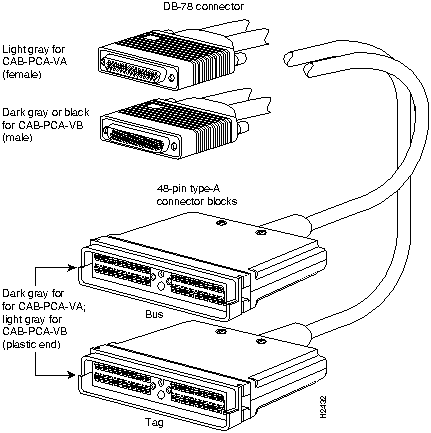
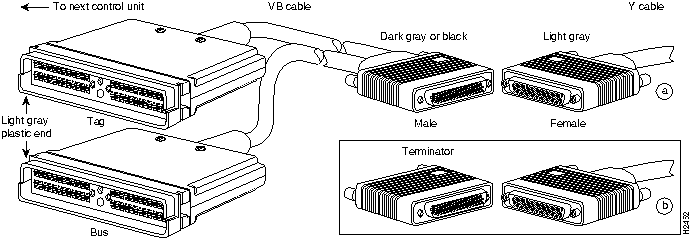
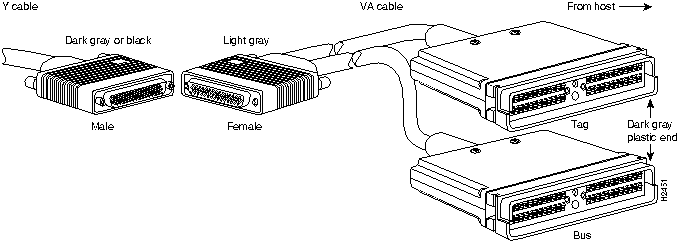
The two bus and tag cables with connector blocks have a DB-78 (male or female) connector on the CIP2 end and 48-pin type-A connector blocks on the bus and tag ends. (See Figure 7.) VA and VB cables are 56 inches (1.42 meters) in length.
For the bus and tag cable that attaches between the host and the PCA, the model number is CAB-PCA-VA, and it is referred to as the VA cable. The female 78-pin connector might be labeled IN and is typically light gray. The cable labeled P2 is bus, and the cable labeled P3 is tag. Looking into the end of the female 78-pin connector (on the VA cable), with the wide part of the connector D-shell on top, the P2 (bus) cable is on the right, and the P3 (tag) cable is on the left. The plastic on the ends of the bus and tag connectors might be black or dark gray.
The IBM part number is 12G8058; however, this is subject to change. The VA cable ships with a terminator; the Cisco model number CAB-PCA-VA includes this terminator. The terminator and VA cable together have the IBM part number 12G7988; however, this is subject to change.
For the bus and tag cable that attaches between the next control unit and the PCA, the model number is CAB-PCA-VB, and it is referred to as the VB cable. The male 78-pin connector might be labeled OUT and is typically black or dark gray. The cable labeled P2 is bus, and the cable labeled P3 is tag. Looking into the end of the male 78-pin connector (on the VB cable), with the wide part of the connector D-shell on top, the P2 (bus) cable is on the left, and the P3 (tag) cable is on the right. The plastic on the ends of the bus and tag connectors might be light gray (as opposed to the black or dark gray plastic on the VA cable). The IBM part number is 12G7933; however, this is subject to change.
Figure 7 : PCA Bus and Tag, VA and VB Cables
The Y cable always attaches to the PCA. The VA cable attaches between the male end of the Y cable and the host. The VB cable attaches between the female end of the Y cable and the next (or new) control unit. Do not connect the VB cable directly to the PCA. If the PCA is the last control unit, channel termination is required at the end of the Y cable that points away from the host. (See Figure 5.) For attachment instructions refer to the section "Attaching the CIP2 to the Channel" on page 30.
Before you install the CIP2, review the safety and electrostatic discharge (ESD)-prevention guidelines in this section to avoid injuring yourself or damaging the equipment. This section also provides a list of parts and tools you will need to perform the installation, and lists the software and microcode requirements.
Software and Hardware Prerequisites
You can determine the current version of software or microcode stored in Flash memory either by removing the processor module and checking the Flash device's label or by configuring the system to boot the system software from Flash memory, reloading the system, and using show commands to check the version that is loaded and running. Refer to the section "CIP2 Microcode," on page 37, for basic configuration information, and to the appropriate software documentation for complete configuration instructions and examples. If the displays indicate that the required system software and microcode is not available in your system, refer to the section "Cisco Connection Online," on page 46, for information about contacting a service representative for upgrade information.
Following are important software and hardware prerequisites concerning the CIP2:
Table 2 (on the following page) lists the specific Cisco IOS software release images that are compatible with the CIP2.
Table 2 : Cisco IOS Release Image Names
The show version and show hardware commands display the current hardware configuration of the router, including the system software version that is currently loaded and running. The show microcode command lists the bundled microcode (target hardware) version for each processor type. The CIP (and now CIP2) microcode is no longer bundled in Cisco IOS 11.1 and later, so the show microcode command lists the default microcode which should be used with this Cisco IOS version. The show controller cbus command shows the microcode version you are running. (For complete descriptions of configuration commands, refer to the publications listed in the section "If You Need More Information" on page 2.)
You can determine the current version of software or microcode stored in Flash memory either by removing the processor module and checking the Flash device label or by using the show controller cbus command and checking the EPROM version number in the output. Refer to the section "CIP2 Microcode," on page 37, for basic configuration information, and to the appropriate software documentation for complete configuration instructions and examples, listed in the section "If You Need More Information" on page 2.
If the displays indicate that the required system software and microcode is not available in your system, refer to the section "Cisco Connection Online," on page 46, or contact a service representative for upgrade information.
This section lists safety guidelines you should follow when working with any equipment that connects to electrical power or telephone wiring.
Follow these basic guidelines when working with any electrical equipment:
Use the following guidelines when working with any equipment that is connected to telephone wiring or to other network cabling:
Preventing Electrostatic Discharge Damage
ESD damage, which can occur when electronic cards or components are improperly handled, results in complete or intermittent failures. Each processor module contains a printed circuit card that is fixed in a metal carrier. Electromagnetic interference (EMI) shielding, connectors, and a handle are integral components of the carrier. Although the metal carrier helps to protect the board from ESD, use an ESD-preventive wrist or ankle strap whenever you handle any electronic system component.
Following are guidelines for preventing ESD damage:
Online Insertion and Removal---An Overview
The OIR feature allows you to remove and replace interface processors while the system is operating; you do not need to notify the software or shut down the system power.
Each interface processor contains a male connector with which it connects to the system backplane. Each card (male) connector comprises a set of tiered pins, in three lengths. The pins send specific signals to the system as they make contact with the backplane. The system assesses the signals it receives and the order in which it receives them to determine what event is occurring and what task it needs to perform, such as reinitializing new interfaces or shutting down removed ones.
For example, when inserting an interface processor, the longest pins make contact with the backplane first, and the shortest pins make contact last. The system recognizes the signals and the sequence in which it receives them. The system expects to receive signals from the individual pins in this logical sequence, and the ejector levers help to ensure that the pins mate in this sequence.
When you remove or insert an interface processor, the backplane pins send signals to notify the system, which then performs as follows:
The system brings on line only interfaces that match the current configuration and were previously configured as up; all others require that you configure them with the configure command.
OIR functionality enables you to add, remove, or replace interface processors with the system on line, which provides a method that is seamless to end users on the network, maintains all routing information, and ensures session preservation.
You need the following tools and parts to install or replace a CIP2. If you need additional equipment, contact a customer service representative for ordering information.
Microcode, also known as firmware, is a set of processor-specific software instructions that enables and manages the features and functions of a specific processor type. At system startup or reload, the system loads the microcode for each processor type present in the system.
The CIP2 microcode boot image resides in a Flash memory device on the CIP2 motherboard. The entire CIP2 microcode image is delivered on a Flash memory card, on floppy disks, or is available via download from CCO.
New microcode is released to enable new features, improve performance, or fix bugs in earlier versions. The Cisco 7000 series and Cisco 7500 series routers feature downloadable software and microcode for most upgrades. These features enable you to download new (upgraded) images remotely, store the images in router memory, and load the new images at system startup without having to physically access the router. You can store multiple versions for a specific processor type in Flash memory, and use configuration commands to specify which version the system should load at startup. All interfaces of the same type (for example, all CIP2s) use the same microcode image.
Following is an example of the show microcode command output:
What Is the Cisco 7000 Series?
The Cisco 7000 series consists of the Cisco 7000 and Cisco 7010 routers.
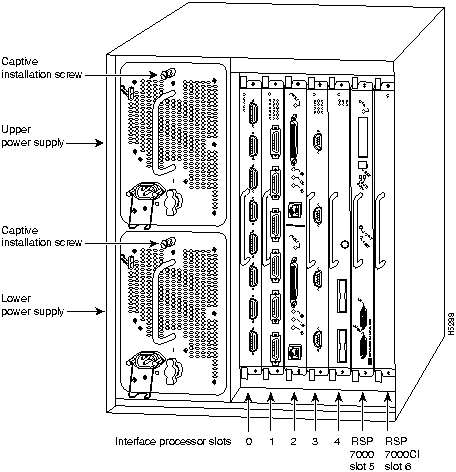
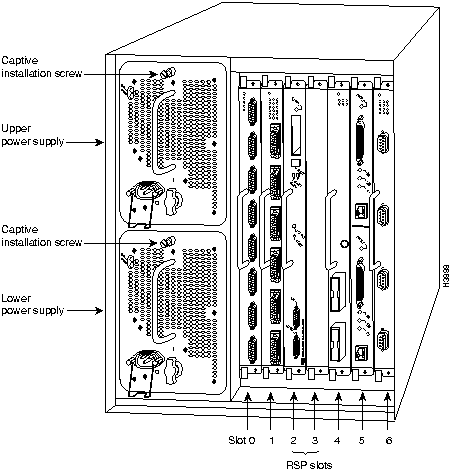
In the Cisco 7000, slot 5 is reserved for the RSP7000 (7000 RSP slot shown in Figure 8), which contains the system processor and performs packet switching functions; slot 6 is reserved for the RSP7000CI (7000 CI slot shown in Figure 8), which contains all of the environmental monitoring functions for the Cisco 7000. The remaining five slots (slots 0 through 4) are for interface processors, including the CIP2.
Figure 8 : Cisco 7000 with RSP7000 and RSP7000CI Installed ( Interface Processor End)
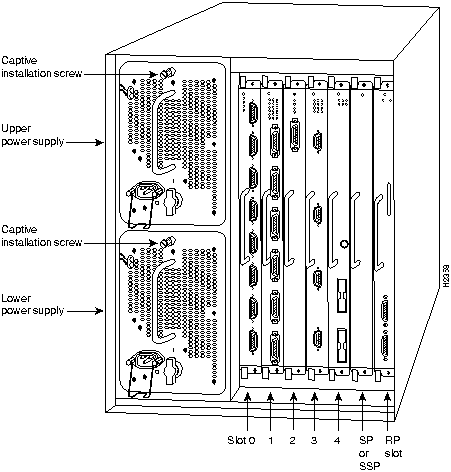
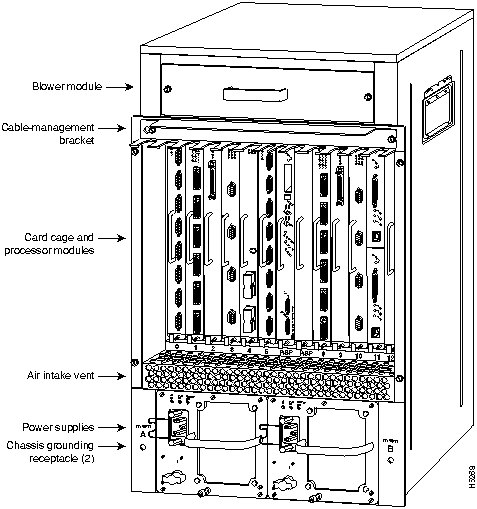
Figure 9 shows the interface processor end of the Cisco 7000, which provides access to the seven processor slots and the removable power supplies. When facing the interface processor end of the chassis, the SP (or SSP) and RP slots are on the far right. The five interface processor slots are numbered 0 to 4 from left to right and are reserved for interface processors, including the CIP2.
Figure 9 : Cisco 7000 with RP and SP (or SSP) Installed ( Interface Processor End)
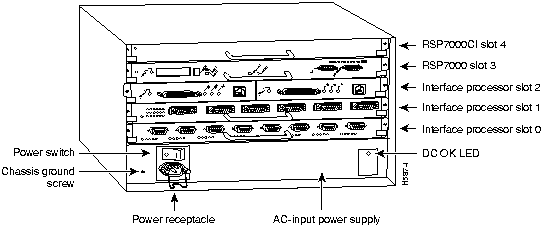
In the Cisco 7010, slot 3 is reserved for the RSP7000 (7000 RSP slot shown in Figure 10), which contains the system processor and performs packet switching functions; slot 4 is reserved for the RSP7000CI (7000 CI slot shown in Figure 10), which contains all of the environmental monitoring functions for the Cisco 7010. The remaining three slots (slots 0 through 2) are for interface processors, including the CIP2.
Figure 10 : Cisco 7010 with RSP7000 and RSP7000CI Installed ( Interface Processor End)
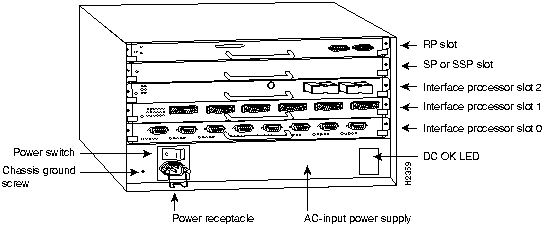
Figure 11 shows the interface processor end of the Cisco 7010, which provides access to the five processor slots. When facing the interface processor end of the chassis, the RP and SP (or SSP) slots are at the top. The three interface processor slots are numbered from the bottom up beginning with slot 0 (the bottom slot) through 2 (the center slot) and are reserved for interface processors, including the CIP2.
Figure 11 : Cisco 7010 with RP and SP (or SSP) Installed ( Interface Processor End)
What Is the Cisco 7500 Series?
The Cisco 7500 series consists of the Cisco 7505, Cisco 7507, and Cisco 7513 routers. The CIP2 will operate in the Cisco 7500 series routers.
Network interfaces reside on modular interface processors, including the CIP2, which are inserted into interface processor slots and provide a direct connection between external networks and the high-speed CyBus in the Cisco 7500 series. Figure 12, Figure 13, and Figure 14 show the rear of the Cisco 7500 series routers: the five-slot Cisco 7505, the seven-slot Cisco 7507, and the thirteen-slot Cisco 7513, respectively.
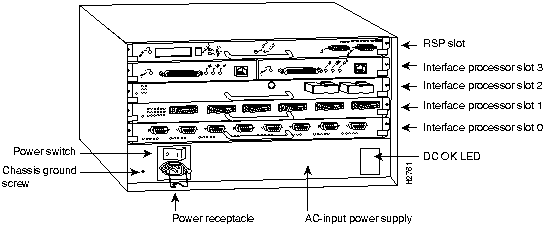
In the Cisco 7505 (see Figure 12), one slot (4) is reserved for the Route Switch Processor (RSP1), which contains the system processor and performs packet switching functions. Slots 0 through 3 are for interface processors, including the CIP2.
Figure 12 : Cisco 7505 ( Interface Processor End)
Figure 13 shows the rear of the Cisco 7507 router. In the Cisco 7507, up to two slots (2 and 3) are reserved for the Route Switch Processor (RSP2), which contains the system processor and performs packet switching functions. Slots 0 and 1 and 4 through 6 are for interface processors, including the CIP2.
Figure 13 : Cisco 7507 (Interface Processor End)
Figure 14 shows the rear of the Cisco 7513. Two slots (6 and 7) are reserved for the second generation Route Switch Processor (RSP2), which contains the system processor and performs packet switching functions. Slots 0 through 5 and 8 through 12 are for interface processors, including the CIP2.
Figure 14 : Cisco 7513 (Interface Processor End)
The following sections provide a functional overview of online insertion and removal (OIR), and describe the procedures for installing or replacing CxBus interface processors in Cisco 7000 series routers. Before installing any new interfaces, ensure that your system meets the minimum software and microcode requirements described in the sections "Software and Hardware Prerequisites," on page 13, and "Microcode Overview" on page 17.
The OIR feature allows you to remove and install a CIP2 without turning off system power. However, you must follow the insertion instructions carefully; for example, failure to use the ejector levers or insert the CIP2 properly can cause system error messages indicating a card failure.
Each unused interface processor slot contains an interface processor filler (which is an interface processor carrier without an interface card) to keep dust out of the chassis and to maintain proper airflow through the interface processor compartment. If you install a new CIP2, select an empty interface processor slot and remove the interface processor filler. If you replace a CIP2, you can retain the existing interface configuration by removing the existing interface processor and installing the new one in the same slot; however, the new CIP2 must be the same hardware type as the CIP2 you replaced.
Following the OIR overview, proceed to the section "Removing a CIP2 or an Interface Processor Filler," on page 26, for instructions on making an interface processor slot available for the new CIP2, then to the section "Installing a CIP2," on page 29, for the installation instructions. After the new CIP2 is secure, follow the procedures in the section "Checking the Installation," on page 35, to verify that it is installed and functioning properly.
Removing a CIP2 or an Interface Processor Filler
The CIP2 supports OIR, so you do not need to shut down the interface or the system power when you remove a CIP2; however, to prevent a possible interface control check on the mainframe, consult with your system administrator to take appropriate precautions. If you are installing a new CIP2, select an available slot and remove the interface processor filler. If you are replacing a CIP2, first remove the existing CIP2 and immediately place it component side up on an antistatic surface, then insert the new CIP2 in the same slot to retain the previous configuration for the new channel interface.
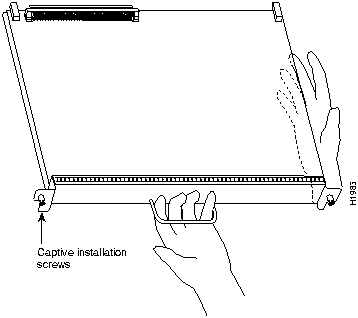
Figure 15 shows proper handling of an interface processor for installation in the Cisco 7010 or Cisco 7505 models. The processor slots are oriented horizontally in the Cisco 7010 and Cisco 7505, and vertically in the Cisco 7000, Cisco 7507, and Cisco 7513. When installing interface processors in these latter chassis, handle the interface processor in the same manner, but rotated 90 degrees clockwise.
Figure 15 : Handling Interface Processors during Installation
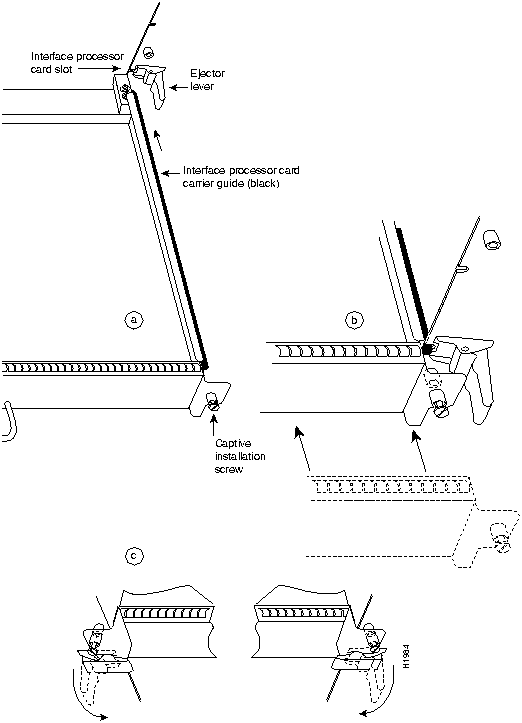
Figure 16 shows the functions of the ejector levers in the correct orientation for the horizontal processor slots in a Cisco 7010 and Cisco 7505 chassis. In a Cisco 7000, Cisco 7507, and Cisco 7513 chassis, the function of the ejector levers is the same, but the orientation is rotated 90 degrees clockwise for the vertical processor slots.
Figure 16 : Function of the Ejector Levers
The function of the ejector levers (see Figure 16) is to align and seat the card connectors in the backplane. Failure to use the ejector levers and insert the interface processor properly can disrupt the order in which the pins make contact with the backplane.
Following are examples of incorrect insertion practices and their results:
Using the ejector levers and making sure that they are pushed fully into position ensures that all three layers of pins are mated with (or free from) the backplane.
It is also important to use the ejector levers when you remove an interface processor to ensure that the card connector pins disconnect from the backplane in the logical sequence expected by the system. Any processor module that is only partially connected to the backplane can halt the bus. Detailed steps for correctly performing OIR are included with the following removal and installation procedures.
Refer to Figure 16 while performing the following steps to remove a CIP2 or interface processor filler. If you are removing an interface processor filler, proceed to Step 5. If you are replacing an existing CIP2, begin at Step 1. In the following procedures, two channel-related terms are used: vary offline refers to disabling an interface; vary online refers to enabling an interface. For instructions on how to vary the host channel or addresses online or offline, refer to the documentation for your operating system.
This completes the removal procedure. Proceed to the next section to install a new CIP2.
The CIP2 slides into any available interface processor slot and connects directly to the backplane of the Cisco 7000 series or Cisco 7500 series router. The backplane slots are keyed so that the CIP2 can be installed only in an interface processor slot. (Refer to Figure 8, Figure 10, Figure 12, Figure 13, or Figure 14, depending on your chassis type.) Figure 16 shows the functional details of inserting an interface processor and using the ejector levers. Figure 15 shows proper handling of an interface processor during installation.
Follow these steps to install a CIP2:
Proceed to the next section to attach the bus and tag and/or ESCON cables between the CIP2 interface ports and your channel.
Attaching the CIP2 to the Channel
The CIP2 can be connected to the channel using the bus and tag cables (for the PCA) and/or using a fiber-optic ESCON cable with duplex connectors (for the ECA). Bus and tag and ESCON connections each have their own special requirements. The following sections discuss bus and tag and ESCON connections.
Attaching the Bus and Tag Cables
The PCA is connected using the bus and tag cable with 78-pin connectors (the Y cable) and the bus and tag cables with 48-pin, type A connector blocks (the VA and VB cables). In general, a Y cable attaches to the PCA on the CIP2, and the VA and VB cables attach to the remaining ends of the Y cable.
Attaching the PCA to the Host Channel
Attach the PCA to the host as follows.
Figure 17 : Connecting or Removing the Y Cable
Figure 18 : Connecting the VB Cable Between the Y Cable and the Next Control Unit
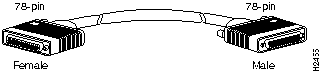
Figure 19 : Straight-Through Cable
Figure 20 : Connecting the VA Cable Between the Y Cable and the Host
Figure 21 : Connecting the PCA and Host Using the Y Cable and Straight-Through Cable (CAB-PCA-S)
Detaching the Y Cable from the PCA
To properly detach a Y cable from the PCA, use the following procedure.
Following is the procedure for attaching the ESCON cable between the ECA and the host channel.
Figure 22 : Connecting an ESCON Cable to the ECA
After you install the CIP2 and cables, verify the installation by observing the LED states and the console display. When the system has reinitialized all interfaces, the enabled LED on the CIP2 (and on all interface processors) should go on. The console screen will also display a message as the system discovers each interface during its reinitialization. If you need to verify the operation of the interfaces, refer to the section "Running Diagnostic Tests" on page 44.
When you remove and replace interface processors, the system provides status messages on the console screen. These messages are for information only. The following sample display shows the events logged by the system as a CIP2 was removed from slot 1; the system then reinitialized the remaining interface processors and marked as down the CIP2 that was removed from slot 1. When the CIP2 was reinserted, the system marked the interface as up again because the interface was not shut down before the CIP2 was removed.
The sample display follows:
When a new CIP2 is inserted or when a CIP2 is moved to a new slot, the system recognizes the new interface, but leaves it in a down state until you configure it and change the state to up with the no shutdown command.
The following sample display shows the events logged by the system as a new single-PCA CIP2 is inserted in slot 3:
Verify that the CIP2 is installed correctly, as follows:
Figure 23 : CIP2 LED Indicators
If an error message is displayed on the console terminal, refer to the System Error Messages publication for error message definitions. If you experience other problems that you are unable to solve, contact a service representative for assistance.
This completes the CIP2 hardware installation.
The following sections discuss CIP2 microcode configuration requirements.
For the Cisco 7000 series and Cisco 7500 series routers, CIP2 microcode is available on floppy diskettes, Flash memory cards (which also include the Cisco IOS release compatible with the microcode version), and via Customer Connection Online (CCO).
Starting with Cisco IOS Release 11.1, or later, CIP2 microcode images are shipped separately from the Cisco IOS software. For new Cisco 7000 series and Cisco 7500 series routers shipped with Cisco IOS Release 11.1, or later, the CIP2 microcode is shipped pre-installed on the Flash memory card.
For Cisco Release 11.1, or later, software upgrades, the CIP2 microcode is shipped or available on the following media:
CIP2 Microcode Upgrade Overview
Following is an overview of what you need to do to upgrade unbundled CIP2 microcode for the Cisco 7000 series and Cisco 7500 series routers.
For CIP2 microcode images that shipped on floppy diskettes or were obtained from CCO, do the following:
For CIP2 microcode that shipped on Flash memory cards, do the following:
This section describes how to modify the startup configuration to load different microcode images at startup, or to change existing configuration instructions and reenable the system default.
Table 3 : Cisco IOS Releases and CIP2 Microcode Images
At system startup or reload, the system loads a microcode image for each processor type. All processors of the same type use the same microcode image; only one image for each type can load at startup. The CIP2 Flash memory provides a CIP2 microcode boot image. The entire CIP2 microcode image is located in a Flash memory card, on a floppy disk, or is available from CCO or from a TFTP server.
Whenever you upgrade software or microcode by downloading new images into Flash memory, you must configure the system to load the new image at startup. Otherwise, the system will continue to load the default image from the system, or attempt to load the previous image (if any) if it is still specified in the configuration file.
To instruct the system to boot a CIP2 microcode image other than the default at startup, use the microcode cip flash [bootflash | slot0 | slot1 ]:filename configuration command to add the instructions to the configuration file.
Follow these steps to configure the microcode for a CIP2 on a router configured with Cisco IOS Release 11.1(5) or later.
If you plan to load a microcode image from an individual file or a bundled system image stored in Flash memory, enter the show flash slot 0: EXEC command to display the contents and verify the exact name of the file (cip1234 is used in this example):
This completes the procedure for configuring microcode. For complete descriptions of the show commands, refer to the publications listed in the section "If You Need More Information" on page 2.
The following sections discuss various Flash-memory functionality that you might need.
Copying to Flash Memory on an RSP or RSP7000
Copying a new image to Flash memory might be required whenever a new microcode image becomes available. Use the command copy tftp:filename [ bootflash | slot0 | slot1 ]:filename for the copy procedure where tftp:filename is the source of the file and [ bootflash | slot0 | slot1 ]:filename is the destination in onboard Flash memory or on either of the Flash memory cards.
An example of the copy tftp:filename command for Cisco IOS Release 11.1 follows:
Additional Flash Memory Commands
Following are additional commands related to the Flash memory in the single in-line memory module (SIMM) on the RSP1, RSP2 and RSP7000 (called bootflash) and in PCMCIA Flash memory cards. (The following example assumes you are currently accessing the Flash memory card in PCMCIA slot 0.) You can determine which PCMCIA slot you are accessing using the pwd command as follows:
You can move between Flash memory media using the cd [ bootflash | slot0 | slot1 ] command as follows:
You can list the directory of any Flash memory media using the dir [ bootflash | slot0 | slot1 ] command as follows:
You can delete a file from any Flash memory media using the delete command as follows:
To verify that the delete command was successful, use the dir/all/long command.
The squeeze command permanently removes files, which are marked as deleted, and pushes all other undeleted files together to eliminate spaces between them.
Following is the syntax of the squeeze command:
To prevent loss of data due to sudden power loss, the "squeezed" data is temporarily saved to another location of Flash memory, which is specially used by the system.
In the preceding command display output, the character "e" means this special location has been erased (which must be performed before any write operation). The character "b" means that the data that is about to be written to this special location has been temporarily copied. The character "E" signifies that the sector which was temporarily occupied by the data has been erased. The character "S" signifies that the data was written to its permanent location in Flash memory.
The squeeze command operation keeps a log of which of these functions has been performed so upon sudden power failure, it can come back to the right place and continue with the process. The character "Z" means this log was erased after the successful squeeze command operation.
A locked block of Flash memory occurs when power is lost or a Flash memory card is unplugged during a write or erase operation. When a block of Flash memory is locked, it cannot be written to or erased, and the operation will consistently fail at a particular block location. The only way to recover from locked blocks is by reformatting the Flash memory card with the format command.
There are six PCA and ECA diagnostic test routines, as follows:
The interface has to pass the first five tests. The sixth test (which is the same as the fifth, but with a different mode for the optical wrap plug for the ECA, instead of electrically wrapping the interface) will fail if no wrap plug is installed or if the interface is connected to the channel. This type of failure will not affect the channel.
If a wrap plug is inserted, following is how the wrap diagnostics will be repeated:
If you suspect that an adapter might be the cause of a problem you are seeing, you can run a single pass of the diagnostic tests on an installed PCA or ECA interface by entering configuration mode and specifying that the console terminal will be the source of the configuration subcommands, as follows:
Next, specify the slot/port number (interface processor slot number/port number) of the interface for which you want the diagnostic tests to run by entering the interface channel command followed by the slot/port of the interface.
The example that follows is for a CIP2 interface in interface processor slot 1:
The no shutdown command causes the diagnostic tests to run on the PCA or ECA interface you selected. If no failures occur, you can rule out that adapter as the source of your problem.
Markus Hoerler and Tim Masterson need to review this for new ESCON diagnostics.
URL to this doc: http://wwwin-itg/ccden2/data/doc/hardware/fusion/7000/cfig_nts/3335cip2.htm
Also several new Cisco IOS releases will be required to support the new ESCON adapter.
Also, new CIP2 uCode release will be required for new ESCON adapter.
Cisco Connection Online (CCO), formerly Cisco Information Online (CIO), is Cisco Systems' primary, real-time support channel. Maintenance customers and partners can self-register on CCO to obtain additional content and services.
Available 24 hours a day, 7 days a week, CCO provides a wealth of standard and value-added services to Cisco's customers and business partners. CCO services include product information, software updates, release notes, technical tips, the Bug Navigator, configuration notes, brochures, descriptions of service offerings, and download access to public and authorized files.
CCO serves a wide variety of users through two interfaces that are updated and enhanced simultaneously---a character-based version and a multimedia version that resides on the World Wide Web (WWW). The character-based CCO supports Zmodem, Kermit, Xmodem, FTP, Internet e-mail, and fax download options, and is excellent for quick access to information over lower bandwidths. The WWW version of CCO provides richly formatted documents with photographs, figures, graphics, and video, as well as hyperlinks to related information.
You can access CCO in the following ways:
For a copy of CCO's Frequently Asked Questions (FAQ), contact
Copyright 1988-1996 © Cisco Systems Inc.


Present
Loaded
Signal
Online
Port 1
On
On
Off
Off
Port 0
Off
Off
Off
Off
Present
Loaded
Signal
Online
Port 1
On
On
On
On
Port 0
On
On
Off
Off
Present
Loaded
Signal
Online
Port 1
On
On
On
On
Port 0
On
On
On
On
Present
Loaded
Signal
Online
Port 1
Off
Off
Off
Off
Port 0
Off
Off
Off
Off
Present
Loaded
Signal
Online
Port 1
On
On
On
On
Port 0
On
On
On
Off
Present
Loaded
Signal
Online
Port 1
Off
Off
Off
Off
Port 0
On
On
On
On
Present
Loaded
Signal
Online
Port 1
Off
Off
Off
Off
Port 0
Off
Off
Off
Off
Characteristic
ESCON
Bus and Tag
Supported processor I/O architectures
ESA/390
System/370
370/Xa
ESA/390
Bit transmission
Serial
Parallel
Maximum distance (for LED with ESCON)
1.9 miles (3.1 km) point-to-point
5.7 miles (9.2 km) with two ESCON Directors
400 ft (122 m)1
Channel data rate
Up to 17 MBps2
Up to 4.5 MBps
Signaling rate3
200 Mbps4
4.5 MBps
Cable types
Fiber-optic (62.5/125 micron multimode)
Copper bus and tag
Connection types
Dynamic5
Static
Number of addressable devices per channel
256 x 16 x 16 x 2536
256
Connectable control units per channel
Up to 59 (through a 9032 ESCON Director)
Up to 8
Connectable channels per adapter
Up to 59 (through a 9032 ESCON Director)
Varies by control unit
1
1 The IBM 3044 C/D (host side/remote side) copper-to-fiber repeater can be used to extend this distance up to 1.2 miles (2 km).
2 MBps = megabytes per second.
3 For bus and tag, the signaling rate matches the channel data rate. For example, if you use a 3.0 MBps channel, the signaling rate is 3.0MBps. The ESCON interface signals at a constant rate; the bus and tag interface signals at the data rate.
4 Mbps = megabits per second.
5 The CIP2 ESCON requires dynamic = NO with HCD.
6 Where 256 represents available unit addresses, 16 represents the number of partitions (LPARs), 16 represents the number of control unit images, and 253 represents the number of ESCON director paths. It is unlikely a system would have the resources to support the total number of available addresses.






Cisco IOS Release
Image Names1
Release 10.2
gs7-k2
gs7-p2-m
Release 10.3
gs7-k2-mz
gs7-p2-mz
rsp-k2-mz
rsp-p2-mz
Release 11.0
gs7-k2-mz
gs7-p2-mz
gs7-ak2-mz
rsp-k2-mz
rsp-p2-mz
rsp-ak2-mz
Release 11.1
gs7-p-m
gs7-aj
gs7-ajv
gs7-j
gs7-jv
gs7-pv
gs7-s
gs7-p
rsp-p-m
rsp-aj
rsp-ajv
rsp-j
rsp-jv
rsp-pv
rsp-p
1 The Cisco IOS Release 10.2, Release 10.3, and Release11.0 image names that specifically contain a "2" are compatible with the CIP2. All Cisco IOS Release 11.1 image names are compatible with the CIP2.


Router# show microcode
Microcode bundled in system

Card    Microcode    Target Hardware    Description
Type    Version      Version
----    ---------    ---------------    -----------
SP        11.14           11.x          SP version 11.14
SSP       11.14           12.x          SSP version 11.14
EIP       10.1             1.x          EIP version 10.1
TRIP      10.3             1.x          TRIP version 10.3
FIP       10.2             2.x          FIP version 10.2
HIP       10.2             1.x          HIP version 10.2
FSIP      182.3            1.x          FSIP version 182.3
MIP       11.4             1.x          MIP version 11.4
AIP       10.13            1.x          AIP version 10.13
FEIP      173.3            2.x          FEIP version 173.3

Microcode flash default images

Card    Microcode
Type    Version      device:filename
----    ---------    -------------------
CIP     22-8         slot0:cipp22-8       - Not present






Router#
%OIR-6-REMCARD: Card removed from slot 1, interfaces disabled
%LINK-5-CHANGED: Interface CIP21/0, changed state to administratively down

Router#
%OIR-6-INSCARD: Card inserted in slot 1, interfaces administratively shut down
%LINK-5-CHANGED: Interface CIP21/0, changed state to up
 Router#
 %OIR-6-INSCARD: Card inserted in slot 3, interfaces administratively shut down
Install the new ROMs, then proceed to Step 6.
Cisco IOS Release
CIP2 Microcode Image1
10.2
cipp20-8 or later
10.3
cipp20-8 or later
11.0
cipp21-8 or later
11.1
cipp22-6 or later
1 In general, CIP2 microcode image names that have the prefix "cipp" are compatible with the CIP2.
Router> show flash slot0:

(additional displayed text omitted)

-#- ED --type-- --crc--- -seek-- nlen -length- -----date/time------ name
1   .. FFFFFFFF A831B720 3828CC  16   3549260  Feb 24 1996 20:28:56 rsp-k-mz.111-5
2   .. FFFFFFFF 83A6447F 8B8D18  16   761932   Apr 17 1996 15:15:59 cip1234

(additional displayed text omitted)

5419388 bytes available (15158916 bytes used)
Router>
enable
Password:
Router#
Router#
configure terminal
Router(config)#
microcode cip flash slot0:cip1234
Router(config)#
no microcode cip flash slot0:cip1234
Router#
copy running-config startup-config
Router# copy tftp:cip1234 slot0:cip1234
2283972 bytes available on device flash, proceed? [confirm]
Address or name of remote host [hamachi.cisco.com]?
Accessing file "cip1234" on hamachi.cisco.com ...FOUND
Loading mhoerler/cip1234 from 1.1.1.22 (via Ethernet0/0): !Verifying via checksum...

Flash verification successful.  Length = 1, checksum = 0xFFFF

--- expanding multi-segment file ---
flash:cip1234_kernel_hw4 size = 238626
!!!!!!!!!!!!!!!!!!!!!!!!!!!!!!!!!!!!!!!!!!!!!!Verifying via checksum...
vvvvvvvvvvvvvv


Flash verification successful.  Length = 238626, checksum = 0x0000

--- expanding multi-segment file ---
flash:cip1234_seg_802 size = 198600
!!!!!!!!!!!!!!!!!!!!!!!!!!!!!!!!!!!!!!!Verifying via checksum...
vvvvvvvvvvvv

Flash verification successful.  Length = 198600, checksum = 0x9237

--- expanding multi-segment file ---
flash:cip1234_seg_csna size = 102392
!!!!!!!!!!!!!!!!!!!!Verifying via checksum...
vvvvvv

Flash verification successful.  Length = 102392, checksum = 0x771E

--- expanding multi-segment file ---
flash:cip1234_seg_eca size = 461408
!!!!!!!!!!!!!!!!!!!!!!!!!!!!!!!!!!!!!!!!!!!!!!!!!!!!!!!!!!!!!!!!!!!!!!!!!!!!!!!!!!!!!!!
!!!!Verifying via checksum...
vvvvvvvvvvvvvvvvvvvvvvvvvvvv

Flash verification successful.  Length = 461408, checksum = 0xB791

--- expanding multi-segment file ---
flash:cip1234_seg_offload size = 52608
!!!!!!!!!!Verifying via checksum...
vvv

Flash verification successful.  Length = 52608, checksum = 0x0FBC

--- expanding multi-segment file ---
flash:cip1234_seg_pca size = 69360
!!!!!!!!!!!!!!Verifying via checksum...
vvvv

Flash verification successful.  Length = 69360, checksum = 0x737F

--- expanding multi-segment file ---
flash:cip1234_seg_tcpip size = 175320
!!!!!!!!!!!!!!!!!!!!!!!!!!!!!!!!!!Verifying via checksum...
vvvvvvvvvv

Flash verification successful.  Length = 175320, checksum = 0xD416
Router# pwd
slot0
Router# cd slot0
slot0
Router# cd slot1
Router# pwd
slot1
Router# dir
-#- -length- -----date/time------ name
1   4601977  May 19 1994 09:42:19 myfile1
6   679      May 19 1994 05:43:56 todays--config
7   1        May 19 1994 09:54:53 fun1
Router# delete slot0:fun1
Router# dir
-#- -length- -----date/time------ name
1   4601977  May 19 1994 09:42:19 myfile1
6   679      May 19 1994 05:43:56 todays--config
Router# squeeze slot0:
All deleted files will be removed, proceed? [confirm]
Squeeze operation may take a while, proceed? [confirm]
ebESZ

Router# configure terminal
Router(config)# interface channel 1/0
Router(config)# shutdown
Router(config)# no shutdown
Ctrl-Z
Router#
cco.cisco.com.
ccohelp@cisco.com.
For additional information, contact
ccoteam@cisco.com.
tac@cisco.com.
To obtain general information about Cisco Systems, Cisco products, or upgrades, contact 800 553-6387, 408 526-7208, or
csrep@cisco.com.
Footnotes
