


|
|

Your router goes through extensive testing and burn-in before leaving the factory. If you encounter problems, use the information in this appendix to help isolate problems or to eliminate the router as the source of the problem.
This appendix contains the following sections:
If you cannot locate the source of the problem, contact a customer service representative for information on how to proceed. For technical support information, refer to the information packet publication that shipped with your router. Before you call, have the following information ready:
The key to problem solving is to isolate the problem to a specific subsystem by comparing what the router is doing to what it should be doing.
The LEDs on the front panel of the router enable you to determine router performance and operation. For a description of these LEDs, refer to the section "Reading Front Panel LEDs" later in this appendix.
When problem solving, consider the following subsystems of the router:
Troubleshooting the Power and Cooling Systems
Both the System LED and the fans can help you troubleshoot a power problem. Check the following items to help isolate the problem:
Environmental Reporting Features
If the router is operating at an abnormally high temperature, you see the following message on the console screen:
%SYS-1-OVERTEMP: System detected OVERTEMPERATURE condition. Please
resolve cooling problem immediately!
Some causes of abnormally high router temperature are:
Take steps to correct the problem. See also the sections "Site Environment" and "Equipment Racks" in the chapter "Preparing to Install the Router."
Troubleshooting Modules, Cables, and Connections
Network problems can be caused by a module, cables or cable connections, or external devices such as a modem, transceiver, hub, wall jack, WAN interface, or terminal. Check for the following symptoms to help isolate the problem:
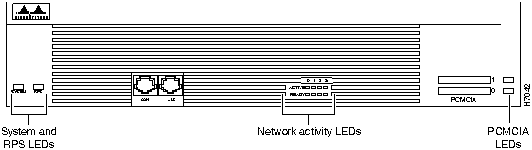
The LEDs on the front panel of the router enable you to determine router performance and operation. Figure B-1 illustrates the LEDs on the front panel of the router. Table B-1 describes the system LED, Table B-2 describes the redundant power supply (RPS) LED, and Table B-3 describes the active, ready, and PCMCIA LEDs.
| Color | Description |
|---|---|
| Off | The router is not receiving power. |
| Blinking green | The router is running the ROM monitor. No errors detected. |
| Solid green | The router is operating normally. No errors detected. |
| Amber | The router is receiving power but not functioning properly. Possible power-on self-test error or over-temperature condition detected. |
| Alternating amber and green | Power-on self-test detected. The router is attempting to reload the ROM monitor. |
| Color | RPS Status |
|---|---|
| Off | Not installed |
| Blinking green | The RPS and the model 3640 power supplies are both operational. Because the model 3640 can only accept power from one source, you can do either of the following:
|
| Solid green | Operational |
| Amber | Installed but not operational |
| LED | Description |
|---|---|
| ACTIVE 0, 1, 2, 3 | Blinks to indicate network activity on the module installed in the indicated slot (0, 1, 2, 3). |
| READY 0, 1, 2, 3 | A functional module has been installed in the indicated slot (0, 1, 2, 3). If the LED is off, the slot is empty or the module is not functional. |
| PCMCIA 0, 1 | Data activity on the indicated PCMCIA slot. |
The module LEDs are all visible through cutouts in the rear of the chassis.
The following sections describe the module LEDs:
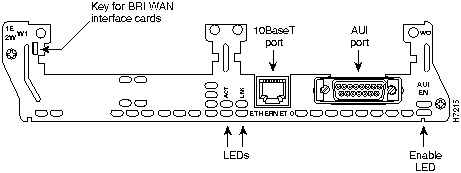
All modules have an Enable LED. When on, the Enable LED indicates the module has passed its self-tests and is available to the system.
The LEDs on the 1E 2-slot module are labeled as shown in Figure B-2.
Figure B-2 : 1E 2-Slot Module LEDs
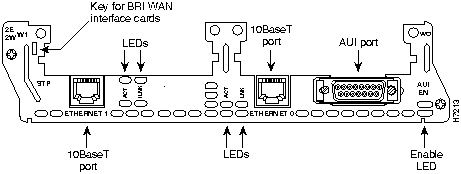
The LEDs on the 2E 2-slot module are labeled as shown in Figure B-3.
Figure B-3 : 2E 2-Slot Module LEDs
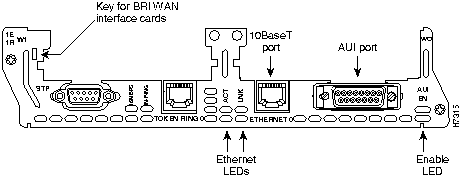
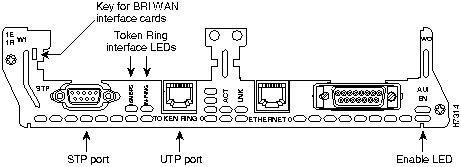
The LEDs on the 1E1R 2-slot module are labeled as shown in Figure B-4.
Figure B-4 : 1E1R 2-Slot Module Ethernet LEDs
The Ethernet LEDs on 2-slot modules are described in Table B-4.
Table B-4 : Ethernet Module LEDs
| LEDs | Indication |
|---|---|
| ACT (activity) | System is transmitting or receiving data |
| LNK (link) | 10BaseT is selected and the link is available |
The two Token Ring LEDs in the 1E1R 2-slot module are labeled 16MBPS and IN-RING. (SeeTable B-5 and Figure B-5.)
| LEDs | Indication |
|---|---|
| 16MBPS | Ring speed of 16 Mbps |
| IN-RING | Token Ring interface is inserted into the ring |
Figure B-5 : 1E1R 2-Slot Module Token Ring LEDs
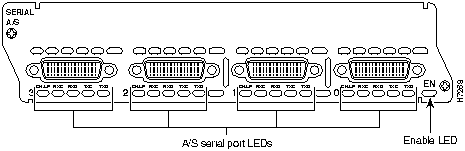
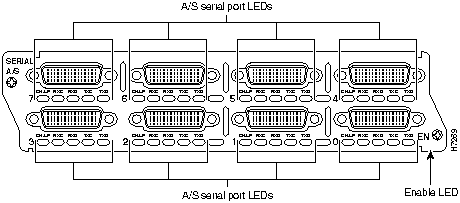
The LEDs in the A/S serial modules are described in Table B-6 and shown in Figure B-6 and Figure B-7.
Table B-6 : A/S Serial Module LEDs
Figure B-6 : 4-Port A/S Serial Module LEDs
Figure B-7 : 8-Port A/S Serial Module LEDs
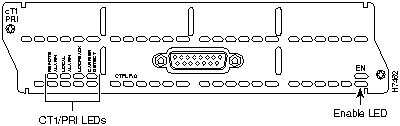
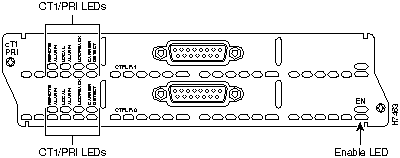
The LEDs in the CT1/PRI modules are described in Table B-7 and shown in Figure B-8 and Figure B-9.
Table B-7 : CT1/PRI Module LEDs
Figure B-8 : 1-Port CT1/PRI Module LEDs
Figure B-9 : 2-Port CT1/PRI Module LEDs
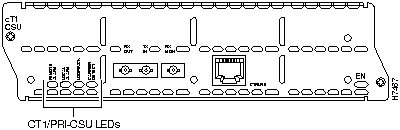
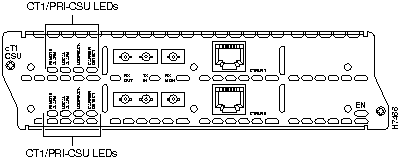
The LEDs in the CT1/PRI-CSU modules are described in Table B-8 and shown in Figure B-10 and Figure B-11.
Table B-8 : CT1/PRI-CSU Module LEDs
Figure B-10 : 1-Port CT1/PRI-CSU Module LEDs
Figure B-11 : 2-Port CT1/PRI-CSU Module LEDs
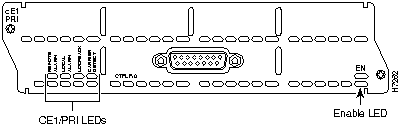
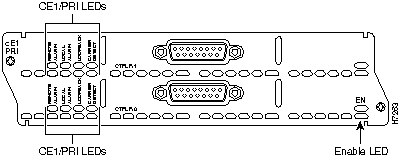
The LEDs in the CE1/PRI-B and CE1/PRI-U modules are described in Table B-9 and shown in Figure B-12 and Figure B-13. The same LEDs are used for balanced (120 ohm) and unbalanced (75 ohm) E1 interfaces.
Table B-9 : CE1/PRI Module LEDs
Figure B-12 : 1-Port CE1/PRI Module LEDs
Figure B-13 : 2-Port CE1/PRI Module LEDs
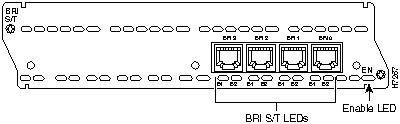
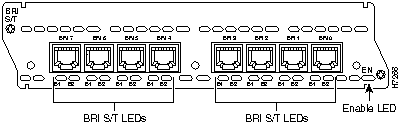
The LEDs in the BRI S/T modules are described in Table B-10 and shown in Figure B-14 and Figure B-15. BRI S/T modules connect to the network with an S/T interface.
Table B-10 : BRI S/T Module LEDs
Figure B-14 : 4-Port BRI S/T Module LEDs
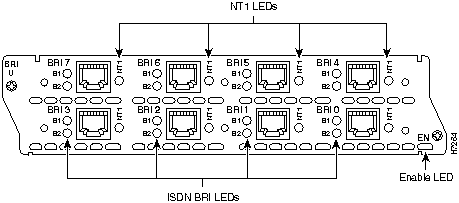
Figure B-15 : 8-Port BRI S/T Module LEDs
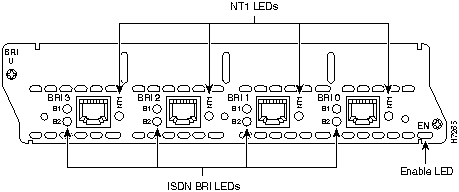
The LEDs in the BRI U modules are described in Table B-11 and shown in Figure B-16 and Figure B-17. The BRI U modules connect to the network with a U interface.
Table B-11 : BRI U Module LEDs
Figure B-16 : 4-Port BRI U Module LEDs
Figure B-17 : 8-Port BRI U Module LEDs
Reading WAN Interface Card LEDs
The WAN interface card LEDs are all visible on the faceplate of the card.
Serial WAN Interface Card LEDs
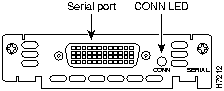
The serial WAN interface card has one LED that indicates data activity on the serial port. (See Figure B-18.)
Figure B-18 : Serial WAN Interface Card LEDs
BRI S/T WAN Interface Card LEDs
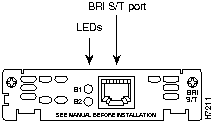
The BRI S/T WAN interface card has two LEDs. (See Figure B-19.) The LEDs, labeled B1 and B2, indicate status (up/down) of the two ISDN BRI B channels.
Figure B-19 : 1-Port BRI S/T WAN Interface Card LEDs
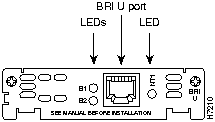
The BRI U WAN interface card has three LEDs. (See Figure B-20.) Two of the LEDs, labeled B1 and B2, indicate the status (up/down) of the two ISDN BRI B channels. The third LED, labeled NT1, indicates the synchronous status of the NT1.
Figure B-20 : 1-Port BRI U WAN Interface Card LEDs
Recovering a Lost Enable Password
This section describes how to recover a lost enable password.
Follow this procedure to recover a lost enable password:
If both the boot and system images have been erased and only the ROM monitor is available, you can use the ROM monitor xmodem command to copy a Cisco IOS image to Flash memory from the console. The console can be connected directly to the router through the console port, or remotely through a modem connected to the auxiliary port.
The console must have the following files to use this procedure:
Perform the following steps to copy the Cisco IOS image to Flash memory:
Copyright 1988-1996 © Cisco Systems Inc.

LEDs
Indication
CN/LP
Connect when green, loopback when yellow
RXC
Receive clock
RXD
Receive activity
TXC
Transmit clock
TXD
Transmit activity
LEDs
Indication
REMOTE ALARM
Remote alarm condition
LOCAL ALARM
Local alarm condition
LOOPBACK
Loopback condition
CARRIER DETECT
Received carrier on the telco link
LEDs
Indication
REMOTE ALARM
Remote alarm condition
LOCAL ALARM
Local alarm condition
LOOPBACK
Loopback condition
CARRIER DETECT
Received carrier on the telco link
LEDs
Indication
REMOTE ALARM
Remote alarm condition
LOCAL ALARM
Local alarm condition
LOOPBACK
Loopback condition
CARRIER DETECT
Received carrier on the telco link
LEDs
Indication
B1
Activity on the B1 channel
B2
Activity on the B2 channel
LEDs
Indication
B1
Activity on the B1 channel
B2
Activity on the B2 channel
NT1
Sync status of the NT1 device
Would you like to enter the initial dialog? [yes]:
no
Do you wish to change the configuration? y/n [n]:
enable "ignore system config info"? [y/n] n:
y
change the boot characteristics? [y/n] [n]:
Do you wish to change the configuration? y/n [n]:
n
Would you like to enter the initial dialog? [yes]:
no
Router>
enable
Router#
):
Router#
show startup-config
Router#
configure terminal
rommon 1>
rommon 1>
xmodem
filename
Do not start upload program yet...
File size Checksum File name
2537948 bytes (0x26b9dc) 3640-boot-l
WARN: This operation will ERASE bootflash. If the xmodem
download to bootflash fails, you will lose any good image
you may already have in bootflash.
Invoke this application only for disaster recovery.
Do you wish to continue? [yes/no]:
Ready to receive file prog ...
Erasing flash at 0x3000000
program flash location 0x3000000
Transfer complete!
