|
|

Preparing to Install the Router
This chapter describes site requirements and equipment needed for router installation. It includes the following sections:
Follow these guidelines to ensure general safety:

Follow these guidelines when working on equipment powered by electricity:
In addition, use the following guidelines when working with any equipment that is disconnected from a power source, but still connected to telephone wiring or other network cabling:
Preventing Electrostatic Discharge Damage
Electrostatic discharge (ESD) can damage equipment and impair electrical circuitry. It can occur if electronic printed circuit cards are improperly handled and can cause complete or intermittent failures. Always follow ESD prevention procedures when removing and replacing modules:
This section describes the requirements your site must meet for safe installation and operation of your router. Ensure that the site is properly prepared before beginning installation. If you are experiencing shutdowns or unusually high errors with your existing equipment, this section can also help you isolate the cause of failures and prevent future problems.
Check the power at your site to ensure that you are receiving "clean" power (free of spikes and noise). Install a power conditioner if necessary.
The router AC power supply has the following characteristics:
The router DC power supply has the following characteristics:
Install proper grounding to avoid damage from lightning and power surges.
The router can be placed on a desktop or mounted in a rack or on a wall. The location of your router and the layout of your equipment rack or wiring room are extremely important for proper operation. Equipment placed too close together, inadequate ventilation, and inaccessible panels can cause malfunctions and shutdowns, and can make maintenance difficult. Plan for access to both front and rear panels of the router.
When planning your site layout and equipment locations, remember the precautions described in the next section, "Preventive Site Configuration" to help avoid equipment failures and reduce the possibility of environmentally caused shutdowns. If you are currently experiencing shutdowns or unusually high errors with your existing equipment, these precautions may help you isolate the cause of the failures and prevent future problems.
The following precautions will help you plan an acceptable operating environment for your router and will help you avoid environmentally caused equipment failures:
You can mount the router in a 19-, 23-, or 24-inch equipment rack. The following information will help you plan your equipment rack configuration:
The sample Installation Checklist lists items and procedures for installing a new router. Make a copy of this checklist and mark the entries when completed. Include a copy of the checklist for each router in your Site Log (described in the next section, "Creating a Site Log").
The Site Log provides a record of all actions related to the router. Keep it in an accessible place near the chassis where anyone who performs tasks has access to it. Use the Installation Checklist to verify steps in the installation and maintenance of the router. Site Log entries might include the following:
Do not unpack the router until you are ready to install it. If the final installation site will not be ready for some time, keep the chassis in its shipping container to prevent accidental damage. When you are ready to install the router, proceed with unpacking it.
The router, cables, publications, and any optional equipment you ordered may be shipped in more than one container. When you unpack the containers, check the packing list to ensure that you received all the following items:
Inspect all items for shipping damage. If anything appears to be damaged, or if you encounter problems installing or configuring your router, contact customer service. Warranty, service, and support information is in the information packet that shipped with your router.
You need the following tools and equipment to install the router:
In addition, depending on the type of modules you plan to use, you might need the following equipment to connect a port to an external network:
Console and Auxiliary Port Considerations
The router includes an asynchronous serial console port and an auxiliary port. The console and auxiliary ports provide access to the router either locally using a console terminal or remotely using a modem. This section discusses important cabling information to consider before connecting a console terminal, which can be either an ASCII terminal or a PC running terminal emulation software, to the console port or modem to the auxiliary port.
The main difference between the console and auxiliary ports is that the auxiliary port supports hardware flow control and the console port does not. Flow control paces the transmission of data between a sending device and a receiving device. Flow control ensures that the receiving device can absorb the data sent to it before the sending device sends more. When the buffers on the receiving device are full, a message is sent to the sending device to suspend transmission until the data in the buffers has been processed. Because the auxiliary port supports flow control, it is ideally suited for use with the high-speed transmissions of a modem. Console terminals transmit at slower speeds than modems; therefore, the console port is ideally suited for use with console terminals.
The router includes an EIA/TIA-232 asynchronous serial console port (RJ-45). Depending on the cable and the adapter used, this port will appear as a DTE or DCE device at the end of the cable. Your router comes with cables and adapters to connect a console terminal (an ASCII terminal or PC running terminal emulation software) to the console port. To connect an ASCII terminal to the console port, use the RJ-45 rollover cable with the female RJ-45-to-DB-25 adapter (labeled Terminal). To connect a PC running terminal emulation software to the console port, use the RJ-45 rollover cable with the female RJ-45-to-DB-9 adapter (labeled Terminal). The default parameters for the console port are 9600 baud, 8 data bits, no parity, and 2 stop bits. The console port does not support hardware flow control. For detailed information about installing a console terminal, see the section "Connecting the Console Terminal and Modem" in the chapter "Installing the Router." See the appendix "Cable Specifications" for cable and port pinouts.
The router includes an EIA/TIA-232 asynchronous serial auxiliary port (RJ-45) that supports flow control. Depending on the cable and the adapter used, this port will appear as a DTE or DCE device at the end of the cable. Your router includes a cable and an adapter to connect a modem to the auxiliary port. To connect a modem to the auxiliary port, use the RJ-45 rollover cable with the male RJ-45-to-DB-25 adapter (labeled Modem). For detailed information about connecting devices to the auxiliary port, see the section "Connecting the Console Terminal and Modem" in the chapter "Installing the Router." See the appendix "Cable Specifications" for cable and port pinouts.
Preparing to Connect to a Network
When setting up your router, consider distance limitations and potential electromagnetic interference (EMI) as defined by the applicable local and international regulations.
Network connection considerations are provided for several types of network interfaces and are discussed in the following sections:
The IEEE has established Ethernet as standard IEEE 802.3. The most common Ethernet implementations are as follows:
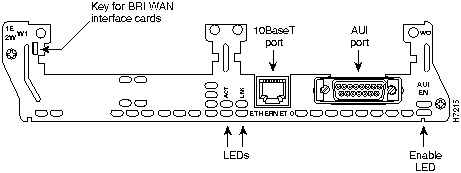
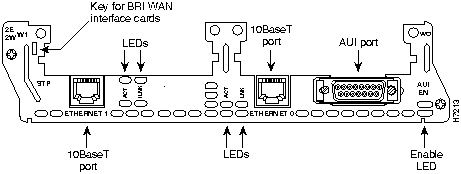
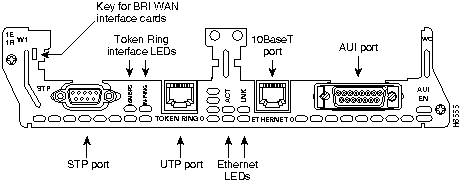
The Ethernet interfaces available for the router operate at speeds up to 10 Mbps. The 1E, 2E, and 1E1R 2-slot modules provide both an attachment unit interface (AUI) port and a 10BaseT port. (See Figure 2-1, Figure 2-2, and Figure 2-3, respectively.) Only one Ethernet port per module can be used at a time. The module will automatically detect which port, AUI or 10BaseT, is in use.
Figure 2-3 : 1E1R 2-Slot Module
The 1E1R 2-slot module provides both an UTP interface and a shielded twisted-pair (STP) interface. (See Figure 2-3.)
The IEEE has established Token Ring as standard IEEE 802.5. The distance limitations for the IEEE 802.5 specification indicate a maximum segment distance of 328 feet (100 meters) for UTP cabling. The distance limitation is 1,640 feet (500 meters) for STP cabling.
Token Ring can operate at two different ring speeds: 4 and 16 Mbps. All devices on the ring must use the same operating speed.
Only one Token Ring port can be used at a time. The module will automatically detect which port, STP or UTP, is in use.
Use a Token Ring lobe cable to connect the router to a MAU. The lobe cable and MAU are not included with the router. Refer to the section "Token Ring Port Pinouts" in the appendix "Cable Specifications" for the Token Ring port pinouts.
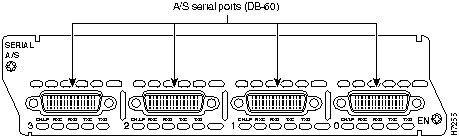
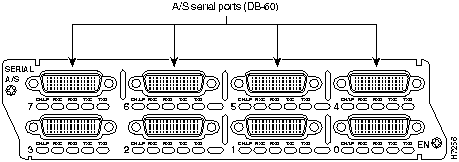
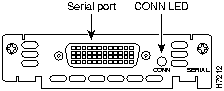
Serial connections are provided by the 4- and 8-port A/S serial modules and by the 1-port serial WAN interface card. (See Figure 2-4, Figure 2-5, and Figure 2-6, respectively.) The serial WAN interface card can be installed in either slot of a 2-slot module.
Before you connect a device to a serial port, you need to know the following:
Figure 2-4 : 4-Port A/S Serial Module
Figure 2-5 : 8-Port A/S Serial Module
Figure 2-6 : 1-Port Serial WAN Interface Card
Configuring Serial Connections
The serial ports on the A/S serial modules and the serial WAN interface card use DB-60 connectors. (See Figure 2-4, Figure 2-5, and Figure 2-6, respectively.) Serial ports can be configured as DTE or DCE, depending on the serial cable used.
A device that communicates over a synchronous serial interface is either a DTE or DCE device. A DCE device provides a clock signal that paces the communications between the device and the router. A DTE device does not provide a clock signal. DTE devices usually connect to DCE devices. The documentation that accompanied the device should indicate whether it is a DTE or DCE device. (Some devices have a jumper to select either DTE or DCE mode.) If you cannot find the information in the documentation, refer to Table 2-1 to help you select the proper device type.
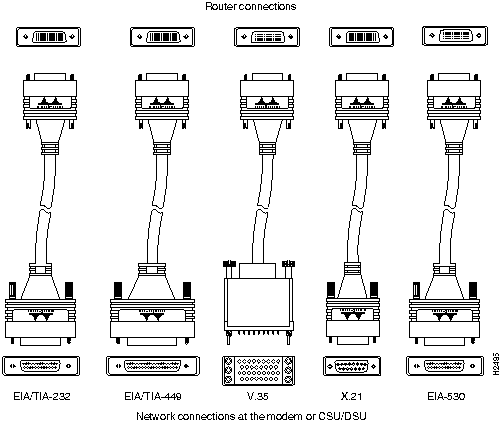
The synchronous serial ports available for the router support the following signaling standards: EIA/TIA-232, EIA/TIA-449, V.35, X.21, and EIA-530. You can order from us a DB-60 shielded serial transition cable that has the appropriate connector for the standard you specify. The router end of the shielded serial transition cable has a DB-60 connector, which connects to the DB-60 port on a serial WAN interface card. The other end of the serial transition cable is available with the connector appropriate for the standard you specify. The documentation for the device you want to connect should indicate the standard used for that device. The synchronous serial port can be configured as DTE or DCE (except EIA-530, which is DTE only), depending on the attached cable. To order a shielded cable, contact customer service. (See the information packet publication that came with your router.)
Although attempting to manufacture your own serial cables is not recommended (because of the small size of the pins on the DB-60 serial connector), cable pinouts are provided in the appendix "Cable Specifications."
Serial signals can travel a limited distance at any given bit rate; generally, the slower the data rate, the greater the distance. All serial signals are subject to distance limits, beyond which a signal degrades significantly or is completely lost.
Table 2-2 lists the recommended maximum speeds and distances for each serial interface type; however, you may get good results at speeds and distances greater than those listed. For instance, the recommended maximum rate for V.35 is 2 Mbps, but 4 Mbps is commonly used. If you understand the electrical problems that might arise and can compensate for them, you can get good results with rates and distances greater than those shown. However, do so at your own risk.
Balanced drivers allow EIA/TIA-449 signals to travel greater distances than EIA/TIA-232 signals. The recommended distance limits for EIA/TIA-449 shown in Table 2-2 are also valid for V.35, X.21, and EIA-530. However, you can get good results at distances and rates greater than those shown in Table 2-2. Typically, EIA/TIA-449 and EIA-530 support 2-Mbps rates, and V.35 can support 4-Mbps rates.
The following baud-rate limitations apply to the slow-speed serial interfaces found in the A/S serial modules:
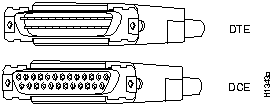
EIA/TIA-232 supports unbalanced circuits at signal speeds up to 64 kbps. The network end of the adapter cable is a standard 25pin Dshell connector known as a DB25. (See Figure 2-7.) The router console and auxiliary ports also use EIA/TIA232 connections; however, the serial module ports support synchronous connections, and the console and auxiliary ports support asynchronous connections.
Figure 2-7 : EIA/TIA-232 Adapter Cable Connectors, Network End
EIA/TIA-449, which supports balanced (EIA/TIA-422) and unbalanced (EIA/TIA-423) transmissions, is a faster (up to 2 Mbps) version of EIA/TIA-232 that provides more functions and supports transmissions over greater distances.
The EIA/TIA-449 standard was intended to replace the EIA/TIA-232 standard, but it was not widely adopted primarily because of the large installed base of DB-25 hardware and because of the larger size of the 37pin EIA/TIA-449 connectors, which limited the number of connections possible (fewer than possible with the smaller, 25-pin EIA/TIA-232 connector).
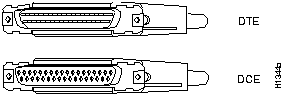
The network end of the EIA/TIA-449 adapter cable provides a standard 37-pin D-shell connector. (See Figure 2-8.) EIA/TIA449 cables are available as either DTE (DB-37 plug) or DCE (DB-37 receptacle).
Figure 2-8 : EIA/TIA-449 Adapter Cable Connectors, Network End
The V.35 interface is recommended for speeds up to 48 kbps, although in practice it is used successfully at 4 Mbps.
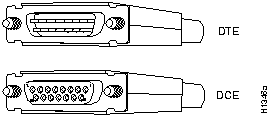
The network end of the V.35 adapter cable provides a standard 34-pin Winchester-type connector. (See Figure 2-9.) V.35 cables are available with a standard V.35 plug or receptacle in either DTE or DCE mode.
Figure 2-9 : V.35 Adapter Cable Connectors, Network End
The X.21 interface uses a 15-pin connection for balanced circuits and is commonly used in the United Kingdom to connect public data networks. X.21 relocates some of the logic functions to the DTE and DCE interfaces and, as a result, requires fewer circuits and a smaller connector than EIA/TIA232.
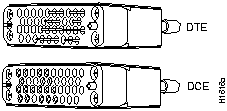
The network end of the X.21 adapter cable is a standard DB-15 connector. (See Figure 2-10.) X.21 cables are available as either DTE (DB-15 plug) or DCE (DB-15 receptacle).
Figure 2-10 : X.21 Adapter Cable Connectors, Network End
EIA-530, which supports balanced transmission, provides the increased functionality, speed, and distance of EIA/TIA-449 on the smaller DB-25 connector used for EIA/TIA-232, instead of the 37-pin connectors used for EIA/TIA-449. Like EIA/TIA-449, EIA-530 refers to the electrical specifications of EIA/TIA-422 and EIA/TIA423. Although the specification recommends a maximum speed of 2 Mbps, EIA-530 is used successfully at 4 Mbps or faster speeds over short distances.
The EIA-530 adapter cable is available in DTE mode only. The network end of the EIA-530 adapter cable is a standard DB-25 plug commonly used for EIA/TIA-232 connections. Figure 2-11 shows the DB25 connector at the network end of the adapter cable.
Figure 2-11 : EIA-530 Adapter Cable Connector, Network End
Figure 2-12 shows the serial transition cables you can connect to the DB-60 port on the A/S serial modules and serial WAN interface card.
Figure 2-12 : Serial Interface Adapter Cables
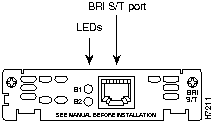
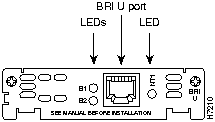
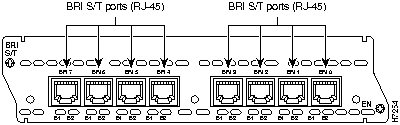
The BRI modules and BRI WAN interface cards provide ISDN BRI connections. The BRI modules and BRI WAN interface cards are available with either an S/T interface that requires an external NT1, or a U interface that has a built-in NT1.
The BRI WAN interface cards mount only in the W1 slot of a two-slot module and provide a single BRI interface. (See Figure 2-13 and Figure 2-14.)
Figure 2-13 : BRI S/T WAN Interface Card
Figure 2-14 : BRI U WAN Interface Card
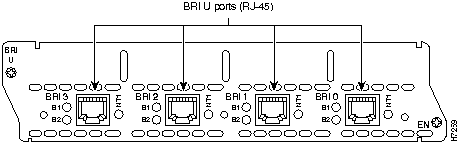
You can install the BRI modules into any available slot in the chassis. (See Figure 2-16 and Figure 2-15.)
Figure 2-15 : 4-Port BRI U Module
Figure 2-16 : 8-Port BRI S/T Module
Use a BRI cable (not included) to connect the router directly to an ISDN. Table 2-3 lists the specifications for ISDN BRI cables. Refer to the section "BRI Pinouts" in the appendix "Cable Specifications" for pinouts.
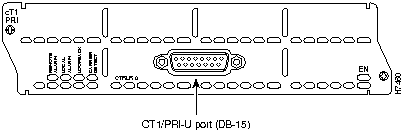
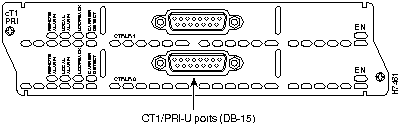
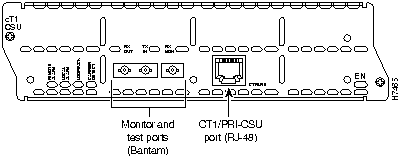
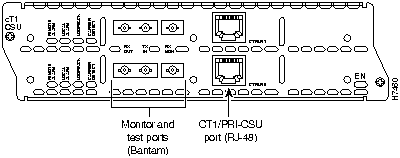
CT1/PRI modules are available with and without a built-in CSU and with one or two ports. The CT1/PRI modules connect to an external CSU. (See Figure 2-17 and Figure 2-18.) The CT1/PRI-CSU modules connect directly to the network. (See Figure 2-19 and Figure 2-20.) Each of the T1 modules provide up to 24 virtual channels per T1 port. Each of the virtual channels is presented to the system as a serial interface that can be configured individually. The T1 interface is the physical medium that supports ISDN PRI.
The CT1/PRI and CT1/PRI-CSU modules receive and transmit data bidirectionally at the T1 rate of 1.544 Mbps.
Figure 2-17 : 1-Port CT1/PRI Module
Figure 2-18 : 2-Port CT1/PRI Module
Figure 2-19 : 1-Port CT1/PRI-CSU Module
Figure 2-20 : 2-Port CT1/PRI-CSU Module
The CT1/PRI network processor module includes a female DB-15 connector. The cable for this module has male 15-pin DB connectors at each end. Two standard T1 serial cables are available from us: straight-through and null-modem. The straight-through cable connects your router to an external CSU. Null-modem cables are used for back-to-back operation and testing. Port pinouts are listed in the section "CT1/PRI Pinouts" in the appendix "Cable Specifications."
The CT1/PRI-CSU module includes an RJ-48C port. Cables are not included with the module; however, port pinouts are listed in the section "CT1/PRI-CSU Pinouts" in the appendix "Cable Specifications."
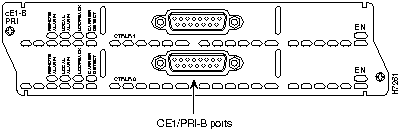
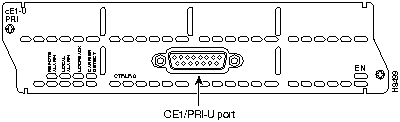
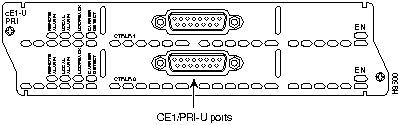
The CE1/PRI modules are available with one or two E1 ports and with balanced or unbalanced interfaces. (See Figure 2-21 and Figure 2-22.) CE1/PRI modules receive and transmit data bidirectionally at the E1 rate of 2.048 Mbps and provide up to 30 virtual channels per E1 port. Each of the virtual channels is presented to the system as a serial interface that can be configured individually. The E1 interface is the physical media that supports ISDN PRI.
The CE1/PRI-B module provides a 120-ohm E1 interface for network connections. (See Figure 2-21.)
Figure 2-21 : 1-Port CE1/PRI-B Module
Figure 2-22 : 2-Port CE1/PRI-B Module
The CE1/PRI-U modules provide a 75-ohm E1 interface for network connections. (See Figure 2-23 and Figure 2-24.)
Figure 2-23 : 1-Port CE1/PRI-U Module
Figure 2-24 : 2-Port CE1/PRI-U Module
CE1/PRI Module Jumper Settings
Jumpers on the CE1/PRI modules can be used to connect or disconnect receive shield to ground. (See Table 2-4.) The default setting for balanced, 120-ohm CE1/PRI-B modules disconnects receive shield to ground. The default setting for unbalanced, 75-ohm CE1/PRI-U modules connects receive shield to ground. If you are experiencing ground loop problems with E1 cabling, you may want to try changing the jumper settings in the module.
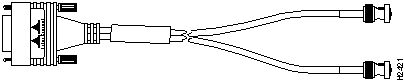
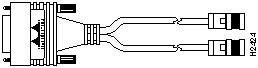
Four serial cables are available from us for the CE1/PRI module. All four cables have DB-15 connectors on the router end and BNC, DB-15, Twinax, or RJ-45 connectors on the network end. Figure 2-25 to Figure 2-28 show the E1 interface cables. Port pinouts are listed in the section "CE1/PRI Pinouts" in the appendix "Cable Specifications."
Figure 2-25 : E1 Interface Cable for 75-Ohm, Unbalanced Connections (with BNC Connectors)
Figure 2-26 : E1 Interface Cable for 120-Ohm, Balanced Connections (with DB-15 Connector)
Figure 2-27 : E1 Interface Cable for 120-Ohm, Balanced Connections (with Twinax Connectors)
Figure 2-28 : E1 Interface Cable for 120-Ohm, Balanced Connections (with RJ-45 Connector)
Copyright 1988-1996 © Cisco Systems Inc.


Installation checklist for site
Router name
Task
Verified by
Date
Installation checklist copied
Background information placed in Site Log
Site power voltages verified
Installation site power check completed
Required tools available
Additional equipment available
Router received
This publication and the Regulatory Compliance and Safety Information document received
Optional printed documentation or CD-ROM documentation received
Information packet publication received
Chassis components verified
Initial electrical connections established
ASCII terminal (for local configuration) or modem (for remote configuration)
Signal distance limits verified
Startup sequence steps completed
Initial operation verified
Software image verified

Device type
Gender
Typical Devices
DTE
Male1
Terminal
PC
DCE
Female2
Modem
CSU/DSU
Multiplexer
1 If pins protrude from the base of the connector, the connector is male.
2 If the connector has holes to accept pins, the connector is female.
EIA/TIA-232 Distance
EIA/TIA-449, X.21, V.35, EIA-530 Distance
Rate (bps)
Feet
Meters
Feet
Meters
2400
200
60
4100
1250
4800
100
30
2050
625
9600
50
15
1025
312
19200
25
7.6
513
156
38400
12
3.7
256
78
56000
8.6
2.6
102
31
1544000 (T1)
--
--
50
15



Specification
High-Capacitance Cable
Low-Capacitance Cable
Resistance (at 96 kHz)
160 ohms/km
160 ohms/km
Capacitance (at 1 kHz)
120 nF1/km
30 nF/km
Impedance (96 kHz)
75 ohms
150 ohms
Wire diameter
0.024" (0.6 mm)
0.024" (0.6 mm)
Distance limitation
32.8' (10 m)
32.8' (10 m)
1 nF=nanoFarad.

CE1/PRI Module Type
Default Jumper Setting
Function
Balanced, 120 ohm
2 and 3
Disconnects receive shield from ground
Unbalanced, 75 ohm
1 and 2
Connects receive shield to ground