Banner
HomeTOCPrevNextGlossSearchHelp

PDF

Table of Contents

Installing the Router

Installing the Router

Installing the Router

This chapter contains hardware installation procedures for Cisco 1600 series routers and includes the following sections:


Hardware Installation Quick Reference Cards

You can use the hardware installation quick reference card that came with your router for quick instructions on how to install and cable your router.


Checking Router Installation

Throughout the installation process, there are checks for ensuring that you are correctly performing each step of the process. These checks consist of confirming that certain LEDs are lit after a step has been completed correctly. Use these checks to ensure correct router installation.

If one or more of the checks fails, refer to the section "Problem Solving" in the appendix "Troubleshooting." For descriptions of front and rear panel LEDs, refer to the sections "Front Panel LEDs" and "Rear Panel LEDs" in the same appendix.


Setting Up the Chassis

Cisco 1600 series routers can be set on a desktop or mounted on a wall or other flat surface. Use the procedure in this section that meets your installation needs.


Desktop-Mounting the Router

Cisco 1600 series routers are shipped to you ready for desktop mounting. Simply set the router on a desktop, shelf, or other flat surface.

fig_10.gif Caution Do not place anything on top of the router that weighs more than 10 pounds (4.5 kg). Excessive weight on top of the router could damage the chassis.


Wall-Mounting the Router

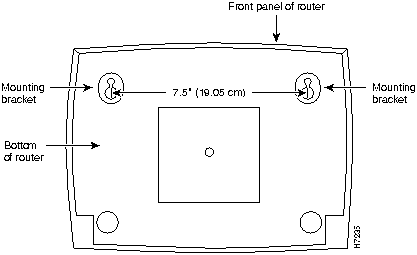
Cisco 1600 series routers can be wall-mounted with two number six, 3/4 inch screws (not included) and the molded mounting brackets on the bottom of the router (see Figure 3-1).

Figure 3-1 : Wall-Mount Brackets (Bottom of Router)

h7235.gif

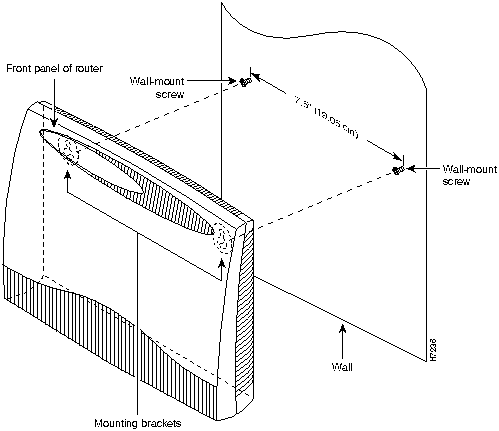
Step 1 Install the two screws 7.5 inches (19.05 centimeters) apart on a wall or other flat surface.

Step 2 Hang the router on the screws by the mounting brackets (see Figure 3-2) so that the following conditions are met:

Figure 3-2 : Mounting the Router on a Wall

h7236.gif

fig_1.gif Caution We recommend that you install the wall-mount screws in a vertical wall stud. If you install the screws into drywall, use hollow wall anchors (1/8 inch by 5/16 inch) to secure the screws. If the screws are not properly anchored in wallboard, drywall, or a vertical stud, the strain of the network cable connections could pull the router from the wall.


Installing a Flash Memory Card

This section explains how to install the Flash memory card (included) that is required to operate the router. The Flash card may already be installed. The Flash memory card is a writable card that enables you to download new software to the router over the WAN.


Note Cisco 1600 series routers operate from the Flash memory card. The card must be installed for normal router operation.

Take the following steps to install the Flash memory card:

Step 1 If it not already OFF, turn the router OFF.

Step 2 Align the edges of the card along the card guides (inside the router). The card's 68-pin connector should be inserted into the card slot first.

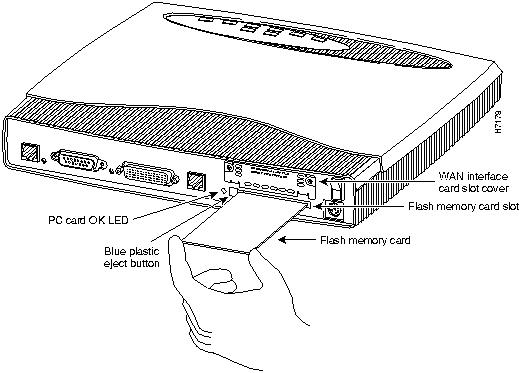
Step 3 Push the Flash memory card into the slot on the rear panel of the router (as shown in Figure 3-3) until the card is seated completely in the connector (inside the router).

When the card is completely seated in the connector, the blue plastic button to the left side of the Flash memory card slot (see Figure 3-3) will pop out, away from the rear panel of the router.

Figure 3-3 : Installing a Flash Memory Card (Cisco 1601 Shown)

h7178.gif

If the Flash memory card is not seated completely in the connector (inside the router), remove the card by pressing the blue plastic eject button at the left side of the slot (see Figure 3-3). Then reinsert the card.


Note You will only be able to check that the Flash memory card is correctly installed after you have powered on the router. The following section "Connecting the Power and Turning the Router On," describes this process.

fig_2.gif Caution Removing the Flash memory card while the router is operating will cause the router to stop operating.


Connecting the Power and Turning the Router On

Take the following steps to connect the router's power supply and turn the router on:

fig_5.gif Warning The power supply is designed to work with TN power systems. (To see translated versions of this warning, refer to the Regulatory Compliance and Safety Information for Cisco 1600 Series Routers document that accompanied the router.)


Note Turning the router on before making network connections enables you to verify router hardware installation by checking that the appropriate LEDs light during the installation process.

Step 1 Connect the DC power cable (included with the router) from the power supply to the DC power input on the rear panel of the router.

Step 2 Connect the female end of the power cable to the male receptacle on the power supply.

Step 3 Connect the male end of the power cable to the power outlet.

Step 4 On the rear panel of the router, turn ON the power by setting the switch labeled | / O to the | position.

Check the following LEDs:

  • SYSTEM PWR (front panel)---Indicates power is being supplied to router.

  • SYSTEM OK (front panel)---Indicates router software is operational. (This LED first blinks, and then remains on continuously.)

  • OK (rear panel, next to Flash memory card slot)---Indicates that the Flash memory card has been correctly installed.


Connecting to the Network

This section describes how to connect the router to your network. The Ethernet ports are used to connect the router to an Ethernet LAN. The serial, 56-kbps CSU/DSU, or ISDN BRI port (depending on the router model you are using) is used to connect the router to a WAN.


Note The cables required to connect the router to a network are not provided with the router.

Cables and transceivers can be ordered from Cisco Systems. For ordering information, refer to the Cisco Product Catalog or contact Cisco customer service. For cable pinouts, refer to the appendix "Cable Pinouts."

Refer to Figure 1-2 through Figure 1-5 in the chapter "Overview" for router rear panel illustrations.

fig_4.gif Warning Do not work on the system or connect or disconnect cables during periods of lightning activity. (To see translated versions of this warning, refer to the Regulatory Compliance and Safety Information for Cisco 1600 Series Routers document that accompanied the router.)


Connecting to an Ethernet Network

Following are the two ways to connect the router to an Ethernet network:

  • Through the AUI port (when connecting to an AUI Ethernet network)

  • Through the 10BaseT port (when connecting to a 10BaseT Ethernet network)

In order to decide which Ethernet connection to make, you need to know what type of Ethernet network is being used at the router installation site. Do not make both Ethernet connections.

fig_8.gif Warning The ports labeled "10BaseT", "Console", and "PCMCIA" are safety extra-low voltage (SELV) circuits. SELV circuits should only be connected to other SELV circuits. Because the BRI circuits are treated like telephone-network voltage, avoid connecting the SELV circuit to the telephone network voltage (TNV) circuits. (To see translated versions of this warning, refer to the Regulatory Compliance and Safety Information for Cisco 1600 Series Routers document that accompanied the router.)


AUI Ethernet Connection

You must supply an Ethernet transceiver and an AUI cable for this connection.

There are two ways to connect the router to an AUI Ethernet network:

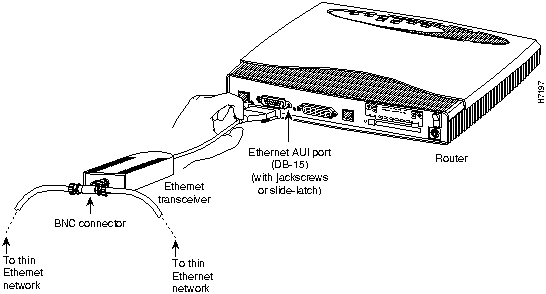
  • Use an Ethernet AUI cable to connect the DB-15 port labeled AUI to the Ethernet transceiver. (See Figure 3-4.)

  • Connect an Ethernet transceiver directly to the DB-15 port labeled AUI. (See Figure 3-4.)


Note If your AUI cable connection requires jackscrews, remove the slide-latch assembly from the router's AUI connector and attach the jackscrews provided.

Figure 3-4 : AUI Port to Ethernet Transceiver Connection (Cisco 1601 Shown)

h7197.gif

Check the following LEDs:

  • Transceiver's power LED (depends on model)---Indicates that power is being supplied to the transceiver through the router.

  • LAN ACT (front panel)---Blinks if there is traffic on the Ethernet LAN.


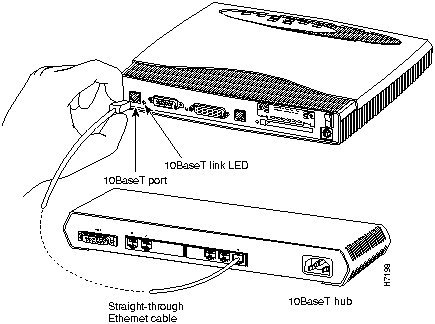
10BaseT Ethernet Connection

You must supply an Ethernet hub and an RJ-45-to-RJ-45 cable for this connection.

Use a 10BaseT Ethernet cable (RJ-45-to-RJ-45) to connect the port labeled 10BASET to an Ethernet hub. (See Figure 3-5.)

Figure 3-5 : 10BaseT Port to Ethernet Hub Connection (Cisco 1601 Shown)

h7198.gif

Check the following LEDs:

  • LINK (rear panel, next to 10BaseT port)---Indicates that the router is correctly connected to the 10BaseT Ethernet LAN.

  • LAN ACT (front panel)---Blinks if there is traffic on the Ethernet LAN.


Connecting to a WAN

This section describes how to connect the router to a WAN. Each Cisco 1600 series router uses a different WAN connection. The procedure for connecting to each type of WAN is described in this section.

Following is the WAN connection for each Cisco 1600 series router model:

  • Cisco 1601---serial

  • Cisco 1602---data service unit/channel service unit (DSU/CSU)

  • Cisco 1603---ISDN BRI S/T

  • Cisco 1604---ISDN BRI U

Follow the procedure that applies to your router model.


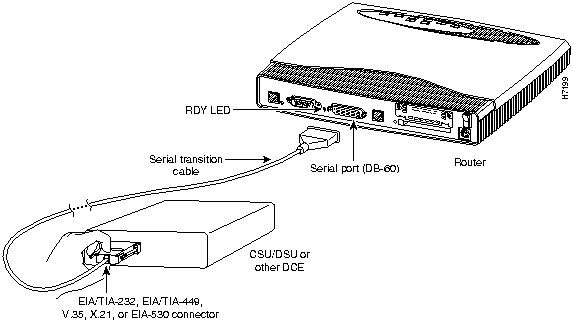
Connecting the Cisco 1601 to the WAN

You must purchase a shielded serial transition cable for this connection from Cisco Systems. The router end of the shielded serial transition cable has a DB-60 connector; the other end of the cable as the appropriate connector for the standard interface you specify when ordering the cable.

Use a serial transition cable to connect the port labeled SERIAL (DB-60) to one of the following (see Figure 3-6):

  • Asynchronous modem (that you provide), if connecting to an analog telephone line

  • Synchronous modem, CSU/DSU, or other data circuit-terminating equipment (DCE) (that you provide) if connecting to a digital WAN line


Note To ensure agency compliance with electromagnetic emissions requirements, such as electromagnetic interference (EMI), use only a shielded serial transition cable with the router.

Figure 3-6 : Serial Connection---Cisco 1601

h7199.gif

Check the LED labeled RDY on the rear panel, which indicates that the router is correctly connected to the modem or CSU/DSU.


Connecting the Cisco 1602 to the WAN

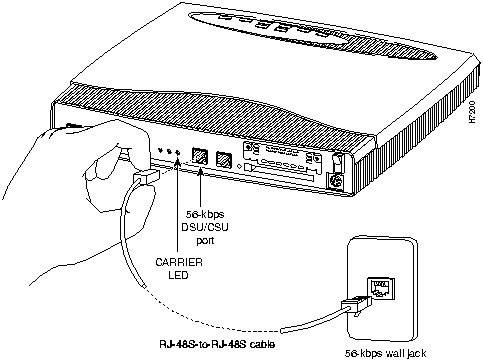
You must provide either an RJ-48S-to-RJ-48S or an RJ-45-to-RJ-45 cable for this connection.

Use the cable you provide to connect the port labeled DSU/CSU (RJ-48) to the 56-kbps wall jack. (See Figure 3-7.)

fig_6.gif Warning Do not work on the system or connect or disconnect cables during periods of lightning activity. (To see translated versions of this warning, refer to the Regulatory Compliance and Safety Information for Cisco 1600 Series Routers document that accompanied the router.)

Figure 3-7 : 56-kbps Service Connection---Cisco 1602

h7200.gif

Check the LED labeled CARRIER on the router's rear panel, which indicates that cable is correctly connected and that the router has synchronized with the central office switch.


Connecting the Cisco 1603 to the WAN

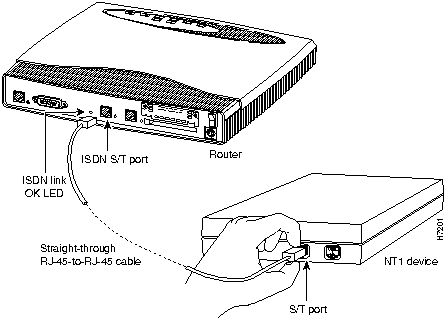
You must provide a Network Termination 1 (NT1) device and a straight-through RJ-45-to-RJ-45 cable for this connection. In addition, if the NT1 does not come with its own straight-through RJ-45-to-RJ-45, you must provide one to connect the NT1 to the ISDN wall jack.

Depending on where the Cisco 1603 is being used, the ISDN BRI connection will be different.

fig_7.gif Warning Do not work on the system or connect or disconnect cables during periods of lightning activity. (To see translated versions of this warning, refer to the Regulatory Compliance and Safety Information for Cisco 1600 Series Routers document that accompanied the router.)


North America

Use an RJ-45-to-RJ-45 cable to connect the ISDN S/T port (RJ-45) to the NT1. (See Figure 3-8.)

Figure 3-8 : NT1 Connection---Cisco 1603

h7201.gif

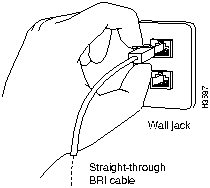
Then use a straight-through ISDN cable to connect the NT1 to the ISDN BRI wall jack according to the instructions that came with the NT1. (See Figure 3-9.)


Outside North America

Use a straight-through RJ-45-to-RJ-45 cable to connect the ISDN S/T port (RJ-45) to the ISDN BRI wall jack. (See Figure 3-9.)

Figure 3-9 : ISDN Wall Jack Connection---Cisco 1603

h3587.gif

fig_3.gif Warning Network hazardous voltages are present in the BRI cable. If you detach the BRI cable, detach the end away from the router first to avoid possible electric shock. Network hazardous voltages also are present on the system card in the area of the BRI port (RJ-45 connector), regardless of when power is turned off. (To see translated versions of this warning, refer to the Regulatory Compliance and Safety Information for Cisco 1600 Series Routers document that accompanied the router.)

Check the following LEDs:

  • OK (rear panel, next to ISDN S/T port)---Indicates that the router has synchronized with the central office switch.

  • Any LEDs on the external NT1---The NT1 might have an LED indicating synchronization with the central office switch. Check the NT1 documentation.


Connecting the Cisco 1604 to the WAN

You must provide a straight-through cable, either RJ-11-to-RJ-11 or RJ-45-to-RJ-45, for this connection.

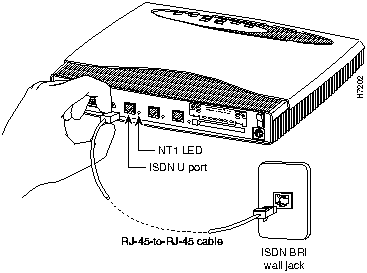
Use a straight-through cable to connect the port labeled ISDN U port (RJ-45) directly to the ISDN BRI wall jack. (See Figure 3-10.)

fig_9.gif Warning Do not work on the system or connect or disconnect cables during periods of lightning activity. (To see translated versions of this warning, refer to the Regulatory Compliance and Safety Information for Cisco 1600 Series Routers document that accompanied the router.)

Figure 3-10 : ISDN BRI Connection---Cisco 1604

h7202.gif

Check the LED labeled NT1 on the rear panel, which indicates that the router has synchronized with the central office switch.


Additional Cisco 1604 Connections

You can connect a second ISDN device, such as an ISDN telephone or an ISDN facsimile machine, to the ISDN S/T port on the rear panel of the Cisco 1604. If you are connecting a second ISDN device to the ISDN line through the router, you will need to use subaddressing on the ISDN line.


Note Routing can only be performed over the Cisco 1604's ISDN U port. The ISDN S/T port is intended only for connecting a second ISDN device to the ISDN line through the router's internal NT1.

For more information on provisioning the ISDN line for subaddressing, refer to the section "ISDN BRI Line Configuration Requirements" in the appendix "Configuring the ISDN Line."

For instructions on connecting an ISDN telephone to the router, refer to the section "Connecting an ISDN Telephone to the Cisco 1604" later in this chapter.


Connecting the Console

The following cable and adapters required for this connection are included with the router:

  • RJ-45-to-RJ45 roll-over console cable

  • RJ-45-to-DB-9 adapter (used to connect the cable to a terminal or PC)

  • RJ-45-to-DB-25 adapter (used to connect the cable to a terminal or PC)

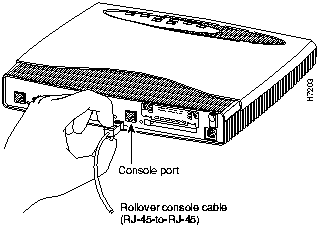
Connect the supplied roll-over console cable to the port labeled CONSOLE (RJ-45) (See Figure 3-11). Use the appropriate adapter for your terminal or PC to connect the other end of the console cable to a terminal or PC.


Note If your terminal or PC has a console port other than a DB-25 or DB-9 port, you must provide the correct adapter for that port.

Figure 3-11 : Connecting to Console Port

h7203.gif

You have completed the basic hardware installation of the router. To connect an ISDN telephone to a Cisco 1604, refer the following section "Connecting an ISDN Telephone to the Cisco 1604."

To prepare the router to be configured, refer to the section "Software Configuration Quick Reference Cards" in the chapter "Configuring Router Software."


Connecting an ISDN Telephone to the Cisco 1604

This section describes an example procedure of how to connect an ISDN telephone (or another ISDN device) to the ISDN line through the ISDN S/T port on the rear panel of the Cisco 1604. The ISDN S/T port is intended only for connecting a second ISDN device to the ISDN line through the router. Routing cannot be performed over this port.


Note The router does not supply power to a device connected to the ISDN S/T port. Any device connected to the ISDN S/T port must have its own internal or external power supply.

This example procedure describes how to connect an AT&T ISDN telephone (model ISDN 8510T) and an AT&T external power supply (model MSP-1) that supplies power to this telephone. Depending on the ISDN telephone model and power supply model that you use, the procedure to connect the ISDN telephone and power supply might differ slightly.


Note If the ISDN telephone model you are using does not require an external power supply, connect the ISDN telephone's RJ-45-to-RJ45 cable directly to the router's ISDN S/T port.

Take the following steps to connect an ISDN telephone to the ISDN line through the router's ISDN S/T port:


Note This procedure assumes that you have already connected the router's ISDN U port to the ISDN wall-jack as described in the section "Connecting the Cisco 1604 to the WAN" earlier in this chapter.

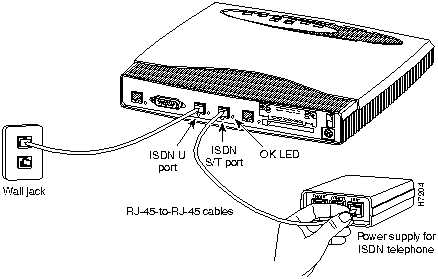
Step 1 Connect an RJ-45-to-RJ-45 cable (included) from the ISDN S/T port on the rear panel of the router to the port labeled LINE on the ISDN telephone power supply. (See Figure 3-12.)

Figure 3-12 : ISDN Telephone Power Supply to Cisco 1604 Connection

h7204.gif

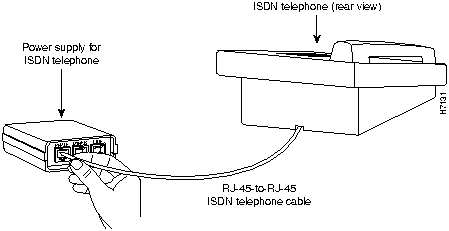
Step 2 Connect the ISDN telephone's RJ-45 cable to the port labeled PHONE on the ISDN telephone power supply. (See Figure 3-13.)

Figure 3-13 : ISDN Telephone to Power Supply Connection

h7131.gif

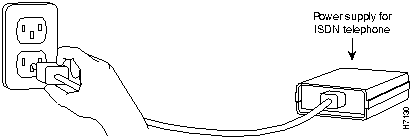
Step 3 Connect the power supply cable to the power outlet. (See Figure 3-14.)

Figure 3-14 : ISDN Telephone Power Supply to Power Outlet Connection

h7130.gif

Check the OK LED on the rear panel (next to ISDN S/T port), which indicates that the second ISDN device has synchronized with the central office switch.


Installing a WAN Interface Card in the Router

Refer to the chapter "Using WAN Interface Cards" for instructions on installing a WAN interface card in the router.

HomeTOCPrevNextGlossSearchHelp
-

Copyright 1988-1996 © Cisco Systems Inc.