|
|

Using Netscape Navigator with CiscoRemote Plus
You can use the Netscape Navigator application to access the vast amounts of information published and stored on the Internet. You can obtain information from the World Wide Web, Gopher servers, USENET servers, and FTP servers.
For example, Internet information providers on the World Wide Web make material available on home pages, which can contain text, graphics, photographs, sound files, and even video. Many pages also contain links to other pages, so you can move quickly from one information provider to another.
When you access a home page, you can view, download, and print the information displayed there. You can search for information using a variety of Internet resources, such as Yahoo or InfoSeek. These resources simplify the task of finding and using information on the Internet and the World Wide Web.
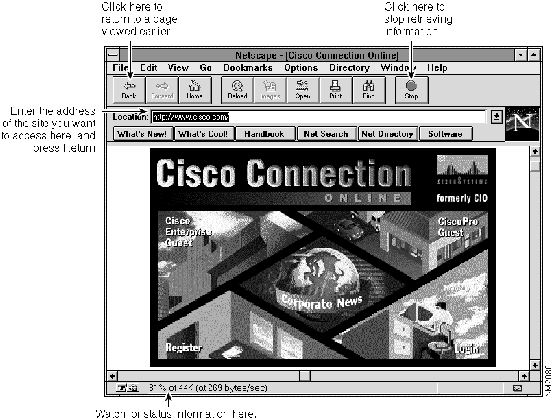
To start up Netscape Navigator, click on the Netscape icon in Net Launcher. The Netscape window opens. (See Figure 5-1.)
You can access an information site or a home page directly if you know the address.
For example, each page on the World Wide Web has an address known as its Uniform Resource Locator (URL). A typical URL looks like the following:
http://www.cisco.com
To access information, enter the address of the site or home page in the Location field, and press the Enter key. Netscape Navigator contacts the address, and the information from the site is displayed on your PC. You can enter different types of addresses, such as the addresses of FTP servers.
You use the scroll bars to view the information on your screen. To stop retrieving the information before a transfer is complete, click on the Stop button. If you want to see pages you have already looked at, click on the Back button, or choose the site name from the Go menu.
You can use the following features of Netscape Navigator to explore the Internet:
Using USENET Newsgroups and E-Mail
With Netscape Navigator you can use another area of the Internet called USENET newsgroups. Although you may prefer using the CiscoRemote Plus News Reader application, which is a full-featured news reader, to read and post information on USENET, you can also use Netscape Navigator. This section explains how to set up Netscape for reading newsgroup information.
You can also use Netscape Navigator, as well as BeyondMail (which is included with your CiscoRemote Plus software), to send and receive electronic mail.
Setting Up for E-Mail and USENET Newsgroups
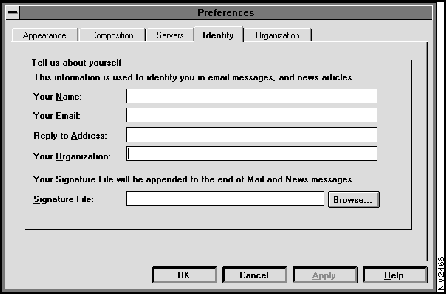
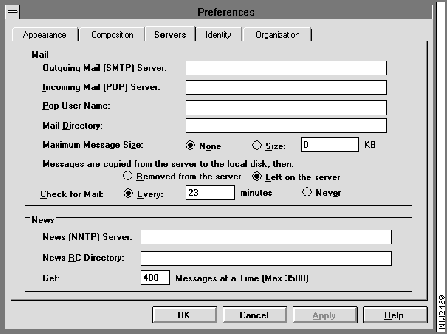
To use e-mail and the USENET newsgroups, you enter the names of your users and mail servers in the Mail and News Preferences window. Ask your network administrator for this information, or refer to your CiscoRemote Plus important information card if you recorded the information there.
Take the following steps to set up Netscape Navigator for newsgroups and e-mail:
Figure 5-2 : Preferences Window---Identity Options
Figure 5-3 : Preferences Window---Server Options
You have now set up Netscape Navigator to send and receive e-mail and access newsgroups.
For more information about sending and receiving mail, select Handbook from the Help menu. You must be connected to the Internet to use this feature.
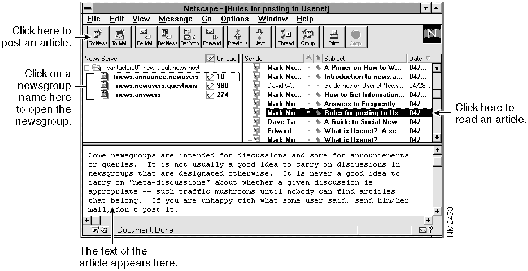
To access USENET newsgroups, you must first open the Netscape News window. You can subscribe to any of the thousands of newsgroups that are available. To subscribe to a newsgroup, you simply add the names of newsgroups that you want to view frequently to a list.
Take the following steps to open the Netscape News window:
Figure 5-4 : Netscape News Window
After reading the article, you can post a reply by clicking on the Re:News button. You can also post an article by clicking on the To: News button.
You can also view and search for additional newsgroups. To subscribe to a specific newsgroup, select Add Newsgroup from the File menu. You can then enter the name of the newsgroup you want to access in the window that opens.
For more information about the many other features of Netscape Navigator, refer to the document CiscoRemote Plus Administrator Guide, which is available on the CiscoRemote Plus CD. To view the Netscape help system, select Handbook from the Netscape Navigator Help menu. (You must connect to the Internet to use this feature.)
Copyright 1988-1996 © Cisco Systems Inc.