|
|
Using Console and Connect with CiscoRemote Plus
You can use the Console application to review a log of information and error messages that are generated by CiscoRemote Plus applications. When a CiscoRemote Plus application starts up from Net Launcher, the Console application also starts up automatically.
Use Connect when you want to set up Internet connections with advanced features. This chapter also provides a brief introduction to Connect.
Using Console, you can do the following:
Starting Console and Viewing TCP/IP Information
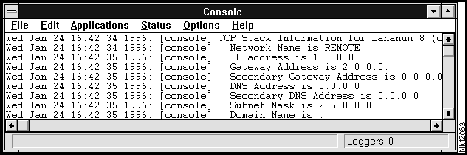
Take the following steps to start Console and see your TPC/IP information:
Figure 15-2 : Status Information in the Console Window
You see your PC's IP address and your gateway (if applicable), domain name server, and subnet mask addresses in the window.
You can save the log of information generated by your CiscoRemote Plus applications and network servers to which you connect. You can use the log to review the events that happened while you used an Internet server and application. For example, if you encounter problems logging into a server, you can review a log to see what errors occurred.
Take the following steps to create a log file:
You can now select Exit from the File menu to close Console.
To exit the Console, select Exit from the File menu.
You use Connect like Net Launcher to set up and initiate a phone connection with your Internet service. Connect can also open the CiscoRemote Plus applications. If you require advanced connection functions, try using Connect. For simplified connection procedures, use Net Launcher. For more information about Connect, open the application and refer to its online help, or refer to the document CiscoRemote Plus Administrator Guide, which is available on the CiscoRemote Plus CD.
Copyright 1988-1996 © Cisco Systems Inc.