


|
|
Installing and Configuring CiscoWorks
You can install and configure CiscoWorks from a local CD-ROM drive or from a CD-ROM drive connected to a remote workstation. You will use System Management Interface Tool (SMIT), an IBM AIX system administration facility. The example installation and configuration process described in this chapter uses the graphical user interface (GUI) version of SMIT; you can use the ASCII version of SMIT if you prefer. Refer to your IBM documentation for more information about SMIT.
To install and configure CiscoWorks on NetView for AIX, you will perform the following general tasks:
To perform the tasks associated with installing and configuring CiscoWorks, you must log into your system as a superuser (root). Being a superuser allows you to perform functions restricted from normal users.
To become a superuser, you must know the root password. In the following examples, the root password is rootpassword.
If you are not logged in, enter the following commands to log in as a superuser:
The prompt changes to a pound sign (#), indicating that you are logged in as a superuser.
If you are already logged in, but not as root, enter the following commands to change your login to root:
The UNIX prompt changes to a pound sign (#), indicating that you are logged in as a superuser:
You can install CiscoWorks from a CD-ROM drive attached to your system or from a drive connected to a remote system.
You can mount from a local CD-ROM using SMIT. To mount from a local CD-ROM drive using SMIT, perform the following steps:
If you plan to use a CD-ROM drive attached to a remote system, CiscoWorks does not require any disk space on the remote system. The software is copied across the network to the local workstation.
The .rhosts file (root directory) on the remote system must contain the local host name and your username to access the remote system. Otherwise, you will not be able to access the remote system to download software from the CD-ROM drive connected to the remote system. For more information, refer to the manual pages on rhosts.
To mount the CD-ROM from a remote CD-ROM drive, perform the following steps on the remote system:
Perform the following steps on the local system:
You will complete the following tasks using SMIT during the installation process:
During the first part of the CiscoWorks installation process, you will install the following CiscoWorks software modules:
The CiscoWorks.base.obj module installs CiscoWorks files and the files required to integrate CiscoWorks into NetView for AIX. The CiscoWorks.sybase.obj module installs the Sybase database files.
To install CiscoWorks, perform the following steps:
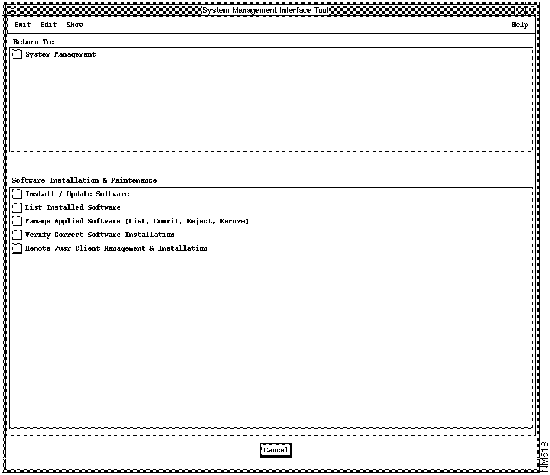
Figure 3-2 : Software Installation and Maintenance Panel
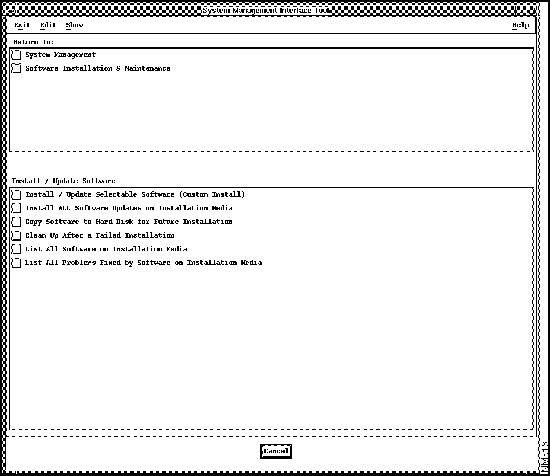
Figure 3-3 : Install/Update Panel
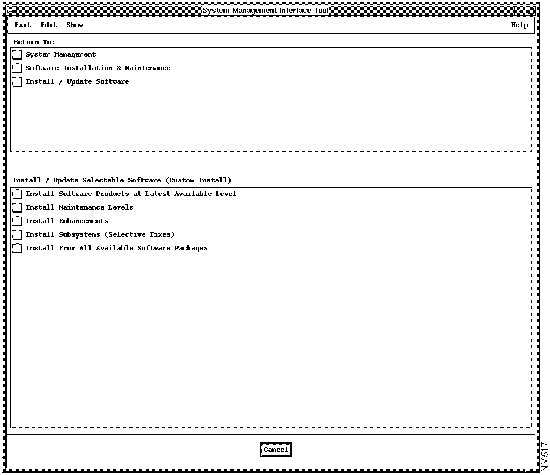
Figure 3-4 : Install/Update Selectable Software (Custom Install) Panel
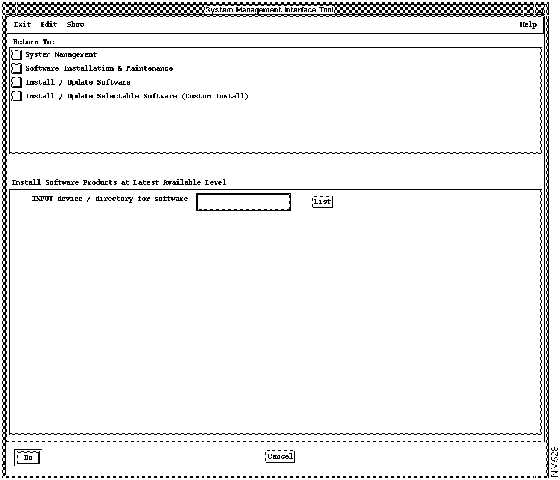
Figure 3-5 : Install Software Products at Latest Available Level Panel
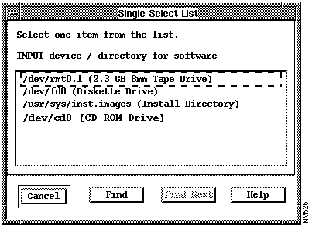
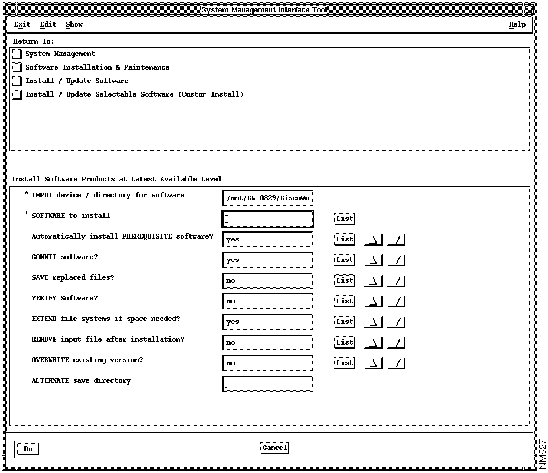
Figure 3-6 : Single Select List Window Figure 3-7 : Install Software Products at Latest Available Level Panel
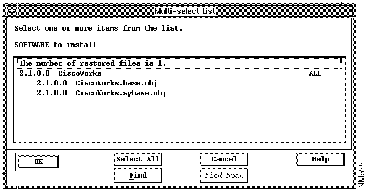
Figure 3-8 : Multi-Select List Window You can obtain complete SMIT log information on the installation in the $HOME/smit.log file. Similarly, you can obtain complete log information on the installation and configuration processes in the /usr/nms/install/log/cwinstall.log and /usr/nms/install/cwconfig.log files.
Configuring CiscoWorks is a two-part process; first, you will configure the CiscoWorks product, and then you will configure Sybase for CiscoWorks.
The following tasks are completed when you configure CiscoWorks:
If you are using Network Information Service (NIS), the NIS-related information is saved to the following files:
After completing the CiscoWorks configuration, refer your NIS administrator to the information in these files to update your NIS server. Your NIS administrator can add these files to the NIS database and transfer this information to the NIS server as an update.
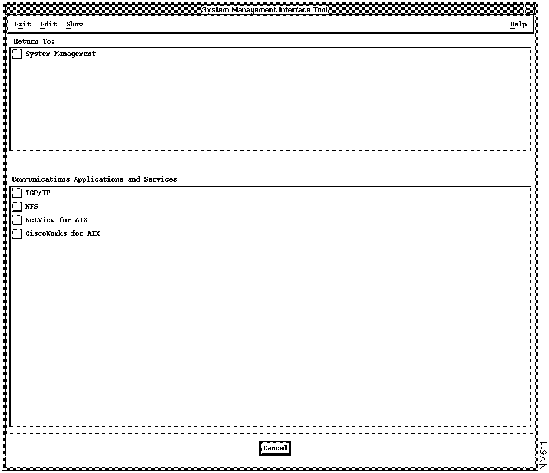
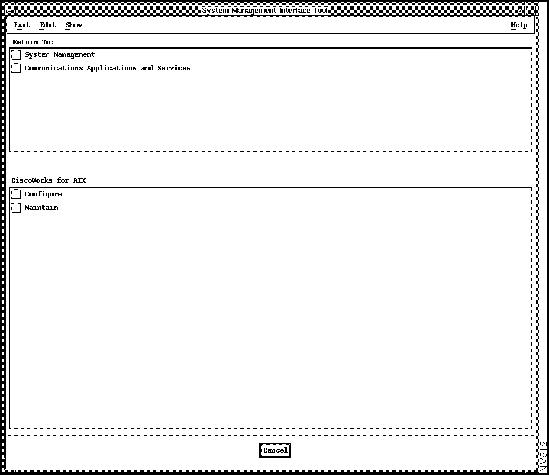
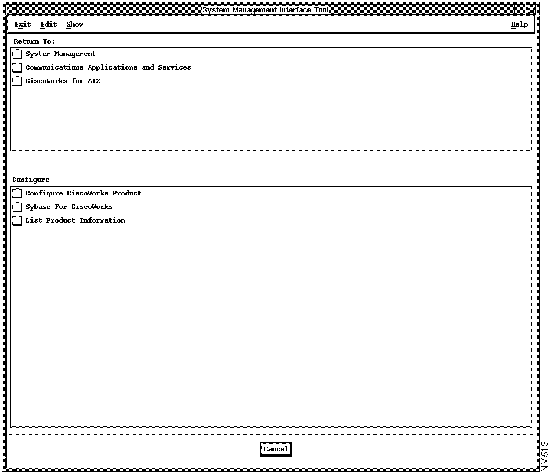
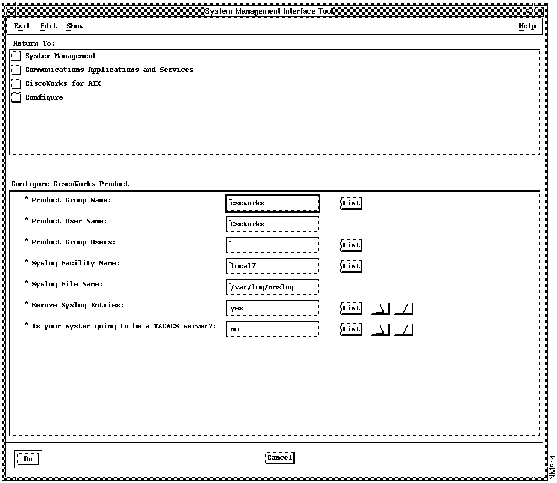
To configure the CiscoWorks product, perform the following steps:
Figure 3-9 : Communications Applications and Services Panel
Figure 3-10 : CiscoWorks for AIX Panel
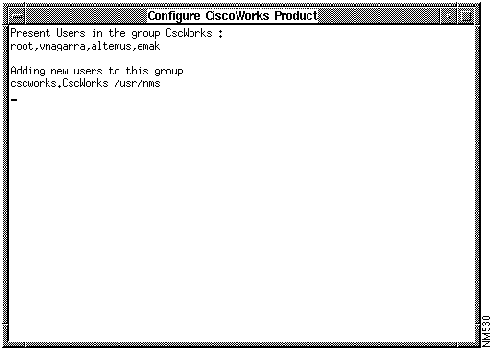
Figure 3-12 : Configure CiscoWorks Product Panel Figure 3-13 : Configure CiscoWorks Product Window
Configuring Sybase for CiscoWorks creates a master database and the network management system database and its associated tables.
To configure Sybase for CiscoWorks, perform the following steps:
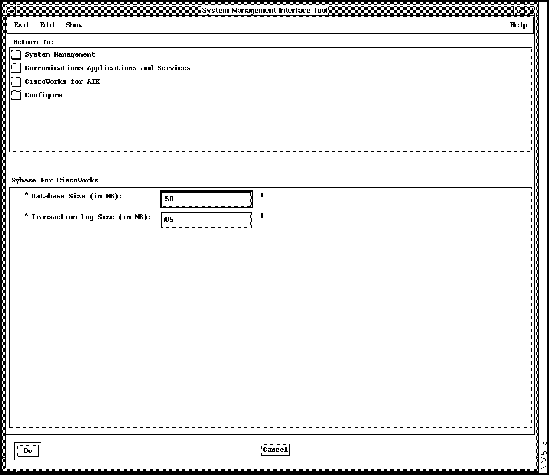
Figure 3-14 : Configure Sybase for CiscoWorks Panel If you are using Network Information Service (NIS), the NIS-related information obtained during the configuration is saved to the following files:
Your NIS administrator can add these files to the NIS database and transfer this information to the NIS server as an update.
To unmount the CD-ROM from the local workstation, enter the following commands at the command prompt:
Remove the CD-ROM caddy from the drive.
If you mounted from a remote CD-ROM, go the remote workstation and enter the previous commands and remove the CD-ROM caddy.
CiscoWorks 2.1(2) is based on the OSF/Motif windowing system and requires Motif key mapping. If necessary, you can also manually update the XKeysymDB file by appending $NMSROOT/etc/XKeysymDB to your XKeysymDB file.
During installation and configuration, log files are created to track the installation process and provide diagnostic information if a problem arises. When you are satisfied that CiscoWorks is properly installed and operating, you can remove these files. To remove these files from your system, enter the following command:
After installing and configuring CiscoWorks, proceed to Chapter 4, "Validating CiscoWorks Installation."
Some operations of CiscoWorks and NetView for AIX are determined by X Windows. You can customize the way you work with CiscoWorks on NetView for AIX by modifying your .Xdefaults file. For example, you can change the colors that NetView for AIX displays by changing your X Windows environment. (Refer to your IBM documentation.) Or, you can specify certain ways in which CiscoWorks runs in your X Windows environment.
This section provides information on the following topics:
All of the X resources used by CiscoWorks applications are customizable, including colors and fonts. By overwriting the default resources used in CiscoWorks, you can customize the colors and fonts to meet your needs. To use your own colors and fonts for CiscoWorks, perform one of the following procedures:
Defining the look of your text editor window requires that you add the following command to the .Xdefaults file, substituting the appropriate options:
Enabling boot file generation is a matter of editing the .Xdefaults file to specify the "on" state. To specify the "on" state, perform the following steps:
Your CiscoWorks Log Manager redraws, or refreshes, its window according to a default interval of 900 seconds. You can customize the frequency of this process by modifying the .Xdefaults file. To change the refresh interval of the Log Manager window, perform the following steps:
When working with CiscoWorks applications, you may notice that the window sizes may vary from application to application. The layout of the window and the size of its text and graphics is preset to be large enough to contain all the elements that define the window. However, you can resize the window without obscuring the text.
To reset the default CiscoWorks window size, perform the following steps:
Copyright 1988-1996 © Cisco Systems Inc.

login: root
Password: <rootpassword>

hostname#
hostname% su
Password: <rootpassword>
hostname#
Mounting from a Local or Remote CD-ROM

Mounting from a Local CD-ROM
hostname# smit
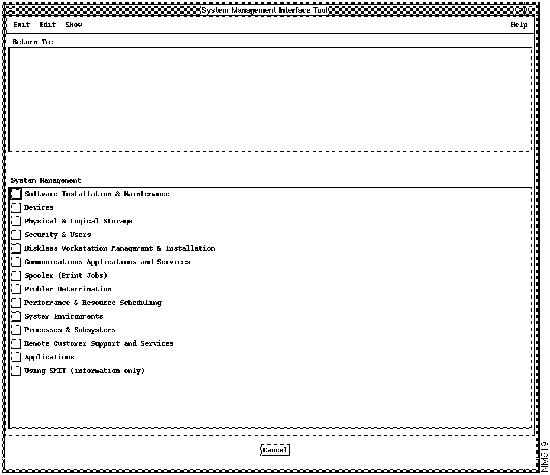
The main SMIT window appears, as shown in Figure 3-1.
hostname# smit mountfs
Select the filesystem name.
Mounting from a Remote CD-ROM Drive
hostname# smit
From the System Management list, select Physical & Logical Storage.
hostname# smit mountfs
Select the filesystem name.
hostname# mount remote_hostname:remote_exported_filesystem_name local_mount_point
hostname# mount zen:/cdrom /cdrom
Installing CiscoWorks

Installing CiscoWorks Software Modules
hostname# smit
The main SMIT window appears. See Figure 3-1.

Configuring CiscoWorks
Configuring the CiscoWorks Product
Configuring Sybase for CiscoWorks
Unmounting the CD-ROM
hostname# cd /
hostname# umount /cdrom
Updating the XKeysymDB File
Removing Log Files
hostname# rm /usr/nms/install/log/cwinstall.log cwconfig.log
Modifying Your .Xdefaults File
Customizing CiscoWorks Colors and Fonts
Editing the .Xdefaults File to Specify the Text Editor
hostname% vi $HOME/.Xdefaults
Enabling Boot File Generation
hostname% vi $HOME/.Xdefaults
*Bootfile:on
Updating the Refresh Interval in the CiscoWorks Log Manager Window
hostname% vi $HOME/.Xdefaults
XCiscoworks*refreshInterval:new_interval_in_seconds
XCiscoWorks*refreshInterval:450
Resetting the Default Window Size of CiscoWorks Applications
"XCiscoWorks*geometry: 500x400+0+0"
hostname% xrdb -merge < ~/XCiscoWorks
