


|
|

Preparing to Install CiscoWorks
This chapter describes how to prepare for CiscoWorks installation and configuration.
Before you install the CiscoWorks network management software, confirm that your computer system meets the related hardware and software version requirements. In addition, you should note any special requirements about how you want CiscoWorks installed.
Verifying Your System Requirements
Before you install CiscoWorks on your system, make sure that your system meets the general requirements as described in Table 2-1.
Table 2-1 : General System Requirements for CiscoWorks 2.1(2)
|
Operating System |
Free Hard Disk Space |
RAM |
Swap Space |
Free Root Partition |
|---|---|---|---|---|
| IBM AIX Version 3 Release 2.5 | 1,000 MB
|
64 MB (minimum)
|
128 MB
|
5 MB
|
The memory and swap space requirements of CiscoWorks depend on such factors as which applications you want to run, the number of applications you want to run concurrently, and the number of network devices that you want to manage with CiscoWorks. As a result, you might need to increase the swap space beyond the general minimum requirements, depending on your particular network management needs.
Additional Hardware Requirements
In addition to the general system requirements, CiscoWorks requires the following hardware:
Additional Software Requirements
In addition to the general system requirements, CiscoWorks requires the following software:
Several CiscoWorks applications have specific Cisco Systems software requirements. For more information, refer to the CiscoWorks User Guide. The Configuration Management application, for example, requires Cisco Systems Software Release 8.2 or later.
Depending on the router you are using, the Device Software Manager application requires a specific router system software, as shown in Table 2-2.
Table 2-2 : Router and Software Requirements for Use with Device Software Manager
| Cisco Router Type | Router System Software Requirement |
|---|---|
| Cisco 2500 | Software Release 9.14(4)-9.14(8) or later |
| Cisco 3000 | Software Release 9.1(7.5) or later, or 9.1(8) or later |
| Cisco AGS+ | Software Release 9.1(7.5) or later, or 9.1(8) or later |
| Cisco 4000 | Software Release 9.14(3.4) or later |
| Cisco 7000 | Software Release 9.17(5.2) or later |
| All Cisco routers (collection of Cisco 3000, Cisco 4000, Cisco 7000, or AGS+ routers) | Software Release 9.21(0.26) or later; 9.21(1) or later; or 9.1(8) or later |
| Cisco 7000 routers on which you want to perform microcode upgrades | Software Release 9.17(5.2) or later; 9.21(0.32) or later |
Gathering Information for Installation and Configuration
Before you install and configure CiscoWorks, identify and gather the information required to perform the installation and configuration as outlined in the following sections.
The following information is required for the installation of CiscoWorks. To obtain and verify system information for some items, you need to be logged in as a superuser. For information on how to log in as a superuser, refer to the section "Becoming a Superuser" in Chapter 3.
Verify the following information before installing CiscoWorks:
Your workstation must be running AIX Version 3 Release 2.5 before you can install CiscoWorks. To determine which version of AIX you are using, enter the following command at the prompt:
hostname% oslevel
Output similar to the following will appear:
Processing.....Please Wait.
>3250
CiscoWorks requires 1,000 MB of disk space in the /usr filesystem on your workstation.
To find out how much disk space is available on your system, enter the following at the command prompt:
hostname% df -I
Output similar to the following will appear:
Filesystem    Total KB    used    free %used Mounted on
/dev/hd4         16384   10008    6376   61% /
/dev/hd9var      32768    3756   29012   11% /var
/dev/hd2       1003520  871324  132196   86% /usr
/dev/hd3         16384     732   15652    4% /tmp
/dev/hd1          4096     240    3856    5% /home
/dev/hd10        16384     544   15840    3% /usr/sys
/dev/lv00      2002944  586868 1416076   29% /disk
The amount of disk space available in each filesystem is displayed. If you do not have at least 1,000 MB of space in your /usr filesystem, you must create a filesystem with the mount point of /usr/nms.
The following overview summarizes the steps involved in creating a filesystem:
For more information, refer to your IBM documentation or the manual pages on mkfs, fsck, mkdir, and mount. If you are unfamiliar with repartitioning disks or creating filesystems, contact a knowledgeable system administrator.
CiscoWorks requires a minimum of 64 MB of RAM. To find out how much RAM is available on your system, make sure you are logged in as a superuser. (Refer to the section "Becoming a Superuser" in Chapter 3.) Enter the following command at the UNIX prompt:
Output similar to the following appears:
If your workstation does not have at least 64 MB of RAM, upgrade its memory.
CiscoWorks requires 128 MB of swap space on your system.
To find out how much swap space is available on your system, make sure you are logged in as a superuser. (Refer to the section "Becoming a Superuser" in Chapter 3.) Enter the following command at the prompt:
Output similar to the following appears:
Add the numbers in the "Size" column to determine your system's total swap space. In the previous example, the system's swap space is 240 MB.
If the swap space on your system is less than 128 MB, expand the swap space by following the instructions in your IBM documentation.
Configuring TFTP for Device Configuration Management
After CiscoWorks is installed and configured, you can use several applications (Configuration Management, Configuration Management batch program, AutoInstall Manager, Software Library Manager, Device Software Manager, Configuration Snap-In Manager, and Sync w/Sybase) with the Trivial File Transfer Protocol (TFTP). With TFTP and CiscoWorks, you can transfer configuration files and software images between your system and other devices on your network that use the Simple Network Management Protocol (SNMP).
In order for TFTP to operate, you must follow the instructions in the sections "Creating the TFTP Boot Directory" and "Setting Up TFTP" later in this chapter. You can perform these tasks before or after CiscoWorks installation and configuration.
You can install CiscoWorks from a local or remote CD-ROM drive.
If you are planning to install CiscoWorks from a CD-ROM drive attached to a remote system, find out whether you have a login account as a superuser on that system. If you do not have superuser access to the remote system, contact the system administrator of the remote system to obtain a login account with superuser access to that system.
If you are installing CiscoWorks from a remote CD-ROM drive, obtain the complete host name of the remote system and make sure that the host name is listed in the /etc/hosts file on your system.
The .rhosts file enables users to log into another user account on a remote system. If you plan to install CiscoWorks from a remote CD-ROM drive, the .rhosts file on that system must contain the host name of your local system and your username specified as a superuser. To verify the local host name and that your username is specified as superuser, access the .rhosts file by using a text editor such as vi.
For more information on the .rhosts file, refer to your IBM AIX documentation.
This section explains the information required for the configuration of CiscoWorks. For more information on the /etc/passwd and /etc/group files, usernames, user IDs, group names, and group IDs, refer to your IBM documentation.
You will need to specify the following items during the configuration process:
In order for CiscoWorks users to access and use CiscoWorks, they must belong to a CiscoWorks group that is specified in the /etc/group file on your system. During configuration, you supply the group name you want to use for CiscoWorks users. The default name for the group is cscworks.
During CiscoWorks configuration, you can add new users directly to the cscworks group. As a result, you can add new users to the cscworks group during the configuration process without editing the /etc/group file. However, to add a new user after performing the CiscoWorks configuration, you need to edit the /etc/group file.
Usernames for CiscoWorks Group
In order to specify usernames during configuration to allow users to access and use CiscoWorks, the following prerequisites apply:
If you need to create user login accounts, refer to your AIX documentation.
Log File for CiscoWorks Messages
The CiscoWorks Log Manager application uses a default centralized log file, /var/log/nmslog, which gets messages from the UNIX syslogd process. If you want these messages to be logged to a different file, you can specify a different filename.
Syslog Facility for CiscoWorks Messages
The CiscoWorks Log Manager application uses a centralized log file that gets messages from the UNIX syslogd process. The default facility is local7.
If you want to log both CiscoWorks messages and Cisco device messages and view them through the Log Manager application, use the default facility local7. Cisco routers use the local7 facility. If you specify a facility in the range of local0 through local6, only CiscoWorks messages are logged.
Information about the facility you choose will be stored in the $NMSROOT/etc/nms.rc file. At a later time, you can change the facility you use by modifying the /etc/rc file and either setting the NMSSYSLOG environment variable or editing the nms.rc file. For instructions on performing these tasks, refer to the CiscoWorks User Guide.
Erasing Applications that Use the Syslog Facility
During configuration, you will be asked whether you want to erase any other applications that are using this facility. If you answer no, the CiscoWorks log utility might not be able to use the Syslog facility to do the following:
Enabling the CiscoWorks Log Purging Utility
CiscoWorks contains a centralized log file called nmslog. This log file can be automatically purged and backed up every day. As a result, the log purging utility is started automatically by the UNIX cron daemon. (A daemon is a UNIX process that repeatedly runs in the background, independent of any user's workstation or terminal.)
CiscoWorks provides support for Terminal Access Controller Access Control System (TACACS). TACACS is an authentication protocol that requires users to supply a username and password in order to access Cisco devices.
Setting Up a TACACS Server
During CiscoWorks configuration, you must indicate whether your workstation will be set up as a TACACS server.
Starting TACACS Daemon during System Reboot
If you set up your network system as a TACACS server, the TACACS daemon startup facility will automatically be added to the /etc/rc file. During configuration, if you set up a TACACS server, you are asked whether you want the TACACS daemon to start automatically when you restart the system. If you answer no, the TACACS daemon will be added to your /etc/rc file but will be commented out.
TACACS Username
If you elect to set up a TACACS server, you need to supply a username in the appropriate field during configuration. The username you supply here is the one that is provided when you remotely log in to manage Cisco devices.
TACACS Password
If you elect to set up a TACACS server, you need to supply a TACACS password.
Using Extended TACACS Mode
The TACACS extended account, named $enable$, is used to access routers that use the extended TACACS mode. For more information on the $enable$ account, see the CiscoWorks User Guide.
Extended TACACS Mode Password
If you answered "Y" to accept an extended TACACS mode, you are then prompted to supply the password for the special TACACS $enable$ account.
Creating the TFTP Boot Directory
To save and store configuration files that are loaded to a device when using CiscoWorks applications supported by TFTP, create a TFTP boot directory.
Creating and using the TFTP boot directory on your system is optional. The TFTP boot directory is accessible by all users. To protect the security of your system and limit access to it, you can choose not to set up this directory on your system. However, without a TFTP boot directory, you will be unable to use the following CiscoWorks applications: AutoInstall Manager, Configuration Management, and the Device Software Manager.
To create the TFTP boot directory, perform the following steps:
As a result, all users accessing the TFTP boot directory will have read, write, and execute permissions.
After verifying all of the requirements to install CiscoWorks, proceed to Chapter 3, "Installing and Configuring CiscoWorks" for instructions on installing and configuring the CiscoWorks software.
The Trivial File Transfer Protocol (TFTP) enables you to transfer files between your system and other devices on your network that use the Simple Network Management Protocol (SNMP). You can use TFTP with several CiscoWorks applications (Configuration Management, Configuration Management Batch Program, AutoInstall, Software Library Manager, Device Software Manager, and Configuration Snap-In Manager) to transfer files.
You must verify that the TFTP daemon is enabled, the TFTP environment variable is set correctly, and a TFTP boot directory exists. Instructions for these tasks follow.
Use System Management Interface Tool (SMIT), an IBM AIX system administration facility, to enable the TFTP daemon. For additional information on TFTP, refer to the UNIX manual pages on the tftp and tftpd commands. Enable the TFTP daemon by completing the following steps:
Copyright 1988-1996 © Cisco Systems Inc.

hostname# lscfg | grep mem
+ mem0              00-0B             32 MB Memory Card
+ mem1              00-0C             32 MB Memory Card
hostname# lsps -a
Page Space  Physical Volume   Volume Group    Size   %Used  Active  Auto  Type
paging00    hdisk1            external       160MB      17     yes    no    lv
hd6         hdisk0            rootvg          80MB      41     yes   yes    lv
hostname#
mkdir
/tftpboot
hostname#
chmod 777
/tftpboot
hostname#
smit
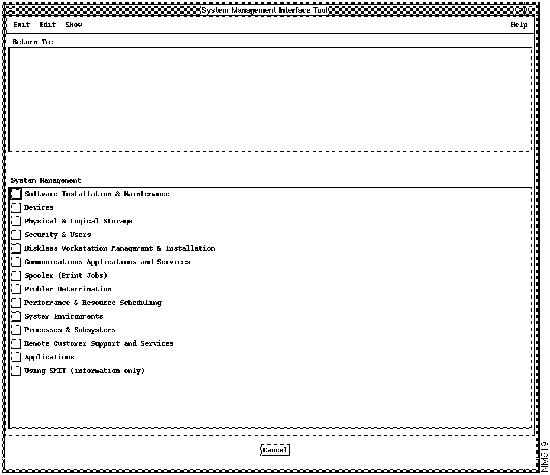
hostname#
grep tftp /etc/inetd.conf
tftp dgram udp wait nobody /etc/tftpd tftpd -n -d /tftpboot
