


|
|

Installing the CSC-MEC and CSC-C2MEC
Multiport Ethernet Controller Cards
Product Numbers: CSC-MEC2=, CSC-MEC4=, CSCMEC6=, CSC-C2MEC2=, CSC-C2MEC4=, and CSCC2MEC6=
This document provides the procedures for installing the ciscoBus multiport Ethernet controller cards (CSC-MEC and CSC-C2MEC) in your AGS+ router. The CSC-MEC is compatible only with the first-generation ciscoBus controller card (CSC-CCTL); the CSC-C2MEC is compatible only with the second-generation ciscoBus controller card (CSC-CCTL2). ciscoBus compatibility is described in the section, "Configuring the CSC-MEC and CSC-C2MEC Cards," on page 9.
In the following sections, the terms CSC-MEC or MEC are used to indicate both cards unless otherwise indicated. The CSC-MEC and CSC-C2MEC differ only by firmware version; the CSC-C2MEC works only with the CSC-CCTL2. There are two hardware versions of the CSC-MEC: Version 5.0 and Version 5.1. Version 5.1 CSC-MEC cards can be used as CSC-C2MEC cards (with Microcode Version 10.0 or later), but Version 5.0 CSC-MEC cards cannot be used as CSC-C2MEC cards.
The CSC-MEC card occupies a ciscoBus slot in the system card cage. Standard 15-pin or 10BaseT Ethernet appliques, which are installed on connector plates in the rear of the chassis, provide the interface between the CSC-MEC card and your 802.3/Ethernet Version 2 or Version 1 network.
The sections in this document include the following:
With the exception of compatibility requirements and the LEDs used to verify the installation, the procedures are the same for both the CSC-MEC (first-generation ciscoBus) and CSC-C2MEC (second-generation ciscoBus) cards.
The CSC-MEC card resides in the router system card cage. Each port on the CSC-MEC provides one Ethernet interface and connects to an Ethernet applique in the back of the chassis with internally-routed ribbon cables. Ethernet appliques are available in standard 15-pin attachment unit interface (AUI) and RJ-45 unshielded twisted-pair (UTP) configurations. The 15-pin appliques require an external media attachment unit (MAU) or Ethernet transceiver to complete the connection between the router and your Ethernet network. The 10BaseT applique contains a built-in transceiver and connects directly to a UTP network segment.
The two-, four-, or six-port Multiport Ethernet Controller (CSC-MEC) card operates on the high-speed ciscoBus backplane in the router. A 16-million-instructions-per-second (mips) bit-slice processor on the card provides a high-speed data path between the CSC-MEC and other high-speed interfaces on the ciscoBus, and enables switching rates of over 20,000 packets per second for both bridging and routing. The CSC-MEC supports IEEE 802.3/Ethernet Version 2 specifications by default, and it supports Version 1 when jumpers on the card are changed as described in the section "Cables," on page 5.
A six-port card (CSC-MEC6) is shown in Figure 1. Two-port (CSC-MEC2) and four-port (CSC-MEC4) versions are also available. The card shown in Figure 1 is an MEC controller type 5.1, card Revision E. Earlier versions of the card, MEC controller type 5.0 (card Revisions A through D) are not compatible with the second-generation ciscoBus (CSC-CCTL2). Commands for displaying the card revision (version) are described in the section "System Requirements," on page 7.
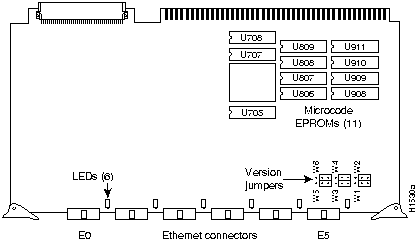
Figure 1 : CSC-(C2)MEC6 Controller Type 5.1
The CSC-MEC card must be installed in a router that is running System Software Release 8.3 or later and that contains a CSC-CCTL ciscoBus controller card. The CSC-C2MEC must be installed in a router that is running System Software Release 9.1 or later and that contains a CSC-CCTL2 ciscoBus controller card. Instructions for determining your current system software release and the type of ciscoBus controller installed are provided in the section "ciscoBus Controller Compatibility," on page 10.
Ethernet appliques provide the external interfaces for CSC-MEC card ports. One or more appliques are mounted on a connector plate, which is installed in the rear of the router. The 15-pin Ethernet connector applique connects to a 10Base5 (thick -wire), 10Base2 (thin-wire), or 10BaseT (UTP) network with the appropriate MAU or Ethernet transceiver. The 10BaseT applique connects to a 10BaseT network only and does not require an external transceiver. The following sections describe the Ethernet appliques and some of the Ethernet transceivers you may need.
The Ethernet 10BaseT applique (see Figure 2) combines an RJ-45 connector for direct connection to an unshielded twisted-pair (UTP) network segment and a UTP transceiver. The 10BaseT applique is compliant with IEEE 802.3. The pinout for the 10BaseT RJ-45 connector is listed in Table 1.
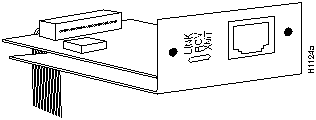
Figure 2 : 10BaseT Ethernet Transceiver Applique
Table 1 : 10BaseT RJ-45 Connector Pinout
| Pin | Signal Name |
|---|---|
| 1 | TD+ |
| 2 | TD-- |
| 3 | RD+ |
| 4 | Not used |
| 5 | Not used |
| 6 | RD-- |
| 7 | Not used |
| 8 | Not used |
The 15-pin Ethernet attachment unit interface (AUI) connector, shown in Figure 3, provides a standard Ethernet IEEE/802.3 connection between a CSC-MEC card port and the external Ethernet network. An Ethernet transceiver, which is required for use with this connector, provides the connection to thick-wire, thin-wire, twisted-pair, and other Ethernet media. The Ethernet transceiver either plugs directly into the 15-pin connector or is attached with an AUI interface cable. The pinouts for the AUI cable and the 15-pin connector are listed in Table 2.

Figure 3 : 15-Pin AUI Ethernet Connector Applique
Table 2 : Ethernet (AUI) Pinout
| Pin | Circuit | Description |
|---|---|---|
| 3 | DO-A | Data Out Circuit A |
| 10 | DO-B | Data Out Circuit B |
| 11 | DO-S | Data Out Circuit Shield1 |
| 5 | DI-A | Data In Circuit A |
| 12 | DI-B | Data In Circuit B |
| 4 | DI-S | Data In Circuit Shield |
| 7 | CO-A | Control Out Circuit A1 |
| 15 | CO-B | Control Out Circuit B1 |
| 8 | CO-S | Control Out Circuit Shield1 |
| 2 | CI-A | Control In Circuit A |
| 9 | CI-B | Control In Circuit B |
| 1 | CI-S | Control In Circuit Shield |
| 6 | VC | Voltage Common |
| 13 | VP | Voltage Plus |
| 14 | VS | Voltage Shield1 |
| Shell | PG | Protective Ground |
This section describes the Ethernet interface cables you may need to install between the router and an Ethernet transceiver or MAU. It also provides cabling configurations to use with UTP networks.
AUI (Ethernet Transceiver) Cable
The standard 15-pin AUI Ethernet connectors require an external transceiver and, unless the transceiver plugs directly into the router rear panel connector, also require an Ethernet transceiver cable (or AUI cable) to connect the transceiver to the router. If you are building a transceiver cable, refer to the pinout listed in Table 2.
There are several types of twisted-pair cable. Unshielded twisted-pair (UTP) cable should be 26 to 22 American wire gauge (AWG)---0.4- to 0.6-millimeter (mm)---wire in a multiwire cable with
100-ohms impedance. The 802.3 specification states that the maximum length of a 10BaseT link segment is 100 meters or 328 feet of UTP wiring. Do not exceed these limits.
If you are not connected to a hub, and another 10BaseT transceiver applique is connected to the opposite end of your link, the UTP cabling must be crossed as shown in Figure 4. The RD-- and RD+ signals must be swapped with the TD-- and TD+ signals. When the opposite end of your link is connected to a hub, the hub performs this crossover function, so it is not necessary to cross the cables.
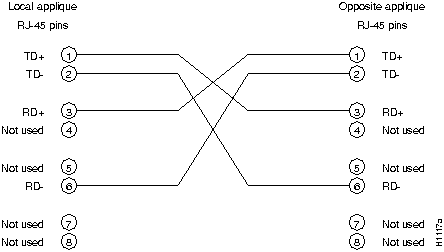
Figure 4 : Applique-to-Applique UTP Cable Diagram
When using a standard 15-pin AUI Ethernet connector, you need an Ethernet transceiver or media attachment unit (MAU) to connect the router to the Ethernet network. Several types of single- and multiport transceivers are available. The type you use depends on the type of cabling your Ethernet network uses: thick-wire (10Base5), thin-wire (10Base2), or unshielded twisted-pair (10BaseT). Some single-port transceivers attach directly to the 15-pin connector on the applique; others, such as multiport transceivers for connecting multiple Ethernet interfaces to a network, require interface cables. Figure 5 shows examples of different types of transceivers and installations.

Figure 5 : Ethernet Transceivers
Before installing the CSC-MEC card or appliques, ensure that your existing system components meet the compatibility requirements described in this section, and that you have the necessary parts and tools you will need to perform the installation without interruption.
The router in which you will install the components must meet the following physical requirements:
In addition to the physical requirements, your system must also meet the following software requirements, depending upon the type of interface card (CSC-MEC or CSC-C2MEC) you are installing:
You can display the type of processor card (CSC/3 or CSC/4) installed and the current software release with the EXEC command show version. The current system software release is displayed in the first line of the output; the processor card information is displayed on the eighth line; followed by a list of the installed interface cards.
A sample of the show version command display, which shows a system running Software
Release 9.1(1), follows:
router# show version
GS Software (GS3), Version 9.1(1)
Copyright (c) 1986-1992 by cisco Systems, Inc.
Compiled Wed 29-Jul-92 17:02

System Bootstrap, Version 4.5(0.5)

router uptime is 22 days, 12 hours, 23 minutes
System restarted by power-on
System image file is "router-system", booted via tftp from 131.108.1.111

CSC4 (68040) processor with 16384K bytes of memory.
X.25 software.
Bridging software.
1 MCI controller (2 Ethernet, 0 Serial).
1 cBus controller.
1 MEC controller (6 Ethernet).
Environmental Controller.
(text omitted)
You can display a description of the current ciscoBus controller and interface cards with the EXEC command show controller cbus. The ciscoBus controller type is displayed, followed by descriptions of each ciscoBus interface card, the slot in which it is installed, the controller type, and the microcode version. The following example display shows a first-generation ciscoBus controller (CSC-CCTL), which is a controller type 3.0. The MEC interface listed in the display is a controller type 5.1 installed in ciscoBus slot 3.
router# show cont cbus

cBus 1, controller type 3.0, microcode version 3.0
  128 Kbytes of main memory, 32 Kbytes cache memory
  (text omitted)
 FDDI 0, controller type 4.1, microcode version 2.0
  Interface 0 - Fddi0, station address 0000.0c01.7bbd (bia 0000.0c01.7bbd)
  (text omitted)
MEC 3, controller type 5.1, microcode version 2.4
  Interface 18 - Ethernet2, station address 0000.0c02.a03c

  (text omitted)
The following example display shows a second-generation ciscoBus controller (CSC-CCTL2), which is a controller type 6.0. The MEC interface shown in the display is also a controller type 5.1, but the microcode version of all ciscoBus interface cards is 10.1.
router# show cont cbus

cBus 1, controller type 6.0, microcode version 10.0
  512 Kbytes of main memory, 128 Kbytes cache memory
    (text omitted)
 FDDI-T 0, controller type 7.1, microcode version 10.1
  Interface 0 - Fddi0, station address 0000.0c02.6aa3
   (text omitted)
MEC 3, controller type 5.1, microcode version 10.1
  Interface 10 - Ethernet2, station address 0000.0c02.61b7

  (text omitted)
For descriptions of fields and additional commands, refer to the router products configuration publication. If your system does not meet these requirements, contact a customer service representative for upgrade information.
Configuring the CSC-MEC and CSC-C2MEC Cards
Figure 6 shows the appropriate jumper settings (jumpers W1 through W6) to use when you attach Ethernet Version 1 cables to the Ethernet connector. Jumper settings shown in Figure 6 are factory defaults. Figure 7 shows the appropriate jumper settings to use when you attach Ethernet Version 2 and IEEE 802.3 cables. The explanation for the Ethernet jumper settings follows.
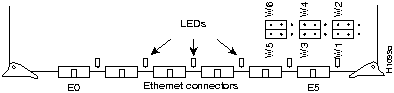
Figure 6 : Jumper Settings for Ethernet Version 1
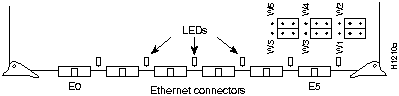
Figure 7 : Jumper Settings for Ethernet Version 2 and IEEE 802.3
Jumpers on pin sets W1 through W6 set the electrical specifications for the Ethernet transceiver connection. Each jumper is moved over one pin (compare the jumpers in Figure 6 and
Figure 7) to change the electrical specifications of its corresponding connector (W1 for E0, and so forth). Pin set W1 corresponds to the far left connector (E0), using the orientation in Figure 6 or Figure 7 (facing the component side of the card with the connectors at the bottom). Each connector corresponds consecutively to a pin set.
ciscoBus Configuration Considerations
Before installing the CSC-MEC in the card cage, ensure that you have the correct type of ciscoBus controller installed (CSC-CCTL or CSC-CCTL2) and that the ciscoBus interface cards will be placed in the correct slots per the slot priority requirements described in "Slot Priority," on page 11.
ciscoBus Controller Compatibility
All ciscoBus interface cards, which are listed in Table 3, contain card-specific firmware (microcode), which determines whether the card is compatible with the first- or second-generation ciscoBus controller, as follows:
The C2 designator added to the name of a ciscoBus interface card indicates that the card is running Microcode Version 10.0 or later and is, therefore, compatible with the CSC-CCTL2. With the exception of a revision 5.0 CSC-MEC card (see "Note" following), the first- and second-generation ciscoBus interface cards are otherwise the same. For example, you can upgrade a Revision 5.1 CSC-MEC to a CSC-C2MEC by replacing the microcode with Version 10.0 or later. When you upgrade the microcode on the CSC-MEC card to Version 10.0, the name of the card also changes from CSC-MEC to CSC-C2MEC to indicate that it is CCTL2-compatible. When you replace a CSC-CCTL ciscoBus controller with a CSC-CCTL2 ciscoBus controller, you must upgrade the microcode on all ciscoBus interface cards to Microcode Version 10.0 or later and replace the CSC-CCTL with a CSC-CCTL2.
You can display a description of the current ciscoBus controller and ciscoBus interface cards with the EXEC command show controller cbus, an example of which is described on page 8.
Table 3 : ciscoBus Interface Card Compatibility Requirements
| CCTL Controller | CCTL2 Controller | Description |
|---|---|---|
| CSC-CCTL | CSC-CCTL2 | ciscoBus controller |
| CSC-FCI | CSC-C2FCI1 | Fiber Distributed Data Interface (FDDI) |
| -- | CSC-C2FCIT | FDDI with translational bridging |
| CSC-HSCI | CSC-C2HSCI | High-Speed Serial Interface (HSSI) |
| -- | CSC-C2CTR | ciscoBus Token Ring interface, 4/16Mbps |
| CSC-MEC | CSC-C2MEC2 | Multiport Ethernet Controller interface |
The system card cage, shown in Figure 8, has nine slots, five of which are designated ciscoBus slots. The center ciscoBus slot is reserved for the ciscoBus controller card, leaving four ciscoBus slots available for ciscoBus interface cards.
The system uses a slot priority scheme that assigns a priority to each ciscoBus card according to the ciscoBus slot in which the card resides. The card in ciscoBus slot 0 receives the highest ciscoBus priority, while the card in ciscoBus slot 3 receives the lowest ciscoBus priority.
Slot priorities are set to accommodate the amount of traffic generated by each interface card and the amount of card buffering required. Each ciscoBus interface card is placed in a specific slot with regard to other ciscoBus interface cards, if any. The order of priority is the same for both first- and second-generation ciscoBus controllers, except that the cards with the C2 designation can only be used with the CSC-CCTL2.
Following is a list of ciscoBus interface cards in order of priority, from highest to lowest:
Install CSC-MEC or C2MEC cards in the lowest-numbered slots, beginning with slot 0 (which has the highest priority), followed by CSC-C2CTR cards. After all CSC-MEC and CSC-C2CTR cards are installed, install CSC-HSCI and C2HSCI cards with the APP-LHS applique in the lowest-numbered available slots. Follow with the CSC-FCI and C2FCI cards. Next, install CSC-C2FCIT cards. Last, install the CSC-HSCI and C2HSCI cards with the APP-ULA (UltraNet) applique. Always install cards in the lowest-numbered available slot. For example, if using only CSC-C2HSCI cards (with APP-ULA), place the first in slot 0, the second in slot 1, and so forth.
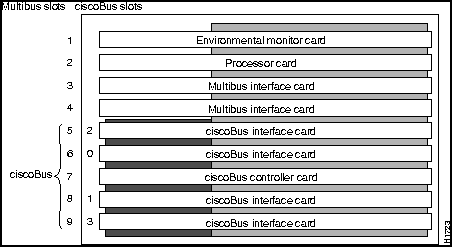
Figure 8 : Router System Card Cage
The CSC-MEC card will operate with any other ciscoBus interface cards; however, buffering and switching demands on the ciscoBus controller and processor card limit the number of interfaces that can be mixed without impeding performance of the high-speed ciscoBus interfaces.
The maximum numbers of CSC-MEC ports (interfaces) that can be combined with other ciscoBus ports are listed in Table 4. These limits are for both first- and second-generation ciscoBus systems. (For first-generation systems, disregard the C2FCIT and C2CTR ports.)
The number of cards needed for the maximum number of ports is also listed (in parentheses). Exceeding these maximum limits may impede performance on any or all installed ciscoBus interfaces.
Table 4 : Maximum Port and Card Configurations for ciscoBus Interface Cards
| (C2)MEC
Ports (Cards) |
C2FCIT/(C2)FCI
Ports (Cards) |
(C2)HSSI
Ports (Cards) |
C2CTR
Ports (Cards) |
||||
|---|---|---|---|---|---|---|---|
| 24 | (4) | 0 | (0) | 0 | (0) | 0 | (0) |
| 18 | (3) | 1 | (1) | 0 | (0) | 0 | (0) |
| 18 | (3) | 0 | (0) | 1 | (1) | 0 | (0) |
| 18 | (3) | 0 | (0) | 0 | (0) | 4 | (1) |
| 12 | (2) | 2 | (2) | 0 | (0) | 0 | (0) |
| 12 | (2) | 1 | (1) | 1 | (1) | 0 | (0) |
| 12 | (2) | 1 | (1) | 0 | (0) | 4 | (1) |
| 12 | (2) | 0 | (0) | 2 | (2) | 0 | (0) |
| 12 | (2) | 0 | (0) | 1 | (1) | 4 | (1) |
| 12 | (2) | 0 | (0) | 0 | (0) | 8 | (2) |
| 6 | (1) | 1 | (1) | 0 | (0) | 6 | (2) |
| 6 | (1) | 0 | (0) | 1 | (1) | 6 | (2) |
| 6 | (1) | 3 | (3) | 0 | (0) | 0 | (0) |
| 6 | (1) | 0 | (0) | 3 | (3) | 0 | (0) |
| 6 | (1) | 2 | (2) | 1 | (1) | 0 | (0) |
| 6 | (1) | 2 | (2) | 0 | (0) | 4 | (1) |
| 6 | (1) | 0 | (0) | 2 | (2) | 4 | (1) |
| 6 | (1) | 1 | (1) | 1 | (1) | 4 | (1) |
| 6 | (1) | 1 | (1) | 2 | (2) | 0 | (0) |
| 0 | (0) | 3 | (3) | 0 | (0) | 2 | (1) |
| 0 | (0) | 2 | (2) | 1 | (1) | 2 | (1) |
| 0 | (0) | 1 | (1) | 2 | (2) | 2 | (1) |
| 0 | (0) | 0 | (0) | 3 | (3) | 2 | (1) |
| 0 | (0) | 4 | (4) | 0 | (0) | 0 | (0) |
| 0 | (0) | 3 | (3) | 1 | (1) | 0 | (0) |
| 0 | (0) | 2 | (2) | 2 | (2) | 0 | (0) |
| 0 | (0) | 1 | (1) | 3 | (3) | 0 | (0) |
| 0 | (0) | 0 | (0) | 4 | (4) | 0 | (0) |
Card Numbering and Interface Addressing
The router uses a card numbering scheme to identify cards in the chassis, and an interface addressing scheme to identify the ports (interfaces) on each card. Each Multibus interface card and the ciscoBus controller card have a unique card number that you set with switch S1 on the card.
Table 5 shows the switch settings (S1) on the ciscoBus controller cards. All four pins are in the down (off) position when the ciscoBus controller is viewed from the front edge of the card (viewed as installed in the card cage). The system processor uses card numbers to assign interface addresses to the ports on each card and to control traffic across the Multibus. The ciscoBus controller card controls the traffic between the Multibus and all ciscoBus cards, so it is the only ciscoBus card that needs a card number. The card number of the ciscoBus controller is always 0, which is the factory default. No Multibus cards can be set for card number 0.
Table 5 : ciscoBus Controller Switch Settings for Card Numbering
| Card No. | S1-1 | S1-2 | S1-3 | S1-4 |
|---|---|---|---|---|
| 0 | off | off | off | off |
At startup, the system polls each Multibus interface card, beginning with the lowest card number, and assigns a sequential interface address to each port (interface) on each card. When all Multibus interfaces are assigned, the system proceeds to the ciscoBus and continues the interface address sequence as it polls the ciscoBus cards according to the ciscoBus slot priority. (For information on slot priority, refer to the section "Slot Priority" on page 11.)
Table 6 is an example of how the system assigns Ethernet interface addresses in a chassis with one CSC-MCI 2E2T card and two CSC-MEC6 cards. The CSC-MCI is a Multibus card, and the CSC-MEC is a ciscoBus card; therefore, the CSC-MCI interface addresses are assigned first.
Table 6 : Multibus and ciscoBus Interface Addressing Example
| Card | Card Port No. | Interface Address Assigned |
|---|---|---|
| First CSC-MCI | Port 0 | Ethernet 0 |
| Port 1 | Ethernet 1 | |
| Second CSC-MCI | Port 0 | Ethernet 2 |
| Port 1 | Ethernet 3 | |
| First CSC-MEC | Port 0 | Ethernet 4 |
| Port 1 | Ethernet 5 | |
| Port 2 | Ethernet 6 | |
| Port 3 | Ethernet 7 | |
| Port 4 | Ethernet 8 | |
| Port 5 | Ethernet 9 | |
| Second CSC-MEC | Port 0 | Ethernet 10 |
| Port 1 | Ethernet 11 | |
| Port 2 | Ethernet 12 | |
| Port 3 | Ethernet 13 | |
| Port 4 | Ethernet 14 | |
| Port 5 | Ethernet 15 |
The chassis has a total power budget of 300 watts (W). The total power dissipation of the individual interface and processor cards (see Table 7) must not exceed 300W. In A-type chassis shipped before October 1, 1991, the total power cannot exceed 260W (these chassis used a 5A circuit breaker, rather than the 7.5A breaker used in the current chassis). Following is a sample calculation for adding two CSC-MEC6 cards (all values in watts).
| One CSC-ENVM card | 1 x 10 = 10 |
|---|---|
| One CSC/4 processor card | 1 x 35 = 35 |
| One CSC-CCTL2 card | 1 x 29 = 29 |
| One CSC-FCI card | 1 x 50 = 50 |
| One CSC-MCI 2E card | 2 x 28 = 28 |
| 14 Ethernet transceivers | 14 x 4 = 56 (12 additional for the new MEC cards) |
| Power requirement of present system | 208 |
| Available power budget | 300 -- 208 = 98 |
| Add two CSC-MEC cards | 2 x 22 = 44 |
| New cards within power budget | 44 < 98 (New CSC-MEC cards can be installed.) |
Table 7 : Power Requirements for Individual Components
| Card/Applique Assemblies | Power Requirement (in Watts) |
|---|---|
| CSC/4 | 35 |
| CSC/3 | 31 |
| CSC-ENVM | 10 |
| CSC-MC+ | 3 |
| CSC-MCI1 | 28 |
| CSC-SCI | 20 |
| CSC-R16M | 34 |
| CSC-1R and -2R | 30 |
| CSC-CCTL2 | 34 |
| CSC-C2FCIT with applique | 36 |
| CSC-CSFCI with applique | 50 |
| CSC-C2MECx2 | 22 |
| CSC-CSHSCI | 48 |
| CSC-C2CTR-2 with applique | 30 |
| CSC-C2CTR-4 with appliques | 42 |
| CSC-CCTL | 29 |
| CSC-FCI with applique | 50 |
| CSC-MECx2 | 22 |
| CSC-HSCI with applique | 48 |
Compatibility with Other Cards
The CSC-MEC card will interoperate with any ciscoBus interface card that is compatible with the current ciscoBus controller (within the limits specified in the section "ciscoBus Port Limitations," on page 12), and with any Multibus interface card that is compatible with the current system software. However, as new features are added with system software releases, the microcode (firmware) on interface cards might need to be upgraded in order to take advantage of the new features.
For example, the CSC-C2MEC requires a CSC-CCTL2 ciscoBus controller and System Software Release 9.1 or later. (See the section "System Requirements" on page 7.) If you are upgrading your system software and ciscoBus controller to a CSC-CCTL2 along with this card installation, you must upgrade the microcode on all existing ciscoBus interfaces to Version 10.0 or later and, to ensure that all the features of a software release are available, you must upgrade the microcode on existing Multibus interface and controller cards to the minimum versions required for System Software Release 9.1 compatibility.
The Microcode Release Note publication (Document Number 78-1069-nn) provides the latest information on both the recommended and minimum required microcode versions for using all cards with System Software Releases 8.2 through 9.1. If the latest release implements features that you are not using in your system and you already have the minimum required version installed, then there is no requirement to update the microcode. However, new microcode versions occasionally fix bugs and provide performance enhancements in addition to implementing new features. You will obtain maximum performance and reliability by upgrading to the recommended version. For current microcode requirements and recommendations, and for a microcode revision history for each card, refer to the latest Microcode Release Note publication (Document Number 78-1069-nn).
Use the show controller [type] command with appropriate variables [cBus, token, serial, or ethernet] to display the current microcode on any interface card, and use the show environment command (available with System Software Release 9.0 and later) to display the current CSC-ENVM microcode. An example of the show controller cbus command is shown on page 8. The following partial sample display of the show controller mci command shows a CSC-MCI with Microcode Version 1.9 installed.
router# show cont mci
MCI 1, controller type 1.1, microcode version 1.10
(display text omitted from example)
The following partial, sample display of the show environment command shows a CSC-ENVM with Microcode Version 2.2 installed.
router# show env
Environmental controller firmware version 2.2
(display text omitted from example)
When new hardware components are installed, the system automatically invokes the setup command facility the first time the system is started. You have the option of using setup to configure new interfaces, or of exiting setup and configuring new interfaces with the configure EXEC command. If you are adding new interfaces at the same time you are installing the CSC-CCTL2, be prepared with the information you will need to configure each new interface, such as the protocols you plan to route, IP addresses and subnet masks, and whether or not you will use bridging. For step-by-step instructions for using the setup command facility and configuring the interfaces, refer to the Router Products Getting Started Guide.
Verify that you have all of the following parts and optional equipment you will need to install the new Ethernet interfaces. If you need additional equipment, contact your customer service representative for ordering information.
The following tools are required for installing the CSC-MEC card:
Preventing Electrostatic Discharge Damage
Electrostatic discharge (ESD) is a discharge of stored static electricity that can damage equipment and impair electrical circuitry. It occurs when electronic components are improperly handled and can result in complete or intermittent failures.
Following are guidelines for preventing ESD damage:

The following sections describe the procedures for installing a CSC-MEC card and Ethernet appliques. The CSC-MEC card is installed in the system card cage, which you access by removing the access panel on the front of the chassis. To access the system card cage, it is not necessary to disconnect cables from the rear of the chassis, or to remove the top cover of the chassis. Ethernet appliques are installed on connector plates in the rear of the chassis; access to the rear of the chassis requires removing the front panel and top cover from the chassis.
Before proceeding, ensure that your system and equipment meet the requirements listed in the section "Installation Prerequisites," on page 7.
Install the CSC-MEC card in the predetermined ciscoBus slot in the system card cage. (For slot priority requirements, refer to the section "Slot Priority," on page 11.) All network interface cards have ejectors that lock into place when the card is seated in the card cage and allow the card to be extracted easily from its slot. Handle the card as little as possible; try to limit contact to only the ejector tabs and card edges. Install the CSC-MEC card as follows.
Figure 9 : Front Access Panel and Cover Fasteners Following is the procedure for installing either the standard 15-pin Ethernet connector appliques or the 10BaseT appliques; both are mounted on the same type of connector plate and are installed in the same connector area of the chassis. Before proceeding, ensure that your system and equipment meet the requirements described in the section "Installation Prerequisites" on page 7.
The router has four large connector plates and one large individual connection area with space for six individual connector plates. The rear panel of a router, and a 10BaseT connector plate are shown in Figure 10. You must remove the top panel to gain access to the back panel connector plates and make internal cable connections. You also need to remove the front access panel to connect the internal ribbon cables to the CSC-MEC card ports.
Figure 10 : Rear Panel Connector Plates and 10BaseT Applique After you have installed a new interface, verify the installation before you replace the front panel by observing the LEDs on the CSC-MEC card, the ciscoBus controller card, the system processor card, and on any 10BaseT appliques. When the LEDs indicate that the cards and appliques are installed correctly, you will configure the new interfaces and check the configuration with the EXEC show commands.
The LEDs on the CSC/3 and CSC/4 processor cards indicate the status of the system software. The ciscoBus controller LEDs indicate the presence (correct installation) of ciscoBus cards in the ciscoBus. The LEDs on the CSC-MEC card are on when the corresponding port (immediately to the right of each LED on the card) is connected to an external interface. If any 10BaseT appliques are installed, the LEDs on the applique indicate the state of that interface. There are no LEDs on the 15-pin Ethernet applique connectors. You will have to be able to access the rear panel of the chassis to observe the LEDs on 10BaseT appliques.
Processor Card LEDs
To the right of the configuration register, on the front edge of the processor card, are three LEDs. On the CSC/3, the left and center LEDs are red (see Figure 11), while on the CSC/4, they are yellow (see Figure 12). The third LED (far right) on each card is green. The LED on the left is a software-programmable status light; it is on (momentarily) during initialization, flashes to indicate an error, and remains off under normal operation. The middle LED is the processor halt light; it is on when the processor halts for any reason. This LED can flash at power-up, but should not remain on; a problem is indicated when it does. The green LED on the right is a software-programmable run light that is on when the system is running properly.
Figure 11 : CSC/3 Processor Card LEDs
Figure 12 : CSC/4 Processor Card LEDs
ciscoBus Controller Card LEDs Depending upon whether you installed a CSC-MEC or a CSC-C2MEC, you will check the following ciscoBus controller card:
The ciscoBus controller card (CSC-CCTL or CSC-CCTL2) is always installed in the center ciscoBus slot (Multibus slot number 7) as shown in Figure 8.
Following are LED descriptions for both ciscoBus controller cards.
Figure 13 illustrates the LEDs that are on when a card is present in a corresponding ciscoBus slot. (The orientation of Figure 13 is looking at the front edge of the card installed in the card cage.) The numbers above the LEDs indicate the ciscoBus slot numbers. Depending upon the slot in which the ciscoBus card is installed (slot 0 through 3), the corresponding LED will be on to indicate a card in that slot. Some ciscoBus cards have appliques that require power from the card to which they attach. If these appliques are not connected correctly, the corresponding LED on the CSC-CCTL will not be on. All other LEDs are on momentarily at power on, but are not currently used.
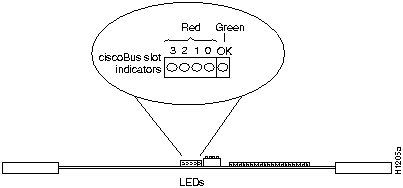
Figure 13 : CSC-CCTL Card LEDs---Front-Edge View The LEDs on the CCTL2 card indicate when an interface is present in a ciscoBus slot. The front edge of the CCTL2 card contains a bank of five LEDs as shown in Figure 14. (The orientation of
Figure 14 : CSC-CCTL2 Card LEDs---Front-Edge View
CSC-MEC Card LEDs
On the CSC-MEC, an LED is located to the right of each port. (See Figure 15.) After the system has booted, the LED for each connected port should be on.
Figure 15 : CSC-MEC Card---Front-Edge View Applique LEDs
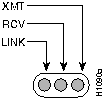
The three green LEDs on the 10BaseT applique, shown in Figure 16, indicate the following:
Figure 16 : 10BaseT Applique Status Indicator LEDs At power up, the LINK LED is on and remains on if it is connected to a 10BaseT link that is powered up. This LED indicates that a good link has been established. If it does not come on, check the opposite end of the link to ensure that it is powered up and that the cable is securely installed. If the LED still is not on, switch the transmit and receive pair at one end of the link and restart the system. When a good link is established, the RCV LED will flash or remain on to indicate packet traffic on the link. The XMT LED will be on when the unit transmits data over the link
If the opposite end of the link is connected to a hub, the hub will perform a crossover function, which means that the transmitter from the unit goes to the receiver of the hub, and the transmitter from the hub goes to the receiver of the unit. This configuration is correct; however, if the unit connects to an external media attachment unit (MAU), the crossover function must be performed in the attaching wires. Otherwise, the two transmit wires are connected to each other, as are the two receive wires.
To check the installation, first verify the ciscoBus controller card LEDs, then the CSC-MEC LEDs, then any applique LEDs with the following steps. Before turning on the system power, ensure that you are able to access the rear of the chassis to observe the LEDs on the applique.
When new hardware is installed, the system automatically defaults to the setup command facility. You can either remain in setup and answer each prompt, or exit from setup and configure any new interfaces with configure command. If you have no new interfaces to configure (you replaced a card), exit from setup by answering no to the following prompt:
When the system is configured and running, use the show controller cBus command to display the name, controller type, microcode version, and interfaces on each card in the ciscoBus. For descriptions of other show commands, refer to the router products configuration publication.
The system automatically invokes the setup command facility whenever new hardware components are installed. This facility determines which interfaces are installed and prompts you for configuration information for each one. When you complete each interface, the facility automatically starts over for the next, continuing until each interface has been configured. When you add new interfaces, the configuration information for the system and all existing interfaces is retained and displayed as the default (in brackets [ ]) in the prompts. Use the Return key to accept the defaults (existing configuration information) at each prompt. At this point you have two options: continuing in setup to configure the new interfaces, or exiting setup and configuring the new interfaces with the configure EXEC command.
Before beginning this configuration procedure, be prepared with the information you will need such as the protocols you plan to route on each interface, IP addresses if you will configure the interfaces for IP, and which interfaces, if any, will use bridging.
The system banner and a list of all installed interfaces, including those you just installed, should be displayed on the screen. (See page 8 for an example of this display, which is the same as the output from the show version command.) If this information is not displayed, return to the section "Restarting the System," on page 24.
The System Configuration Dialog text is displayed below the list of installed hardware, with the following message at the end of the display:
To continue with the setup facility, answer yes at the prompt and proceed to the following section, "Using Setup." To exit from setup and use the configure EXEC command to configure the new interfaces, answer no at the prompt and proceed to the section "Using the Configure EXEC Command" on page 28.
After you choose to continue with the setup command (by answering yes to the system configuration dialog prompt), the remainder of the script is the actual configuration process. The dialog prompts you first for global system parameters, then for configuration information for each interface. The existing configuration is displayed as the default, in brackets ([ ]), at the end of each prompt. Press the Return key to accept the default settings.
The configuration process is complete.
For descriptions of show commands you can use to display and verify the configuration information, proceed to the section "Checking the Configuration" on page 30.
Using the Configure EXEC Command
You must enter the privileged level of the EXEC in order to use the configure command. After specifying an interface, you will enter the configuration information with interface subcommands. Before beginning this procedure, use the show interfaces command to determine interface numbers you need to configure.
The EXEC command show configuration displays the configuration information stored in nonvolatile memory. Before entering any new interface information, you may want to use this command to review the current configuration. The following example shows a partial display of the show configuration command output:
In the configuration mode, you identify the specific interface to be configured with the interface configuration command, which begins the configuration subcommand collection mode for the specified interface. The syntax is interface type unit, where type identifies the type of interface (such as Ethernet), and unit identifies the interface unit address. You then must enter the configuration subcommands that define the configuration specifics for the interface. For example, new interfaces are shut down by default; you must enable each one with the no shutdown interface subcommand. You need other interface subcommands to assign a descriptive name to an interface, specify encapsulation methods, and define routing protocols. Refer to the router products configuration publication for complete descriptions of the configuration subcommands.
In the following a sample configuration, two new Ethernet interfaces are enabled and assigned IP addresses, then the configuration is written to memory.
The following steps provide instructions for a basic configuration: enabling an interface and specifying IP routing. You may also need to enter other configuration subcommands, depending upon the requirements for your system configuration. (Configuration subcommands are described in the router products configuration publication). Refer to the previous example as necessary.
After you configure the new interface(s), observe the LEDs on any 10BaseT appliques installed, and use the EXEC show commands to display status information as follows:
You can also use the command show interface (without variables) to display all network interfaces: serial, Ethernet, FDDI, and Token Ring. Each new MEC interface should be appended to the list of existing interfaces, with the next sequential number assigned to it.
Use the command show controller cBus to display the current internal status of the CSC-MEC card(s), including the interfaces and how the system has identified them. The display lists the interfaces connected to each CSC-MEC cards and indicates that the system has identified your new interface, but it does not indicate the state of the line or protocol.
For descriptions of additional commands, refer to the router products configuration publication.
This completes the installation and configuration procedure for the CSC-MEC card and associated equipment.
Copyright 1988-1996 © Cisco Systems Inc.

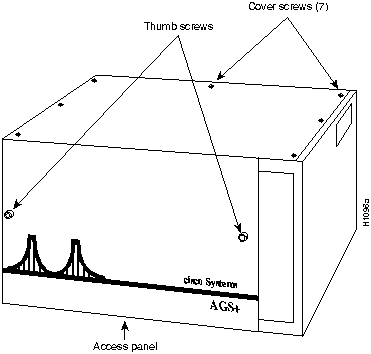


Figure 9.)

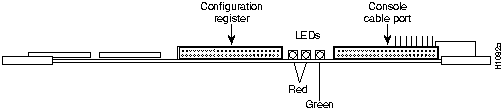
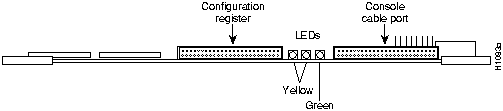

Figure 14 is looking at the front edge of the card installed in the card cage.) There is one red LED for each interface slot in the ciscoBus, and a green LED to indicate a successful boot procedure. One red LED will be on for each correctly connected ciscoBus card using the correct version of microcode. It will not be on if the card is incorrectly connected or if the microcode on that ciscoBus card is the wrong version. The numbers above the LEDs (0 through 3 from right to left) indicate the ciscoBus slot numbers.


Continue with configuration dialog [yes]? no
Default settings are in square brackets `[ ]'. Continue with

configuration dialog [yes]?
Configuring global parameters:


  Enter host name [router]:
Configuring interface parameters:


  Configuring interface Ethernet0:

    Is this interface in use [yes]:

    Configure IP on this interface? [yes]:

    IP address for this interface: 131.108.6.67

    (remainder of display text omitted)
Use this configuration [yes/no]:
Press RETURN to get started!
router# show config


Using 533 out of 32768 bytes

!

no service config

!

Interface Ethernet 0

ip address 4.0.0 1 255.0.0.0.


Interface Serial 0

ip address 5.0.0.1 255.0.0.0


Interface Ethernet 1

ip address 9.9.9.9 255.0.0.0.


Interface Serial 1

ip address 7.7.7.67 255.0.0.0
router> ena
Password:

router# config term
Enter configuration commands, one per line.
Edit with DELETE, CTRL/W, and CTRL/U; end with CTRL/Z

interface ethernet 2
ip address 145.22.4.67 255.255.255.0
no shut
interface ethernet 3
ip address 145.22.4.68 255.255.255.0
no shut
^z

router# write memory

[ok]

router#
configure terminal <Return>
interface ethernet
2 <Return>
ip address 145.22.4.67 255.255.255.0 <Return>
no shut <Return>
press Z.)
write memory <Return>
interface 1:
router#
show int ether 1


Ethernet 1 is up, line protocol is up
Hardware is cBus Ethernet, address is 0000.0c02.a03d
Internet address is 131.108.42.9, subnet mask is 255.255.255.0
MTU 1500 bytes, BW 10000 Kbit, DLY 1000 usec, rely 255/255, load 1/255
Encapsulation ARPA, loopback not set, keepalive set (10 sec)
ARP type: ARPA, ARP Timeout 4:00:00
Last input 0:00:01, output 0:00:00, output hang never
Last clearing of "show interface" counters never
Output queue 0/40, 63 drops; input queue 0/75, 0 drops
Five minute input rate 4000 bits/sec, 6 packets/sec
Five minute output rate 29000 bits/sec, 24 packets/sec
6655552 packets input, 613757001 bytes, 0 no buffer
Received 423040 broadcasts, 4 runts, 0 giants
5 input errors, 1 CRC, 0 frame, 0 overrun, 45 ignored, 0 abort
14231290 packets output, 1923109363 bytes, 0 underruns
0 output errors, 25588 collisions, 3 interface resets, 0 restarts


