
Table of Contents
Upgrading CSC-CCTL Cards
from Microcode Version 1.0 or 2.0 to Version 3.0
Upgrading CSC-CCTL Cards
from Microcode Version 1.0 or 2.0 to Version 3.0
Product Number MC-CCTL-V3.0=
This publication describes how to upgrade the erasable programmable read-only memory (EPROM) components on the first-generation (Hardware Revision 3.0) ciscoBus controller card (CSC-CCTL) from Microcode Version 1.0 or 2.0 to Microcode Version 3.0. To upgrade the CSC-CCTL card, you must replace nine EPROM components, which are shipped in the microcode upgrade kit designated MC-CCTL-V3.0=. The ciscoBus controller card is marked "Rev./3" for the CSC-CCTL card
type 3.0.
Note If your CSC-CCTL microcode is an earlier version than Microcode Version 1.0, contact a customer service representative for information on how to proceed.
To confirm the microcode upgrade requirements for your CSC-CCTL cards, use the EXEC command show controller cbus. The first line of the command display contains the controller card type and microcode version.
Execute the show controller cbus command on the installed CSC-CCTL type 3.0 card. Following is part of the information displayed:
cBus 0, controller type 3.0, microcode version 2.0 (or 1.0)
Verify that the ciscoBus controller is type 3.0 (Rev./ 3) and that the microcode version is 1.0 or 2.0 for the CSC-CCTL card.
All ciscoBus interface cards contain card-specific microcode that determines whether the card is compatible with the first- or second-generation ciscoBus controller card. Only ciscoBus cards with microcode versions earlier than Version 10.0 are compatible with the first-generation ciscoBus controller card (CSC-CCTL). All ciscoBus cards with the prefix C2 (and by default, Microcode Version 10.0 or later) must be used with the second-generation ciscoBus controller card (CSC-CCTL2).
The CSC-CCTL ciscoBus controller card is located in the center ciscoBus slot (Multibus slot 7) in the AGS+ chassis card cage. (See Figure 1.)
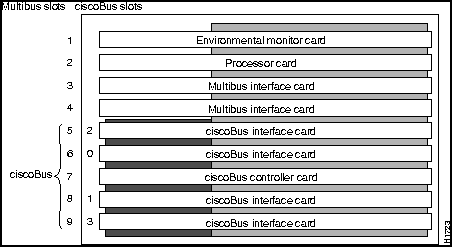
Figure 1 AGS+ Chassis Card Cage---Front View
Follow these guidelines when working with any electrical equipment:
- Before beginning any procedures requiring access to the chassis interior, turn off the system power and disconnect the power cord.
- Never assume that power has been disconnected from a circuit; always check.
- Do not work alone when a potentially hazardous condition exists.
- Do not perform any action that creates a potential hazard or makes the equipment unsafe.
- Carefully examine your work area for possible hazards such as moist floors, ungrounded wiring or power cables, and missing safety grounds.
In addition, use the following guidelines when working with any equipment that is connected to telephone wiring or other network cabling.
- Never install telephone wiring during a lightning storm.
- Never install telephone jacks in wet locations unless the jack is specifically designed for wet locations.
- Never touch uninsulated telephone wires or terminals unless the telephone line has been disconnected at the network interface.
- Use caution when installing or modifying telephone lines.
Electrostatic discharge (ESD) is a discharge of stored static electricity that can damage equipment and impair electrical circuitry. It occurs when electronic components are improperly handled and can result in complete or intermittent failures.
Following are guidelines for preventing ESD damage:
- Before you open a chassis, ensure that power to the unit is turned off, but that the power cord is connected to the wall receptacle. Having the power cord connected will ensure a ground path for any ESD voltages.
- Always use an ESD wrist strap or ankle strap and ensure that it makes good skin contact.
- Connect the equipment end of the strap to an unpainted surface of the chassis frame or another proper grounding point or surface. We recommend that you attach it to the inside bottom of the chassis, or to the rear panel (inside or outside), without making contact with any connectors or appliques.
- Avoid contact between equipment and clothing. The wrist strap only protects the equipment from ESD voltages on the body; ESD voltages on clothing can still cause damage.
- Handle printed circuit cards and appliques by the edges only; avoid touching the components, traces, or any connector pins.
- Place a removed card component-side-up on an antistatic surface or in a static shielding bag. If the component will be returned to the factory, immediately place it in a static shielding bag.
- Do not remove the wrist strap until the installation is complete.

Caution For safety, periodically check the resistance value of the antistatic strap. The measurement should be within the range of 1 and 10 Mohms.
Following are the procedures required to open the AGS+ chassis, remove the CSC-CCTL card, and upgrade the microcode EPROMs.
You need some or all of the following tools and parts to perform the upgrade procedure. Before you begin, read through the procedure to determine which tools you need for your chassis.
- Flat-blade screwdriver: medium (if you are removing the AGS+ front access panel for the first time) and small (if an EPROM extraction tool is not available).
- EPROM extraction tool.
- Needlenose pliers.
- Antistatic mat or antistatic foam (only if you are replacing components).
- ESD-protective wrist strap or other grounding device. A disposable wrist strap is included with the microcode upgrade kit; use it to prevent damage to equipment from electrostatic discharge.
- One Microcode Version 3.0 upgrade kit (MC-CCTL-V3.0=) for each CSC-CCTL card.
Following is the procedure for accessing the chassis interior.

Warning Before accessing the chassis interior, turn off power to the chassis and unplug the power cord because hazardous voltages may exist in or near the power supply. Use extreme caution when working near the power supply.
- Step 1 If you will need to handle any electronic components (cards, and so forth), attach appropriate ESD protection and attach the AC power cord, but to prevent a shock hazard, make certain the chassis power is OFF.
- Step 2 To access cards in the card cage, loosen the two thumbscrews and remove the front panel from the chassis. (See Figure 2.)
- The front panel is secured with two thumbscrews, which are tightened with 12 in/lb of torque for shipping. If you are removing the front panel for the first time, use the medium flat-blade screwdriver to turn the thumbscrews counterclockwise to loosen. When you replace the panel, turn the thumbscrews clockwise until finger-tight.
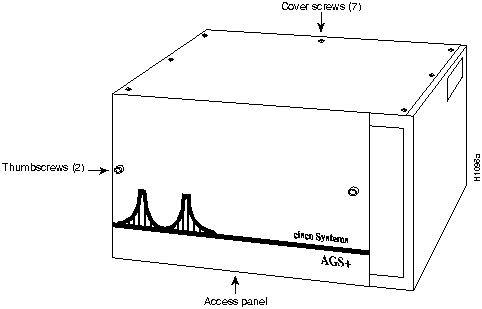
Figure 2 Chassis Front and Top Panels
Note To reassemble the chassis, reverse all steps.
Following is the procedure for upgrading the nine microcode EPROMs on the type 3.0 CSC-CCTL card:
- Step 1 Remove the CSC-CCTL card from the card cage, and position it as shown in Figure 3. It may be necessary to first disconnect interface cables that are blocking the CSC-CCTL card. Note their position for reassembly.
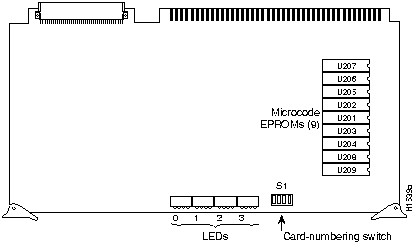
Figure 3 CSC-CCTL ciscoBus Controller Card---Component-Side View
- Step 2 Remove the Version 1.0 or Version 2.0 EPROM components (listed in Table 1 under the heading "Old Part Numbers") by gently lifting each from its socket using the EPROM extraction tool or the small flat-blade screwdriver.
Table 1 CSC-CCTL Microcode Socket Locations and Component Labels
| U207 |
A6-V1.0 17-0714V1.0 |
17-0714-01 U207 |
17-0714-02 U207 |
| U206 |
A5-V1.0 17-0713V1.0 |
17-0713-01 U206 |
17-0713-02 U206 |
| U205 |
A4-V1.0 17-0712V1.0 |
17-0712-01 U205 |
17-0712-02 U205 |
| U202 |
A1-V1.0 17-0709V1.0 |
17-0709-01 U202 |
17-0709-02 U202 |
| U201 |
A0-V1.0 17-0708V1.0 |
17-0708-01 U201 |
17-0708-02 U201 |
| U203 |
A2-V1.0 17-0710V1.0 |
17-0710-01 U203 |
17-0710-02 U203 |
| U204 |
A3-V1.0 17-0711V1.0 |
17-0711-01 U204 |
17-0711-02 U204 |
| U208 |
A7-V1.0 17-0715V1.0 |
17-0715-01 U208 |
17-0715-02 U208 |
| U209 |
A8-V1.0 17-0716V1.0 |
17-0716-01 U209 |
17-0716-02 U209 |
- Step 3 Replace the old components with the Version 3.0 components listed in Table 1 under the heading "New Part Numbers." Make sure the notched end of each new EPROM has the same orientation as the EPROM you removed; align the notch in the EPROM with the notch in the socket. Do not use the orientation of the label to align each new EPROM.
- Step 4 When all nine EPROMs are installed, check the pins and the EPROM orientation in the sockets. Straighten or realign any problematic pins or EPROMs.

Caution If a microcode EPROM is installed backwards when the power is turned on, it will be damaged and will have to be replaced. If any of the EPROM pins are bent during installation, the ciscoBus controller card might not operate properly. If this happens, remove the EPROM, use needlenose pliers to straighten any bent pins, then reinsert it and try again. If a pin breaks off, the component will have to be replaced.
- Step 5 Install the CSC-CCTL card in the card cage and reattach any interface cables you removed earlier, but do not reattach the chassis access panel.
This completes the microcode upgrade procedure. Proceed to the section "Checking the Upgrade."
Figure 4 illustrates the LEDs that are on when a card is present in a corresponding ciscoBus slot. (The orientation of Figure 4 is looking at the front edge of the card installed in the card cage.) The numbers above each LED indicate the ciscoBus slot number. Depending on the slot in which the ciscoBus card is installed (slot 0 through 3), the corresponding LED will be on to indicate a card in that slot. Some ciscoBus cards have appliques that require power from the card to which they attach. If these appliques are not connected correctly, the corresponding LED on the CSC-CCTL will be off. All other LEDs are momentarily on at power up, but are not currently used.

Figure 4 CSC-CCTL LED Indicators---Partial Front-Edge View
- Step 1 Turn ON the chassis power and boot the system.
- Step 2 Verify the microcode upgrade by executing the EXEC command show controller cbus. The first line of the command display contains the controller card type and microcode version. Following is part of the information displayed:
cBus 0, controller type 3.0, microcode version 3.0
- Step 3 Verify that the microcode version is Version 3.0 for the type 3.0 CSC-CCTL card.
- Step 4 Check the four LEDs on the CSC-CCTL. (See Figure 4.) Ensure that each LED is on for each ciscoBus slot occupied by a ciscoBus card; the ciscoBus controller LEDs are off for ciscoBus slots that contain Multibus cards. If any LEDs are not on that should be, do the following:
- If an LED for a ciscoBus slot with a ciscoBus card is off, ensure that the card is firmly seated in the ciscoBus slot. Turn OFF the system power, reseat the card, and turn ON the system power again.
- Ensure that the interface card in question is installed in one of the four ciscoBus interface slots. (See Figure 1.)
- If any microcode EPROMs are not installed correctly (pins are bent, and so forth), certain LEDs on the CSC-CCTL card might be off indicating the corresponding ciscoBus card is not recognized. If this happens, remove the CSC-CCTL card and check for problematic EPROM components.
- Step 5 When the upgrade checks out, reattach the chassis access panel.
This completes Upgrading CSC-CCTL Cards from Microcode Version 1.0 or 2.0 to Version 3.0.
Customer Information Online
Cisco Systems' Customer Information Online (CCO) system provides online information and electronic services to Cisco direct customers and business partners. Basic CCO services include general Cisco information, product announcements, descriptions of service offerings, and download access to public and authorized files, including release notes and software. Maintenance customers receive a much broader offering, including technical notes, the bug database, and electronic mail access to the TAC. (Maintenance customers must have authorization from their Cisco contract administrators to receive these privileges.)
For dialup or Internet users, CCO supports Zmodem, Kermit, Xmodem, FTP PUT, Internet e-mail, Telnet, rlogin, and fax download options. Internet users also can retrieve files from CCO using FTP.
Registration for CCO is handled on line. To reach CCO via the Internet, use Telnet or FTP to
cio.cisco.com
(131.108.89.33). To reach CCO by dialup, use 415 9038070 (Mountain View, California) or 33 1 6446 4082 (Paris, France).


Copyright 1988-1995
©
Cisco Systems Inc.



