


|
|

Installing the 10BaseT
Ethernet Transceiver Applique
Product Numbers: APP-JT1=, APP-LT=2, APP-LT4=, APP-LT6=, APP-LT8=, APP-IT1=, APP-ST2=, APP-ST4=, and APP-TT1=
This document contains instructions for installing the 10Base-T Ethernet transceiver applique in your router. The applique, shown in Figure 1, provides a direct connection between your router and an unshielded twisted-pair (UTP) Ethernet network by way of an RJ-45 connector. The applique is a system-integrated IEEE 802.3-compliant applique that eliminates the need for a separate media attachment unit (MAU) and attachment unit interface (AUI) cable.
The sections in this document include the following:
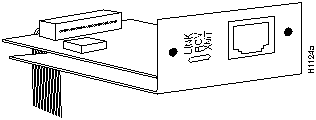
Figure 1 10Base-T Ethernet Transceiver Applique
The 10BaseT applique is mounted on a connector plate, as shown in Figure 1, which is then installed in the rear of the chassis. A large and individual connector plates are shown in Figure 2. The small connector plate, which is used in the M chassis, is not shown.
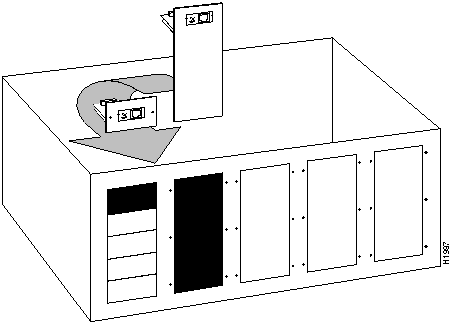
Figure 2 Connector Plates for Ethernet Connectors and Appliques
The applique, which has an RJ-45 connector for direct connection to a UTP network segment and three green status light-emitting diodes (LEDs), is installed on a connector plate on the rear of the chassis. Internally, it is connected to your Ethernet network interface card by way of a ribbon cable. The network interface card can be a CSC-MCI card (in all chassis), which provides up to two Ethernet ports, or a CSC-MEC card (AGS+ only), which provides six Ethernet ports. The CSC-MCI card is shown in Figure 3, and the CSC-MEC card is shown in Figure 4.
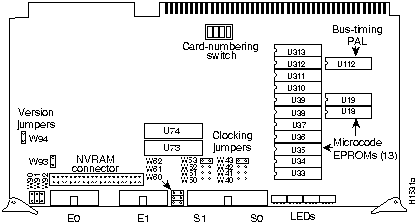
Figure 3 CSC-MCI Multiport Communications Interface Card---Component-Side View
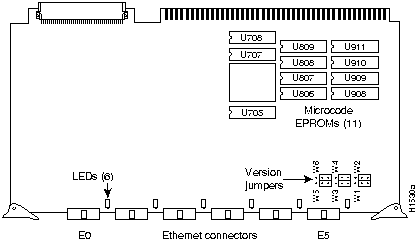
Figure 4 CSC-(C2)MEC6 Ethernet Interface Card---Component-Side View
The pinout for the RJ-45 is given in Table 1.
Table 1 RJ-45 Connector Pinout
| Pin | Signal Name |
|---|---|
| 1 | TD+ |
| 2 | TD-- |
| 3 | RD+ |
| 4 | Not used |
| 5 | Not used |
| 6 | RD-- |
| 7 | Not used |
| 8 | Not used |
Following are the configuration considerations for the CSC-MCI and CSC-(C2) MEC interface cards.
The CSC-MCI card provides up to two Ethernet ports (the SCI card has none) and uses grounding options to accommodate the differences between the Ethernet Version 1 and IEEE 802.3 electrical specifications. Ethernet Version 1 permits certain signals to float, whereas IEEE 802.3 requires the signals to be grounded. Table 2 lists the CSC-MCI grounding options. Inserting a jumper grounds the signal and removing a jumper allows the signal to float. The factory default is to ground all signal pairs, which is compatible with both Ethernet and IEEE 802.3 requirements.
Table 2 CSC-MCI Jumper Settings for Grounding Options
| Jumper Pair | Signal Description | Interface |
|---|---|---|
| W90 | Receive Pair Shield | First Ethernet |
| W91 | Transmit Pair Shield | First Ethernet |
| W92 | Power Pair Shield | First Ethernet |
| W60 | Power Pair Shield | Second Ethernet |
| W61 | Transmit Pair Shield | Second Ethernet |
| W62 | Receive Pair Shield | Second Ethernet |
On the MCI card, jumpers W94 and W93 are 3-pin jumpers that select between Ethernet and
IEEE 802.3 electrical levels. Jumper W94 controls the first Ethernet port, and jumper W93 controls the second Ethernet port. The factory default is to select IEEE 802.3 (Ethernet Version 2). Using the card orientation shown in Figure 3, place a jumper on the lower pair of pins to select Ethernet Version 1.
Figure 5 shows the appropriate jumper settings (jumpers W1 through W6) to use when you attach Ethernet Version 1 cables to the Ethernet connector. Jumper settings shown in Figure 5 are factory defaults. Figure 6 shows the appropriate jumper settings to use when you attach Ethernet Version 2 and IEEE 802.3 cables. The explanation for the Ethernet jumper settings follows.
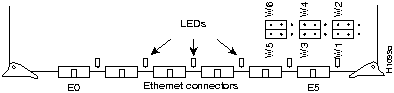
Figure 5 Jumper Settings for Ethernet Version 1
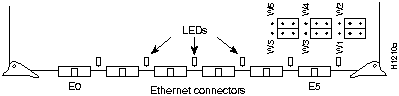
Figure 6 Jumper Settings for Ethernet Version 2 and IEEE 802.3
Jumpers on pin sets W1 through W6 set the electrical specifications for the Ethernet transceiver connection. Each jumper is moved over one pin (compare the jumpers in Figure 5 and
Figure 6) to change the electrical specifications of its corresponding connector (W1 for E0 and so forth). Pin set W1 corresponds to the far left connector (E0), using the orientation in Figure 5 or Figure 6 (facing the component side of the card with the connectors at the bottom). Each connector corresponds consecutively to a pin set.
Before installing the applique, ensure that your system meets the following prerequisites:
There are several types of twisted-pair cable. UTP cable should be 26 to 22 AWG (0.4 to 0.6 mm) wire in a multiwire cable with 100 ohms impedance. The 802.3 specification states that the maximum length of a 10Base-T link segment is 100 meters or 328 feet of UTP wiring; do not exceed these limits.
If you are not connected to a hub, and another 10Base-T transceiver applique is connected to the opposite end of your link, the UTP cabling must be crossed as shown in Figure 7. The RD-- and RD+ signals must be swapped with the TD-- and TD+ signals. When the opposite end of your link is connected to a hub, the hub performs this crossover function, and it is not necessary to cross the cables.
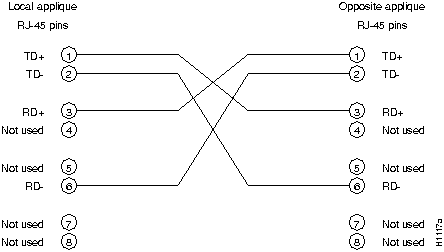
Figure 7 Applique-to-Applique UTP Cable Diagram
Verify that you received all of the parts for the interface(s) you will install. If any parts are missing, contact a customer service representative.
The Ethernet transceiver applique is a self-contained unit. The internal ribbon cable, which connects the applique to the internal network interface control card, is permanently attached to the 16-pin connector on the applique.
The following tools are required to install the applique:
Electrostatic discharge (ESD) is a discharge of stored static electricity that can damage equipment and impair electrical circuitry. It occurs when electronic components are improperly handled and can result in complete or intermittent failures.
Following are guidelines for preventing ESD damage:

Choose the following procedure that describes your chassis type.
Following is the procedure for accessing the A-type chassis interior. You will need a medium-sized flat-blade screwdriver.

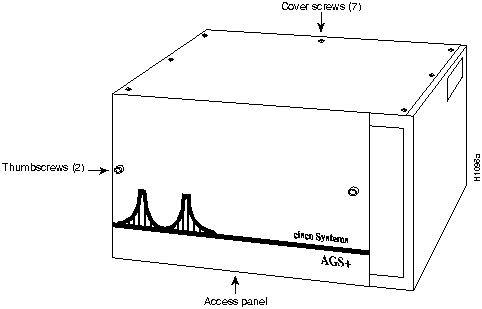
Figure 8 Chassis Front and Top Panels
To reassemble the chassis, reverse all steps.
Following is the procedure for accessing the MGS chassis interior. You will need a medium-sized flat-blade screwdriver and a No. 1 Phillips screwdriver.

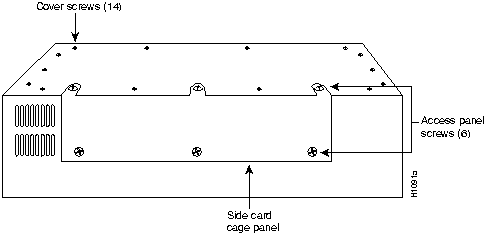
Figure 9 Screw Locations on the MGS Chassis Exterior---Side View
To reassemble the chassis, reverse all steps.
Following is the procedure for accessing the C chassis interior. You will need a medium-sized flat-blade screwdriver and No. 1 and No. 2 Phillips screwdrivers.

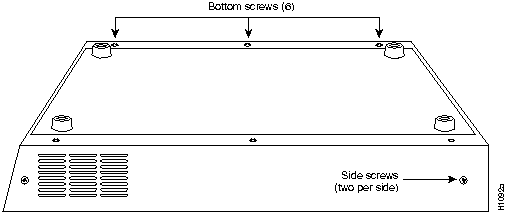
Figure 10 Screw Locations on the C Chassis Exterior---Side View

To reassemble the chassis, reverse all steps.
The procedures in this section describe how to install the applique in the rear of the chassis, connect the applique ribbon cable to an Ethernet port on a network interface card (CSC-MCI or CSC-MEC), and anchor the ribbon cable to the bottom of the chassis with the clip provided.
If you are installing the applique in an M or C chassis, you must use applique assembly Part Number 73-0981, which is specifically for the M and C chassis. It contains a shorter cable than the one used in the A-type chassis. (The longer cable can propagate noise.) Before proceeding, ensure that your system and equipment meet the requirements listed in the section "Installation Prerequisites" on page 5.
The applique is already mounted on a connector plate. If there is an unused (blank) connector plate of the same size in the chassis, you need only install the new plate as described in the procedure "Installing the Connector Plate." If you are replacing one or more connectors, you also need to perform the steps in the following procedure "Replacing an Existing Connector Plate."
When installing more than one applique, install and connect each applique before installing the next; this will help avoid crossing the internal cables and mixing up your designated Ethernet interfaces.
If you have more than one Ethernet connector on a large plate, and are not replacing all of them with UTP appliques, you can do either of the following:
You can leave unused connectors installed on a connector plate; however you must disconnect all internal cables. Otherwise, they could propagate noise on other connections.

Following is the procedure for removing or disconnecting the appliques on an existing connector plate. If you are not replacing an existing connection, skip this section and proceed to the following section "Installing the Connector Plate."
Following is the procedure for installing the connector plate on which the applique is mounted. If you are replacing an existing Ethernet connection, first perform the steps in the previous section.
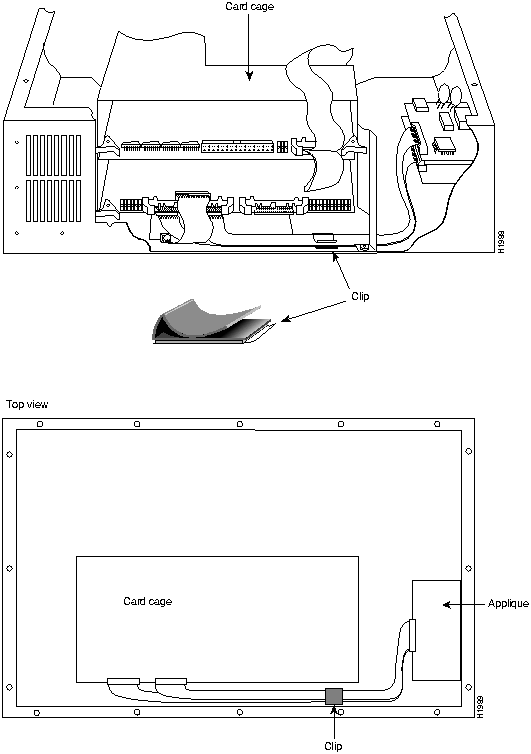
Figure 11 Placement of Anchoring Clips in the M and C Chassis
After you install your applique, verify that it is installed correctly before you replace the cover. Turn on the system power and observe the status indicators on the applique and the interface card, then use EXEC show commands to verify that your interfaces are recognized by the system and have been assigned port addresses.
Power up the system and observe the status indicators on the applique, which are shown in
Figure 12. Verify that the indicators come on as follows:
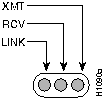
Figure 12 10Base-T Applique Status Indicator LEDs
If the LINK indicator comes on, but no data is getting through, or if the bit error rate increases, check the MCI or MEC card to ensure the jumpers are properly set for Ethernet Version 2. The correct jumper settings are described in the section "Installation Prerequisites" on page 5.
Also, verify that the appropriate LEDs on the CSC-MCI or CSC-MEC card come on, indicating that the new interface is recognized. The following two illustrations show the indicators at the front edge of the MEC card (shown in Figure 13) and the MCI card (shown in Figure 14) as viewed when the cards are installed in the card cage.

Figure 13 CSC(C2)MEC Card LED Indicators---Front-Edge View
The MEC card indicators are located to the right of each connector port. The indicator for each connected port should come on and remain on after initialization.
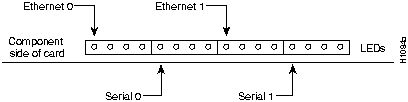
Figure 14 CSC-MCI Card LED Indicators---Partial Font-Edge View
The MCI card contains 16 indicators, four banks of four LEDs. Each bank represents an Ethernet or serial port. As shown in Figure 14, the far-left indicator (LED 0) represents Ethernet 0, and the eighth (LED 8) represents Ethernet 1. If only one Ethernet interface is connected to the MCI card, only the far-left indicator (LED 0) should come on. If two Ethernet interfaces are connected to the card, both Ethernet indicators (LED 0 and LED 8) should come on.
An error condition exists if one of the following occurs:
If any of these happen, ensure that all cards are firmly seated and all cables are securely installed. If a second power-up attempt also fails, contact a service representative.
When the status indicators show that the applique is installed correctly, use EXEC command displays to verify that the new Ethernet interface is properly recognized by the system. When the system is started, the interface cards query the appliques for interface information. If an applique is not connected to its interface card when the system initializes, it will be not be recognized until it is properly connected to the card and the system is restarted.
Use the EXEC command show config to obtain the current system configuration information. Each interface is listed along with its assigned ip address. Verify that the new Ethernet interface appears. Following is a sample display:
router# show config


Using 533 out of 32768 bytes

!

no service config

!

Interface Ethernet 0

ip address 4.0.0 1 255.0.0.0.


Interface Serial 0

ip address 5.0.0.1 255.0.0.0


Interface Ethernet 1

ip address 9.9.9.9 255.0.0.0.


Interface Serial 1

ip address 7.7.7.67 255.0.0.0


name-server 255.255.255.255
The EXEC command show version displays the system hardware configuration. The output includes a summary of hardware features, software version strings, and the names and sources of configuration files and/or boot images. The total number of each type of interface is listed; verify that the total number of Ethernet 802.3 interfaces is correct. Following is a partial, sample display:
GS Software, Version 8.3

Copyright (c) 1986-1991 by cisco Systems, Inc.

Compiled Sat 14-Sep-91 04:05 by satz


System Bootstrap, Version 4.3


dross uptime is 1 week, 23 hours, 28 minutes

System restarted by reload

System image file is unknown, booted via tftp from 131.108.1.111

Host configuration file is "dross-config", booted via tftp from 131.108.1.111


CSC3 (68020) processor with 4096K bytes of memory.

X.25 software.

5 MCI controller

8 Ethernet/IEEE 802.3 interface

12 Serial network interface

32K bytes of non-volatile configuration memory.
The EXEC command show controller mci displays the current internal status of the MCI and SCI cards, including the interfaces and how the card has identified them. Although the command specifies the MCI card, it also provides the same information for SCI cards: controller types 1.0 and 1.1 are MCI cards; controller type 2.0 is an SCI card.
The display lists all interfaces connected to the MCI and SCI cards, including Ethernet interfaces on the MCI cards. The display indicates that the system has identified your new interface, but it does not indicate the state of the line or protocol. Use the EXEC command show controller cbus to display the same information for the MEC card.
Following is a sample displays:
router# show controller mci
MCI 0, controller type 1.1, microcode version 1.10
  128 Kbytes of main memory, 4 Kbytes cache memory
22 system TX buffers, largest buffer size 1520
  Restarts: 0 line down, 0 hung output, 0 controller error
  Interface 0 is Ethernet0, station address aa00.0400.0134
  15 total RX buffers, 11 buffer TX queue limit, buffer size 1520
    Transmitter delay is 0 microseconds
 Interface 1 is Serial0, electrical interface is V.35 DTE
    15 total RX buffers, 11 buffer TX queue limit, buffer size 1520
    Transmitter delay is 0 microseconds
    High speed synchronous serial interface
To obtain more extensive information about the interfaces, such as the state of the lines and protocol types, use the EXEC command show interface ethernet to display statistics about each of the Ethernet interfaces in the server. The first line of the show interface display names the interface and its unit number (Ethernet 0), indicates whether the hardware and the line protocol are up or down. If the line protocol is down, the hardware is not functioning properly; ensure that the network interface is properly connected and terminated.
Following is a partial sample display:
router# show interface ethernet
Ethernet 0 is up, line protocol is up

  Hardware is MCI Ethernet, address is aa00.0400.0134 (bia 0000.0c00.4369)

  Internet address is 131.108.1.1, subnet mask is 255.255.255.0
You can also use the command show interface (without variables) to display all network interfaces. Each new Ethernet interface should be appended to the list of existing interfaces, with the next sequential number assigned to it.
When the installation check is successful:
The router products configuration publication contains additional information for configuring the new interface and managing the system.



|
Copyright 1988-1995 © Cisco Systems Inc.