


|
|

Cisco Product Number: UPG-FSIP4, UPG-FSIP8
This document provides instructions for replacing serial interface processors (SIPs or PRE-FSIPs) with fast serial interface processors (FSIPs) in the Cisco 7000. The instructions also include procedures for returning the SIPs to the factory, and basic configuration commands and guidelines for making any necessary configuration changes to the serial interfaces. For complete descriptions of interface subcommands and the configuration options available for serial interfaces, refer to the related software documentation.
The sections in this document include the following:
These upgrade instructions contain references to other publications, all of which are included in your upgrade kit. Before beginning the upgrade, ensure that you have the following documents available:

This section describes the FSIP upgrade and the differences between the SIP and FSIP. For a complete description of the Cisco 7000 and the FSIP, refer to the accompanying document, Fast Serial Interface Processor (FSIP) Installation and Configuration (Document Number 78-1147-02), or to the Cisco 7000 Hardware Installation and Maintenance publication that you received with your router.
Following are the basic tasks that you will perform to complete this upgrade. Some tasks, such as upgrading the system software or SP microcode, are not required if your router already meets the minimum system requirements, which are described in "Prerequisites for FSIP Installation" on page 5.
To complete this upgrade, you will perform some or all of the following tasks:
The FSIP replaces the SIP (also called the PRE-FSIP) in the Cisco 7000 product line. When the Cisco 7000 was introduced in January 1993, the FSIP was planned but not yet developed. The SIP was released as an interim solution until the FSIP was available. By purchasing a SIP or PRE-FSIP, you effectively purchased an FSIP and received one or more SIPs to provide serial interface support until the FSIP development and testing were completed. Effective with the FSIP release in early October 1993, the SIP is no longer orderable in most countries. No new microcode will be released for the SIP, nor will the SIP support any future upgrades or enhancements. In addition, future system software upgrades are not guaranteed to interoperate with the SIP.
As part of the FSIP Upgrade Program, surveys were sent to all SIP owners requesting shipping information and the types of interface cables needed. Cisco Systems is fulfilling and shipping upgrade kits in first-in-first-out order as we receive the completed survey forms (provided there are no regulatory compliance restrictions imposed by the destination country). Each upgrade kit contains replacement FSIPs with the same total number of ports as those on your current SIPs. (Because FSIPs support up to eight ports and the SIP supports a maximum of four, you may receive one eight-port FSIP as a replacement for two four-port SIPs.) Each FSIP includes one interface cable per port of the interface types you specified in the survey. In addition, because the SIP and FSIP port adapters are not interchangeable, you will receive equivalent FSIP replacements for any SIP port adapters that you purchased as spares. Cable spares are not covered in this upgrade program.
The entire upgrade kit is free of charge; however, you must return the SIPs (and any spares that are replaced) within 30 days from the upgrade kit shipment date (60 days for kits shipped outside the U.S.) or you will be invoiced for any outstanding equipment. (Cable spares are not included in the no-cost upgrade, so you do not have to return any SIP cables you have purchased as spares.) For shipping instructions, refer to "Returning SIPs to the Factory" on page 20.
The FSIP supports more interfaces and higher transmission speeds than the SIP. However, there are additional differences that are important to note. Table 1 lists the differences that are most significant to network technicians and administrators:
SIP port adapters and cables cannot be used with the FSIP. Each SIP port adapter provides a single interface port, and each interface types uses a different connector scheme (15- or 25-pin male or female). SIP interface cables are interface- and mode-specific, and can connect only to SIP ports of the same interface type. Each FSIP port adapter supports two interface ports, and all ports use an identical, 60-pin universal receptacle. FSIP interface cables are also interface- and mode-specific, but can connect to any FSIP port. Figure 1 shows all four SIP interface types and the universal FSIP interface port.
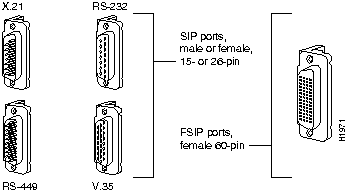
Table 1 Physical and Functional Differences between the FSIP and SIP
| Feature/Capability | FSIP | SIP |
|---|---|---|
| OIR | Yes; supports OIR | No OIR support: system shutdown required to remove/replace |
| Max. no. of ports | 8 | 4 |
| Max. configuration | 8-port: 8 T1 or 6 E1 interfaces4-port: 4 T1 or 3 E1 interfaces | 4 T1 interfaces |
| Interface types available/supported | RS-232, RS-449, V.35, X.21, and RS-530 | RS-232, RS-449, V.35, and X.21 (no RS-530 support) |
| Interface ports (see Figure 1) | 60-pin universal; change interface type by replacing interface cable | Interface-specific; change interface type by replacing port adapter |
| Timing signals | Supports internal clock signal (for DCE mode) automatically | Require configuration command (transmit-clock-internal) to specify internal clocking for DCE mode |
| Half-duplex support | Currently not supported; available in a future maintenance release | Support on RS-232 interface only; requires a jumper change on RS-232 port adapter |
| Error correction | 16-bit or 32-bit CRC, software settable | 16-bit CRC only |
| System software compatibility | Requires Release 9.17(5) or later and SP 1.4 microcode or later | Supported in all releases through 9.17(5); not guaranteed to operate with later releases |
| Displaying interface information | Use show controllers cxbus command | Use show controllers serial command |

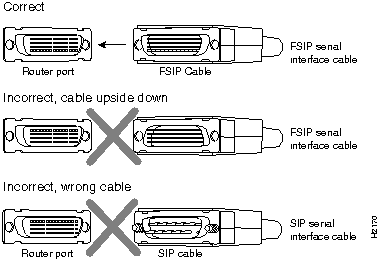
Figure 2 SIP and FSIP Cables are Not Interchangeable
Before you begin this upgrade, ensure that your existing system software and microcode meet the compatibility requirements; otherwise, you will need to upgrade them (upgrade images are included in the upgrade kit). Also review the list of parts and tools you will need to perform the various tasks, and the safety and ESD-prevention guidelines for avoiding bodily injury or equipment damage.
The FSIP is compatible with any Cisco 7000 that is running the following software and microcode:
Although multiple microcode versions for a specific interface type can be stored concurrently in Flash, only one image can load at startup. The show version command displays the current hardware configuration of the router, including the system software version that is currently loaded and running. The show controllers cxbus command displays the currently loaded and running microcode version for the SP and for each IP. The show configuration command shows the current instructions for loading software and microcode at startup.
Use the show version command to display the currently running system software version. The following example shows System Software is Release 9.17(5), which is required for FSIP compatibility. The 9.17(5) image can load from either a Flash file or from ROM; both are compatible with the FSIP.
Router> show version
GS Software (GS7), Version 9.17(5)
Copyright (c) 1986-1993 by cisco Systems, Inc.
Compiled Mon 09-Aug-93 01:16
System Bootstrap, Version 4.6(1)
Current date and time is Fri 2-26-1993 2:18:52
Boot date and time is Fri 1-29-1993 11:42:38
Router uptime is 3 weeks, 6 days, 14 hours, 36 minutes
System restarted by power-on
Running default software
Network configuration file is "Router", booted via tftp from 131.108.2.333
Use the show controllers cxbus command to display the microcode version of the SP. The following example shows that the running SP microcode is Version 1.4, which is required for FSIP compatibility. The SP 1.4 microcode image must reside in ROM; if the SP microcode ROM contains a microcode version earlier than 1.4, and version 1.4 is loading from a Flash file, the router may fail to boot properly. (In this example, ROM Version 1.4 is assumed because it is not available on floppy disk and, therefore, it should not be stored in Flash memory.)
Router# show controllers cxbus
Switch Processor 5, hardware version 11.1, microcode version 1.4
  (text omitted from example)
If you suspect that the SP 1.4 image may be loading from a Flash file, check the contents of Flash memory to ensure that it does not contain an SP 1.4 image. (The procedure for checking the contents of Flash memory follows). You can also use the show configuration command to display the contents of the configuration file to ensure that it does not contain instructions to load the SP microcode from a Flash file. If the configuration file does not contain any special instructions for loading SP microcode, then the system is loading the microcode from ROM.
If the displays indicate that the running system software is earlier than Software Release 9.17(5), check the contents of Flash memory to determine whether the 9.17(5) image is available. (If the 9.17(5) images is already stored in Flash but the default (older) image is still loading from ROM, you can use configuration commands to instruct the system to download the correct image before you install the new FSIP.) The show flash command displays a list of all files stored in Flash memory. The following example shows that FIP Microcode Version 1.1 and SP Microcode Version 1.2 are stored in Flash, but that there is no system software image available.
Router# show flash
4096K bytes of flash memory on embedded flash (in RP1).
file     offset     length        name
  0     0x80        53364       eip1-0
  1     0xD134      55410       sp140-43
  [4085336/4194304 bytes free]
Router#
If System Software Version 9.17(5) and SP Microcode Version 1.4 are not already installed and available on your system, you will have to upgrade. At the appropriate point in this upgrade procedure, you will refer to the companion document, Upgrading Software and Microcode in Cisco 7000 Series Routers, Doc. No. 78-1144-05, for instructions.
When the system starts up, it looks for boot instructions in the system configuration file and hardware configuration register. These instructions cause the system to boot from either the default ROM software, or from an image stored in Flash memory, or from a remote server. Because the system must be able to retrieve and interpret these instructions before it can execute them, it always performs a partial boot from the default ROMs first and, after retrieving the instructions, it executes them and reboots if necessary. This partial boot is usually transparent to the user; however, it may generate a harmless error message if the system ROMs contain a software version earlier than 9.17(5).
System Software Release 9.17(5) supports the FSIP, but earlier releases will not recognize it. If the software ROMs in your system contain software release 9.17(4) or earlier, the initial partial boot from that ROM image can cause the following message to be displayed:
%UCODE-3-LDFAIL: Unable to download ucode FSIPn-n in slot 0, installed ucode loaded

must be a SIP serial interface
Booting gs7-k...
This message will be displayed at each subsequent system startup (unless you remove the FSIP or replace the system software ROMs with 9.17(5) or later ROMs), but does not indicate a problem and should be ignored.
The SIPs support a maximum of four interfaces; the FSIPs support either four or eight. If you purchased an eight-port FSIP, you will currently have two SIPs installed, each of which supports four interfaces. Because the eight-port FSIP will now support all eight interfaces, your upgrade kit will contain one eight-port FSIP and one blank IP carrier.
If you remove a SIP and install an FSIP in the same slot, the new FSIP will recognize the four serial interfaces from the SIP. If you replace two four-port SIPs with one eight-port FSIP, you will have to reassign the interfaces from the second SIP to new slot/port addresses on the FSIP.
Table 2 shows an example of how the interface slot/port addresses should be reassigned from two four-port SIPs to a single eight-port FSIP. The SIP in slot 0 is replaced by the FSIP, and the SIP in slot 1 is replaced by a blank IP carrier.
Table 2 Reassigning Interface Slot/Port Locations from Two SIPs to One FSIP
| Before FSIP Installation | After FSIP Installation | |||
|---|---|---|---|---|
| Serial Interface | Slot 0, SIP | Slot 1, SIP | Slot 0, FSIP | Slot 1, blank |
| First serial interface | Serial 0/0 | Serial 0/0 | ||
| Second serial interface | Serial 0/1 | Serial 0/1 | ||
| Third serial interface | Serial 0/2 | Serial 0/2 | ||
| Fourth serial interface | Serial 0/3 | Serial 0/3 | ||
| Fifth serial interface | Serial 1/0 | Serial 0/4 | ||
| Sixth serial interface | Serial 1/1 | Serial 0/5 | ||
| Seventh serial interface | Serial 1/2 | Serial 0/6 | ||
| Eighth serial interface | Serial 1/3 | Serial 0/7 | ||
If you are using several different interface types, or if you want to ensure that you keep the interfaces in approximately the same sequence or locations on the new FSIPs as they are on the SIPs, record the types of interfaces or the slot/port locations before you shut down the interfaces. Use the worksheet in Table 3, or use the write network command to write your current configuration to a remote host (from which you can print or view the configuration later) to record the current configuration and plan the new locations on the FSIPs you will install.
Table 3 Worksheet for Interface Port Types and Locations
| Slot 0 | Slot 1 | Slot 2 | Slot 3 | Slot 4 | ||||||||||||||||
|---|---|---|---|---|---|---|---|---|---|---|---|---|---|---|---|---|---|---|---|---|
| SIP | FSIP | SIP | FSIP | SIP | FSIP | SIP | FSIP | SIP | FSIP | |||||||||||
| Port 0 | ||||||||||||||||||||
| Port 1 | ||||||||||||||||||||
| Port 2 | ||||||||||||||||||||
| Port 3 | ||||||||||||||||||||
| Port 4 | ||||||||||||||||||||
| Port 5 | ||||||||||||||||||||
| Port 6 | ||||||||||||||||||||
| Port 7 | ||||||||||||||||||||
You need the following tools to remove the SIPs from the chassis and install the FSIPs:
You need the following parts to complete this upgrade and to return the replaced equipment to Cisco Systems. Verify that you received all of the following parts in your upgrade kit:
This section lists safety guidelines you should follow when working with any equipment that connects to electrical power or telephone wiring.
Follow these basic guidelines when working with any electrical equipment:
Use the following guidelines when working with any equipment that is connected to telephone wiring or to other network cabling:
Electrostatic discharge (ESD) damage, which can occur when electronic cards or components are improperly handled, results in complete or intermittent failures. The FSIP comprises a printed circuit board that is fixed in a metal carrier. Electromagnetic interference (EMI) shielding, connectors, and a handle are integral components of the carrier. Although the metal carrier helps to protect the board from ESD, use a preventive antistatic strap whenever handling the FSIP. Handle the carriers by the handles and the carrier edges only; never touch the boards or connector pins.
Following are guidelines for preventing ESD damage:
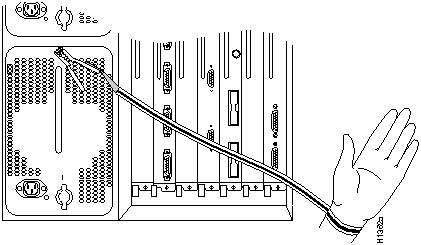
Figure 3 Placement of ESD Wrist Strap

This section describes the procedures for replacing existing SIPs with new FSIPs. Although the OIR feature allows you to install and remove FSIPs without shutting down interfaces, you will have to shut down the existing SIP serial interfaces before you remove the SIPs from the chassis. If you remove a SIP and install an FSIP in the same slot, the new FSIP will recognize the serial interfaces from the SIP. If you replace two four-port SIPs with one eight-port FSIP, you will have to reassign the interfaces to the new slot/port addresses on the FSIP. (See "Slot/Port Addresses" on page 7.)
Each unused IP slot contains a blank IP carrier to keep dust out of the chassis and to maintain proper air flow through the IP compartment. If you are replacing two four-port SIPs with one eight-port FSIP, your upgrade kit includes a blank IP carrier for the slot that will remain empty.
If your system software and microcode meet the prerequisites described in "Upgrade Prerequisites" on page 5, skip this section and proceed to "Shutting Down the Serial Interfaces" on page 11.
If either your system software or SP microcode are not at the required minimum versions, you must upgrade before proceeding. Refer to the accompanying document, Upgrading Software and Microcode in Cisco 7000 Series Routers (Document No. 78-1144-05), to perform the appropriate upgrade:
When your system is running the minimum required system software and SP microcode, proceed to the next section to begin the replacement.
Because the SIPs do not support OIR, removing a SIP when the system is operating can cause a soft system reboot. Removing more than one SIP within 15 seconds (before the router restarts completely) can cause a system error. Therefore, shutting down the router completely to remove the SIPs will help avoid problems on other interfaces that could result from the router restarting several times in a short period of time.
Also, unless you will replace each existing SIP with a four-port FSIP in exactly the same slot, you should shut down all serial interfaces before replacing the SIPs to avoid problems with slot/port addresses when the new FSIPs are installed. If you are installing new FSIPs in exactly the same slots as the existing SIPs, you do not need to shut down the interfaces; the FSIPs will recognize the serial interfaces when the system restarts and bring them up in the same configuration as they were on the SIP. You must have access to the privileged level of the EXEC command interpreter to shut down the interfaces; contact your network administrator for a password or additional information.
Follow these steps to shut down the existing serial interfaces:
Router> enable
Password:
Router#
Router# configure terminal
int serial 1/0
shutdown
        int serial 1/3
shutdown
^Z
Router# write memory
[OK]
Router#
Router# show config
(display text omitted)
interface Serial0/0
ip address 131.106.123.4 255.255.255.0
shutdown
!
interface Serial0/1
no ip address
shutdown
(display text omitted)
Ensure that you have blank IP fillers available for each slot that will be empty. For each four-port SIP in your router, you should receive one four-port FSIP or one eight-port FSIP and one blank IP carrier. (See "Slot/Port Addresses" on page 7.)
As you remove each SIP (or pair of SIPs if installing eight-port FSIPs), immediately place an FSIP in the same slot. If you are replacing four SIPs with two eight-port FSIPs, place the FSIPs in every other slot (it will be easier to reassign the interfaces to the new slot/port addresses on the FSIP). After installing all FSIPs, install a blank IP carrier in each IP slot that remains empty.
Figure 4 shows proper handling of an IP during installation. Figure 5 shows the functions of the ejector levers. After loosening the captive installation screws at the top and bottom of the IP faceplate, always use the ejector levers to release an IP from the backplane. When installing an IP in a slot, use the ejector levers to properly seat the IP in the backplane. Pushing or slamming the IP all the way into the slot with the handle can damage the backplane or board connectors.
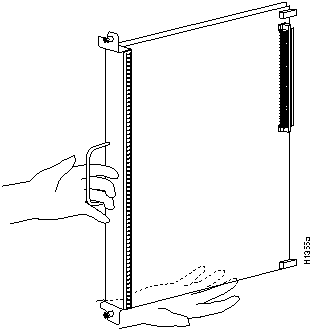
Figure 4 Handling an IP During Installation
After you ensure that all serial interfaces are shut down (if necessary), follow these steps to remove the SIPs from the router and install the replacement FSIPs:
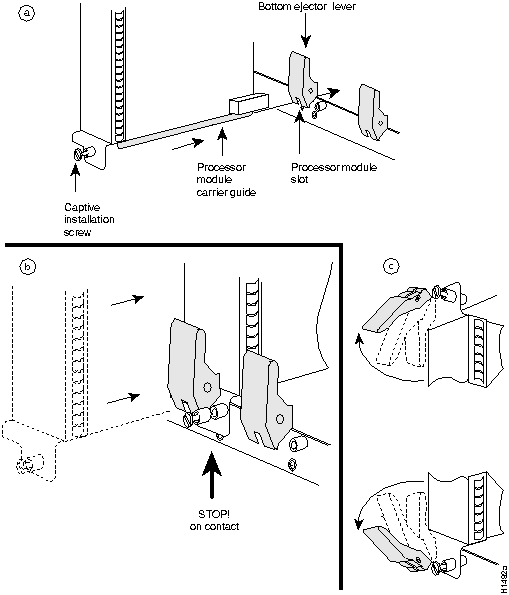
Figure 5 Ejector Levers and Captive Installation Screws


After you install all new FSIPs, restart the router and verify the installation by observing the LED states and the console display. After the system discovers and enables all IPs, the Enabled LED on the FSIPs and on all IPs should light. The console screen will display system startup banner and hardware configuration of the system, which is similar to the show version display output.
If the system software ROMs in your system contain Software Release 9.17(4) or earlier, they will not recognize the FSIP interface; support for the FSIP is provided with 9.17(5) and later software. At system startup, even if the system is configured to boot Software Release 9.17(5) from a Flash file, the system partially boots with the default ROMs before executing its boot instructions. If the ROM software does not recognize the FSIP, it will print one or more messages similar to the following:
%UCODE-3-LDFAIL: Unable to download ucode FSIPn-n in slot 0, installed ucode loaded

must be a SIP serial interface
Booting gs7-k...
This message will be displayed at each subsequent system startup (unless you remove the FSIP or replace the system software ROMs with 9.17(5) or later ROMs), but does not indicate a problem and should be ignored.
Verify that the FSIP is installed correctly as follows:
GS Software (GS7), Version 9.17(5)
Copyright (c) 1986-1993 by cisco Systems, Inc.
Compiled Mon 21-Jun-93 08:37
System Bootstrap, Version 4.6(1) [fc2], SOFTWARE
Current date and time is Wed 10-6-1993 3:27:29
Boot date and time is Sat 8-21-1993 13:54:01
router uptime is 6 weeks, 3 days, 13 hours, 34 minutes
System restarted by power-on
System image file is "gs7-k.917-5.1", booted via flash
RP1 (68040) processor with 16384K bytes of memory.
X.25 software, Version 2.0, NET2 and BFE compliant.
Bridging software.
1 Switch Processor.
1 FSIP controller (4 Serial).
4 Serial network interfaces.
128K bytes of non-volatile configuration memory.
4096K bytes of flash memory on embedded flash (in RP1).
Configuration register is 0x2
If an error message is displayed on the console terminal, refer to the Cisco 7000 Addendum to Router Products Configuration and Reference publication for error message definitions. If you experience other problems that you are unable to solve, contact a customer service representative for assistance.
This completes the FSIP installation. If you installed a new FSIP or if you replaced a four-port FSIP with an eight-port FSIP, you must now configure the new interfaces as described in the following section.
If you replaced a four-port SIP with an eight-port FSIP, or if you want to change the configuration of an existing interface, you must enter the configuration mode. If you installed new FSIP ports in exactly the same slot/port locations as the SIPs you removed (so the slot/port addresses of the serial interfaces did not change from their SIP addresses), you do not need to reconfigure the interfaces. The FSIP should recognize the existing configuration and bring up each serial interface. Otherwise, you will need to reassign new slot/port addresses to some of the interfaces. For a complete description of the Cisco 7000 slot/port numbering scheme and instructions for configuring new interfaces, refer to the accompanying document, Fast Serial Interface Processor (FSIP) Installation and Configuration, (Document Number 78-1147-02).
After you verify that all new FSIPs are installed correctly (the Enabled LED on each goes on and stays on), use the privileged-level configure command to configure new slot and port addresses for the new interfaces. Press the Return key after each configuration step unless otherwise noted.
Router# configure terminal
interface serial 1/0
ip address 145.22.4.67 255.255.255.0
clockrate 72000
no shutdown
Router# write memory
After making all necessary configuration changes, observe the LED states and use the show commands to verify that each interface is up and operational. In addition to observing LEDs and show commands, you can also verify the interface states and network connections with the ping and loopback commands. For instructions and examples of these commands, refer to "Using the Ping and Loopback Commands" on page 34 of the accompanying document, Fast Serial Interface Processor Installation and Configuration Instructions (Document Number 78-1147-02).
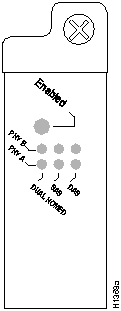
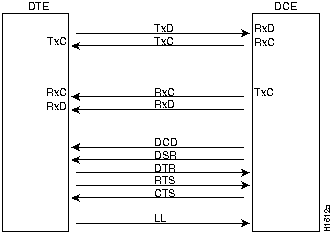
The four LEDs indicate the state of the interface on the adjacent port. The labels on each LED indicate the signal state when the FSIP port is in DTE mode. When the FSIP port is in DCE mode, the direction of the signals is reversed. For example, a DCE device usually generates a clock signal, which it sends to the DTE device. Therefore, when the Receive Clock (RxC) LED on a DTE interface is on, it indicates that the DTE is receiving the clock signal from the DCE device. However, when the RxC LED on a DCE interface is on, it indicates that the DCE is sending a clock signal to the DTE device. Figure 7 shows the signal flow between a DTE and DCE device and the LEDs that correspond to signals for each mode.
Because of limited space on the FSIP faceplate, only DTE mode states are labeled on each port. Table 4 shows the LED states for ports in DTE and DCE mode.
| LED | DTE Signal | DCE Signal |
|---|---|---|
| RxC | Receive clock (from DCE) | (TxC) Transmit clock (to DTE) |
| RxD | Receive data (from DCE) | (TxD) Transmit data (from DTE) |
| TxC | Send timing (from DCE) | (RxC) Receive timing (to DTE) |
| Conn | Connected | Connected |
The Conn (connected) LED is on when the interface is connected to the network. During normal operation, the three other LEDs are on to indicate data and timing signal traffic, or an idle pattern that is commonly sent across the line during idle time.
The following LED state descriptions include the meanings for both DTE and DCE interfaces.
The following steps use show commands to verify that the new interfaces are configured and operating correctly. Refer to the FSIP configuration note, Fast Serial Interface Processor Installation and Configuration, Document No. 78-1147-02, for FSIP-specific command descriptions and examples, or to the appropriate software documentation.
If the interface is down and you configured it as up, or if the displays indicate that the hardware is not functioning properly, ensure that the network interface is properly connected and terminated. If you still have problems bringing the interface up, contact a service representative for assistance.
This completes the configuration procedure for the new FSIP interfaces.
After you install the new FSIPs, you must return the SIPs (and any spares for which you received replacements) within 30 days from the upgrade kit shipment date or you will be invoiced for any outstanding equipment. For each four-port FSIP you receive, you should return one SIP. For each eight-port FSIP you receive, you should return two SIPs. Return the SIPs with all four port adapters in place, and with the SIP serial cables if you received them from Cisco. Also, return all spare SIP port adapters for which you received FSIP port adapter replacements. Cable spares are not included in the no-cost upgrade, so you do not have to return any spare SIP cables.
The SIPs you replaced should already be stored in the shipping containers from the replacement FSIPs. Follow the enclosed shipping instructions to return the equipment to Cisco Systems:
If you have any questions regarding this order, please call:
800-553-6387 (Domestic), 415-903-7208 (Int'l)
Fax 415-903-8700 (Domestic and Int'l)
If you have any questions regarding the return of this order, please call:
Jim Mutnick, Cisco Systems Logistics 415-903-8781
Cisco Logistics Fax 415-903-7550
Table 5 Billing Account Numbers for International Shipments
| Country | Account No. | Courier |
|---|---|---|
| Austria | 950603300 | DHL |
| Australia | 2009992 | DHL |
| Belgium | 950603300 | DHL |
| Canada | 1249-1354-3(1) | Federal Express |
| Denmark | 950603300 | DHL |
| France | 950603300 | DHL |
| Germany | 950603300 | DHL |
| Hong Kong | D1505021 | DHL |
| Indonesia | JKT0159 | DHL |
| Israel | 1249-1354-31 | Federal Express |
| Italy | 950603300 | DHL |
| Luxembourg | 950603300 | DHL |
| Netherlands | 950603300 | DHL |
| Norway | 950603300 | DHL |
| South Africa | 950603300 | DHL |
| Sweden | 950603300 | DHL |
| Switzerland | 950603300 | DHL |
| United Kingdom | 950603300 | DHL |
This section provides lists of related documents that are referenced in this document, and information for obtaining technical assistance if necessary.
Table 6 lists the related publications that are referenced in this document. Contact a customer service representative for ordering information.
| Part No. | Title |
|---|---|
| 83-0096-01 | Cisco 7000 Hardware Installation and Maintenance (DOC-7000IM2) |
| 83-0039-01 | Router Products Configuration and Reference, Software Release 9.1 (Order No. DOC-R9.1) |
| 78-1195-02 | Router Products Configuration and Reference Addendum |
| 78-1144-05 | Upgrading Software and Microcode in Cisco 7000 Series Routers |
| 78-1112-07 | Router Products Release Notes for Software Release 9.17(5) |
| 78-1147-02 | Fast Serial Interface Processor (FSIP) Installation and Configuration |


|
Copyright 1988-1995 © Cisco Systems Inc.
