
Table of Contents
Upgrading Memory in the Cisco 4000 Series
Upgrading Memory in the Cisco 4000 Series
Cisco Product Numbers MEM-NP4S= and MEM-NP16M=, MEM-NP4M-M=, MEM-NP8M-M=, MEM-NP16M-M=, MEM-NP32M-M, and =MEM-NP8F-M
This publication describes upgrade and replacement procedures for the main, shared, and Flash memory for the memoryenhanced Cisco 4000 (Cisco 4000-M) and the main and shared memory for the original Cisco 4000. Read this entire publication before upgrading your system. This publication contains the following sections which step you through the upgrade procedures:
Figure 1 shows the front panel of the Cisco 4000-M. The Cisco 4000-M front panel reads Cisco 4000 Series; the original Cisco 4000 front panel reads Cisco 4000. In addition, the Cisco 4000M rear label reads Cisco 4000-M.
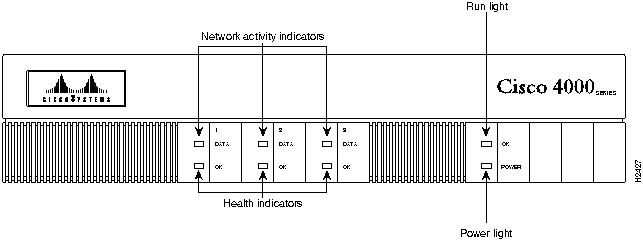
Figure 1 Memory-Enhanced Cisco 4000 Series Router (Cisco 4000M)---Front View
Table 1 lists comparisons of the original Cisco 4000 and the Cisco 4000M.
Table 1 Comparison of Cisco 4000 Series Routers
| Main Memory (CPULocal DRAM)(1) |
4, 8, 16, 32 MB |
4 or 16 MB |
| Flash Memory |
4 or 8 MB |
2 or 4 MB |
| Shared Memory |
4 MB |
1 or 4 MB |
- (1)
- CPUCentral Processing Unit. DRAMDynamic random access memory.

Warning To ensure your safety and the safety of others, before working on the router, be sure the power is OFF and the power cord unplugged.
 Caution To avoid damaging ESD-sensitive components, before opening the chassis, be sure you have discharged all static electricity from your body. Before performing procedures described in this publication, review the following sections: "Safety Recommendations" and "Safety with Electricity."
Follow these guidelines to ensure general safety:
- Keep the chassis area clear and dust-free during and after installation.
- Put the removed chassis cover in a safe place. Keep tools away from walk areas where you or others could be hurt by them.
- Do not wear loose clothing that could get caught in the chassis. Fasten your tie or scarf and roll up your sleeves.
- Wear safety glasses when working under any conditions that might be hazardous to your eyes.
- Do not perform any action that creates a potential hazard to people or makes the equipment unsafe.

Warning Before working on equipment that is connected to power lines, remove jewelry (including rings, necklaces, and watches). Metal objects will heat up when connected to power and ground and can cause serious burns or can weld to the terminals.
Follow these guidelines when working on equipment powered by electricity:
- Locate the emergency power-off switch in the room in which you are working. Then, if an electrical accident occurs, you can act quickly to shut the power OFF.
- Before working on the system, turn OFF the power and unplug the power cord.
- Disconnect all power before doing the following:
- Installing or removing a chassis
- Working near power supplies
- Performing a software upgrade
- Never assume that power is disconnected from a circuit. Always check.
- Do not work alone if potentially hazardous conditions exist.
- Look carefully for possible hazards in your work area, such as moist floors, ungrounded power extension cables, and missing safety grounds.
- If an electrical accident occurs, proceed as follows:
- Use caution; do not become a victim yourself.
- Turn OFF power to the system.
- If possible, send another person to get medical aid. Otherwise, assess the victim's condition and then call for help.
- Determine if the person needs rescue breathing or external cardiac compressions; then take appropriate action.
Electrostatic discharge (ESD) can damage equipment and impair electrical circuitry. It occurs when electronic printed circuit cards are improperly handled and can result in complete or intermittent failures.
Always follow ESD prevention procedures when removing and replacing cards. Ensure that the chassis is electrically connected to earth ground. Wear an ESDpreventive wrist strap, ensuring that it makes good skin contact. Connect the clip to an unpainted chassis frame surface to safely channel unwanted ESD voltages to ground. To properly guard against ESD damage and shocks, the wrist strap and cord must operate effectively.
If no wrist strap is available, ground yourself by touching the metal part of the chassis.
The following tools are required for the Flash EPROM card removal and upgrade procedures:
- ESD cord and wrist strap
- Screwdrivers, Number 1 and Number 2 Phillips
The Cisco 4000 contains two DRAM memory systems. One is the shared memory, which is the interface that the network processor modules deposit data to or transmit data from, and the second is the primary or main memory, which is reserved for the CPU. This publication describes the procedure for upgrading both memory systems.

Caution To avoid damaging ESD-sensitive components, observe all ESD precautions. To avoid damaging the underlying system card, avoid excessive force when removing or replacing SIMMs.
The Cisco 4000 main memory upgrade requires replacing the main memory configuration of 4 MB (four 1 MB SIMMs) with 16 MB of memory (four 4 MB SIMMs). The shared memory upgrade requires replacing the shared memory configuration of 1 MB (four 256 KB SIMMs) with 4 MB of memory (four 1 MB SIMMs). When replacing your DRAM SIMMs, you must fully populate all the SIMM sockets.
The Cisco 4000M main memory upgrade requires replacing the main memory configuration of 4 MB (one 4 MB SIMM) with 8, 16, or 32 MB of memory (one 8, 16, or 32 MB SIMM). The shared memory replacement calls for you to replace the shared memory configuration of one 4 MB SIMM with another 4 MB SIMM, if necessary. The Flash memory upgrade calls for you to replace the Flash memory configuration of 4 MB (one 4 MB SIMM) with 8 MB of Flash memory (two 4 MB SIMMs).
To access the network processor modules, you must remove the component tray.

Warning Hazardous voltages may exist in or near the power supply, so use extreme caution when working near the power supply. Before starting any of these procedures, turn OFF power to the system, unplug the power cord, disconnect any cables at the ports, and connect your ESDpreventive wrist strap.
Follow these steps to remove the component tray:
- Step 1 Turn OFF the system power.
- Step 2 Slip on your ESD-preventive wrist strap.
- Step 3 Remove all network and power cables.
- Step 4 Loosen the (nonremovable) screw in the back of the chassis, labeled Chassis release screw in Figure 2.
- Step 5 Slide the component tray out of the chassis shell while facing the chassis rear panel, pulling the handle on the right side of the chassis until the safety latch catches. (See Figure 2.)
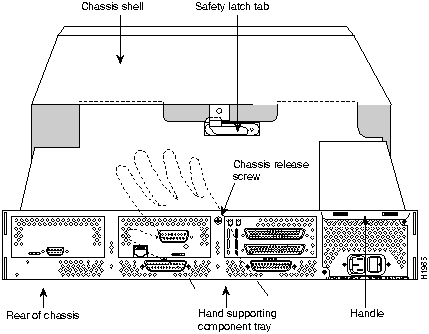
Figure 2 Supporting the Component Tray During Removal

Warning Before releasing the safety latch, support the component tray from underneath, either on your work surface or with your hands, to prevent it from falling. (See Figure 2.)
- Step 6 While supporting the component tray with one hand, push down on the safety latch tab while pulling out on the component tray.
- Step 7 Set the component tray on your work surface.
Proceed to the section "Removing Network Processor Modules."

Caution Some network processor modules are mounted to the rear of the chassis with two external screws. On modules with external rear mounting screws, which include multimode FDDI modules, these screws must be removed before the module can be safely lifted out of the chassis or damage to the module will occur.
Note Other types of modules may not have the two external rear mounting screws attached to the chassis.
Perform the following steps to remove a network processor module:
- Step 1 With the component tray in front of you (as shown in Figure 3), remove the module mounting screw from the top end of the network processor module and the two external rear mounting screws if the module has them, and set the screws aside.

Figure 3 Cisco 4000 Series Component Tray---Cisco 4000 Shown
- Step 2 To lift the module out of its connector after removing the mounting screws, grasp the network processor module handle and pull straight up. (See Figure 4.)
 Caution Do not wiggle the handle when handling the network processor module, and do not exert any side-to-side pressure, because the handle might work loose and damage the network processor module.
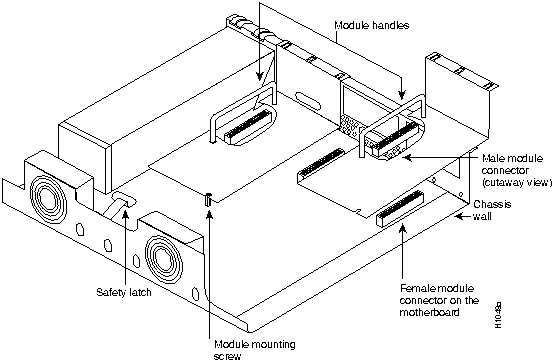
Figure 4 Network Processor Module Locations
- Step 3 Place the removed module on an ESD mat.
 Caution If any of the network processor modules have daughter cards projecting at right angles to the module (see Figure 5), be careful not to cause the module to bow during installation; the daughter cards can become disconnected. If this happens, carefully reseat the daughter card connectors by handling the card by its edges without touching any of the components on the card.
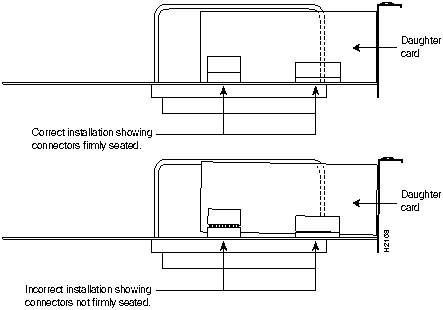
Figure 5 Network Processor Module Daughter Card Connections
If you are upgrading main memory SIMMs in the Cisco 4000, proceed to the section "Removing the Flash EPROM Memory Card in the Cisco 4000."
If you are upgrading main memory SIMMs in the Cisco 4000M, proceed to the section "Removing Main Memory SIMMS."
The Cisco 4000 contains Flash memory on a separate daughter card; the Cisco 4000-M does not. In order to remove or install main memory SIMMs in the Cisco 4000, the Flash EPROM card must first be removed. Follow these steps to remove the Flash EPROM card. (See Figure 6.)
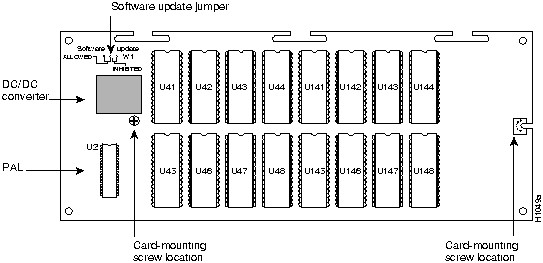
Figure 6 Flash EPROM Card
- Step 1 Start with the component tray in front of you as in Figure 3. Remove the two card mounting screws from the top of the Flash EPROM card and set the screws aside.
 Caution To prevent damage to the Flash EPROM card, handle it only by the sides.
- Step 2 Holding the Flash EPROM card by its edges, pull straight up to lift the card out of its connector. (See Figure 7.) The main memory SIMMs will now be exposed.

Figure 7 Flash EPROM Card and Connector---Side View
Proceed to the section "Removing Main Memory SIMMS."
Follow these steps to remove main memory SIMMs:
- Step 1 On the motherboard, locate the main memory SIMM sockets shown in the upper right corner of Figure 8 (original Cisco 4000) and Figure 10 (Cisco 4000M). All the sockets should contain SIMMs (as shown in Figure 8 and Figure 10).
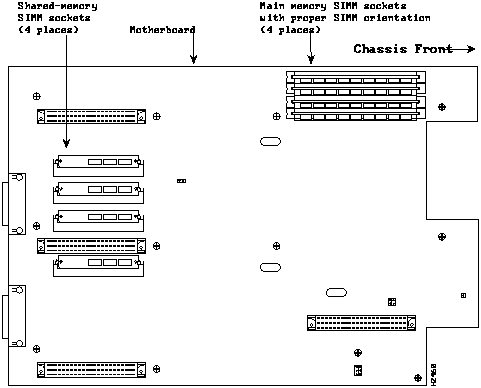
Figure 8 Original Cisco 4000 SIMM Locations
Figure 9 and Figure 11 show the polarization notch and locations of the alignment holes on a main memory SIMM. The main memory SIMMs are installed with the connector edge down and the component side facing in relative to the edge of the motherboard, as shown in Figure 8 and Figure 10.
.
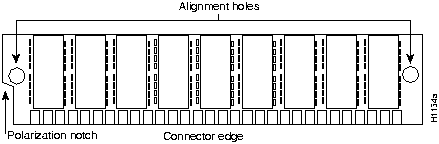
Figure 9 Original Cisco 4000 Main Memory SIMM
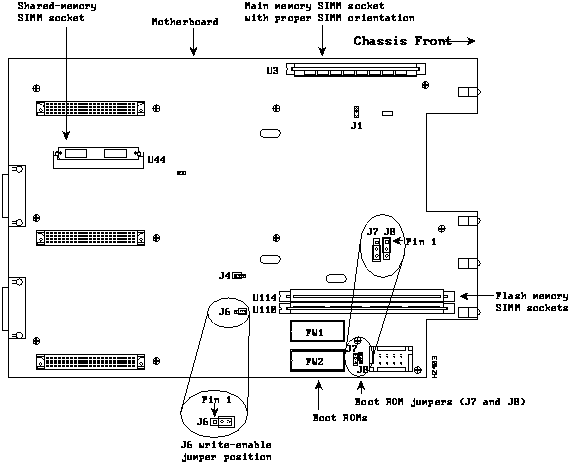
Figure 10 Cisco 4000M SIMM Locations
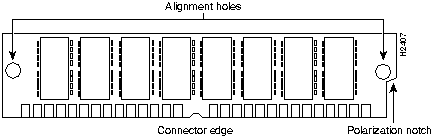
Figure 11 Cisco 4000M Main Memory SIMM

Caution Handle SIMMs by the edges only. SIMMs are ESD-sensitive components and can be damaged by mishandling.
- Step 2 Remove one SIMM at a time, beginning with the SIMM farthest from the edge of the motherboard. (The Cisco 4000M has only one main memory SIMM.)
- Step 3 To lift the SIMM out of its socket, pull the locking spring clips on both sides outward and tilt the SIMM free of the clips. (See Figure 12.)
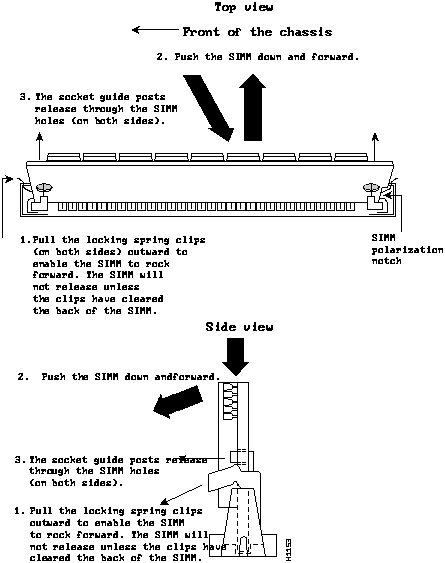
Figure 12 Removing Main Memory SIMMs
- Step 4 Hold the SIMM by the edges with your thumb and index finger and lift it out of the socket. Place the removed SIMM in an antistatic bag to protect it from ESD damage.
- Step 5 Repeat steps 2 through 4 for each main memory SIMM.
Proceed to the section, "Inserting Main Memory SIMMs."
Follow this procedure to install main memory SIMMs.
- Step 1 On the motherboard, locate the main memory SIMM sockets shown in the upper right corner of Figure 8 and Figure 10. All the sockets should be empty. If not, follow the steps in the section, "Removing Main Memory SIMMS."
 Caution Handle SIMMs by the edges only. SIMMs are ESD-sensitive components and can be damaged by mishandling.
- Step 2 SIMMs are manufactured with a polarization notch to prevent them from being installed backwards. Hold the SIMM with the polarization notch on the right and the component side away from you with the connector edge at the bottom. (See Figure 8 and Figure 10.)
- Step 3 Beginning with the SIMM nearest the edge of the motherboard on the Cisco 4000, insert the main memory SIMM at a 45-degree angle and rock it into its vertical position. (See Figure 13.) When the SIMM is properly seated, the socket guide posts will insert through the alignment holes, and the connector springs will click into place. Use the minimum amount of force required.
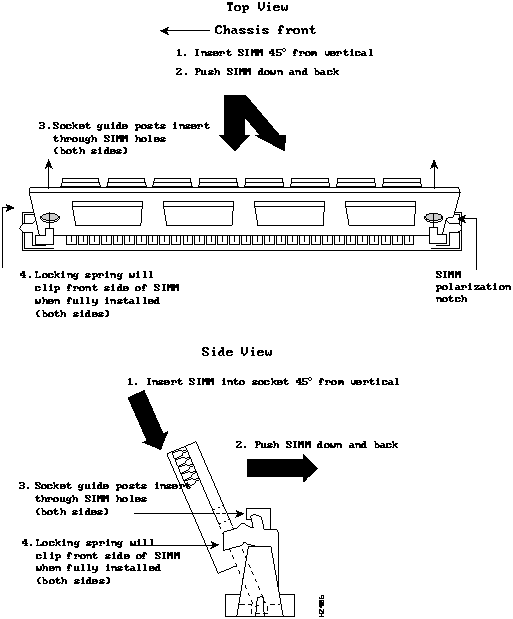
Figure 13 Installing Main Memory SIMMs in the Cisco 4000-M

Caution You will feel some resistance, but do not use excessive force on the SIMM and do not touch the surface components to avoid damaging them.
- Step 4 Check the alignment of each SIMM to make sure that it is straight and that the alignment holes are lined up with the plastic tabs on the socket. (See Figure 13.)
- Step 5 Repeat steps 2 through 4 for each main memory SIMM.
When finished with the router upgrade, proceed to the section "Reinstalling the Flash EPROM Card" or "Replacing Network Processor Modules."
If you are upgrading shared memory, proceed to the section "Removing Shared Memory SIMMs."
Follow this procedure if you are replacing the shared memory SIMMs.
- Step 1 Unplug the chassis power cord and network connections.
- Step 2 Slip on an ESD-preventive wrist strap and ensure that it makes good contact with your skin. Connect the equipment end of the wrist strap to the metal back plate of the chassis, avoiding contact with the connectors.
- Step 3 Remove the chassis cover as described in "Removing the Component Tray."
- Step 4 Remove all the installed network processor modules as described in "Removing Network Processor Modules." Safely store them for later reinstallation.
- Step 5 On the motherboard, locate the shared memory SIMM sockets (four on the Cisco 4000 or one on the Cisco 4000M) shown on the left of the motherboard. (See Figure 8 and Figure 10.) All the sockets should contain a SIMM.
- Step 6 Turn the chassis so that the chassis rear is closest to you.
- Step 7 The SIMMs are held in place at each end by a small metal spring clasps. To remove a shared memory SIMM, push the two metal clasps apart. Angle the SIMM upward and pull it out.
 Caution Do not exert pressure on the components on the SIMM surface because it might get damaged. The sides of the SIMM must clear the metal clasps before the SIMM can be safely removed.
- Step 8 Place the removed SIMM in an antistatic bag to protect it from ESD damage.
- Step 9 Repeat steps 7 through 8 for each SIMM.
Proceed to the section "Inserting Shared Memory SIMMs."
Follow this procedure to install shared memory SIMMs.
- Step 1 Unplug the chassis power cord.
- Step 2 Slip on an ESD-preventive wrist strap, ensuring that it makes good skin contact. Connect the equipment end of the wrist strap to the metal back plate of the chassis, avoiding contact with the connectors.
- Step 3 Remove the chassis cover as described in "Removing the Component Tray."
- Step 4 On the left of the motherboard, locate the shared memory SIMM socket locations. (See Figure 8 and Figure 10.) All the sockets should be empty. If not, remove the shared memory SIMMs following the procedures in the section "Removing Shared Memory SIMMs."
- Step 5 Turn the chassis so that the side with the shared memory SIMMs is closest to you.
 Caution Handle SIMMs by the edges only. SIMMs are sensitive components and can be shorted by mishandling.
- Step 6 SIMMs are manufactured with a polarization notch to prevent them from being installed backwards. Hold the SIMM with the connector edge at the bottom, the component side facing you, and the polarization notch on the left, as in Figure 14.
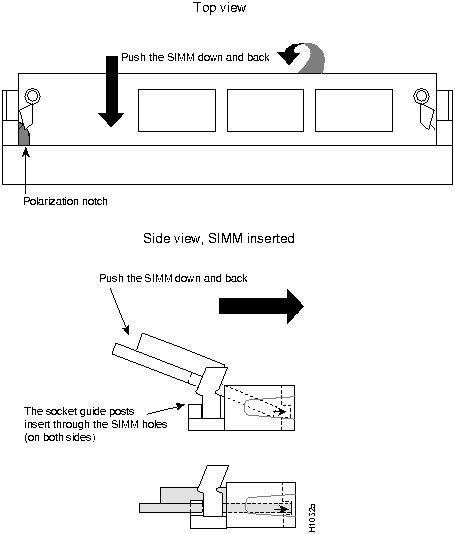
Figure 14 Inserting Shared Memory SIMMs in the Cisco 4000 Series
- Step 7 To insert a SIMM, angle it into position, then carefully push down and back on the edges, holding each edge so that it securely snaps in place. (See Figure 14.) When it snaps into place, the two metal holders clip over the edge of the SIMM, and it sits horizontally.
 Caution SIMMs can be damaged by rough handling or ESD. Also avoid damaging the SIMM socket.
- Step 8 Check that the SIMM is straight and that the holes are aligned with the plastic tabs on the socket. (See Figure 14.)
Follow these steps to add Flash memory SIMMs in the Cisco 4000M while referring to Figure 10 and Figure 15.
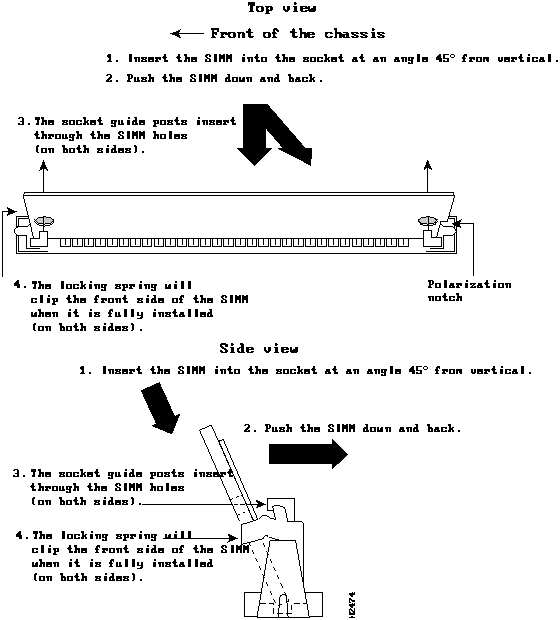
Figure 15 Inserting Flash Memory SIMMs in the Cisco 4000-M
Note The upgrade of Flash memory to 4 MB is accomplished by adding a second 2 MB SIMM to the empty Flash memory socket.
- Step 1 On the motherboard, locate the Flash memory SIMM sockets shown in the lower right corner of Figure 10 (Cisco 4000M).
 Caution Handle SIMMs by the edges only. SIMMs are ESD-sensitive components and can be damaged by mishandling.
- Step 2 SIMMs are manufactured with a polarization notch to prevent them from being installed backwards. Hold the SIMM with the polarization notch on the right and the component side away from you with the connector edge at the bottom.
- Step 3 Using Figure 15 as a guide, insert the Flash memory SIMM at a 45-degree angle and rock it into its vertical position in socket location U114. (See Figure 10.) When the SIMM is properly seated, the socket guide posts will insert through the alignment holes, and the connector springs will click into place. Use the minimum amount of force required.
 Caution You will feel some resistance, but do not use excessive force on the SIMM and do not touch the surface components to avoid damaging them.
- Step 4 Check the alignment of each SIMM to make sure that it is straight and that the alignment holes are lined up with the plastic tabs on the socket.
If you are finished with all memory upgrade procedures, proceed to the section "Replacing the Component Tray."
Follow these steps to reinstall the Flash EPROM card in the Cisco 4000:
- Step 1 Line up the Flash EPROM card with the 96-pin connector and screw holes. (See Figure 7.)
- Step 2 Insert the Flash EPROM card into the 96-pin connector, being careful not to bend the pins.
- Step 3 Reinstall the two card-mounting screws.
 Caution Do not overtorque the screw. The card or the underlying motherboard could be damaged. The maximum screw torque is 7 inch-lb.
Follow these steps to replace a network processor module:
- Step 1 Hold the network processor module by its handle, align it with the grooves in the chassis (not shown) and over its connector, and push the network processor module lightly against the chassis wall. (See Figure 5.)
- Step 2 Gently, without bending the connector pins, push the network processor module into place, inserting the male network processor module connector into the female network processor module connector on the motherboard.
- Step 3 Replace the module mounting screw in its place on the end of the network processor module. (See Figure 2.)
- Step 4 If the module requires external rear mounting screws to attach to the chassis rear, replace the screws at this time.
 Caution Do not overtorque the screw. The network processor module or the underlying motherboard could be damaged. The maximum screw torque is 7 inch-lb.
Follow these steps to replace the component tray in the chassis shell:
- Step 1 Reinsert the component tray into the shell.
- Step 2 Push on the back of the tray while at the same time pressing on the chassis release screw (as shown in Figure 2) with the thumb of your right hand.
- Step 3 Retighten the chassis release screw.
Follow this procedure to make the final connections to the router:
- Step 1 Plug the system power cord into a 3-terminal, single-phase power source that provides power within the accepted range (100 to 240 VAC, 50 to 60 Hz).
- Step 2 Turn ON the system power switch. The LED on the front marked Power should go ON. (See Figure 1.)
- Step 3 Check the OK light located on the right side of the front panel (see Figure 1) to verify that it goes ON after a few seconds delay when booting.
- Step 4 For further information on software configuration, refer to the router software publications.
This completes Upgrading Memory in the Cisco 4000 Series.
.


Copyright 1988-1995
©
Cisco Systems Inc.



