Table of Contents
Upgrading Cisco 2000 Memory
Upgrading Cisco 2000 Memory
Cisco Product Number MEM-2C4M=
This publication provides the procedures for installing the Cisco 2000 memory upgrade kit. The kit provides an additional 3 megabytes (MB) of memory in the Cisco 2000 router by the replacement of dynamic random-access memory (DRAM) single in-line memory modules (SIMMs).
This publication contains the following sections:
Warning To ensure your safety, be sure the power is off and the power cord disconnected before opening the chassis.
 Caution To avoid damaging ESD-sensitive components, be sure you have discharged all static electricity from your body before opening the chassis.
Before performing procedures described in this publication, review the following sections in this publication: "Safety Recommendations," "Safety with Electricity," and "Tools and Equipment Required."
Follow these guidelines to ensure general safety:
- Keep the chassis area clear and dust-free during and after installation.
- Put removed chassis covers in a safe place. Keep tools away from walk areas where you or others could trip over them.
- Do not wear loose clothing that could get caught in the chassis. Fasten your tie or scarf and sleeves.
- Wear safety glasses when working under any conditions that might be hazardous to your eyes.
- Do not perform any action that creates a potential hazard to people or makes the equipment unsafe.

Warning Before working on equipment that is connected to power lines, remove jewelry (including rings, necklaces, and watches). Metal objects will heat up when connected to power and ground and can cause serious burns or can weld to the terminals.
Follow these guidelines when working on equipment powered by electricity:
- Locate the emergency power-off switch in the room in which you are working. Then, if an electrical accident occurs, you can act quickly to shut the power off.
- Before working on the system, turn off the power and unplug the power cord.
- Disconnect all power before doing the following:
- Installing or removing a chassis
- Working near power supplies
- Performing a software upgrade
- Never assume that power has been disconnected from a circuit. Always check.
- Do not work alone when potentially hazardous conditions exist.
- Look carefully for possible hazards in your work area, such as moist floors, ungrounded power extension cables, and missing safety grounds.
- If an electrical accident occurs, proceed as follows:
- Use caution; do not become a victim yourself.
- Turn off power to the system.
- If possible, send another person to get medical aid. Otherwise, assess the victim's condition and then call for help.
- Determine if the person needs rescue breathing and/or external cardiac compressions; then take appropriate action.
Electrostatic discharge (ESD) can damage equipment and impair electrical circuitry. ESD damage occurs when electronic printed circuit cards are improperly handled and can result in complete or intermittent failures.
Always follow ESD prevention procedures when removing and replacing cards. Ensure that the chassis is electrically connected to earth ground. Wear an ESD wrist strap, ensuring that it makes good skin contact. Connect the clip to an unpainted chassis frame surface to safely channel unwanted ESD voltages to ground. To properly guard against ESD damage and shocks, the wrist strap and cord must operate effectively.
If no wrist strap is available, ground yourself by touching the metal part of the chassis.
You need the following tools and equipment to upgrade your system's memory.
- ESD cord and wrist strap
- No. 1 Phillips screwdriver
- Antistatic mat or antistatic foam
- Cisco 2000 memory upgrade kit, consisting of four new DRAM SIMMs
This section outlines the steps required to open the Cisco 2000 chassis. In the following discussion, it is assumed that you are looking at the chassis from the front. Use Figure 2 as a guide when removing the cover and power supply tray.

Caution To avoid damaging ESD-sensitive components, before opening the chassis be sure you have discharged all the static electricity from your body, as discussed in the section, "Preventing Electrostatic Discharge Damage."
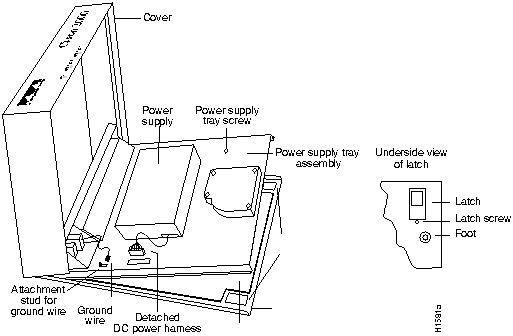
Figure 1 Internal View of Cisco 2000
To remove the chassis cover, follow these steps.
- Step 1 Turn off the unit and unplug it.
- Step 2 Remove all cables from the back of the chassis (including the power cable) to ensure that the unit is not powered on and to ensure that the cover will not get caught on the cables.
 Caution Avoid damaging any cables as you remove the cover.
- Step 3 Turn the unit up so that the back of the chassis is resting on a surface and the underside of the chassis is facing you, taking care not to damage the Ethernet or serial connectors.
- Step 4 Remove the latch screw behind the latch on the right side of the underside of the chassis. The latch will not open until this screw is removed.
- Step 5 Put the unit back down with the LEDs facing you.
- Step 6 Place your fingers inside the two front latches on the underside of the chassis and push the latches away from you until they snap open.
- Step 7 Lift the chassis cover from the front edge where the LEDs are located. The chassis cover will tilt up from the front toward the back. If you feel excessive resistance when opening the unit, one of the latches might still be closed. Push back on the latches again.
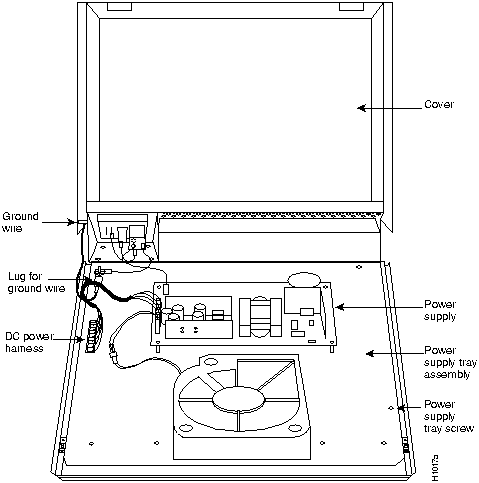
Figure 2 Cisco 2000 Tray Assembly
- Step 8 Remove the ground wire (green with yellow stripes) connecting the left hinge post on the cover with the main ground stud, as shown in Figure 2. The ground wire is attached to the main ground stud with a FASTON lug, so the wire can be slipped off easily.
- Step 9 Remove the chassis cover the rest of the way by pulling it up and forward so that the hinge posts come free from the notches in the bottom tray.
- Step 10 Set the cover aside.
To access the Cisco 2000 system card, you must remove the power supply tray assembly as follows.
- Step 1 Locate the DC power harness on the far left edge of the power supply tray assembly. (See Figure 2.) Detach the DC power harness from the system card under the power supply tray assembly using the pull tab provided.
 Caution If you lift the power supply tray assembly without first removing the power supply harness, you might damage the cable that provides all power to the system card.
- Step 2 Remove the power supply tray screw.
Note The power supply tray screw that holds down the power supply tray assembly is not obvious. This screw must be removed before the power supply tray assembly can be removed.
- Step 3 Place your fingers underneath the front edge of the power supply tray assembly and pull the edge up. The latches holding the power supply tray assembly will release.
- Step 4 Slide the power supply tray assembly toward you, lift it off the base, and remove it. The system card is now exposed. You do not need to remove the system card from the base of the chassis.
- Step 5 Set the power supply tray assembly onto your work surface.
The Cisco 2000 contains primary and secondary memory. Primary and secondary memory size, in kilobytes, is shown in the system banner on the console screen. Primary memory is implemented with DRAM SIMMs. Secondary memory, used for packet buffering, consists of a fixed 512 kilobytes (KB).
Upon boot, the system banner will display the amount of system memory. The following example shows a system with 512 KB of primary memory and 512 KB of secondary memory.
System Bootstrap, Version 4.6(4.3), SOFTWARE
Copyright (c) 1986-1994 by cisco Systems
IGS processor with 1024 Kbytes of memory
>
Primary memory may need to be expanded when you use very large routing tables or many protocols. This might be necessary with configurations in which the Cisco 2000 is set up as a connection device between large external networks and your internal network.
The standard primary memory configuration of the Cisco 2000 is 1 MB of 32-bit-wide DRAM. The Cisco 2000 can be upgraded to 4 MB of 32-bit-wide DRAM by replacing the system's four 1 MB x 9 SIMMs. For 4 MB configurations, substitute four 1 MB x 9 SIMMs.
Memory upgrade kits for the Cisco 2000 from Cisco Systems include four new 1 MB x 9 SIMMs.
Table 1 lists Cisco-approved, 1 MB x 9, 80-nanosecond SIMM vendors.
Table 1 Cisco-Approved, 1 MB x 9, 80-Nanosecond DRAM SIMMs
| Motorola |
MCM91000S-80 |
| Toshiba |
THM91000AS-80 |
| Texas Instruments |
TM024EAD9-80L |
| Mitsubishi |
MH1M09A0JA-80 |
Note If you are upgrading primary memory with SIMMs purchased from vendors other than Cisco, be sure to use 80-nanosecond memory components from the vendors listed in Table 1.
You can upgrade your Cisco 2000 from the standard 1 MB of primary memory to 4 MB by using the Cisco memory upgrade kit as follows.
- Step 1 Turn OFF the unit, and unplug it.
- Step 2 Open the cover and remove the tray according to the procedures in the section "Cover and Tray Removal Procedures."
- Step 3 Locate the DRAM SIMMs by using Figure 3 and Figure 4.
Note There are two basic types of Cisco 2000 system cards: model 2202 (Token Ring), which contains Flash EPROMs, and model 2102 (Ethernet), which contains PLCC SIMMs. The DRAM upgrade procedures are the same for both types.
Figure 3 illustrates the model 2102 system card layout. The card is oriented with the front panel LEDs at the bottom of the illustration. Refer to this figure to locate the DRAM SIMMs on the system card.
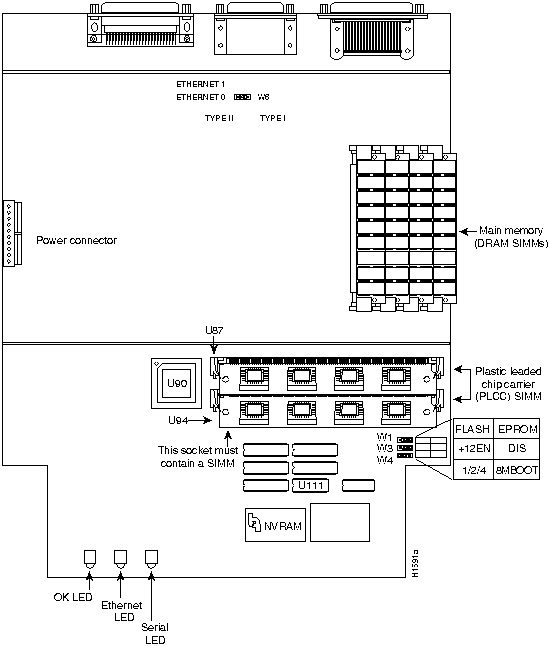
Figure 3 Cisco 2000 with Ethernet and Serial Ports System Card Layout
Figure 4 illustrates the model 2202 card layout. The card is oriented with the front panel LEDs at the bottom of the illustration. Refer to this figure to locate the DRAM SIMMs on the system card.
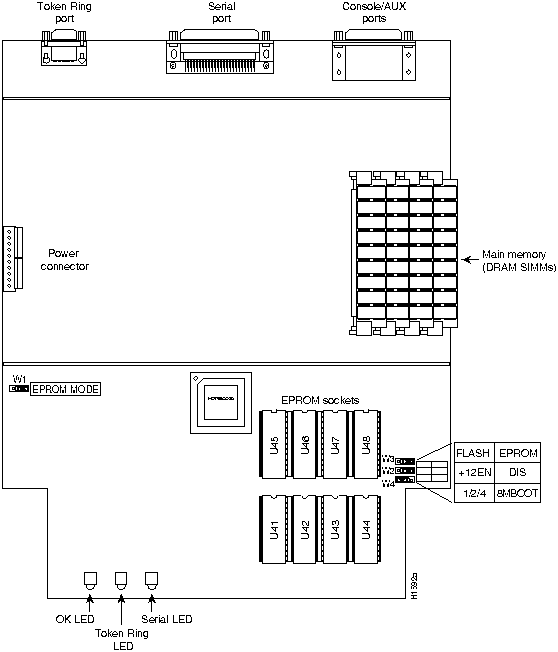
Figure 4 Cisco 2000 with Token Ring and Serial Ports System Card Layout
- Step 4 Remove the existing SIMMs by pulling outward on the connectors to unlatch them, as shown in Figure 5. Be careful not to break the holders on the SIMM connector.
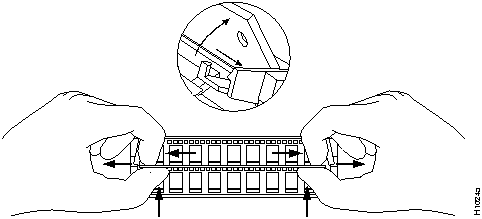
Figure 5 Removing a SIMM from the SIMM Connector Socket
- Step 5 Insert each new 1 MB x 9 SIMM into an open connector, sliding the end with the metal fingers straight down into the SIMM connector socket, at an angle perpendicular to the card. Gently rock the SIMM back toward the SIMMs already installed and snap into place, as shown in Figure 6. Do not use excessive force, or the connector could break.
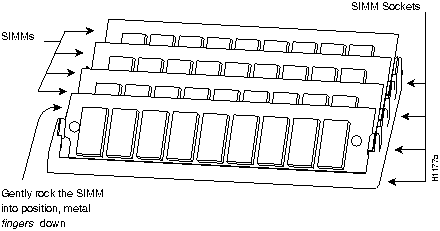
Figure 6 Inserting a SIMM into the SIMM Connector
- Step 6 Repeat step 5 for each new SIMM card.
- Step 7 After installing the memory upgrade, proceed to the section "Replacing the Chassis Cover and Tray."
After you have performed the memory upgrade for your system, replace the cover and component tray by following these steps while referring to Figure 1 and Figure 2:
- Step 1 Replace the metal tray on the chassis.
- Step 2 Replace the ground wire.
- Step 3 Replace the DC power harness, taking care not to pinch the DC power harness.
- Step 4 Replace the chassis cover.
- Step 5 Replace the screw that holds the cover down.
- Step 6 Replace the latch screw.
- Step 7 Replace the chassis cables.
Note The power cable is designed so that if it is installed backwards or offset, +5V is shorted to ground. This enables the protective circuitry on the power supply to protect the system card from reversed voltage. If this happens, you will hear a quiet clicking from the power supply, but you will not hear other noises, such as the fan, and no LEDs will light.
To test the SIMM upgrade installation, perform the following:
- Step 1 Connect the Cisco 2000 to a console terminal.
- Step 2 Turn ON the power. If you get an error message relating to memory, repeat steps 1 through 8 of the section "Upgrading to 4 MB of Primary Memory," taking care to firmly seat the SIMMs in their sockets.
This completes the Cisco 2000 memory upgrade procedures.

Copyright 1988-1995
©
Cisco Systems Inc.



