


|
|

Initial (First Time) Installation
extract_unbundled
Program
This chapter is a guide to performing an initial (first time) installation of StrataView Plus and associated software programs. There are two methods for installing StrataView Plus:
Most initial installations of StrataView Plus will be preformed using the instructions in Installing StrataView Plus Automatically. The main reason for doing a manual installation is if you need to set up a different raw partition size for Informix. If you need to install StrataView Plus manually, refer to Installing StrataView Plus Manually.
Installing StrataView Plus Automatically
An initial installation of StrataView Plus includes the partitioning of the second disk, setting up Informix and StrataView Plus user and group accounts on the operating system disk, and the installation of Motif, Informix, WingZ, and the StrataView Plus application that includes FrameViewer. These activities are performed by using the automatic StrataView Plus Installer program (SPI). Following that, the On-Line Help files are loaded, and the StrataView Plus workstation to BPX/IPX interface is configured for either an RS-232 or LAN connection.
Prerequisites
You will need the following items to complete the automatic installation using the SPI:
Procedure
Proceed as follows to perform an automatic initial (first time) installation of StrataView Plus:
Enter media drive location [local | remote]: l
Enter Device Name (e.g. rst0, rmt0, rfd0c) : /dev/rst0   {you type st0 for /dev/rst0}
**Please mount the release media if you haven't done so already.**
Press return when ready:
The following product will be installed:
2+0 records in
2+0 records out


                    StrataView Plus 8.2


    Copyright (c) 1995 StrataCom, Inc. All rights reserved.

This software product is copyrighted and all rights are reserved by
StrataCom, Inc. StrataCom, Inc. reserves the right to make periodic
modifications to this product without obligation to notify any person
or entity of such revision. Copying, duplicating, selling, or otherwise
distributing any part of this product without the prior written consent
of an authorized representative of StrataCom, Inc. are prohibited.

StrataCom, IPX, and FastPacket are registered trademarks and
StrataView Plus is a trademark of StrataCom, Inc.


Do you want to continue [y|n]? y


*** Starting main driver script at Wed Dec 28 13:45:15 PDT 1994. ***
*******************************************************************************
*                Welcome to the StrataView Plus Installer!                    *
*           This program will install StrataView Plus software                *
*                             on your workstation.                            *
*                                                                             *
*              Copyright (c) 1994 StrataCom, Inc. All rights reserved.        *
*                                                                             *
*******************************************************************************


*************************************************
****** Running pre-checks for main driver. ******
*************************************************
*** Checking basic setup. ***
Checking that user is root.
Checking core script files
*** Determining type of installation. ***
>> This installer will automatically perform the configuration necessary
>> for StrataView Plus. If you have special configuration needs, you can
>> just load the StrataView Plus files from tape and perform the rest of
>> the configuration manually.
>>

>> What type of installation do you want? [auto|manual] a
The rest of the script is not shown here as the messages and choices are spelled out in detail on the screen by the SPI. For a sample script of an actual installation, refer to Appendix A.
*** Running post-checks. ***
*** Finished installing StrataView Plus software package. ***

**************************************************
****** Running post-checks for main driver. ******
**************************************************
Installation was successful!
>> For the installation to take effect, your system must be rebooted.
>> The installer can do this for you now, or you can do it yourself later.

>>
>> Do you want to reboot now? [yes|no] y

*** Exiting main driver at Wed Sep 28 15:03:46 PDT 1994. ***
Rebooting system.
jaguar#
Installing StrataView Plus Manually
The automatic installation procedure may not be appropriate if your raw partitioning is different from what SPI uses for the default (partition
rsd0h
). Follow the procedures in Sections , , and install StrataView Plus manually.
Prerequisites
You will need the following items to complete the manual installation:
Prior to the installation of StrataView Plus, Motif must be installed. Most of the information in this section is referred to in the DECwindows Motif for the Sun SPARCstation Installation Guide.
mkdir /usr/users/motif <RETURN>
cd /usr/users/motif <RETURN>
tar xvpf /dev/nrst0 <RETURN>
tar xvpf /dev/rst0 <RETURN>
if you have a rewinding tape drive
DECW_MOTIF_INSTALL <RETURN>
<RETURN>
<RETURN>
y <RETURN>
| Subset | Size | Description | |
| 1 | 8225 | Base Product (Libraries, Mwm, and UIL compiler) | |
| 2 | 3600 | Examples, (WML and Motif demo programs) | |
| 3 | 5910 | DEC windows 75 dpi Fonts | |
| 4 | 7370 | DEC windows 100 dpi Fonts | |
| 5 | 1543 | Man Pages | |
| 6 | 26648 | All of the above | |
| 7 | None of the above |
<RETURN>
y <RETURN>
<RETURN>
<RETURN>
<RETURN>
<RETURN>
<RETURN>
<RETURN>
<RETURN>
Creating the Informix and SV+ Group Accounts
You must create a group name and account number for the Informix database. The group account number [79] must be used, as it is already incorporated into the files on the software installation tape. You will also create a group for the svplus user account.
root
, if not do so now.
/etc/group
file by adding the following two lines:
users:*:21:svplus

informix:*:79:informix
Creating the Informix and SV+ Login Accounts
cd /usr/etc/install <RETURN>
grpchk
command to verify the login accounts in the
/etc/group
file,
add_user informix 270 79 'Informix Software' /usr/users/informix /bin/csh <RETURN>
add_user svplus 271 21 'StrataView Plus' /usr/users/svplus /bin/csh <RETURN>
passwd informix <RETURN>
and follow on-screen directions
passwd svplus <RETURN>
and follow on-screen directions.
file and enter the following two lines:
setenv  LD_LIBRARY_PATH /usr/users/motif/lib:/usr/openwin/lib:/usr/lib  <RETURN>
setenv  INFORMIXDIR  /usr/users/informix  <RETURN>
Save the file and exit the editor.
/usr/users/svplus
directory:
cp /usr/users/informix/.cshrc /usr/users/svplus <RETURN>
chown svplus /usr/users/svplus/.cshrc <RETURN>
root
, do so now.
cd /usr/users/informix <RETURN>
tar xvpf /dev/nrst0 <RETURN>
tar xvpf /dev/rst0 <RETURN>
if you have a rewinding tape drive
mercedes# installonline<RETURN>
The following was current at the time of printing, and is included for your reference only. Check the WingZ Installation Guide that came with your WingZ software for any changes.
root
.
/usr/etc/extract_unbundled <RETURN>
rfd0c
for a floppy disk, or
/dev/nrst0
for tape.
g <RETURN>
to exit.
g <RETURN>
Running the
extract_unbundled
Program
An initial installation of StrataView Plus includes the partitioning of the second disk, setting up Informix and StrataView Plus user and group accounts on the operating system disk, and the installation of Motif, Informix, WingZ, and the StrataView Plus application that includes FrameViewer. These activities are performed by using the automatic StrataView Plus Installer program (SPI). Following that, the On-Line Help files are loaded, and the StrataView Plus workstation to BPX/IPX interface is configured for either an RS-232 or LAN connection.
Proceed as follows to perform an initial (first time) installation of StrataView Plus:
Enter media drive location [local | remote]: l
Enter Device Name (e.g. rst0, rmt0, rfd0c) : /dev/rst0   {you type st0 for /dev/rst0}
**Please mount the release media if you haven't done so already.**
Press return when ready:
The following product will be installed:
2+0 records in
2+0 records out


                    StrataView Plus 8.2


    Copyright (c) 1995 StrataCom, Inc. All rights reserved.

This software product is copyrighted and all rights are reserved by
StrataCom, Inc. StrataCom, Inc. reserves the right to make periodic
modifications to this product without obligation to notify any person
or entity of such revision. Copying, duplicating, selling, or otherwise
distributing any part of this product without the prior written consent

of an authorized representative of StrataCom, Inc. are prohibited.

StrataCom, IPX, and FastPacket are registered trademarks and
StrataView Plus is a trademark of StrataCom, Inc.


Do you want to continue [y|n]? y

*** Starting main driver script at Wed Dec 28 13:45:15 PDT 1994. ***
*******************************************************************************
*                Welcome to the StrataView Plus Installer!                    *
*           This program will install StrataView Plus software                *
*                             on your workstation.                            *
*                                                                             *
*              Copyright (c) 1995 StrataCom, Inc. All rights reserved.        *
*                                                                             *
*******************************************************************************


*************************************************
****** Running pre-checks for main driver. ******
*************************************************
*** Checking basic setup. ***
Checking that user is root.
Checking core script files
*** Determining type of installation. ***
>> This installer will automatically perform the configuration necessary
>> for StrataView Plus. If you have special configuration needs, you can
>> just load the StrataView Plus files from tape and perform the rest of
>> the configuration manually.
>>

>> What type of installation do you want? [auto|manual] m
Performing manual installation.
**********************************************************
****** Installing StrataView Plus software package. ******
**********************************************************
*** Running pre-checks. ***
*** Running main installation script. ***
Loading the StrataView Plus tape.
Extracting the StrataView Plus files from tape.
This will take a while.
*** Running post-checks. ***
*** Finished installing StrataView Plus software package. ***

**************************************************
****** Running post-checks for main driver. ******
**************************************************
Installation was successful!
>> For the installation to take effect, your system must be rebooted.
>> The installer can do this for you now, or you can do it yourself later.
>>
>> Do you want to reboot now? [yes|no] y


*** Exiting main driver at Wed Sep 28 15:03:46 PDT 1994. ***
Rebooting system.
jaguar#
Running the StrataView Plus INSTALL Program
The INSTALL program checks that the second disk is partitioned correctly for StrataView Plus, that the correct user accounts are present, and that Motif, Informix, HP OpenView, and WingZ are configured correctly for StrataView Plus 8.2. It then proceeds to install StrataView Plus 8.2. At the completion of the INSTALL script, it is only necessary to perform the On-Line Help upgrade, configure the workstation to the BPX/ IPX interface, and start up StrataView Plus.
The SV+ INSTALL program performs the following functions:
Prerequisites
All of the procedures in Sections and Running the extract_unbundled Program must be completed before running the INSTALL program. Additionally, HP OpenView must already be installed on your workstation. For instructions on installing HP OpenView, refer to the HP OpenView Installation Guide.
Procedure
Release 8.2 works within the HP OpenView graphical environment. This section of the INSTALL script configures StrataView Plus to work with HP OpenView.
Prerequisites
HP OpenView must already be installed on your workstation. For instructions on installing HP OpenView, refer to the HP OpenView Installation Guide.
Procedure
Installing HP Openview after StrataView Plus is Installed
If HP OpenView is not installed, the section of the INSTALL script for configuringStrataView Plus to work with HP OpenView will not run.
After the entire INSTALL script completes, install HP OpenView by following the instructions in the HP OpenView Installation Guide.
After HP OpenView is installed, complete the following steps to configure StrataView Plus to work with HP OpenView:
Installing FrameViewer for On-Line Help
StrataView Plus uses FrameViewer to display the IPX/BPX Online Help files. The INSTALL script adds FrameViewer to your system.
Procedure
Installing BPX/IPX On-Line Help
The BPX/IPX On-Line Help files for StrataView Plus come on a separate tape that is installed after StrataView Plus has been installed.
Prerequisites
Make sure you have the tape labelled StrataView Plus BPX/IPX Help Files.
Procedure
Proceed as follows to install the IPX On-Line Help files:
Configuring Statistics Collection Manager
The Statistics Collection Manager (SCM) files for StrataView Plus are installed by SPI as part of the StrataView Plus installation. If there are multiple NMS workstations used to control the network or if this is a structured network, you must upgrade each instance of StrataView Plus and configure SCM on each NMS workstation. Proceed as follows to configure the network for management by SCM:
Configuring the StrataView Plus System to BPX/IPX Interface
The config.sv file contains a single line (or lines for more than one network or domain) of parameters used by StrataView Plus to establish a connection to the BPX/IPX node at startup. After both an upgrade and an initial installation, this file will contain the default values (user configurable) of /dev/ttya and 9600.
Configuring config.sv Parameters
For an initial (first time) installation of StrataView Plus, the default parameters gateway and 9600 are not applicable. the config.sv file should be modified to set up the required links from StrataView Plus to the attached network(s) or domains.
Setting Up General StrataView Plus Parameters for a LAN Connection
Configure the workstation interface to the node LAN port as follows:
Follow the instructions in Section to configure your StrataView Plus system for a BPX/IPX LAN port
Setting Up General StrataView Plus Parameters for a Serial Connection
Configure the workstation interface to the node control port as follows:
Setting Up config.sv for Multiple Networks
StrataView Plus uses one file for all network configurations; therefore, if more than one network is supported by StrataView Plus, just duplicate the first line and change the network id (first field, which must be unique), the network name and serial port (and perhaps the baud rate and telephone number). For example, for a second network, duplicate the first line and change the first field to 1, the second field to Network2 or any name you want for this field, and the port to ttyb. In this example, the other parameters are the same for the second network.
You would then have:
Setting Up config.sv for Multiple Domains
StrataView Plus uses one file for all domain configurations; therefore, if more than one domain is supported by StrataView Plus, first change the network name in the first line from Network1 to Domain1. (You can use any name you want; Domain1 is just an example.) Then just duplicate the first line and change the domain id (first field, which must be unique), the domain name and serial port (and perhaps the baud rate and phone #). For example, for a second domain, duplicate the first line and change the first field to 1, the second field to Domain2, and the port to ttyb. For a third domain, duplicate the first line and change the first field to 2, the second field to Domain3, and the port to ttyDD (e.g., for a terminal server). In this example, the other parameters are the same for the second and third domains. You would then have:
Configuring the StrataView Plus System for a BPX/IPX RS-232 Port
Configuring the StrataView Plus System for a BPX/IPX LAN Port
Figure 2-1 : Configuring the Parameters on a Node's Control Port
D2.cb1         LAN   StrataCom       IPX 32    8.2.G     Feb. 27 1995 14:23 PST


Active IP Address:                     192.187.207.21
IP Subnet Mask:                        255.255.255.0
TCP Service Port:                      5130
Default Gateway IP Address:            192.187.207.1

Maximum LAN Transmit Unit:             1500
Ethernet Address:                      00.55.43.00.04.55

Control Socket - Ready
Base Socket Descriptor - 1

Socket Closed


Last Command: cnflan


Next Command:
Figure 2-2 : StrataView Plus LAN Connection via Router to a BPX Node
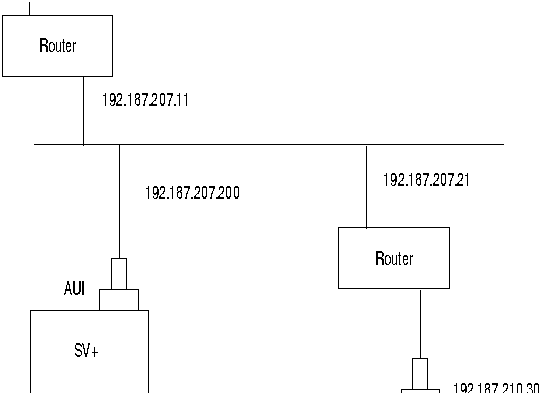
Figure 2-3 : StrataView Plus LAN Connection to an IPX Node (no gateway)
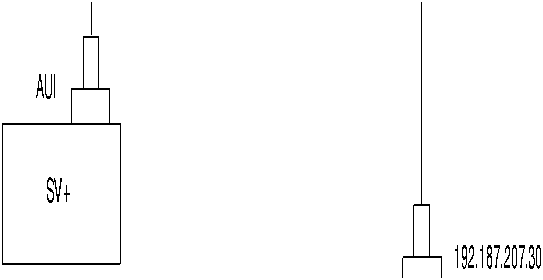
Figure 2-4 : dsplan after StrataView Plus Startup
D2.cb1         LAN   StrataCom       IPX 32    8.2.G     Feb. 27 1995 14:27 PST


Active IP Address:                     192.187.207.21
IP Subnet Mask:                        255.255.255.0
TCP Service Port:                      5130
Default Gateway IP Address:            192.187.207.1

Maximum LAN Transmit Unit:             1500
Ethernet Address:                      00.55.43.00.04.55

Control Socket - Ready
Base Socket Descriptor - 1

Open Socket Descriptor - 2


Last Command: dsplan


Next Command:
Initial Startup of StrataView Plus
The first time that StrataView Plus is started, it obtains the current network topology information and enables default trunk and circuit line statistics that you selected using the SCM software.
Prerequisites
Before starting up StrataView Plus, you need to plan the statistics types that you want to enable automatically and enable these using the SCM program. Refer to Chapter 5 of the StrataView Plus Operations Guide for information on enabling statistics using SCM.
Procedure
Start up StrataView Plus as follows:
See Appendix B.
Planning and Configuring the Database
If you have not done so yet, please refer to Appendix C, Informix Database, Backup and Changing Size, in the StrataView Plus Operations Manual.
StrataView Plus Connection to a Node Via Modem
The following paragraphs describe how to connect an StrataView Plus workstation to a BPX/ IPX node via a modem. These procedures are for a typical connection. Refer also to the applicable Sun SPARCstation System Administration User's Guide, and the Codex V.34 RSA Modem User's Guide.
Contact StrataCom ISC for further information.
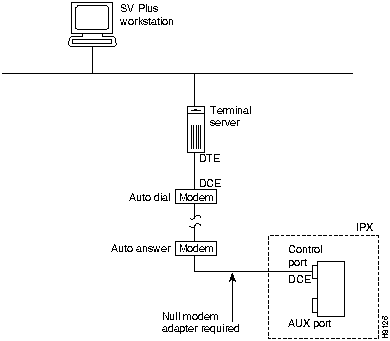
Modem Connection Via a Terminal Server
The connection of a StrataView Plus workstation to an IPX via a terminal server and modem is shown in Figure 2-5
Figure 2-5 : Modem Connection, StrataView Plus to IPX, with Server
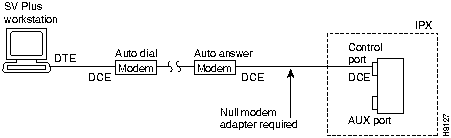
Modem Connection Without a Terminal Server
The connection of a StrataView Plus workstation to an IPX via modem (without using a terminal server) is shown in Figure 2-6.
Figure 2-6 : Modem Connection, StrataView Plus to IPX, No Server
Modem Dial-In/Out Configuration
The following commands are provided for configuring the Codex V.34 RSA modem.
Using the cnfport command, set the IPX Control port (CONTROL TERMINAL port) to 9600 bps and disable the XON/XOFF flow control. Using the cnfportfunc command, set the terminal type to VT100/StrataView. To program the modem, temporarily attach a terminal to the modem using a 25-pin straight through cable. The modem EIA port will automatically match the 9600 bps setting of the terminal. Enter the following commands:
| 1. | AT&F | Reset to factory default and save. |
| 2. | ATSØ=1 | Enables Auto-Answer Mode (answer on first ring). |
| 3. | ATL1 | Modem speaker at low volume. |
| 4. | AT*SM3 | Enables automatic MNP error correction. |
| 5. | AT*DCØ | Disables data compression. |
| 6. | AT*FLØ | Disables XON/XOFF flow control. |
| 7. | AT&S1 | Sets DSR to "normal". |
| 8. | ATEØ | Disables local character echo. |
| 9. | ATQ1 | Disables result codes. (Modem will appear "dead".) |
| 10. | AT&W | Saves current configuration settings in non-volatile memory. |
Connect the workstation to the modem, with the serial port set to 9600 bps, using a 25-pin straight-through cable (uses RS-232 protocol) and enter the following commands:
| 1. | AT&F | Initializes factory defaults. |
| 2. | ATLØ | Modem speaker at minimum volume. |
| 3. | AT*SM3 | Enables automatic MNP error correction. |
| 4. | AT*DCØ | Disables data compression. |
| 5. | AT*SC1 | Enables DTE speed conversion |
| 6. | AT*FLØ | Disables XON/XOFF flow control. |
| 7. | AT&C1 | DCD controlled by modem. |
| 8. | AT&D2 | Modem disconnects when IPX toggles DTR. |
| 9. | AT&V | Verify entries. |
| 10. | AT&W | Saves current settings to non-volatile memory. |
Configuring the Sun Workstation
For information on configuring a Sun workstation for communication via modem, refer to the applicable Sun User's Guides. For specific information regarding StrataView Plus, contact StrataCom ISC.
StrataCom ISC Dial-In to StrataView Plus Via Modem
The StrataCom ISC (International Support Center) can provide support for the customer StrataView Plus workstation via a dial-up modem connection. This support is available when a Motorola Codex modem is provided at the customer site. There are two procedures to be performed before the ISC can dial into the workstation.
The following paragraphs describe how to set up a dial-in connection. These procedures are for a typical connection. Refer also to the applicable Sun SPARCstation System Administration User's Guide, and the Codex V.34 RSA Modem User's Guide.
Contact StrataCom ISC for further information.
Modem Connection Via a Terminal Server
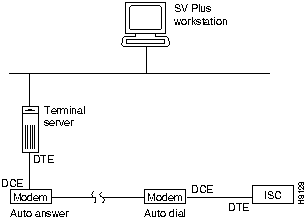
The connection from StrataCom ISC to a StrataView Plus workstation via a terminal server and modem is shown in Figure 2-7.
Figure 2-7 : ISC Support via Modem and Terminal Server for StrataView Plus Workstation
Modem Connection Without a Terminal Server
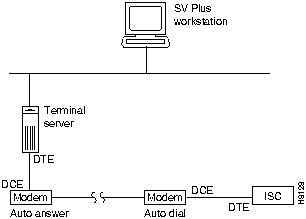
The connection from StrataCom ISC to a StrataView Plus workstation via a modem is shown in Figure 2-8.
Figure 2-8 : ISC Support via Modem for StrataView Plus Workstation
Setting Up a Sun Workstation for Dial-In from ISC
Setup of a Sun Workstation for incoming modem calls:
Configuring Modem for Dial-In from ISC (Auto-Answer)
Configure the modem connected to the workstation per the Auto Answer procedure.
| DCD---On | AT&CØ |
| DTR---On | AT&DØ |
| DSR---Normal | AT&S1 |
| CTS---ON when connected | AT&R1 |
| ATSØ=1 (answer on first ring) |
When the system is up, the ISC is capable of calling into the StrataView Plus via the serial port on the workstation.
Starting an StrataView Plus GUI from Another Workstation
This section describes how to start a copy of the GUI on another user's workstation.
Prerequisites
The workstation must have the following software installed:
Procedure
Call ISC before proceeding. For NCD X terminal support (Sun in csh):
On the StrataView Plus Sun workstation:
On your NCD terminal:
setenv DISPLAY dolphin:0.0

|
Copyright 1988-1996 © Cisco Systems Inc.