|
|
CiscoSecure UNIX Server Graphical User Interface
You can use the CiscoSecure UNIX Server graphical user interface (GUI) or a text editor (such as UNIX vi) to manage the security of your network.
This chapter describes how to use the CiscoSecure GUI, and contains the following sections:
The CiscoSecure GUI provides menus, icons, and dialogs so you can take the following actions:
If you are managing an extensive network, the CiscoSecure GUI can streamline the process of editing your AA database.
When you have installed the CiscoSecure UNIX Server software, take the following steps to launch the GUI:
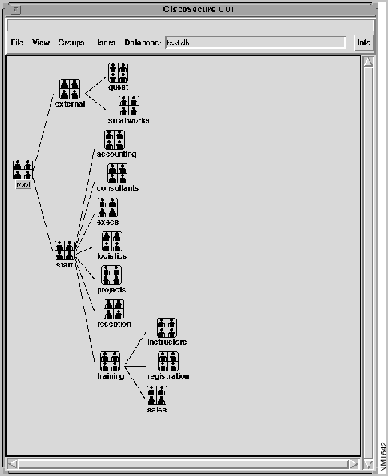
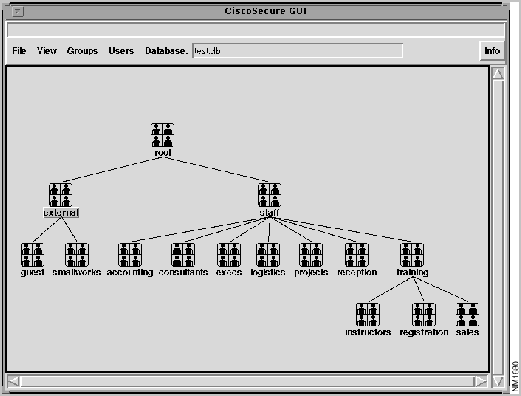
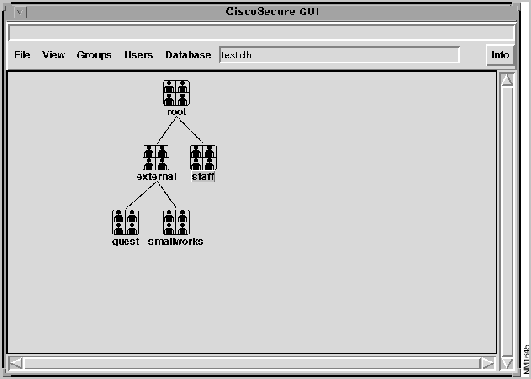
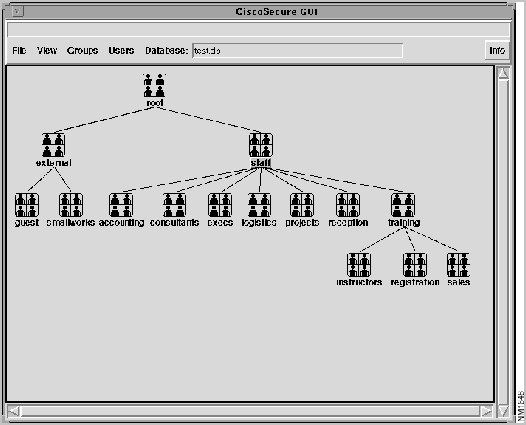
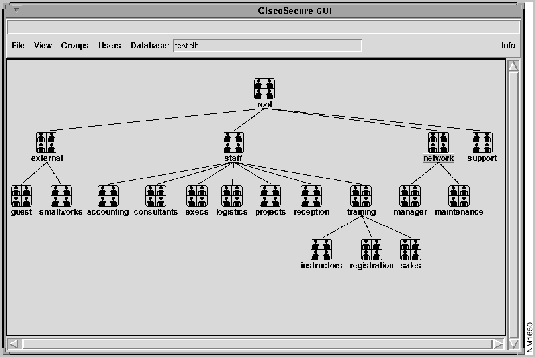
A window opens that illustrates the group hierarchy specified in your AA database file (see Figure 8-1).
Figure 8-1 : Group Hierarchy Window
In Figure 8-1, the database file is called test.db. In addition to the group hierarchy, the window presents a menu bar that contains the following five items:
Above the menu bar is a text box where information about the menu bar is displayed. When you drag the cursor across each menu, a message explaining each item you highlighted appears in this text box.
You can have several AA database files, each containing a different database. Use the File menu to load and then edit a specific database file and save it. You can also save a copy of an existing database file under another name. Table 8-1 summarizes each item in the File menu.
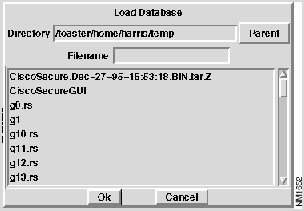
When you select the Load New Database command from the File menu, the following window displayed in Figure 8-2 opens.
Figure 8-2 : Load New Database Window When you first open the Load Database window, the default directory opens automatically and its name displays in the Directory text box. Enter in the text box the filename you want to load and press Return or click on OK. To go up one level in your directory structure, click on Parent. The name in the Directory text box updates automatically to show you the current directory.
Select Save Database from the File menu to save any changes you have made to the current database file.
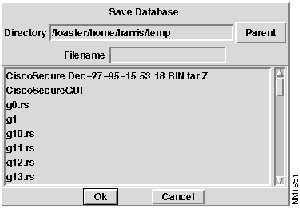
When you select Save Database As... from the File menu, the window displayed in Figure 8-3 opens.
Figure 8-3 : Save Database Window Enter the name you want to save your database file as in the Filename text box and press Return or click on OK.
Select Print Tree from the File menu to print the tree displayed in the first window that opened (see Figure 8-1) to the default printer.
When you select Exit from the File menu, you will be prompted to save any changes you have made to your AA database file if you haven't already saved it. After you respond to the prompt to save changes, you exit the CiscoSecure GUI.
You use the View menu to change the presentation of information in the GUI, and view all information about users and groups.
The options available in the View menu are listed in Table 8-2.
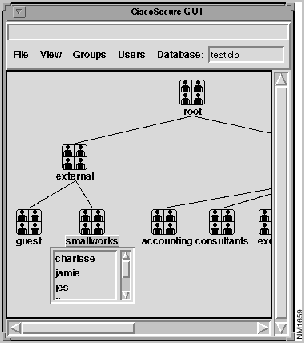
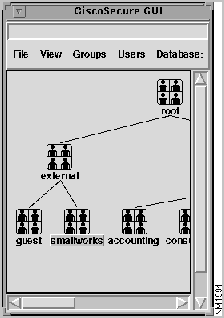
Before selecting most of the items in the View menu, you need to select the group you want to modify. To do this, click on the group with the left mouse button. The group label will be highlighted (see the "smallworks" group in Figure 8-4).
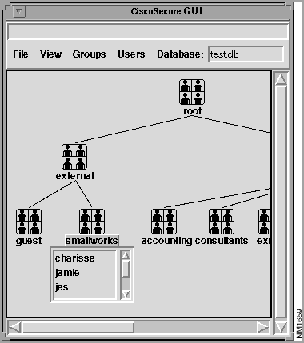
Figure 8-4 : Selecting a Group When you have selected a group, select Open User List from the View menu. A subwindow like the one shown in Figure 8-5 opens; it contains a list of the users in that group.
Figure 8-5 : Opening the User List When you select Open User List, the user list is displayed, and Open User List changes to Close User List. When you are ready to close the user list, select Close User List from the View menu.
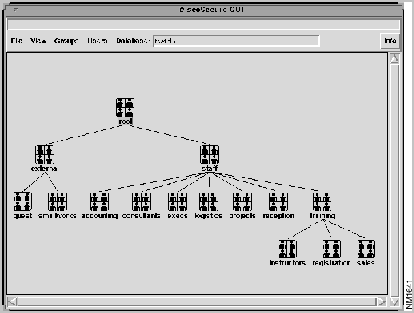
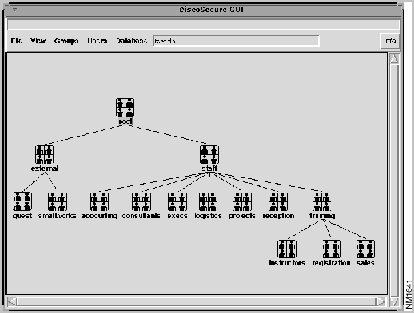
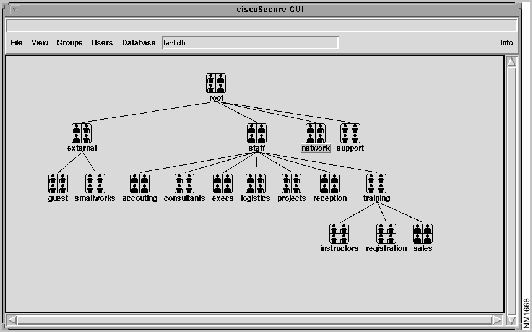
In large networks, you can have many groups that contain many other groups, each of which can contain many other groups. When you display the group hierarchy, you might only want to see the groups at the top level of the hierarchy. To do this select Hide Subgroups from the View menu. See, for example, the group "staff" in Figure 8-6. If you select Hide Subgroups from the View menu, the result is illustrated in Figure 8-7.
When you select Hide Subgroups, the View menu changes to Show Subgroups. When you are ready to view the subgroups window, select Show Subgroups from the View menu.
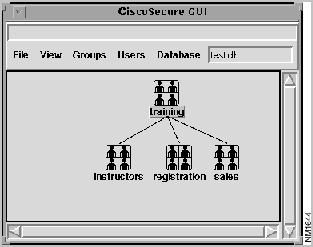
You can reduce and expand your view of the group hierarchy beginning with a specific group. For example, you could select the "training group" and then select Begin Tree Here from the View menu to see the "training" group and its subgroups. (See Figure 8-8.)
You can also double-click on a group icon to do the same thing.
When you reduce the view of the group hierarchy, you can expand it again one level at a time by selecting Add Parent from the View menu. Thus, if you select the "training" group icon and then select Add Parent from the View menu, you will see the parent group "staff" and the remainder of the hierarchy (see Figure 8-9).
You can also double-click on a group icon to do the same thing.
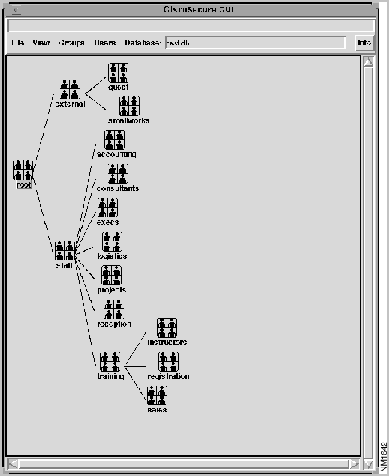
You can display databases horizontally or vertically by selecting Horizontal/Vertical Layout from the View menu. By default, CiscoSecure UNIX Server software displays the horizontal view. (See Figure 8-10.)
Figure 8-10 : Viewing a Horizontal Layout You can change the orientation of databases from horizontal to vertical by selecting Vertical Layout from the View menu. (See Figure 8-11.) Select Horizontal Layout from the View menu to change the orientation back to horizontal.
Figure 8-11 : Viewing a Vertical Layout The easiest way to control the access of individual users to network resources is to assign them to a group. The Groups menu provides several commands that enable you to create new groups and edit existing groups in the AA database. Each command in the Groups menu is summarized in Table 8-3.
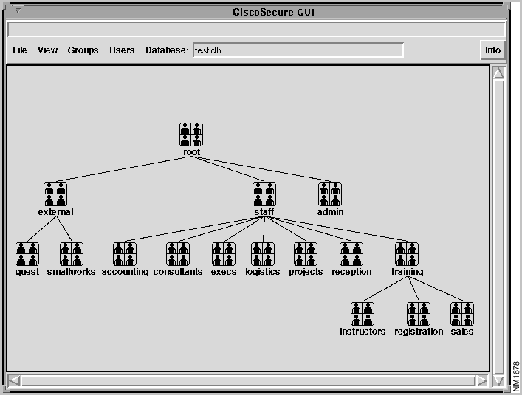
Select Create Group from the Groups menu to add new groups to your network. You must first select an existing group at the same level as the group you want to create. For example, take the following steps to add a new group called "admin" at the same level as the "external" and "staff" groups:
Figure 8-12 : Selecting a Group Figure 8-13 : Adding a New Group The hierarchical position of the "admin" group is at the same level as the "staff" and "external" groups. When you have created a new group, you can select Edit Group Attributes from the Groups menu to assign the required attributes to the newly created group.
As your network expands and the needs of users change, you can change the way groups and users are managed. You might, for example, want to add privileges to a particular group. Select Edit Group Attributes from the Groups menu to make such changes to the AA database.
Take the following steps to edit the attributes of a group:
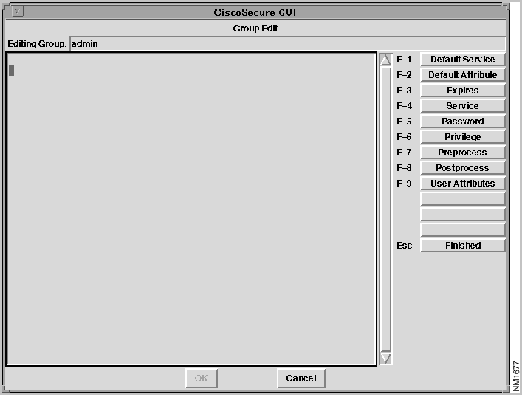
Figure 8-14 : Editing Group Attributes The window opens the AA database file. On the left, you see the settings of this group. Since the new group has no attributes, this area is blank in this example. On the right, buttons correspond to the attributes you can set for the group together with their corresponding keyboard shortcuts, or function keys.
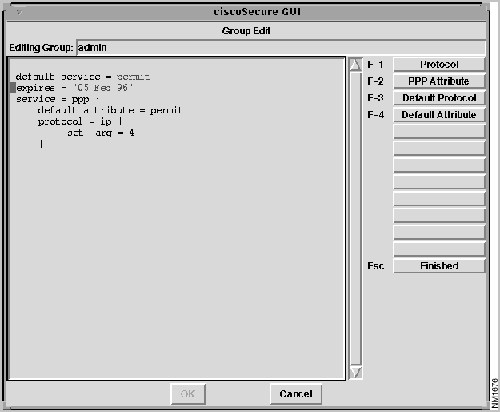
When you begin setting group attributes, corresponding syntax will display in the AA database window. The editable parts of the syntax are displayed in blue and a red marker indicates what line you are on. The buttons on the right change depending on which attributes you are editing. Figure 8-15 shows the group "admin" with some attributes added.
Figure 8-15 : Editing Group Attributes---Some Detail If you want to create a new group with many of the same attributes as an existing group, you can clone a new group from the existing group. This procedure is very similar to the one you follow to edit group attributes. (See the previous section, "Edit Group Attributes.")
When you clone a group, it contains all the attributes of the group from which it was cloned. Select Edit Group Attributes from the Groups menu to make any changes you want to the attributes of the newly created group.
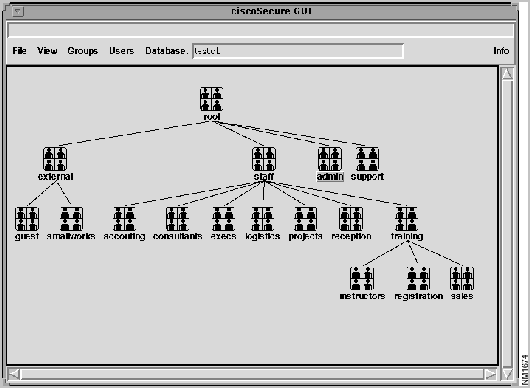
Take the following steps to clone a group. In this example, the group "support" is created by cloning the "admin" group.
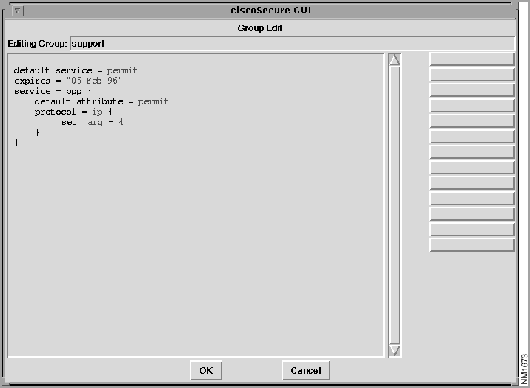
Figure 8-16 : New Hierarchy with Cloned Group To verify that the attributes of the "admin" group have been copied to the "support" group, select the "support" group and select Edit Group Attributes from the Groups menu. The window shown in Figure 8-17 opens.
Figure 8-17 : Selecting Edit Group Attributes to Verify Cloning The "support" group has the same attributes as the "admin" group. At this point, you can add more attributes to the "support" group or edit existing attributes.
When you have created a new group, you can create subgroups that belong to the newly created group.
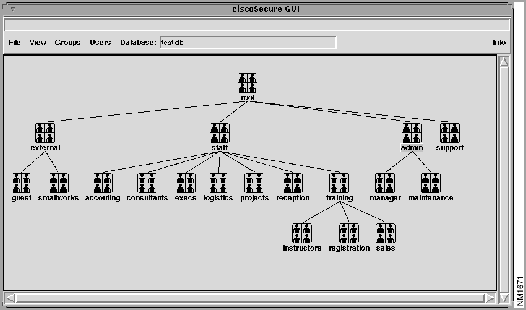
Take the following steps to create a new subgroup. In this example, the subgroups "manager" and "maintenance" subgroups of the "admin" group.
Figure 8-18 : Adding a New Subgroup Take the following steps to change the name of an existing group. In this example, the name of the "admin" group change to "network."
Figure 8-19 : Changing a Group Name You might decide that a particular group is no longer necessary. To delete any group from the group hierarchy and thus the AA database, select the group by clicking on its icon and then select Remove Group from the Groups menu.
You might decide that you no longer need all the subgroups in a particular group. You can simultaneously remove all the subgroups of a group from the AA database and thus the group hierarchy. For example, to delete the subgroups "maintenance" and "manager" from the "network" group, first select the "network" group by clicking on its icon and then select Remove Subgroups from the Groups menu. The result is illustrated in Figure 8-20.
Figure 8-20 : Removing a Subgroup The basic premise of managing access to your network using CiscoSecure UNIX Server software is managing individual users. For groups to be useful, you must be able to identify users when they log in to your network. So you need to define relevant information, such as privileges, about these users before they log in.
You can use the Users menu to create new users and edit existing users in the AA database. Table 8-4 summarizes the items in the Users menu.
To add a user to an existing group, you need to give the user a name and specific attributes. Take the following steps to create a new user, in this example, newbee, in the "network" group:
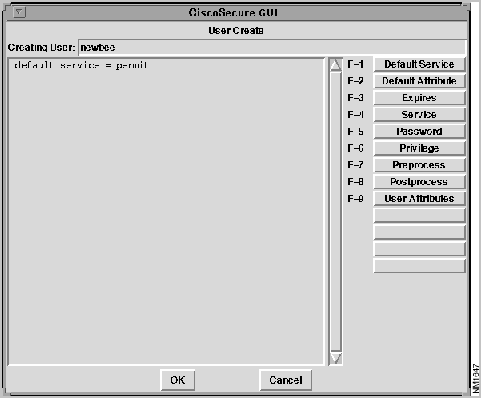
Figure 8-21 : User Create Screen You now have to give the user newbee some attributes which are described in the following sections.
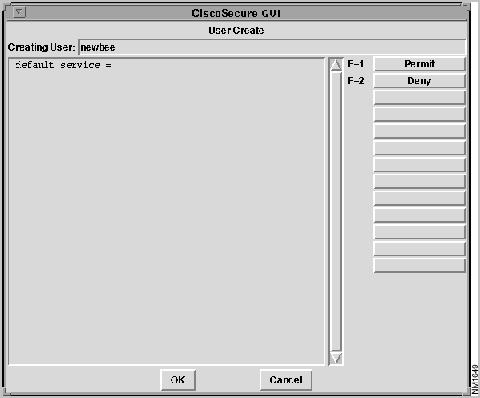
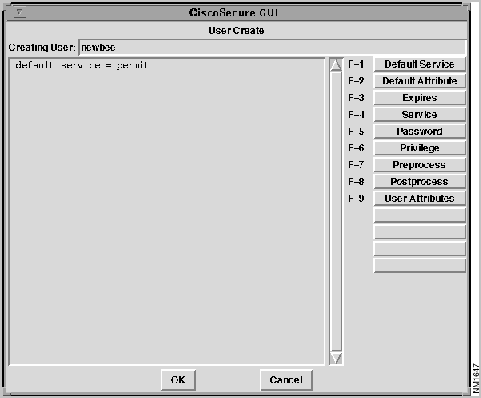
To set the default service attribute for newbee, click on Default Service or press the F-1 function key. The information shown in Figure 8-22 appears in the portion of the AA database that is displayed.
Figure 8-22 : User Create: Default Service Choices for the default service of a user are as follows:
Click on your selected choice to display it in the AA database window. For example, newbee's default service is permit (see Figure 8-23).
Figure 8-23 : User Create: Default Service = Permit When you have selected the default service, the buttons on the right are available again so you can set the rest of the attributes for the new user.
To set the default attribute for newbee, click on Default Attribute or press the F-2 function key. Choices for the default attribute are as follows:
Click on your selected choice to display it in the AA database window.
You can set a date when a new user's account will expire. Click on Expires or press the F-3 function key. Enter the date in the format DD MMM YY in the dialog box and press Return.
The dialog box shown in Figure 8-24 opens.
You can set up specific service authorizations for new users. Choices for service authorization are as follows:
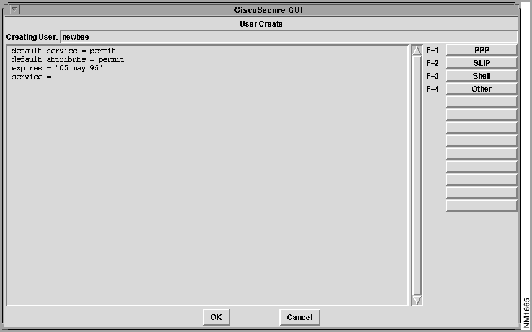
Click on Service or press the F-4 function key. The window shown in Figure 8-25 opens.
Figure 8-25 : User Create: Service PPP
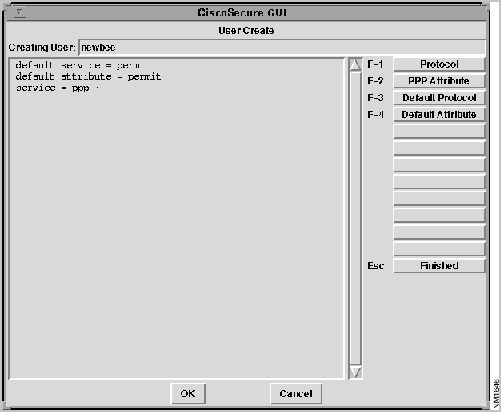
When you select PPP, the choices for service are as follows (see Figure 8-25):
Figure 8-26 : Defining PPP Service To set the appropriate protocol, click on Protocol, or press the F1 function key. Enter the appropriate string---for example, ip or ipx---in the dialog box that opens (see Figure 8-27) and press Return.
The buttons on the right will change to give you the following additional choices: attribute, default attribute, and finished.
Figure 8-28 : User Create: Time Qualifier When you click on PPP Attribute, the keyword set appears in the AA database file and the buttons indicate two choices, optional string and string.
When you click on Default Protocol, you have the following choices:
When you click on Default Attribute, you have the following choices:
Finished
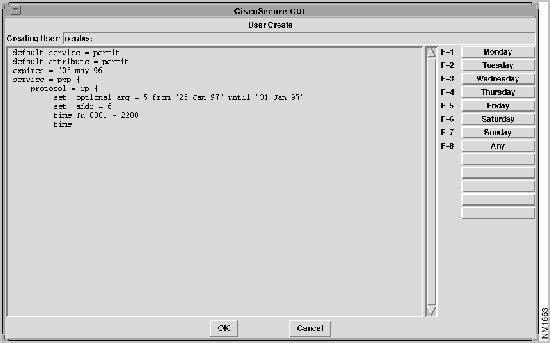
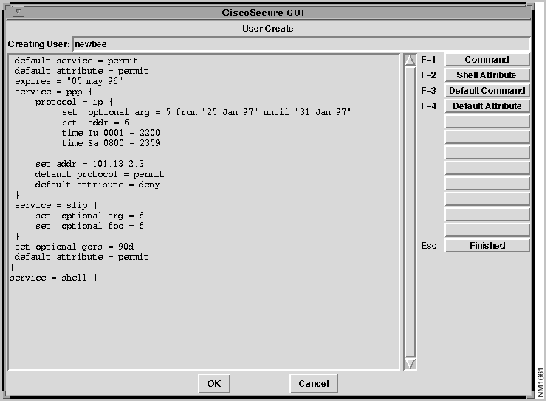
When you click on Finished, the Time Qualifier screen opens. When you click on a day or Any, the result is displayed in the AA database file, and the Finished button appears on the right. You can enter any combination of days for this service. When you click Finished, a Time dialog box opens (see Figure 8-29) and you must enter the valid start time corresponding to the time on that particular day (or days) that the service is available. Enter the start time in the form 0000--2359, and press Return. Another Time dialog box opens; you should enter the time until which this service is valid.These settings apply to all the PPP service settings and are optional.
SLIP
When you select SLIP, the choices for service are as follows:
When you click on Attribute, the keyword set appears in the AA database file and the buttons indicate two choices, optional string and string.
When you click on Default Attribute, you have the following choices:
When you click on Finished, the Time Qualifier screen opens. When you click on a day or Any, it is displayed in the AA database file, and the Finished button appears on the right. You can enter any combination of days for this service. When you click on Finished, a Time dialog box opens (see Figure 8-29) and you must enter the valid start time corresponding to the time on that particular day (or days) that the service is available. Enter the start time in the form 0000--2359, and press Return. Another Time dialog box opens; you should enter the time until which this service is valid.These settings apply to all the SLIP service settings and are optional.
Shell
When you select shell, the choices for service are as follows (see Figure 8-30:
Figure 8-30 : User Create: Service = Shell When you click on Command, cmd = appears in the AA database file and the String dialog box (see Figure 8-27) opens. When you enter your command string and press Return, the buttons indicate the following choices:
Figure 8-31 : Quoted String Dialog When you click on Attribute, the keyword set appears in the AA database file and the buttons indicate two choices, optional string and string.
When you click on Default Command, the keywords default command = appear in the AA database file and you have the following choices:
When you click on Default Attribute, you have the following choices:
Finished
When you click on Finished, the Time Qualifier screen opens. When you click on a day or Any, it appears in the AA database file, and the Finished button appears on the right. You can enter any combination of days for this service. When you click Finished, a Time dialog box opens (see Figure 8-29) and you must enter the valid start time corresponding to the time on that particular day (or days) that the service is available. Enter the start time in the form 0000--2359, and press Return. Another Time dialog box opens; you should enter the time until which this service is valid. These settings apply to all of the command settings and are optional settings.
Other
When you click on Other, you can define your own custom commands by entering the string in the dialog box that corresponds to the appropriate service, and pressing Return.
The buttons on the right change to indicate the following choices:
Click on Password to specify the type of password support you want for the user or group you have selected.When you click on Password or press the F-5 function key, the information shown in Figure 8-32 appears.
The following choices are available:
All these choices allow you to specify From and Until dates for use with each password scheme.
Privilege means the level of service users have access to if they submit the appropriate password. The choices for privilege are those listed earlier in this chapter in the section "Password" (see Figure 8-32) but with an additional argument that corresponds to the privilege level (see Figure 8-33).
Figure 8-33 : User Create: Privilege When you have selected the password type, the Value dialog box (see Figure 8-34) opens and you can enter the privilege level (0--15) that applies.
Click on Preprocess in the User Create window to open the Quoted String dialog box and enter the name of the function to be invoked before user authorization. You can then specify From and Until dates for use with that particular preprocessing scheme.
Click on Postprocess in the User Create window to open the Quoted String dialog box and enter the name of the function to be invoked after user authorization. You can then specify From and Until dates for use with that particular postprocessing scheme.
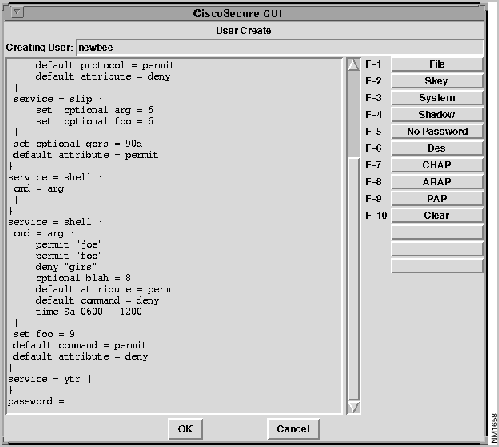
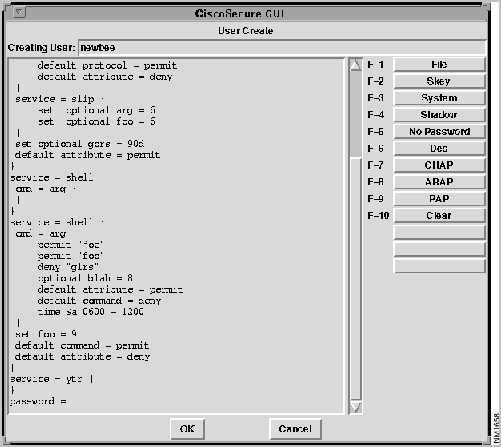
When you click on User Attributes in the User Create window, the keywords set = appear in the AA database and the string dialog box opens. Enter the string and press Return. The string you enter appears in the AA database file with an equal sign appended to it. The Value dialog box opens and you enter a value to assign to the string. When you have entered a value, it appears in the AA database file and the buttons indicate the following choices:
To change the attributes of users, select the user you want to edit (see Figure 8-35), and select Edit User Attributes from the Users menu.
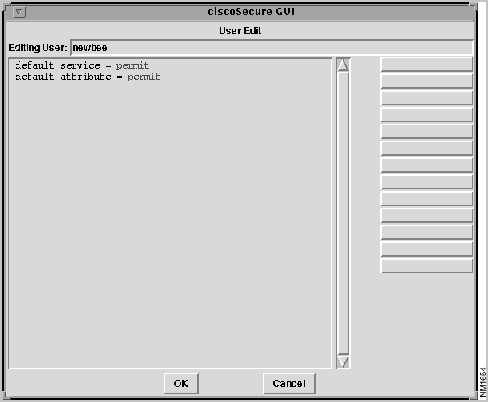
Figure 8-35 : Selecting a User The User Edit window opens (see Figure 8-36).
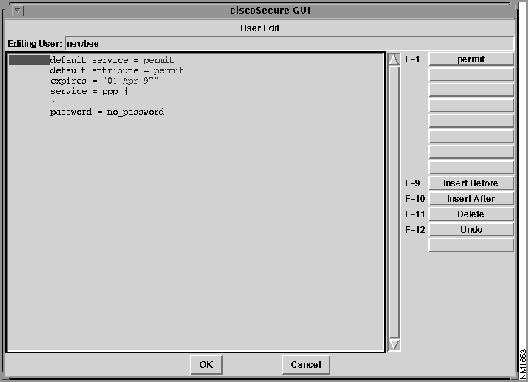
Figure 8-36 : Edit User Attributes Click in the AA database window on the line you want to edit. The editable portions of the AA database file appear in blue and a red marker indicates what line you are on. Depending on the line you have selected, the top buttons on the right change to display the editable portion of that line. Click on the button of the value you want to change. Lower buttons on the right display Insert Before (F-9), Insert After (F-10), Delete (F-11), and Undo (F-12). Click on the corresponding button to insert a new line before or after the current line, or to delete the current line (see Figure 8-37). Click Undo to cancel the last edit.
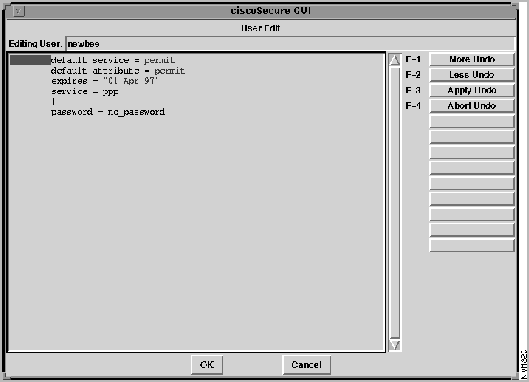
Figure 8-37 : Editing User Attributes When you click on Undo, the upper buttons indicate the following choices (see Figure 8-38):
Figure 8-38 : User Edit Window with Undo Options The GUI keeps track of all your "do" and "undo" commands until you click Apply.
For example, if newbee's password is clear "foo" and you want to change it, you click on foo and enter a new string "bar" in the string dialog. Then you want to undo that change. You click on Undo and it changes back to "foo." If you click Less Undo, it changes back to "bar." If you click More Undo at this point, the password reverts back to "foo." Once you click on Apply Undo, the most recent change you specified is executed and you return to the User Edit window where you can make other changes as your needs determine.
However, if you click Abort Undo, rather than Apply Undo, "bar" would remain the password, and then you would return to the User Edit window.
Now click on "bar," change it to "char." Then click on Undo. You return to the Undo screen and the password changes back to "bar." If you click More Undo, it goes back to foo. If you click Less Undo, it goes to "char." The More Undo and Less Undo commands allow you to traverse a list of undo options. As long as you don't "apply" them, you can undo infinitely.
The menu option in the Info menu is Version. When you select Version, you see the CiscoSecure UNIX Server splash screen.
Copyright 1988-1996 © Cisco Systems Inc.
CiscoSecureGUI database_file
Menu Item
Purpose
Load New Database
Load a different AA database file
Save Database
Save the currently loaded database file
Save Database As...
Save the database file under another name
Print Tree
Print the entire tree displayed
Exit
Exit the CiscoSecure GUI
Menu Item
Purpose
Open/Close User List
Open or close a list of each user in the selected group
Hide/Show Subgroups
Hide or show all the descendants of the selected group
Add Parent
Expand the group hierarchy view one level, showing the parent of the topmost group in the current view and all the subgroups of the parent group
Begin Tree Here
Reduce the group hierarchy view, showing only the selected group and all its descendants
Vertical/Horizontal Layout
Toggle the orientation of the group hierarchy between Horizontal Layout and Vertical Layout
Menu Item
Purpose
Create Group
Create a new group
Edit Group Attributes
Edit the attributes of the selected group
Clone Group
Create a new group using the attributes of an existing group
New Subgroup
Create a new subgroup of the selected group
Change Group Name
Change the name of the selected group
Remove Group
Delete the selected group from the AA database and the group hierarchy
Remove Subgroups
Delete all subgroups of the selected group from the AA database and the group hierarchy
Menu Item
Purpose
Create User
Create a new user
Edit User Attributes
Edit the attributes of a selected user


set optional addr = 131.108.13.3 from "25 Jan 96" until "25 Mar 96"
set addr = 131.108.13.3 from "25 Jan 96" until "25 Mar 96"

set optional addr = 131.108.13.3 from "25 Jan 96" until "25 Mar 96"
set addr = 131.108.13.3 from "25 Jan 96" until "25 Mar 96"
set optional addr = 131.108.13.3 from "25 Jan 96" until "25 Mar 96"
set addr = 131.108.13.3 from "25 Jan 96" until "25 Mar 96"

set optional addr = 131.108.13.3 from "25 Jan 96" until "25 Mar 96"
set addr = 131.108.13.3 from "25 Jan 96" until "25 Mar 96"
set optional addr = 131.108.13.3 from "25 Jan 96" until "25 Mar 96"
set addr = 131.108.13.3 from "25 Jan 96" until "25 Mar 96"
set optional addr = 131.108.13.3 from "25 Jan 96" until "25 Mar 96"
set addr = 131.108.13.3 from "25 Jan 96" until "25 Mar 96"