


|
|

Using FTP with CiscoRemote Plus
You can use the FTP application to transfer files between your PC and remote network servers that use the File Transfer Protocol (FTP). A server that uses this protocol is called an FTP server. You can connect to any standard FTP server on the Internet regardless of its location.
Using FTP, you can copy, rename, and delete files even though they don't reside on your computer.
An FTP window looks similar to the Microsoft Windows File Manager window. Just as you use File Manager to work with files on your computer, you can use FTP to delete, copy, and rename files on an FTP server as well as on your computer.
Before you can establish a connection to an FTP server, you need the following information about the remote server:
Many FTP servers allow unregistered users, called anonymous users, to access information. You will discover the names and addresses of such servers while browsing the World Wide Web, reading newsgroups, and newspapers, and so forth. To gain access as a registered guest, however, you must contact the administrator of the FTP server.
If you don't have a username and password for the FTP server, you may be able to log in as an unregistered or anonymous user if the FTP server accepts guest or anonymous users. Use Anonymous or Guest as your username and your complete e-mail address as your password.
When FTP connects to an FTP server, a window like the File Manager window opens. (See Figure 9-1.)
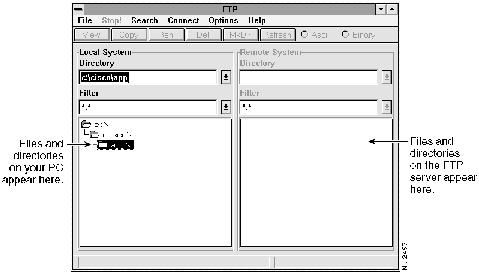
You can work with the directories and files in the FTP window as you do in a File Manager window. For example, to copy a file from the FTP server to your PC, you drag the file to one of the directories on your PC, and vice versa.
Take the following steps to connect to an FTP server:
When you have successfully connected, the FTP window displays information about the FTP server in the Remote System area. If the FTP server sends a greeting message, the Windows Notepad text editor opens and displays the greeting. To stop this display, exit the text editor.
You can speed up the connection process by saving your connection information under a session name.
Take the following steps to save your session information for the FTP server:
When you have connected to an FTP server, you can transfer files to and from your computer.
Take the following steps to copy a file:
You can also copy files by selecting Copy from the File menu or by clicking on the Copy button in the toolbar.
Disconnecting from an FTP Server
To disconnect from an FTP server and end your session, select Disconnect from the Connect menu. You can also disconnect by closing the application.
For more information about FTP, refer to the document CiscoRemote Plus Administrator Guide, which is available on the CiscoRemote Plus CD. The additional features of FTP allow you to do the following:
Copyright 1988-1996 © Cisco Systems Inc.

