|
|
If you installed the support software for your company's LAN, CiscoRemote Plus provides the Configurator application to help you set up your network support software. As you use the Configurator, you enter information about your company network and your computer. Refer to the CiscoRemote Plus important information card and to the information you recorded in Table 1-1 for this information. To use the Configurator, you should be familiar with setting up network software. If you're unsure about the information to enter, see your network administrator for help.
Setting Up Your Network Software with the Configurator
Take the following steps to open the Configurator and set up your network support software:
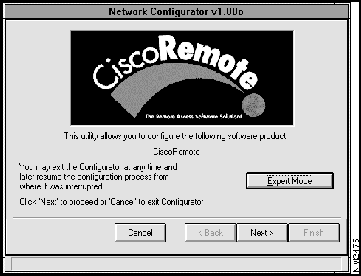
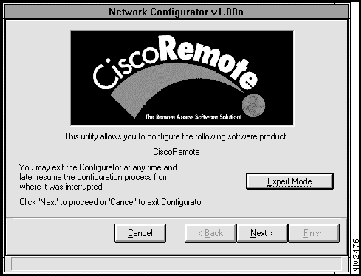
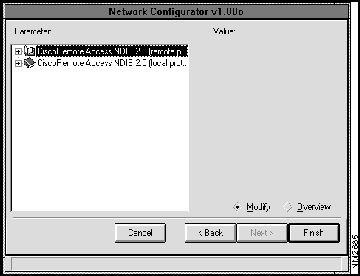
Figure B-1 : Network Configurator Window
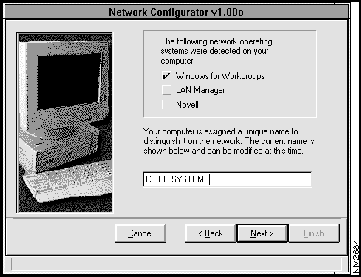
Figure B-2 : Network Configurator Window---Network Operating System Options
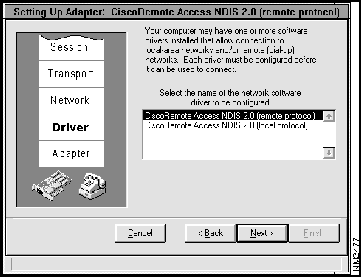
Figure B-3 : Setting Up Adapter Window---Network Software Driver Options
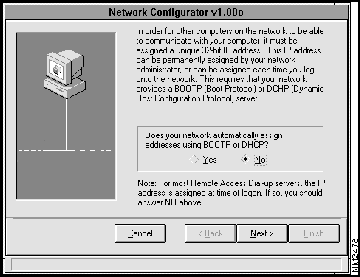
Figure B-4 : Network Configurator Window---BOOTP or DHCP Options
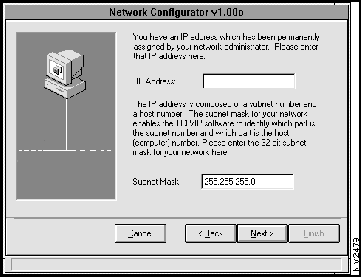
Figure B-5 : Network Configurator Window---IP Address Field and Subnet Mask Fields
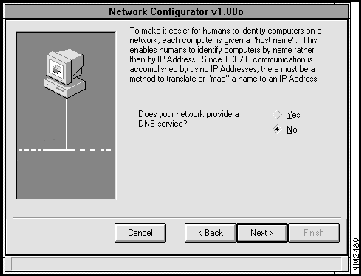
Figure B-6 : Network Configurator Window---DNS Service Options
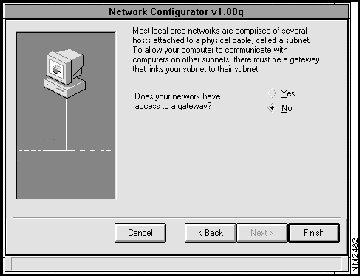
Figure B-7 : Network Configurator Window---Gateway Options
You've now configured your LAN support software. If you're completing your installation of the software, the Reboot window appears on your screen. Follow the instructions on the screen. After restarting your computer, proceed to the chapter "Setting Up a Connection Using CiscoRemote Plus" to for more information about setting up your remote access software to establish a connection to your company's network or Internet service provider.
If you have experience configuring network software, you may find using the Expert Mode of the Configurator a convenient method for setting up the LAN support software.
Take the following steps to set configuration settings using Expert Mode:
Figure B-8 : Network Configurator Window
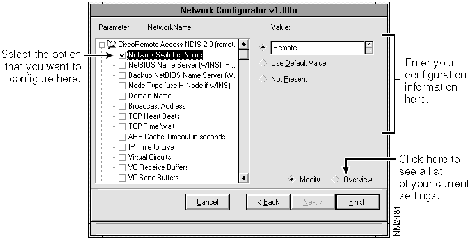
Figure B-9 : Network Configurator Window---Expert Mode Window
Figure B-10 : Network Configurator Window---Setting Specific Values in Expert Mode
Copyright 1988-1996 © Cisco Systems Inc.