
Table of Contents
Workgroup Director Release Notes for
Release 4.1
Workgroup Director Release Notes for
Release 4.1
December 22, 1994
These release notes describe the features and modifications for Workgroup Director Release 4.1. Refer to the Workgroup Director User Guide for information on installing and using the Workgroup Director software.
These release notes discuss the following topics:
The following new monitoring features have been added in Workgroup Director Release 4.1:
- Uploading or downloading configuration, firmware, or software
- IP routing
- Remote Monitoring (RMON)
- Filtering based on MAC addresses, vendor ID, protocol, and user-defined formula
- Switched Port Analyzer (SPAN)
- Internet Group Management Protocol (IGMP)
- System optimization
- Default Novell protocol translation when bridging
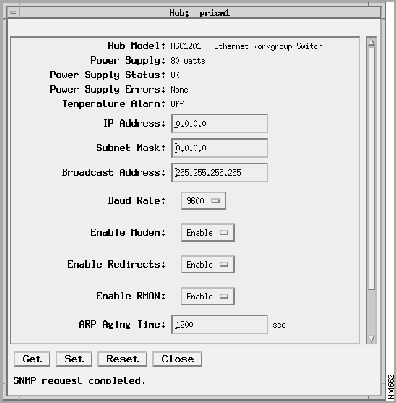
The Hub Window, shown in Figure 1, has been modified to include the following new fields:
- Enable Modem---Enables or disables the RS-232 port modem control lines.
- Enable Redirect---Indicates whether ICMP redirect messages are sent by the system.
- Enable RMON---Indicates whether or not the SNMP agent supports the RMON MIB.
- ARP Aging Time---Displays the aging time, in seconds, for the ARP table.
Figure 1 Hub Window
This section discusses the following new groups of SNMP windows:
- Upload/Download
- Switch Port Analyzer
- Brouter
- Filter
- IGMP
The Upload/Download window, shown in Figure 2, is used for uploading or downloading software or firmware.
Figure 2 Upload/Download Window
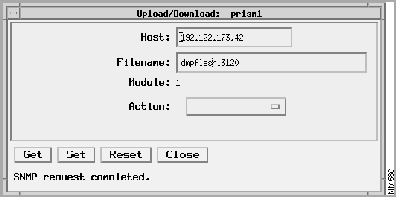
The Upload/Download window contains the following fields:
- Host---IP address of the source or destination host for the TFTP transfer.
- Filename---Name of the file for the TFTP transfer.
- Module---Name of the module being transferred. If you are monitoring a WSC1400 concentrator, this module has read/write access. Otherwise, it is read only.
- Action---Initiates the action requested by the value selected. You can select one of the following values:
- Download Config---Receives configuration information from the host.
- Upload Config---Sends configuration information to the host.
- Download Software---Receives software image from the host.
- Upload Software---Sends software image to the host.
- Download Firmware---Receives firmware image from the host.
- Upload Firmware---Sends firmware image to the host.
The Switch Port Analyzer window, shown in Figure 3, is used for setting parameters so that ports can be monitored.
Figure 3 Switch Port Analyzer Window
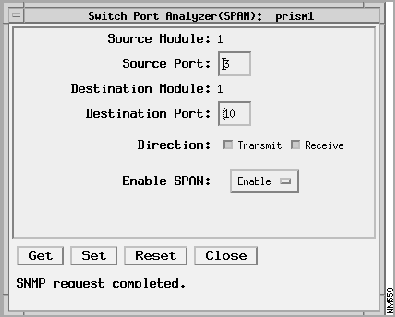
The Switch Port Analyzer window contains the following fields:
- Source Module---An index value that uniquely identifies the module where the source monitoring port is located.
- Source Port---An index value that uniquely identifies the source monitoring port within a module.
- Destination Module---An index value that uniquely identifies the module where the destination monitoring port is located.
- Destination Port---An index value that uniquely identifies the destination monitoring port within a module.
- Direction---Allows selection of transmit or receive packets.
- Enable SPAN---Enables or disables port monitoring.
Workgroup Director 4.1 contains the following Brouter windows:
- Brouter Group
- Brouter Table
The Brouter Group window, shown in Figure 4, displays information about virtual services and system optimization parameters.
Figure 4 Brouter Group Window
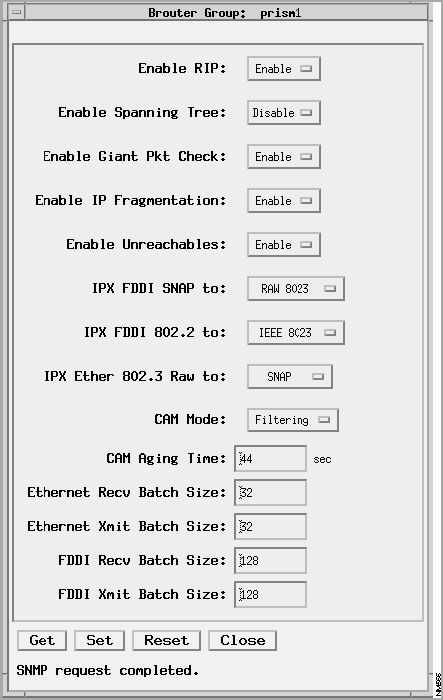
The Brouter Group window contains the following fields:
- Enable RIP---Enables or disables the RIP protocol.
- Enable Spanning Tree---Enables or disables the Spanning Tree protocol.
- Enable Giant Packet Check---Enables or disables special handling of giant packets. A giant packet is one with a packet size greater than 1714 bytes.
- Enable IP Fragmentation---Indicates whether IP fragmentation is enabled or disabled.
- Enable Unreachables---Indicates wheter or not ICMP unreachable messages are sent by the system.
- IPX FDDI Subnet Access Protocol (SNAP) to---Displays the default translation for IPX packets when bridging from FDDI SNAP to Ethernet. You can specify one of the following options:
- Ethernet 802.3 Raw, which is the default
- Ethernet 802.3
- Ethernet II
- Ethernet SNAP
- IPX FDDI 802.2 to---Displays the default translation for IPX packets when bridging from FDDI 802.2 to Ethernet. You can specify one of the following options:
- Ethernet 802.3 Raw
- Ethernet 802.3, which is the default
- Ethernet II
- Ethernet SNAP
- IPX Ether 802.3 Raw to---Displays the default translation for IPX packets when bridging from Ethernet 802.3 Raw to FDDI. You can specify one of the following options:
- FDDI SNAP, which is the default
- FDDI 802.2
- Content Addressable Memory (CAM) Mode---Displays the mode in which the CAM module is operating.
- CAM Aging Time---Displays the aging time, in seconds, for the CAM table.
- Ethernet Recv Batch Size---Maximum number of Ethernet frames at the incoming internal port buffer processed at one time.
- Ethernet Xmit Batch Size---Maximum number of Ethernet transmit resources released at one time.
- FDDI Recv Batch Size---Maximum number of FDDI frames at the incoming internal port buffer processed at one time.
- FDDI Xmit Batch Size---Maximum number of FDDI transmit resources released at one time.
The Brouter Table window, shown in Figure 5, displays bridge/router information about a particular port on a module.
Figure 5 Brouter Table Window
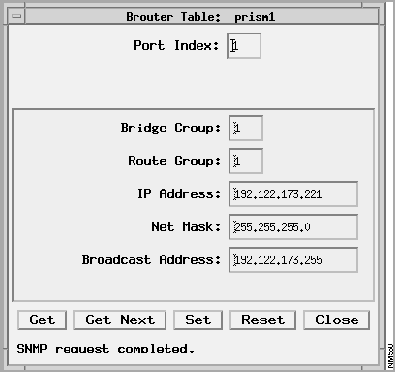
The Brouter Table window contains the following fields:
- Port Index---An index value that uniquely identifies this port within a module.
- Bridge Group---Name of the bridge group to which this port belongs.
- Route Group---Name of the IP route group to which this port belongs.
- IP Address---IP address of this port.
- Net Mask---Subnet mask of this port.
- Broadcast Address---Broadcast address of this port.
Workgroup Director 4.1 contains the following Filter windows:
- MAC Filter
- Protocol Filter
- Vendor Filter
- Port Filter
The MAC Filter window, shown in Figure 6, lets you filter packets based on the MAC address and Type defined in this window. You can define upto a maximum of 256 MAC addresses for the entire system.
Figure 6 MAC Filter Window
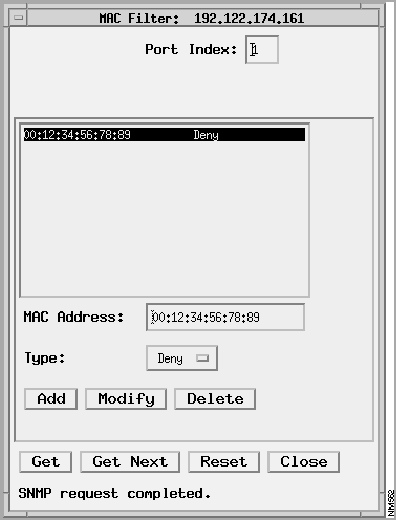
The MAC Filter window contains the following fields:
- Port Index---An index value that uniquely identifies this port within a module.
- MAC Address---A 48-bit IEEE 802 MAC address which is either a station address, the broadcast address, or a multicast address. If this value is equal to the packet's source or destination address, a match occurs.
- Type---Specify one of the following options:
- Permit---Allows packets to be transmitted.
- Deny---Denies packets from being transmitted.
- Note that if a MAC address is set to Permit, only packets with that MAC address will be transmitted. All other packets will be denied.
- Add---Add a MAC filter.
- Modify---Modify a MAC filter.
- Delete---Delete a MAC filter.
The Protocol Filter window, shown in Figure 7, lets you filter packets based on the Protocol and Type defined in this window. You can define up to a maximum of eight entries per port.
Figure 7 Protocol Filter Window
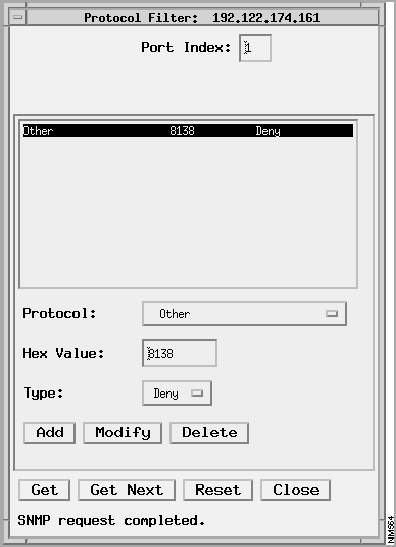
The Protocol Filter window contains the following fields:
- Port Index---An index value that uniquely identifies this port within a module.
- Protocol---A 16-bit protocol value. If this value is equal to the packet's type field or the packet's DSAP/SSAP field, a match occurs. The pull-down menu has the following options:
- Other
- AppleTalk
- AppleTalk AARP
- ARP
- Banyan
- BPDU
- DEC MOP Dump/Load
- DEC MOP Remote Control
- DECNET Phase IV
- DEC LAT
- DEC LAVC, SCA
- DEC LANBridge
- IBMRT
- IP
- IPX
- ISO Network Layer
- NETBIOS
- Reverse ARP
- SNA
- SNAP
- Xerox NS IDP
- XNS
- Hex Value---A hexadecimal value for the protocol selected from the Protocol pull-down menu. If you select the value Other from the Protocol pull-down menu, the value in this field is set to Read/Write. You can then define a four-digit hexadecimal value for the protocol.
- Type---Specify one of the following options:
- Permit---Allows packets to be transmitted.
- Deny---Denies packets from being transmitted.
- Note that if a Protocol is set to Permit, only packets with that Protocol will be transmitted. All other packets will be denied.
- Add---Add a protocol filter.
- Modify---Modify a protocol filter.
- Delete---Delete a protocol filter.
The Vendor Filter window, shown in Figure 8, lets you filter packets based on the Vendor ID and Type defined in this window. You can define upto a maximum of 64 Vendor Ids for the enitre system.
Figure 8 Vendor Filter Window
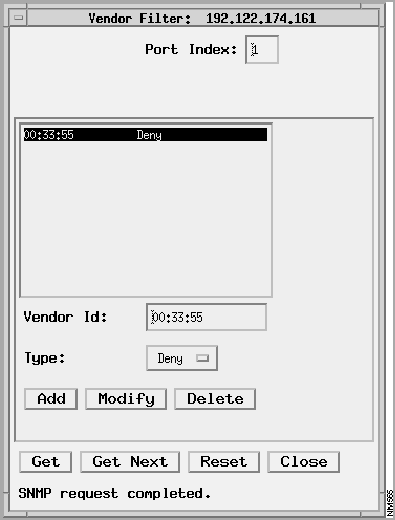
The Vendor Filter window contains the following fields:
- Port Index---An index value that uniquely identifies this port within a module.
- Vendor ID---The first three-byte value corresponding to the vendor ID portion of a 48-bit MAC address. If this value is equal to the vendor ID portion of the source or destination MAC address, a match occurs.
- Type---Specify one of the following options:
- Permit---Allows packets to be transmitted.
- Deny---Denies packets from being transmitted.
- Note that if a Vendor ID is set to Permit, only packets with that Vendor ID will be transmitted. All other packets will be denied.
- Add---Add a vendor filter.
- Modify---Modify a vendor filter.
- Delete---Delete a vendor filter.
The Port Filter window, shown in Figure 9, lets you filter packets based on the value defined in the Complex Expression and Broadcast Suppression fields of this window. You can define upto a maximum of eight entries per port.
Figure 9 Port Filter Window
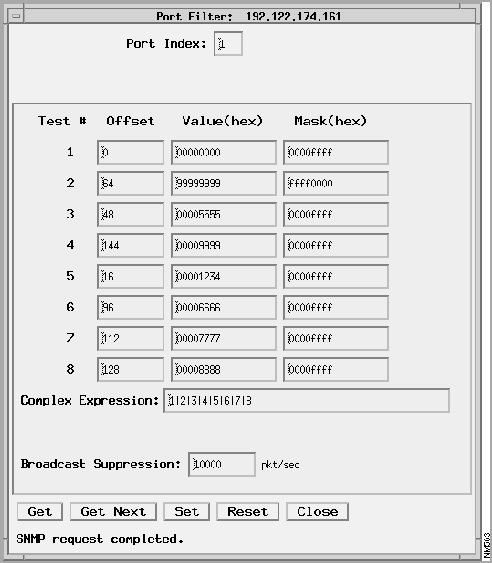
The Port Filter window contains the following fields:
- Port Index---An index value that uniquely identifies this port within a module.
- Test #---A reference number for use in Complex Expression.
- Offset---The byte address of a 32-bit comparison word which is bitwise ANDed with the 32-bit value in the Mask field.The offset value must be aligned at the 4-byte word boundary (for example 0, 4, 8, 12, 16).
- Value (hex)---A 32-bit value to be compared against the packet location specified in the Offset field.
- Mask (hex)---A 32-bit value to be bitwise ANDed with the packet location specified in the Offset field before being compared to the value in the Value field.
- Complex Expression---A complex expression made up of the numbers 1 through 8 indicating test results from a value in the Test # field, and using logical operators `&' (AND), `|' (OR), `!' (NOT), and parenthesis. An example of a complex expression is ((1 & 2) | !3). If this complex expression matches a packet, the packet is dropped.
- Broadcast Suppression---The maximum number of broadcast packets per second allowed on this port. Packets in excess of the value specified in this field are dropped. A value of 0 indicates that unlimited broadcast packets are allowed on this port.
Workgroup Director 4.1 contains the following IGMP windows:
- IGMP Conditional Filtering Group
- IGMP Conditional Filtering Interface Table
- IGMP Conditional Filtering Multicast-Group Table
Figure 10 shows the IGMP Conditional Filtering Group window.
Figure 10 IGMP Conditional Filtering Group Window
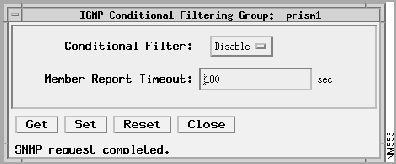
The IGMP Conditional Filtering Group window contains the following fields:
- Conditional Filter---Indicates whether conditional filtering is enabled or disabled.
- Member Report Timeout---Number of seconds for which the receipt of the most recent IGMP Membership Report for a particular IP multicast group on an interface indicates that there is currently a member of that group on that interface.
The IGMP Conditional Filtering Interface window, shown in Figure 11, displays information about interfaces that use IGMP conditional filtering.
Figure 11 IGMP Conditional Filtering Interface Window
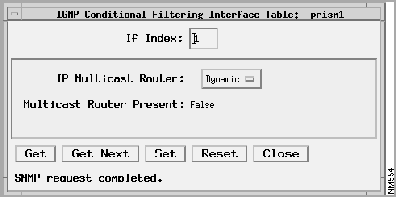
The IGMP Conditional Filtering Interface window contains the following fields:
- If Index---Specifies the port number.
- IP Multicast Router---Indicates if the presence of an IP multicast router on this interface is determined statically or dynamically.
- IP Multicast Router Present---Indicates whether or not an IP multicast router is present on this interface.
The IGMP Conditional Filtering Multicast-Group window, shown in Figure 12, displays information on IP multicast groups for use with IGMP conditional filtering.
Figure 12 IGMP Conditional Filtering Multicast-Group Window
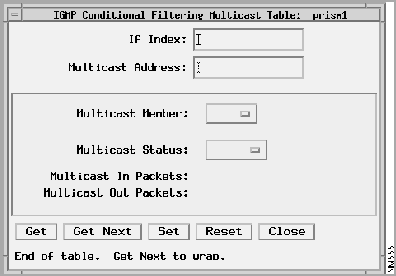
The IGMP Conditional Filtering Multicast-Group window contains the following fields:
- If Index---Specifies the port number.
- Multicast Address---Multicast address for this multicast group.
- Multicast Member---Indicates if a member of the IP multicast group currently exists on this interface.
- Multicast Status---Indicates if the IP multicast group of this table is to be preserved or deleted. Note that if you wish to delete it, the value in the Multicast Address field should be set to Invalid.
- Multicast In Packets---Number of IP multicast datagrams received on this interface.
- Multicast Out Packets---Number of IP multicast datagrams forwarded to this interface.
Cisco Connection Online (CCO) provides online information and electronic services to Cisco customers and business partners. Basic CCO services include general Cisco information, product announcements, brochures, descriptions of service offerings, and download access to public and authorized files. Customers with maintenance contracts receive a much broader offering, including technical tips, software updates, the Bug Navigator, configuration notes, release notes, and e-mail access to Cisco Technical Assistance Centers.
CCO serves a wide variety of users through two interfaces that are updated and enhanced simultaneously: a character-based version and a multimedia version that resides on the World Wide Web (WWW). The character-based CCO (called "CCO Classic") supports Zmodem, Kermit, Xmodem, FTP, Internet e-mail, and fax download options, and is excellent for quick access to information over lower bandwidths. The WWW version of CCO provides richly formatted documents with photographs, figures, graphics, and video, as well as hyperlinks to related information.
To access CCO:
- WWW---
http://www.cisco.com
.
- Telnet---
cio.cisco.com
(198.92.32.130).
- Modem---From North America, 408 526-8070; from Europe 33 1 64 46 40 82.
Use the following terminal settings: VT100, 8N1, up to 14.4 kbps.
Maintenance customers and partners can self-register to obtain full access. For a copy of CCO's Frequently Asked Questions, send e-mail to
cio-help@cisco.com
.

Copyright 1988-1995
©
Cisco Systems Inc.



