


|
|

Alert Manager is automatically installed when you follow the instructions on installing the TrueView software in your TrueView Applications Installation and User Guide.
Figure 2-1 The Alert Manager Icon
 Underneath the Alert Manager icon is the number of unacknowledged alerts. Unacknowledged alerts are those alerts that have occurred since you last looked at the list of alerts.
Figure 2-2 The Main Alert Manager Window
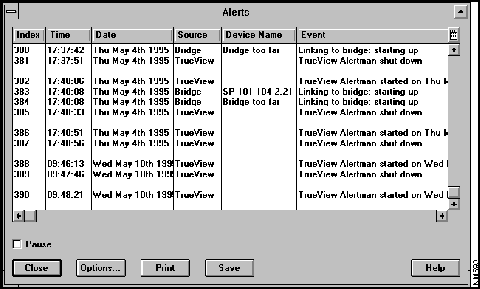
There are several different ways that you can know whether an alert has occurred:
The screen displays the main Alert Manager window.
Figure 2-3 A List of Events For Which You can Produce Alerts
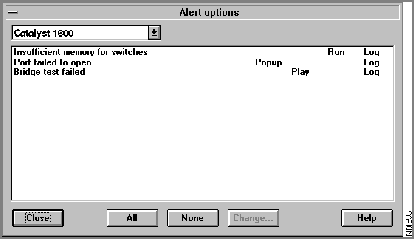
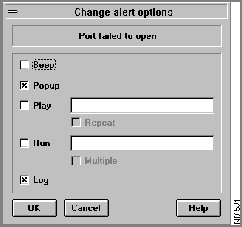
Figure 2-4 Specifying the Type of Alert for a Particular Event
| Alert Manager Action | Your Action | What Happens when the Alert Condition You Selected Occurs? |
|---|---|---|
| Log the alert | Select the log check box. Click on the OK button. | Alert Manager logs the alert in the alert list in the main Alert Manager window. |
| Beep | Select the beep check box. Click on the OK button. | The computer produces a beep. |
| Display a pop-up window | Select the Pop-up check box. Click on the OK button. | If the main Alert Manager window is not open, the screen displays a pop-up window showing the alert text. To remove the pop-up window, click on the OK button. To display the list of alerts, click on the List button. |
| Play a sound | Set the Play check box to on. Specify the sound you want in the edit check box situated to the right of the Play check box. | If the repeat check box is set to on, the sound plays continuously unless the main Alert Manager window, which contains the list of alerts, is open. See Note 1 below. |
| Run an application | Set the Run check box to on. Specify the application in the edit box to the right of the check box. To make Alert Manager start the application whether the application is already running or not, set the Multiple check box to on. Click on the OK button. | If the application is already running when the alert occurs and the multiple check box is off, nothing happens. Otherwise, the application starts running. |
The check boxes in this window have the three states as shown in Table 2-2.
| Appearance of Check Box | State of Check Box | Meaning |
|---|---|---|
| An 'X' in the check box | Selected | Alert Manager performs the action associated with the check box when any of the selected alerts occur. |
| The check box is empty | Clear | Alert Manager does not perform the action associated with the check box when any of the selected alerts occur. |
| The check box is grey | More than one alert is selected and the current setting for these is different | Alert Manager performs the action associated with the check box when some of the selected alerts occur. For example, if some of the selected alerts that occur have the beep action associated with them and some do not, the check box is grey. |

|
Copyright 1988-1995 © Cisco Systems Inc.