


|
|

This chapter describes the methods and tools that you use to manage a LightStream 2020 multiservice ATM switch (LS2020 switch) as a node in a network. It also briefly describes the command line interface (CLI), a simple line-oriented tool that you use to issue network management commands. The CLI runs on the network processor (NP) of an LS2020 switch or on a Sun SPARCstation configured to operate in your LS2020 network as a network management station (NMS).
You can accomplish network management tasks in an LS2020 network in the following ways:
set snmp hostname
command from the local node to designate a remote host node for which you can perform desired network management functions.
set snmp hostname
command to designate a remote host node for which you can perform desired network management functions.
The Simple Network Management Protocol (SNMP) is the basic protocol for managing a network of LS2020 switches. The LS2020 switch is compatible with a variety of SNMP-based network management systems and tools.
The following sections briefly describe the StreamView facilities that enable you to perform a wide range of network management tasks.
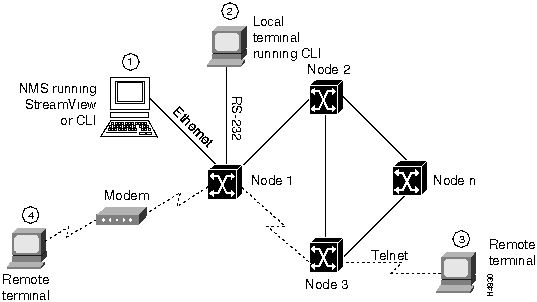
Figure 5-1 illustrates the methods and tools that you can employ in managing an LS2020 network.
Figure 5-1 : Network Management Methods in an LS2020 Network
StreamView Network Management Application
StreamView is an SNMP-based network management application that provides a GUI for viewing the status of LS2020 switches in your network. StreamView supplies a suite of network configuration and monitoring tools that enable you to conveniently and effectively manage an LS2020 network.
StreamView consists of the following network management modules:
These modules are described in the following sections.
Initially, you use a StreamView application called the LS2020 configurator to create configurations for all of the LS2020 switches in your network. Subsequently, you can use this application to change existing LS2020 configurations or to add new configurations as your network grows.
The LS2020 configurator features a user-friendly graphical interface that, in many cases, accomplishes configuration tasks at the mere click of a mouse button. The LS2020 configurator runs on a Sun SPARCstation and consists of three modules:
For more information about the LS2020 configurator application, see the LightStream 2020 Configuration Guide.
The CiscoView 2020 monitor is a GUI-based interface that shows the status of individual LS2020 switches, cards, and ports. The main CiscoView 2020 monitor screen displays a representation of the front of the LS2020 switch, including the line cards and switch cards present in the chassis. By double-clicking on a particular card or port, or on the device itself, you can view card information, port descriptions, and port status information. By double-clicking on an individual port, you can get statistics for that port; by dragging the mouse over multiple ports, you can get statistics for multiple ports.
The main CiscoView 2020 monitor screen contains a color-coded icon (in the form of a clock) that provides Nettime status information "at a glance." Depending on the color exhibited by the Nettime clock icon, any one of several defined Nettime conditions can be indicated (see Table 5-1).
To get detailed Nettime status information, you must double-click on the Release 2 switch card on the main CiscoView 2020 monitor screen.
Table 5-1 : Nettime Clock Icon Status Indications
| Nettime Clock Icon
Color Code |
Indicated Status |
|---|---|
| Grey | Nettime status has not been polled yet; initialization has not been completed. |
| Black | The Nettime service is not available for this chassis, either because the chassis contains a Release 1 switch card or because Nettime polling has failed. |
| Green | The Nettime service is up and running normally, and the configured Nettime clock equals the active Nettime clock. |
| Yellow | The Nettime service is up and running, but the configured Nettime clock does not equal the active Nettime clock. The configured Nettime clock is down. |
| Orange | The Nettime service is up and running, but the configured Nettime clock does not equal the active Nettime clock. The configured Nettime clock is up. |
| Red | The active Nettime clock does not appear anywhere in the list of configured Nettime clock sources. |
In addition to providing a front view of a target LS2020 node in the network, the CiscoView 2020 monitor allows you to switch to a rear view of the chassis, which displays representations of all the access cards present in the chassis.
For more information about the CiscoView 2020 monitor, see the LightStream 2020 Network Operations Guide.
The LS2020 topology map application, which must be run on the HP OpenView platform, displays a physical representation of the topology of an LS2020 network. When you start HP OpenView, the topology map module is automatically invoked. It builds a map of the current LS2020 network and periodically polls each LS2020 node for status information. Thus, the application continues to reflect the topology of an LS2020 network, even though the network may be undergoing frequent change.
The LS2020 topology map displays all of the LS2020 switches in the network and the trunks that interconnect them. Status changes are indicated in color. You can display trunk information by double-clicking on the desired trunk.
For more information about the LS2020 topology map, see the LightStream 2020 Network Operations Guide.
The command line interface (CLI) is a simple line-oriented tool that you can use to perform a variety of network management tasks for any LS2020 switch in the network.
You can use the CLI through any of the following connections to perform network management functions:
However, the most common (and preferred) way to use the CLI is through a network management station (NMS). The NMS acts as a host for a full complement of StreamView network management facilities (including the CLI), enabling you to manage a defined community of LS2020 switches in the network. Using the CLI, you can perform a variety of network management tasks, such as network monitoring, control, and troubleshooting.
Each CLI network management command that you enter is converted into relevant SNMP commands (according to the SNMP protocol) and sent to the target network node(s) being managed.
For details about using the CLI to perform task-oriented functions, see the LightStream 2020 Network Operations Guide. For detailed information about the syntax of CLI commands, see the LightStream 2020 CLI Reference Manual.
LS2020 Network Management Functions
Table 5-2 lists the network management tools and documents you can use when performing LS2020 network management functions.
Table 5-2 : LS2020 Network Management Functions
| To do this... | Use the... | For greater detail, see the... |
|---|---|---|
| Configure the network | LS2020 configurator: (cfg, pvc, and vli tools) | LightStream 2020 Configuration Guide |
| Manage security | CLI | LightStream 2020 Network Operations Guide |
| Issue network control commands | CLI | LightStream 2020 Network Operations Guide and LightStream 2020 CLI Reference Manual |
| Monitor network status | CiscoView 2020 monitor, CLI, and LS2020 topology map | LightStream 2020 Network Operations Guide |
| View and collect network statistics | CLI, CiscoView 2020 Monitor | LightStream 2020 Network Operations Guide and LightStream 2020 CLI Reference Manual |
| Run diagnostics to isolate hardware problems | CLI and diagnostics | LightStream 2020 Hardware Reference & Troubleshooting Guide |
Using SNMP for Network Management
SNMP is used as the basic network management protocol in an LS2020 network. LS2020 software contains an SNMP agent, called the master management agent (MMA), that interacts with the StreamView network management tools. The MMA provides access to the network management information base (MIB) through an SNMP-compatible NMS workstation
You can manage your network with minimal knowledge of SNMP. However, if you are familiar with SNMP, you can use low-level CLI commands, such as getsnmp and setsnmp, to monitor and manage your LS2020 network.
The MMA runs on the network processor (NP) of an LS2020 switch and is the focal point for all requests, responses, and trap messages to and from network management software. Among numerous functions, the MMA manages its own local database, which relates to the network objects formally described and managed in the MIB. The MIB is a formalized and standardized mechanism for describing all network objects under management. This database is accessed and maintained through a defined set of SNMP commands.
For details on the private LS2020 MIB, see the LightStream 2020 CLI Reference Manual. For more information about SNMP, see The Simple Book: An Introduction to Management of TCP/IP-based Internets, Marshall T. Rose, 1991, Prentice-Hall, Inc. (ISBN 0-13-812611-9).
Limited IP Routing for Network Management Traffic
The LS2020 network offers limited IP routing capability to enable the flow of SNMP, Telnet, and FTP traffic between LS2020 switches and an external network management system (NMS). An NMS can attach directly to an NP Ethernet port, or it can attach through an Ethernet or FDDI edge interface. Every NP has an internal IP address, and the network routing database contains enough information for incoming IP packets to be routed between any NP in the network and any FDDI or Ethernet port, including the Ethernet ports on the NPs.

|
Copyright 1988-1996 © Cisco Systems Inc.