


|
|

Monitoring a LightStream Switch
This chapter tells you how to determine the status of LightStream 2020 (LS2020) enterprise ATM switches and their components. It shows command examples and explains how you can obtain additional information.
This chapter also provides the monitoring procedures for the CLI, the LS2020 monitor and the LS2020 topology map. The monitor displays a graphical representation of an LS2020 switch, its cards and ports, and the topology map displays a graphical representation of the LS2020 network.
Two tools are available for monitoring the LS2020: the LS2020 monitor program and the CLI. In the monitor program, you click on components to display information about them. In the CLI, you use the show command to monitor a switch or its components. When you issue a show command, the switch retrieves the requested information from the MIB. You may see a collection of MIB attributes displayed or you may see only a single attribute. You can monitor the following LS2020 components and subsystems:
CLI procedures to monitor all of these components and subsystems, except traps, are described next. See the LightStream 2020 Traps Reference Manual for descriptions on trap monitoring.
Using the CLI to Monitor Hardware Components
This section provides the steps for monitoring the hardware components of an LS2020 switch:
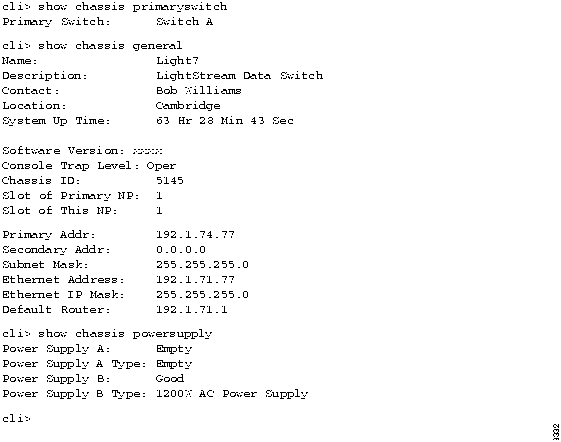
To monitor the chassis, follow these steps. The information that displays applies to the LS2020 switch.
If you need instructions on changing the target switch, see the section on "Setting the Target Switch for CLI Commands" in the chapter entitled "The Command Line Interface."
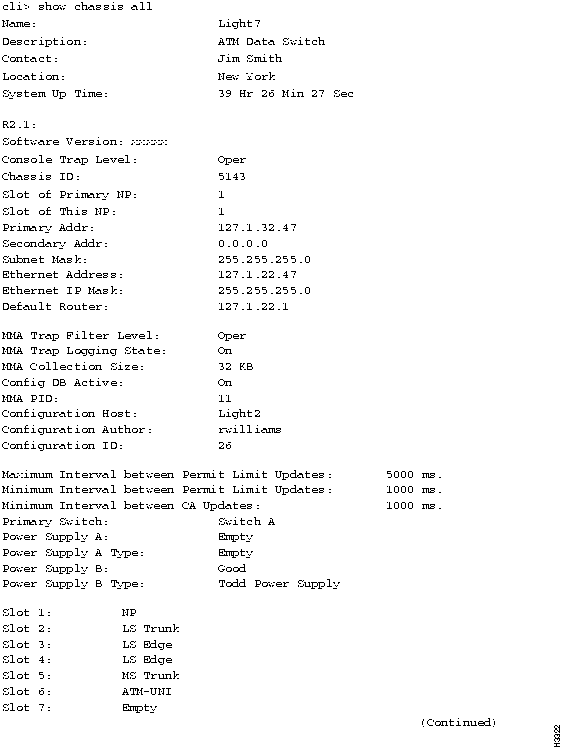
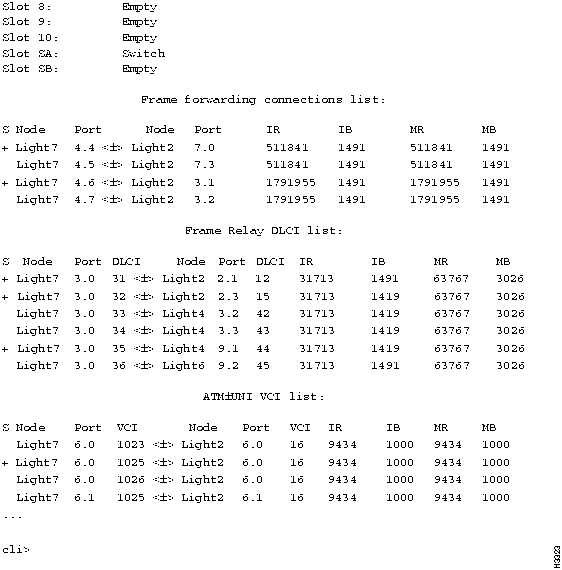
Figure 4-1 : Example of the show chassis all Command Figure 4-2 : Example of the show chassis all Command (continued) If you enter any parameter except all, a subset of the previous screen shown displays. For example, if you enter the command show chassis agent, information similar to the following is displayed:
You can monitor network processor (NP) cards, edge cards, trunk cards, and switch cards. You select the card you want to monitor by specifying its card number (slot number).To determine a card's slot number, you can look at the front of the system to see the numbered slots as shown in Figure 4-19. When you specify a card, you also get information on its associated access card. To monitor the cards in the LS2020 switch, follow these steps.
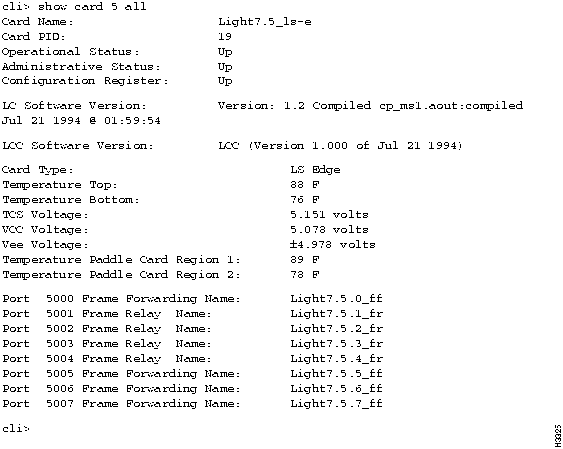
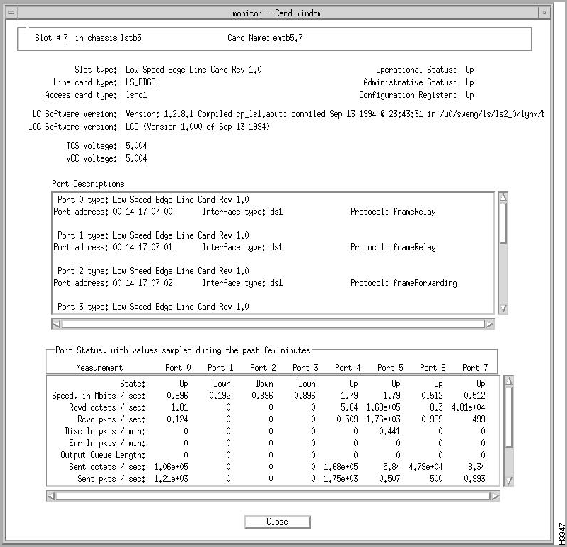
When you enter show card 5 all, information similar to the following (for a low-speed edge card) is displayed as shown in Figure 4-3:
Figure 4-3 : Example of the show card all Command The csumon tool, available from the bash shell, lets you monitor the DSU/CSU for the following:
In addition, you can use csumon to issue commands to an external DSU/CSU attached to a low-speed interface.
Monitoring the DSU/CSU on a Low-Speed Line Card
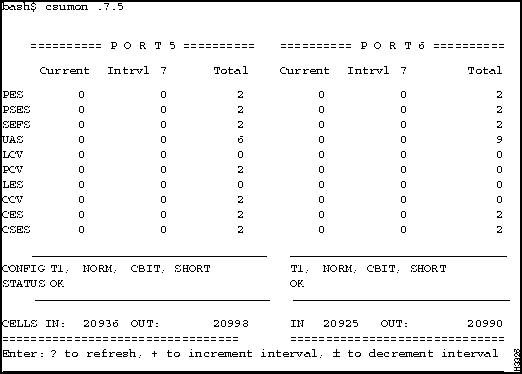
You can obtain CSU statistics by connecting to an external data service unit/channel service unit (DSU/CSU) from an LS2020 switch through a serial line. This provides a terminal to the DSU/CSU. You use its own interface to set up and monitor the DSU/CSU. (See the documentation for the DSU/CSU for details.)
Figure 4-4 : Example - csumon Display for a Low-Speed Line Card
Monitoring the DSU/CSU on a Medium-Speed Line Card
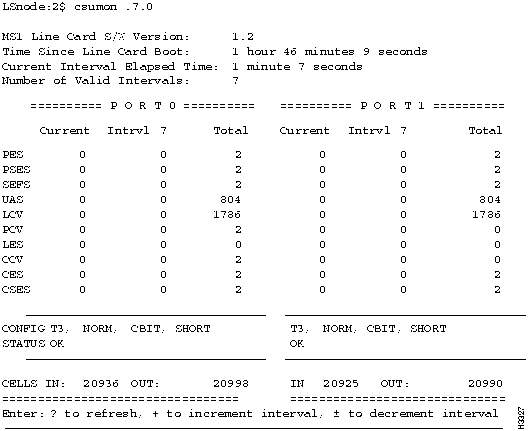
The medium-speed line card (MSC) has a built-in DSU/CSU. Use the following steps to monitor and display the DS3 MIB statistics for MSC ports. MSC CSU statistics are available using the standard DS3 MIB variables.
Figure 4-5 : Example - csumon Display for a Medium-Speed Line Card
Table 4-1 : csumon Display Term Definitions
These steps allows you to monitor the ports on a particular card. You can look at information for a single port, a collection of ports, or a range of ports.
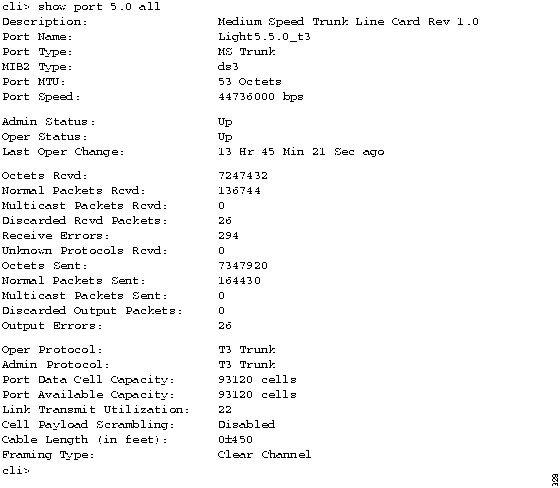
An example for each of the port types is shown in this section. Figure 4-6 is an example of the display you see when you enter show port 5.0 all for an MS trunk port.
Figure 4-6 : Example of the show port all Command for an MS Trunk Port
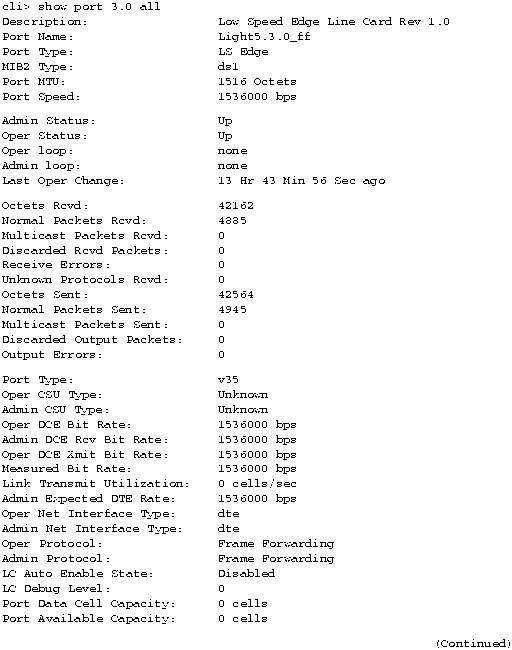
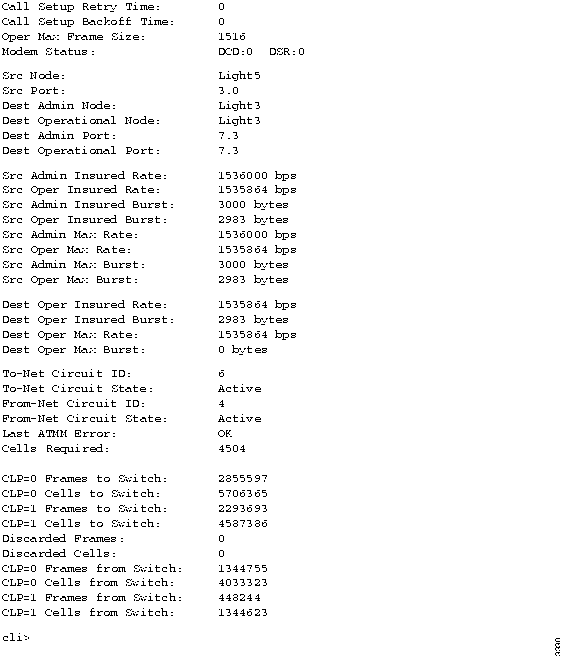
Figure 4-7 and Figure 4-8 are examples of the display you see when you enter show port 3.0 all for a frame forwarding port.
Figure 4-7 : Example of the show port all Command for a Frame Forwarding Port
Figure 4-8 : Example of the show port all Command for a Frame Forwarding Port (Concluded) To monitor the modem port on the switch card's console/modem assembly, follow these steps:
Monitoring Switch Cards, NPs, and Power Supplies
These steps tell you how to monitor the status of your redundant components (switch cards, NPs, and power supplies).
Figure 4-9 : Example of the show chassis Commands Using the CLI to Monitor Configuration and Status
This section provides steps to monitor configuration and status of the following connections and processes of an LS2020 switch:
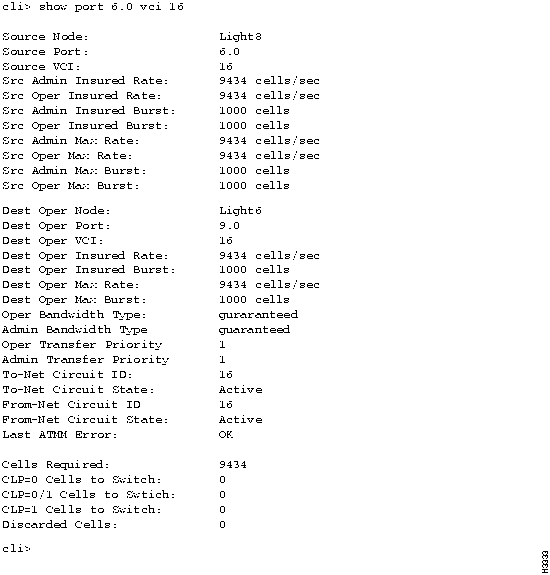
To monitor the ATM UNI virtual channel identifiers (VCIs) configured on a particular ATM UNI port, follow these steps. They provide you with information on the individual connections configured on each port. This information is available for ATM UNI ports only.
Figure 4-10 : Example of the show port vci Display
Monitoring Frame Relay Connections
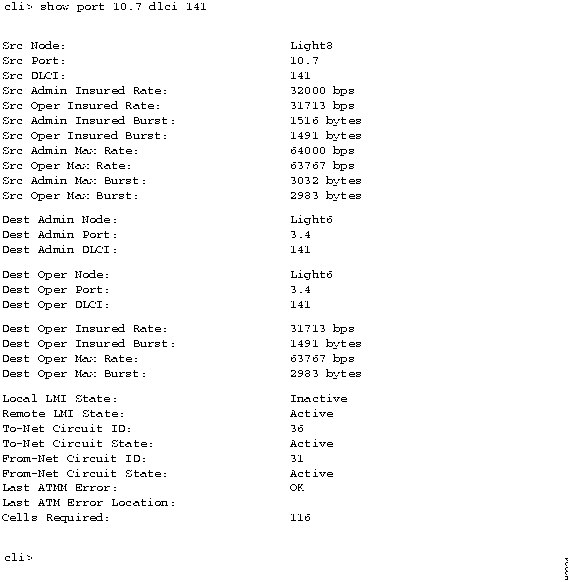
These steps allow you to monitor individual data link connections configured on frame relay ports. These connections are recognized by their data link connection identifiers (DLCIs).
Figure 4-11 : Example of the show port dlci Display Monitoring CLI Attribute Settings
These steps let you monitor the attribute settings for the CLI program itself.
The collector lets you run up to 25 collections at one time. You can set up the collections to save user-defined data for a specified time interval and you can use this data for future analysis. For further information on creating collections, see the "Statistics and Data Collection" chapter.
To monitor the status of a particular collection, follow these steps:
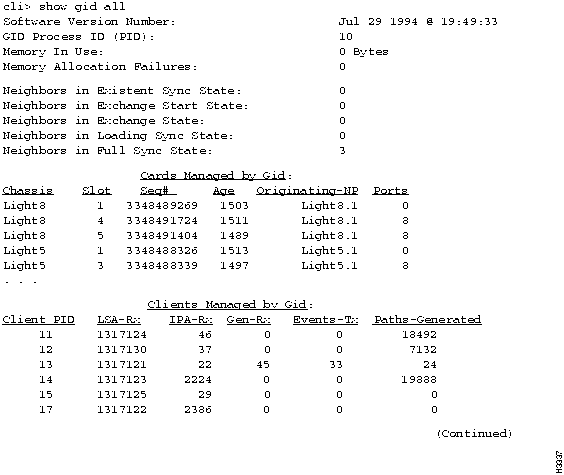
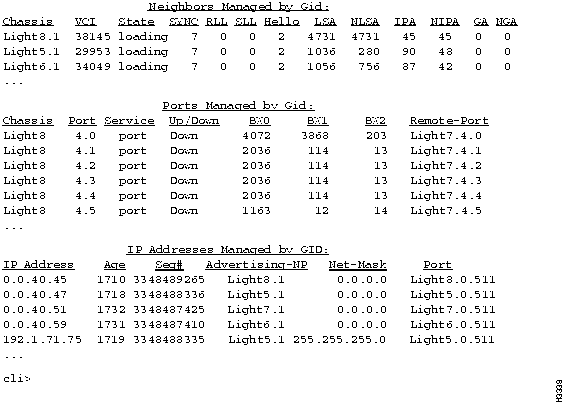
To monitor the status of the global information distribution (GID) software, follow these steps.
Figure 4-12 : Example of the show gid all Command Figure 4-13 : Example of the show gid all Command (concluded)
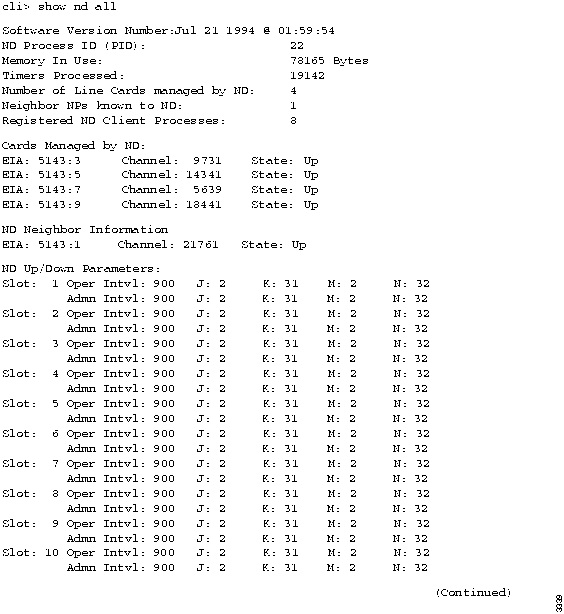
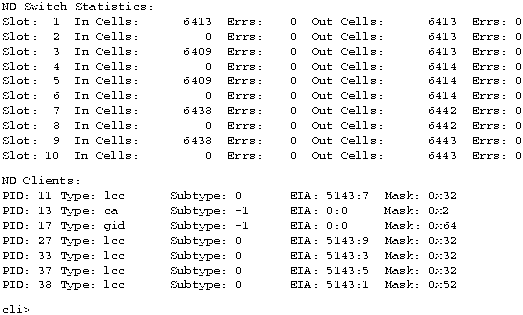
These steps let you monitor the status of the neighborhood discovery (ND) software. This information can tell you what hardware configuration the running software is using or the neighbors of the switch.
Figure 4-14 : Example of the show nd all Command Figure 4-15 : Example of the show nd all Command (concluded)
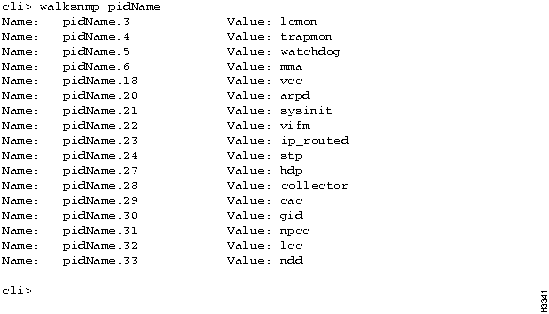
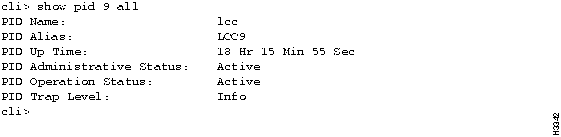
These steps let you monitor the status of a particular process. You select the process you want to monitor by entering either its number or name.
Figure 4-16 : PID and Alias Names of All Processes Running on the LS2020 Switch
Figure 4-17 : show pid all Command SNMP operation is controlled by a number of parameters that are set to default values when the system is started. These parameters can be changed using the set snmp command. (See the "SNMP Commands" chapter for a discussion of this command.)
To monitor SNMP parameters, enter the show snmp command at the cli> prompt:
The following is an example of the display you see when you enter show snmp.
Monitoring the Test and Control System
This section provides the steps to monitor the Test and Control System (TCS).
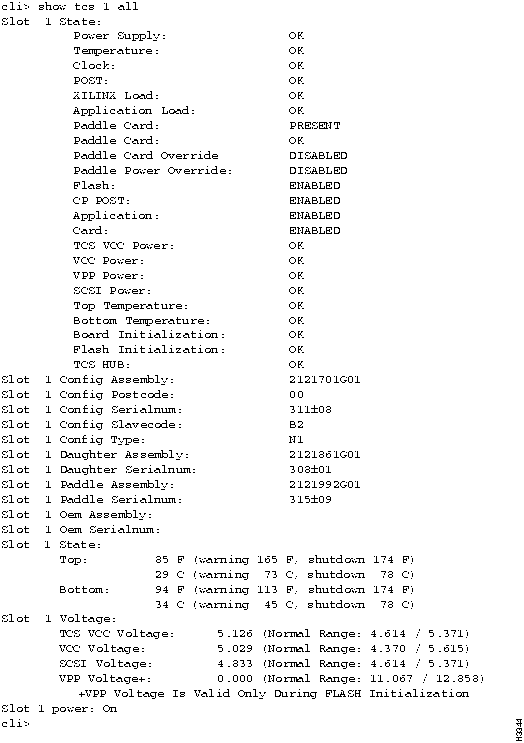
To monitor the values collected by the TCS on a particular card in the chassis, follow these steps. The cards you can monitor are in slots 1 - 10, switch A (SA), and switch B (SB).
Table 4-2 : Parameter Options---show tcs Command
When you enter show tcs 1 all, a display similar to Figure 4-18 displays. If you use any value except all for the argument, a subset of this information displays (see Figure 4-18).
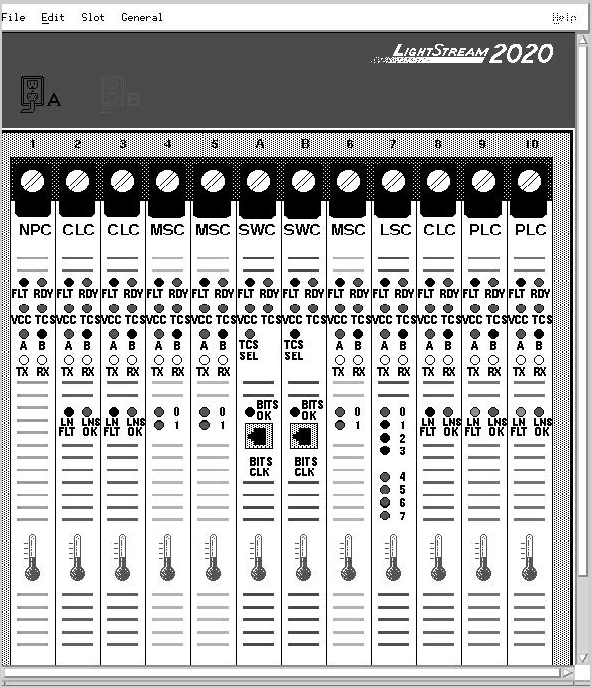
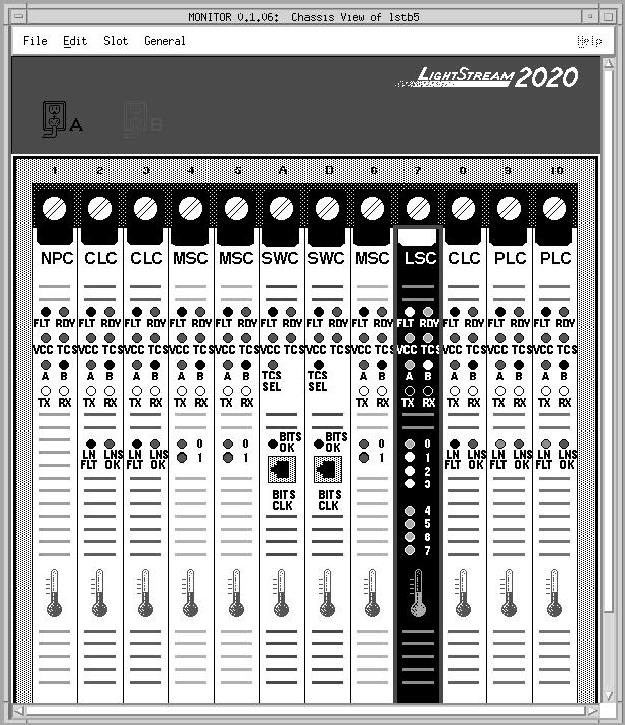
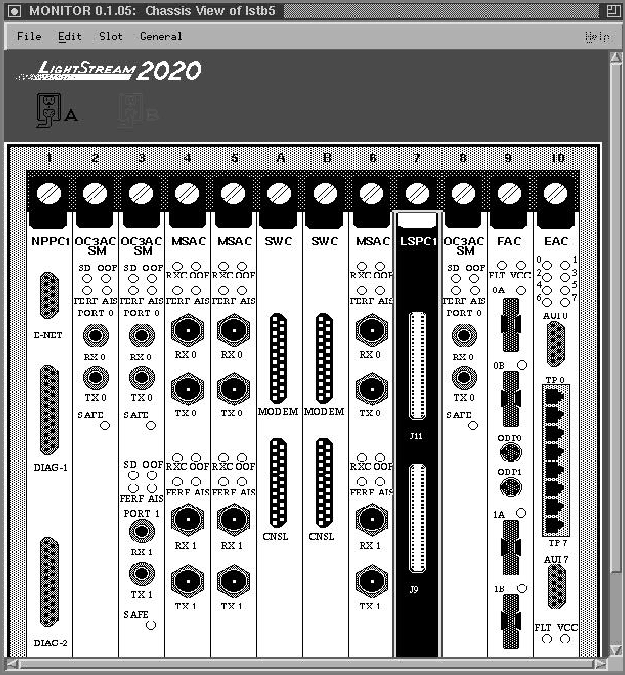
Figure 4-18 : Example show tcs 1 all The LS2020 monitor provides a graphical display of individual LS2020 switches, cards, and ports. The display shows the front of an LS2020 switch with bulkheads for the cards as they appear in the actual switch. Information pertinent to the switch displays above the bulkheads. This section explains how to access the monitor to display switches, cards, and ports. You must have a color monitor to use the monitor software.
Figure 4-19 : LS2020 Monitor Switch Display (Front) Figure 4-20 : LS2020 Monitor Switch Display (Front) with Selected Card Figure 4-21 : LS2020 Monitor Card and Port Display Figure 4-22 : LS2020 Monitor Switch Display (Rear) Table 4-3 : Monitor Menu Options
The color of the objects displayed by the monitor provides you with valuable information, as listed in Table 4-4. As you view an object with the monitor, note its color and see the table for an explanation. LEDs on the rear view of the switch are unreadable and appear in white.
Table 4-4 : Monitor Object/Color Display Explanations
The LS2020 topology map application displays a map that represents the actual topology of an LS2020 network. The map is a set of related objects, symbols, and submaps that provide a graphical and hierarchical presentation of the network.
The LS2020 topology map application runs on HP OpenView. If you are not familiar with the HP OpenView Windows product, see the HP OpenView User's Guide. When you start HP OpenView, the LS2020 Topology map application is automatically invoked. Once you start the application, it builds the current LS2020 submap and then periodically polls each LS2020 node for status information. When creating a new HP OpenView map, you can turn off the LS2020 topology function. You must have a color monitor to use the LS2020 topology map application.
The LS2020 topology map provides:
Once the LS2020 submap is created, you can modify it by
You can also show multiple trunk connections, which are represented by meta-connection symbols. The symbol for a meta-connection is <n> where n is the number of connections being represented (see Figure 4-24).
As previously mentioned, once you start HP OpenView, it can create any number of maps and each map is able to be configured to build an LS2020 topology. However, you do not view a map directly. You view the submaps that make up the map. A submap is a particular view of the network environment. Each submap displays a different view of your map. The application creates a Root submap for each LS2020 map. The Root submap provides a standard, top-level submap for every network map.
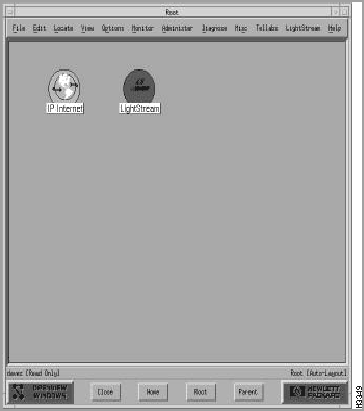
Figure 4-23 shows an example of a Root submap. In this figure, the Root submap contains two symbols: one that represents the Internet and another that represents an LS2020 network.
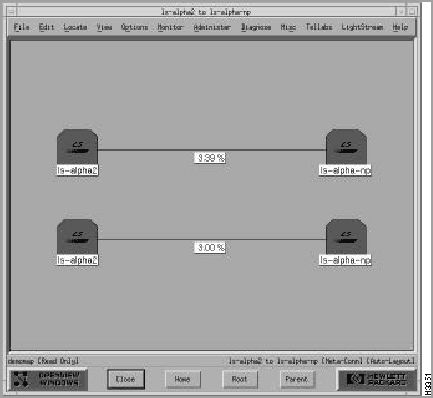
Figure 4-23 : Example of a Root Submap When you open a map, you actually view submaps of the map. To open the LS2020 submap, double click on the LightStream symbol. Figure 4-24 shows a sample LS2020 topology submap.
In this example, the trunk between the ls-alpha2 and ls-alpha-np nodes actually represents two trunks as indicated by the meta-connection symbol <2>.
Figure 4-24 : Example of an LS2020 Topology Submap When a meta-connection is first drawn, its symbol is not displayed. To display a meta-connection symbol (see Figure 4-25), follow these steps.
The next sections describe how to modify the LS2020 submap and view its meta-connection submap.
Figure 4-25 : Meta-connection Submap LightStream domains (logical groups of nodes) can consist of any number of LS2020 nodes. All trunk connections between selected nodes and non-selected nodes are redrawn between the LS2020 domain and the non-selected nodes. Any meta-connections between an LS2020 domain icon and either another LS2020 domain or a node show the two nodes that are connected. When you show an exploded view of an LS2020 domain icon, the nodes that make up the domain and any trunk connections between these nodes are displayed.
To create an LS2020 domain, follow these steps:
When you remove a domain from the topology map, the LS2020 nodes that were originally grouped in that domain are redrawn onto the current submap. To remove an LS2020 domain, follow these steps.
If you want to remove a node or connection from the LS2020 submap, follow these steps:
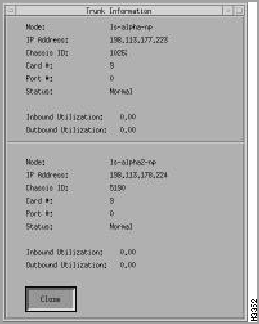
Within the LS2020 submap, a trunk connection is displayed including its interface bandwidth. If you want to get chassis, port, and utilization information about this connection, you click the left mouse button on a trunk. A pop-up dialog box appears and information similar to the following displays (see Figure 4-26).
Figure 4-26 : Example of a Trunk Connection The LS2020 Topology Manager periodically queries each LS2020 node for its trunk information to see if new trunks have been added or known trunks have been removed. It also communicates with HP OpenView for any new objects that are discovered. If new objects are found, the LS2020 Topology Manager (LTM) checks to see if the object's SysOid number matches its own.
Changing LS2020 Topology Map Attributes
The LS2020 submap attributes that you can modify are
The next sections provide a brief description of the attributes and the steps for changing them.
Procedure to Change the LS2020 Topology Map Attributes
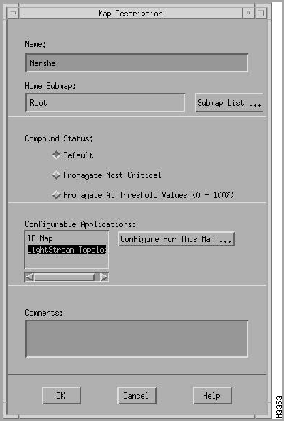
You can modify these attributes from either the OpenView Root dialog box or the LS2020 Submap dialog box.
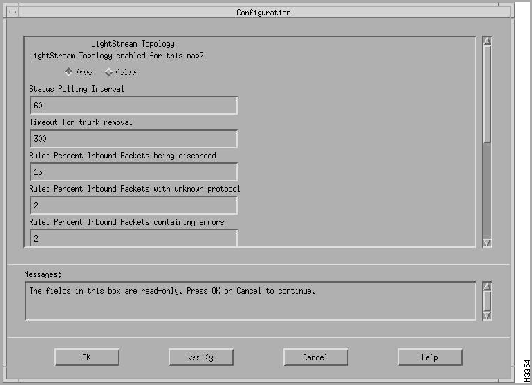
Figure 4-27 : Example of Map Description Dialog Box Figure 4-28 : Example of Configuration Dialog Box From the Configuration box, you can enable or disable the LS2020 Topology Manager (LTM) and select the attributes that you want to modify, such as status polling interval, timeout for trunk removal, and so on.
The default is to enable the LS2020 Topology Manager (LTM) when you start HP OpenView.
The LS2020 topology map application polls each LS2020 node periodically for status information (the default polling time is 60 seconds).
Status changes in the network are displayed through changing colors on the network map and writing messages to HP OpenView Alert window.
Table 4-5 lists the possible status conditions of a node in the network and their meanings. Table 4-6 lists the same information for a trunk connection in the network.
Table 4-5 : Node Status Definitions
Table 4-6 : Trunk Connection Status Definitions
The default for the timeout for trunk removal attribute is 300 seconds.
The LS2020 topology map application collects information for each interface to determine the condition of the LS2020 network. There are rule definitions that apply to the data collected. For example, the default value for the percent inbound packets being discarded is 15%. If the percent of packets being discarded exceeds either the default value or the value you set, a message gets logged to the HP OpenView Alert window. You can change the rate of the default value according to your network needs. Table 4-7 lists the rules and their default values that are applied to the data collected.
Marginal status indications for nodes and major status indications for connections indicate potential network integrity problems. Once a problem is discovered, such as a large number of packets being discarded, the appropriate status is set. The status remains in effect until a time period (the default is 5 minutes) elapses without the problem being rediscovered. To change the default, select the File...Describe/Modify Map menu item.
In an LS2020 network, traffic shaping is applied at all packet interfaces, as shown in Figure 4-6. Traffic entering ATM UNI interfaces does not need to be shaped, since it obeys the traffic policing parameters set for each virtual circuit.
Copyright 1988-1996 © Cisco Systems Inc.
cli> show snmp
cli> show chassis <parameter>
general
agent
congestion
primaryswitch
powersupply
card
listff
listdlci
listvci
listtrunk
listpvc
cli> show chassis agent
MMA Trap filter Level:            Oper
MMA Trap Logging State:           On
MMA Collection Size:              32 KB
Config DB Active:                 On
MMA PID:                          11
Configuration Host:               boston
Configuration Author:             Bob Williams
Configuration ID:                 26
cli>
cli>
show snmp
cli>
show card <card #> <parameter>
1 - 2 for NP cards
2 - 10 for line cards
switcha or switchb for switch cards
name (no information available for switch cards)
processid
status
version
peak-cell-rate
hardware
ports (no information available for NP or switch cards)
bash
csumon <.card.port#>
Input
Action
?
Refresh screen
+
Display the next interval counters
-
Display the previous interval counters
bash
csumon
bash
csumon <.card.port#>
Counter1
Definition
PES
P-bit Errored Seconds
PSES
P-bit Severely Errored Seconds
SEFS
Severely Errored Framing Seconds
UAS
UnAvailable Seconds
LCV
Line Coding Violations
PCV
P-bit Coding Violations
LES
Line Error Seconds
CCV
C-bit Coding Violations
CES
C-bit Errored Seconds
CSES
C1-bit Severely Errored Seconds
Status Term
Definition
OK
No alarms present
RED
Loss of Framing
YELLOW
Far End Receive Failure
BLUE
Receiving an Alarm Indication Signal
1 See RFC 1407 for a further description of these counters.
Input
Action
?
Refresh screen
+
Display the next interval counters
-
Display the previous interval counters
bash
csumon
cli>
show snmp
cli>
show port <port#> <parameter1> <parameter2>
name
status
statistics
physical
frameforward
framerelay
listdlci
listpvc
listvci
dlci
vci
vpi
fddi
datarate
wgrp
bflt
ipflt
ipxflt
np-deliver
sonet
stb
bflt-def
ipflt-def
ipxflt-def
bcast-limit
cli>
show snmp
cli>
show modem <slot #> <parameter>
initstring
cli>
show modem sa all
Initstring: AT&S&D2&&C1SO=1S7=3OS36=7S95=44
cli>
cli>
show snmp
cli>
show chassis primaryswitch
cli>
show chassis general
cli>
show chassis powersupply
cli>
show snmp
cli>
show port <port#> listvci
cli>
show port <port#> vci <vci#>
cli>
show snmp
cli>
show port <port#> listdlci
cli>
show port <port#> dlci <dlci#>
cli>
show cli <parameter>
echosource
lineedit
log
term
time
timer
timestamp
timeout
traplevel
debug
banner
Echo source:  on

Line Edit:  on

Logging:  off

Terminal Type:  vt100

Date/Time:  Thu Jun 15 16:02:40 1995

SNMP Timeout value=  6 seconds

Timestamp:  off

Timer:  4 Hour(s) 37 Minute(s)  38 seconds

Traplevel:  Debug

Debug:  off

Banner:  CLI (Version 2.100 of May 24 1995

PROGRAM: cli:  compiled May 24 1995 @ 02:31:40
cli>
show snmp
cli>
show collection [<collection #>]
*cli>
show collection 1
*** Collection 1 ***
Collection Status: Under Creation
Operational Status: Under Creation
Begin Time: 06/22/1995 08:02:43 EDT (06/22/1995 12:02:43 GMT)
End Time: 01/18/2038 22:14:07 EST (01/19/2038 03:14:07 GMT)
Interval: 60 sec
File: /usr/tmp/collector/collect.1
Collection Items:
Name: CollectDBObjectID.1.1 Value: ifInOctets.3000
Name: CollectDBObjectID.1.2 Value: ifInOctets.3001
Name: CollectDBObjectID.1.3 Value: ifInOctets.3002
Name: CollectDBObjectID.1.4 Value: ifInOctets.3003
cli>
show snmp
cli>
show gid <parameter>
general
synchronization
cards
clients
neighbors
ports
ip
cli>
show snmp
cli>
show nd <parameter>
general
ndcards
neighbors
switchupdown
switchstat
cli>
show snmp
cli>
walksnmp pidName
cli>
show pid {<#>|<alias>} [<parameter>]
name
clialias
createtime
adminstatus
operstatus
traplevel
cli> show snmp

Community: public
HostName:  localhost
cli>
cli>
show snmp
cli>
show tcs <card #> [<parameter1>] [<parameter2>]
2 - 10 for line cards
SA and SB for switch cards
<parameter1> =
<parameter2>1 =
all (default)
N/A
state
N/A
config
all
assembly
postcode
serialnum
slavecode
type
daughter
all
assembly
serialnum
paddle
all
assembly
serialnum
oem
all
assembly
serialnum
midplane
all
assembly
serialnum
nodeaddress
temperature
N/A
voltage
N/A
power
N/A
1Parameter2 is dependent on parameter1. When you enter a command, you first select the value of parameter1 from this table. Based on that selection, you can choose a value of parameter2 that is associated with parameter1.
%
monitor <chassisname>
Menu Name
Options
File
Open
New Chassis
Exit
Edit
No Options Available
Slot
Open Selected Object
Show Access Card for Slot
Show Line Card for Slot
Show All Access Cards
Show All Line Cards
General
snmp CLI
Object
Color
Meaning/Cause
LED
Amber
LED is lit.
LED
Black
Shut off the machine. Bad connection.
LED
Green
LED is lit.
LED
Red
Shut off the machine. Over voltage condition exists. Serious power supply problem.
LED
White
LED state is unknown.
Screw
Black
No information available for card.
Screw
Gray
Card is missing.
Screw
Red
Card is not operational. (The card has failed or it has been powered off.)
Screw
White
Normal card.
Any Icon
Red
Abnormal condition. The orange rectangle around a red icon emphasizes the abnormal condition.
Any Icon
Yellow
Abnormal condition. The orange rectangle around a yellow icon emphasizes the abnormal condition.
Power Supply
Red
Power supply is not operational.
Thermometer
Blue
Temperature is within normal range.
Thermometer
Red
Temperature is over normal range. Cause unknown.
Thermometer
Orange
Temperature is in the warning range. Cause unknown.
Thermometer
Yellow
Temperature is in the warning range. Cause unknown.

Status
Meaning
Unknown
Unable to access the node through SNMP.
Critical
One of the following problems has been detected: a chassis ID conflict, a bad power supply, abnormal temperature, or a diagnostic error on a card.
Major
One or more cards within the node reported a down operational status.
Marginal
One of the following problems on an edge port has been detected: congestion, high error rate, large amount of discarded traffic, or attempt to use an improperly configured PVC. If any of these problems is detected, a message appears in the HP OpenView Events window. Note that for release 2.1 edge port monitoring is turned off.
Normal
No known problems detected.
Unmanaged
The user has configured the node to be unmanaged.
Status
Meaning
Critical
The ifOperStatus reported down for either port in the connection, or the trunk is no longer being discovered in the GID table.
Testing
The ifOperStatus reported testing for either port in the connection.
Normal
No known problems detected.
Major
One of the following problems on either of the ports on the trunk connection has been detected: high number of packets being discarded, high trunk utilization, high error rate, or attempt to use an improperly configured PVC. If any of these problems is detected, a message appears in the HP OpenView Events window.
Warning
One of the following problems on either of the ports on the trunk connection has been detected: high number of packets with unknown protocols being received or the output queue length is excessively high.
Unmanaged
The user has configured the trunk to be unmanaged.
Unknown
Unable to get port information through SNMP.
Rule
Default Value
Percent inbound packets being discarded
15%
Percent inbound packets with unknown protocol
2%
Percent inbound packets containing errors
2%
Percent outbound packets being discarded
15%
Percent outbound packets containing errors
2%
High output queue length
10
