


|
|

Setting and Displaying
Configuration Attributes
This guide provides detailed information on commands available from the command line interface (CLI), and a table that correlates the attributes used in the CLI, the configuration program, and the Management Information Base (MIB). It provides a description of the MIB used to manage LightStream 2020 enterprise ATM switches. It also contains manual pages for LynxOS commands and a user's guide for the vi text editor.
The LightStream 2020 Command and Attribute Reference Guide is intended for anyone who operates a LightStream network.
Users of the LightStream document set are expected to have a general understanding of basic data communications concepts and some knowledge of UNIX.
This guide is organized as follows:
The following is a list of LightStream manuals and other material relevant to LightStream users.
Before attempting to install, configure, operate, or troubleshoot a network of LightStream switches, read the LightStream 2020 System Overview. This overview provides important background information about the LightStream product and the ATM technology on which the product is based. Read the LightStream 2020 System Overview first. Then use Table 1-1 to determine which manuals you should read next.
Table 1-1 : LightStream Reading Path
| If you want to: | Read the following manuals in the order listed below: |
|---|---|
| Install LightStream switches | LightStream 2020 Release Notes1
LightStream 2020 Site Planning and Cabling Guide LightStream 2020 Installation and Troubleshooting Manual |
| Configure LightStream switches | LightStream 2020 Release Notes1
LightStream 2020 Configuration Guide LightStream 2020 Online Help Screens |
| Set up or expand a LightStream network | LightStream 2020 Release Notes1
LightStream 2020 Administration Guide LightStream 2020 Online Help Screens |
| Operate a LightStream network | LightStream 2020 Release Notes1
LightStream 2020 Operations Guide LightStream 2020 Command and Attribute Reference Guide LightStream 2020 Command Line Interface (CLI) Reference Card LightStream 2020 Traps Reference Manual LightStream 2020 Online Help Screens |
| Manage or troubleshoot a LightStream network | LightStream 2020 Release Notes1
LightStream 2020 Operations Guide LightStream 2020 Administration Guide LightStream 2020 Command and Attribute Reference Guide LightStream 2020 Command Line Interface (CLI) Reference Card LightStream 2020 Traps Reference Manual LightStream 2020 Online Help Screens |
| Troubleshoot LightStream hardware | LightStream 2020 Release Notes1
LightStream 2020 Installation and Troubleshooting Manual LightStream 2020 Site Planning and Cabling Guide |
Table 1-2 describes conventions used to distinguish different types of text:
| Convention | Purpose | Example |
Bold screen literal
type
|
Represents user input. |
$
date
|
Screen literal
type
|
Represents system output |
Wed May 6 17:01:03 EDT 1994
|
| Boldface type | Denotes names of commands, command arguments, and switches. Command names are case sensitive; enter them exactly as they appear in the text. | Issue the clear command. |
| Italic type | Used for titles of documents and for emphasis. | LightStream 2020 Configuration Guide
File names are case sensitive. |
| Angle brackets < > | Indicate user-specified parameters or classes of user responses. When you see this notation in a syntax statement, make the substitution but do not type the angle brackets. | If you see:
set port <c.p> <state> you might type: set port 4.3 active |
| Square brackets [ ] | Indicate keys on the keyboard, or optional arguments or parameters for commands. You can omit optional arguments and parameters in any command. | Press [Return].
cli>
help [<topic>]
|
| Caret symbol ^ | When the caret symbol precedes a character, it refers to the control key. | ^X is the same as [Control] X |
| Curly braces { } | Indicate a choice of arguments or parameters for commands. Arguments or parameters are separated by a vertical line {|}, and you must select one. |
cli>
set cli traplevel {off|info|oper|trace|debug}
|
The LightStream 2020 enterprise ATM switch supports a command line interface (CLI). This chapter lists all the CLI commands in alphabetical order, and provides detailed information on each command.
The CLI commands may be grouped by function as shown in Table 2-1:
Table 2-1 : CLI Commands and Functions
| Command Type | Function |
|---|---|
| CLI control commands | Monitoring and control |
| MIB commands | Advanced monitoring and control |
| VLI commands | Virtual LAN internetworking |
| Diagnostics commands | Diagnostic tests |
If you can identify in Table 2-1 the type of action that you wish to perform, refer to Table 2-2 for the commands that you can use to perform that action. Table 2-2 describes the various CLI commands. The commands that you are most likely to use for normal day-to-day operation are the CLI control commands and the MIB commands.
In Table 2-2, the monitoring and control commands set and show are singled out and separated from the CLI control commands because of their complexity.
| Type | Name | Function |
|---|---|---|
| The set Command | set | Change the state of the specified attribute. See the section "The set Command." |
| The show Command | show | Display the value of the specified attribute(s). See the section "The show Command." |
| CLI Control Commands | clear | Clear the screen. |
| exit | Exit CLI or protected mode. | |
| help | Display CLI help information. | |
| password | Change the password for protected mode. | |
| ping | Send ICMP echo packets to a host and report on any returned packets. | |
| protected | Enter protected mode. | |
| quit | Exit CLI or protected mode. | |
| shell | Execute a LynxOS command under a copy of the LynxOS shell. | |
| source | Execute a CLI script (CLI commands stored in a disk file). | |
| MIB Commands | browse | Browse the MIB tree. |
| getsnmp | Display the value of a MIB object. | |
| getnextsnmp | Display the value of the object in the MIB tree that follows the specified object. | |
| setsnmp | Change the state of the specified MIB object. | |
| walksnmp | Display the values of all MIB objects in the MIB tree starting with the specified object. | |
| VLI Commands | define | Define a bridge filter. |
| delete | Delete a bridge filter. | |
| Diagnostics Commands | connect | Logically attach the console or modem I/O ports to a given card within a LightStream node. |
| loadcard | Load the specified file into the specified card, start the card, and establish a console connection between the CLI and the TCS slave on the card. | |
| test | Run field diagnostics tests from the CLI. |
Two other commands are described in the "Diagnostics Commands" section. They require detailed knowledge of the contents and functions of hardware registers and memory locations. These are the commands read and write.
The CLI help facility lists all the commands alphabetically. Refer to Chapter 3 of the LightStream 2020 Operations Guide for a detailed description of the online help facility in the CLI.
Use the set command to set the value of a specified MIB object within a LightStream node, or to set the state of the CLI program.
The type argument may be any of those shown in Table 2-3:
| type Argument | Function |
|---|---|
set card
|
Per-card attributes |
set chassis
|
Chassis-wide attributes |
set cli
|
CLI attributes |
set collection
|
Collection records |
set config
|
Configuration changes saved in local database |
set modem
|
Modem attributes |
set pid
|
Per-process attributes |
set port
|
Per-port attributes |
set snmp
|
SNMP control attributes |
set stb
|
Spanning-tree bridge attributes |
set tcs
|
Per-card attributes under TCS |
set trap
|
Display of traps |
The additional arguments that may be used with each type argument are explained below.
Set the administrative state of the card to active, inactive, or testing.
Set values of specified chassis attributes.
Set values of specified CLI attributes.
Create, configure, or control the specified collection process.
See Chapter 6 of the LightStream 2020 Operations Guide for information about data collections and how to use them, and see Chapter 5 of the Operations Guide for information about monitoring collections.
Action Arguments of set collection
Attribute Arguments of set collection
Control write access to the MMA configuration database.
Write configuration changes to the MMA database, and prevent other users from making configuration changes; or restore the default, so that the CLI affects configuration parameters in run-time memory only.
These commands are equivalent to setsnmp mmaSetLock 3 (chassis locked) and setsnmp mmaSetLock 1 (chassis unlocked). The command setsnmp mmaSetLock 2 locks the chassis to other users, but does not write changes to disk. This is useful for making experimental changes without interference. When setsnmp is used to set the mmaSetLock object to 2 or 3, the lock automatically times out after two minutes of no input from the user. With these commands, in contrast with the set config lock command, the CLI does not issue a periodic reminder that the chassis is locked.
If other users of the CLI attempt to use CLI set commands while the MMA is locked, they see the following generic SNMP error message:
SNMP error
Set the modem initialization string and modem password for the specified switch card.
This command affects only the node on which the CLI is running when you execute it, regardless of a target set with the command set snmp hostname name.
Set the trap level or administrative status of a process.
Configure a port.
Use the set port command to configure various attributes of a port. Most attributes can be configured only for an appropriate card type. The types of attributes include the port state (for all card types), bridging and VLI attributes, and protocol-specific characteristics. These are described under the following headings:
Characteristics Arguments of set port
Configure or modify port characteristics. The arguments with the characteristics parameter are as follows:
The set port command has four bridge arguments: bcast-limit, bflt, bflt-def, and stb. The arguments are described below.
Frame Forwarding Arguments of set port
Frame Relay Arguments of set port
The set port command has two frame relay arguments: framerelay and dlci. The arguments are described below.
Set the Virtual LAN Internetworking (VLI) parameters. Only workgroups are currently supported.
Set the value of SNMP attributes for the specified port.
Define the spanning-tree bridge parameters for the node.
See also the command set port c.p stb parameters.
For the three arguments maxage, forwdelay, and hellotimer, the value is in hundredths of a second, truncated to seconds. For example, 400, 401, and 499 all signify 4 seconds. The limits on these three arguments are as follows (in seconds):
2 (hellotimer +1) " maxage " 2 (forwdelay -1)
| Argument | Meaning |
invalid
|
Delete the entry now. |
deleteonreset
|
Delete the entry when the bridge is reset. |
permanent
|
Do not delete the entry when the bridge is reset. |
For the specified card, set the midplane address, turn power on or off, or reset the card.
This command affects only the node on which the CLI is running when you execute it, regardless of a target set with the command set snmp hostname name.
Control the display of specific traps.
See the LightStream 2020 Administration Guide for information about the using LightStream traps. See the LightStream 2020 Traps Reference Manual for information about individual traps.
cli> walksnmp lwmaTrapCliAlias
Name:lwmaTrapCliAlias.3 Value: IP
Name:lwmaTrapCliAlias.4 Value: RMON
Name:lwmaTrapCliAlias.5 Value: KLOG
Name:lwmaTrapCliAlias.6 Value: NPTMM
Name:lwmaTrapCliAlias.7 Value: COLLECTOR
Name:lwmaTrapCliAlias.8 Value: CAC
Name:lwmaTrapCliAlias.10 Value: GIDD
Name:lwmaTrapCliAlias.11 Value: LCC3
Name:lwmaTrapCliAlias.13 Value: NPCC
Name:lwmaTrapCliAlias.18 Value: LCC5
Name:lwmaTrapCliAlias.25 Value: LCC4
Name:lwmaTrapCliAlias.35 Value: ND
Name:lwmaTrapCliAlias.38 Value: TRAPMON
Name:lwmaTrapCliAlias.41 Value: lcmon (secondary)
Name:lwmaTrapCliAlias.47 Value: filterTask
cli>
The following command sets the SNMP read/write community to write (a name to which the value write is assigned in the mma.communities file), so that you can use the set trap command:
The following command disables the oper trap LCC_1, which reports a high error rate:
After correcting the problem, re-enable the trap with the following command:
The following command sets the target system to be the node whose alias is boston:
The following command makes port 5 on card 8 active:
Display the value of the specified MIB object(s).
The show command displays the value of the specified MIB object. The amount of information returned varies substantially, depending on the object.
The type argument can be any of those shown in Table 2-5:
Table 2-5 : show Command type Arguments
| type Argument | Display |
|---|---|
show bflt
|
Bridge filters |
show card
|
Per-card attributes |
show chassis
|
Switch-wide attributes |
show cli
|
CLI attributes |
show collection
|
Collection records |
show config
|
Status of configuration lock |
show gid
|
Global information distribution (GID) attributes |
show modem
|
Modem attributes |
show nd
|
Neighborhood discovery (ND) attributes |
show pid
|
Per-process attributes |
show port
|
Per-port attributes |
show snmp
|
SNMP control attributes |
show spt
|
Spanning-tree bridge attributes |
show stb
|
Spanning-tree bridge attributes |
show tcs
|
Per-card attributes under TCS |
show trap
|
State of traps |
The additional arguments that may be used with each type argument are described in the following pages.
Display bridge filter conditions that have been defined with the define command.
The optional ID argument limits the display to the specified filter; otherwise, all currently defined filters are displayed.
Display per-card attributes.
The card# argument is a card number. The parameter arguments are listed below.
Display switch-wide attributes.
Display CLI attributes.
Display collection record number collection#.
The record includes collection status, operational status of the node, beginning and ending time of the collection, the interval between taking collection entries, and the pathname and size of the file used for the collection record. This is followed by the name and value of a series of collection items, e.g. the 17th object in collection 1 is collectDBObjectID.1.17, whose value is an entry for card 7, port 4 (ifInOctets.7004 or ifInErrors.7004).
Display status of configuration lock.
This command displays the status (locked, unlocked) of the configuration database lock. See the set config command.
Display contents of log files.
The filetype argument of the show file command is not an actual file name, it is one of the following:
With the tail parameter, display only the last 20 or so lines from the file.
Display attributes of the global information distribution (GID) system.
Display the modem initialization string.
This command affects only the node on which the CLI is running when you execute it, regardless of a target set with the command set snmp hostname name.
Display attributes of the neighborhood discovery (ND) system.
| Parameter | Description |
|---|---|
interval
|
The interval (in multiples of 100 ms) between up/down messages that ND sends to this card (default 300 ms). |
J
|
ND must receive J/M messages to bring the line up (default 1). |
K
|
ND must receive K/N messages to bring the line up (default 1). |
M
|
ND must receive J/M messages to bring the line up (default 1). |
N
|
ND must receive K/N messages to bring the line up (default 1). |
Display per-process attributes for process pid#.
Display per-port attributes.
Use the show port command to display various attributes of a port. Most attributes can be displayed only for an appropriate card type. The types of attributes include the port state (for all card types), bridging and VLI attributes, and protocol-specific characteristics. These are described under the following headings:
General Arguments of show port
ATM VCI Arguments of show port
Frame Forwarding Arguments of show port
Frame Relay Arguments of show port
Display SNMP control attributes.
Display the read/write community name, the host name (target), and the on/off state of the authentication attribute.
Display spanning bridge parameters (listed below).
Display the following spanning-tree bridge parameters: designated root bridge address, root path cost, port for lowest cost path, protocol used (e.g. IEEE 8021d), maximum age, hello time, forward delay, priority, base bridge address, bridge max age, bridge hello time, bridge forward delay, topology change time, hold time, topology changes, bridge aging time, and the list of bridge ports with the spanning state of each.
Two values are displayed for the maximum age, hello time, and forward delay. One set of values is provided by the root bridge; the other set of values is established with the set stb command and takes effect only when the present node becomes the root bridge. These pairs of values are as follows:
| Provided by root bridge | Set with set stb |
|---|---|
| Bridge Max Age | Maximum age |
| Bridge Hello Time | Hello time |
| Bridge Forward Delay | Forward delay |
Display the spanning-tree bridge parameters that have been set with set stb and with set port c.p stb commands.
Display per-card attributes that are accessible using TCS.
This command affects only the node on which the CLI is running when you execute it, regardless of a target set with the command set snmp hostname name.
| Type | Description |
|---|---|
S1
|
Switch card 1 |
S2
|
Switch card 2 |
N1
|
Network processor (NP) card 1 |
L1
|
Low-speed line card 1 |
M1
|
Medium-speed line card 1 |
P1
|
Packet line card 1 |
C1
|
Cell line card 1 |
Display state of traps, either system-wide (the default) or by process.
One of the following optional arguments may be used to filter traps by their origination:
The trapspec arguments are used to specify which traps to display, as follows:
See the LightStream 2020 Administration Guide for information about the using LightStream traps. See the LightStream 2020 Traps Reference Manual for information about trap levels and individual traps.
The following example shows how to determine what cards are configured on the switch that you are interrogating:
cli> show chassis cards
Slot 1: NP
Slot 2: LS Trunk
Slot 3: LS Edge
Slot 4: LS Edge
Slot 5: MS Trunk
Slot 6: ATM-UNI
Slot 7: Empty
Slot 8: Empty
Slot 9: Empty
Slot 10: LS Edge
Slot SA: Switch
Slot SB: Empty

cli>
The following example shows how to determine what ports are configured on card 3 on the switch that you are interrogating:
cli> show card 3 ports
Port 3000 Frame Relay Name: Blue Dollar - 4
Port 3001 Frame Relay Name: Blue Dollar - 5
Port 3002 Frame Relay Name: Blue Dollar - 8
Port 3003 Frame Relay Name: Blue Dollar - 9
Port 3004 Frame Relay Name: lstb7.3.4_fr
Port 3005 Frame Relay Name: Purple Plus - 1
Port 3006 Frame Forwarding Name: Green Asterisk - 8
Port 3007 Frame Forwarding Name: Green Asterisk - 9
cli>
The following example shows how to display port statistics for port 6 on card 3 in the switch that you are interrogating:
cli> show port 3.6 statistics
Octets Rcvd: 3356927738
Normal Packets Rcvd: 83574214
Multicast Packets Rcvd: 0
Discarded Rcvd Packets: 31524
Receive Errors: 4
Unknown Protocols Rcvd: 0
Octets Sent: 4070237100
Normal Packets Sent: 46399345
Multicast Packets Sent: 0
Discarded Output Packets: 0
Output Errors: 3

cli>
The following example shows how to identify the daughter board serial number for the TCS on card 3:
cli> show tcs 3 daughter serialnum
Slot 3 Daughter Serialnum: SM332-18
cli>
This section lists the commands that you use to monitor and control the CLI session. It also includes the ping command, which may be used with the set and show commands, described in the sections "The set Command" and "The show Command," to monitor and control the LightStream node from the CLI.
| Type | Name | Function |
|---|---|---|
| CLI Control Commands | clear | Clear the screen. |
| exit | Exit or protected mode or CLI program (same as quit). | |
| help | Display online help for CLI commands. | |
| password | Change the password for protected mode. | |
| ping | Send ICMP echo packets to a host and report on any returned packets. | |
| protected | Allow access to protected mode. | |
| quit | Exit CLI or protected mode (same as exit). | |
| shell | Execute a LynxOS command under a copy of the LynxOS shell. | |
| source | Execute a CLI script (CLI commands stored in a disk file). |
Clear the screen.
Use the clear command to clear the screen.
Exit protected mode or the CLI program.
None.
In normal mode, the exit command halts the CLI program and returns you to the bash> prompt. If you are in protected mode, the exit command returns you to normal mode in the CLI, so that you must type exit a second time to halt the CLI.
*cli> exit
cli> exit
bash>
Provide online help for CLI commands.
The help command displays online help information about CLI commands.
Refer to Chapter 4 of the LightStream 2020 Operations Guide for a detailed description of the online help facility in the CLI.
The following example shows the display that the help command displays with protected as its argument:
cli> help protected
NAME

protected - enter protected mode

SYNTAX


protected

DESCRIPTION


Enter protected mode. User will be prompted for a password.
Password will not be echoed as it is entered. Protected mode
is required for sensitive or potentially disruptive operations.

cli>
Change the password for the npadmin account, which is also the password for protected mode. Requires protected mode.
N/A
Use the password command to change the password for the npadmin account, which is also the password for accessing protected mode in the CLI:
*cli> password
Changing NIS password for npadmin on Boston5.
Old password:
New password:
Retype new password:
NIS entry changed on Boston5
*cli>
Send ICMP echo packets to a host and report on any returned packets.
The ping command sends a series of ICMP echo packets at 1-second intervals to the specified IP address and reports on any returned ICMP echo-response packets. Press ^C (the control-C key) to stop the ping command and display a summary of the results.
The following example shows four ping packets sent to the node named boston5:
cli> ping boston5
PING boston5 (198.113.178.17): 64 data bytes
64 bytes from 198.113.178.17: icmp_seq=0 time=26 ms
64 bytes from 198.113.178.17: icmp_seq=1 time=12 ms
64 bytes from 198.113.178.17: icmp_seq=2 time=13 ms
64 bytes from 198.113.178.17: icmp_seq=3 time=14 ms
^C

----boston5 PING Statistics----
4 packets transmitted, 4 packets received, 0packet loss
round-trip (ms) min/avg/max = 12/17/26


cli>
The IP address 198.113.178.17 could have been used as the command argument instead of the alias boston5. The command used the default packet size of 64 bytes. The example shows the number of packets transmitted, the number received back from boston5, and the minimum, average, and maximum round-trip transmission time.
Allow access to protected mode.
None.
The protected command is used to access the CLI in protected mode. When you are in protected mode, you have access to additional commands. The command prompts you for the password for protected mode. You cannot enter protected mode unless you enter the correct password. When you are operating in protected mode, the cli> prompt is preceded by an asterisk (*cli>). To terminate protected mode and return to the cli> prompt, use the exit or quit command.
To enter protected mode, enter the protected command. You are prompted for the password for the protected mode. When you enter the correct password and press [Return], you enter protected mode. In protected mode, the cli> prompt is always preceded by an asterisk, *cli>.
cli> protected
Enter Password:
*cli>
Exit protected mode or the CLI program.
None.
The quit command halts the CLI program. If you are in protected mode, the quit command exits from protected mode, but remains in the CLI (in normal mode), so that you must type quit a second time to exit from the CLI.
*cli> quit
cli> quit
Execute a LynxOS command under a copy of the LynxOS shell. Requires protected mode.
The shell command executes a LynxOS command as if it were being run from the bash shell. The actual LynxOS command must be surrounded by quotes. For additional information about LynxOS commands, see the "LynxOS Command Reference" chapter. If more than one command is to be executed, it is often more convenient to start a subshell with the command shell bash at the cli> prompt. If you do this, it is very important to terminate the subshell afterward with the shell built-in command exit (see the "BASH Shell Reference" appendix).
The following example shows use of the shell command to run a LynxOS command that displays the date and time as known to the system. Because the command is a single word, the quotation marks are optional:
*cli> shell date
Thu Feb 17 13:39:52 EST 1994
*cli>
The following example shows use of the ls command to display names of all files that begin with a dot (.). Note that ls .* or ls .?* would display contents of the parent directory (abbreviated .. by the shell). Because the command contains a space, it must be entered within quotation marks:
*cli> shell ls ".??*"
.bash_history .profile .rhosts .rhosts.dist
*cli>
The following example shows use of the cbufpr command to display the last lines of the mma.traplog file. The command contains spaces, so it must be enclosed in quotation marks:
*cli> shell "cbufpr -t /usr/tmp/mma/mma.traplog"
PROGRAM: cbufpr: compiled Feb 02 1994 @ 16:07:57 [pid:35]
(OPER) NDD_3 at 02/17/94 16:35:29 EST (02/17/94 21:35:29 GMT)
Line Card lstb4:3 (MS-TR) up.
(INFO) NPTMM_2007 at 02/17/94 16:35:30 EST (02/17/94 21:35:30 GMT)
Slot 3 State Changed From DOWN To UP
(INFO) LC_2000 at 02/17/94 16:35:30 EST (02/17/94 21:35:30 GMT)
Slot 3: ND: ERMP channel to NP open
(INFO) LC_2000 at 02/17/94 16:35:38 EST (02/17/94 21:35:38 GMT)
Slot 6: FIRMWARE: CMP 0x12 PCP 0x8 FSU 0x10201
(INFO) LC_2000 at 02/17/94 16:35:39 EST (02/17/94 21:35:39 GMT)
Slot 6: LC 5148.6 booting: flash_status OK idata_image OK
(INFO) LC_2000 at 02/17/94 16:35:39 EST (02/17/94 21:35:39 GMT)
Slot 6: ports enabled 0x00
(INFO) LC_2000 at 02/17/94 16:35:39 EST (02/17/94 21:35:39 GMT)
Slot 8: FIRMWARE: CMP 0x12 PCP 0x6 FSU 0x10201
(INFO) LC_2000 at 02/17/94 16:35:40 EST (02/17/94 21:35:40 GMT)
Slot 8: LC 5148.8 booting: flash_status OK idata_image OK
(INFO) LC_2000 at 02/17/94 16:35:40 EST (02/17/94 21:35:40 GMT)
Slot 8: ports enabled 0x00
(OPER) NDD_3 at 02/17/94 16:35:46 EST (02/17/94 21:35:46 GMT)
Line Card lstb4:6 (LS-EDGE) up.
*cli>
The following example shows use of the command bash to start a subshell for purpose of executing multiple commands. It then shows use of the shell built-in command exit to return to the CLI:
*cli> shell bash
bash$ cd /usr/app/base/config
bash$ vi cli.groups
bash$ exit
exit
*cli>
The effects of the cd command are lost when you terminate the subshell. The next use of the shell command will execute LynxOS commands in the user's login directory.
Execute a CLI script (CLI commands stored in a disk file).
The source command executes CLI commands that are stored in a disk file (a script), each command beginning on a new line. Comments may be included with the CLI commands in C programming style, between an initial /* string and a final */ string.
cli> source "show_all_ports"
cli> source "/usr/tmp/mma/show_recent_traps"
cli>
This section describes commands used to display and modify the values of MIB objects (see the "LightStream MIB Reference" chapter).
| Type | Name | Function |
|---|---|---|
| MIB Commands | browse | Browse the MIB tree. |
| getsnmp | Display the value of a MIB object. | |
| getnextsnmp | Display the value of the object in the MIB tree that follows the specified object. | |
| setsnmp | Change the state of the specified MIB object. | |
| walksnmp | Display the values of all MIB objects in the MIB tree starting with the specified object. |
Browse the MIB tree.
Use the browse command to walk through the MIB tree and obtain the value of any object in the MIB tree.
The following example shows how to start the browse command with the address of a particular object, mgmt in this example:
cli> browse mgmt

mgmt:
1) mib
Enter line number to go down, 'u' to go up, 'q' or 'e' to quit browse.
browse>
There is only one object under the mgmt object, so we select it by entering the menu number 1:
browse> 1

mgmt.mib:
1) system
2) interfaces
3) at
4) ip
5) icmp
6) tcp
7) udp
8) egp
9) transmission
10) snmp
11) dot1dBridge
12) rmon
Enter line number to go down, 'u' to go up, 'q' or 'e' to quit browse.
browse>
There are 12 objects under the mib object. We select the object system by entering the menu number 1:
browse> 1

mgmt.mib.system:
1) sysDescr
2) sysObjectID
3) sysUpTime
4) sysContact
5) sysName
6) sysLocation
7) sysServices
Enter line number to go down, 'u' to go up, 'q' or 'e' to quit browse.
browse>
All of the objects under the system object are "leaves" of the MIB tree, that is, there are no further branches under them. When we select one from the menu, the program displays the value for that object and returns to the mgmt.mib.system menu:
browse> 4
------------------------------------------------------
Name: sysContact.0 Value: Lisa Bloch
mgmt.mib.system:
1) sysDescr
2) sysObjectID
3) sysUpTime
4) sysContact
5) sysName
6) sysLocation
7) sysServices
Enter line number to go down, 'u' to go up, 'q' or 'e' to quit browse.
browse>
If we wish to explore a different branch of the mib subtree, we can enter "u" to return to the next higher level:
browse> u

mgmt.mib:
1) system
2) interfaces
3) at
4) ip
5) icmp
6) tcp
7) udp
8) egp
9) transmission
10) snmp
11) dot1dBridge
12) rmon
Enter line number to go down, 'u' to go up, 'q' or 'e' to quit browse.
browse>
To exit to the cli> prompt, we enter "q" (or "e"):
browse> q
Leaving browse
cli>
Display the value of a specified MIB object.
Given the addresses of one or more MIB objects, getsnmp displays the value of the MIB object at each address.
cli> getsnmp sysContact.0 sysServices.0
Name: sysContact.0 Value: Lisa Bloch
Name: sysServices.0 Value: 78
cli> getsnmp 1.3.6.1.2.1.1.4.0 mgmt.1.1.7.0
Name: sysContact.0 Value: Lisa Bloch
Name: sysServices.0 Value: 78
cli> getsnmp system.4.0
Name: sysContact.0 Value: Lisa Bloch
Display the value of the next object after the specified object in the MIB tree.
Given the address of one or more MIB objects, getnextsnmp displays the value of the MIB object that comes next in the subtree after each address you specified. If you specify the last variable ("leaf" object) in a subtree, the command displays the first variable in the next following subtree.
cli> getnextsnmp sysContact.0 sysServices.0
Name: sysName.0 Value: Comet
Name: ifNumber.0 Value: 10007
cli> getnextsnmp 1.3.6.1.2.1.1.4.0 mgmt.1.1.7.0
Name: sysName.0 Value: lstb7
Name: ifNumber.0 Value: 10007
cli>
Change the value of the specified MIB object. Requires protected mode.
Use setsnmp to set the value of a specified MIB object.
The following example shows use of setsnmp to change the name of the contact person for the system (note quotation marks):
The following example shows use of the online help facility (typing ? after a partial command) with setsnmp to determine the type of value that can be assigned to a given object:
Display the values of all MIB objects in the MIB tree starting with the specified object.
The walksnmp command displays the names and values of all variables that are "leaves" of the MIB tree below the specified MIB object. If you specify the head of a particular subtree (as shown in the figures in the "LightStream MIB Reference" chapter), the command displays all the "leaf" variables at the ends of branches in that subtree. This is equivalent to repeated getnextsnmp. If you specify an object that has no branches under it, it displays the value of that object, just like getsnmp.
Use the walksnmp command to survey a range of variables, to locate a variable quickly when you know only which part of the MIB it is in, or to identify the name of a MIB variable so that you can specify it as argument of another SNMP command.
This section describes two commands used for creating and deleting bridge filters.
See also the following commands:
Define a bridge filter.
The define command defines a filter condition that determines the bridge ports to which traffic is forwarded.
A filter is a condition or a set of conditions that determine whether incoming frames are blocked or forwarded. If the contents of a field in an incoming frame header match the value specified for that field in a filter condition, then a specified action is taken with that frame.
A maximum of 512 filters may be defined.
Delete a bridge filter.
Delete a bridge filter condition previously set with a define command. If the filter has been assigned to a port with the command set port c.p bflt ID priority action, it cannot be deleted until the association is broken with the set port c.p bflt ID delete command.
This section describes the following diagnostics and troubleshooting commands:
Connect the CLI to a line card as a console. Requires protected mode.
Use the connect command to connect the CLI to the specified line card so it can act as a terminal for a program, such as diagnostics, running on the line card.
Type ~. (tilde-dot) to interrupt the connection. When the connect command is used to reconnect a previously existing connection, it prints outstanding output from the card, notifying you if any data was lost.
Load a file into a card, start it, and establish a console connection with its TCS slave. Requires protected mode.
The loadcard command loads a line card program, such as the operational software or a diagnostic program, into the specified card. The command resets the card, then loads and starts the line card software.
Determine whether or not a specified card is functional.
The test command runs diagnostic tests on a specified card to determine whether it should be replaced. The software automatically identifies the type of card and runs appropriate tests. (PLC/FDDI, PLC/Ethernet, and CLC/OC-3c modules are not tested.) You must specify the card number (3--10).
If a card fails, record the displayed error codes and report them when returning the card.
The default behavior, with only the card# argument, is to run standard tests in the background (see the -r switch).
-Ffile
Load diagnostics from file rather than from the default file for the card. file can only be a copy of the default file, and you must ensure that file matches the card type. In the absence of this switch, the default files are automatically matched with the card type and loaded. They are as follows:
-l
If tests require looping plugs or cables (rare), use this switch.
-m
Stay connected and monitor output of standard PASS/FAIL tests plus manufacturing tests giving more detailed data until completion or timeout. A test in progress may be terminated with [^C] These tests are equivalent to using loadcard with the manufacturing diagnostics and connecting to the card (see the LightStream 2020 Installation and Troubleshooting Manual).
-p
Stay connected and poll standard test output approximately every second until completion or timeout. Tests completed between these snapshots are not displayed, and if a test runs longer than one polling interval, successive dots indicate the successive polls. The -r switch may be used after completion. A test in progress may be terminated with [^C].
-r
Retrieve and display status of standard diagnostics previously run in the background. The test command changes card status to test, and the -r switch may be used until the card status changes to active or inactive or until the card is loaded with some other software, overwriting the memory locations in which test results are stored. A heartbeat indication in the display serves to confirm that the diagnostics are running in case the same test is active over successive polls with test -r. Base your estimate of test run time on experience with test -p.
-x
Extended test, running long memory tests.
Read memory and hardware registers accessible by the TCS.
This command is only for use by LightStream support personnel. It is of no value without detailed knowledge of memory locations, hardware registers, their contents, and their functions in the LightStream node.
Write memory and hardware registers accessible by the TCS. Requires protected mode.
This chapter lists the parameters that you can configure with the LightStream configuration tool on a workstation, and shows the functionally equivalent CLI commands for displaying and setting a node's configuration if the configuration tool is not available to you.
Setting Configuration Attributes
This section describes how to change configuration parameters with CLI commands, in case the configuration tool is not available.
Where Configuration Information is Stored
Configuration information is stored in five locations:
How to Change Attribute Values
The preferred method of setting attribute values in the local configuration database is by using the configuration tool on the network management station (NMS). See the LightStream 2020 Configuration Guide for details.
CLI commands may be used to change the values of configuration attributes. Normally, configuration changes made with CLI commands are made to run-time memory only. The next time the node is reset, these volatile changes are overwritten. This is useful for testing proposed configuration changes.
CLI commands may also be used to change the local configuration database. CLI set commands write to the local database as well as to run-time memory after you enter the following command:
The set config lock command also locks the MMA so that a CLI user connected from a different IP address cannot concurrently make configuration changes. The CLI issues a periodic reminder that the MMA is locked.
Use the following command to restore the default state (unlocked, no writes to database):
These commands are equivalent to setting the mmaSetLock MIB object to 3 (locked) or to 1 (unlocked). There is a third value of the mmaSetLock object that cannot be set by the set config command. If you are testing configuration changes, but do not want to save them yet in the local configuration database, you can use the following command to lock the MMA (so that a user connected from a different IP address cannot concurrently make configuration changes) without causing CLI sets to write to the local database:
You can restore the default state with the set config unlock command. The lock is automatically removed after two minutes of inactivity or when the CLI session is closed.
For additional details about these commands, refer to the description of the set config command.
After you make changes to the local configuration database with CLI commands, as described above, it is out of synch with the global database. The global configuration database is located on the NMS on which the configuration tool is running. To copy local configuration changes to the global database, you must use the verify function in the configuration tool. This function retrieves the local settings and allows you to write them over the global values. See the LightStream 2020 Configuration Guide.
Working with Temporary Configuration Changes
CLI changes in run-time memory may cause confusion.
How Attributes are Re-Initialized
When the NP is restarted (e.g. when the node is rebooted), or, for card or port attributes, when a card comes up, attribute values in run-time memory are reset in the following sequence:
Port Attributes that are Stored in EEPROM
Run-time values of the following port attributes are stored in EEPROM on the line card:
Normally, when you set the status of a card to inactive and then to active, changes made with CLI commands to run-time memory (but not to the database) are lost. However, changes to the above attributes are read back into run-time memory from EEPROM when the card comes up.
A value read in from EEPROM remains in effect if the default value for that attribute was never changed in the local configuration database.
For example, suppose you have used the CLI set port c.p characteristics command to specify the DCE bit rate for a port. This attribute is not configured in the local database because you have been using the default bit rate for this port, or perhaps you are configuring a new card with CLI commands. Because this was an experimental setting, you did not first use the set config lock command to write this change to the local database. The new run-time value of this attribute is stored in EEPROM on the line card. When the card is disabled and enabled (or the NP restarted), NP software reads EEPROM and writes the bit rate to run-time memory. There it remains because there is no bit rate setting in the local database to overwrite it.
Node Attributes that Look Like Port Attributes
A similar confusion is due to thinking of certain node attributes mistakenly as edge card and port attributes. These are the attributes concerned with the following LAN-related functions:
These attribute values are stored in the NP's run-time memory and not on the card. Consequently, they are overwritten from the local configuration database only when the NP is restarted, typically when the node is rebooted. They are not overwritten when a card is disabled and re-enabled, or even when the card is physically removed and reinstalled.
For example, suppose you have used the CLI to specify some custom filters and assign them to a port, but you did not first use the set config lock command to write them to the local database. These filter settings are retained in NP memory. When the edge card is disabled and re-enabled, the filter settings are not affected. You should use CLI commands or the configurator to delete them. They are also removed when you reboot the node or in some other way restart the NP.
Table 3-1 shows the configurable chassis attributes and the corresponding CLI set and setsnmp commands:
Table 3-1 : Chassis Attributes and CLI set and setsnmp Commands
The following switch-wide attribute may be configured only in expert mode in the configuration tool.
Following are the configurable card attributes and the corresponding CLI set and setsnmp commands.
Following are the configurable port attributes and the corresponding CLI set and setsnmp commands. There are common port attributes, low-speed trunk and edge port (LSC) attributes, T3 and E3 medium-speed trunk and edge port (MSC) attributes, FDDI port attributes, and OC3 trunk and edge port attributes. (For Ethernet ports, only the two attributes common to all ports may be configured.)
Following are the configurable attributes and the corresponding CLI set commands for internetworking.
Following are the configurable attributes and the corresponding CLI set and setsnmp commands used to provision PVCs. The source node is referred to as node A, and the destination node as node B.
The CLI commands take the source node, port, and VCI number from the target host. You must set the PVC attributes from both ends and then activate the PVC as follows:
Following are the configurable per-port call setup and bandwidth attributes and the corresponding CLI set and setsnmp commands. These PVC attributes may be configured only in expert mode.
To add or delete a workgroup, use one of the following commands:
To change the sense of a workgroup list for a port, use one of the following commands:
In practically every case, the workgroup list for a port should be configured in the include sense, to allow intercommunication with all ports that are members of the listed workgroups. There is one list per port with up to seven IDs in the include sense, up to six in the exclude sense (all 65,534 groups except those listed).
Displaying Configuration Parameters
The following sections contain tables that show how to display the current values of configuration parameters with CLI show commands.
Following are the configurable chassis attributes and the corresponding CLI show commands:
Following are the configurable card attributes and the corresponding CLI show commands.
One card attribute can be set only in expert mode with the configuration tool, and is displayed with a getsnmp command:
Following are the configurable port attributes and the corresponding CLI show and getsnmp commands. There are common port attributes, low-speed trunk and edge port (LSC) attributes, T3 and E3 medium-speed trunk and edge port (MSC) attributes, FDDI port attributes, and OC3 trunk and edge port attributes. (For Ethernet ports, only the two attributes common to all ports may be configured.)
Following are the configurable attributes and the corresponding CLI show commands for internetworking.
Following are the configurable attributes and the corresponding CLI show commands used to provision PVCs. The source node is referred to as chassis A, and the destination node as chassis B.
The CLI commands take the source node, port, and VCI number from the target host. You may display the corresponding attributes after changing the target host as follows:
The following attributes may only be set in Expert Mode in the configuration tool:
The attributes for the destination (Node B) are identical to those for the source (Node A). To display them you must first set the target to Node B with the set snmp hostname name command.
To display VLI attributes, use the show port c.p wgrp command.
Network management systems that use SNMP work with information stored in a Management Information Base (MIB). This chapter:
Figure 4-1 shows a high-level diagram of the MIB that is used to manage LightStream switches. The organization of the MIB is defined in a document called the Structure of Management Information (SMI).
Figure 4-1 : MIB Tree Structure
For information on some of the standard MIBs shown in Figure 4-1, refer to the following documents:
Under the Private subtree is the LightStream private MIB that is described in the remainder of this chapter. The high level structure of the LightStream private MIB is shown in Figure 4-2:
Figure 4-2 : LightStream Private MIB Tree Structure
For detailed descriptions of those MIB objects that can be displayed and set, see the figures and tables in the following sections:
Examine the MIB files themselves for information at a level of detail much greater than can be given here.
A MIB address identifies a particular MIB object by its location in the MIB. Five CLI commands require MIB addresses in their arguments: the browse command, and the SNMP commands (getsnmp, getnextsnmp, setsnmp, and walksnmp). These commands are for monitoring and controlling the LightStream switch, as described in the "CLI Command Reference" chapter, in ways that are not available with the standard CLI control commands (see Table 2-2 for a list).
Alternative Forms of MIB Addresses
You can specify the MIB address in a number of ways:
Thus, the following addresses all refer to the same MIB variable:
Determining MIB Variable Names
To learn the names of the MIB variables in one of the subtrees shown in Figure 4-1 or Figure 4-2, you can specify the name of the subtree as the argument of the walksnmp command. This command displays all the "leaves" below the specified point in the MIB. You may also use the browse command to step through the branches of the MIB tree and, when you reach the end of a branch, to display the values of leaves one at a time.
The getsnmp, getnextsnmp, and setsnmp commands display and change the value of a single "leaf," that is, a single instance of a given MIB object. To identify a single instance of a MIB object at the end of a branch, you specify the object name followed by a numeric suffix known as an object identifier.
If there is only a single instance of the given object, then the identifier suffix for that instance is 0. For example, there is only one instance of the sysContact object, so its identifier is sysContact.0. The following command displays the name of the contact person for the target node:
Just as with the SNMP commands and the browse command, described above, the first part of the object address, the MIB variable, may be specified in a number of ways. Thus, the following addresses all refer to the same MIB object:
This is the simplest form of object identifier. More complex types include port identifiers and object identifiers for multiply-indexed objects.
The usual way of specifying a port number in the argument of a CLI command is in the format c.p, where c is the card (slot) number and p is the number of the port on that card. However, the show command usually displays the value of the ifIndex object for the interface, which gives the port number in a more complex format. For example, the following command displays the ports on card 4:
when a MIB object identified by port number is given as the argument of the getsnmp, getnextsnmp, or setsnmp command, this more complex format is used. For example, the following command tells us which data link connection management scheme is active on frame relay port 4.2 (card 4, port 2), specified here as port 4002:
By looking this object up in Table 4-13, or by searching for it in the MIB file private_mib.asn, we find that the value 3 means that the default ANSI standard T1.617 Annex D is active on this port.
In effect, the long form of port number is ctpp or cctpp, where c is the card number, p is the port number, and t is the card type (2=FDDI, 1=Ether, 0=Other). The formula for determining the port number in this long format is as follows:
((c * 1000) + p + t)
The variables in this formula are as follows:
For example, the MIB object that stores the alias or name for port 3 on card 4 is portInfoName.3004, or portInfoName.3104 if it is an Ethernet port, or portInfoName.3204 if it is an FDDI port.
Some objects require us to specify more than one index number. For example, the following command tells us that the local LMI state of the frame relay circuit on DLCI 16, port 4, card 2 is inactive:
The double index 4002.16 means that this frCktInfoLclLMI object is indexed first by port number 4002 (equivalent to port 4.2) and then by DLCI number 16. For the fact that the value 2 means "inactive", see Table 4-15, or see the description text for frCktInfoLclLMI in the private_mib.asn MIB file.
In LightStream Release 2.0, the doubly-indexed entries in the LightStream private MIB include the following:
Objects in standard MIBs may also be multiply indexed. These appear with more than one number in the object identifier when you walk or browse the MIB. You can also identify these objects by examining the MIB file in which they are defined: the INDEX entry of the definition lists more than one object name as indexing objects.
An example is the fddimibPATHEntry object defined in the fddi.asn MIB file. The FDDI stations implemented in the LightStream node are single-MAC, dual-attachment FDDI stations. There are two paths per SMT. (An FDDI path is the sequence of MACs and ports in token order.) The paths are managed by the fddimibPATHTable object. The fddimibPATHTable object is defined as a sequence of fddimibPATHEntry objects.
The fddimibPATHEntry object is doubly indexed. The first indexing object is fddimibPATHSMTIndex, and the second is fddimibPATHIndex. LightStream software calculates the values of these SMT index objects as follows:
The following example shows the fddimibPATHTable objects for a LightStream node. These objects are defined for card 3 (SMT 5 and 6).
Figure 4-3 shows the atmSwitch subtree, which comprises most of the LightStream private MIB.
Figure 4-3 : atmSwitch Subtree Structure
Following are the branches of the atmSwitch subtree:
Figure 4-4 shows the chassisInfo subtree, and Table 4-1 shows the address and value of each object in the subtree.
Figure 4-4 : chassisInfo Subtree Structure
Table 4-1 : Objects in the chassisInfo Subtree
Figure 4-5 shows the cardInfo subtree, and Table 4-2 shows the address and value of each object in the subtree.
The objects in the cardInfo subtree comprise a table, cardTable, in which each cardEntry row contains information about one card in the chassis.
Figure 4-5 : cardInfo Subtree Structure
Figure 4-6 shows the portInfo subtree, and Table 4-3 shows the address of each object in the subtree and the type of each object.
Figure 4-6 : portInfo Subtree Structure
The objects in the portInfo subtree comprise a table, portInfo-Table, in which each portInfoEntry row contains information about one port on a card.
Table 4-3 : PortInfoTable Objects
Figure 4-7 shows the portTransmission subtree, and Table 4-4 through Table 4-8 show the address and type of each object in the subtree.
The objects in the portTransmission subtree comprise three MIB object tables: ls1InfoTable for low speed line cards, ms1InfoTable for medium speed line cards, npInfoTable for NP cards, and clc1InfoTable for cell line cards. Each row of a table (ls1InfoEntry, ms1InfoEntry, or npInfoEntry) contains information about a port on a card.
Figure 4-7 : portTransmission Subtree Structure
Table 4-4 : ls1InfoTable Objects
Table 4-5 : ms1InfoTable Objects
Table 4-6 : npInfoTable Objects
Table 4-7 : clc1InfoTable Objects
Table 4-8 : oc3InfoTable Objects
The congestionAvoidance Subtree
Figure 4-8 shows the congestionAvoidance subtree.
Figure 4-8 : congestionAvoidance Subtree Structure
Table 4-9 shows the address and type of each object in the subtree.
Table 4-9 : congestionAvoidance Objects
Figure 4-9 shows the mmaInfo subtree, and the Table 4-10 shows the address and type of each object in the subtree.
The mmacardInfo subtree contains a number of objects and three tables, mmaFtTable, mmaTrapCommunityTable, and mmaNumNameTable.
Figure 4-9 : mmaInfo Subtree Structure
Figure 4-10 shows the collectInfo subtree, and Table 4-11 shows the address and type of each object in the subtree. The collectInfo subtree contains two objects (collectCommunityName and rmonCommunityName) and two tables, collectTable and collectDatabase. Each row of each table contains information about a collection that has been defined.
Figure 4-10 : collectInfo Subtree Structure
Table 4-11 : Objects in the collectInfo Subtree
Figure 4-11 shows the lsPortProtocols subtree, and Table 4-12 through Table 4-19 show the address and type of each object in the subtree. The lsPortProtocols subtree contains several object tables containing information on the various services available on a LightStream network.
Figure 4-11 : lsPort Protocols Subtree Structure
Table 4-12 : edgePortTable Objects
Table 4-13 : frProvMiTable Objects
Table 4-14 : Objects in the lsPortProtocols Subtree
Table 4-15 : frCktInfoTable Objects
Table 4-16 : ffCktCfgTable Objects
Table 4-17 : ffCktInfoTable Objects
Table 4-18 : lsPortProtocols sUniCktInfo Objects
Table 4-19 : sUniCktInfoTable Objects
In Release 2.0, the lsPrivate subtree (atmSwitch.11) is not used and is empty. It is reserved here for use in later releases.
Figure 4-12 shows portions of the lsExperimental subtree, and Table 4-20 through Table 4-22 show the address and type of each object in the selected portions of the subtree.
Figure 4-12 : lsExperimental Subtree Structure
In Release 2.0, the lsExperimental subtree contains objects that are used by LightStream to provide advanced support functions and analysis of network performance. This subtree is not used by most users in Release 2.0. In this section, we describe only those MIB objects in the lsExperimental subtree that are used to collect cell statistics and to collect statistics on edge cards for frame relay and frame forwarding. You can use the getsnmp command to obtain the statistical information associated with these MIB objects. Ellipses in Figure 4-12 stand for portions of the lsExperimental subtree that are not documented here.
Table 4-20 : lsFrameRelayDlciStatTable Objects
Table 4-21 : lsFrameForwardStatTable Objects
Table 4-22 : lsCellStatistics Objects
Figure 4-13 shows the internal routing (lsIR) subtree, and Table 4-23 shows the address and type of each object in the lsIR subtree.
Figure 4-13 : lsIR Subtree Structure
Table 4-23 : Objects in the lsIR Subtree
In Release 2.0, the lsStatistics subtree (atmSwitch.13) is empty. It will be used for objects (presently in the lsExperimental subtree) that LightStream uses to analyze network performance.
Figure 4-14 shows the tcsInfo subtree, and Table 4-24 shows the address and type of each object in the subtree. The tcsInfo subtree contains one table.
Figure 4-14 : tcsInfo Subtree Structure
Table 4-24 : Objects in the tcsInfo Subtree
Figure 4-15 shows the IsGID subtree, and Table 4-25 through Table 4-33 show the address and type of each object in the subtree.
Figure 4-15 : lsGID Subtree Structure
Table 4-25 : gidGeneralGroup Objects
Table 4-26 : gidNbrGroup Objects
Table 4-27 : gidClientGroup Objects
Table 4-28 : gidIOGroup Objects
Table 4-29 : gidFloodGroup Objects
Table 4-30 : gidSyncGroup Objects
Table 4-31 : gidLinkGroup Objects
Table 4-32 : gidIpAddressGroup Objects
Table 4-33 : gidEventGroup Objects
Figure 4-16 shows the lsPID subtree, and Table 4-34 shows the address and type of each object in the subtree.
Figure 4-16 : lsPID Subtree Structure
Table 4-34 : Objects in the lsPID Subtree
Figure 4-17 shows the lsND subtree, and the Table 4-35 through Table 4-41 show the address and type of each object in the subtree.
Figure 4-17 : lsND Subtree Structure
Table 4-35 : ndGeneralGroup Objects
Table 4-36 : ndLCGroup Objects
Table 4-37 : ndNbrGroup Objects
Table 4-38 : ndSwudGroup Objects
Table 4-39 : ndClient Objects
Table 4-40 : ndInternalGroup Objects
Table 4-41 : ndRedundancyGroup Objects
Figure 4-18 shows the lwmaInfo subtree, and Table 4-42 shows the address and type of each object in the subtree.
Figure 4-18 : lwmaInfo Subtree Structure
Table 4-42 : Objects in the lwmaInfo Subtree
The lightStreamInternet Subtree
Figure 4-19 shows the lightStreamInternet subtree in the LightStream private MIB. It contains only one branch, the lightStreamBridge branch.
Figure 4-19 : lightStreamInternet Subtree Structure
Figure 4-20 shows the lightStreamBridge subtree in the LightStream private MIB, and the Table 4-43 through Table 4-46 show the address and type of each object in the subtree.
Figure 4-20 : lgihtStreamBridge Subtree Structure
Table 4-43 : lightStreamBridgePortTable Objects
Table 4-44 : lightStreamBridgeFilterTable Objects
Table 4-45 : lightStreamBridgeFilterParameterTable Objects
Table 4-46 : lightStreamBridgePortTable Objects
Figure 4-21 shows the lightStreamVli subtree in the LightStream private MIB. The objects in this subtree are described in Table 4-47 through Table 4-49.
Figure 4-21 : lightStreamVLI Subtree Structure
Table 4-47 : VLI Version Object
Table 4-48 : lightStreamVliPortCtlTable Objects
Table 4-49 : lightStreamVliPortWorkGroup Objects
This chapter contains the manual pages for a number of LynxOS commands that you may need while operating your network of LightStream 2020 enterprise ATM switches. The commands described here are a subset of all the LynxOS commands. They are the LynxOS commands that you are most likely to use.
The shell command on CLI accesses the bash shell so that you can execute LynxOS commands. You can also execute LynxOS commands from the bash shell when you log in as superuser.
The following is a list of all the LynxOS commands that are described in this chapter:
Note also that numerous commands are built in to the shell (see the "BASH Shell Reference" appendix.). Of particular interest are the commands cd, kill, and pwd. The help command displays help information about all the shell builtin commands.
Copyright (C) 1989, 1991 by the Free Software Foundation,Inc.
Bash is an sh-compatible command language interpreter that executes commands read from the standard input or from a file. Bash also incorporates useful features from the Korn and C shells (ksh and csh).
Bash is ultimately intended to be a faithful implementation of the IEEE Posix Shell and Tools specification (IEEE Working Group 1003.2).
For the full description of bash, refer to the "BASH Shell Reference" appendix.
cat concatenates the contents of one or more files onto the standard output. If no filename is given, or if the filename "-" is present in the list, cat copies standard input to standard output. If standard out is not redirected to a file or through a pipe, the effect of cat is to print the files on the current tty.
The output of cat is line buffered if standard output is a tty device. Otherwise, output is buffered in large blocks.
Commands like cat a b > a or cat a b > b do not work as expected and in fact destroy information because the shell opens and resets the output files before cat has a chance to read from the input files.
Utility Programs --- cp - copy files, pr
cbufpr - print contents of a circular buffer
Display contents of a circular buffer file on a remote NP or on a workstation, where the show file command in the CLI is not available. Files in appropriate circular buffer format include the following:
/usr/tmp/apps.log
/usr/tmp/mma/mma.traplog
/usr/tmp/configure/*.log
The file argument is the name of a log file to be printed. It may be omitted with the -h or -v switch.
cp creates copies of files. The destination file [file2] is created if it does not exist, or overwritten if it does. If more than two files are given, then the last filename must be a directory, and the files are copied into it with their original base names. cp does not copy a file to itself.
cp file1 file2 --- Simply copies from file1 into file2.
cp file1 file2 --- Simply copies from file1 into file2.
cp file1 file2 file3 dir1 --- Copies file1, file2, and file3 into the directory dir1.
cp -r dir1 file1 dir2 --- Copies all files in dir1 recursively into dir2, and also copies file1 into dir2.
Utility Programs --- cat - concatenate files, pr, mv - move or rename files
cs sums every byte of the named file, module 256. If no value is given, the result is printed to standard output. If a value is given, cs compares it to the actual checksum and exits with status 1 if the values are different, or with status 0 if the values are the same.
date - display or set current date and time
date can be used either to set the current system date and time or to display it. If no arguments are given, then date only displays the current date and time.
The format for the newdate argument describing a new date and time is as follows:
yymmddhhmm[.ss]
Here, yy is the last two digits of the year, mm the number of the month (1-12), dd the day number in the month, hh the hour (0-23), mm the minute, and optionally, .ss the second. If the date and seconds parts are omitted, the current values are used.
For example:
fsck - file system check and repair
fsck checks and repairs the file system on the named block device. It looks for inconsistencies among the following file system components:
Any inconsistencies found are reported and repaired or otherwise dealt with.
If orphaned files exist, a /lost+found directory is created and the original /lost+found, if it exists, is renamed /lost+found[A-z], whichever comes first. The orphaned file is put into /lost+found and its file name is set to its inode number.
ftp is the user interface to the ARPANET standard File Transfer Protocol. The program allows a user to transfer files to and from a remote network site.
The client host with which ftp is to communicate may be specified on the command line. If this is done, ftp immediately attempts to establish a connection to an FTP server on that host; otherwise, ftp enters its command interpreter and awaits instructions from the user.
Options may be specified at the command line, or to the command interpreter.
When ftp is awaiting commands from the user the prompt ftp> is provided the user. The following commands are recognized by ftp:
Command arguments which have embedded spaces may be quoted with double quote (" ") marks.
Files specified as arguments to ftp commands are processed according to the following rules.
The FTP specification specifies many parameters which may affect a file transfer. The type may be one of ascii, image (binary), ebcdic, and local byte size (for PDP- 10's and PDP-20's mostly). The ftp command supports the ascii and image types of file transfer.
ftp supports only the default values for the remaining file transfer parameters: mode, form, and struct.
Many FTP server implementation do not support the experimental operations such as print working directory (pwd).
Aborting a file transfer does not work right; if one attempts this the local ftp will likely have to be killed by hand.
This section was developed by the University of California, Berkeley.
This LynxOS component is available only as a part of the Lynx TCP/IP package.
hostname - print or set name of current host system
The hostname command prints the name of the current host. The optional name argument is accepted only with superuser privilege, to set the host name.
This command is especially useful in the CLI when the target host has been reset and the operator is not certain of the actual host, as follows:
System calls --- gethostname()
ls - show directory contents and file information
ls writes to standard output information requested by options for each file given. If a file is a directory, then the entire contents of that directory are written. Output is sorted alphabetically by default, but can optionally be sorted by access or modification time. If no file is given, the current directory is assumed.
The list of files is sorted alphabetically; non-directory arguments are always processed before directory arguments.
The file mode given with the sf-l option is printed as an ten character string. The first character gives general file type:
The next nine characters tell whether or not read, write, and execute permissions are on for the owning user, owning group, and others:
The permissions are printed in the order read-write-execute; a dash in a position means that permission is off. For directory files, execute permission is interpreted as permission to search the directory. If the "sticky bit" in the mode is turned on (see the system call chmod), the last character of the mode string is printed as t rather than the usual x or -.
Utility Programs --- chmod, chown, ln, wc
System calls --- chmod(), chown(), stat(), utimes()
Library functions --- directory(), getpwent(), scandir()
mkdir creates directory files with the given pathnames. The standard entries "." and ".." are automatically created in the new directory. mkdir must have write permission into the parent directory of the new directories.
Utility Programs --- rmdir
System call - mkdir()
Mkfs creates the data structures that comprise a LynxOS file system on device. All data previously on the device are lost.
The amount of space on the device is determined automatically. The size of the inode table (in terms of inodes, not bytes) can be given as inodes. If inodes is preceded by a slash, then it represents an estimate of the average file size (in blocks) on the device; the size of the inode table is set accordingly. As a default, if inodes is not given, mkfs creates one inode for every sixteen free blocks.
Utility Programs --- fsck, makeboot, mkpart
File formats --- boot, superblock
In the first form, mv changes the name of file1 to file2. If pathname file2 describes a different directory than file1, then the link in the original directory is removed and a link is created in the new directory. In the second form, each file is moved from its former directory into directory, retaining its base name. In either form, if the move crosses a file system boundary, mv copies the information from the old file to the new file, then removes the old file.
If the destination file exists, and its permissions disallow writing, mv prompts the user and completes the move only on a response of y.
mv does not allow a file to be moved onto itself. The side-effects of cross-file system moves are that the user ID of the copying process becomes the owner of the new file, and all linking information tied to other files in the original file system is lost.
Utility Programs --- cp, ln
System calls --- rename()
passwd replaces the current password recorded in the /etc/passwd file for the current user or for the user named user. It prompts the user once for the current password, and then twice for a new one to guard against typographic errors. New passwords must be a minimum of 4 characters long if many different characters are used, 6 if the user decides to use a dull, monocase password.
Passwords are kept in the publicly readable /etc/passwd file in an encrypted form.
Utility Programs --- login
Library functions --- crypt(), getpass()
ps - display status of current processes
The ps command displays the current status of processes in the system. The statistics available for each process are as follows:
By default, ps displays all processes with the same effective user ID as the current real user ID.
/dev/mem --- System memory device, used to get information about processes.
Since ps cannot sample and display the status off all processes at the speed at which the processes run, its accuracy is limited.
Utility Programs --- kill, who
System calls --- info()
rdist - maintain identical copies of files over multiple hosts
rdist is a program to maintain identical copies of files over multiple hosts. It preserves the owner, group, mode, and mtime of files if possible and can update programs that are executing. rdist reads commands from distfile to direct the updating of files and/or directories. If distfile is `-', the standard input is used. If no -f option is present, the program looks first for distfile, then Distfile to use as the input. If no names are specified on the command line, rdist updates all of the files and directories listed in distfile. Otherwise, the argument is taken to be the name of a file to be updated or the label of a command to execute. If label and file names conflict, it is assumed to be a label. These may be used together to update specific files using specific commands.
The -c option forces rdist to interpret the remaining arguments as a small distfile. The equivalent distfile is as follows.
The -Server option provides partial backward compatible support for older versions of rdist which used this option to put rdist into server mode. If rdist is started with the -Server command line option, it attempts to exec (run) the old version of rdist. This option only works if rdist was compiled with the location of the old rdist (usually either /usr/ucb/oldrdist or /usr/old/rdist) and that program is available at run time.
rdist uses the rcmd(3) interface to access each target host. rdist attempts to run the command
on each target host. rdist does not specify the absolute pathname to rdistd on the target host in order to avoid imposing any policy on where rdistd must be installed on target host. Therefore, rdistd must be somewhere in the $PATH of the user running rdist on the remote (target) host.
rdist uses a collection of predefined message facilities that each contain a list of message types specifying which types of messages to send to that facility. The local client (rdist) and the remote server (rdistd) each maintain their own copy of what types of messages to log to what facilities.
The -l logopts option to rdist tells rdist what logging options to use locally. The -L logopts option to rdist tells rdist what logging options to pass to the remote rdistd server.
The logopts should be of the form
The valid facility names are:
types should be a comma separated list of message types. Each message type specified enables that message level. This is unlike the syslog(3) system facility which uses an ascending order scheme. The following are the valid types:
Here is a sample command line option:
This entry sets local message logging to have all but debug messages sent to standard output, change and notice messages are sent to syslog(3), and all messages are written to the file /tmp/rdist.log.
The distfile contains a sequence of entries that specify the files to be copied, the destination hosts, and what operations to perform to do the updating. Each entry has one of the following formats.
The first format is used for defining variables. The second format is used for distributing files to other hosts. The third format is used for making lists of files that have been changed since some given date. The source list specifies a list of files and/or directories on the local host which are to be used as the master copy for distribution. The destination list is the list of hosts to which these files are to be copied. Each file in the source list is added to a list of changes if the file is out of date on the host which is being updated (second format) or the file is newer than the time stamp file (third format).
Labels are optional. They are used to identify a command for partial updates.
Newlines, tabs, and blanks are only used as separators and are otherwise ignored. Comments begin with `#' and end with a newline.
Variables to be expanded begin with `$' followed by one character or a name enclosed in curly braces (see the examples at the end).
The source and destination lists have the following format:
or
These simple lists can be modified by using one level of set addition or subtraction like this:
or
If additional modifications are needed (e.g., ``all servers and client client machines except for the OSF/1 machines'') then the list must be explicitly constructed in steps using "temporary" variables.
The shell meta-characters `[', `]', `{', `}', `*', and `?' are recognized and expanded (on the local host only) in the same way as csh(1). They can be escaped with a backslash. The `~' character is also expanded in the same way as csh but is expanded separately on the local and destination hosts. When the -owhole option is used with a file name that begins with `~', everything except the home directory is appended to the destination name. File names which do not begin with `/' or `~' use the destination user's home directory as the root directory for the rest of the file name.
The command list consists of zero or more commands of the following format.
The install command is used to copy out of date files and/or directories. Each source file is copied to each host in the destination list. Directories are recursively copied in the same way. Opt_dest_name is an optional parameter to rename files. If no install command appears in the command list or the destination name is not specified, the source file name is used. Directories in the path name are created if they do not exist on the remote host. The -odistopts option as specified above under Options, has the same semantics as on the command line except they only apply to the files in the source list. The login name used on the destination host is the same as the local host unless the destination name is of the format login@host.
The notify command is used to mail the list of files updated (and any errors that may have occurred) to the listed names. If no @ appears in the name, the destination host is appended to the name (e.g., name1@host, name2@host, ...).
The except command is used to update all of the files in the source list except for the files listed in name_list. This is usually used to copy everything in a directory except certain files.
The except_pat command is like the except command except that pattern_list is a list of regular expressions (see ed(1) for details). If one of the patterns matches some string within a file name, that file is ignored. Note that since `\' is a quote character, it must be doubled to become part of the regular expression. Variables are expanded in pattern list but not shell file pattern matching characters. To include a `$', it must be escaped with `\'.
The special command is used to specify sh(1) commands that are to be executed on the remote host after the file in name list is updated or installed. If the name list is omitted then the shell commands are executed for every file updated or installed. The shell variable FILE is set to the current filename before executing the commands in string. String starts and ends with `"' and can cross multiple lines in the distfile. Multiple commands to the shell should be separated by `;'. Commands are executed in the user's home directory on the host being updated. The special command can be used to rebuild private databases, etc. after a program has been updated.
The cmdspecial command is similar to the special command, except it is executed only when the entire command is completed instead of after each file is updated. The list of files is placed in the environment variable $FILES. Each file name in $FILES is separated by a `:' (semicolon).
If a hostname ends in a + (plus sign), then the plus is stripped off and NFS checks are disabled. This is equivalent to disabling the -ochknfs option just for this one host.
The following is a small example.
distfile --- input command file
/tmp/rdist* --- temporary file for update lists
sh(1), csh(1), stat(2), rcmd(3)
The following options are still recognized for backwards compatibility:
Source files must reside on the local host where rdist is executed.
Variable expansion only works for name lists; there should be a general macro facility.
rdist aborts on files which have a negative mtime (before Jan 1, 1970).
rm, rmdir - remove (unlink) files or directories
The rm command removes directory entries for files. If an entry was the last link to a file, the file is removed as well. Removal of an entry requires write permission in its directory. If a file is not writeable, and rm is using the current terminal for its standard input, the file permissions are printed on the screen and a response is read from the terminal. rm proceeds to remove the file if the response is y.
The rmdir command removes directories. Each directory must be empty except for the special entries "." and "..".
Utility Programs --- ln, mv
System calls --- rmdir(), unlink()
tail - print last few lines of a file
The tail command copies to standard output lines from the end of the named file, or from standard input if no file is given. By default, the last ten lines are printed.
Strange things may happen if tail is used with character special files.
Utility Programs --- pg, head
tar - combine files into an archive backup
The tar command is historically intended to combine files into an archive on a tape. The archive need not actually be a tape. tar operates according to actions given as a command and zero or more modifiers. Each file is copied to or from the archive; directory files are taken to mean the entire subtree beneath the directory.
When creating an archive, tar provides two special mechanisms to allow the archive to reflect a different directory structure than the source of the archived files. A pair of arguments -C dir causes the tar process to switch to directory dir before interpreting subsequent filenames. A pair -P prefix causes the string prefix to be appended to the beginning of each filename as it is recorded in the tar output file. Any number of directory-switch and prefixing commands can be given in the file list. Note that once the tar process has changed its working directory, subsequent relative pathnames given in -C requests are interpreted relative to the then current directory.
The tar command string must be the first argument given. It need not (but can) begin with a dash. The basic operation of tar is dictated by one of the following letters embedded in the string:
The following characters may also appear in the command string, and alter the behavior of the basic tar commands.
When tar is extracting files from an archive into a file system, it can encounter conflicts in file type between existing files and files in the archive. In such cases, tar attempts to rename the existing file and then retries the extraction. Files are renamed by prefixing a dot and appending a suffix of the following form:
In other words, the suffix includes the tag ,tar- followed by the date and time of the extraction. All files renamed in a single run of tar have the same date tag. Because the new file names begin with a dot, they do not appear in directory listings. Take care that old renamed files do not clutter the disk.
Conflicts arise when one of the following is true:
If the R flag is present in the tar command string, renames are not attempted, and messages to that effect are printed should conflicts arise.
To collect all files in a subdirectory called dir into an archive called archive:
To print the contents of the archive:
To extract the files from the archive and create a duplicate of dir in the subdirectory backup:
To copy the contents of one directory to another:
Utility Programs --- libr
telnet - user interface to the TELNET protocol
The telnet command is used to communicate with another host using the TELNET protocol. If telnet is invoked without arguments, it enters command mode, indicated by its prompt (telnet>). In this mode, it accepts and executes the commands listed below. If it is invoked with arguments, it performs an open command (see below) with those arguments.
Once a connection has been opened, telnet enters an input mode. The input mode entered is either character at a time or line by line, depending on what the remote system supports.
In character at a time mode, most text typed is immediately sent to the remote host for processing.
In line-by-line mode, all text is echoed locally, and (normally) only completed lines are sent to the remote host. The local echo character (initially ^E) may be used to turn the local echo off and on (this would mostly be used to enter passwords without the password being echoed).
In either mode, if the localchars toggle is TRUE (the default in line mode; see below), the user's quit, intr, and flush characters are trapped locally and sent as TELNET protocol sequences to the remote side. There are options (see toggle autoflush and toggle autosynch below) which cause this action to flush subsequent output to the terminal (until the remote host acknowledges the TELNET sequence) and flush previous terminal input (in the case of quit and intr).
While connected to a remote host, telnet command mode may be entered by typing the telnet escape character (initially ^]). When in command mode, the normal terminal editing conventions are available.
The following commands are available. Only enough of each command to uniquely identify it need be typed (this is also true for arguments to the mode, set, toggle, and display commands).
This section was developed by the University of California, Berkeley.
This LynxOS component is available only as a part of the Lynx TCP/IP package.
test_node - test the functionality of a node
The test_node command runs a suite of tests on the specified card (or on all cards in the node), unless an initial check shows that the system is not running. Each pass uses TCS to discover line cards, identifies the physical card type and logical card type, and runs the appropriate test. If a card is not operational, the tests are not run on that card. At the end of each pass it reboots the line cards. It can diagnose any card type except the packet line card (PLC) and associated Ethernet and FDDI cards. If it encounters a PLC, it informs you of this and proceeds to the next card. PLCs may be tested with the hardware diagnostics (see the Installation and Troubleshooting Manual).
The program reports errors as they occur, and it reports on cards discovered and tested during each pass. At the conclusion of the test sequence, the program prints a summary of test results and exits with an exit status of 0. The program uses SNMP messages to MMA to invoke tests and to retrieve results. MMA sends these SNMP messages to an LCC process which in turn communicates with the specified line card over the switch. If the node is not fully operational, the program reports failure.
touch - change the modify date of files
The touch command sets the modification date of a file to the current date. If the file exists, the date is changed by reading a character from it and then writing it back. If the file does not exist, it is created.
If the file does not exist, do not create it.
Utility Programs --- ls, mkdir
System calls --- stat()
vi is a visual text editor, a powerful and convenient tool for the creation, modification, and examination of text files. If vi is invoked with no arguments, it initializes an editing buffer and allows a new (as yet unnamed) file to be created. If given one or more file names, vi allows each file to be examined or modified, one after the other. Any of the files may be nonexistent upon invocation; this case is similar to the case in which vi is started with no names, except that the new file is given the name chosen upon entry.
Utility Programs --- ctags
Documents --- Vi User's Guide
This chapter contains a user's guide to the vi editor, adapted for LightStream users from the LynxOS documentation set.
The vi program is a full-screen text editor for creating and modifying files. Although it was designed for use as a software development tool, vi is suitable for a wide variety of editing tasks
The vi program determines the type of terminal on which it is being run by examining the TERM environment variable and the /etc/termcap file (or the TERMCAP environment variable). Any terminal defined in the /etc/termcap file can be used, as long as it supports at least cursor positioning and screen erase. On a LightStream node, TERM is set to vt100 in the .profile command file at login time. To change the value, type TERM=value at the bash prompt. For example, to set it to sun, enter the following command (tset is not needed):
If vi is started with no arguments, it creates a new, empty file which can be given a name and written to disk at any time. It may be started with the name of a new or existing file on the command line. (See the section "Editor Initialization" for more details.)
The editor marks lines on the screen which are not part of the file with a single tilde (~). The editor always forces at least one line to exist.
The editor is always in command mode or insert mode (with some variants of insert mode). Command mode is the initial state of the editor, and is the mode from which nearly all editing commands are issued. Insert mode is used to add or modify text. Several commands switch the editor from command mode to insert mode, with side effects described below.
Because of the way vi is designed, one must know a large number of commands before editing becomes really convenient. However, a few simple commands are enough for rudimentary file operations, and are certainly enough for a careful typist to create new documents.
The first thing to learn is how to get to insert mode, since this is the normal way to add text to a file. The editor starts in command mode, and the entire keyboard is "hot": any key pressed results in immediate action of some kind. The i key puts the editor in insert mode. Unfortunately, there is no indication of this change, visual or otherwise. In insert mode, all printable characters that are typed are inserted into the file before the current character. The return key terminates a line and moves to the next line on the screen. The backspace key (^H, control-H) can be used to back up and fix typing errors, but only within the current line. Similarly, ^W erases over the most recently typed word, and ^U erases up to the beginning of the line.
The [Esc] key, or control - [, returns from insert mode to command mode. In command mode, the h key moves one character left, l moves one character right, k moves one line up, and j moves one line down. (These keys form the line hjkl on the keyboard.) The editor sounds the bell if it is asked to move to a meaningless position, such as before the beginning of a line or after the end of the file.
The x key deletes individual characters. To delete a line, type d twice in succession. If something is deleted accidentally, recover it by typing u. Type i to re-enter insert mode at any time.
There are two ways to terminate the editing session. Type z twice to save the current file and leave the editor. Type the string :q! plus carriage return to abort the editing session without saving changes made to the file.
The following terms are used in the descriptions of commands:
Table 6-1 : Terms Used in Command Descriptions
Regular expressions are usually used for searching. Most characters match themselves in a search request, but the following characters have special meanings:
Table 6-2 : Regular Expressions Used in vi
This feature may be turned off with the command set nomagic, as described in Table 6-12. To search for one of these special characters, precede it by a backslash to prevent special interpretation. When special searching characters make several matches possible in a single line, vi matches the longest string possible. This becomes important for search-replace commands.
There are two kinds of movement commands. Position movement commands move the current position in the file based on file contents. These commands are shown below. Note that uppercase and lowercase letters are distinct. There are commands for nearly every editing situation, but only a few are needed by beginners for simple editing.
With most position movement commands, optionally type an integer n before the command (with no space) to repeat the movement n times. The default is 1.
Table 6-3 : Position Movement Commands
All the position movement commands can be used as operands to various change, delete, and substitute commands described farther on.
Use secondary movement commands to move quickly through the file or to reposition the window in the file. Secondary movement commands cannot be used as operands to commands that change text.
Table 6-4 : Secondary Movement Commands
There are two kinds of commands that change text, those that are used with arguments and operands (movement commands), and those that are used alone.
The effect of any command that changes text can be repeated with the . command, or undone with the u or U command. Consequently, the sequence of entering insert mode, adding text, and returning to command mode can be repeated several times, or undone if the added text is unsatisfactory.
Several of the text-changing commands put a copy of the changed text into the unnamed buffer. These commands are c, d, s, x, and X. Use p or P to retrieve the changed text.
Text-Changing Commands With Operands
The most important of the text-changing commands in vi operate on a variable region of text determined by an argument or operand of the command. For example, with a single command one may change the next three words, or delete lines up to the first instance of some pattern, or horizontally shift lines between the current position and some marked line.
Each of the commands that take operators or arguments is normally followed by one of the primary movement commands. The current cursor position defines one end of the region to be changed, and the movement command defines the other end. Alternatively, if a command is doubled, it affects the entire current line; for example, dd deletes the current line. If a repeat count n is included, it can be typed before the change command or before the movement command.
Table 6-5 : Commands That Change a Region Delimited by a Movement Command
Text-Changing Commands Without Operands
Other text-changing commands do not require operands, because they operate on predefined regions of text, such as individual characters or lines, and enter insert mode in various ways. A repeat count n may be given with many of these commands (default = 1).
Table 6-6 : Commands That Change a Predefined Text Object
The following commands are useful and important but defy ready categorization:
Table 6-7 : Miscellaneous Commands
The : command accesses a family of commands which cannot easily be expressed by one or two keystrokes.
Colon Commands with a Range of Lines
The following colon commands operate on a range of lines within a file:
Table 6-8 : Colon Commands
The range parameter of the above commands consists of one or two of the following line specifiers:
Table 6-9 : Line Specifier Strings Used to Specify Range of Colon Commands
If range consists of only one line specifier, it selects just that one line. If range consists of two line specifiers separated by a comma, it selects all lines from the first to the second, inclusive, regardless of the order in which the two line specifiers are entered. If no range is given, the default may be the current line or the entire file, depending on the command. The range specifier % is an abbreviation for 1,$, selecting the entire file.
Colon Commands That Specify Files
The colon commands that follow determine the file to be edited:
Table 6-10 : Colon Commands That Determine the File Being Edited
Commands That Tailor the Editing Environment
Several colon commands can be used to create keyboard shortcuts. The :set command can be used to manipulate the vi editor parameters described in Table 6-12. These commands are as follows:
Table 6-11 : Commands That Tailor the Editing Environment
The following vi editor parameters may be manipulated by :set commands.
Table 6-12 : Editor Parameters That May be Set With the set Command
When vi starts up, it looks for the variable VIINIT in the user's shell environment. If VIINIT is not set, vi looks for a file called .virc in the user's home directory. What it looks for is a list of colon commands, delimited by newlines, which it executes.
After executing commands found in VIINIT or $HOME/.virc, then vi looks for a .virc file in the current working directory. Because the commands in a local .virc take effect after those described above, the local file may be used to set parameters for editing a special set of files grouped in one directory.
If vi is started with the -t option, it uses a tag file created by ctags or some other method to start and load the file containing a requested tag. If a positioning command (see Table 6-3) is given before any tag or file names, vi starts at the specified position rather than at the beginning of the file.
All of the vi commands described above are given in ASCII order in the list that follows. Unused characters are also listed.
Table 6-13 : Command-Mode Command Summary
The following list summarizes the salient differences between the version of vi running under LynxOS and other popular versions of the vi editor. Many of the differences are enhancements. Differences that reflect bugs found in other versions are not listed here.
This appendix contains the manual page for the bash shell, produced here for LightStream users. The shell command in CLI accesses the bash shell so that you can execute LynxOS commands. You can also execute LynxOS commands from the bash shell when you log in as superuser (root).
Numerous commands are built in to the shell (see the section "Shell Builtin Commands"). Of particular interest are the commands cd, kill, and pwd. The help command displays help information about all the shell builtin commands.
bash - GNU Bourne-Again SHell
Copyright (C) 1989, 1991 by the Free Software Foundation,Inc.
Bash is an sh-compatible command language interpreter that executes commands read from the standard input or from a file. Bash also incorporates useful features from the Korn and C shells (ksh and csh).
Bash is ultimately intended to be a faithful implementation of the IEEE Posix Shell and Tools specification (IEEE Working Group 1003.2).
In addition to the single-character shell options documented in the description of the set builtin command, bash interprets the following flags when it is invoked:
Bash also interprets a number of multi-character options. To be recognized, these options must appear on the command line before the single-character options.
If arguments remain after option processing, and neither the -c nor the -s option has been supplied, the first argument is assumed to be the name of a file containing shell commands. If bash is invoked in this fashion, $0 is set to the name of the file, and the positional parameters are set to the remaining arguments. Bash reads and executes commands from this file, then exits.
Reserved words are words that have a special meaning to the shell. The following words are recognized as reserved when unquoted and either the first word of a simple command (see Shell Grammar below) or the third word of a case or for command:
A simple command is a sequence of optional variable assignments followed by blank-separated words and redirections, and terminated by a control operator. The first word specifies the command to be executed. The remaining words are passed as arguments to the invoked command.
The return value of a simple command is its exit status, or 128+n if the command is terminated by signal n.
A pipeline is a sequence of one or more commands separated by the character |. The format for a pipeline is as follows:
The standard output of command is connected to the standard input of command2. This connection is performed before any redirections specified by the command (see Redirection below).
If the reserved word ! precedes a pipeline, the exit status of that pipeline is the logical NOT of the exit status of the last command. Otherwise, the status of the pipeline is the exit status of the last command. The shell waits for all commands in the pipeline to terminate before returning a value.
Each command in a pipeline is executed as a separate process (i.e. in a subshell).
A list is a sequence of one or more pipelines separated by one of the operators ;, &, &&, or ||, and optionally terminated by one of ;, &, or <newline>.
Of these list operators, && has highest precedence, || has the next highest precedence, followed by ; and &, which have equal precedence.
If a command is terminated by the control operator &, the shell executes the command in the background in a subshell. The shell does not wait for the command to finish. Commands separated by a ; are executed sequentially; the shell waits for each command to terminate in turn.
The control operators && and || denote AND lists and OR lists, respectively. An AND list has the following form:
Here, command2 is executed if, and only if, command returns an exit status of zero. An OR list has the following form:
Here, command2 is executed if and only if command returns a nonzero exit status.
A compound command is one of the following:
In a non-interactive shell, a word beginning with # causes that word and all remaining characters on that line to be ignored.
Quoting is used to remove the special meaning of certain characters or words to the shell. Quoting can be used to disable special treatment for special characters, to prevent reserved words from being recognized as such, and to prevent parameter expansion.
Each of the metacharacters listed above under Definitions has special meaning to the shell and must be quoted if they are to represent themselves. There are three quoting mechanisms: the escape character, single quotes, and double quotes.
A non-quoted backslash (\) is the escape character. It preserves the literal value of the next character that follows, with the exception of <newline>. If a \<newline> pair appears, it is treated as a line continuation (that is, it is effectively ignored), if the backslash is non-quoted.
Enclosing characters in single quotes preserves the literal value of each character within the quotes. A single quote may not occur between single quotes, even when preceded by a backslash.
Enclosing characters in double quotes preserves the literal value of all characters within the quotes, with the exception of $, The special parameters * and @ have special meaning when in double quotes (see Parameters below).
A parameter is an entity that stores values, somewhat like a variable in a conventional programming language. It can be a name, a number, or one of the special characters listed below under Special Parameters. For the shell's purposes, a variable is a parameter denoted by a name.
A parameter is set if it has been assigned a value. The null string is a valid value. Once a variable is set, it may be unset only by using the unset builtin command (see Shell Builtin Commands below).
A variable may be assigned to by a statement of the form
If value is not given, the variable is assigned the null string. All values undergo tilde expansion, parameter and variable expansion, command substitution, arithmetic expansion, and quote removal. If the variable has its -i attribute set (see declare below in Shell Builtin Commands) then value is subject to arithmetic expansion even if the $[...] syntax does not appear. Word splitting is not performed, with the exception of $@ as explained below under Special Parameters. Pathname expansion is not performed.
A positional parameter is a parameter denoted by one or more digits, other than the single digit 0. Positional parameters are assigned from the shell's arguments when it is invoked, and may be reassigned using the set builtin command. The positional parameters are temporarily replaced when a shell function is executed (see Functions below).
When a positional parameter consisting of more than a single digit is expanded, it must be enclosed in braces (see Expansion below).
The shell treats several parameters specially. These parameters may only be referenced; assignment to them is not allowed.
The following variables are set by the shell:
The following variables are used by the shell. In some cases, bash assigns a default value to a variable; these cases are noted below.
Expansion is performed on the command line after it has been split into words. There are seven kinds of expansion performed: brace expansion, tilde expansion, parameter and variable expansion, command substitution, arithmetic expansion, word splitting, and pathname expansion.
The order of expansions is: brace expansion, tilde expansion, parameter, variable, command, and arithmetic substitution (done in a left-to-right fashion), word splitting, and pathname expansion.
Only brace expansion, word splitting, and pathname expansion can change the number of words of the expansion; other expansions expand a single word to a single word. The single exception to this is the expansion of "$@" as explained above (see Parameters).
Brace expansion is a mechanism by which arbitrary strings may be generated. This mechanism is similar to pathname expansion, but the filenames generated need not exist. Patterns to be brace expanded take the form of an optional preamble, followed by a series of comma-separated strings between a pair of braces, followed by an optional postamble. The preamble is appended to the beginning of each string contained within the braces, and the postamble is then appended to the end of each resulting string, expanding left to right.
Brace expansions may be nested. The results of each expanded string are not sorted; left to right order is preserved. For example, a{d,c,b}e expands into `ade ace abe'.
Brace expansion is performed before any other expansions, and any characters special to other expansions are preserved in the result. It is strictly textual. Bash does not apply any syntactic interpretation to the context of the expansion or the text between the braces.
This construct is typically used as shorthand when the common prefix of the strings to be generated is longer than in the above example:
or
Brace expansion introduces a slight incompatibility with traditional versions of sh, the Bourne shell. sh does not treat opening or closing braces specially when they appear as part of a word, and preserves them in the output. Bash removes braces from words as a consequence of brace expansion. For example, a word entered to sh as file{1,2} appears identically in the output. The same word is output as file1 file2 after expansion by bash. If strict compatibility with sh is desired, start bash with the -nobraceexpansion flag (see Options above) or disable brace expansion with the +o braceexpand option to the set command (see Shell Builtin Commands below).
If a word begins with a tilde character (`~'), all of the characters preceding the first slash (or all characters, if there is no slash) are treated as a possible login name. If this login name is the null string, the tilde is replaced with the value of the parameter HOME. If HOME is unset, the home directory of the user executing the shell is substituted instead.
If a `+' follows the tilde, the value of PWD is substituted. If a `-' follows, the value of OLDPWD is used.
Each variable assignment is checked for unquoted instances of tildes following a : or =. In these cases, tilde substitution is also performed. Consequently, one may use pathnames with tildes in PATH, MAILPATH, and CDPATH, and the shell exports the expanded variables.
The `$' character introduces parameter expansion, command substitution, or arithmetic expansion. The parameter name or symbol to be expanded may be enclosed in braces, which are optional but serve to protect the variable to be expanded from characters immediately following it which could be interpreted as part of the name.
In each of the cases below, word is subject to tilde expansion, parameter expansion, command substitution, and arithmetic expansion. Bash tests for a parameter that is unset or null; omitting the colon results in a test only for a parameter that is unset.
Command substitution allows the output of a command to replace the command name. There are two forms:
or
Bash performs the expansion by executing command and replacing the command substitution with the standard output of the command, with any trailing newlines deleted.
When the old-style backquote form of substitution is used, backslash retains its literal meaning except when followed by $, Command substitutions may be nested. To nest when using the old form, escape the inner backquotes with backslashes.
If the substitution appears within double quotes, word splitting and pathname expansion are not performed on the results.
Arithmetic expansion allows the evaluation of an arithmetic expression and the substitution of the result. The format for arithmetic expansion is:
The expression is treated as if it were within double quotes, but a double quote inside the braces is not treated specially. All tokens in the expression undergo parameter expansion, command substitution, and quote removal. Arithmetic substitutions may be nested.
The evaluation is performed according to the rules listed below under Arithmetic Evaluation. If expression is invalid, bash prints a message indicating failure and no substitution occurs.
The shell scans the results of parameter expansion, command substitution, and arithmetic expansion that did not occur within double quotes for word splitting.
The shell treats each character of IFS as a delimiter, and splits the results of the other expansions into words on these characters. If the value of IFS is exactly
the default, then any sequence of IFS characters serves to delimit words; otherwise each occurrence of an IFS character is treated as a delimiter. If the value of IFS is null, no word splitting occurs. IFS cannot be unset.
Explicit null arguments ("" or ") are retained. Implicit null arguments, resulting from the expansion of parameters that have no values, are removed.
Note that if no expansion occurs, no splitting is performed.
After word splitting, bash scans each word for the characters *, ?, and [, unless the -f flag has been set. If one of these characters appears, then the word is regarded as a pattern, and replaced with an alphabetically sorted list of pathnames matching the pattern. If no matching pathnames are found, and the shell variable allow_null_glob_expansion is unset, the word is left unchanged. If the variable is set, the word is removed if no matches are found. When a pattern is used for pathname generation, the character "." at the start of a name or immediately following a slash must be matched explicitly, unless the shell variable glob_dot_filenames is set. The slash character must always be matched explicitly. In other cases, the "." character is not treated specially.
The special pattern characters have the following meanings:
After the preceding expansions, all unquoted occurrences of the characters \, Before a command is executed, its input and output may be redirected using a special notation interpreted by the shell. Redirection may also be used to open and close files for the current shell execution environment. The following redirection operators may appear anywhere in a simple command or may precede or follow a command. Redirections are processed in the order they appear, from left to right.
In the following descriptions, if the file descriptor number is omitted, and the first character of the redirection operator is <, the redirection refers to the standard input (file descriptor 0). If the first character of the redirection operator is >, the redirection refers to the standard output (file descriptor 1).
The word that follows the redirection operator in the following descriptions is subjected to brace expansion, tilde expansion, parameter expansion, command substitution, arithmetic expansion, quote removal, and pathname expansion. If it expands to more than one word, bash reports an error.
Redirection of input causes the file whose name results from the expansion of word to be opened for reading on file descriptor n, or the standard input (file descriptor 0) if n is not specified.
The general format for redirecting input is:
Redirection of output causes the file whose name results from the expansion of word to be opened for writing on file descriptor n, or the standard output (file descriptor 1) if n is not specified. If the file does not exist it is created; if it does exist it is truncated to zero size.
The general format for redirecting output is:
If the redirection operator is >|, then the variable noclobber is not consulted, and the file is created regardless of the value of noclobber (see Shell Variables above).
Redirection of output in this fashion causes the file whose name results from the expansion of word to be opened for appending on file descriptor n, or the standard output (file descriptor 1) if n is not specified. If the file does not exist it is created.
The general format for appending output is:
Redirecting Standard Output and Standard Error
Bash allows both the standard output (file descriptor 1) and the standard error output (file descriptor 2) to be redirected to the file whose name is the expansion of word with this construct.
There are two formats for redirecting standard output and standard error:
and
Of the two forms, the first is preferred. This is semantically equivalent to
This type of redirection instructs the shell to read input from the current source until a line containing only word (with no trailing blanks) is seen. All of the lines read up to that point are then used as the standard input for a command.
The format of here-documents is as follows:
No parameter expansion, command substitution, pathname expansion, or arithmetic expansion is performed on word. If any characters in word are quoted, the delimiter is the result of quote removal on word, and the lines in the here-document are not expanded. Otherwise, all lines of the here-document are subjected to parameter expansion, command substitution, and arithmetic expansion. In the latter case, the pair \<newline> is ignored, and \ must be used to quote the characters \, $, and If the redirection operator is <<-, then all leading tab characters are stripped from input lines and the line containing delimiter. This allows here-documents within shell scripts to be indented in a natural fashion.
The redirection operator
is used to duplicate input file descriptors. If word expands to one or more digits, the file descriptor denoted by n is made to be a copy of that file descriptor. If word evaluates to -, file descriptor n is closed. If n is not specified, the standard input (file descriptor 0) is used.
The operator
is used similarly to duplicate output file descriptors. If n is not specified, the standard output (file descriptor 1) is used.
Opening File Descriptors for Reading and Writing
The redirection operator
causes the file whose name is the expansion of word to be opened for both reading and writing on file descriptor n, or as the standard input and standard output if n is not specified.
Note that the order of redirections is significant. For example, the command
directs both standard output and standard error to the file dirlist, while the command
directs only the standard output to file dirlist, because the standard error was duplicated as standard output before the standard output was redirected to dirlist.
A shell function, defined as described above under Shell Grammar, stores a series of commands for later execution. However, functions are executed in the context of the current shell; no new process is created to interpret them (contrast this with the execution of a shell script). When a function is executed, the arguments to the function become the positional parameters during its execution. The special parameter # is updated to reflect the change. Positional parameter 0 is unchanged.
Variables local to the function may be declared with the local builtin command. Ordinarily, variables and their values are shared between the function and its caller.
If the builtin command return is executed in a function, the function completes and execution resumes with the next command after the function call. When a function completes, the values of the positional parameters and the special parameter # are restored to the values they had prior to function execution.
Function names may be listed with the -f option to the declare or typeset builtin commands. Functions may be exported so that subshells automatically have them defined with the -f option to the export builtin.
Functions may be recursive. No limit is imposed on the number of recursive calls.
The shell maintains a list of aliases that may be set and unset with the alias and unalias builtin commands. The first word of each command is checked to see if it has an alias. If so, that word is replaced by the text of the alias. The alias name and the replacement text may contain any valid shell input, including the metacharacters listed above. The first word of the replacement text is tested for aliases, but a word that is identical to an alias being expanded is not expanded a second time. This means that one may alias ls to ls -F, for instance, and bash does not try to recursively expand the replacement text. If the last character of the alias value is a blank, then the next command word following the alias is also checked for alias expansion.
Aliases are created and listed with the alias command, and removed with the unalias command.
There is no mechanism for using arguments in the replacement text, as in csh. If arguments are needed, a shell function should be used.
The rules concerning the definition and use of aliases are somewhat confusing. Bash always reads at least one complete line of input before executing any of the commands on that line. Aliases are expanded when a command is read, not when it is executed. Therefore, an alias definition appearing on the same line as another command does not take effect until the next line of input is read. This means that the commands following the alias definition on that line are not affected by the new alias. This behavior is also an issue when functions are executed. Aliases are expanded when the function definition is read, not when the function is executed, because a function definition is itself a compound command. As a consequence, aliases defined in a function are not available until after that function is executed. To be safe, always put alias definitions on a separate line, and do not use alias in compound commands.
Aliases are not expanded when the shell is not interactive.
Note that for almost every purpose, aliases are superseded by shell functions.
Job control refers to the ability to selectively stop (suspend) the execution of processes and continue (resume) their execution at a later point. A user typically employs this facility via an interactive interface supplied jointly by the system's terminal driver and bash.
The shell associates a job with each pipeline. It keeps a table of currently executing jobs, which may be listed with the jobs command. When bash starts a job asynchronously (in the background), it prints a line that looks like:
indicating that this job is job number 1 and that the process ID of the single process in the job is 25647. Bash uses the job abstraction as the basis for job control.
To facilitate the implementation of the user interface to job control, the system maintains the notion of a current terminal process group ID. Members of this process group (processes whose process group ID is equal to the current terminal process group ID) receive keyboard-generated signals such as SIGINT. These processes are said to be in the foreground. Background processes are those whose process group ID differs from the terminal's; such processes are immune to keyboard-generated signals. Only foreground processes are allowed to read from or write to the terminal. Background processes which attempt to read from (write to) the terminal are sent a SIGTTIN (SIGTTOU) signal by the terminal driver, which, unless caught, causes the process to stop.
If the operating system on which bash is running supports job control, bash allows you to use it. Typing the suspend character (typically ^Z, Control-Z) while a process is running causes that process to be stopped and returns you to bash. Typing the delayed suspend character (typically ^Y, Control-Y) causes the process to be stopped when it attempts to read input from the terminal, and control to be returned to bash. You may then manipulate the state of this job, using the bg command to continue it in the background, the fg command to continue it in the foreground, or the kill command to kill it. A ^Z takes effect immediately, and has the additional side effect of causing pending output and typeahead to be discarded.
There are a number of ways to refer to a job in the shell. The character % introduces a job name. Job number n may be referred to as %n. A job may also be referred to using a prefix of the name used to start it, or using a substring that appears in its command line. For example, %ce refers to a stopped ce job. If a prefix matches more than one job, bash reports an error. Using %?ce, on the other hand, would refer to any job containing the string ce in its command line. If the substring matches more than one job, bash reports an error. The symbols %% and %+ refer to the shell's notion of the current job, which is the last job stopped while it was in the foreground. The previous job may be referenced using %-. In output pertaining to jobs (e.g. the output of the jobs command), the current job is always flagged with a +, and the previous job with a -.
Simply naming a job can be used to bring it into the foreground: %1 is a synonym for "fg %1", bringing job 1 from the background into the foreground. Similarly, "%1 &" resumes job 1 in the background, equivalent to "bg %1".
The shell learns immediately whenever a job changes state. Normally, bash waits until it is about to print a prompt before reporting changes in a job's status so as to not interrupt any other output. If the variable notify is set, bash reports such changes immediately. (See also the -o notify option to the set builtin command.)
If you attempt to exit bash while jobs are stopped, the shell prints a message warning you. You may then use the jobs command to inspect their status. If you do this, or try to exit again immediately, you are not warned again, and the stopped jobs are terminated.
When bash is interactive, it ignores SIGTERM (so that kill 0 does not kill an interactive shell), and SIGINT is caught and handled (so that wait is interruptible). In all cases, bash ignores SIGQUIT. If job control is in effect, bash ignores SIGTTIN, SIGTTOU, and SIGTSTP.
Synchronous jobs started by bash have signals set to the values inherited by the shell from its parent. Background jobs (jobs started with &) ignore SIGINT and SIGQUIT. Commands run as a result of command substitution ignore the keyboard-generated job control signals SIGTTIN, SIGTTOU, and SIGTSTP.
After a command has been split into words, if it results in a simple command and an optional list of arguments, the following actions are taken.
If the command name contains no slashes, the shell attempts to locate it. If there exists a shell function by that name, that function is invoked as described above in Functions. If the name does not match a function, the shell searches for it in the list of shell builtins. If a match is found, that builtin is invoked.
If the name is neither a shell function nor a builtin, and contains no slashes, bash searches each element of the PATH for a directory containing an executable file by that name. If the search is unsuccessful, the shell prints an error message and returns a nonzero exit status.
If the search is successful, or if the command name contains one or more slashes, the shell executes the named program. Argument 0 is set to the name given, and the remaining arguments to the command are set to the arguments given, if any.
If this execution fails because the file is not in executable format, and the file is not a directory, it is assumed to be a shell script, a file containing shell commands. A subshell is spawned to execute it. This subshell reinitializes itself, so that the effect is as if a new shell had been invoked to handle the script, with the exception that the locations of commands remembered by the parent (see hash below under Shell Builtin Commands) are retained by the child.
If the program is a file beginning with #!, the remainder of the first line specifies an interpreter for the program. The shell executes the specified interpreter on operating systems that do not handle this executable format themselves. The arguments to the interpreter consist of a single optional argument following the interpreter name on the first line of the program, followed by the name of the program, followed by the command arguments, if any.
When a program is invoked it is given an array of strings called the environment. This is a list of name-value pairs, of the form name=value.
The shell allows you to manipulate the environment in several ways. On invocation, the shell scans its own environment and creates a parameter for each name found, automatically marking it for export to child processes. Executed commands inherit the environment. The export and declare -x commands allow parameters and functions to be added to and deleted from the environment. If the value of a parameter in the environment is modified, the new value becomes part of the environment, replacing the old. The environment inherited by any executed command consists of the shell's initial environment, whose values may be modified in the shell, less any pairs removed by the unset command, plus any additions, using the export and declare -x commands.
The environment for any simple command or function may be augmented temporarily by prefixing it with parameter assignments, as described above in Parameters. These assignment statements affect only the environment seen by that command.
If the -k flag is set (see the set builtin command below), then all parameter assignments are placed in the environment for a command, not just those that precede the command name.
For the purposes of the shell, a command which exits with a zero exit status has succeeded. An exit status of zero indicates success. A non-zero exit status indicates failure. When a command terminates on a fatal signal, bash uses the value of 128+signal as the exit status.
Bash itself returns the exit status of the last command executed, unless a syntax error occurs, in which case it exits with a non-zero value. See also the exit builtin command below.
When executing interactively, bash displays the primary prompt PS1 when it is ready to read a command, and the secondary prompt PS2 when it needs more input to complete a command. Bash allows the prompt to be customized by inserting a number of backslash-escaped special characters that are decoded as follows:
After the string is decoded, if the variable NO_PROMPT_VARS is not set, it is expanded via parameter expansion, command substitution, arithmetic expansion, and word splitting.
This is the library that handles reading input when using an interactive shell, unless the -nolineediting option is given. By default, the line editing commands are similar to those of emacs. A vi-style line editing interface is also available.
In this section, the emacs-style notation is used to denote keystrokes. Control keys are denoted by C-key, e.g. C-n means Control-N. Similarly, meta keys are denoted by M-key, so M-x means Meta-X. (On keyboards without a meta key, M-x means ESC x, i.e. press the Escape key then the x key. The combination M-C-x means ESC-Control-x, or press the Escape key then hold the Control key while pressing the x key.)
The default key-bindings may be changed with an ~/.inputrc file. Other programs that use this library may add their own commands and bindings.
For example, placing
or
into the ~/.inputrc would make M-C-u execute the command universal-argument.
The following symbolic character names are recognized:
RUBOUT, DEL, ESC, NEWLINE, SPACE, RETURN, LFD, TAB.
Placing
into a ~/.inputrc file causes bash to start with a vi-like editing mode. The editing mode may be switched during interactive use by using the -o option to the set builtin command (see Shell Builtin Commands below).
You can have readline use a single line for display, scrolling the input between the two borders by placing
into a ~/.inputrc file.
The following is a list of the names of the commands and the default key-strokes to get them.
Commands for Moving
Commands for Manipulating the History
Commands for Changing Text
Killing and Yanking
Arguments
Completing
Miscellaneous
The shell supports a history expansion feature that is similar to the history expansion in csh. This section describes what syntax features are available.
History expansion is performed immediately after a complete line is read, before the shell breaks it into words. It takes place in two parts. The first is determining which line from the previous history to use during substitution. The second is to select portions of that line for inclusion into the current one. The line selected from the previous history is the event, and the portions of that line that are acted upon are words. The line is broken into words in the same fashion as when reading input, so that several English, or Unix, words surrounded by quotes are considered as one word. Only backslash (\) can quote the history escape character, which is ! by default.
An event designator is a reference to a command line entry in the history list.
A : separates the event specification from the word designator. It can be omitted if the word designator begins with a ^, $, *, or %. Words are numbered from the beginning of the line, with the first word being denoted by a 0 (zero).
After the optional word designator, you can add a sequence of one or more of the following modifiers, each preceded by a `:'.
The shell allows arithmetic expressions to be evaluated, under certain circumstances (see the let builtin command and Arithmetic Expansion). Evaluation is done in long integers with no check for overflow, though division by 0 is trapped and flagged as an error. The following list of operators is grouped into levels of equal-precedence operators. The levels are listed in order of decreasing precedence.
Shell variables are allowed as operands; parameter expansion is performed before the expression is evaluated. The value of a parameter is coerced to a long integer within an expression. A shell variable need not have its integer attribute turned on to be used in an expression.
Operators are evaluated in order of precedence. Subexpressions in parentheses are evaluated first and may override the precedence rules above.
A login shell is one whose first character of argument zero is a -, or one started with the -login flag.
An interactive shell is one whose standard input and output are both connected to terminals (as determined by isatty(3)), or one started with the -i flag. PS1 is set and $- includes i if bash is interactive, allowing a way to test this state from a shell script or a startup file.
Login shells:
Non-login interactive shells:
Non-interactive shells:
The Gnu Readline Library, Brian Fox
The Gnu History Library, Brian Fox
A System V Compatible Implementation of 4.2BSD Job Control, David Lennert
How to wear weird pants for fun and profit, Brian Fox
sh(1), ksh(1), csh(1)
/bin/bash --- The bash executable
/etc/profile --- The system-wide initialization file, executed for login shells
~/.bash_profile --- The personal initialization file, executed for login shells
~/.bashrc --- The individual per-interactive-shell startup file
~/.inputrc --- Individual Readline initialization file
Brian Fox, Free Software Foundation (primary author)
bfox@ai.MIT.Edu
Chet Ramey, Case Western Reserve University
chet@ins.CWRU.Edu
If you find a bug in bash, you should report it. But first, you should make sure that it really is a bug, and that it appears in the latest version of bash that you have.
Once you have determined that a bug actually exists, mail a bug report to bash-maintainers@ai.MIT.Edu. If you have a fix, you are welcome to mail that as well! Suggestions and `philosophical' bug reports may be mailed to bug-bash@ai.MIT.Edu or posted to the Usenet newsgroup gnu.bash.bug.
ALL bug reports should include:
Comments and bug reports concerning this manual page should be directed to chet@ins.CWRU.Edu.
It's too big and too slow.
There are some subtle differences between bash and traditional versions of sh, mostly because of the POSIX specification.
Aliases are confusing in some uses.
Copyright 1988-1996 © Cisco Systems Inc.

*cli> setsnmp sysContact.0 "Tom Smith"
Name: sysContact.0 Value: Tom Smith
*cli>
*cli> setsnmp ifDescr.1000 ?
Enter an octet string
*cli> setsnmp ifDescr.1000
cli> walksnmp system
Name: sysDescr.0 Value: LightStream Data Switch
Name: sysObjectID.0 Value: lightStreamATM
Name: sysUpTime.0 Value: 26422638
Name: sysContact.0 Value: Lisa Bloch
Name: sysName.0 Value: Comet
Name: sysLocation.0 Value: Boston, 27/412
Name: sysServices.0 Value: 78
cli>
Type
Name
Function
VLI Commands
define
Define a bridge filter.
delete
Delete a bridge filter.
Name
Function
set port c.p bcast-limit
set port c.p bflt
set port c.p bflt-def
Set bridge filter parameters. See the section "set port."
show port c.p bcast-limit
show port c.p bflt
show port c.p bflt-def
Display bridge filter parameters. See the section "show port."
set port c.p wgrp
Set VLI workgroup parameters. See the section "set port."
show port c.p wgrp
Display VLI workgroup parameters. See the section "show port."
show bflt
Display bridge filter conditions and other chassis-wide bridge parameters.
set stb
Set spanning-tree bridge parameters.
set port c.p stb
Set spanning-tree bridge parameters. See the section "set port."
show stb
Display spanning-tree bridge parameters.
show spt
Display spanning-tree bridge parameters.
Field
Description
Field
Description
macSrc
MAC source address
llcDSAP
LLC destination SAP
macDst
MAC dest. address
llcCtl
LLC control
macProto
MAC protocol type
snapOUI
SNAP OUI
llcSSAP
LLC source SAP
snapProto
SNAP protocol
(macEther & fff0) operator constant
Operator
Meaning
==
equal
!=
not equal
>
greater than
>=
greater or equal
<
less than
<=
less or equal
Field
Format
Description
macSrc
xx:xx:xx:xx:xx:xx
MAC source address
macDst
xx:xx:xx:xx:xx:xx
MAC destination address
macProto
xxxx
MAC protocol type
llcSSAP
xx
LLC source SAP
llcDSAP
xx
LLC destination SAP
snapOUI
xxxxxx
SNAP OUI
snapProto
xxxx
SNAP protocol
expression boolean-operator expression [...]
cli> define bflt 10 llcCtl == 02
cli> define bflt 20 llcSSAP >= 1
cli> define bflt 30 macSrc == 00:dd:00:00:00:12 && macDst != \ 00:dd:00::0000:76
cli> define bflt 40 (macSrc & ff:ff:00:00:00:00) == 00:dd:00:00:00:00
cli> define bflt 50 (macSrc & ff:ff:00:00:00:00) == 00:dd:00:00:00:00 \ && (macDst &
ff:ff:00:00:00:00) != 00:dd:00:00:00:00
cli>
Type
Name
Function
Diagnostics Commands
connect
Logically attach the console or modem I/O ports to a given card within a LightStream node.
loadcard
Load the specified file into the specified card, start the card, and establish a console connection between the CLI and the TCS slave on the card.
test
Run field diagnostics tests from the CLI.
read
Read memory and hardware registers accessible by the TCS. For qualified personnel only.
write
Write hex values to memory and hardware registers. For qualified personnel only.

Setting and Displaying
Configuration Attributes
*cli> set config lock
*cli> set config unlock
*cli> setsnmp mmaSetLock.0 2
Line Card Attribute
Card Type
edge/trunk mode
LSC, MSC, CLC
cell payload scrambling
MSC, CLC
clocking (internal/external)
CLC
bitrate
LSC
DCE/DTE mode
LSC
cable length
MSC
C-bit Parity/Clear Channel
MSC
HEC/PLCP mode
MSC
System Attributes
Chassis ID
setsnmp chassisId.0 ID#
Name
set chassis name name
Contact
setsnmp sysContact.0 "Contact information"
Location
setsnmp sysLocation.0 "Location information"
IP Address Attributes
Primary IP Address
set chassis activeip IPaddress
Default Router
set chassis defrouter IPaddress
NP IP Address
set chassis ethernetaddr IPaddress
NP IP Mask
set chassis ethernetmask mask
Secondary IP Address
set chassis secondaryip IPaddress
Subnet Mask
set chassis netmask mask
SNMP Agent Attributes
Trap Filter
set cli traplevel {oper|info|trace|debug}
Trap Log Status
set chassis traplog {on|off}
Card Attributes
Max VCs for This Card
setsnmp cardMaxVCs.card# nnn
Card Attributes
Admin Status
set card {active|inactive|testing}
Name
setsnmp cardName.card# name
Type
setsnmp cardBoardType.card# type
Common Port Attributes
Port Name
setsnmp portInfoName.portID name
Port Status
set port c.p {active|inactive|testing}
LSC Port Attributes
DCE Bit Rate
set port c.p characteristics dce-bitrate Kbytes
DCE/DTE Type
set port c.p characteristics dce-dte-type {dce|dte|dce-internal}
DTE Bit Rate
set port c.p characteristics dte-bitrate Kbytes
Net Error Threshold
setsnmp frProvMiNetErrorThreshold.portID n
Full Enquiry Interval
setsnmp frProvMiUserFullEnquiryInterval.portID n
LMI Type
set port c.p lmiconfig {none|frif|ansi_t1_617d|q933a}
Max Frame Size
setsnmp edgeMaxFrameSize.portID bytes
Max Supported VCs
setsnmp frProvMiMaxSupportedVCs.portID n
Net Monitored Events
setsnmp frProvMiNetMonitoredEvents.portID n
Net Interface Type
set port c.p netinterfacetype {uni|nni}
Net Request Interval
setsnmp frProvMiNetRequestInterval.portID sec
Polling Interval
setsnmp frProvMiUserPollingInterval.portID sec
User Error Threshold
setsnmp frProvMiUserErrorThreshold.portID n
T3 and E3 MSC Port Attributes
Cable Length
setsnmp ms1InfoAdminCableLength.portID n
DS3 Line Type (T3 only)
setsnmp dsx3LineType.portID {4|5|6|8} (default = 5 if T3, 6 if E3/G.804, 8 if E3/Scrambling)
Cell Payload Scrambling
setsnmp ms1InfoAdminScramble.portID {1|2}
setsnmp clc1InfoAdminScramble.portID {1|2}
FDDI Port Attributes
Link Error Rate Alarm
setsnmp fddimibPORTLerAlarm.SMT.SMTport n
Link Error Rate Cutoff
set port c.p fddi {aport|bport} lercutoff rate
Notify Timer
setsnmp fddimibSMTTNotify.fddimibSMTIndex
OC3 Port Attributes
Clocking Type
setsnmp clc1InfoAdminClock.portID
Cell Payload Scrambling
setsnmp clc1InfoAdminScramble.portID
Spanning Tree Attributes
Forward Delay
set stb forwdelay t
Hello Time
set stb hellotimer t
Max Age
set stb maxage age
Priority
set stb priority pri
Path Cost
set port c.p stb pathcost n
Port Priority
set port c.p stb priority n
STB Enabled
set port c.p stb {enable|disable}
Custom Filters Attributes
B'cast Limit
set port c.p bcast-limit fps
Card
(The c in syntax of set port c.p commands)
Port Default Action
set port c.p bflt-def ID {block|forward}
Filter ID
(The ID in define bflt ID filter-exp)
Filter Expression
define bflt ID filter-expr
Forward or Block
set port c.p bfltID{blockn|forwardn}
ID
set port c.p bfltID {blockn|forwardn|delete}
Port
(The p in syntax of set port c.p commands)
Priority
(The p in set port c.p bflt action n)
Static Route Attributes
MAC
set stb static MACaddr rcv {c.p|any} xmit c.p
Receive Port
(The rcv argument in a set stb static command)
Transmit Ports
(The xmit argument in a set stb static command)
SNMP Options
Trap Address
set snmp hostname {name|IPaddress}
Trap Community Name
set snmp community name
Source (Node A) Attributes
DLCI A
(The dlci# in set port c.p dlci dlci# commands)
A Insured Rate
set port c.p dlci dlci# insured-rate bps
set port c.p frameforwarding insured-rate bps
set port c.p vci vci# insured-rate cps
A Max. Rate
set port c.p dlci dlci# max-rate bps
set port c.p frameforwarding max-rate bps
set port c.p vci vci# max-rate cps
A Node
(Same as B Node, but while connected to other host)
A Port
(Same as B Port, but while connected to other host)
VCI A
(Same as B VCI, but while connected to other host)
Destination (Node B) Attributes
DLCI B
set port c.p dlci A-dlci# destdlci B-dlci#
B Insured Rate
set port c.p dlci dlci# insured-rate bps
set port c.p frameforwarding insured-rate bps
set port c.p vci vci# insured-rate cps
B Max. Rate
set port c.p dlci dlci# max-rate bps
set port c.p frameforwarding max-rate bps
set port c.p vci vci# max-rate cps
B Node
set port c.p dlci dlci# destnode {S/N|IPaddr}
set port c.p frameforwarding destnode {S/N|IPaddr}
set port c.p vci vci# destnode {S/N|IPaddr}
B Port
set port c.p dlci dlci# destport c.p
set port c.p frameforwarding destport c.p
set port c.p vci vci# destport c.p
B VCI
set port c.p vci vci# destvci destvci#
B Insured Burst
Same as Source Insured Burst Size, from destination host
B Max. Burst
Same as Source Maximum Burst Size, from destination host
A Insured Burst
set port c.p dlci dlci# insured-burst bps
set port c.p frameforwarding insured-burst bps
set port c.p vci vci# insured-burst cps
A Max. Burst
set port c.p dlci dlci# max-burst bps
set port c.p frameforwarding max-burst bps
set port c.p vci vci# max-burst cps
Principal Service Type
set port c.p vci bwtype
Transmit Priority
set port c.p vci priority
Secondary Scale
setsnmp edgeSecondaryScale.portID n
System Attributes
Chassis ID
Name
Contact
Location
show chassis general
IP Address Attributes
Primary IP Address
Default Router
NP IP Address
NP IP Mask
Secondary IP Address
Subnet Mask
show chassis general
SNMP Agent Attributes
Trap Filter
Trap Log Status
show chassis agent
Card Attributes
Admin Status
show card n status
Name
show card n name
Type
show card n hardware
Card Attributes
Max VCs for This Card
getsnmp cardMaxVCs.card#
Common Port Attributes
Port Name
show port c.p name
Port Status
show port c.p status
LSC Port Attributes
DCE Bit Rate
DCE/DTE Type (Admin Net Interface Type)
DTE Bit Rate
Max Frame Size
show port c.p physical
Net Error Threshold
Full Enquiry Interval
LMI Type
Max Supported VCs
Net Monitored Events
Net Interface Type
Net Request Interval
Polling Interval
User Error Threshold
show port c.p framerelay
T3 and E3 MSC Port Attributes
Cable Length
DS3 Line Type (T3 only)
Cell Payload Scrambling
show port c.p physical
FDDI Port Attributes
Link Error Rate Alarm
Link Error Rate Cutoff
show port c.p fddi port{aport|bport}
Notify Timer
getsnmp fddimibSMTTNotify.fddimibSMTIndex
OC3 Port Attributes
Clocking Type
getsnmp clc1InfoAdminClock.portID
Cell Payload Scrambling
show port c.p physical
Spanning Tree Attributes
Max Age
Hello Time
Forward Delay
Priority
show stb general
Path Cost
getsnmp dot1dStpPortPathCost.portID
Port Priority
getsnmp dot1dStpPortPriority.portID
STB Enabled
getsnmp dot1dStpPortEnable.portID
Custom Filters Attributes
Filter ID
Port Default Action
show port c.p bflt
Filter Expression
Forward or Block
Priority
Card
Port
B'cast Limit
show bflt ID
---
---
show port c.p bcast-limit
Static Route Attributes
MAC
Receive Port
Transmit Ports
show stb static
SNMP Options
Trap Address
Trap Community Name
show snmp
Source (Node A) and Destination (Node B) Attributes
DLCI A (B)
show port c.p listdlci
show port c.p frameforeward
A (B) Insured Rate
A (B) Max. Rate
show port c.p dlci dlci#
show port c.p frameforward
show port c.p vci vci#
A (B) Node
A (B) Card
A (B) Port
show chassis listdlci
show port c.p listdlci
show chassis listvci
show port c.p listvci
VCI A (B)
show chassis listvci
show port c.p listvci
Source (Node A) and Destination (Node B) Attributes
A (B) Insured Burst
A (B) Max. Burst
show port c.p dlci dlci#
show port c.p frameforward
show port c.p vci vci#
Principal Service Type
getsnmp frCktAdminPrinBwType.portID.dlci#
getsnmp ffCktAdminPrinBwType.portID.dlci#
getsnmp sUniCktAdminPrinBwType.portID.dlci#
getsnmp pvcCktAdminPrinBwType.portID.dlci#
Transmit Priority
getsnmp frCktAdminTransPri.portID.dlci#
getsnmp ffCktAdminTransPri.portID.dlci#
getsnmp sUniCktAdminTransPri.portID.dlci#
getsnmp pvcCktAdminTransPri.portID.dlci#
Secondary Scale
getsnmp edgeSecondaryScale.portID
LightStream MIB Reference
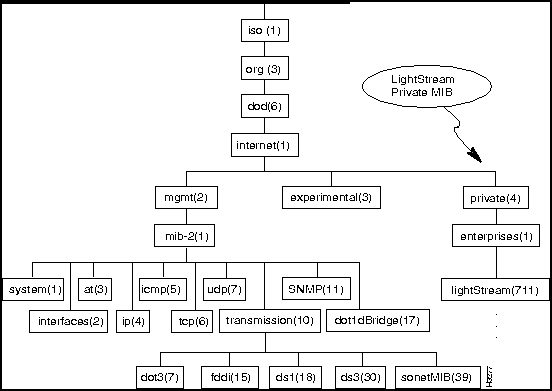
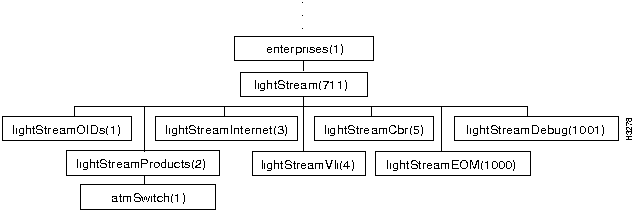
cli> show card 4 ports
Port 4000 Frame Relay Name: larch.4.0
Port 4001 Frame Relay Name: larch.4.1
Port 4002 Frame Relay Name: larch.4.2
cli>
cli> getsnmp frProvMiState.4002
Name: frProvMiState.4002 Value: 3
cli>
cli> getsnmp frCktInfoLclLMI.4002.16
Name: frCktInfoLclLMI.4002.16 Value: 2
cli>
Table Entry Object
Indexing Objects
frCktEntry
frCktSrcIfIndex, frCktSrcDlci
frCktInfoEntry
frCktInfoIfIndex, frCktInfoDlci
sUniCktEntry
sUniCktSrcIfIndex, sUniCktSrcVCI
sUniCktInfoEntry
sUniCktInfoIfIndex, sUniCktInfoVCI
pvcEntry
pvcSrcIfIndex, pvcSrcPvcId
lsFrameRelayDlciStatEntry
frameRelayDlciStatPortIndex, frameRelayDlciStatDlciIndex
lsEdgePortToSwMsgLenEntry
edgeToSwMsgLenPortIndex, edgeToSwMsgLenBinIndex
lsEdgeSwToPortMsgLenEntry
edgeToPortMsgLenPortIndex, edgeToPortMsgLenBinIndex
lsEdgeCpuWorkloadEntry
lsEdgeWorkloadCardIndex, lsEdgeWorkloadTypeIndex
lsFrameForwardStatEntry
frameForwardStatPortIndex, frameForwardStatIndex
lsTrunkCpuWorkloadEntry
lsTrunkWorkloadCardIndex, lsTrunkWorkloadTypeIndex
fsuPortXmtCellsEntry
fsuXmtCellsPortIndex, fsuXmtCellsPriorityIndex
fsuQueueCellLenEntry
fsuQueueCellLenPortIndex, fsuQueueCellLenSubQIndex
fsuDropEventEntry
fsuDropEventPortIndex, fsuDropEventWatermarkIndex
lsCellVciStatEntry
cellVciStatPortIndex, cellVciStatVciIndex
gidLineCardEntry
gidLineCardChassis, gidLineCardSlot
gidPortEntry
gidPortChassis, gidPortID
lightStreamBridgeFilterEntry
lightStreamBrFilterId, lightStreamBrFilterTokenIndex
lightStreamBridgeFilterParameterEntry
lightStreamBrFilterParmPort, lightStreamBrFilterParmFilterId
lightStreamVliPortWorkGroupEntry
lightStreamVliPortWorkGroupPort, lightStreamVliPortWorkGroupID
cli> walksnmp fddimibPATHTable
Name: fddimibPATHSMTIndex.5.1 Value: 5
Name: fddimibPATHSMTIndex.5.2 Value: 5
Name: fddimibPATHSMTIndex.6.1 Value: 6
Name: fddimibPATHSMTIndex.6.2 Value: 6
Name: fddimibPATHIndex.5.1 Value: 1
Name: fddimibPATHIndex.5.2 Value: 2
Name: fddimibPATHIndex.6.1 Value: 1
Name: fddimibPATHIndex.6.2 Value: 2
Name: fddimibPATHTVXLowerBound.5.1 Value: 2500000
Name: fddimibPATHTVXLowerBound.5.2 Value: 2500000
Name: fddimibPATHTVXLowerBound.6.1 Value: 2500000
Name: fddimibPATHTVXLowerBound.6.2 Value: 2500000
Name: fddimibPATHTMaxLowerBound.5.1 Value: 165000000
Name: fddimibPATHTMaxLowerBound.5.2 Value: 165000000
Name: fddimibPATHTMaxLowerBound.6.1 Value: 165000000
Name: fddimibPATHTMaxLowerBound.6.2 Value: 165000000
Name: fddimibPATHMaxTReq.5.1 Value: 165000000
Name: fddimibPATHMaxTReq.5.2 Value: 165000000
Name: fddimibPATHMaxTReq.6.1 Value: 165000000
Name: fddimibPATHMaxTReq.6.2 Value: 165000000
cli>
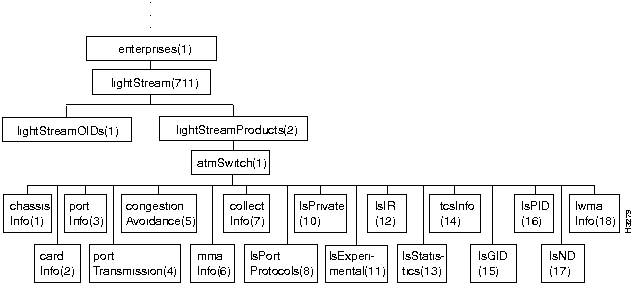
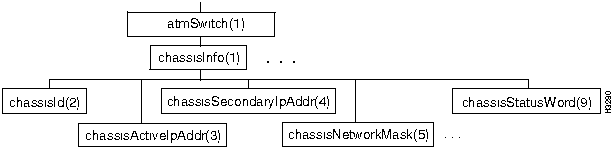
Objects in the chassisInfo Subtree
Address
Value
chassisId
chassisInfo.2
Integer (24 bits)
RO
chassisActiveIpAddr
chassisInfo.3
IpAddress
chassisSecondaryIpAdd
chassisInfo.4
IpAddress
chassisNetworkMask
chassisInfo.5
IpAddress
chassisEthernetIpAddr
chassisInfo.6
IpAddress
chassisEthernetIpMask
chassisInfo.7
IpAddress
chassisDefaultIpRouter
chassisInfo.8
IpAddress
chassisStatusWord
chassisInfo.9
Integer (bitmap)
RO
chassisConsoleTrapLevel
chassisInfo.10
1 = operational
2 = informational
3 = trace
4 = debug
5 = off
RO
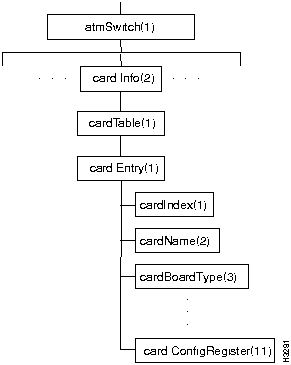
cardTable Objects
Address
Value
cardTable
cardInfo.1
cardEntry
cardTable.1
cardIndex
cardEntry.1
Integer (card #)
RO
cardName
cardEntry.2
DisplayString
cardBoardType
cardEntry.3
DisplayString
RO
cardLcSoftwareVersion
cardEntry.4
DisplayString
RO
cardLccSoftwareVersion
cardEntry.5
DisplayString
RO
cardPID
cardEntry.6
Integer (PID)
RO
cardMaxVCs
cardEntry.7
Integer
cardOperStatus
cardEntry.8
1 = up
2 = down
3 = testing
4 = empty
RO
cardAdminStatus
cardEntry.9
1 = up
2 = down
3 = testing
cardStatusWord
cardEntry.10
Integer
RO
cardConfigRegister
cardEntry.11
1 = up
2 = down
3 = testing
4 = empty
RO
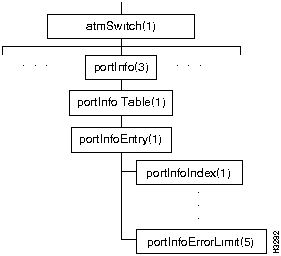
PortInfoTable Objects
Address
Value
portInfoTable
portInfo.1
portInfoEntry
portInfoTable.1
portInfoIndex
portInfoEntry.1
Integer
((c*1000)+p+t)
RO
portInfoType
portInfoEntry.2
Integer
1=empty
2=error
3=unknown
4=switch
5=NP
6=LS edge
7=LS trunk
8=MS trunk
10=MS edge
11=2-pt FDDI
12=8-pt Ether
13=token ring
14=8-pt LS serial edge
15=8-pt LS serial trunk
30=generic CLC1
31=2-pt OC3 edge
32=2-pt OC3 trunk
33=8-pt T3/E3 edge
34=8-pt T3/E3 trunk
35=2-pt 155 Mbit TAXI edge
36=2-pt 155 Mbit TAXI trunk
37=8-pt constant bit rate edge
RO
portInfoSpecific
portInfoEntry.3
ObjectID
RO
portInfoName
portInfoEntry.4
DisplayString
PortInfoErrorLimit
portInfoEntry.5
Integer (10-n rcv+xmt errors)
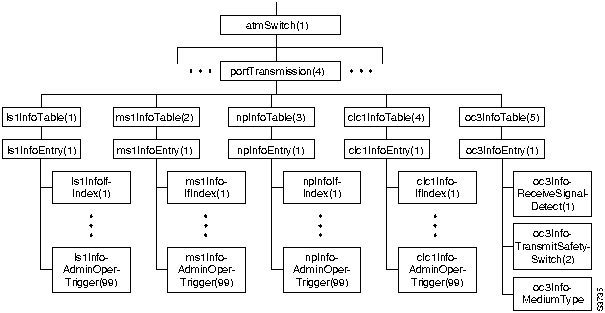
ls1InfoTable Objects
Address
Value
ls1InfoTable
portTransmission.1
ls1InfoEntry
ls1InfoTable.1
ls1InfoIfIndex
ls1InfoEntry.1
Integer
((c*1000)+p+t)
RO
ls1InfoType
ls1InfoEntry.2
Integer
1=V.35
2=RS-422
3=RS-530
4=T1
RO
ls1InfoOperCsuType
ls1InfoEntry.3
Integer
1=none
2=larse
RO
ls1InfoAdminCsuType
ls1InfoEntry.4
Integer
1=none
2=larse
ls1InfoOperRcvBaudRate
ls1InfoEntry.5
Integer
RO
ls1InfoAdminRcvBaudRate
ls1InfoEntry.6
Integer
ls1InfoOperXmitBaudRate
ls1InfoEntry.7
Integer
RO
ls1InfoAdminXmitBaudRate
ls1InfoEntry.8
Integer
ls1InfoOperNetIntType
ls1InfoEntry.9
Integer
1=DCE
2=DTE
3=DCE w/local tt
clock loop
RO
ls1InfoAdminNetIntType
ls1InfoEntry.10
Integer
1=DCE
2=DTE
3=DCE w/local tt clock loop
ls1InfoOperModemState
ls1InfoEntry.13
Integer (Bitmask)
If port is DTE:
0=DCD
1=DSR
If port is DCE:
0=RTS
1=DTR
RO
ls1InfoOperProtocol
ls1InfoEntry.15
Integer
1 = trunk
2 = FR
3 = FF
4 = PPP
5 = unkown
RO
ls1InfoAdminProtocol
ls1InfoEntry.16
Integer
1 = trunk
2 = FR
3 = FF
4 = PPP
5 = unknown
ls1InfoOperControlBandwidthSize
ls1InfoEntry.21
Integer
RO
ls1InfoAdminControlBandwidthSize
ls1InfoEntry.22
Integer
ls1InfoOperDataBandwidthSize
ls1InfoEntry.23
Integer
RO
ls1InfoAdminDataBandwidthSize
ls1InfoEntry.24
Integer
ls1InfoOperLoopMode
ls1InfoEntry.25
Integer
1 = none
2 = internal
3 = external
4= remote
RO
ls1InfoAdminLoopMode
ls1InfoEntry.26
Integer
1 = none
2 = internal
3 = external
4 = remote
ls1InfoLcAutoEnable
ls1InfoEntry.27
Integer
1 = enabled
2 = disabled
RO
ls1InfoLcDebugLevel
ls1InfoEntry.28
Integer
RO
ls1InfoDataCellCapacity
ls1InfoEntry.29
Integer
RO
ls1InfoDataCellAvailable
ls1InfoEntry.30
Integer
RO
ls1InfoMeasuredBaudRate
ls1InfoEntry.31
Integer
RO
ls1InfoLinkUtilization
ls1InfoEntry.32
Integer
RO
ls1InfoAdminOperTrigger
ls1InfoEntry.99
Integer
1=set admin values
99=other
ms1InfoTable Objects
Address
Value
ms1InfoTable
portTransmission.2
ms1InfoEntry
ms1InfoTable.1
ms1InfoIfIndex
ms1InfoEntry.1
Integer
((c*1000)+p+t)
RO
ms1InfoOperCableLength
ms1InfoEntry.2
Integer
1=0-450 ft T3
2=450-900 ft T3
3=0-400 ft E3
4=300-1000 ft E3
5=800-1300 ft E3
6=1100-1900 ft E3
RO
ms1InfoAdminCableLength
ms1InfoEntry.3
Integer 1=0-450 ft T3
2=450-900 ft T3
3=0-400 ft E3
4=300-1000 ft E3
5=800-1300 ft E3
6=1100-1900 ft E3
ms1InfoOperProtocol
ms1InfoEntry.4
Integer
1=trunk
2=ATM UNI
3=unknown
RO
ms1InfoAdminProtocol
ms1InfoEntry.5
Integer
1=trunk
2=ATM UNI
3=unknown
ms1InfoOperControlBandwidthSize
ms1InfoEntry.10
Integer
RO
ms1InfoAdminControlBandwidthSize
ms1InfoEntry.11
Integer
ms1InfoOperDataBandwidthSize
ms1InfoEntry.12
Integer
RO
ms1InfoAdminDataBandwidthSize
ms1InfoEntry.13
Integer
msInfoLcAutoEnable
ms1InfoEntry.14
Integer
1=enabled
2=disabled
RO
msInfoLcDebugLevel
ms1InfoEntry.15
Integer
RO
ms1InfoOperScramble
ms1InfoEntry.16
Integer
1=enabled
2=disabled
RO
ms1InfoAdminScramble
ms1InfoEntry.17
Integer
1=enabled
2=disabled
ms1InfoDataCellCapacity
ms1InfoEntry.18
Integer
RO
ms1InfoDataCellAvailable
ms1InfoEntry.19
Integer
RO
ms1InfoLinkUtilization
ms1InfoEntry.20
Integer
RO
ms1InfoOperFraming
ms1InfoEntry.21
Integer
1=Cell Payload Scrambling
2=T3 HEC
3=G.804
RO
ms1InfoAdminOperTrigger
ms1InfoEntry.99
Integer
1=set admin values
99=other
npInfoTable Objects
Address
Value
npInfoTable
portTransmission.3
npInfoEntry
npInfotable.1
npInfoIfIndex
npInfoEntry.1
Integer ((c*1000)+p+t)
RO
npInfoIPCommittedRate
npInfoEntry.5
Integer
npInfoIPCommittedBurst
npInfoEntry.6
Integer
npInfoIPExcessRate
npInfoEntry.7
Integer
npInfoIPExcessBurst
npInfoEntry.8
Integer
npInfoIPNCircuits
npInfoEntry.9
Integer
npInfoAdminOperTrigger
npInfoEntry.99
Integer
1=set admin values
99=other
clc1InfoTable Objects
Address
Value
clc1InfoTable
portTransmission.4
clc1InfoEntry
clc1InfoTable.1
clc1InfoIfIndex
clc1InfoEntry.1
Integer
((c*1000)+p+t)
RO
clc1InfoOperProtocol
clc1InfoEntry.4
Integer
1=trunk
2=ATM UNI
3=unknown
RO
clc1InfoAdminProtocol
clc1InfoEntry.5
Integer
1=trunk
2=ATM UNI
3=unknown
clc1InfoOperLoopMode
clc1InfoEntry.6
Integer
1=none
2=internal
3=external
RO
clc1InfoAdminLoopMode
clc1InfoEntry.7
Integer
1=none
2=internal
3=external
clc1InfoOperControlBandwidthSize
clc1InfoEntry.10
Integer
RO
clc1InfoAdminControlBandwidthSize
clc1InfoEntry.11
Integer
clc1InfoOperDataBandwidthSize
clc1InfoEntry.12
Integer
RO
clc1InfoAdminDataBandwidthSize
clc1InfoEntry.13
Integer
clcInfoLcAutoEnable
clc1InfoEntry.14
Integer
1=enabled
2=disabled
RO
clcInfoLcDebugLevel
clc1InfoEntry.15
Integer
RO
clc1InfoOperScramble
clc1InfoEntry.16
Integer
1=enabled
2=disabled
RO
clc1InfoAdminScramble
clc1InfoEntry.17
Enum. Integer
1=enabled
2=disabled
clc1InfoDataCellCapacity
clc1InfoEntry.18
Integer
RO
clc1InfoDataCellAvailable
clc1InfoEntry.19
Integer
RO
clc1InfoLinkUtilization
clc1InfoEntry.20
Integer
RO
clc1InfoOperClock
clc1InfoEntry.21
Integer
1=internal
2=external
RO
clc1InfoAdminClock
clc1InfoEntry.22
Integer
1=internal
2=external
clc1InfoAdminOperTrigger
clc1InfoEntry.99
Integer
1=set admin values
99=other
oc3InfoTable Objects
Address
Value
oc3InfoTable
portTransmission.5
oc3InfoEntry
oc3Infotable.1
oc3InfoReceiveSignalDetect
oc3InfoEntry.1
Integer
1=active
2=inactive
RO
oc3InfoTransmitSafetySwitch
oc3InfoEntry.2
Integer
1=enabled
2=disabled
RO
oc3InfoMediumType
oc3InfoEntry.3
Integer
1=SONET
2=SDH
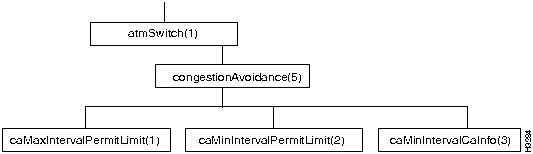
congestionAvoidance Objects
Address
Value
caMaxIntervalPermitLimit
congestionAvoidance.1
Integer
caMinIntervalPermitLimit
congestionAvoidance.2
Integer
caMinIntervalCaInfo
congestionAvoidance.3
Integer
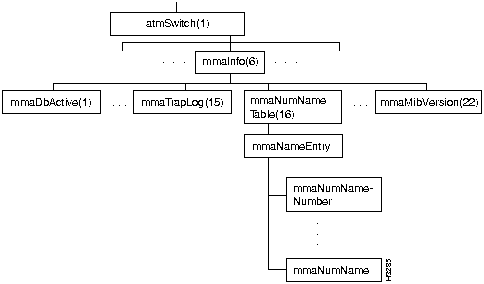
mmaInfo Objects
Address
Value
mmaDbActive
mmaInfo.1
Integer
1=inactive
2=new DB active
mmaTrapFilter
mmaInfo.2
Integer
1=operational
2=informational
3=trace
4=debug
mmaTrapLanguage
mmaInfo.3
Integer
1=English
mmaCollectionSpace
mmaInfo.4
Integer (Kbytes)
mmaConfigHost
mmaInfo.5
Octet String
mmaConfigAuthor
mmaInfo.6
Octet String
mmaConfigID
mmaInfo.7
Integer
mmaSetLock
mmaInfo.8
Integer
1=unlocked
2=locked (volatile)
3=locked (permanent)
mmaPID
mmaInfo.9
Integer (PID)
RO
mmaTrapLog
mmaInfo.10
Integer
1=enabled
2=disabled
mmaTrapNumber
mmaInfo.13
Integer
mmaTrapOnOffState
mmaInfo.14
Integer
1=on
2=off
3=enable
4=disable
mmaNumNameTable
mmaInfo.16
mmaNumNameEntry
mmaNumNameTable.1
mmaNumNameNumber
mmaNumNameEntry.1
Integer
chassis ID
RO
mmaNumName
mmaNumNameEntry.2
Octet String
chassis name
RO
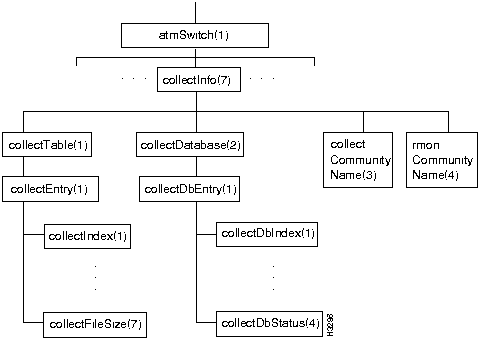
Objects in the collectInfo Subtree
Address
Value
collectTable
collectInfo.1
collectEntry
collectTable.1
CollectEntry
collectIndex
collectEntry.1
Integer
collection number
RO
collectStatus
collectEntry.2
Integer
1=valid
2=create request
3=under creation
4=invalid
collectStart
collectEntry.3
Integer (TOD sec)
collectFinish
collectEntry.4
Integer (TOD sec)
collectInterval
collectEntry.5
Integer (sec)
collectFileName
collectEntry.6
DisplayString
RO
collectFileSize
collectEntry.7
Integer (Kbytes)
collectOperStatus
collectEntry.8
Integer
1=waiting
2=running
3=under creation
collectDatabase
collectInfo.2
collectDbEntry
collectDatabase.1
collectDBIndex
collectDbEntry.1
Integer
RO
collectDBInstance
collectDbEntry.2
Integer
RO
collectDBObjectID
collectDbEntry.3
ObjectID
collectDBStatus
collectDbEntry.4
Integer
1=valid
2=create request
3=under creation
4=invalid
collectCommunityName
collectInfo.3
DisplayString
rmonCommunityName
collectInfo.4
DisplayString
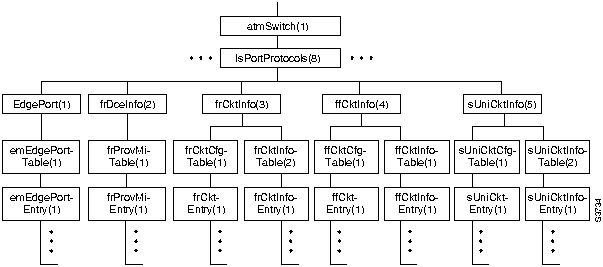
edgePortTable Objects
Address
Value
edgePort
lsPortProtocols.1
edgePortTable
edgePort.1
edgePortEntry
edgePortTable.1
edgeIfIndex
edgePortEntry.1
Integer
((c*1000)+p+t)
RO
edgeUpcType
edgePortEntry.2
Integer
default 1= ANSI
edgeUserDataPerCell
edgePortEntry.3
Integer (bits) 1-384, default 341
edgeCellDelayVariance
edgePortEntry.4
Integer (ms)
edgePrincipalScale
edgePortEntry.5
Integer
default 256 (1:1)
edgeSecondaryScale
edgePortEntry.6
Integer
default 64 (1:4)
edgeMeteringFactor
edgePortEntry.7
Integer
default 64 (*4)
edgeMeteringBurstSize
edgePortEntry.8
Integer (cells)
default 5
edgeCallSetupRetry
edgePortEntry.9
Integer (sec)
1-3600, default 5
edgeCallSetupBackoff
edgePortEntry.10
Integer (exp)
1-10, default 5
edgeMaxFrameSize
edgePortEntry.11
Integer (bytes)
default 1516
frProvMiTable Objects
Address
Value
frDceInfo
lsPortProtocols.2
frProvMiTable
frDceInfo.1
frProvMiEntry
frProvMiTable.1
frProvMiIfIndex
frProvMiEntry.1
Index
RO
frProvMiState
frProvMiEntry.2
Integer
1=no LMI
2=FRIF
3=ANSI (default)
4=CCITT
frProvMiAddressLen
frProvMiEntry.3
Integer (octets)
2=two octets
frProvMiNetRequestInterval
frProvMiEntry.4
Integer (sec)
5-30 (default 15)
frProvMiNetErrorThreshold
frProvMiEntry.5
Integer
1-10 (default 3)
frProvMiNetMonitoredEvents
frProvMiEntry.6
Integer
1-10 (default 4)
frProvMiMaxSupportedVCs
frProvMiEntry.7
Integer
frProvMiMulticast
frProvMiEntry.8
Integer
1=non-broadcast
frProvMiUserPollingInterval
frProvMiEntry.9
Integer (sec)
5-30 (default 10)
frProvMiUserFullEnquiryInterval
frProvMiEntry.10
Integer
1-255 (default 6)
frProvMiUserErrorThreshold
frProvMiEntry.11
Integer
1-10 (default 3)
frProvMiUserMonitoredEvents
frProvMiEntry.12
Integer
1-10 (default 4)
frProvMiNetInterfaceType
frProvMiEntry.13
Integer
1=UNI
2=NNI
Objects in the lsPortProtocols Subtree
Address
Value
frCktInfo
lsPortProtocols.3
frCktCfgTable
frCktInfo.1
frCktEntry
frCktCfgTable.1
frCktSrcNode
frCktEntry.1
Integer
RO
frCktSrcIfIndex
frCktEntry.2
Integer
RO
frCktSrcDlci
frCktEntry.3
LightStreamDLCI
RO
frCktAdminDestNode
frCktEntry.10
Integer
frCktOperDestNode
frCktEntry.11
Integer
RO
frCktAdminDestIfIndex
frCktEntry.12
Index
RO
frCktOperDestIfIndex
frCktEntry.13
Index
RO
frCktAdminDestDlci
frCktEntry.14
LightStreamDLCI
frCktOperDestDlci
frCktEntry.15
LightStreamDLCI
RO
frCktAdminSrcInsuredRate
frCktEntry.25
Integer (bps)
default 0
frCktOperSrcInsuredRate
frCktEntry.26
Integer (bps)
default 0
RO
frCktAdminSrcInsuredBurst
frCktEntry.27
Integer (bytes)
default 0
frCktOperSrcInsuredBurst
frCktEntry.28
Integer (bytes)
default 0
RO
frCktAdminSrcMaxRate
frCktEntry.29
Integer (bps)
default: line rate
frCktOperSrcMaxRate
frCktEntry.30
Integer (bps)
default: line rate
RO
frCktAdminSrcMaxBurst
frCktEntry.31
Integer (bytes)
default 0
frCktOperSrcMaxBurst
frCktEntry.32
Integer (bytes)
default 0
RO
frCktOperDestInsuredRate
frCktEntry.34
Integer (bps)
default 0
RO
frCktOperDestInsuredBurst
frCktEntry.36
Integer (bytes)
default 0
RO
frCktOperDestMaxRate
frCktEntry.38
Integer (bps)
default: line rate
RO
frCktOperDestMaxBurst
frCktEntry.40
Integer (bytes)
default 0
RO
frCktOperSecondaryScale
frCktEntry.41
Integer
default 255
RO
frCktAdminSecondaryScale
frCktEntry.42 Integer
default 255
frCktOperPrinBwType
frCktEntry.43
Integer
1=guaranteed (def)
2=insured
RO
frCktAdminPrinBwType
frCktEntry.44
Integer
1=guaranteed (def)
2=insured
frCktOperTransPri
frCktEntry.45
Integer
0, 1 (default 0)
RO
frCktAdminTransPri
frCktEntry.46
Integer
0, 1 (default 0)
frCktOperUserDataPerCell
frCktEntry.47
Integer (bits)
1-384 (default 0)
RO
frCktAdminUserDataPerCell
frCktEntry.48
Integer (bits)
1-384 (default 0)
frCktStatus
frCktEntry.99
Integer
1=enabled
2=disabled (def)
3=delete
Address
Value
frCktInfoTable
frCktInfo.2
frCktInfoEntry
frCktInfoTable.1
frCktInfoIfIndex
frCktInfoEntry.1
Index
RO
frCktInfoDlci
frCktInfoEntry.2
LightStreamDLCI
RO
frCktInfoLclLMI
frCktInfoEntry.3
Integer
1=active
2=inactive
RO
frCktInfoRmtLMI
frCktInfoEntry.4
Integer
1=active
2=inactive
RO
frCktInfoCallIDIncoming
frCktInfoEntry.5
Integer
RO
frCktInfoCallIDOutgoing
frCktInfoEntry.6
Integer
RO
frCktInfoDownstreamState
frCktInfoEntry.7
Integer
1=active
2=inactive
RO
frCktInfoUpstreamState
frCktInfoEntry.8
Integer
1=active
2=inactive
RO
frCktInfoLastAtmErr
frCktInfoEntry.9
Octet String
RO
frCktInfoDataCellsRequired
frCktInfoEntry.10
Integer
RO
frCktInfoLastAtmLocation
frCktInfoEntry.11
Octet String
RO
ffCktCfgTable Objects
Address
Value
ffCktInfo
lsPortProtocols.4
ffCktCfgTable
ffCktInfo.1
ffCktEntry
ffCktCfgTable.1
ffCktSrcNode
ffCktEntry.1
Integer
RO
ffCktSrcIfIndex
ffCktEntry.2
Index (port #)
RO
ffCktAdminDestNode
ffCktEntry.9
Integer
ffCktOperDestNode
ffCktEntry.10
Integer
RO
ffCktAdminDestIfIndex
ffCktEntry.11
Index (port #)
ffCktOperDestIfIndex
ffCktEntry.12
Index (port #)
RO
ffCktAdminSrcInsuredRate
ffCktEntry.21
Integer (bps)
default 0
ffCktOperSrcInsuredRate
ffCktEntry.22
Integer (bps)
default -1
RO
ffCktAdminSrcInsuredBurst
ffCktEntry.23
Integer (bytes)
default -1
ffCktOperSrcInsuredBurst
ffCktEntry.24
Integer (bytes)
default -1
RO
ffCktAdminSrcMaxRate
ffCktEntry.25
Integer (bps)
default: line rate
ffCktOperSrcMaxRate
ffCktEntry.26
Integer (bps)
default: line rate
RO
ffCktAdminSrcMaxBurst
ffCktEntry.27
Integer (bytes)
default -1
ffCktOperSrcMaxBurst
ffCktEntry.28
Integer (bytes)
default -1
RO
ffCktOperDestInsuredRate
ffCktEntry.30
Integer (bps)
default -1
RO
ffCktOperDestInsuredBurst
ffCktEntry.32
Integer (bytes)
default -1
RO
ffCktOperDestMaxRate
ffCktEntry.34
Integer (bps)
default: line rate
RO
ffCktOperDestMaxBurst
ffCktEntry.36
Integer (bytes)
default -1
RO
ffCktOperPrinBwType
ffCktEntry.37
Integer
1=guaranteed (def)
2=insured
RO
ffCktAdminPrinBwType
ffCktEntry.38
Integer
1=guaranteed (def)
2=insured
ffCktOperTransPri
ffCktEntry.39
Integer
0, 1 (default 1)
RO
ffCktAdminTransPri
ffCktEntry.40
Integer
0, 1 (default 1)
ffCktStatus
ffCktEntry.99
Integer
1=enabled
2=disabled (def)
3=delete
ffCktInfoTable Objects
Address
Value
ffCktInfoTable
ffCktInfo.2
ffCktInfoEntry
ffCktInfoTable.1
ffCktInfoIfIndex
ffCktInfoEntry.1
Index (port #)
RO
ffCktInfoDownstreamState
ffCktInfoEntry.2
Integer
1=active
2=inactive
RO
ffCktInfoUpstreamState
ffCktInfoentry.3
Integer
1=active
2=inactive
RO
ffCktInfoCallIDIncoming
ffCktInfoEntry.4
Integer
RO
ffCktInfoCallIDOutgoing
ffCktInfoEntry.5
Integer
RO
ffCktInfoLastAtmErr
ffCktInfoEntry.6
Octet String
RO
ffCktInfoDataCellsRequired
ffCktInfoEntry.7
Integer (cells)
RO
lsPortProtocols sUniCktInfo Objects
Address
Value
sUniCktInfo
lsPortProtocols.5
sUniCktCfgTable
sUniCktinfo.1
sUniCktEntry
sUniCktCfgTable.1
sUniCktSrcNode
sUniCktEntry.1
Integer
RO
sUniCktSrcIfIndex
sUniCktEntry.2
Index
RO
sUniCktSrcVCI
sUniCktEntry.3
VCI
RO
sUniCktAdminDestNode
sUniCktEntry.10
Integer
sUniCktOperDestNode
sUniCktEntry.11
Integer
RO
sUniCktAdminDestIfIndex
sUniCktEntry.12
Index
sUniCktOperDestIfIndex
sUniCktEntry.13
Index
RO
sUniCktAdminDestVCI
sUniCktEntry.14
VCI
sUniCktOperDestVCI
sUniCktEntry.15
VCI
RO
sUniCktOperPrinBwType
sUniCktEntry.22
Integer
1=guaranteed
2=insured
RO
sUniCktAdminPrinBwType
sUniCktEntry.23
Integer
1=guaranteed
2=insured
sUniCktOperTransPri
sUniCktEntry.24
Integer (0, 1)
RO
sUniCktAdminTransPri
sUniCktEntry.25
Integer (0, 1)
sUniCktAdminSrcInsuredRate
sUniCktEntry.26
Integer (cps)
defaults:
MSC: 109
CLC: 218
sUniCktOperSrcInsuredRate
sUniCktEntry.27
Integer (cps)
defaults:
MSC: 109
CLC: 218
RO
sUniCktAdminSrcInsuredBurst
sUniCktEntry.28
Integer (cells)
default 128
sUniCktOperSrcInsuredBurst
sUniCktEntry.29
Integer (cells)
default 128
RO
sUniCktAdminSrcMaxRate
sUniCktEntry.30
Integer (cps)
defaults:
MSC: 109
CLC: 218
sUniCktOperSrcMaxRate
sUniCktEntry.31
Integer (cps)
defaults:
MSC: 109
CLC: 218
RO
sUniCktAdminSrcMaxBurst
sUniCktEntry.32
Integer (cells)
default 128
sUniCktOperSrcMaxBurst
sUniCktEntry.33
Integer (cells)
default 128
RO
sUniCktOperDestInsuredRate
sUniCktEntry.35
Integer (cps)
defaults:
MSC: 109
CLC: 218
RO
sUniCktOperDestInsuredBurst
sUniCktEntry.37
Integer (cells)
default 128
RO
sUniCktOperDestMaxRate
sUniCktEntry.39
Integer (cps)
defaults:
MSC: 109
CLC: 218
RO
sUniCktOperDestMaxBurst
sUniCktEntry.41
Integer (cells)
default 128
RO
sUniCktAdminSecondaryScale
sUniCktEntry.42
Integer
default 255
sUniCktOperSecondaryScale
sUniCktEntry.43
Integer
default 255
RO
sUniCktSts
sUniCktEntry.99
Integer
1=enabled
2=disabled (def)
3=delete
sUniCktInfoTable Objects
Address
Value
sUniCktInfoTable
sUniCktInfo.2
sUniCktInfoEntry
sUniCktInfoTable.1
sUniCktInfoIfIndex
sUniCktInfoEntry.1
Index
RO
sUniCktInfoVCI
sUniCktInfoEntry.2
VCI
RO
sUniCktInfoUniToNetCallID
sUniCktInfoEntry.3
Integer
RO
sUniCktInfoNetToUniCallID
sUniCktInfoEntry.4
Integer
RO
sUniCktInfoUniToNetState
sUniCktInfoEntry.5
Integer
1=active
RO
sUniCktInfoNetToUniState
sUniCktInfoEntry.6
Integer
2=inactive
RO
sUniCktInfoLastAtmErr
sUniCktInfoEntry.7
Octet String
RO
sUniCktInfoDataCellsRequired
sUniCktInfoEntry.8
Integer (cells)
RO
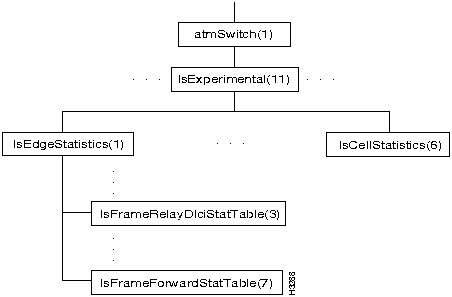
lsFrameRelayDlciStatTable Objects
Address
Value
lsEdgeStatistics
lsExperimentalStatistics.1
lsFrameRelayDlciStatTable
lsEdgeStatistics.3
lsFrameRelayDlciStatEntry
lsFrameRelayDlciStatTable.1
frameRelayDlciStatPortIndex
lsFrameRelayDlciStatEntry.1
Integer
RO
frameRelayDlciStatDlciIndex
lsFrameRelayDlciStatEntry.2
Integer
RO
frameRelayDlciToSwCLP0- Frames
lsFrameRelayDlciStatEntry.3
Counter
RO
frameRelayDlciToSwCLP0Cells
lsFrameRelayDlciStatEntry.4
Counter
RO
frameRelayDlciToSwCLP1- Frames
lsFrameRelayDlciStatEntry.5
Counter
RO
frameRelayDlciToSwCLP1Cells
lsFrameRelayDlciStatEntry.6
Counter
RO
frameRelayDlciToSwDiscard- Frames
lsFrameRelayDlciStatEntry.7
Counter
RO
frameRelayDlciToSwDiscard- Cells
lsFrameRelayDlciStatEntry.8
Counter
RO
frameRelayDlciFrSwCLP0- Frames
lsFrameRelayDlciStatEntry.9
Counter
RO
frameRelayDlciFrSwCLP0Cells
lsFrameRelayDlciStatEntry.10
Counter
RO
frameRelayDlciFrSwCLP1- Frames
lsFrameRelayDlciStatEntry.11
Counter
RO
frameRelayDlciFrSwCLP1Cells
lsFrameRelayDlciStatEntry.12
Counter
RO
lsFrameForwardStatTable Objects
Address
Value
lsEdgeStatistics
lsExperimentalStatistics.1
lsFrameForwardStatTable
lsEdgeStatistics.7
lsFrameForwardStatEntry
lsFrameForwardStatTable.1
frameForwardStatPortIndex
lsFrameForwardStatEntry.1
Integer
RO
frameForwardToSwCLP0Frames
lsFrameForwardStatEntry.2
Counter
RO
frameForwardToSwCLP0Cells
lsFrameForwardStatEntry.3
Counter
RO
frameForwardToSwCLP1Frames
lsFrameForwardStatEntry.4
Counter
RO
frameForwardToSwCLP1Cells
lsFrameForwardStatEntry.5
Counter
RO
frameForwardToSwDiscard- Frames
lsFrameForwardStatEntry.6
Counter
RO
frameForwardToSwDiscardCells
lsFrameForwardStatEntry.7
Counter
RO
frameForwardFrSwCLP0Frames
lsFrameForwardStatEntry.8
Counter
RO
frameForwardFrSwCLP0Cells
lsFrameForwardStatEntry.9
Counter
RO
frameForwardFrSwCLP1Frames
lsFrameForwardStatEntry.10
Counter
RO
frameForwardFrSwCLP1Cells
lsFrameForwardStatEntry.11
Counter
RO
lsCellStatistics Objects
Address
Value
lsCellStatistics
lsExperimentalStatistics.6
lsCellVciStatTable
lsCellStatistics.1
lsCellVciStatEntry
lsCellVciStatTable.1
cellVciStatPortIndex
lsCellVciStatEntry.1
Integer
RO
cellVciStatVciIndex
lsCellVciStatEntry.2
Integer
RO
cellVciToSwCLP0Cells
lsCellVciStatEntry.3
Counter
RO
cellVciToSwCLP01Cells
lsCellVciStatEntry.4
Counter
RO
cellVciToSwCLP1Cells
lsCellVciStatEntry.5
Counter
RO
cellVciToSwDiscardCells
lsCellVciStatEntry.6
Counter
RO
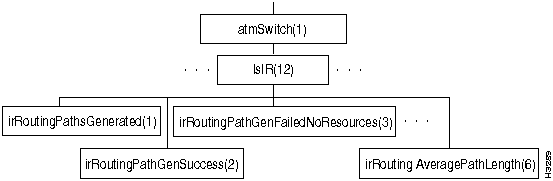
Objects in the lsIR Subtree
Address
Value
irRoutingGroup
lsIR.1
irRoutingPathsGenerated
irRoutingGroup.1
Counter
RO
irRoutingPathGenSuccess
irRoutingGroup.2
Counter
RO
irRoutingPathGenFailedNoResources
irRoutingGroup.3
Counter
RO
irRoutingPathGenFailedUnknown
irRoutingGroup.4
Counter
RO
irRoutingPathGenFailedOther
irRoutingGroup.5
Counter
RO
irRoutingAveragePathLength
irRoutingGroup.6
Counter
RO
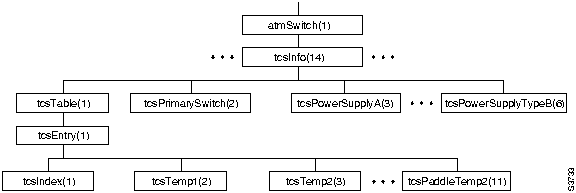
Objects in the tcsInfo Subtree
Address
Value
tcsTable
tcsInfo.1
tcsEntry
tcsTable.1
tcsIndex
tcsEntry.1
Integer
RO
tcsTemp1
tcsEntry.2
Integer
RO
tcsTemp2
tcsEntry.3
Integer
RO
tcsTcsVoltage
tcsEntry.4
Integer
RO
tcsVccVoltage
tcsEntry.5
Integer
RO
tcsScsiVoltage
tcsEntry.7
Integer
RO
tcsPostResult
tcsEntry.8
Octet String
RO
tcsCardType
tcsEntry.9
Integer
1=empty
2=error
3=unknown
4=switch
5=NP
6=LS edge
7=LS trunk
8=MS trunk
10=MS edge
11=2-pt FDDI
12=8-pt Ether
13=token ring
14=8-pt LS ser edge
15=8-pt LS ser trunk
30=generic CLC1
31=2-pt OC3 edge
32=2-pt OC3 trunk
33=8-pt T3/E3 edge
34=8-pt T3/E3 trunk
35=2-pt TAXI edge
36=2-pt TAXI trunk
37=8-pt CBR edge
RO
tcsPaddleTemp1
tcsEntry.10
Integer
RO
tcsPaddleTemp2
tcsEntry.11
Integer
RO
tcsPaddleWarnTemp1
tcsEntry.12
Integer
RO
tcsPaddleWarnTemp2
tcsEntry.13
Integer
RO
tcsPaddleShutdownTemp1
tcsEntry.14
Integer
RO
tcsPaddleShutdownTemp2
tcsEntry.15
Integer
RO
tcsWarnTemp1
tcsEntry.16
Integer
RO
tcsWarnTemp2
tcsEntry.17
Integer
RO
tcsShutdownTemp1
tcsEntry.18
Integer
RO
tcsShutdownTemp2
tcsEntry.19
Integer
RO
tcsFaultLight
tcsEntry.20
Integer
1=on, 2=off
RO
tcsReadyLight
tcsEntry.21
Integer
1=on, 2=off
RO
tcsSwitchConnectivityMask
tcsEntry.22
Integer
1=on, 2=off
RO
tcsPrimarySwitch
tcsInfo.2
Integer
1=A, 2=B
tcsPowerSupplyA
tcsInfo.3
Integer
1=empty
2=failed
3=good
RO
tcsPowerSupplyB
tcsInfo.4
Integer
1=empty
2=failed
3=good
RO
tcsPowerSupplyTypeA
tcsInfo.5
Integer
1=empty
2=DC power tray
3=Todd
4=unknown
RO
tcsPowerSupplyTypeB
tcsInfo.6
Integer
1=empty
2=DC power tray
3=Todd
4=unknown
RO
tcsSwitchFaultMaskA
tcsInfo.7
Integer
bitmask:
0: don't use switch A
n: slot n clock unhealthy
RO
tcsSwitchFaultMaskB
tcsInfo.8
Integer
bitmask:
0: don't use switch B
n: slot n clock unhealthy
RO
tcsSwitchCutoverSupport
tcsInfo.9
Integer
1=SCs in sync:
will do lossless
2=SCs not in sync:
won't do lossless
3=Other:
can't do lossless
RO
tcsFCPrimarySwitchA
tcsInfo.9
Integer
bitmask:
if bit n = 1 Switch A is supposed to be in slot n.
RO
tcsSwitchCutoverSupport
tcsInfo.9
Integer
bitmask: if bit n = 1 Switch B is supposed to be in slot n.
RO
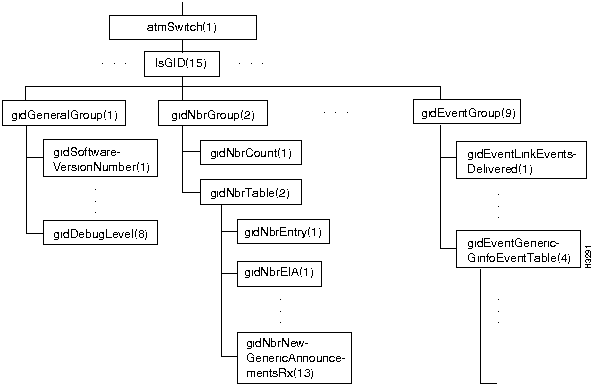
gidGeneralGroup Objects
Address
Value
gidGeneralGroup
lsGID.1
gidSoftwareVersionNumber
gidGeneralGroup.1
DisplayString
RO
gidProcessID
gidGeneralGroup.2
Integer
RO
gidUpTime
gidGeneralGroup.3
Integer (sec)
RO
gidMemoryUse
gidGeneralGroup.4
Counter (bytes)
RO
gidTimersProcessed
gidGeneralGroup.5
Counter
RO
gidMallocFailures
gidGeneralGroup.6
Counter
RO
gidNbrGroup Objects
Address
Value
gidNbrGroup
lsGID.2
gidNbrCount
gidNbrGroup.1
Counter
RO
gidNbrTable
gidNbrGroup.2
gidNbrEntry
gidNbrTable.1
gidNbrEIA
gidNbrEntry.1
Integer
RO
gidNbrVCI
gidNbrEntry.2
Integer
RO
gidNbrState
gidNbrEntry.3
Integer
1=unknown
2=exists
3=exchange started
4=exchange
5=loading
6=full
RO
gidNbrSyncEvents
gidNbrEntry.4
Counter
RO
gidNbrDBReqListLength
gidNbrEntry.5
Counter
RO
gidNbrDBSumListLength
gidNbrEntry.6
Counter
RO
gidNbrHellosRx
gidNbrEntry.7
Counter
RO
gidNbrLinkAnnouncementsRx
gidNbrEntry.8
Counter
RO
gidNbrNewLinkAnnouncementsRx
gidNbrEntry.9
Counter
RO
gidNbrIPAnnouncementsRx
gidNbrEntry.10
Counter
RO
gidNbrNewIPAnnouncementsRx
gidNbrEntry.11
Counter
RO
gidNbrGenericAnnouncementsRx
gidNbrEntry.12
Counter
RO
gidNbrNewGenericAnnouncementsRx
gidNbrEntry.13
Counter
RO
gidClientGroup Objects
Address
Value
gidClientGroup
lsGID.3
gidClientCount
gidClientGroup.1
Counter
RO
gidClientTable
gidClientGroup.2
gidClientEntry
gidClientTable.1
gidClientID
gidClientEntry.1
Integer
RO
gidClientEIA
gidClientEntry.2
Integer
RO
gidClientAnnouncementsRx
gidClientEntry.3
Counter
RO
gidClientLinkAnnouncementsRx
gidClientEntry.4
Counter
RO
gidClientIPAnnouncementsRx
gidClientEntry.5
Counter
RO
gidClientGenericAnnouncementsRx
gidClientEntry.6
Counter
RO
gidClientEventsTx
gidClientEntry.7
Counter
RO
gidClientPathsGenerated
gidClientEntry.8
Counter
RO
gidIOGroup Objects
Address
Value
gidIOGroup
lsGID.4
gidIONbrMsgBuffersFree
gidIOGroup.1
Counter
RO
gidIONbrMsgBuffersActive
gidIOGroup.2
Counter
RO
gidIOClientMsgBuffersFree
idIOGroup.3
Counter
RO
gidIOClientMsgBuffersActive
gidIOGroup.4
Counter
RO
gidFloodGroup Objects
Address
Value
gidFloodGroup
lsGID.5
gidFloodClientAnnouncementsRx
gidFloodGroup.1
Counter
RO
gidFloodNbrAnnouncementsRx
gidFloodGroup.2
Counter
RO
gidFloodNbrNewAnnouncementsRx
gidFloodGroup.3
Counter
RO
gidFloodNbrAnnouncementsTx
gidFloodGroup.4
Counter
RO
gidFloodNbrLinkAnnouncementsRx
gidFloodGroup.5
Counter
RO
gidFloodNbrNewLinkAnnouncementsRx
gidFloodGroup.6
Counter
RO
gidFloodNbrLinkAnnouncementsTx
gidFloodGroup.7
Counter
RO
gidFloodNbrIPAnnouncementsRx
gidFloodGroup.8
Counter
RO
gidFloodNbrNewIPAnnouncementsRx
gidFloodGroup.9
Counter
RO
gidFloodNbrIPAnnouncementsTx
gidFloodGroup.10
Counter
RO
gidFloodNbrGenericAnnouncementsRx
gidFloodGroup.11
Counter
RO
gidFloodNbrNewGenericAnnouncementsRx
gidFloodGroup.12
Counter
RO
gidFloodNbrGenericAnnouncementsTx
gidFloodGroup.13
Counter
RO
gidSyncGroup Objects
Address
Value
gidSyncGroup
lsGID.6
gidSyncNbrsExistent
gidSyncGroup.1
Counter
RO
gidSyncNbrsExStart
gidSyncGroup.2
Counter
RO
gidSyncNbrsExchange
gidSyncGroup.3
Counter
RO
gidSyncNbrsLoading
gidSyncGroup.4
Counter
RO
gidSyncNbrsFull
gidSyncGroup.5
Counter
RO
gidLinkGroup Objects
Address
Value
gidLinkGroup
lsGID.7
gidLinkDatabaseSize
gidLinkGroup.1
Integer (bytes)
RO
gidLineCardTable
gidLinkGroup.2
gidLineCardEntry
gidLineCardTable.1
gidLineCardChassis
gidLineCardEntry.1
Integer (chassis ID)
RO
gidLineCardSlot
gidLineCardEntry.2
Integer
RO
gidLineCardEntryAge
gidLineCardEntry.3
LightStreamUpToMaxAge
RO
gidLineCardEntrySeqno
gidLineCardEntry.4
Integer
RO
gidLineCardEntryAdvNP
gidLineCardEntry.5
Integer (NP ID)
RO
gidLineCardPorts
gidLineCardEntry.6
Integer
RO
gidPortTable
gidLinkGroup.3
gidPortEntry
gidPortTable.1
gidPortChassis
gidPortEntry.1
Integer (chassis ID)
RO
gidPortID
gidPortEntry.2
Integer
RO
gidPortService
gidPortEntry.3
Integer
1=trunk, 2=edge
RO
gidPortUpDown
gidPortEntry.4
Integer
1=down, 2=up
RO
gidPortBW0
gidPortEntry.5
Integer
RO
gidPortBW1
gidPortEntry.6
Integer
RO
gidPortBW2
gidPortEntry.7
Integer
RO
gidPortRemoteChassis
gidPortEntry.8
Integer (chassis ID)
RO
gidPortRemotePort
idPortEntry.9
Integer
RO
gidIpAddressGroup Objects
Address
Value
gidIpAddressGroup
lsGID.8
gidIpAddressDatabaseSize
gidIpAddressGroup.1
Integer (bytes)
RO
gidIpAddressTable
gidIpAddressGroup.2
gidIpAddressEntry
gidIpAddressTable.1
GidInternalIpAddress
gidIpAddressEntry.1
IpAddress
RO
gidIpEntryAge
gidIpAddressEntry.2
LightStreamUpToMaxAge
gidIpEntrySeqno
gidIpAddressEntry.3
Integer
RO
gidIpEntryAdvNP
gidIpAddressEntry.4
Integer (NP ID)
RO
gidIpEntryNetMask
gidIpAddressEntry.5
Integer
RO
gidIpEntryEIA
gidIpAddressEntry.6
Octet String
RO
gidEventGroup Objects
Address
Value
gidEventGroup
lsGID.9
gidEventLinkEventsDelivered
gidEventGroup.1
Counter
RO
gidEventIpEventsDelivered
gidEventGroup.2
Counter
RO
gidEventGenericGinfoEventsDelivered
gidEventGroup.3
Counter
RO
gidEventGenericGinfoEventTable
gidEventGroup.4
gidEventGenericGinfoEventCount
gidEventGeneric- GinfoEventTable.1
gidEventDistributionGroup
gidEventGeneric- GinfoEventCount.1
Integer
RO
gidEventGenericGinfoEvents
gidEventGeneric- GinfoEventCount.2
Counter
RO
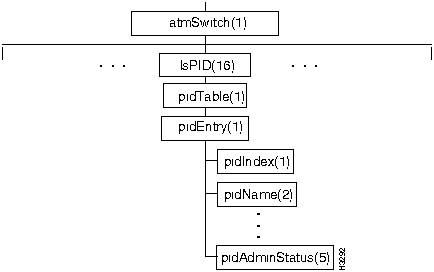
Objects in the lsPID Subtree
Address
Value
lsPID
atmSwitch.16
pidTable
lsPID.1
pidEntry
pidTable.1
pidIndex
pidEntry.1
Integer
RO
pidName
pidEntry.2
Integer
RO
pidCreationTime
pidEntry.3
Integer (sec)
RO
pidOperStatus
pidEntry.4
Integer
1=up, 2=down
RO
pidAdminStatus
pidEntry.5
Enum. Integer
1=up, 2=down
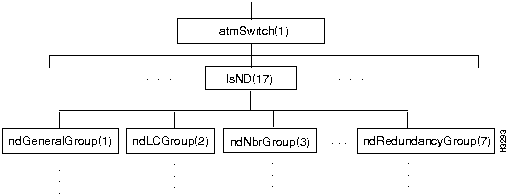
ndGeneralGroup Objects
Address
Value
ndGeneralGroup
lsND.1
ndSoftwareVersionNumber
ndGeneralGroup.1
Display String
RO
ndProcessID
ndGeneralGroup.2
Integer
RO
ndMemoryUse
ndGeneralGroup.4
Counter (bytes)
RO
ndTimersProcessed
ndGeneralGroup.5
Counter
RO
ndLCGroup Objects
Address
Value
ndLCGroup
lsND.2
ndLCCount
ncLCGroup.1
Counter
RO
ndLCTable
ncLCGroup.2
ncLCEntry
ndLCTable.1
ndLCEIA
ndLCEntry.1
Integer
RO
ndLCChannel
ndLCEntry.2
Integer
RO
ndLCState
ndLCEntry.3
Integer
1=unknown
2=exists
3=up
4=coming down
RO
ndNbrGroup Objects
Address
Value
ndNbrGroup
lsND.3
ndNbrCount
ndNbrGroup.1
Counter
RO
ndNbrTable
ndNbrGroup.2
ndNbrEntry
ndBbrTable.1
ndNbrEIA
ndNbrEntry.1
Integer
RO
ndNbrChannel
ndNbrEntry.2
Integer
RO
ndNbrState
ndNbrEntry.3
Integer
1=unknown
2=exists
3=up
4=coming down
RO
ndSwudGroup Objects
Address
Value
ndSwudGroup
lsND.4
ndSwudTable
ndSwudGroup.1
ndSwudEntry
ndSwudTable.1
ndSwudIndex
ndSwudEntry.1
Integer
RO
ndOperIntvl
ndSwudEntry.2
Integer (100ms)
RO
ndOperJ
ndSwudEntry.3
Integer
RO
ndOperK
ndSwudEntry.4
Integer
RO
ndOperM
ndSwudEntry.5
Integer
RO
ndOperN
ndSwudEntry.6
Integer
RO
ndAdminIntvl
ndSwudEntry.7
Integer (100ms)
ndAdminJ
ndSwudEntry.8
Integer
ndAdminK
ndSwudEntry.9
Integer
ndAdminM
ndSwudEntry.10
Integer
ndAdminN
ndSwudEntry.11
Integer
ndTrigger
ndSwudEntry.12
Integer
ndSwudStatsInputErrors
ndSwudGroup.2
Counter
RO
ndSwudStatsTable
ndSwudGroup.3
NdSwudStatsEntry
ndSwudStatsTable.1
ndSwudStatsIndex
ndSwudStatsEntry.1
Integer
RO
ndInputCells
ndSwudStatsEntry.2
Counter
RO
ndInputErrs
ndSwudStatsEntry.3
Counter
RO
ndOutputCells
ndSwudStatsEntry.4
Counter
RO
ndOutputErrs
ndSwudStatsEntry.5
Counter
RO
ndClient Objects
Address
Value
ndClient group
lsND.5
ndClientCount
ndClientGroup.1
Counter
RO
ndClientTable
ndClientGroup.2
ndClientEntry
ndClientTable.1
ndClientID
ndClientEntry.1
Integer
RO
ndClientType
ndClientEntry.2
Integer
3=ND
4=GID
5=LCC
6=CA
7=Sys
RO
ndClientSubType
ndClientEntry.3
Integer
RO
ndClientEIA
ndClientEntry.4
Integer
RO
ndClientRegistration
ndClientEntry.5
Integer
RO
ndInternalGroup Objects
Address
Value
ndInternalGroup
lsND.6
ndInternalDebugLevel
ndInternalGroup.1
Integer (default 0=off)
ndInternalDebugFlags
ndInternalGroup.2
Integer (default 0=none)
ndRedundancyGroup Objects
Address
Value
ndRedundancyGroup
lsND.7
ndPrimaryNP
ndRedundancyGroup.1
Integer
default 0=none
RO
ndThisNP
ndRedundancyGroup.2
Integer
RO
ndForceToBackup
ndRedundancyGroup.3
Integer
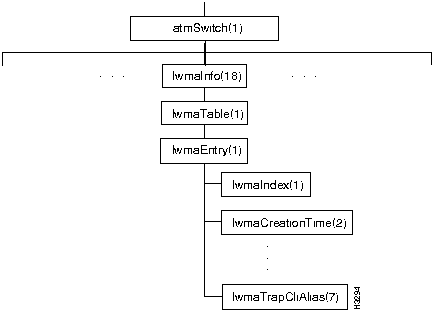
Objects in the lwmaInfo Subtree
Address
Value
lwmaTable
lwmaInfo.1
lwmaEntry
lwmaTable.1
lwmaIndex
lwmaEntry.1
Integer
RO
lwmaCreationTime
lwmaEntry.2
Integer (sec)
RO
lwmaTableNotification
lwmaEntry.3
Object Identifier
RO
lwmaTrapLevel
lwmaEntry.4
Integer
1=operational
2=informational
3=trace
4=debug
lwmaTrapNumber
lwmaEntry.5
Integer
lwmaTrapOnOffState
lwmaEntry.6
Integer
1=on
2=off
lwmaTrapCliAlias
lwmaEntry.7
Octet String
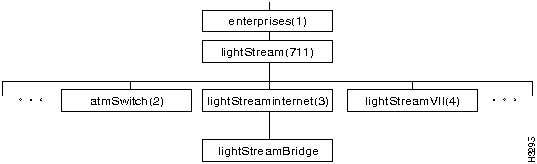
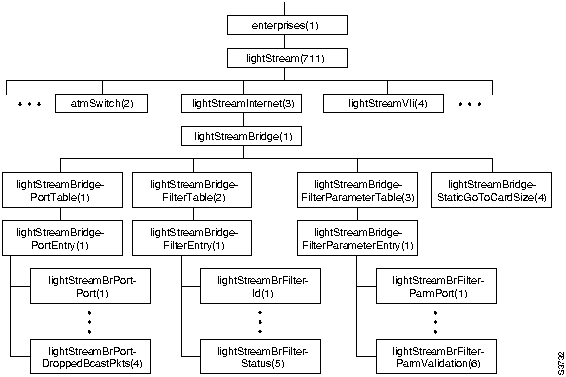
lightStreamBridgePortTable Objects
Address
Value
lightStreamBridgePortTable
lightStreamBridge.1
lightStreamBridgePortEntry
lightStreamBridge PortTable.1
lightStreamBrPortPort
lightStreamBridge PortEntry.1
Integer (dot1dBasePort)
RO
lightStreamBrPortDefaultAction
lightStreamBridge PortEntry.2
1 = forward
2 = block
lightStreamBrPortBcastRateLimit
lightStreamBridge PortEntry.3
Integer (packets)
-1=forward all
lightStreamBrPortDroppedBcastPkts
lightStreamBridge PortEntry.4
Counter (packets)
RO
lightStreamBridgeFilterTable Objects
Address
Value
lightStreamBridgeFilterTable
lightStreamBridge.1
lightStreamBridgeFilterEntry
lightStreamBridge FilterTable.1
lightStreamBrFilterId
lightStreamBridge FilterEntry.1
Integer
RO
lightStreamBrFilterTokenIndex
lightStreamBridge FilterEntry.2
Integer
RO
lightStreamBrFilterTokenType
lightStreamBridge
Integer
1=operation
2=Frame Field
3=MAC address
4=Ether
5=LLC SAP
6=LLC Ctl
7=SNAP OUI
lightStreamBrFilterTokenValue
lightStreamBridge FilterEntry.4
DisplayString
lightStreamBrFilterStatus
lightStreamBridge FilterEntry.5
Integer
1=complete
2=delete
4=intermediate token
lightStreamBridgeFilterParameterTable Objects
Address
Value
lightStreamBridgeFilterParameterTable
lightStreamBridge.3
lightStreamBridgeFilterParameterEntry
lightStreamBridge- FilterParameter Table.1
lightStreamBrFilterParmPort
lightStreamBridge FilterParameterEntry.1
Integer
(dot1dBasePort)
RO
lightStreamBrFilterParmFilterId
lightStreamBridge FilterParameterEntry.2
Integer
RO
lightStreamBrFilterParmFilterPriority
lightStreamBridge FilterParameterEntry.3
Integer
1=highest
default largest + 10
lightStreamBrFilterParmAction
lightStreamBridge FilterParameterEntry.4
1 = forward
2 = block
lightStreamBrFilterParmMatchCounts
lightStreamBridge FilterParameterEntry.5
Counter
RO
lightStreamBrFilterParmValidation
lightStreamBridge FilterParameterEntry.6
Integer
1=valid
2=invalid
lightStreamBridgePortTable Objects
Address
Value
lightStreamBridgeStaticGoToCardSize
lightStreamBridge.4
Integer
(bytes of dot1dStaticGoTo per card)
RO
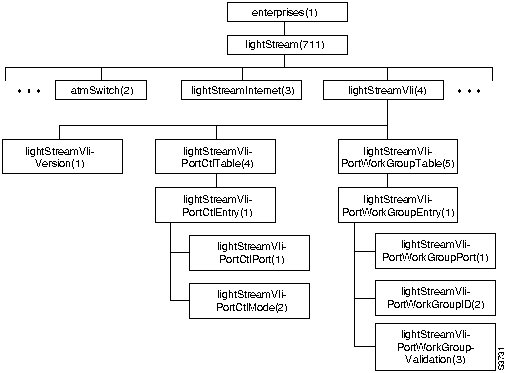
VLI Version Object
Address
Value
lightStreamVliVersion
lightStreamVli.1
Integer
1=Version 1
RO
lightStreamVliPortCtlTable Objects
Address
Value
lightStreamVliPortCtlTable
lightStreamVli.4
lightStreamVliPortCtlEntry
lightStreamVli PortCtlTable.1
lightStreamVliPortCtlPort
lightStreamVli PortCtlEntry.1
Integer
(dot1dBasePort)
RO
lightStreamVliPortCtlMode
lightStreamVli PortCtlEntry.2
Integer
1=include
2=exclude
lightStreamVliPortWorkGroup Objects
Address
Value
lightStreamVliPortWorkGroupTable
lightStreamVli.5
lightStreamVliPortWorkGroupEntry
lightStreamVliPort WorkGroupTable.1
lightStreamVliPortWorkGroupPort
lightStreamVliPort WorkGroupEntry.1
Integer
(dot1dBasePort)
RO
lightStreamVliPortWorkGroupID
lightStreamVliPort WorkGroupEntry.2
Integer (0-65535)
RO
lightStreamVliPortWorkGroupValidation
lightStreamVliPort WorkGroupEntry.3
Integer
1=valid
2=invalid
LynxOS Command Reference
*cli> shell hostname
chi7
*cli>
( name ... ) -> [login@]host
install [dest] ;
rdistd -S
facility=types:facility=types...
file=/tmp/rdist.log=all,debug
-l stdout=all:syslog=change,notice:file=/tmp/rdist.log=all
<variable_name> '=' <name_list>
[ label: ] <source_list> '->' <destination_list> <command_list>
[ label: ] <source_list> '::' <time_stamp_file> <command_list>
<name>
'(' <zero or more names separated by white-space> ')'
list '+' list
list '-' list
`install'<options>opt_dest_name `;'
`notify'<name_list> `;'
`except'<name_list> `;'
`except_pat'<pattern_list>`;'
`special'<name_list>string `;'
`cmdspecial'<name_list>string `;'
HOSTS = ( matisse root@arpa)
FILES = ( /bin /lib /usr/bin /usr/games
/usr/include/{*.h,{stand,sys,vax*,pascal,machine}/*.h}
/usr/lib /usr/man/man? /usr/ucb /usr/local/rdist )
EXLIB = ( Mail.rc aliases aliases.dir aliases.pag crontab dshrc
sendmail.cf sendmail.fc sendmail.hf sendmail.st uucp vfont )
${FILES} -> ${HOSTS}
install -oremove,chknfs ;
except /usr/lib/${EXLIB} ;
except /usr/games/lib ;
special /usr/lib/sendmail "/usr/lib/sendmail -bz" ;
srcs:
/usr/src/bin -> arpa
except_pat ( \\.o\$ /SCCS\$ ) ;
IMAGEN = (ips dviimp catdvi)
imagen:
/usr/local/${IMAGEN} -> arpa
install /usr/local/lib ;
notify ralph ;
${FILES} :: stamp.cory
notify root@cory ;
-v -N -O -q -b -r -R -s -w -y -h -i -x
,tar-03-Sep-1989-10:42:19
Vi Editor User's Guide
bash$ TERM=sun
bash$
Terms Used in Command Descriptions
text
Any series of ASCII characters.
buffer
A unit of memory used to hold text.
file buffer
The buffer that holds the file being edited.
white space
Tabs and spaces.
word
An unbroken string of (1) letters, digits, and underscores ("_"), or (2) characters other than letters, digits, underscores, and white space, depending upon context.
big word
An unbroken string of characters other than white space.
unnamed buffer
A buffer containing the last text yanked or deleted.
window
The part of the file that is visible on the terminal.
line
A string of characters followed by a newline character. A "line" of text may take up more than one row on the screen.
current character
The character beneath the cursor.
current line
The line containing the cursor.
^x
Control character x, e.g. ^B means control-B (ASCII 2).
return
^M or the [Return] key.
command mode
The normal operating mode of the editor. Each key typed is taken as a command.
insert mode
The mode used for manually adding text to a file. Characters that are typed while in insert mode are inserted into the text.
replace mode
Like insert mode, except that characters typed replace characters in the buffer.
char
Any ASCII character.
named buffer
One of 26 buffers with names "a" through "z".
mark name
A lowercase letter that names one of 26 marks that can be used to save a position in the file buffer.
Regular Expressions Used in vi
Matches any single character.
[chars]
Matches any char listed in the brackets. [x-y] is a range of characters, where the ASCII value of x precedes that of y.
[^chars]
Matches any char not listed in the brackets.
^
Matches the beginning of a line when used as the first character in a regular expression.
$
Matches the end of a line when used as the last character in a regular expression.
*
Matches zero or more instances of the preceding item, which may be a normal char or a 1-character "wildcard" such as . or [chars].
+
Matches one or more instances of the preceding item.
?
Matches zero or one instances of the preceding item.
\<
Matches the beginning of a word
\>
Matches the end of a word.
Position Movement Commands
nh (or n^H)
Left n characters (1 by default). Within current line only.
nj (or n^J,
or n^N)
Down n lines (1 by default), in the same column if possible.
nk (or n^K)
Up n lines (1 by default), in the same column if possible.
nl (or n^L,
or nspace)
Right n characters (1 by default).
^I
Forward to the next tab stop.
nw
Forward to the beginning of the nth following word.
nW
Forward to the beginning of the nth following big word.
nb
Back to the beginning of the nth previous word.
nB
Back to the beginning of the nth previous big word.
ne
Forward to the end of the nth following word.
nE
Forward to the end of the nth following big word.
nG
The nth line of the file (default, last line).
0
The first character of the current line.
_ (or ^)
The first non-whitespace character on the current line.
$
The end of the current line.
%
The matching parenthesis, bracket, or brace.
'mark
''
The beginning of the line previously marked with mark (a single lowercase letter).
If mark is
'
, move to the beginning of the line that was current just before the last absolute movement command such as G, %, or
'
itself.
`mark
``
The position (line and column) previously marked with mark (a single lowercase letter).
If mark is
`
, move to the position that was current just before the last absolute movement command.
n+
The first non-whitespace character on the nth line below.
n-
The first non-whitespace character on the nth line above.
/
Search forward. Prompts on the last line of the screen for a search pattern (default = last pattern searched for).
?
Search backward. Prompts on the last line of the screen for a search pattern (default = last pattern searched for).
n
Search forward for last pattern searched for.
N
Search backward for last pattern searched for.
fchar
Next instance of char on current line.
tchar
Character preceding next instance of char on current line.
Fchar
Previous instance of char on current line.
Tchar
Character following previous instance of char on current line.
;
Repeat last t or f command.
,
Repeat last T or F command.
nH
Beginning of nth line from top of text (default = 1, home).
nL
Beginning of line nth row from bottom of text (default = 1).
n^M
First non-whitespace character on the nth line below (default = carriage return).
Secondary Movement Commands
^B
Move a full window backward.
^D
Move half a window forward.
^E
Move the window down one line. The cursor moves only if the current line scrolls off the screen.
^F
Move a full window forward.
^U
Move half a window backward.
^Y
Move the window up one line. The cursor moves only if the current line scrolls off the screen.
z.
Scroll the current line to the middle of the window.
z-
Scroll the current line to the bottom of the window.
zreturn
Scroll the current line to the top of the window.
Commands That Change a Region Delimited by a Movement Command
c
Change the region of text delimited by the movement operand. If the end of the text region is within the current line, vi marks it with a $ mark (dollar sign), enters replace mode until the cursor reaches the $ mark, and then enters insert mode for additional typing. Otherwise, vi deletes text from the current position through the end of the region and enters insert mode.
d
Delete the region of text. Equivalent to using c and immediately pressing [Esc] to leave insert mode.
y
Copy text unchanged from the region to the unnamed buffer.
<
Shift each line of the region left one tab stop.
>
Shift each line of the region right one tab stop.
!
Filter the region through a LynxOS utility or other program. Prompts for a command. Standard output of the command replaces the text in the region.
Commands That Change a Predefined Text Object
i
Enter insert mode before the current character.
I
Move to the first non-whitespace character of the current line and enter insert mode.
a
Enter insert mode after the current character.
A
Move to the last character of the current line and enter insert mode after that character.
o
Add a blank line below the current line, move to the new line, and enter insert mode.
O
Add a blank line above the current line, move to the new line, and enter insert mode.
nx
Delete n characters to the right, starting with current character.
nX
Delete n characters to the left of current character.
J
Join the next line with the current line.
np
Insert text from the unnamed buffer n times after the current position. Insert after the current line if the buffer contains lines of text.
nP
Insert text from the unnamed buffer n times before the current position. Insert before the current line if the buffer contains lines of text.
R
Enter replace mode, a variant of insert mode. Typing overwrites characters on the current line. As soon as the current line is completely overwritten, enter insert mode.
rchar
Replace the current character with char.
s
Change the current character (same as c1).
C
Change the text in the current line (same as c$).
D
Delete the remainder of the current line (same as d$).
Y
Copy the remainder of the current line into the unnamed buffer (same as y$).
S
Change the current line (same as cc).
u
Undo the effects of the last text-changing command.
U
Multi-level undoing through the 9 most recent changes. (By contrast, repeating u has no net effect on the file.)
&
Repeat last search/replace command (see Colon Commands).
~
Change case (uppercase or lowercase) of the current character, if it is alphabetic, and move right one character.
.
Repeat the effect of the last text-changing command.
Miscellaneous Commands
mmark
Mark the current line with mark, a single lowercase letter, for future reference by movement and change commands.
^R
Redraw the screen.
^G
Display information about the current position and file buffer.
^^
Toggle between the current file buffer and the last file buffer edited.
"letter
Use the buffer named letter for the following command. P or p inserts from letter instead of from the unnamed buffer, and commands that write into the unnamed buffer write into letter as well.
@letter
Perform commands found in the buffer named letter as if they were typed on the keyboard. To put commands into a buffer, create a new line in the main file and then delete it into the buffer. The . command repeats the effects of an invocation of buffered commands; the u and U commands repeat the effects of individual commands in the buffer.
^]
Interpret characters from the current position to the end of the word as a tag name, and go to that tag position. If this requires editing a new file, the current file must first be saved or the autowrite flag must be set. (See the ta command description in Table 6-10.)
ZZ
Save the current file and leave vi. (See also :xit in Table 6-10.)
^C
Abort a search in progress or a colon command being entered.
^Z
Put the current editing session in the background and return to the invoking shell. To resume editing, use the appropriate shell command to bring vi back into the foreground.
Colon Commands
range s/pat/repl/g
The s command substitutes the replacement text repl in place of the pattern text pat on each line included in the range. If range is omitted, the default is the current line. If the optional g is included at the end of the command, each occurrence of pat is replaced, otherwise only the first instance on each line is affected.
The pattern pat may be any regular expression (see Table 6-2). If the replacement string repl contains the character &, the current instance of pat is substituted for it. If the replacement string repl contains the sequence \n, where n is a single digit from 1 to 9, that sequence is replaced by the nth portion of pat that is bracketed by \( and \).
Examples:
Change every instance of cat to dog:
:%s/cat/dog/g
Remove all leading and training spaces in a file:
:%s/^ *\(.*[^ ]\) *$.\1
Note that the pattern grouped in \( and \) explicitly specifies that the pattern end with a non-space. This is because vi always matches the longest patterns and sub-patterns.
Parenthesize the first string of capital letters on the current line:
:s/[A-Z]+/(&)/
range w file
range w! file
range w>> file
Write the lines in range to file. If range is omitted, write the entire file; in the absence of file, use the current file name. Use w! to overwrite an existing file. Use w>> to append to the end of an existing file.
Line Specifier Strings Used to Specify Range of Colon Commands
.
The current line.
$
The last line of the file.
n
Line number n of the file (a decimal integer).
'mark
Line previously marked by the 1-character mark with the m command.
Colon Commands That Determine the File Being Edited
edit file
Start editing another file. If file is not given, the default is to reload the version of the current file found on disk (the last saved version, or the original if it has not been saved). If file is #, then vi switches to the alternate file, which is either the most recent file edited in this vi session, or the file most recently named in a colon command, even if that command failed. If the current file has not been saved, vi does not switch files unless the autowrite flag is set. It may be forced to switch by typing edit! file, but all changes to the current file are then lost.
next
Edit the next file in the parameter list that was given when vi was invoked. If the current file has not been saved, vi does not switch files unless the autowrite flag is set. It may be forced to switch by typing next!, but all changes to the current file are then lost.
quit
Exit vi. If the current file has not been saved, vi does not terminate unless the autowrite flag is set. It may be forced to exit by typing quit!, but all changes to the current file are then lost.
read file
Read the contents of file into the file buffer after the current line.
rewind
Change to the first parameter in the parameter list given when vi was invoked. The other parameters in the list can then be reexamined with the next command. If the current file has not been saved, vi does not switch files unless the autowrite flag is set. It may be forced to switch by typing rewind!, but all changes to the current file are then lost.
ta tag
Look up the string tag in a file named tags in the current working directory. Lines in this file are of the following form:
tag filename pattern
When it finds tag, vi changes to the file filename (if it is different from the current file) and moves to the first instance of pattern in that file. The tags file is usually constructed automatically, by the ctags program if the files contain C source code, or by some other program for other types of files. If the current file has not been saved, vi does not switch files unless the autowrite flag is set. It may be forced to switch by typing ta! tag, but all changes to the current file are then lost.
xit
Exit vi after saving the current file buffer. (See also ZZ Table 6-7.)
Commands That Tailor the Editing Environment
map key string
map! key string
Assign user-definable strings to particular characters. If key is typed in command mode, vi behaves as if string had been typed instead (but see below for map!).
If key is typed in insert mode, vi behaves as if string had been typed instead.
The same key can be used twice, once for insert mode and once for command mode.
unmap key
unmap! key
Remove any mapping established for key in command mode.
Remove any mapping established for key in insert mode.
set flag
set noflag
set var=value
Set flag to TRUE.
Set flag to FALSE.
Set var to the numeric value value.
Editor Parameters That May be Set With the set Command
autoindent
If set, when text is added vi indents each new line by the same amount as the previous line.
autowrite
If set, vi writes the file to disk automatically when it switches between files or when it is stopped with ^Z.
ignorecase
If set, search commands ignore case.
list
If set, tabs in the file are made visible on the screen as ^I.
magic
If not set (set nomagic), special characters described in Table 6-2 need not be quoted with a backslash.
tabstop
Width in spaces of a tab stop; used also for shifting text.
wrapscan
If set, searches wrap around from one end of the file to the other.
^A
Not used.
^B
Move a full window backward.
^C
Abort a search in progress or a colon command being entered.
^D
Move half a window forward.
^E
Move the window down one line. The cursor moves only if the current line scrolls off the screen.
^F
Move a full window forward.
^G
Display information about the current position and file buffer.
n^H
Left n characters (1 by default). Within current line only.
^I
Forward to the next tab stop.
n^J
Down n lines (1 by default), in the same column if possible.
n^K
Up n lines (1 by default), in the same column if possible.
n^L
Right n characters (1 by default).
n^M
First non-whitespace character on the nth line below (default = carriage return).
n^N
Down n lines (1 by default), in the same column if possible.
^O
Not used.
^P
Not used.
^Q
Not used (XON character for flow control).
^R
Redraw the screen.
^S
Not used (XOFF character for flow control).
^T
Not used.
^U
Move half a window backward.
^V
Not used.
^W
Not used.
^X
Not used.
^Y
Move the window up one line. The cursor moves only if the current line scrolls off the screen.
^Z
Put the current editing session in the background and return to the invoking shell. To resume editing, use the appropriate shell command to bring vi back into the foreground.
^[
Not used in command mode (exits insert mode).
^\
Not used.
^]
Interpret characters from the current position to the end of the word as a tag name, and go to that tag position. If this requires editing a new file, the current file must first be saved or the autowrite flag must be set. (See the ta command below under Colon Commands.)
^^
Toggle between the current file buffer and the last file buffer edited.
^_
Not used.
nspace
Right n characters (1 by default).
!
Filter the region through a LynxOS utility or other program. Prompts for a command. Standard output of the command replaces the text in the region.
"letter
Use the buffer named letter for the following command. P or p inserts from letter instead of from the unnamed buffer, and commands that write into the unnamed buffer write into letter as well.
#
Not used.
$
The end of the current line.
%
The matching parenthesis, bracket, or brace.
&
Repeat last search/replace command (see Colon Commands).
'mark
''
The beginning of the line previously marked with mark (a single lowercase letter).
If mark is
'
, move to the beginning of the line that was current just before the last absolute movement command such as G, %, or ' itself.
(
Not used.
)
Not used.
*
Not used.
n+
The first non-whitespace character on the nth line below.
,
Repeat last T or F command.
n-
The first non-whitespace character on the nth line above.
Repeat the effect of the last text-changing command.
/
Search forward. Prompts on the last line of the screen for a search pattern (default = last pattern searched for).
0
The first character of the current line.
1 ... 9
Not used, except to specify repeat counts to other commands.
:
Used to introduce a colon command.
;
Repeat last t or f command.
<
Shift each line of the region left one tab stop.
=
Not used.
>
Shift each line of the region right one tab stop.
?
Search backward. Prompts on the last line of the screen for a search pattern (default = last pattern searched for).
@letter
Perform commands found in the buffer named letter as if they were typed on the keyboard. Put commands into a buffer by creating a new line in the main file and then deleting it into the buffer. Use the . command to repeat the effects of an invocation of buffered commands; u and U commands only repeat the effects of individual commands in the buffer.
A
Move to the last character of the current line and enter insert mode after that character.
nB
Back to the beginning of the nth previous big word.
C
Change text in the current line (same as c$).
D
Delete remainder of the current line (same as d$).
nE
Forward to the end of the nth following big word.
Fchar
Previous instance of char on current line.
nG
The nth line of the file (default, last line).
nH
Beginning of nth line from top of text (default = 1, home).
I
Move to the first non-whitespace character of the current line and enter insert mode.
J
Join the next line with the current line.
K
Not used.
nL
Beginning of line nth row from bottom of text (default = 1).
M
Not used.
N
Search backward for last pattern searched for.
O
Add a blank line above the current line, move to the new line, and enter insert mode.
nP
Insert text from the unnamed buffer n times before the current position. Insert before the current line if the buffer contains lines of text.
Q
Not used.
R
Enter replace mode, a variant of insert mode. Typing overwrites characters on the current line. As soon as the current line is completely overwritten, enter insert mode.
S
Change the current line (same as cc).
Tchar
Character following previous instance of char on current line.
U
Multi-level undoing through the 9 most recent changes. (By contrast, repeating u has no net effect on the file.)
V
Not used.
nW
Forward to the beginning of the nth following big word.
nX
Delete n characters to the left of current character.
Y
Copy remainder of the current line into the unnamed buffer (same as y$).
ZZ
Save the current file and leave vi.
[
Not used.
\
Not used.
]
Not used.
^
The first non-whitespace character on the current line.
_
The first non-whitespace character on the current line.
`mark
``
The position (line and column) previously marked with mark (a single lowercase letter).
If mark is
`
, move to the position that was current just before the last absolute movement command.
a
Enter insert mode after the current character.
nb
Back to the beginning of the nth previous word.
c
Change the region of text delimited by the movement operand. If the end of the text region is within the current line, vi marks it with a $ mark (dollar sign), enters replace mode until the cursor reaches the $ mark, and then enters insert mode for additional typing. Otherwise, vi deletes text from the current position through the end of the region and enters insert mode.
d
Delete the region of text. Equivalent to using c and immediately pressing [Esc] to leave insert mode.
ne
Forward to the end of the nth following word.
fchar
Next instance of char on current line.
g
Not used.
nh
Left n characters (1 by default). Within current line only.
i
Enter insert mode before the current character.
nj
Down n lines (1 by default), in the same column if possible.
nk
Up n lines (1 by default), in the same column if possible.
nl
Right n characters (1 by default).
mmark
Mark the current line with mark, a single lowercase letter, for future reference by movement and change commands.
n
Search forward for last pattern searched for.
o
Add a blank line below the current line, move to the new line, and enter insert mode.
np
Insert text from the unnamed buffer n times after the current position. Insert after the current line if the buffer contains lines of text.
q
Not used.
rchar
Replace the current character with char.
s
Change the current character (same as c1).
tchar
Character preceding next instance of char on current line.
u
Undo the effects of the last text-changing command.
v
Not used.
nw
Forward to the beginning of the nth following word.
nx
Delete n characters to the right, starting with current character.
y
Copy text unchanged from the region to the unnamed buffer.
zreturn
Scroll the current line to the top of the window.
z-
Scroll the current line to the bottom of the window.
z.
Scroll the current line to the middle of the window.
{
Not used.
|
Not used.
}
Not used.
~
Change case (uppercase or lowercase) of the current character, if it is alphabetic, and move right one character.
''
returns.
BASH Shell Reference
| & ; ( ) < > <space> <tab>
|| & && ; ;; ( ) | <newline>
! casedo done elif else esac fi for function if in then until while { }
`
, and \. The characters $ and
`
retain their special meaning within double quotes. The backslash retains its special meaning only when followed by one of the following characters: $,
`
,
"
, \, or <newline>. A double quote may be quoted within double quotes by preceding it with a backslash.
name=[value]
<space><tab><newline>
.:/usr/gnu/bin:/usr/local/bin:/usr/ucb:/bin:/usr/bin:/etc:/usr/etc
Note that in some circumstances, however, a leading `.' in PATH can be a security hazard.
.:~:/usr
MAILPATH='/usr/spool/mail/bfox?"You have mail"\
:~/shell-mail?"$_ has mail!"'
$(command)
`command`
`
, or \. When using the $(command) form, all characters between the parentheses make up the command; none are treated specially.
$[expression]
<space><tab><newline>
`
, and " are removed.
`
.
[1] 25647
M-Control-u: universal-argument
C-Meta-u: universal-argument
