


|
|

This appendix discusses all aspects of the command set. A list of top-level commands is provided in Table A-1.
The user interface for the admin. port on the concentrator is a basic command-line interpreter. Commands and parameters are not case sensitive and can be abbreviated if they contain enough characters to eliminate any ambiguity with other commands at the same level. Command-line editing is provided along with history substitution. If you incorrectly enter a command, a usage message gives you the correct command format. Pressing Ctrl-W deletes the last word typed and pressing Ctrl-U deletes the entire line.
Commands entered during a terminal session are stored in a history substitution buffer. Commands in this buffer can be repeated or edited in a style similar to the UNIX C shell. The buffer stores the last 20 commands entered during a terminal session. (See the section "history Command" later in this appendix.)
To repeat a recent command, do the following:
   !! --- repeat the most recent command
  !nn --- repeat command nn
 !aaa --- repeat the command beginning with string aaa
!?aaa --- repeat the command containing the string aaa
To modify and repeat the most recent command, do the following:
^aaa^bbb --- replace the string aaa with the string bbb in
           the most recent command
To add a string to the end of a previous command and repeat it, do the following:
    !!aaa --- add string aaa to the end of the most recent command
  !nn aaa --- add string aaa to the end of command nn
 !aaa bbb --- add string bbb to the end of the command beginning
            with string aaa
!?aaa bbb --- add string bbb to the end of the command containing
            the string aaa
Connecting to Concentrator Administration
You can connect to the admin. interface through the admin. port (EIA/TIA-232) or via Telnet. The admin. port allows fixed baud rates. Telnet and admin. port sessions are automatically logged out if they are idle for 20 minutes.
Use the admin. interface to perform the following functions:
You can connect through the admin. port via EIA/TIA-232. Following is a sample display:
Cisco Systems Console
Enter password:
console>
console>
console> quit
To use Telnet, you must have the IP address configured on the concentrator. To access the concentrator with Telnet, use the following procedure:
There are two categories of commands: normal and privileged.
You can enter help or ? to see the list of commands. Additional help is available for some commands when you enter the command followed by help or ?.
Table A-1 : Top-Level Commands
Some commands had different nomenclature in the Workgroup WS-C1100 Concentrator software (Version 2.3). Predefined aliases for these commands are available. Table A-2 lists the current commands and the predefined aliases.
Table A-2 : Predefined Aliases
Table A-3 lists the clear commands.
The clear arp command clears individual ARP table entries and clear arp all clears the entire ARP table. Following is a sample display:
See also set arp and show arp.
The clear coalias command clears individual aliases of the MAC prefix and clear coalias all clears all coalias entries. Following is a sample display:
See also set coalias and show coalias.
The clear config command clears the configuration information stored in nonvolatile random-access memory (NVRAM) and changes all configuration variables to the default. It also causes the system to be reset. Following is a sample display:
See also show config and write Command.
The clear counters command clears all the MAC and port counters, as follows:
See also clear mac and clear port.
The clear help command displays the following message in normal mode.
The clear ipalias command clears the IP aliases that were assigned using the set ipalias command. The clear ipalias all command clears all IP alias entries. Following is a sample display:
See also set ipalias and show ipalias.
The clear lem command clears the link error monitor (LEM) counters. Following is a sample display:
See also show port.
The clear log command clears the system error log. Following is a sample display:
See also show log.
The clear mac command clears the following MAC counters:
Following is a sample display:
See also show mac.
The clear port command clears the following port counters:
Following is a sample display:
See also show port.
The clear route command clears IP routing table entries that were set using the set route command. The clear route all command clears all route entries except the local entry. The default metric value is 1.
Following is a sample display:
See also set route and show route.
The clear trap command clears an individual entry in the SNMP trap receiver table. The command clear trap all clears all trap receiver entries.
Following is a sample display:
See also set trap and show snmp.
The configure command downloads a configuration file or a batch file from the network and executes each command in that file. It is only available in privileged mode. The file should contain only American Standard Code for Information Interchange (ASCII) text and should not exceed 9,216 bytes (9 kilobytes [KB]) in length. Administrator commands are entered one per line.
The list of commands should end with the word "end" followed by a carriage return. The file may also contain comment lines, which are indicated by a pound (#) character at the beginning of each line. Some commands prompt for user input or confirmation. Responses to such commands should appear on the line after the command prompt.
Following are examples of configuration files:
See also show config and write Command.
The connect fddi command connects the concentrator to the FDDI ring. Following is a sample display:
See also the disconnect fddi Command.
The copy flash tftp command uploads the Flash memory image file from the concentrator to a network host to create a backup file. The file must be created in advance and saved in the tftpboot directory. Following is a sample display:
The copy tftp flash command downloads a Flash memory image file from the tftpboot directory to Flash memory. The binary file is searched for in the tftpboot directory of the host designated by IP address or name. The file transfer process can be stopped by pressing Ctrl-C. The copy tftp flash command and the download command are identical.
Following is a sample display:
The disable command returns you to normal mode. Following is a sample display:
See also enable and set enablepass.
The disconnect fddi command disconnects all CDDI/FDDI ports from the FDDI ring. The disconnect fddi command will also terminate any network connections, including services such as Telnet. After the concentrator is reset, it attempts to connect all ports even if you had previously issued a disconnect fddi command.
Following are samples of the disconnect fddi command with two connection types:
See also the connect fddi Command.
There are two ways to download a new image to Flash memory: through the serial port using the download serial command or over the network using the download host file command.
The download command enables you to download data to the concentrator over the network. When you download over the network, the concentrator expects a binary image. Network download is achieved via TFTP. The binary file image is searched for in the tftpboot directory. You can cancel the download command during the TFTP process by pressing Ctrl-C. The download command and the copy tftp flash are identical.
Following is an example of a network download in a Telnet session:
When you download through the serial port, the concentrator expects an ASCII image. You must ensure that the baud rates from the sending and receiving end are the same.
The following display shows a serial download session through the EIA/TIA-232 port using Kermit for a UNIX workstation:
The enable command is used to enter privileged mode. Following is a sample display:
See also disable and set enablepass.
The help command displays the following information in normal mode. (The ? command is the same as the help command.) Following is a sample display:
The help command displays the following information in privileged mode. (The ? command is the same as the help command.) Following is a sample display:
The history command shows the last 20 commands you entered, as follows:
The macreinit command reinitializes the primary and secondary MACs. You could use the macreinit command to clear a halted concentrator. Following is a sample display:
The ping command sends Internet Control Message Protocol (ICMP) echo request packets to a node on the network. When the -s option is specified, the ping command sends one datagram per second and prints one line of output for every response it receives. No output is produced if there is no response. Also, when the -s option is specified, round-trip times and packet-loss statistics are computed, and a summary of this information is shown on termination or timeout. The default packet size is 64 bytes, or you can specify a size from 1 to 2,000 bytes.
If you give an optional packet count, the ping command sends only that number of requests. Following is a sample display of the ping command:
Following are several examples of responses to the ping command.
The quit command quits the administration session. Following is a sample display:
The reset command resets the system. Following are sample displays of two different connections:
Table A-4 lists the set commands.
The switch uses an aging mechanism for the ARP address table that removes an address that has been inactive for a number of seconds set by the user. Removing addresses of inactive stations keeps the address table from filling up. Aging ensures that the old address/port association is removed if a station is moved from one switch port to another. The set agingtime command sets the aging time. The default value is 300 seconds. To disable aging, enter 0. A sample display follows:
The set alarm command sets the port line error rate alarm value. The alarms generated are sent to the Network Management System. The default LER-alarm value is 8. Following is a sample display:
See also show port.
The set arp command adds ARP table entries. Following is a sample display:
See also clear arp and show arp.
The set attach command sets the system attach type, including single, dual, or null, as follows:
Following are the three attachment types for the set attach command:
See also show port and show system.
The set baud command sets the serial port baud rate. The following line speeds are available: 600, 1,200, 2,400, 4,800, 9,600, 19,200, and 38,400. The default line speed is 9,600 baud. Following is a sample display:
See also show system.
The set broadcast command sets the IP broadcast address. A broadcast address specifies the address of the network. All stations on the network receive any packets with the broadcast address in the destination field. Following is a sample display:
See also show snmp.
The set coalias command assigns company aliases, up to eight characters long, for MAC addresses. Only the first three bytes of the MAC address are mapped to an alias. For example, the globally assigned MAC address for Cisco Systems Workgroup is 00:02:d0 in FDDI format.
Following is a sample display:
See also clear coalias and show coalias.
The set community command sets one of the four SNMP community strings, as follows:
You can set a community string for each the following access types:
See also show snmp.
The set cutoff command sets the port line error rate (LER) cutoff value. The default LER-cutoff is 7. Following is a sample display:
The set defaultTTL command sets the Time-To-Live field of the IP header datagrams whenever a TTL value is not supplied by the transport layer protocol. The default defaultTTL value is 60 seconds. Following is a sample display:
See also show snmp.
The set echo command sets echo mode on or off. Echo mode determines whether or not what you enter at the console will display on the screen. The default value is enabled. Following is a sample display:
See also show system.
The set enablepass command changes the privileged-level password for the admin. interface. After initializing the set enablepass command, you are prompted for the old password, the new password, and to confirm the new password. A zero-length password is allowed. The default password is no password. Following is a sample display:
The set help command displays the following information in normal mode:
The set help command displays the following information in privileged mode:
Workgroup WS-C1100 Concentrators support insertion of stations attached to the concentrator M port into the FDDI ring so that no data frames are lost in the process. This form of insertion is called scheduled insertion. Without scheduled insertion, frames can be lost while connecting to a new station.
You can change port insertion mode using the set insertmode command, which sets the system insert mode to standard or scheduled. The default is scheduled.
Following is a sample display:
You can display the insertion mode of the concentrator by using the show system command. The Ins-Mode field displays the insert mode of the M ports.
The set ipaddress command sets the IP address. The netmask and broadcast addresses needed for SNMP, ping, Telnet, or TFTP can be set at the same time. Following are two sample displays.
EIA/TIA 232 example:
See also set ipalias.
The set ipalias command adds aliases for IP addresses. The maximum length allowed for a character string is 19. There is one predefined default alias, 0.0.0.0. Following is a sample display:
See also clear ipalias and show ipalias.
The set length command sets the maximum number of lines you want displayed on the terminal screen so information does not scroll off the screen. A partial display ends with the following prompt:
At the prompt, press Ctrl-C to terminate the display or press any key to scroll to the next screen of information. Setting the value to 0 disables this feature. The default value is 0. Following is a sample display:
A sample display with more information follows:
Port Name Status Req-Path Cur-Path Conn-State Type Neigh
The set meter command sets the ring path to be shown on the traffic meter. The variables available are as follows:
The default setting is primary. Following is a sample display:
See also show system.
The set netmask command sets the IP subnet mask. The subnet mask specifies the subnet field of IP addresses and consists of a 32-bit mask written in dotted-decimal format. Following is a sample display:
The set password command sets the concentrator login password. You are prompted for the old password followed by the new password twice if the old password checks. A zero-length password is allowed, but passwords must not exceed 20 characters.
If you forget your password, you have 30 seconds after power up or pressing the reset button to log in without a password and change the password. This requires physical access to the concentrator.
Following is a sample display:
The set path command sets individual ports to primary or secondary ring paths. The default is primary. Following is a sample display:
See also show port.
The set port command enables and disables a port. The default is enabled. Following is a sample display:
The format of the set port command follows:
See also show port.
The set portname command configures a name for a port. The default port name is no name. The variables available are as follows:
The port name you enter will appear in the port information display of the show port command. You can enter any port name up to 20 characters in length. A zero-length port name is allowed. Port names are only meaningful to network administrators and are not used by the concentrator.
The set prompt command changes the prompt for the command line of the admin. interface. The default prompt is Console>. Following is a sample display:
The set redirect command enables or disables the ICMP redirects, allowing or disallowing dynamic updates to the routing table. The default is enabled. Following is a sample display:
See also show snmp.
The set route command adds IP routing table entries. Its variables are as follows:
Following is a sample display:
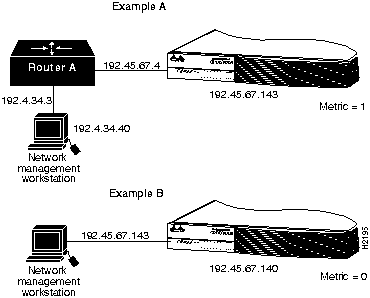
You can enter either an IP address in dotted-decimal format or an alias, if one is set. Add an entry for the destination network and the gateway IP address if you want to manage the concentrator from a network management workstation that is not on the local network.
Figure A-1 shows two sample networks. In example A, the concentrator needs a path to a network management workstation located on another network through a router. In this case, you must add an entry in the routing table using the set route command. For example:
In example B, the network management workstation is located on the same network as the concentrator, so you do not need to add an entry in the table.
Figure A-1 : Sample Networks for the set route Command
See also clear route and show route.
The set syscontact command sets the name of the person to contact that is displayed in the show system display. The entry can be up to 19 characters long. Following is a sample display:
See also show system.
The set syslocation command sets the location of this concentrator, which is displayed in the show system display. The entry can be up to 19 characters long. Following is a sample display:
See also show system.
The set sysname command sets the name of this concentrator, which is displayed in the show system display. The entry can be up to 19 characters long. Following is a sample display:
See also show system.
The set time command changes the day of the week, date, and/or time of day in the system clock, as follows:
See also show time.
The set tnotify command changes the Time Notify (TNotify) timer value for the concentrator. The TNotify timer specifies the interval between neighbor information broadcasts (NIF frames) to other stations in the network. Enter an integer value from 2 to 30 seconds. The default is 30 seconds. Following is a sample display:
The set trap command enables, disables, or adds an entry in the SNMP authentication trap receiver table. The default is disabled. Following is a sample display:
When you enter addresses in the table, you must specify the community string that will appear in the trap message.
See also clear trap and test trap.
The set treq command changes the token request (TReq) value of the specified MAC. Following is a sample display:
The MAC number is either 1 (the primary MAC) or 2 (the secondary MAC). You can enter any new value from TMin to TMax. The default is 165,000 microseconds.
See also show mac.
The set userdata command configures the user data string in the SMT MIB. The user data field can be used to identify a station. The default is set as "CDDI/FDDI Concentrator." Following is a sample display:
Table A-5 lists the show commands.
The show arp command displays the ARP table entries. Following is a sample display:
Aging time = 1200 sec
Console> (enable) See also clear arp and set arp.
The show coalias command displays the aliases of company MAC addresses. Following is a sample display:
See also clear coalias and set coalias.
The show config command lists all commands used to create the current configuration.
Following is a sample display:
set password
set insertmode scheduled
set ipalias montreux 198.133.219.40
set ipalias montreux- 192.122.174.40
set coalias tekelec 00:00:e8
set port 1 enable
set alarm 5 8
set portname 9
set cutoff 12 7
set path 16 primary
See also clear config and write Command.
The show cspsig command displays the connection services process (CSP) signal history, as follows:
The show driver command displays frame driver status and counts, as follows:
The show help command displays the following information in normal mode:
The show help command displays the following information in privileged mode:
The show ipalias command displays IP aliases assigned using the set ipalias command. Following is a sample display:
See also clear ipalias and set ipalias.
The show log command displays the system error log. Following is a sample display:
See also clear log.
The show mac command displays information on both MACs, as follows:
Following are descriptions of the display fields of the show mac command:
See also clear mac.
The show macdbg command shows MAC debug information, as follows:
Following are descriptions of the display fields of the show macdbg command:
The show macstatus command displays the history of the FDDI MAC status registers, as follows:
The show mbuf command displays memory buffer (mbuf) and memory allocation (malloc) statistics, as follows:
The show phy command displays the values stored in PHY registers and the Tl-min of the PHY.
The variables available are as follows:
Following is a sample display:
Console> (enable) The show pmac command displays the values stored in primary MAC registers, as follows:
The show port command displays status and configuration information about each of the concentrator ports, as follows:
Port Name Status Req-Path Cur-Path Conn-State Type Neigh
Following are descriptions of the display fields of the show port command:
Figure A-2 : Primary Configuration Control (CCE) Element State
Figure A-3 : Secondary Configuration Control Element State
Figure A-4 : Isolated Configuration Control Element State
Figure A-5 : Thru Configuration Control Element State
Figure A-6 : Concatenated Configuration Control Element State
See also clear port, set port, set portname, set path, set agingtime, and set cutoff.
The show portbg command displays port debug information, as follows:
Following are descriptions of the display fields of the show portdbg command:
The show porthistory command displays the events for each port since the last system reset. A sample display follows:
*********** Information Deleted **********
The show remotemib command displays remote MIB information, as follows:
For example, the following command displays SMT parameters from the station with the MAC address of cisco:02:23:3e.
You can also use a company alias as part of the MAC address. Use the raw option to show MAC addresses without company aliases.
The show remotemib display contains parts of the show mac and show port displays, with the following new fields:
See also show ringmap.
The show ringmap command displays the FDDI ringmap for the primary or secondary MAC.
The variables available are as follows:
The equal sign (=) after a MAC address denotes the default MAC. An asterisk (*) after a MAC address denotes mismatched neighbor information.
Following is a sample display:
In the following sample displays of the show ringmap command, token flow is from the top to the bottom of the list.
The show route command displays the IP routing table entries set using the set route command. Following is a sample display:
See also clear route and set route.
The show smac command displays the values stored in secondary MAC registers, as follows:
The show snmp command displays two levels of the SNMP and IP information. Privileged mode allows read-write and read-write-all community access. Following are sample displays:
Following are descriptions of the display fields of the show snmp command:
The show system command displays system information. Following is a sample display:
Maximum Installed Attach Attach
Following are descriptions of the display fields of the show system command:
Table A-6 : Bit Location Connection Policies and Definitions
The value displayed in the connection policy field is a four-digit hexadecimal number in which each digit corresponds to four of the bit positions in the table. The interpretation of the number 8000 is shown in Figure A-8.
Figure A-8 : Interpreting the Connection -Policy Hexadecimal Number
For example, assume the Connection-Policy value for the concentrator is 8000. Reading the hexadecimal numbers from right to left, note that bits 0 though 3 are not set, bits 4 through 7 are not set, bits 8 through 11 are not set, and bits 12 through 14 are not set; however, bit 15 is set. Check Table A-6 for the policy that corresponds to bit 15. In this case, an M-M port connection is rejected.
Figure A-9 : Isolated Configuration State
Figure A-10 : Wrap-S Configuration State
Figure A-11 : Wrap-A Configuration State
Figure A-12 : Wrap-B Configuration State
Figure A-13 : Thru Configuration State
Table A-7 : Power Supply Test Results
The show test command displays the results of the diagnostic tests. This command generates a static test file each time the concentrator is reset. Following is a sample display:
The show time command displays the system clock, as follows:
See also set time.
Table A-8 list the test commands.
The test help command displays the following message:
The test trap command sends an SNMP trap message to the trap receivers. Following is a sample display:
See also clear trap and set trap.
The traffic command sends continuous traffic on the ring, as follows:
The traffic command sets the concentrator in traffic generation mode. You can specify the number, type, and content of packets to be generated. The traffic is generated by the primary MAC only.
The following options are available with the traffic command:
Refer to the sample network in Figure A-14 when you read the following examples of the traffic command.
To generate packets with random data, use the following command:
This command generates 10,000 frames of 100 bytes, each containing random data. The traffic generation ceases either after all the frames have been generated or if the ring goes down for any reason.
The LEN parameter in the previous command (100) can be any valid FDDI frame length. Note that the length you specify includes the frame class and address fields. The data bytes in the frames are all set to zero and packets are generated by the MAC at the fastest possible rate.
To generate traffic at a fixed rate, use the following command:
This command generates 78 percent traffic on the ring. Each frame contains the same random data and is 4,492 bytes in length. For every new percent traffic command, new random data is generated. The mode of traffic generation stops either if the ring goes down or if any key on the keyboard is pressed. Note that there may be a slight deviation from the exact percentage.
Figure A-14 : Example Connection for the traffic Command Always reset the concentrator following traffic generation. This will ensure proper behavior of the node.
The upload command uploads the Flash memory image file from the concentrator to a network host to create a backup file. The file must be created in advance and saved in the tftpboot directory.
The upload command performs the same function as the copy flash tftp command.
Following is a sample display:
See also the copy tftp flash Command.
The write command writes the concentrator configuration either to an existing file in a network host tftpboot directory or to the terminal screen display.
The ASCII configuration file uploaded by the write terminal command can be used to configure the same concentrator or edited to configure another WS-C1100 concentrator. (See the section "configure Command" earlier in this appendix.) The uploaded file is the same output as the files generated by the show config and write terminal commands, with the following exceptions:
The write terminal command functions the same as the show config command.
Following is a sample display:
See also the configure Command.
Copyright 1988-1996 © Cisco Systems Inc.
%telnet hostname
% telnet concentrator1

Trying 192.XXX.XXX.XXX ...

Connected to concentrator1.

Escape character is '^]'.

Cisco Systems Console

Enter password:

console>

console>

console> quit

Connection closed by foreign host.
(See Table A-1.)
Command
Description
Mode1
clear
Use clear help for information on clear commands
P
configure
Configure from the terminal or the network
P
connect fddi
Connect to the FDDI ring
P
copy flash tftp
Upload the Flash memory image to a network host
P
copy tftp flash
Copy files to and from Flash memory
P
disable
Disable privileged mode
P
disconnect fddi
Disconnect from the FDDI ring
P
download
Download new code to Flash memory
P
enable
Enable privileged mode
N
help
Display top-level commands and a description of how the command is used
N
history
Show the contents of the history substitution buffer
N
macreinit
Reinitializes all MACs2
P
ping
Send echo request packets to a node on the network
N
quit
Exit from the console
N
reset
Reset the system
P
set
Use set help for information on the set commands
N
show
Use show help for information on the show commands
N
test
Use test help for information on the test commands
P
traffic
Send continuous traffic on the ring
P
upload
Upload Flash memory code to the network
P
write
Write configuration information to the terminal or to a file
P
1 N = normal; P = privileged.
2 MAC = Media Access Control.
Alias
Current Command
action port
set port
clearlem
clear lem
di
show
coalias
clear/set/show coalias
ipalias
clear/set/show ipalias
di conc
show system
di hw
show test
download now
download serial
exit, logout
quit
netdownload
download
resetclr
clear config
set debug off
disable
set debug on
enable
set insert-mode
set insertmode
set trap invalid
clear trap
sysclr
clear log
set name
set sysname
sysdis
show log
trap
test trap
Command
Description
Mode1
clear arp
Clear ARP2 table entries
P
clear coalias
Clear MAC address alias
P
clear config
Clear configuration and reset the system
P
clear counters
Clear MAC and port counters
P
clear help
Displays clear commands and descriptions
P
clear ipalias
Clear alias of IP addresses
P
clear lem
Clear link error monitor counters
P
clear log
Clear the system error log
P
clear mac
Clear MAC counters
P
clear port
Clear port counters
P
clear route
Clear IP routing table entries
P
clear trap
Clear SNMP trap receiver address
P
1 P = privileged.
2 ARP = Address Resolution Protocol.
Console> (enable) clear arp ?
Usage: clear arp all
       clear arp <ip_addr>
       (ip_addr is ipalias or IP dot notation: a.b.c.d)
Console> (enable) clear arp 192.XXX.XXX.XX
Arp entry deleted.
Console> (enable) clear arp all
ARP table cleared. (1)
Console> (enable)
Console> (enable) clear coalias ?
Usage: clear coalias all
       clear coalias <name> [company_prefix]
       (company_prefix is 3 hex words separated by ":", ex 00:02:d0)
Console> (enable) clear coalias 3com
Company MAC alias deleted.
Console> (enable)
Console> (enable) clear config
This command will reset the system after clearing configuration in NVRAM.

This command will disconnect your telnet session.

Do you want to continue (y/n) [n]? y

Connection closed by foreign host.

%
Console> (enable) clear counters
MAC and port counters cleared.
Console> (enable)
Console> (enable) clear help
Clear commands:
---------------------------------------------------------------------
clear arp           Clear ARP table entries
clear coalias       Clear aliases of company MAC addresses
clear config        Clear configuration and reset system
clear counters      Clear MAC and port counters
clear help          Show this message
clear ipalias       Clear aliases of IP addresses
clear lem           Clear link error counters
clear log           Clear system error log
clear mac           Clear MAC counters
clear port          Clear port counters
clear route         Clear IP routing table entries
clear trap          Clear SNMP trap receiver address
Console> (enable)
Console> (enable) clear ipalias ?
Usage: clear ipalias all
       clear ipalias <name>
Console> (enable) clear ipalias montreux
IP alias deleted.
Console> (enable)
Console> (enable) clear lem
Link error counters cleared.
Console> (enable)
Console> (enable) clear log
System error log cleared.
Console> (enable)
Console> (enable) clear mac
MAC counters cleared.
Console> (enable)
Console> (enable) clear port
Port counters cleared.
Console> (enable) clear route ?
Usage: clear route all
       clear route <destination> <gateway> [metric]
       (destination and gateway are ipalias or IP address in
        dot notation: a.b.c.d)
Console> (enable) clear route host1 gateway1 0
Route deleted.
Console> (enable)
Console> (enable) clear trap
Usage: clear trap all
       clear trap <receiver>
       (receiver is ipalias or IP address in dot notation: a.b.c.d)
Console> clear trap 198.XXX.XXX.XXX
Trap receiver cleared.
Console> (enable)
show time
set ipalias conc5 192.1.1.205
set ipalias montreux 192.1.1.10
set ipalias bigbird 198.1.1.8
set prompt conc5>
set password
#the next line is empty because the old password is an empty string

pingpong
pingpong
end
Console> (enable) configure help
Usage: configure network
       configure terminal
       configure <host> <file>
Console> (enable) configure 198.1.1.8 conc5.cfg
Configure using file conc5.cfg from host 198.1.1.8.(y/n) [n]? y
Configuring using conc5.cfg from 198.1.1.8
Done. Finished Network Download. (224 bytes)


>> show time
Wed Mar 30 1994, 17:42:50
>> set ipalias conc5 192.1.1.205

IP alias added.
>> set ipalias oscar 192.1.1.10
IP alias added.
>> set ipalias bigbird 198.1.1.8
IP alias added.
>> set prompt conc5>
>> set password
Enter old password:
Enter new password: pingpong
Retype new password: pingpong
Password changed.
conc5> (enable)
Console> (enable) connect
Usage: connect fddi
Console> (enable) connect fddi
Connected to FDDI ring.
Console> (enable)
Console> (enable) copy flash tftp
IP address or name of remote host? oscar
Name of file to copy to? c1100_conc3.net
Upload image from flash to file c1100_conc3.net on host oscar (y/n) [n]? y
Uploading image to c1100_conc3.net on oscar
/
Done.  Finished Network Upload.  (446468 bytes)
Console> (enable)

Console> (enable) copy tftp flash
IP address or name of remote host? oscar
Name of file to copy from? c1100_10.net
This command will disconnect your telnet session.
Download image c1100_10.net from host oscar to flash (y/n) [n]? y
Downloading image c1100_10.net from oscar
/
Done. Finished Network Download. (440324 bytes)
Initializing flash...Erasing Flash..Done
Programming Flash
Base...Code...Length...Time...Done
Disconnected from FDDI ring.
Connection closed by foreign host.
%
Console> (enable) disable
Console>
Console> (enable) disconnect
Usage: disconnect fddi
Console> (enable) disconnect fddi

This command will disconnect all CDDI/FDDI ports.
Do you want to continue (y/n) [n]? y
Disconnected from FDDI ring.

Console> (enable)
Console> (enable) disconnect fddi

This command will disconnect all CDDI/FDDI ports and your

   telnet session.

Do you want to continue (y/n) [n]? y

Disconnected from FDDI ring.

Connection closed by foreign host.
%

Console> (enable) download
Usage: download serial
       download <host> <file>
       (serial downloads via the administration RS-232 port,
        host is ipalias or IP address: a.b.c.d for a network download
       (NOTE: FDDI ring will go down)
Console> (enable) download cres c1100_10.net
This command will disconnect your telnet session.
Download image c1100_10.net from host cres to flash (y/n) [n]? y

Downloading image c1100_10.net from cres
/
Done.  Finished Network Download (409604 bytes)
Initializing flash...Erasing Flash....Done
Programing Flash
Base....Code....Length....Time....Done
Disconnecting from the FDDI ring.
Connection closed by foreign host.
%
workstation% cd /tmp

workstation% tar -xvfp /dev/rfd0

x c1100_26.rom, 1156046 bytes, 2258 tape blocks

workstation% ls -la

total 1150

drwxrwsrwt  5 bin           512 Sep 28 04:15 .

drwxr-xr-x 18 root         1536 Sep 27 15:41 ..

-r--r--r--  1 60000     1156046 Jul 18 10:32 c1100_26.rom

workstation% kermit

C-Kermit, 4E(072) 24 Jan 89, SUNOS 4.x

Type ? for help

C-Kermit>set line /dev/ttya

C-Kermit>set speed 9600

/dev/ttya: 9600 baud

C-Kermit>connect

Connecting thru /dev/ttya, speed 9600.

The escape character is CTRL-\ (28).

Type the escape character followed by C to get back,

or followed by ? to see other options.


Console> enable

Console> (enable) download serial


Concentrator Boot ROM (Ver 2.01)


Waiting for DOWNLOAD!!

Return to your local Machine by typing its escape sequence

Issue Kermit send command from there[ Send `Filename`]


[Back at Local System]

C-Kermit>send c1100_26.rom

SF

c1100_26.rom => C1100_26.ROM, Size: 1156046


CTRL-F to cancel file,  CTRL-R to resend current packet

CTRL-B to cancel batch, CTRL-A for status report:
........................................................................
......................................................

*** Display Truncated ***
...............................................................

.................................... [OK]

ZB?

C-Kermit>connect

Connecting thru /dev/ttya, speed 9600.

The escape character is CTRL-\ (28).

Type the escape character followed by C to get back,

or followed by ? to see other options.


Download OK
  Initializing flash

Programming Flash

  Base....Code....Length....Time....Done

Cisco Systems Console

Enter password:

Wed Feb 12, 1992, 17:35:08

Console>
Console>
Console> enable
Enter password:
Console> (enable)
Console> help
Commands:
------------------------------------------------------------------------
enable              Enable privileged mode
help                Show this message
history             Show contents of history substitution buffer
ping                Send echo packets to hosts
quit                Exit out of the console
set                 Set, use 'set help' for more info
show                Show, use 'show help' for more info
Console>
Console> (enable)
help
Commands:
------------------------------------------------------------------------
clear               Clear, use 'clear help' for more info
configure           Configure system from terminal/network
connect             Connect to FDDI ring
copy                Copy code to/from flash
disable             Disable privileged mode
disconnect          Disconnect from FDDI ring
download            Download new code to the flash
enable              Enable privileged mode
help                Show this message
history             Show contents of history substitution buffer
macreinit           Reinitialize all MACs
ping                Send echo packets to hosts
quit                Exit out of the console
reset               Reset the system
set                 Set, use 'set help' for more info
show                Show, use 'show help' for more info
test                Test, use 'test help' for more info
traffic             Send continuous traffic on the ring
upload              Upload flash code to network
write               Write system configuration to terminal/network
Console> (enable)
Console> history
       2 history
       3 history
       4 configure help
       5 show help
       6 show system
       7 show snmp
       8 show time
       9 show port
      10 show mac
      11 help
      12 set ipalias 198.122.174.205 marketing
      13 set netmask 255.255.255.0
      14 show snmp
      15 set ipalias bedrock 192.122.173.125
      16 set ipalias marketing 192.122.173.40
      17 set ipalias bigbird 192.122.173.42
      18 show ipalias
      19 show time
      20 disable
      21 history
Console>
Console> (enable) macreinit
MACs reinitialized.
Console> (enable)
Console> ping
Usage: ping <host>
       ping -s <host> [data_size] [packet_count]
       (host is ipalias or IP address in dot notation: a.b.c.d)
Console> ping bedrock
no answer from bedrock
Console> ping elvis
elvis is alive
Console> ping -s elvis 58 5
PING elvis: 58 data bytes
66 bytes from elvis: icmp_seq=0. time=13 ms
66 bytes from elvis: icmp_seq=1. time=5 ms
66 bytes from elvis: icmp_seq=2. time=5 ms
66 bytes from elvis: icmp_seq=3. time=5 ms
66 bytes from elvis: icmp_seq=4. time=7 ms

----elvis PING Statistics----
5 packets transmitted, 5 packets received, 0% packet loss
round-trip (ms)  min/avg/max = 5/7/13
Console> ping -s ariel
PING ariel: 56 data bytes
64 bytes from ariel: icmp_seq=46. time=14 ms
64 bytes from ariel: icmp_seq=47. time=8 ms
64 bytes from ariel: icmp_seq=48. time=7 ms
64 bytes from ariel: icmp_seq=49. time=8 ms
64 bytes from ariel: icmp_seq=50. time=9 ms
64 bytes from ariel: icmp_seq=51. time=7 ms
64 bytes from ariel: icmp_seq=52. time=6 ms
64 bytes from ariel: icmp_seq=53. time=8 ms
64 bytes from ariel: icmp_seq=54. time=9 ms
^C

----ariel PING Statistics----
55 packets transmitted, 9 packets received, 83% packet loss
round-trip (ms)  min/avg/max = 6/8/14
Console>
Console> ping 130.125.132.108
Console> 130.125.132.108 is alive
Console> ping hub20
Console> hub20 is alive
Console> ping 130.125.132.108
Console> no answer from 130.125.132.108
Console> ping 192.54.56.122
ping: network unreachable
Console>
Console> ping 130.28.99.76
ping: host unreachable
Console> no answer from 130.28.99.76
Console> ping 192.9.201.4
Console> ping: dest unreachable response from 130.128.136.53
ping: dest unreachable response from 130.128.136.53
^C
no answer from 192.9.201.4
Console> ping -s 192.XXX.XXX.XXX
Console> 64 bytes from 192.XXX.XXX.XXX: icmp_seq=0. time=10 ms
64 bytes from 192.XXX.XXX.XXX: icmp_seq=1. time=6 ms
64 bytes from 192.XXX.XXX.XXX: icmp_seq=2. time=4 ms
64 bytes from 192.XXX.XXX.XXX: icmp_seq=3. time=3 ms
64 bytes from 192.XXX.XXX.XXX: icmp_seq=4. time=4 ms
64 bytes from 192.XXX.XXX.XXX: icmp_seq=5. time=4 ms
64 bytes from 192.XXX.XXX.XXX: icmp_seq=6. time=6 ms
^C

----192.XXX.XXX.XXX PING Statistics----
7 packets transmitted, 7 packets received, 0% packet loss
round-trip (ms)  min/avg/max = 3/5/10
Console>
Console> ping -s 130.XXX.XXX.XXX
Console> ping 130.XXX.XXX.XXX
Pinger busy, use ctrl-c for ping statistics
^C
no answer from 130.XXX.XXX.XXX
Console>
Console> ping -s 192.XXX.XXX.XXX 2000 5
Console> 2008 bytes from 192.XXX.XXX.XXX: icmp_seq=0. time=38 ms
2008 bytes from 192.XXX.XXX.XXX: icmp_seq=1. time=10 ms
2008 bytes from 192.XXX.XXX.XXX: icmp_seq=2. time=10 ms
2008 bytes from 192.XXX.XXX.XXX: icmp_seq=3. time=10 ms
2008 bytes from 192.XXX.XXX.XXX: icmp_seq=4. time=10 ms

----192.XXX.XXX.XXX PING Statistics----
5 packets transmitted, 5 packets received, 0% packet loss
round-trip (ms)  min/avg/max = 10/15/38
Console>
Console> quit
Connection closed by foreign host.
%
Console> (enable) reset
This command will reset the system.
Do you want to continue (y/n) [n]? y
Concentrator Boot ROM (Ver 2.00)
ATE0
ATS0=1
Cisco Systems Console           Fri Apr 01 1994, 10:22:34
Enter Password:
Console> (enable) reset
This command will reset the system and disconnect your telnet session.
Do you want to continue (y/n) [n]? y
%
Command
Description
Mode1
set agingtime
Set the ARP aging time
P
set agingtime
Set the port line error rate alarm
P
set arp
Set ARP table entry
P
set attach
Set system attach type
P
set baud
Set serial port baud rate
P
set broadcast
Set SNMP broadcast address
P
set coalias
Set alias for company MAC address
P
set community
Set SNMP community string
P
set cutoff
Set port line error rate cutoff
P
set defaultTTL
Set default TTL2 for packets
P
set echo
Set echo mode (enable or disable)
P
set enablepass
Set enable password
P
set help
Display set commands and descriptions
P
set insertmode
Set system insert mode
P
set ipaddress
Set SNMP IP, netmask, and broadcast addresses
P
set ipalias
Set alias for IP address
P
set length
Set number of lines in terminal display
N
set meter
Set system traffic meter path
P
set netmask
Set module name
P
set netmask
Set SNMP netmask
P
set password
Set the console password
P
set path
Set port requested path
P
set port
Set port state (enable or disable)
P
set portname
Set port name
P
set prompt
Set the command-line prompt
P
set redirect
Set ICMP redirects on or off
P
set route
Set IP routing table entry
P
set syscontact
Set system contact name
P
set syslocation
Set system location
P
set sysname
Set system name
P
set time
Set the system clock
P
set tnotify
Set SMT Time Notify
P
set trap
Set SNMP trap receiver address
P
set treq
Set the token request value of the MAC
P
set userdata
Set SMT parameter user data
P
1 N = normal; P = privileged.
2 TTL = time to live
Console> (enable)
set agingtime
Usage: set agingtime <seconds>
Console> (enable) set agingtime ?
Usage: set agingtime <0..1000000>
Console> (enable) set agingtime 1200
ARP aging time set.
Console> (enable)
Console> (enable) set alarm
Usage: set alarm <port_number> <value>
Console> (enable) set alarm 3 5
Port 3 Ler-Alarm set to 5.
Console> (enable)
Console> (enable) set arp
Usage: set arp <ip_addr> <hw_addr>
       (ip_addr is ipalias or IP dot notation: a.b.c.d)
       (hw_addr is in canonical form)
Console> (enable) set arp bedrock 08:00:20:08:f1:ac
ARP entry added.
Console> (enable)
Console> (enable) set attach
Usage: set attach <attachment_type>
Console> (enable) set attach ?
Usage: set attach <dual|single|null>
Console> (enable) set attach single
Attachment type changed to single attach.
Must reset concentrator for this to take effect!
Console> (enable)
Console> (enable) set baud
Usage: set baud <baud_rate>
Console> (enable) set baud ?
Usage: set baud <600|1200|2400|4800|9600|19200|38400>
Console> (enable) set baud 9600
Baud rate set to 9600.
Console> (enable)
Console> (enable) set broadcast ?
Usage: set broadcast <a.b.c.d>
Console> (enable) set broadcast 192.54.16.255
Broadcast address changed.
Console> (enable)
Console> (enable) set coalias ?
Usage: set coalias <name> <company-prefix>
       Company-prefix is 3 hex words separated by ":", ex 00:02:d0
Console> (enable) set coalias sgi 10:00:96
Company MAC alias added.
Console> (enable)
Console> (enable) set community
Usage: set community <access_type> [community_string]
Console> (enable) set community ?
Usage: set community <none|read-only|read-write|read-write-all>
[community_stri]
Console> (enable) set community read-only public
SNMP community string set.
Console> (enable)
Console> (enable) set cutoff
Usage: set cutoff <port_number> <value>
Console> (enable) set cutoff 3 10
Port 3 Ler-Cutoff set to 10.
Console> (enable)
Console> (enable) set defaultTTL ?
Usage: set defaultTTL <seconds>
       (TTL must be 0..255)
Console> (enable) set defaultTTL 15
DefaultTTL set to 15.
Console> (enable)
Console> (enable) set echo
Usage: set echo <enable|disable>
Console> (enable) set echo disable
Echo mode disabled.
Console> (enable)
Echo mode enabled.
Console> (enable) quit
Console> (enable) set enablepass
Enter old password:
Enter new password:
Retype new password:
Password changed.
Console> (enable)
Console> set help
Commands:
---------------------------------------------------------------------
set help       Show this message
set length     Set number of lines in terminal display
Console> (enable) set help
Commands:
---------------------------------------------------------------------
set alarm           Set port ler-alarm
set arp             Set ARP table entry
set attach          Set system attach type
set baud            Set system admin port baud rate
set broadcast       Set SNMP broadcast address
set coalias         Set alias of company MAC address
set community       Set SNMP community string
set cutoff          Set port ler-cutoff
set defaultttl      Set default TTL for packets
set echo            Set echo mode (enable/disable)
set enablepass      Set privileged password
set help            Show this message
set insertmode      Set system insert mode
set ipaddress       Set SNMP IP address, netmask, and broadcast address
set ipalias         Set alias for IP address
set length          Set number of lines in terminal display
set meter           Set system traffic meter path
set modname         Set module name
set module          Set module (enable/disable)
set netmask         Set SNMP netmask
set password        Set the console password
set path            Set port requested path
set port            Set port state (enable/disable)
set portname        Set port name
set prompt          Set system prompt
set redirect        Set ICMP redirects (enable/disable)
set route           Set IP routing table entry
set syscontact      Set system contact
set syslocation     Set system location
set sysname         Set system name
set time            Set time and date
set tnotify         Set system SMT T-Notify
set trap            Set SNMP trap receiver address
set treq            Set MAC T-Request
set userdata        Set system SMT User Data
Console> (enable)
Console> (enable) set insertmode
Usage: set insertmode <standard|scheduled>
Console> (enable) set insertmode standard
System insert mode set to standard.
Console> (enable) set insertmode scheduled
System insert mode set to scheduled.
Console> (enable)
Console> (enable) set ipaddress
Usage: set ipaddress <ip_address> [net_mask [broadcast_address]]
       (all values given in IP dot notation: a.b.c.d)
Console> (enable) set ipaddress 192.54.16.205
IP address changed.
Console> (enable) !! 255.255.255.0 192.54.16.205
set ipaddress 192.54.16.205 255.255.255.0 192.54.16.255
IP address, netmask, broadcast address changed.
Console> (enable)

Telnet example:

Console. (enable) set ipaddress 192.54.16.205
This command will disconnect your telnet session.
Do you want to continue (y/n) [n] ? y
Connection closed by foreign host.
%
Console> (enable) set ipalias oscar 192.XXX.XXX.XXX
IP alias set.
Console> (enable)
--More--
Console> set length 19
Screen length set to 19.
Console>
Console> show port
----  --------------------  ------  --------  --------  ----------  ---- -----
1                           ok      secondary concat    active       A    M
2                           other   primary   isolated  connecting   B    U
3                           other   primary   isolated  connecting   M    U
4                           other   primary   isolated  connecting   M    U
5                           other   primary   isolated  connecting   M    U
6                           other   primary   isolated  connecting   M    U
7                           other   primary   isolated  connecting   M    U
8                           other   primary   isolated  connecting   M    U
9                           other   primary   isolated  connecting   M    U
10                          other   primary   isolated  connecting   M    U
11                          other   primary   isolated  connecting   M    U
12                          other   primary   isolated  connecting   M    U
13                          other   primary   isolated  connecting   M    U
14                          other   primary   isolated  connecting   M    U
15                          other   primary   isolated  connecting   M    U
--More--
Console> (enable) set meter
Usage: set meter <path>
Console> (enable) set meter help
Usage: set meter <primary|secondary|local|none>

console> (enable) set meter secondary

Traffic meter now monitoring secondary path.

console> (enable)
Console> (enable) set netmask
Usage: set netmask <a.b.c.d>
Console> (enable) set netmask 255.255.255.0
Netmask changed.
Console> (enable)
Console> (enable) set password
Enter old password:
Enter new password:
Retype new password:
Password changed.
Console> (enable)
Console> set path
Usage: set path <port_number> <primary|secondary>
Console>  set path 4 secondary
Port 4 requested path set to secondary.
Console>
Console> set port
Usage: set port <port_number> <enable|disable>
Console> set port 1 enable
Port 1 enabled.
Console> set port 15 disable
Port 15 disabled.
Console> set portname
Usage: set portname <port_number> [name_string]
Console> set portname 1 A
Console> set portname 2 B
Console> set portname 14
Console>
Console> (enable) set prompt
Usage: set prompt <prompt_string>
Console> (enable) set prompt conc5>
conc5>
Console> (enable) set redirect ?
Usage: set redirect <enable|disable>
Console> (enable) set redirect enable
ICMP Redirects enabled.
Console> (enable)
Console> (enable) set route ?
Usage: set route <destination> <gateway> [metric]
       (destination and gateway are ipalias or IP address in
        dot notation: a.b.c.d)
Console> (enable) set route fddi 198.133.219.40
Route added.
Console> (enable)
set route 192.4.34.0 192.45.67.4
Console> (enable) set syscontact ?
Usage: set syscontact [name_string]
Console> (enable) set syscontact Alysa P.Hacker X 6742
System contact set.
Console> (enable)
Console> (enable) set syslocation ?
Usage: set syslocation [name_string]
Console> (enable) set syslocation Bldg 12 Rm 403 B-3
System location set.
Console> (enable)
Console> (enable) set sysname ?
Usage: set sysname [name_string]
Console> (enable) set sysname dragon
System name set.
Console> (enable)
Console> (enable) set time
Usage: set time [day_of_week] [mm/dd/yy] [hh:mm:ss]
Console> (enable) set time tuesday 05/10/94 18:00:00
Tue May 10 1994, 18:00:00
Console> (enable)
Console> (enable) set tnotify
Usage: set tnotify <seconds>
Console> (enable) set tnotify 20
System SMT T-Notify set to 20.
Console> (enable)
Console> (enable) set trap
Usage: set trap enable
       set trap disable
       set trap <rcvr_address> <rcvr_community>
       (rcvr_address is ipalias or IP address, rcvr_community is string)
Console> (enable) set trap disable
SNMP authentication traps disabled.
Console> (enable) set trap 192.16.54.12 public
SNMP trap receiver added.
Console> (enable) set trap enable
SNMP authentication traps enabled.
Console> (enable)
Console> (enable) set treq
Usage: set treq <mac_number> <usecs>
Console> (enable) set treq 1 165111
MAC T-Request must be in the range 2502..165000 usec
Console> (enable) set treq 1 165000
MAC 1 T-Request set to 165000 usec.
Console> (enable)
Console> (enable) set userdata
Usage: set userdata <userdata_string>
Console> (enable) set userdata Workgroup C1100
System SMT user data set.
Console> (enable)
Command
Description
Mode1
show arp
Show ARP table entries
N
show coalias
Show company aliases
N
show config
Show concentrator configuration
P
show cspsig
Show CSP2 signal history
P
show driver
Show frame driver status or counts
P
show help
Use this for information on
the show commands
N
show ipalias
Show IP aliases assigned
N
show log
Show the system error log
P
show mac
Show MAC information
N
show macdbg
Show MAC debug information
P
show macstatus
Show the history of the MAC status register
P
show mbuf
Show mbuf3 and malloc4 statistics
P
show phy
Show PHY5
P
show pmac
Show primary MAC registers
P
show port
Show port information
N
show portdbg
Show port debug information
P
show porthistory
Show port events
show remotemib
Show a remote MIB
N
show ringmap
Show the ringmap for the primary MAC
N
show route
Show IP routing table
N
show smac
Show secondary MAC registers
P
show snmp
Show SNMP information
N
show system
Show the system information
N
show test
Show the results of diagnostic tests
P
show time
Show time of day
N
1 N = normal; P = privileged.
2 CSP = connection services process.
3 mbuf = memory buffer.
4 malloc = memory allocation.
5 PHY = physical memory registers.
Console> (enable) show arp
montreux at 08:00:20:08:f1:ac
show arp raw
Aging time = 1200 sec

198.133.219.40   at 08:00:20:08:f1:ac
Console> (enable)
Console> (enable) show coalias
   cisco        00:02:d0
     ods        00:00:4a
codenoll        00:00:52
     amd        00:00:58
     s&k        00:00:5a
netframe        00:00:7e
 proteon        00:00:80
 synoptx        00:00:81
netwgnrl        00:00:a6
northern        00:00:ae
 fibrncs        00:00:b0
 cabltrn        00:00:b8
     cmc        00:00:bc
   eagle        00:00:d8
 tekelec        00:00:e8
intrphse        00:00:ee
     npi        00:01:1b
  summit        00:01:51
  synern        00:01:7c
    3com        00:06:31
      ub        00:bb:10
     ibm        08:00:5a
     ibm        10:00:5a
     sun        10:00:04
     sgi        10:00:96
     dec        10:00:d4
Console> (enable)
Console> (enable) show config
set enablepass


set prompt CONC6>
set attach dual
set baud 9600
set echo enable
set tnotify 30
set meter primary
set sysname     alpha
set syslocation BETA
set syscontact  gamma
set userdata WS-C1100 (CONC6)
set ipaddress 198.133.219.206
set netmask   255.255.255.0
set broadcast 198.133.219.255
set agingtime 1200
set redirect  disable
set defaultTTL 255
set community none
set community read-only      public
set community read-write     private
set community read-write-all secret
set trap    198.133.219.40  private
set trap    192.122.173.125 public
set trap    enable
set route   192.122.173.0   198.133.219.40  1
set route   192.122.174.0   198.133.219.40  1
set ipalias default  0.0.0.0
set ipalias conc3    198.133.219.203
set ipalias conc4    198.133.219.204
set ipalias conc5    198.133.219.205
set ipalias conc6    198.133.219.206
set ipalias conc7    198.133.219.207
set ipalias conc8    198.133.219.208
set ipalias conc9    198.133.219.209
set ipalias conc10   198.133.219.210
set ipalias conc11   198.133.219.211
set ipalias conc12   198.133.219.212

set ipalias conc21   198.133.219.221
set ipalias fddi     192.122.173.0
set ipalias cres-fddi 192.122.173.42
set ipalias sade     192.122.173.82
set ipalias kiss     192.122.173.125
set ipalias hub6     192.122.173.206
set ipalias ether    192.122.174.0
set ipalias cres     192.122.174.42
set ipalias strauss  192.122.174.51
set coalias    cisco 00:02:d0
set coalias    cisco 00:00:30
set coalias      ods 00:00:4a
set coalias codenoll 00:00:52
set coalias      amd 00:00:58
set coalias      s&k 00:00:5a
set coalias netframe 00:00:7e
set coalias  proteon 00:00:80
set coalias  synoptx 00:00:81
set coalias netwgnrl 00:00:a6
set coalias northern 00:00:ae
set coalias  fibrncs 00:00:b0
set coalias  cabltrn 00:00:b8
set coalias      cmc 00:00:bc
set coalias    eagle 00:00:d8
set coalias intrphse 00:00:ee
set coalias      npi 00:01:1b
set coalias   summit 00:01:51
set coalias   synern 00:01:7c
set coalias     3com 00:06:31
set coalias       ub 00:bb:10
set coalias      ibm 08:00:5a
set coalias      ibm 10:00:5a
set coalias      sun 10:00:04
set coalias      sgi 10:00:96
set coalias      dec 10:00:d4
set treq 1 15000
set treq 2 15000
set portname  1
set path      1 secondary
set alarm     1 8
set cutoff    1 7
set portname  2
set path      2 primary
set alarm     2 8
set cutoff    2 7
set port      2 enable
set portname  3
set path      3 primary
set alarm     3 8

set cutoff    3 7
set port      3 enable
set portname  4
set path      4 primary
set alarm     4 8
set cutoff    4 7
set port      4 enable
set portname  5
set path      5 primary
set cutoff    5 7
set port      5 enable
set portname  6
set path      6 primary
set alarm     6 8
set cutoff    6 7
set port      6 enable
set portname  7
set path      7 primary
set alarm     7 8
set cutoff    7 7
set port      7 enable
set portname  8
set path      8 primary
set alarm     8 8
set cutoff    8 7
set port      8 enable
set path      9 primary
set alarm     9 8
set cutoff    9 7
set port      9 enable
set portname 10
set path     10 primary
set alarm    10 8
set cutoff   10 7
set port     10 enable
set portname 11
set path     11 primary
set alarm    11 8
set cutoff   11 7
set port     11 enable
set portname 12
set path     12 primary
set alarm    12 8
set port     12 enable
set portname 13
set path     13 primary
set alarm    13 8
set cutoff   13 7
set port     13 enable

set portname 14
set path     14 primary
set alarm    14 8
set cutoff   14 7
set port     14 enable
set portname 15
set path     15 primary
set alarm    15 8
set cutoff   15 7
set port     15 enable
set portname 16
set alarm    16 8
set cutoff   16 7
set port     16 enable
set portname 17
set path     17 primary
set alarm    17 8
set cutoff   17 7
set port     17 enable
set portname 18
set path     18 primary
set alarm    18 8
set cutoff   18 7
set port     18 enable
CONC6> (enable)
Console> (enable) show cspsig
Signal History Index == 12

  Signal Type               Signal Entity      Signal Data
  -----------               -------------      -----------
0  LEM:SIG_LEM_Start                     1           3383
1  LEM:SIG_LEM_Start                     1           3384
2  LEM:SIG_LEM_Start                     1           3385
3  LEM:SIG_LEM_Start                     1           3386
4  LEM:SIG_LEM_Start                     1           3387
5  LEM:SIG_LEM_Start                     1           3388
6  LEM:SIG_LEM_Start                     1           3389
7  LEM:SIG_LEM_Start                     1           3390
8  LEM:SIG_LEM_Start                     1           3391
9  LEM:SIG_LEM_Start                     1           3392
10 LEM:SIG_LEM_Start                     1           3393
11 LEM:SIG_LEM_Start                     1           3394
12 LEM:SIG_LEM_Start                     1           3345
13 LEM:SIG_LEM_Start                     1           3346
14 LEM:SIG_LEM_Start                     1           3347
15 LEM:SIG_LEM_Start                     1           3348
16 LEM:SIG_LEM_Start                     1           3349
17 LEM:SIG_LEM_Start                     1           3350
18 LEM:SIG_LEM_Start                     1           3351
19 LEM:SIG_LEM_Start                     1           3352
20 LEM:SIG_LEM_Start                     1           3353
21 LEM:SIG_LEM_Start                     1           3354
22 LEM:SIG_LEM_Start                     1           3355
23 LEM:SIG_LEM_Start                     1           3356
24 LEM:SIG_LEM_Start                     1           3357
25 LEM:SIG_LEM_Start                     1           3358
26 LEM:SIG_LEM_Start                     1           3359
27 LEM:SIG_LEM_Start                     1           3360
28 LEM:SIG_LEM_Start                     1           3361
29 LEM:SIG_LEM_Start                     1           3362
30 LEM:SIG_LEM_Start                     1           3363
31 LEM:SIG_LEM_Start                     1           3364
32 LEM:SIG_LEM_Start                     1           3365
33 LEM:SIG_LEM_Start                     1           3366
34 LEM:SIG_LEM_Start                     1           3367
35 LEM:SIG_LEM_Start                     1           3368
36 LEM:SIG_LEM_Start                     1           3369
37 LEM:SIG_LEM_Start                     1           3370
38 LEM:SIG_LEM_Start                     1           3371
39 LEM:SIG_LEM_Start                     1           3372
40 LEM:SIG_LEM_Start                     1           3373
41 LEM:SIG_LEM_Start                     1           3374
42 LEM:SIG_LEM_Start                     1           3375

43 LEM:SIG_LEM_Start                     1           3376
44 LEM:SIG_LEM_Start                     1           3377
45 LEM:SIG_LEM_Start                     1           3378
46 LEM:SIG_LEM_Start                     1           3379
47 LEM:SIG_LEM_Start                     1           3380
48 LEM:SIG_LEM_Start                     1           3381
49 LEM:SIG_LEM_Start                     1           3382
Console> (enable)
Console> (enable) show driver
MACs on board                    2
Frames/poll value                3
Intrs seen (P & S)           10929

                           Primary     Secondary
Ring Operational status         up            up
Frame Recieved flag              0             0
Rcv buffer full flag             0             0

Entered get_rcv_pkt           9164          8552
MSVALID bit not set              0             0
MAC Aborted frames               0             0
Packet length errors             0             0
No Rcv buffers                   0             0
Frame type errors                0             0
Xfered packets                9665          9652
Adjust RPR wrapped               8             8
Xfer packet wrapped              8             8
Rcv Q resets                     0             0
Rcv lock clears                  0             0
Rcv SMT frames                8698          8698
Rcv LLC frames                 967           954

Enter SendSMTFrame             479           680
Sent SMT Frames                479           680
Wrapped SMT Xmit Buffer         10            15
SMT RP Out Of Bounds             0             0
SMT Ptr Out Of Bounds            0             0
SMT Restart Xmit, No Space       0             0
No Space In SMT Buffer           0             0
Wrapped LLC Xmit Buffer          0             0
LLC RP Out Of Bounds             0             0
No Space in LLC Buffer           0             0
MACReInitCt                      0             0
Xtra Xmit Issued                 0             0
Xmit Stuck                       0
Console> (enable)
Console> show help
Show commands:
-------------------------------------------------------------------
show help          Show this message
show mac           Show MAC information
show port          Show port information
show remotemib     Show a remote mib
show ringmap       Show the ring map for the primary mac
show snmp          Show SNMP information
show system        Show system information
show time          Show time
Console>
Console> (enable) show help
Show commands:
-----------------------------------------------------------------
show arp            Show ARP table
show coalias        Show alias of company MAC addresses
show config         Show commands to set current configuration
show cspsig         Show CSP signal history
show driver         Show frame driver status/counts
show help           Show this message
show ipalias        Show aliases for IP addresses
show log            Show system error log
show mac            Show MAC information
show macdbg         Show MAC debug information
show macstatus      Show history of MAC status register
show mbuf           Show mbuf and malloc stats
show phy            Show PHY registers
show pmac           Show primary MAC registers
show port           Show port information
show portdbg        Show port debug information
show porthistory    Show port management history
show remotemib      Show a remote mib
show ringmap        Show FDDI ring map
show route          Show IP routing table
show smac           Show secondary MAC registers
show snmp           Show SNMP information
show system         Show system information
show test           Show results of diagnostics tests
show time           Show time and date
Console> (enable)
Console> (enable) show ipalias
default         0.0.0.0
Console> (enable)
Console> (enable) show log

Magic Pattern: 55aa    Interrupt level not zero count : 0

Last Restart reason : S/W Watchdog failure
DRAM Failures : 0       S/W Watchdog : 58648
H/W Watchdogs : 0       Warm Start   : 0
MAC Failures : 0
Path Test Failures : 0

Last CPU exception was : 11
PC = 0  Status Regs =    0
D0-D7: 00000000 00000000 00000000 00000000 00000000 00000000 00000000
00000000
A0-A7: 00000000 00000000 00000000 00000000 00000000 00000000 00000000
00000000

Access Bits:  Read/Write: W  Instr/Data: D  FC code: 0
Access Addr:    50000  Instruction Reg:    0
Console> (enable)
Console> (enable) show mac ?
Usage: show mac [raw]
       (raw - no alias conversions,
        otherwise use FDDI format with aliasing)
Console> (enable) show mac raw
MAC SMT-Address        Curr-Path     TReq     TNeg     TMax      TVX
--- -----------------  --------- -------- -------- -------- --------
1   00:02:d0:03:0b:58  primary     165000    10000   165004     2509
   (00:40:0b:c0:d0:1a)
2   00:02:d0:03:0b:59  secondary   165000    10000   165004     2509
   (00:40:0b:c0:d0:9a)

MAC    Rcv-Frms     Rcv-Smt     Rcv-llc  Tvx-Exp-Ct   RingOp-Ct   RMT-St
---  ----------  ----------  ----------  ----------  ----------   ----------
1        100286       91269        9017           0          94   ring-op
2         96067       91257        4810           0          59   ring-op

MAC   Xmit-Frms    Xmit-Smt    Xmit-llc  Error-Frms   Lost-Frms  Total-Frms
---  ----------  ----------  ----------  ----------  ----------  ----------
1         24743        9363       15380           1           2   440372753
2          9298        9298           0           0           0   440383810

MAC Upstream-Nbr       Downstream-Nbr     Old-Upstream-Nbr   Old-Downstream-Nbr
--- -----------------  -----------------  ---------------  -----------------
1   00:02:d0:50:c0:f3  00:02:d0:03:0b:59  10:00:04:10:8f:35  00:02:d0:50:c0:f3
   (00:40:0b:0a:03:cf)(00:40:0b:c0:d0:9a)(08:00:20:08:f1:ac)(00:40:0b:0a:03:cf)
2   00:02:d0:03:0b:58  57:53:2d:03:00:48  00:00:1f:00:00:00  00:02:d0:03:06:00
   (00:40:0b:c0:d0:1a)(ea:ca:b4:c0:00:12)(00:00:f8:00:00:00)(00:40:0b:c0:60:00)

Last-Time-Cleared
--------------------------
Mon Jul 11 1994, 20:45:19
Console> (enable)
MAC SMT-Address
--- -----------------
1      cisco:01:07:1e (FDDI version)
    (00:40:0b:80:e0:78) (canonical version)
Console> (enable) show macdbg

MAC TMax-Cap  TVX-Cap FS-Cap Avl-Path Rq-Path DA-Test DA-Flg Frm-Mac-Flg
--- -------- -------- ------ -------- ------- ------- ------ -----------
1     167769     5202      0        3       4  pass   false  false
2     167769     5202      0        3       2  pass   false  false

MAC  Xmit-Abort  Dir-Beacon  Rcv-Invald   Rcv-Reset   Rcv-Short
---  ----------  ----------  ----------  ----------  ----------
1             0           0           0           0           0
2             0           0           0           0           0

MAC  Trace-Init  Trace-Prop  Trace-Term  DownstrmType
---  ----------  ----------  ----------  ------------
1             0           0           0             B
2             0           0           0             B
Console> (enable) show macstatus

 index      ST1U      ST1L      ST2U      ST2L
 -----     ------    ------    ------    ------
   65      000000    000000    0x8000    0x8100
   64      000000    000000    0x8000    0x8100
   63      000000    000000    0x8000    0x8100
   62      000000    000000    000000    0x8010
   61      000000    000000    0x8000    0x8100
   60      000000    000000    0x8000    0x8100
   59      000000    000000    0x8000    0x8100
   58      000000    000000    0x8000    0x8100
   57      000000    000000    0x8000    0x8100
   56      000000    000000    0x8000    0x8100
   55      000000    000000    0x8000    0x8100
   54      000000    000000    0x8000    0x8100
   53      000000    000000    0x8000    0x8100
   52      000000    000000    0x8000    0x8100
   51      000000    000000    0x8000    0x8100
   50      000000    000000    0x8000    0x8100
   49      000000    000000    0x8000    0x8100
   48      000000    000000    0x8000    0x8100
   47      000000    000000    0x8000    0x8100
   46      000000    000000    0x8000    0x8100
   45      000000    000000    0x8000    0x8100
Console> (enable) show mbuf
                 total      free    in use     drops    drains    panics
               -------   -------   -------   -------   -------   -------
mbufs              240       228        12         0         0         0
clusters            20        20         0
scc bufs          4096      3938       158
malloc blocks      128        93        35

mbuf usage: (current number)/(maximum number since last show)
    data=     0/7          header=   0/1          socket=   4/5
    pcb=      5/6          rtable=   2/2          htable=   0/0
    atable=   0/0          soname=   0/1          zombie=   0/0
    soopts=   0/1          ftable=   0/0          rights=   0/0
    ifaddr=   1/1
Console> (enable)
Console> (enable) show phy ?
Usage: show phy <port_num> [hex_register]
       show phy <port_num> tlmin
       (mod_num=1..2, port_num=1..16, hex_register=0..1f,80..8d)
Console> (enable) show phy 2 10
PHY 2 register 0x10 = 0x3e6
show phy 2 tlmin
PHY 2 register tlmin (0x07) = 0xfff1
Console> (enable)
Console> (enable) show pmac 44
Usage: show pmac [hex_register]
       (hex_register=0 to 43)
Console> (enable) show pmac 3
Primary MAC register 0x3 = 0x8110
Console> show port
----  --------------------  ------  --------  --------  ----------  ---- -----
1                           ok      secondary concat    active       A    M
2                           other   primary   isolated  connecting   B    U
3                           other   primary   isolated  connecting   M    U
4                           other   primary   isolated  connecting   M    U
5                           other   primary   isolated  connecting   M    U
6                           other   primary   isolated  connecting   M    U
7                           other   primary   isolated  connecting   M    U
8                           other   primary   isolated  connecting   M    U
9                           other   primary   isolated  connecting   M    U
10                          other   primary   isolated  connecting   M    U
11                          other   primary   isolated  connecting   M    U
12                          other   primary   isolated  connecting   M    U
13                          other   primary   isolated  connecting   M    U
14                          other   primary   isolated  connecting   M    U
15                          other   primary   isolated  connecting   M    U
16                          other   primary   isolated  connecting   M    U
17                          other   primary   isolated  connecting   M    U
18                          other   primary   isolated  connecting   M    U

Port  Ler-Cond  Ler-Est  Ler-Alrm  Ler-Cutoff  Lem-Ct      Lem-Rej-Ct  Media
----  --------  -------  --------  ----------  ----------  ----------  --------
1     false        15        8         7                0           0  mlt-3
2     false        16        8         7                0           0  mlt-3
3     false        16        8         7                0           0  cddi
4     false        16        8         7                0           0  cddi
5     false        16        8         7                0           0  cddi
6     false        16        8         7                0           0  cddi
7     false        16        8         7                0           0  cddi
8     false        16        8         7                0           0  cddi
9     false        16        8         7                0           0  cddi
10    false        16        8         7                0           0  cddi
11    false        16        8         7                0           0  mlt-3
12    false        16        8         7                0           0  mlt-3

13    false        16        8         7                0           0  mlt-3
14    false        16        8         7                0           0  mlt-3
15    false        16        8         7                0           0  mlt-3
16    false        16        8         7                0           0  mlt-3
17    false        16        8         7                0           0  mlt-3
18    false        16        8         7                0           0  mlt-3

Last-Time-Cleared
----------------------------
00 2000, 00:00:00

Console>
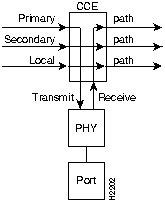
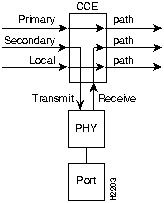
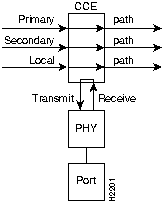
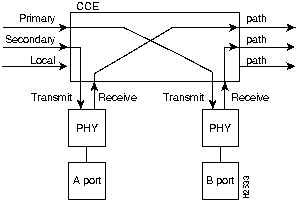
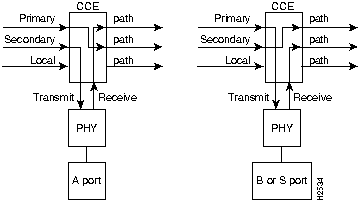
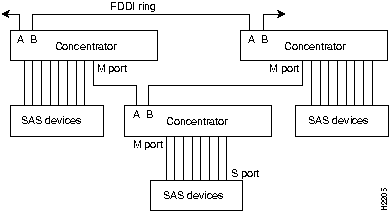
Console> (enable) show portdbg
Port Con-Pol Rq-Path Av-Path Mac-Plmt LCT-Fail Rem-Mac PC-Wthld BS-Flg EB-Ct
---- ------- ------- ------- -------- -------- ------- -------- ------ -----
1          0  015999       3        0        0 false   none     false      0
2          0  0169a9       3        1        0 false   none     false      0
3          0  012700       3        0        0 false   none     false      0
4          0  012700       3        2        0 true    none     false      0
5          0  012700       3        0        0 false   none     false      0
6          0  012700       3        0        0 false   none     false      0
7          0  012700       3        0        0 false   none     false      0
8          0  012700       3        0        0 false   none     false      0
9          0  012700       3        0        0 false   none     false      0
10         0  012700       3        0        0 false   none     false      0

Port MACLoop-Time  PC-State  Ins-Attmpt Ins-Ok   Ins-Tout Ins-Cancel BreakCt
---- ------------  --------- ---------- -------- -------- ---------- -------
1             0    connect            0        0        0          0       0
2             0    active             0        0        0          0       0
3             0    connect            0        0        0          0       0
4             0    active             1        1        0          0       0
5             0    connect            0        0        0          0       0
6             0    connect            0        0        0          0       0
7             0    connect            0        0        0          0       0
8             0    connect            0        0        0          0       0
9             0    connect            0        0        0          0       0
10            0    connect            0        0        0          0       0
Console> (enable)
Console> (enable) show porthistory
Port Management History Table
PHY   Event
---   --------------------------------------------
0     PCM RCode=e  T_Val=8,    isW=0, isC=0, npc=0
7     PCM RCode=8  T_Val=e,    isW=0, isC=1, npc=1
7     PCM RCode=8  T_Val=e,    isW=0, isC=1, npc=1
7     PCM RCode=8  T_Val=e,    isW=0, isC=1, npc=1
0     PCM RCode=e  T_Val=8,    isW=0, isC=0, npc=0
Console> (enable)
Console> show remotemib
Usage: show remotemib <macaddr> [raw]
       (macaddr is hex separated by :, ex: 00:02:d0:02:06:e1
        macaddr can also use coalias, ex:    cisco:02:06:e1
        If raw, then company aliases are not displayed.)
Console>
Console> (enable) show remotemib cisco:02:23:3e
Station-ID                MACs Ports Attach Op-Ver Hi-Ver Lo-Ver CF-State
------------------------  ---- ----- ------ ------ ------ ------ --------
00:00:00:02:d0:02:23:3e      1     1      1      1      1      1  NA
(00:00:00:40:0b:40:c4:7c)

MAC      TReq     TNeg     TMax      TVX RingOp-Ct
--- --------- -------- -------- -------- ---------
1       15000    10000   167772     2621        NA

MAC Upstream-Nbr       Downstream-Nbr     Frame-Ct   Error-Ct  Lost-Ct
--- -----------------  -----------------  ---------  --------  --------
1      cisco:03:06:7f     cisco:01:0d:f0    1008945         1         2
   (00:40:0b:c0:60:fe)(00:40:0b:80:b0:0f)

Port  Ler-Est  Ler-Alrm  Ler-Cutoff      Lem-Ct  Lem-Rej-Ct
----  -------  --------  ----------  ----------  ----------
1          15         8           7           0           0

Manu-Data                     User-Data
----------------------------- --------------------------------
Cisco Systems                 FDDI EISA Adapter
Console> (enable)
Console> (enable) show ringmap ?
Usage: show ringmap [raw|canonical]
       (raw - show with no alias conversions,
        canonical - show with canonical format,
        otherwise use FDDI format with aliasing)
Console> (enable)
Console> (enable) show ringmap raw

Ring Map for Primary Ring
  1=00:00:ae:03:0c:57
  2=00:02:d0:02:23:4b
  3=00:02:d0:03:06:7f
  4=00:02:d0:03:06:00
  5=00:02:d0:50:c0:f3
  6=00:02:d0:03:00:48
  7=00:02:d0:03:0b:58=
  8=00:02:d0:03:0b:59
  9=00:02:d0:03:00:49
 10=00:02:d0:02:15:8e
 11=00:02:d0:03:0b:5b
 12=00:02:d0:03:0b:5c

 13=00:02:d0:01:16:51
 14=00:02:d0:02:02:f1
 15=00:02:d0:05:20:f8
 16=00:02:d0:01:00:24
 17=00:02:d0:01:0a:24*
 18=10:00:04:10:8f:35
 19=00:00:ae:03:0c:58
Update ring map again (y/n) [y]? n
Console> (enable)
Console> (enable) show ringmap canonical

Ring Map for Primary Ring
  1=00:40:0b:c0:d0:f2
  2=00:40:0b:40:c4:d2
  3=00:40:0b:c0:60:fe
  4=00:40:0b:c0:60:00
  5=00:40:0b:0a:03:cf
  6=00:40:0b:c0:00:12
  7=00:40:0b:c0:d0:1a=
  8=00:40:0b:c0:d0:9a
  9=00:40:0b:c0:00:92
 10=00:40:0b:40:a8:71
 11=00:40:0b:c0:d0:da
 12=00:40:0b:c0:d0:3a
 13=00:40:0b:80:68:8a
 14=00:40:0b:40:40:8f
 15=00:40:0b:a0:04:1f
 16=00:40:0b:80:00:24
 17=00:40:0b:80:50:24*
 18=08:00:20:08:f1:ac
 19=00:40:0b:c0:d0:0a*
 20=00:00:75:c0:30:1a*
Update ring map again (y/n) [y]? n
Console> (enable)

Console> (enable) show ringmap

Ring Map for Primary Ring
  1=   cisco:02:23:4b
  2=   cisco:03:06:7f
  3=   cisco:03:06:00
  4=   cisco:50:c0:f3
  5=   cisco:03:00:48
  6=   cisco:03:0b:58=
  7=   cisco:03:0b:59
  8=   cisco:03:00:49
  9=   cisco:02:15:8e
 10=   cisco:03:0b:5b
 11=   cisco:03:0b:5c
 12=   cisco:01:16:51
 13=   cisco:02:02:f1
 14=   cisco:05:20:f8
 15=   cisco:01:00:24
 16=   cisco:01:0a:24*

 17=     sun:10:8f:35
 18=   cisco:03:0b:50
 19=   cisco:03:0b:4f
Update ring map again (y/n) [y]? n
Console> (enable)
Console> (enable) show route
destination        gateway            metric
default            192.1.1.3            1
192.1.1.0          192.1.1.203          0
192.1.2.0          192.1.1.10           1
Console> (enable)
Console> (enable) show smac 5
Secondary MAC register 0x5 = 0xfff9
Console> show snmp
IP-Address           IP-Netmask           IP-Broadcast
---------------      ---------------      ---------------
192.54.16.205        255.255.255.0        192.54.16.255

ICMP Redirects       DefaultTTL
--------------       ----------
enabled              60

Community-Access     Community-String
----------------     --------------------
none
read-only            public

Trap-Rec-Address     Trap-Rec-Community      Auth Traps Disabled
----------------     --------------------

Console>
Console> (enable) show snmp
IP-Address           IP-Netmask           IP-Broadcast
---------------      ---------------      ---------------
192.54.16.205        255.255.255.0        192.54.16.255

ICMP Redirects       DefaultTTL
--------------       ----------
enabled              60

Community-Access     Community-String
----------------     --------------------
none
read-only            public
read-write           private
read-write-all       secret

Trap-Rec-Address     Trap-Rec-Community      Auth Traps Disabled
----------------     --------------------

Console> (enable)
Console> (enable) show system
Station-ID                MACs Port-Ct Port-Ct   Type   Count  Uptime d,h:m:s
------------------------  ---- ------- --------- ------ ------ --------------
 00:00:00:02:d0:03:00:48  2    18      18        dual   2      7,23:42:17
(00:00:00:40:0b:c0:00:12)

Baud  Echo     T-Notify Conn-Pol CF-St    ECM-St    Hold-St  Bypass  Traffic
----- -------- -------- -------- -------- --------- -------- ------- --------
9600  enabled  30       8000     c-Wrap-A in        not-hold absent   31%(P)

Ps-Type Ps-Status   Fan-Status Temp-Alarm  Sys-Status
------- ----------- ---------- ----------- ----------
80w     ok          ok         off         ok

Model    Serial-Num Hw     Fw     Sw
-------- ---------- ------ ------ ------
WS-C1100  000000220  1.0    2.1    2.704


System-Name              System-Location          System-Contact
------------------------ ------------------------ ------------------------
alpha                    BETA                     gamma

SMT User-Data                    Op-Ver Hi-Ver Lo-Ver Ins-Mode
-------------------------------- ------ ------ ------ ---------
WS-C1100 (CONC6)                 2      2      2      scheduled

Ins-Pending Phy-to-Insert exitMACID #Connecting ExpansionBrd
----------- ------------- --------- ----------- ------------
0           0             0         0           present

Software compiled on Aug 16 1994, 11:22:28.
Software downloaded on  0 200, 00:00:00.
Console> (enable)
Bit Location
Connection Policy
Policy Definition
0 (LSB)1
Reject A-A
An undesirable peer connection that creates twisted primary and secondary rings.
1
Reject A-B
Normal trunk ring-to-peer connection.
2
Reject A-S
Undesirable peer connection that creates a wrapped ring.
3
Reject A-M
Tree connection with possible redundancy.
4
Reject B-A
Normal trunk ring-to-peer connection.
5
Reject B-B
Undesirable peer connection that creates twisted primary and secondary rings.
6
Reject B-S
Undesirable peer connection that creates a wrapped ring.
7
Reject B-M
Tree connection with possible redundancy.
8
Reject S-A
Undesirable peer connection that creates a wrapped ring.
9
Reject S-B
Undesirable peer connection that creates a wrapped ring.
10
Reject S-S
Connection that creates a single ring of two slave stations.
11
Reject S-M
Normal tree connection.
12
Reject M-A
Tree connection that provides possible redundancy.
13
Reject M-B
Tree connection that provides possible redundancy.
14
Reject M-S
Normal tree connection.
15 (MSB)2
Reject M-M
An illegal connection that creates a "tree of rings" topology.
1 LSB = least significant bit.
2 MSB = most significant bit.
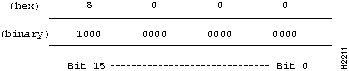
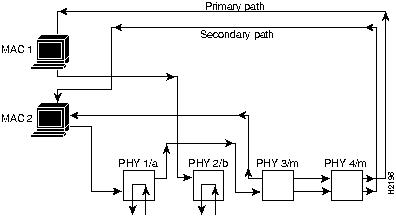
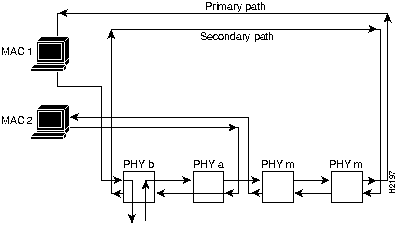
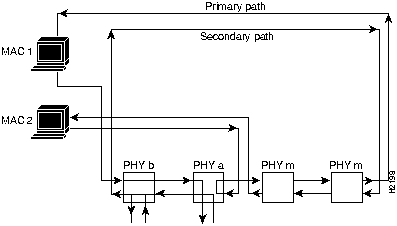
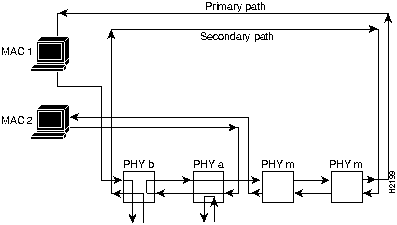
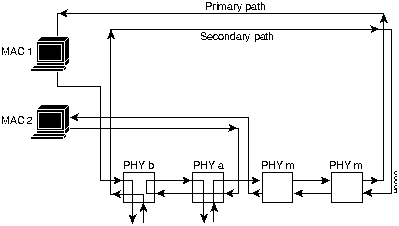
Bit Location
Test
0
--12V
1
+12V
Console> (enable) show test

M68302 Status:               (.=Pass, F=Fail, .=Yes, N=No)
  NMI: .   DMA: .

Memory Status:
  RAM: .   ROM: .   Flash-EEPROM: .   NVRAM: .   Ser-EEPROM: .

I/O Status:
  FAN1: .  FAN2: .  POWER -12V: .     POWER +12V: .

                    - MACS -
CCE Status:           1   2
-----------------------------
CCE Present           .  .
Revision read test    .  .
Password match test   .  .
Watch Dog Timer test  .  .

Parity clear test*    .  .
MUX Read/Write test   .  .

                      ---------------------- Ports -----------------------
CCE Status:           1  2  3  4  5  6  7  8  9 10 11 12 13 14 15 16 17 18
------------------------------------------------------------------------
CCE Present           .  .  .  .  .  .  .  .  .  .  .  .  .  .  .  .  .  .
Revision read test    .  .  .  .  .  .  .  .  .  .  .  .  .  .  .  .  .  .
Password match test   .  .  .  .  .  .  .  .  .  .  .  .  .  .  .  .  .  .
Watch Dog Timer test  .  .  .  .  .  .  .  .  .  .  .  .  .  .  .  .  .  .
Parity clear test*    .  .  .  .  .  .  .  .  .  .  .  .  .  .  .  .  .  .
MUX Read/Write test   .  .  .  .  .  .  .  .  .  .  .  .  .  .  .  .  .  .

* Bit 6=PHY, 5=DLI, 4=DSI, 3=DPI, 2=MLI, 1=MSI, 0=MPI

PHY Status: Port ---> 1  2  3  4  5  6  7  8  9 10 11 12 13 14 15 16 17 18
------------------------------------------------------------------------
Read/Write Test        .  .  .  .  .  .  .  .  .  .  .  .  .  .  .  .  .  .
Interrupt Test         .  .  .  .  .  .  .  .  .  .  .  .  .  .  .  .  .  .
Line Mod. Present      .  .  .  .  .  .  .  .  .  .  .  .  .  .  .  .  .  .
External Loopback      .  .  .  .  .  .  .  .  .  .  .  .  .  .  .  .  .  .
Full Int. Loopback     .  .  .  .  .  .  .  .  .  .  .  .  .  .  .  .  .  .
Half Int. Loopback     .  .  .  .  .  .  .  .  .  .  .  .  .  .  .  .  .  .
MAC Status:          1       2
-------------------------------
Read/Write Test      .       .
Buffer Mem. Test     .       .


MAC Ring Tests:          1      2
----------------------------------
Present                  .      .
Interrupt Test           .      .
Token Capture Test       .      .
Int. Loopback Test       .      .
Ext. CCE Loopback        .      .
Ext. Ring Tests         ...    ...

Loopback: A   B   3   4   5   6   7   8   9  10  11  12  13  14  15  16  17  18
------------------------------------------------------------------------
PMAC     ... ... ... ... ... ... ... ... ... ... ... ... ... ... ... ...
SMAC     ... ... ... ... ... ... ... ... ... ... ... ... ... ... ... ...

Console> (enable)
Console> show time
Tue May 10 1994, 16:47:03
Console>
Command
Description
Mode1
test help
Display test commands
P
test trap
Send a trap message to trap receivers
P
1 P = privileged
Console> (enable) test help
Commands:
---------------------------------------------------------------------
test help         Show this message
test trap         Send SNMP trap message to trap receivers
Console> (enable)
Console> (enable) test trap
Usage: test trap <trap_num> [specific_num]
Console> (enable) test trap 1
SNMP trap message sent.
Console> (enable)
Console> (enable) traffic
Usage: traffic <FC> <DA> <SA> random <LEN> <PKTS>
       traffic <FC> <DA> <SA> percent <CENT>
       (FC is any valid FDDI Frame Class in hex format.
        DA and SA are hex MAC addresses in FDDI format
        separated by :, ex: a:0:45:21:2:6
        LEN = length of packet, PKTS = Number of packets)

Console> (enable) traffic 41 00:40:0b:80:e0:48 00:40:b0:80:e0:c8

                random 64 100

Generating Random data at maximum rate....Done

Console> (enable) traffic 41 00:40:0b:80:e0:48 00:40:b0:80:e0:c8

                percent 60

Generating Traffic at 60%
 = Packet rate of 1666 packets/sec
 = Inter-packet gap time of 239 usec
 = Wait loop count of 225
HIT ANY KEY TO STOP TRAFFIC GENERATION
 ..Percentage traffic stopped
Console> (enable)
traffic 51 00:02:D0:02:00:35 00:02:D0:01:00:08 random 100 10000
traffic 51 00:02:D0:02:00:35 00:02:D0:01:00:08 percent 78
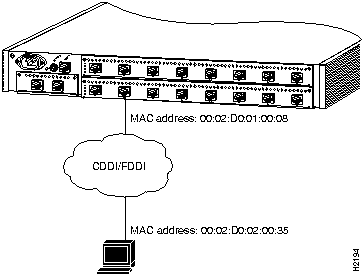
Console> (enable) upload
Usage: upload <host> <file>
       (host is ipalias or IP address: a.b.c.d
        file must already exist in tftp directory.)
Console> (enable) upload oscar c1100_conc3.net
Upload flash image to file c1100_conc3.net on host oscar (y/n) [n]? y
Uploading image to c1100_conc3.net on 198.133.219.40
/
Done.  Finished Network Upload.  (446468 bytes)
Console> (enable)
Console> (enable) write ?
Usage: write network
       write terminal
       write <host> <file>
Console> (enable) write cres 06.29.config
Write file 06.29.config on host cres (y/n) [n]? y
Uploading configuration to 06.29.config on cres
Done.  Finished Network Upload (5135 bytes)
Console> (enable)
