|
|

VIP-FE-TX/4E Installation and Configuration
Product Number VIP-FE-TX/4E(=)
This configuration note is a standalone publication that provides instructions for installing, configuring, and maintaining the Fast Ethernet/Ethernet Versatile Interface Processor (VIP-FE-TX/4E) in your Cisco 7000 series and Cisco 7500 series routers.
The VIP-FE-TX/4E operates with the CxBus in the Cisco 7000 series and CyBus in the Cisco 7500 series, and requires that the host Cisco 7000 series and Cisco 7500 series router is running Cisco Internetwork Operating System (Cisco IOS) Release 11.1(1) or later, or a Cisco-approved beta version of Cisco IOS Release 11.1 or later.
Included are steps for VIP-FE-TX/4E hardware installation, and basic VIP configuration steps and examples for configuring the individual interfaces on a new VIP.
This publication has two main sections:
You need only refer to the information that is specific to your FE-TX and 4E port adapter or that applies to specific VIP functionality. A table of contents is included on page 2 so you can more easily find what you need.
This configuration note includes the following sections:
The Cisco Internetwork Operating System (Cisco IOS) software running the router contains extensive features and functionality. The effective use of many of many of these features is easier if you have more information at hand.
To obtain general information about documentation, call Customer Service at 800 553-6387 or 408 526-7208. Customer Service hours are 5:00 a.m. to 6:00 p.m. Pacific time, Monday through Friday (excluding company holidays). You can also send e-mail to
cs-rep@cisco.com
. You can also refer to the Cisco Information Packet that shipped with your router.
For additional information on configuring the Cisco 7000 series or Cisco 7500 series routers, the following documentation resources are available to you:
Versatile Interface Processor Functions
The following sections describe the Versatile Interface Processor (VIP) and discuss VIP-specific features and functions, such as installing and removing the VIP, installing and removing port adapters, and using and configuring common VIP interface functions.
The VIP is a new interface processor for use with the Cisco 7000 series and Cisco 7500 series routers, and it installs in the interface processor slots in your Cisco 7000 series or 7500 series router. The VIP uses a single motherboard with up to two port adapters. The VIP port adapters provide the individual LAN, WAN, or LAN/WAN interface ports. The VIP can be removed from a chassis while power is on and the system is operating.
The VIP uses a Reduced Instructions Set Computing (RISC), Mips 4600 processor for high performance, and has an internal operating frequency of 100 megahertz (MHz) and a 50-MHz system bus interface. The VIP has 8 megabytes (MB) of dynamic random access memory (DRAM) as the default DRAM configuration.
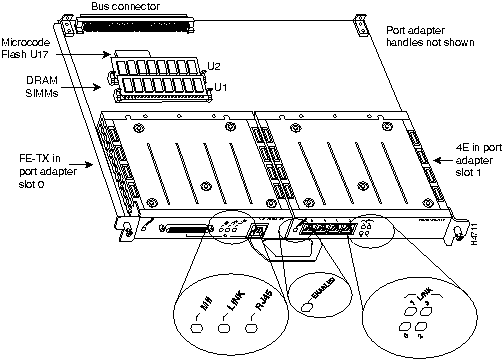
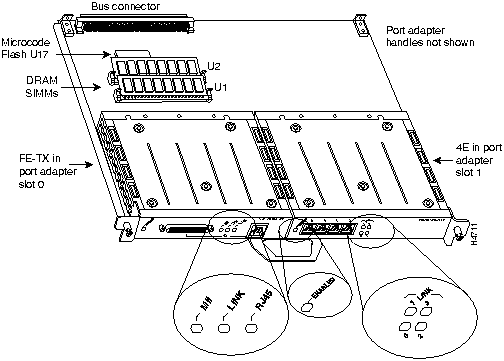
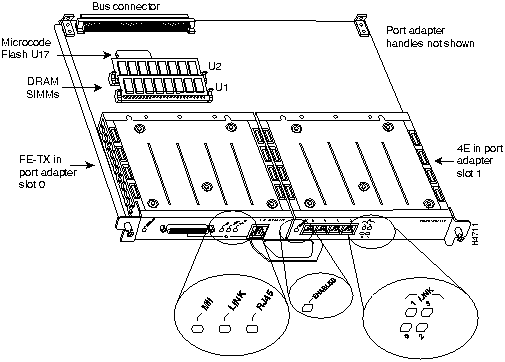
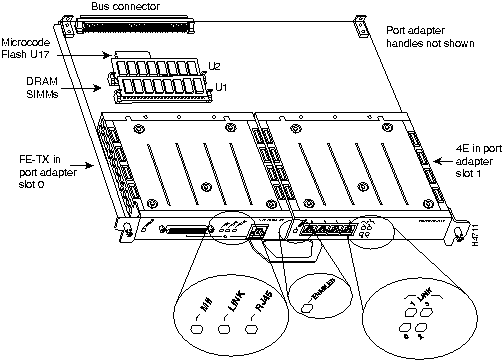
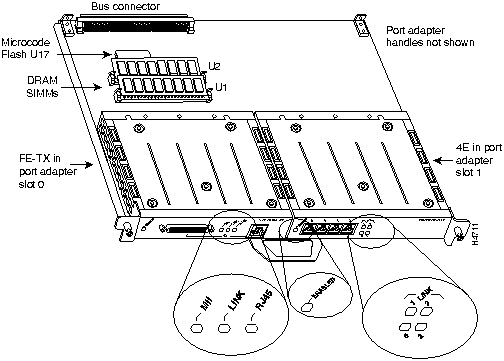
Figure 1 shows a VIP-FE-TX/4E. The VIP firmware (microcode), which contains card-specific software instructions, resides in a Flash memory device in socket location U17. For pinouts, refer to the section "FE-TX Port Adapter Receptacles, Cables, and Pinouts" on page 33. Single in-line memory modules contain the DRAM. You can install VIPs in any available interface processor slots in your Cisco 7000 or Cisco 7500 series router.
Figure 1 : VIP with One FE-TX and One 4E Port Adapter (Product Number VIP-FE-TX/4E[=])
The VIP requires that the host Cisco 7000 series and Cisco 7500 series router is running Cisco Internetwork Operating System (Cisco IOS) Release 11.1(1) or later, or a Cisco-approved beta version of Cisco IOS Release 11.1 or later.
The VIP operates with the CxBus in the Cisco 7000 series and CyBus in the Cisco 7500 series, and operates with the optional RSP7000 and RSP7000CI RSP-based processor modules in the Cisco 7000 series routers: Cisco 7000 and Cisco 7010. The VIP will also operate with the Route Processor (RP) and Switch Processor (SP) in the Cisco 7000 series routers. The VIP operates with all RSP-based processor modules currently shipping in the Cisco 7000 series and Cisco 7500 series routers: Cisco 7505, Cisco 7507, and Cisco 7513.
What is the Cisco 7000 Family?
For the Cisco 7000 family of routers, which includes the Cisco 7000 series and Cisco 7500 series routers, network interfaces reside on modular interface processors, including the VIP, which provide a direct connection between external networks and the high-speed CxBus in the Cisco 7000 series and the high-speed CyBus in the Cisco 7500 series.
In all systems, the remaining slots support any combination of network interface types: Ethernet attachment unit interface (AUI), Ethernet 10BASE-T, Fast Ethernet 100BASE-TX, Asynchronous Transfer Mode (ATM), Token Ring, multichannel applications, Fiber Distributed Data Interface (FDDI), channel attachment, serial, or High-Speed Serial Interface (HSSI), and all VIP--based interfaces.
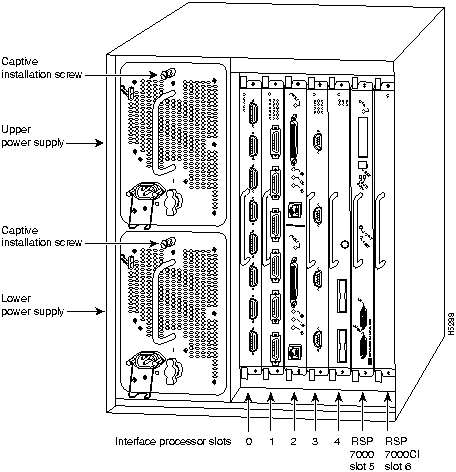
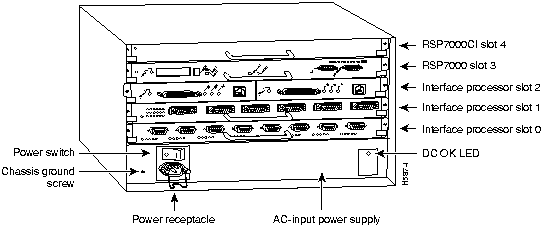
Figure 2 and Figure 3 show the rear of the Cisco 7000 series routers: the seven-slot Cisco 7000 and the five-slot Cisco 7010, respectively. In the Cisco 7000 series, two slots are reserved for the SP (or SSP) and RP, or for the 7000 Series Route Switch Processor (RSP7000) and the 7000 Series Chassis Interface (RSP7000CI). The remaining slots are for interface processors: slots 0 through 4 in the Cisco 7000, and slots 0 through 2 in the Cisco 7010.
Figure 2 : Cisco 7000, Interface Processor End
Figure 3 : Cisco 7010, Interface Processor End
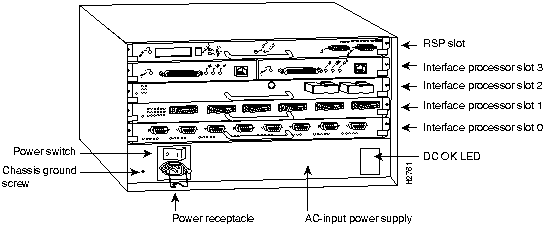
Figure 4, Figure 5, and Figure 6 show the rear of the Cisco 7500 series routers: the five-slot Cisco 7505, the seven-slot Cisco 7507, and the thirteen-slot Cisco 7513, respectively.
In the Cisco 7505, one slot (4) is reserved for the Route Switch Processor (RSP1), which contains the system processor and performs packet switching functions. Slots 0 through 3 are for interface processors.
Figure 4 : Cisco 7505, Interface Processor End
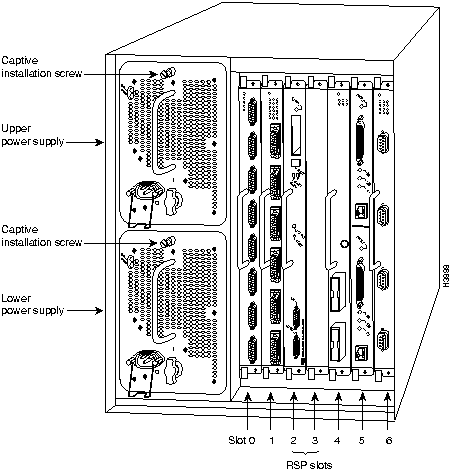
Figure 5 shows the rear of the seven-slot Cisco 7507 router. In the Cisco 7507, up to two slots (2 and 3) are reserved for the Route Switch Processor (RSP2), which contains the system processor and performs packet switching functions. Slots 0 and 1 and 4 through 6 are for interface processors.
Figure 5 : Cisco 7507, Interface Processor End
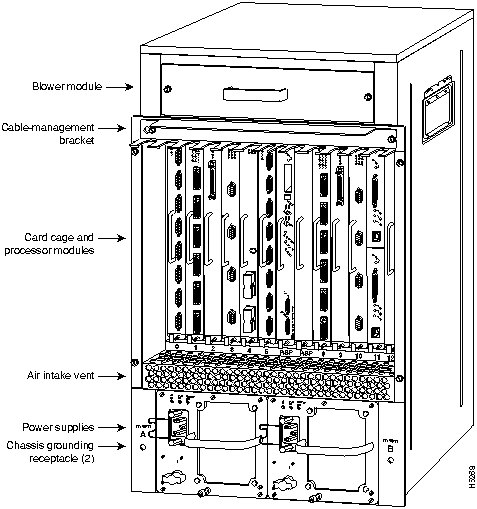
Figure 6 shows the rear of the Cisco 7513 with two AC-input power supplies installed. Two slots (6 and 7) are reserved for the second generation Route Switch Processor (RSP2), which contains the system processor and performs packet switching functions. Slots 0 through 5 and 8 through 12 are for interface processors.
Figure 6 : Cisco 7513, Interface Processor End
VIP Port Adapter Hardware Configuration Overview
The port adapters attach to the VIP motherboard. (See Figure 7.) Each port adapter contains the physical connections for the VIP interface types to connect to your network.
Figure 7 : VIP with One FE-TX and One 4E Port Adapter (Product Number VIP-FE-TX/4E[=])
Following are the VIP port adapters by interface type:
Following are the supported electrical interfaces:
The VIP microcode (firmware) is an image that provides card-specific software instructions. A Flash memory device in socket U17 of the VIP contains the default microcode boot image. The router supports downloadable microcode, which enables you to upgrade microcode versions by downloading new microcode images, storing them in system Flash memory, and instructing the system to load its image from Flash instead of the default VIP image. (The RP in the Cisco 7000 and 7010 loads software from ROM or Flash memory; the RSP loads software from Flash only.) You can store multiple images for an interface type and, with a configuration command, instruct the system to load any one of them or the default ROM image. All interfaces of the same type (VIP, and so on) will load the same microcode image, either from the default ROM image or from a single image stored in system Flash. Although multiple microcode versions for a specific interface type can be stored concurrently in Flash, only one image can load at startup. The show controllers cbus command displays the currently loaded and running microcode version for the SP or SSP (in the Cisco 7000 series routers), each interface processor, and VIP. The show startup-config EXEC command shows the current system instructions for loading microcode at startup.
Software and interface processor microcode images are carefully optimized and bundled to work together. Overriding the bundle can result in system incompatibilities. We recommend that you use the microcode included in the software bundle. For a complete description of microcode and downloading procedures, refer to the section "Upgrading VIP Microcode" on page 23.
VIP Installation Prerequisites
This section provides a list of parts and tools you will need to perform the installation, and it also includes safety and ESD-prevention guidelines to help you avoid injury and damage to the equipment. This section also provides a detailed description of the OIR function to help you perform online installation successfully and avoid error message and system restarts. If you are installing a new VIP, be sure to review the equipment descriptions and distance limitations in the section "FE-TX Port Adapter Receptacles, Cables, and Pinouts" on page 33 when preparing your site and planning network connections.
You need the following tools and parts to install a VIP. If you need additional equipment, contact a service representative for ordering information.
Following are safety guidelines that you should follow when working with any equipment that connects to electrical power or telephone wiring.
Electrical Equipment Guidelines Follow these basic guidelines when working with any electrical equipment:
Telephone Wiring Guidelines Use the following guidelines when working with any equipment that is connected to telephone wiring or to other network cabling:
Preventing Electrostatic Discharge Damage Electrostatic discharge (ESD) damage, which can occur when electronic cards or components are improperly handled, results in complete or intermittent failures. A processor module comprises a printed circuit board that is fixed in a metal carrier. Electromagnetic interference (EMI) shielding, connectors, and a handle are integral components of the carrier. Although the metal carrier helps to protect the board from ESD, use a preventive antistatic strap whenever handling a processor module.
Following are guidelines for preventing ESD damage:
Online Insertion and Removal---An Overview
The OIR feature allows you to remove and replace a VIP board while the system is operating; you do not need to notify the software or shut down the system power.
This section describes mechanical functions of system components, emphasizes the importance of following correct procedures to avoid unnecessary board failures, and is for background only; specific VIP procedures follow in the section "VIP Installation" on page 16.
Each interface processor contains a receptacle with which it connects to the system backplane. Each backplane connector comprises a set of tiered pins, in three lengths. The pins send specific signals to the system as they make contact with the card. The system assesses the signals it receives and the order in which it receives them to determine what event is occurring and what task it needs to perform, such as reinitializing new interfaces or shutting down removed ones.
For example, when inserting an interface processor, the longest pins make contact with the backplane first, and the shortest pins make contact last. The system recognizes the signals and the sequence in which it receives them. The system expects to receive signals from the individual pins in this logical sequence, and the ejector levers help to ensure that the pins mate in this sequence.
When you remove or insert an interface processor, the backplane pins send signals to notify the system, which then performs as follows:
The system brings on line only interfaces that match the current configuration and were previously configured as up; all others require that you configure them with the configure command. OIR functionality enables you to add, remove, or replace interface processors with the system online, which provides a method that is seamless to end users on the network, maintains all routing information, and ensures session preservation.
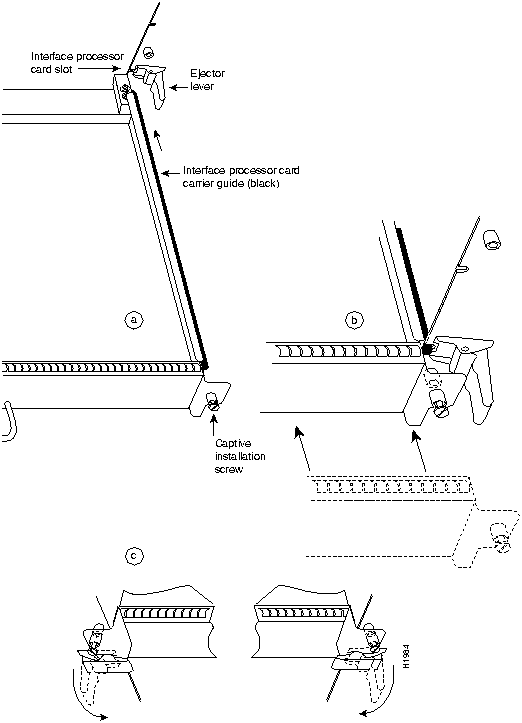
The function of the ejector levers (see Figure 8) is to align and seat the card connectors in the backplane. Failure to use the ejector levers and insert the interface processor properly can disrupt the order in which the pins make contact with the card or interface processor. Follow the VIP installation and removal instructions carefully, and review the following examples of incorrect insertion practices and their results:
It is also important to use the ejector levers when removing an interface processor to ensure that the backplane connector pins disconnect from the card or interface processor in the logical sequence expected by the system. Any interface processor that is only partially connected to the backplane can hang the bus. Detailed steps for correctly performing OIR are included with the following procedures for installing and removing the VIP.
Figure 8 : Ejector Levers and Captive Installation Screws on the VIP (Horizontal Orientation Shown)
The following sections describe the procedures for removing or installing a VIP in the Cisco 7000 series and Cisco 7500 series routers. The functionality is the same for each router model; therefore, the term the chassis will be used except where specific model issues arise. The OIR function allows you to install and remove a VIP without first shutting down the system; however, you must follow the instructions carefully. Failure to insert the VIP properly can cause system error messages indicating a board failure. For a complete description of OIR, refer to the section "Online Insertion and Removal---An Overview" on page 13.
Each unused interface processor slot contains an interface processor filler (which is an interface processor carrier without an interface board) to keep dust out of the chassis and to maintain proper air flow through the interface processor compartment. If you are installing a new VIP that is not a replacement, you must first remove the interface processor filler from an unused slot; proceed to the next section "Removing an Interface Processor Filler." If you are replacing a VIP or upgrading the microcode Flash EPROM on a VIP, proceed to the section "Removing a VIP."
Removing an Interface Processor Filler
Select an unused interface processor slot for the new VIP and remove the interface processor filler as follows:
To help prevent dust and contaminants from entering the chassis, do not leave the interface processor slot open. Immediately proceed to the section "Installing a VIP" on page 18.
Remember, the VIP supports OIR; therefore, you need not shut down the interface or the system power when removing a VIP. If you are replacing a failed VIP, remove the existing board first, then replace the new VIP in the same slot.
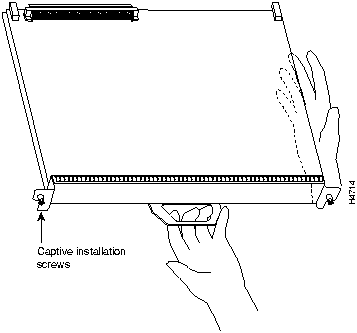
Figure 9 shows proper handling of an interface processor during installation.
Figure 9 : Handling Processor Modules for Installation and Removal (Horizontal Orientation Shown)
To remove a VIP, follow these steps:
The VIP slides into the open interface processor slot and connects directly to the backplane. The interface processors are keyed to guide pins on the backplane, so the VIP can be installed only in an interface processor slot. Figure 8 shows the functional details of inserting an interface processor and using the ejector levers. Figure 9 shows proper handling of an interface processor during installation.
Follow these steps to install a VIP:
Checking the Installation and Verifying VIP Status
You can use the configure command to configure a VIP interface. To use the configure command, enter the privileged level of the EXEC command interpreter with the enable command. The system will prompt you for a password if one has been set.
The system prompt for the privileged level ends with a pound sign (#) instead of an angle bracket (>). At the console terminal, enter the privileged level as follows:
After you install the VIP and connect cables (using connection procedures in the respective port adapter subsections), verify the installation by observing the LED states and the console display. When the system has reinitialized all interfaces, the enabled LED on the VIP and on all interface processors should go on. One or the other of the MII and RJ-45 LEDs should be on, depending on your connection, and the link LED should be on if the VIP is receiving a carrier signal from the network.
The console screen will also display a message as the system discovers each interface during its reinitialization.
When you remove and replace interface processors, the system provides status messages on the console screen. The messages are for information only.
The following sample display shows the events logged by the system as a Fast Ethernet-equipped VIP was removed from slot 2; the system then reinitialized the remaining interface processors and marked as down the Fast Ethernet interfaces on the VIP that was removed from slot 2. When the VIP is reinserted, the system automatically brings up the interfaces that were up when the VIP was removed.
The following example display shows the events logged by the system as a new VIP is inserted in slot 3.
Verify that the VIP is installed correctly as follows:
If an error message is displayed on the console terminal, refer to the System Error Messages publication for error message definitions. If you experience other problems that you are unable to solve, contact a service representative for assistance.
This completes the VIP installation. If you installed a new VIP or if you installed a replacement VIP with an additional port, you must now configure the new interface as described in the following section.
Verifying VIP Status Using show Commands
The following procedure describes how to use the show commands to verify that the new interfaces are configured correctly:
If the interface is down and you configured it as up, or if the displays indicate that the hardware is not functioning properly, ensure that the network interface is properly connected and terminated. If you still have problems bringing the interface up, contact a service representative for assistance.
The show controllers cbus command displays the internal status of each interface processor, including the slot location, the card hardware version, and the currently-running microcode version. It also lists each interface (port) on each interface processor including the logical interface number, interface type, physical (slot/port adapter/port) address, and hardware (station address) of each interface. The following example shows a VIP, with Fast Ethernet interfaces, installed in interface processor slot 3:
The show startup-config command displays the contents of the system configuration file stored in NVRAM. This file should reflect all new configuration changes you made and wrote to memory with the show running-config command. (A Fast Ethernet interface is used in this example.)
The show protocols command displays the global (system-wide) and interface-specific status of any configured Level 3 protocol.
The Cisco 7000 series and the Cisco 7500 series support downloadable microcode, which enables you to upgrade microcode versions without having to physically replace the microcode Flash memory device on the board. You can download new microcode versions and store multiple versions in Flash memory, and you can boot from them just as you can with the system software images. System software upgrades may also contain upgraded microcode images, which will load automatically when the new software image is loaded (unless the configuration states otherwise).
You can download microcode to Flash memory by copying the TFTP image of a microcode version to Flash memory. When the microcode image is stored in Flash memory you can use the microcode reload command to manually load the new microcode file, and the configure command to instruct the system to load the new image automatically at each system boot.
To compare the size of the microcode image and the amount of Flash memory available, you must know the size of the new microcode image. The image size is specified in the README file that is included on the floppy disk with the new image.
Follow these steps to download (copy) a microcode version from a TFTP server to Flash memory.
This completes the procedure for downloading microcode to Flash memory.
Upgrading and Replacing DRAM SIMMs
VIPs are shipped with 8 MB of DRAM as the default memory configuration. Depending on memory requirements, you might need to upgrade the amount of DRAM by replacing the DRAM SIMMs on the VIP. You also might need to replace a single SIMM in the case of a diagnosed DRAM SIMM failure.
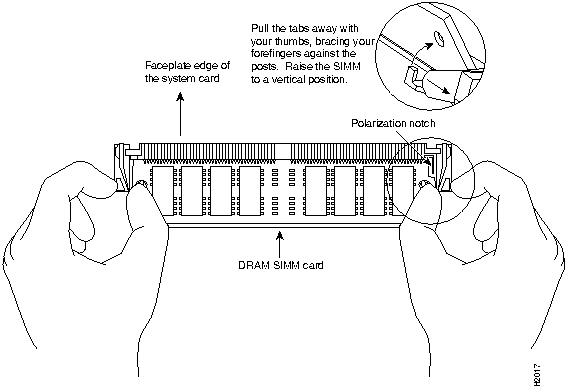
Figure 10 : Handling a DRAM SIMM---Example Only
Following is the procedure for replacing or upgrading DRAM SIMMs.
Figure 11 : Orientation of DRAM SIMMs (U1 and U2) on VIP Motherboard (VIP-1FE-TX/4E Shown)
Figure 12 : Removing and Replacing DRAM SIMMs
If error messages relating to memory are displayed once power to the chassis is turned back on, or the VIP card is installed in a chassis that is already on, repeat Steps 1 through 8, taking care to firmly reseat each SIMM in its socket.
This completes the procedure for upgrading or replacing DRAM SIMMs on your VIP.
The following sections discuss the port adapters used with the VIP:
The following sections discuss the FE-TX port adapter, which is shown in Figure 13.
Figure 13 : FE-TX Port Adapter, Faceplate View
The VIP configured with two FE-TX port adapters provides up to two 100-Mbps, 100BASE-T, Fast Ethernet interfaces. Each 100BASE-T port on the FE-TX port adapter has an RJ-45 connector to attach to Category 5 unshielded twisted-pair (UTP) for 100BASE-TX, and a MII connector that permits connection through external transceivers to multimode fiber for 100BASE-FX, or to Category 3, 4, and 5 UTP or shielded twisted-pair (STP) for 100BASE-T4 physical media. Both full-duplex and half-duplex operation are supported.The term Ethernet is commonly used for all carrier sense multiple access/collision detection (CSMA/CD), local-area networks (LANs) that generally conform to Ethernet specifications, including IEEE 802.3u.
IEEE 802.3u is well suited to applications where a local communication medium must carry sporadic, occasionally heavy traffic at high peak data rates. Stations on a CSMA/CD LAN can access the network at any time. Before sending data, the station listens to the network to see if it is already in use. If it is, the station waits until the network is not in use, then transmits; this is half-duplex operation. A collision occurs when two stations listen for network traffic, hear none, and transmit very close to simultaneously. When this happens, both transmissions are damaged, and the stations must retransmit.
The stations detect the collision and use backoff algorithms to determine when they should retransmit. Both Ethernet and IEEE 802.3u are broadcast networks, which means that all stations see all transmissions. Each station must examine received frames to determine whether it is the intended destination and, if it is, pass the frame to a higher protocol layer for processing.
Each physical layer protocol has a name that summarizes it characteristics in the format speed/signaling method/segment length where speed is the LAN speed in megabits per second (Mbps), signaling method is the signaling method used (either baseband or broadband), and segment length is typically the maximum length between stations in hundreds of meters. Therefore, 100BASE-T specifies a 100-Mbps, baseband LAN with maximum network segments of 100 meters (or 400 meters for 100BASE-FX).
IEEE 802.3u specifies the following different physical layers for 100BASE-T:
FE-TX Port Adapter Description and Fast Ethernet Specifications
The FE-TX port adapter is available in the following VIP configurations: FE-TX/blank, FE-TX/4E, or FE-TX/FE-TX. (For a description of the 4E port adapter, refer to the section "4E Port Adapter" on page 44.) Figure 14 shows VIP-FE-TX/4E. The FE-TX and 4E port adapters have a handle attached, but this handle is not shown to allow a full view of detail on each port adapter's faceplate.
Figure 14 : VIP with One FE-TX and One 4E Port Adapter Installed (Horizontal Orientation Shown)
Table 1 lists the cabling specifications for 100-Mbps Fast Ethernet transmission over UTP and STP cables. Table 2 summarizes IEEE 802.3u 100BASE-T physical characteristics.
Table 1 : Specifications and Connection Limits for 100-Mbps 100BASE-T Transmission
Table 2 : IEEE 802.3u Physical Characteristics
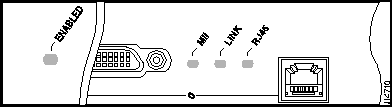
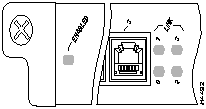
The FE-TX port adapter contains the enabled LED, standard on all port adapters, and a bank of three status LEDs for the ports. After system initialization, the enabled LED goes on to indicate that the FE-TX port adapter has been enabled for operation. (The LEDs are shown in Figure 15.) The following conditions must be met before the enabled LED goes on:
If any of these conditions is not met, or if the initialization fails for other reasons, the enabled LED does not go on.
The bank of three status LEDs indicates the following:
Either the MII LED or the RJ-45 LED should be on at any one time; never both.
Figure 15 : LEDs on the FE-TX Port Adapter (Horizontal Orientation Shown)
FE-TX Port Adapter Receptacles, Cables, and Pinouts
The two interface receptacles on the FE-TX port adapter are a single MII, 40-pin, D-shell type, and a single RJ-45. You can use either one or the other. Only one receptacle can be used at one time. Each connection supports IEEE 802.3u interfaces compliant with the 100BASE-X and 100BASE-T standards. The RJ-45 connection does not require an external transceiver. The MII connection requires an external physical sublayer (PHY) and an external transceiver.
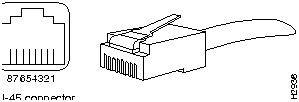
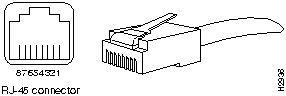
Figure 16 shows the RJ-45 connectors. Table 3 lists the pinouts and signals for the FE-TX RJ-45 connectors.
Figure 16 : FE-TX RJ-45 Connections, Plug and Receptacle
Table 3 : FE-TX RJ-45 Connector Pinout
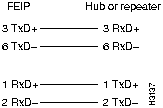
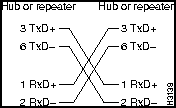
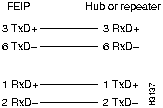
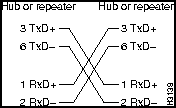
Depending on your RJ-45 interface cabling requirements, use the pinouts in Figure 17 and Figure 18.
Figure 17 : Straight-Through Cable Pinout, FE-TX RJ-45 Connection to a Hub or Repeater
Figure 18 : Crossover Cable Pinout, FE-TX RJ-45 Connections between Hubs and Repeaters
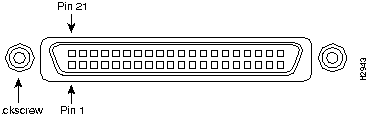
Depending on the type of media you use between the MII connection on the port adapter and your switch or hub, the network side of your 100BASE-T transceiver should be appropriately equipped: with ST-type connectors (for optical fiber), BNC connectors, and so forth. Figure 19 shows the pin orientation of the female MII connector on the port adapter. The port adapters are field-replacable units (FRUs).
The MII receptacle uses 2-56 screw-type locks, called jackscrews (shown in Figure 19), to secure the cable or transceiver to the MII port. MII cables and transceivers have knurled thumbscrews (screws you can tighten with your fingers) that you fasten to the jackscrews on the FE-TX port adapter's MII connector. Use the jackscrews to provide strain relief for your MII cable. (The RJ-45 modular plug has strain relief functionality incorporated into the design of its standard plastic connector.) Figure 19 shows the MII female connector.
Figure 19 : FE-TX MII Connection, Receptacle
Table 4 lists the MII connector pinout and signals. MII cables are available commercially.
Table 4 : FE-TX MII Connector Pinout
Attaching FE-TX Port Adapter Interface Cables
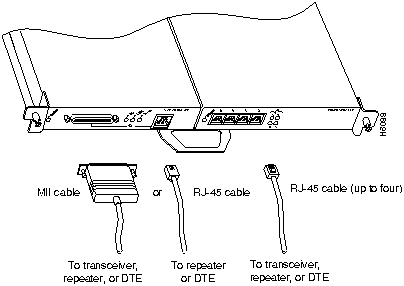
On a single 100BASE-T port adapter, you can use either the RJ-45 connection or the MII connection. If you have two FE-TX, 100BASE-T port adapters on your VIP, you can use the RJ-45 connection on one and the MII connection on the other.
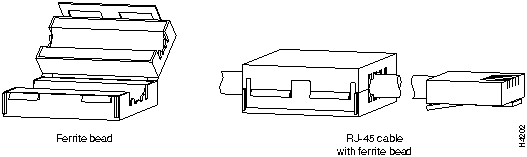
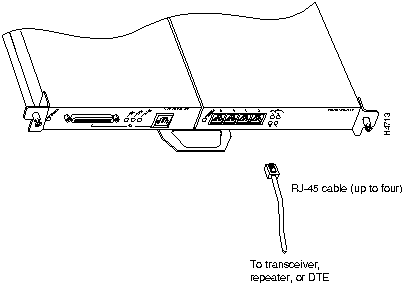
Connect RJ-45 and MII cables as follows:
Figure 20 : Connecting FE-TX MII and RJ-45 Cables (Horizontal Orientation---Shown without Handles)
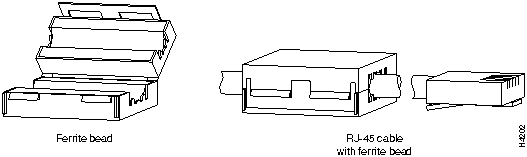
Figure 21 : Attaching the Ferrite Bead around the RJ-45 Cable
This completes the FE-TX installation. Proceed to the section "Checking the VIP Installation."
Configuring the FE-TX Interface
If you installed a new FE-TX interface or if you want to change the configuration of an existing interface, you must enter Configuration mode, using the configuration command. If you replaced an interface that was previously configured, the system will recognize the new interface and bring it up in its existing configuration.
After you verify that the new FE-TX is installed correctly (the enabled LED goes on), use the privileged-level configure command to configure the new interfaces. Be prepared with the information you will need, such as the following:
Selecting Chassis Slot, Port Adapter, and Fast Ethernet Interface Port Numbers
The following section describes how to identify chassis slot, port adapter, and Fast Ethernet interface port numbers.
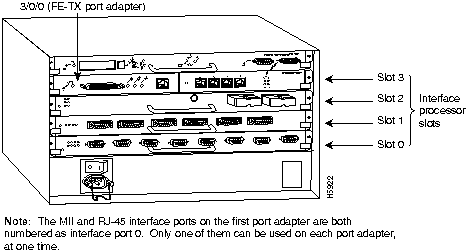
In the router, physical port addresses specify the actual physical location of each interface port on the router interface processor end. (See Figure 22.) This address is composed of a three-part number in the format chassis slot number/port adapter number/interface port number.
The first number identifies the chassis slot in which the VIP is installed (as shown in the example system in Figure 22). The second number identifies the physical port adapter number on the VIP, and is either 0 or 1. The interface ports on each FE-TX port adapter are always numbered as interface 0.
Interface ports on the VIP maintain the same address regardless of whether other interface processors are installed or removed. However, when you move a VIP to a different slot, the first number in the address changes to reflect the new slot number.
Figure 22 shows some of the slot port adapter and interface ports of a sample Cisco 7505 system. For example, on a FE-TX/FE-TX VIP in slot 3, the address of the first Fast Ethernet port adapter is 3/0/0 (chassis slot 3, port adapter slot 0, and interface port 0), and the address of the second Fast Ethernet port adapter is 3/1/0 (chassis slot 3, port adapter slot 1, and interface port 0).
The individual port adapter numbers are always 0 and 1. The individual interface port numbers always begin with 0. For example, the FE-TX port adapters in the first and second port adapter slots in chassis slot 3 would have the following addresses: 3/0/0 and 3/1/0. The number of additional ports depends on the number of ports on a port adapter.
Figure 22 : Fast Ethernet Interface Port Number Example (Cisco 7505 Shown)
You can identify interface ports by physically checking the slot/port adapter/interface port location on the back of the router or by using software commands to display information about a specific interface or all interfaces in the router.
To display information about a specific interface, use the show interfaces command with the interface type and port address in the format show interfaces [type slot/port adapter/port].
Following is an example of how the show interfaces command displays status information (including the physical slot and port address) for the interface you specify. In this example, most of the status information for each interface is omitted, and a Fast Ethernet interface in slot 3 is used.
Fast Ethernet interface port adapters are numbered from 0 and 1 because VIPs support up to two 100BASE-T ports. The MII and RJ-45 ports on a port adapter each have the same port number because only one of them can be used at one time.
Refer to Table 5, Table 6, Table 7, Table 8, and Table 9 for the FE-TX port numbers associated with the interface processor slots in your chassis. If you install a VIP with two FE-TX port adapters, you can configure both ports; if you install a VIP with one FE-TX port adapter, you need configure only that port.
Table 5 : FE-TX Slot, Port Adapter, and Port Numbers in a Cisco 7000
Table 6 : FE-TX Slot, Port Adapter, and Port Numbers in a Cisco 7010
Table 7 : FE-TX Slot, Port Adapter, and Port Numbers in a Cisco 7505
Table 8 : FE-TX Slot, Port Adapter, and Port Numbers in a Cisco 7507
Table 9 : FE-TX Slot, Port Adapter, and Port Numbers in a Cisco 7513
With the show interfaces type slot/port adapter/port command, use arguments such as the interface type (fastethernet, and so forth) and the port number (slot/port) to display information about a specific interface only. The following example of the show interfaces fastethernet command shows information specific to the Fast Ethernet interface on the first FE-TX port adapter in slot 3:
Configuring the FE-TX Port Adapters---Descriptions and Examples
Following are descriptions and examples of the commands for configuring the VIP FE-TX interface 3/0/0 (slot 3, port adapter 0, Fast Ethernet interface port 0). If a second Fast Ethernet interface is present, configure it the same way except that the port adapter number is port adapter 1 (3/1/0).
Descriptions are limited to fields that are relevant for establishing and verifying the configuration. After configuring the new FE-TX interface, use show commands to display the status of the new interface or all interfaces, or to verify changes you have made.
Depending on the requirements for your system configuration and the protocols you plan to route on the interface, you might also need to enter other configuration subcommands. For complete descriptions of configuration subcommands and the configuration options available for Fast Ethernet interfaces, refer to the publications listed in the section "If You Need More Information" on page 2.
FE-TX half-duplex operation is the default. To change to full-duplex operation, use the following series of commands:
Using the show interfaces fastethernet command, you can see that the 3/0/0 Fast Ethernet interface is now configured for full-duplex operation, as follows:
To return the interface to half-duplex operation, use the no full-duplex configuration command, as follows:
Using the show interfaces fastethernet command, you can see that the 3/0/0 Fast Ethernet interface is now configured for half-duplex operation, as follows:
The RJ-45 connection is the default. To change to an MII connection and then verify it, use the following series of commands, including the media-type configuration command:
Use the media-type 100BaseTX configuration command to return the interface to its default state for RJ-45 connections.
The show version (or show hardware) command displays the configuration of the system hardware (the number of each interface processor type installed), the software version, the names and sources of configuration files, and the boot images. Following is an example of the show version command used with a Cisco 7500 series system:
The following sections discuss the 4E port adapter, which is shown in Figure 23.
Figure 23 : 4E Port Adapter, Faceplate View
The VIP 4E port adapter provides up to four IEEE 802.3 Ethernet 10BASE-T interfaces on the VIP. Each Ethernet 10BASE-T interface allows a maximum bandwidth of 10-Mbps, for a maximum aggregate bandwidth of 40 Mbps. All four ports run at line speed.
The term Ethernet is commonly used for all carrier sense multiple access/collision detection (CSMA/CD) local-area networks (LANs) that generally conform to Ethernet specifications, including IEEE 802.3. Ethernet Version 2 and IEEE 802.3 were based on, and developed shortly after, Ethernet Version 1. The slight differences between Ethernet and IEEE 802.3 are implemented in hardware, and both are supported automatically by the 4E without any hardware configuration changes. Together, Ethernet and IEEE 802.3 are the most widely used LAN protocols. They are well suited to applications where a local communication medium must carry sporadic, occasionally heavy traffic at high peak data rates.
Stations on a CSMA/CD LAN can access the network at any time. Before sending data, the station listens to the network to see of it is already in use. If it is, the station waits until the network is not in use, then transmits. A collision occurs when two stations listen for network traffic, hear none, and transmit simultaneously. When this happens, both transmissions are damaged, and the stations must retransmit. The stations detect the collision and use backoff algorithms to determine when they should retransmit.
Both Ethernet and IEEE 802.3 are broadcast networks, which means that all stations see all transmissions. Each station must examine received frames to determine whether it is the intended destination and, if it is, pass the frame to a higher protocol layer for processing. IEEE 802.3 specifies several different physical layers, and Ethernet defines only one. Each IEEE 802.3 physical layer protocol has a name that summarizes its characteristics in the format speed/signaling method/segment length where speed is the LAN speed in Mbps, signaling method is the signaling method used (either Baseband or Broadband), and segment length is the maximum length between stations in hundreds of meters.
4E Port Adapter Description and 10BASE-T Specifications
The 4E port adapter is currently only available on the VIP-FE-TX/4E, which has a single Fast Ethernet (FE-TX) port adapter in port adapter slot 0, and a single Ethernet 10BASE-T (4E) port adapter in port adapter slot 1. (For a description of the FE-TX port adapter, refer to the section "FE-TX Port Adapter" on page 29.) Figure 24 shows the VIP-FE-TX/4E.
Figure 24 : VIP with One FE-TX and One 4E Port Adapter Installed, Horizontal Orientation Shown
Table 10 summarizes the characteristics of IEEE 802.3 Ethernet and Ethernet Version 2 for 10BASE-T.
Table 10 : IEEE 802.3 and 10BASE-T Ethernet Version 2 Physical Characteristics
Table 11 lists the cabling specifications for 10-Mbps transmission over UTP and STP cables.
Table 11 : Cable Specifications for 10-Mbps 10BASE-T
The Ethernet specifications call the 4E device a transceiver, and it is connected to the station with a transceiver cable. The 4E port adapter is not an end station. The IEEE 802.3 specifications refer to the same type of device as a media attachment unit (MAU) and to the cable as an attachment unit interface (AUI). Only transceiver cables can connect to the 4E ports directly.
The 4E port adapter contains the enabled LED, standard on all port adapters, and a one status LED for each port. After system initialization, the enabled LED goes on to indicate that the 4E port adapter has been enabled for operation. (The LEDs are shown in Figure 25.) The following conditions must be met before the enabled LED goes on:
If any of these conditions is not met, or if the initialization fails for other reasons, the enabled LED does not go on.
When an RJ-45 port is active, its link LED is on when the 4E port adapter is receiving a carrier signal from the network.
Figure 25 : LEDs on the 4E Port Adapter (Horizontal Orientation Shown)
4E Port Adapter Receptacles, Cables, and Pinouts
The interface connectors on the 4E port adapter are four individual RJ-45 receptacles. You can use all four simultaneously. Each connection supports IEEE 802.3 and Ethernet 10BASE-T interfaces compliant with appropriate standards. The RJ-45 connections require external transceivers.
Figure 26 shows the RJ-45 connectors. Table 12 lists the pinouts and signals for the RJ-45 connectors.
Figure 26 : 4E RJ-45 Connections, Plug and Receptacle
Table 12 : 4E RJ-45 Connector Pinout
Depending on your 4E, RJ-45 interface cabling requirements, use the pinouts in Figure 27 and Figure 28.
Figure 27 : Straight-Through Cable Pinout, 4E RJ-45 Connection to a Hub or Repeater
Figure 28 : Crossover Cable Pinout, 4E RJ-45 Connections Between Hubs and Repeaters
Attaching 4E Port Adapter Interface Cables
On a single 4E port adapter, you can use up to four RJ-45 connections.
Connect RJ-45 cables to the 4E port adapter as follows:
Figure 29 : Connecting 4E RJ-45 Cables (Horizontal Orientation---Shown without Handles)
Figure 30 : Attaching the Ferrite Bead around the RJ-45 Cable
This completes the 4E installation. Proceed to the section "Checking the VIP Installation" on page 19, then to the section "Configuring the 4E Interfaces," which follows.
If you installed a new 4E port adapter or if you want to change the configuration of an existing interface, you must enter Configuration mode using the configure command. If you replaced a 4E port adapter that was previously configured, the system will recognize the new 4E interfaces and bring them up in their existing configuration.
After you verify that the new 4E port adapter is installed correctly (the enabled LED goes on), use the privileged-level configure command to configure the new interfaces. Be prepared with the information you will need, such as the following:
For a summary of the configuration options available and instructions for configuring the 4E interfaces on the VIP, refer to the Router Products Configuration Guide.
The configure command requires privileged-level access to the EXEC command interpreter, which usually requires a password. Contact your system administrator if necessary to obtain EXEC-level access. The 4E interfaces on a VIP can both be configured at 10 Mbps, half duplex (HDX) or full duplex (FDX), for a maximum aggregate bandwidth of 40 Mbps.
Selecting Chassis Slot, Port Adapter, and Ethernet 10BASE-T Interface Port Numbers
The following section describes how to identify chassis slot, port adapter, and Ethernet 10BASE-T interface port numbers.
In the router, physical port addresses specify the actual physical location of each interface port on the router interface processor end. (See Figure 22.) This address is composed of a three-part number in the format chassis slot number/port adapter number/interface port number.
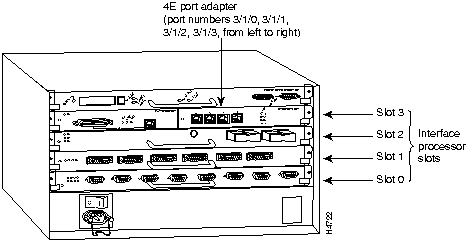
The first number identifies the chassis slot in which the VIP is installed (as shown in the example system in Figure 31). The second number identifies the physical port adapter number on the VIP, and is either 0 or 1. The interface ports on each 4E port adapter are always numbered in sequence as interface 0 through 3.
Interface ports on the VIP maintain the same address regardless of whether other interface processors are installed or removed. However, when you move a VIP to a different slot, the first number in the address changes to reflect the new slot number.
Figure 22 shows some of the slot port adapter and interface ports of a sample Cisco 7505 system. For example, on a FE-TX/4E VIP in slot 3, the address of the first Fast Ethernet port adapter is 3/0/0 (chassis slot 3, port adapter slot 0, and interface port 0---see the section "Selecting Chassis Slot, Port Adapter, and Fast Ethernet Interface Port Numbers" on page 38 for the Fast Ethernet numbering scheme), and the addresses for the Ethernet 10BASE-T interface ports on the second port adapter (which is a 4E) are 3/1/0 through 3/1/3 (chassis slot 3, port adapter slot 1, and interface ports 0 through 3).
The first port adapter slot number is always 0. The second port adapter slot number is always 1. The individual interface port numbers always begin with 0. The number of additional ports depends on the number of ports on a port adapter. For example, the four 10BaseT interface ports on a 4E port adapter in the second port adapter slot in chassis slot 3, would have the following addresses: 3/1/0, 3/1/1, 3/1/2, and 3/1/3. (See Figure 31.)
Figure 31 : 10BASE-T Interface Port Number Example (Cisco 7505 Shown)
You can identify interface ports by physically checking the slot/port adapter/interface port location on the back of the router or by using software commands to display information about a specific interface or all interfaces in the router.
To display information about a specific interface, use the show interfaces command with the interface type and port address in the format show interfaces [type slot/port adapter/port].
Following is an example of how the show interfaces [type slot/port adapter/port] command displays status information (including the physical slot and port address) for the interfaces you specify. In these examples, most of the status information for each interface is omitted, and the four Ethernet 10BASE-T interfaces (0--3) are in chassis slot 3, in port adapter slot 1. (Interfaces are administratively shut down until you enable them.)
Ethernet 10BASE-T interface port adapters are always numbered as port adapter 1 because VIPs currently support only one 4E port adapter with the FE-TX/4E configuration, and the 4E port adapter is always in the second port adapter slot location (port adapter slot 1). With this VIP configuration, a FE-TX port adapter is always in port adapter slot 0.
Refer to Table 13, Table 14, Table 15, Table 16, and Table 17 for the 4E port numbers associated with the interface processor slots in your chassis.
Table 13 : 4E Slot, Port Adapter, and Port Numbers in a Cisco 7000
Table 14 : 4E Slot, Port Adapter, and Port Numbers in a Cisco 7010
Table 15 : 4E Slot, Port Adapter, and Port Numbers in a Cisco 7505
Table 16 : 4E Slot, Port Adapter, and Port Numbers in a Cisco 7507
Table 17 : 4E Slot, Port Adapter, and Port Numbers in a Cisco 7513
With the show interfaces type slot/port adapter/port command, use arguments such as the interface type (ethernet, and so forth) and the slot, port adapter, and port numbers (slot/port adapter/port) to display information about a specific Ethernet 10BASE-T interface only.
The following example of the show interfaces ethernet slot/port adapter/port command shows all of the information specific to the first 4E interface port (interface port 0) in chassis slot 3, port adapter slot 1:
The show version (or show hardware) command displays the configuration of the system hardware (the number of each interface processor type installed), the software version, the names and sources of configuration files, and the boot images. Following is an example of the show version command used with a Cisco 7500 series system:
For complete descriptions of interface subcommands and the configuration options available for VIP-related interfaces, and which support VIP functionality, refer to the publications listed in the section "If You Need More Information" on page 2.
This configuration note is available on UniverCD, Cisco's online library of product documentation, or in print, and is located in the Cisco 7000, Cisco 7010, Cisco 7505, Cisco 7507, and Cisco 7513 Configuration Notes subdatabases, within the Cisco Product Documentation and Core/High-End Routers databases.
SELV Circuit Warning Translations
Warning The ports labeled "Ethernet," "10BaseT," "Token Ring," "Console," and "AUX" are safety extra-low voltage (SELV) circuits. SELV circuits should only be connected to other SELV circuits. Because the BRI circuits are treated like telephone-network voltage, avoid connecting the SELV circuit to the telephone network voltage (TNV) circuits.
Waarschuwing De poorten die "Ethernet", "10BaseT", "Token Ring", "Console" en "AUX" zijn gelabeld, zijn veiligheidscircuits met extra lage spanning (genaamd SELV = Safety Extra-Low Voltage). SELV-circuits mogen alleen met andere SELV-circuits verbonden worden. Omdat de BRI-circuits op dezelfde manier als telefoonnetwerkspanning behandeld worden, mag u het SELV-circuit niet verbinden met de telefoonnetwerkspanning (TNV) circuits.
Varoitus Portit, joissa on nimet "Ethernet", "10BaseT", "Token Ring", "Console" ja "AUX", ovat erityisen pienen jännityksen omaavia turvallisuuspiirejä (SELV-piirejä). Tällaiset SELV-piirit tulee yhdistää ainoastaan muihin SELV-piireihin. Koska perusluokan liitäntöjen (Basic Rate Interface- eli BRI-liitännät) jännite vastaa puhelinverkoston jännitettä, vältä SELV-piirin yhdistämistä puhelinverkoston jännitepiireihin (TNV-piireihin).
Attention Les ports étiquetés « Ethernet », « 10BaseT », « Token Ring », « Console » et « AUX » sont des circuits de sécurité basse tension (Safety Extra-Low Voltage ou SELV). Les circuits SELV ne doivent être interconnectés qu'avec d'autres circuits SELV. Comme les circuits BRI sont considérés comme des sources de tension de réseau téléphonique, éviter de connecter un circuit SELV à un circuit de tension de réseau téléphonique (telephone network voltage ou TNV).
Warnung Die mit "Ethernet", "10BaseT", "Token Ring", "Console" und "AUX" beschrifteten Buchsen sind Sicherheitskreise mit Sicherheitskleinspannung (Safety Extra-Low Voltage, SELV). SELV-Kreise sollten ausschließlich an andere SELV-Kreise angeschlossen werden. Da die BRI-Kreise wie Telefonnetzspannungen behandelt werden, ist der SELV-Kreis nicht an Telefonnetzspannungskreise (TNV) anzuschließen.
Avvertenza Le porte contrassegnate da "Ethernet", "10BaseT", "TokenRing", "Console" e "AUX" sono circuiti di sicurezza con tensione molto bassa (SELV). I circuiti SELV devono essere collegati solo ad altri circuiti SELV. Dato che i circuiti BRI vengono trattati come tensioni di rete telefonica, evitare di collegare il circuito SELV ai circuiti in cui è presente le tensione di rete telefonica (TNV).
Advarsel Utgangene merket "Ethernet", "10BaseT", "Token Ring", "Console" og "AUX" er lavspentkretser (SELV) for ekstra sikkerhet. SELV-kretser skal kun kobles til andre SELV-kretser. Fordi BRI-kretsene håndteres som telenettspenning, unngå å koble SELV-kretsen til kretser for telenettspenning (TNV).
Aviso As portas "Ethernet", "10BaseT", "Token Ring", "Console", and "AUX" são circuitos de segurança de baixa tensão (SELV). Estes circuitos deverão ser apenas ligados a outros circuitos SELV. Devido ao facto de os circuitos BRI (Interface de Ritmo Básico) serem tratados como sendo de tensão equivalente à da rede telefónica, evite ligar o circuito SELV aos circuitos TNV (tensão de rede telefónica).
¡Advertencia! Los puertos "Ethernet", "10BaseT", "Token Ring", "Console" y "AUX" son circuitos de muy baja señal que garantizan ausencia de peligro (Safety Extra-Low Voltage = SELV). Estos circuitos SELV deben ser conectados exclusivamente con otros también de tipo SELV. Puesto que los circuitos tipo BRI se comportan como aquéllos con voltajes de red telefónica, debe evitarse conectar circuitos SELV con circuitos de voltaje de red telefónica (TNV).
Varning! De portar som är märkta "Ethernet", "10BaseT", "Token Ring", "Console" och "AUX" är SELV-kretsar, d.v.s. skyddskretsar med extra låg spänning (SELV: Safety Extra-Low Voltage = skyddsklenspänning). SELV-kretsar får endast anslutas till andra SELV-kretsar. Eftersom BRI-kretsar behandlas liksom telefonnätsspänning bör SELV-kretsen inte anslutas till telefonnätsspänningskretsar (TNV-kretsar).
Cisco Information Online (CIO) is Cisco Systems' primary, real-time support channel. Maintenance customers and partners can self-register on CIO to obtain additional content and services.
Available 24 hours a day, 7 days a week, CIO provides a wealth of standard and value-added services to Cisco's customers and business partners. CIO services include product information, software updates, release notes, technical tips, the Bug Navigator, configuration notes, brochures, descriptions of service offerings, and download access to public and authorized files.
CIO serves a wide variety of users through two interfaces that are updated and enhanced simultaneously---a character-based version and a multimedia version that resides on the World Wide Web (WWW). The character-based CIO (called "CIO Classic") supports Zmodem, Kermit, Xmodem, FTP, Internet e-mail, and fax download options, and is excellent for quick access to information over lower bandwidths. The WWW version of CIO provides richly formatted documents with photographs, figures, graphics, and video, as well as hyperlinks to related information.
You can access CIO in the following ways:
For a copy of CIO's Frequently Asked Questions (FAQ), contact
Copyright 1988-1996 © Cisco Systems Inc.

ftp/beta111_dir@ftp.cisco.com
. Detailed information about the latest Cisco IOS release can be found in the ASCII file vip1-readme, which is also available via FTP from
ftp.cisco.com
in the directory
/ftp/beta111_dir
. This ASCII file includes information and instructions on how to get the current Cisco IOS software images and VIP microcode. To access information located in Cisco Information Online (CIO), refer to the section "SELV Circuit Warning Translations" at the end of this publication.





Router>
enable
Password:
Router#
Router#
%OIR-6-REMCARD: Card removed from slot 2, interfaces disabled
%LINK-5-CHANGED: Interface FastEthernet2/0/0, changed state to administratively down

Router#
%OIR-6-INSCARD: Card inserted in slot 2, interfaces administratively shut down
%LINK-5-CHANGED: Interface FastEthernet2/0/0, changed state to up
Router#
%OIR-6-INSCARD: Card inserted in slot 3, interfaces administratively shut down
%LINK-5-CHANGED: Interface FastEthernet3/0/0, changed state to administratively down
Router# show controller cbus

(display text omitted)
slot3: VIP, hw 2.1, sw 200.09, ccb 5800FF70, cmdq 480000A0, vps 8192
    software loaded from system
    FLASH ROM version 255.255, VPLD version 20.0
    FastEthernet3/0/0, addr 0000.0ca5.2380 (bia 0000.0ca5.2380)
      gfreeq 48000140, lfreeq 48000238 (1536 bytes), throttled 0
      rxlo 4, rxhi 123, rxcurr 16, maxrxcurr 16
      txq 48000240, txacc 480000EA (value 77), txlimit 77

(display text omitted)
Router# show startup-config

Using 1652 out of 130048 bytes
version 11.1(1)
!
hostname Router
!
enable-password hello
!
microcode VIP flash VIP11-0
microcode reload
!
(display text omitted)
!
interface FastEthernet 3/0/0
ip address 1.1.1.1 255.255.255.248
ip route-cache cbus
!
(display text omitted)
Router# show protocols

Global values:
  Internet Protocol routing is enabled
FastEthernet3/1/0 is up, line protocol is up

Router#
show flash
-#- ED --type-- --crc--- -seek-- nlen -length- -----date/time------ name
1 .. FFFFFFFF B4A18E0B 3F6494 30 4023316 Jun 26 1994 19:44:29 image/file/1
2 .. FFFFFFFF 8075AA5D 4118B4 23 111518 Jun 29 1994 11:05:57 image/file/2
12044568 bytes available (8533736 bytes used)
buffer overflow - xxxx/xxxx
Router#
copy tftp:vip11-1 slot0:vip11-1
20575008 bytes available on device slot0, proceed? [confirm]
Address or name of remote host [1.1.1.1]?
Loading new.image from 1.1.1.1 (via Ethernet1/0): !!!!!!!!!!!!!!!!!!!!!!!!!!!!!!
!!!!!!!!!!!!!!!!!!!!!!!!!!!!!!!!!!!!!!!!!!!!!!!!!!!!!!!!!!!!!!!!!!!!!!!!!!!!!!!!
!!!!!!!!!!!!!!!!!!!!!!!!!!!!!!!!!!!!!!!!!!!!!!!!!!!!!!!!!!!!!!!!!!!!!!!!!!!!!!!!
!!!!!!!!!!!!!!!!!!!!!!!!!!!!!!!!!!!!!!!!!!!!!!!!!!!!!!!!!!!!!!!!!!!!!!!!!!!!!!!!
!!!!!!!!!!!!!!!!!!!!!!!!!!!!!!!!!!!!!!!!!!!!!!!!!!!!!!!!!!!!!!!!!!!!!!!!!!!!!!!!
!!!!!!!!!!!!!!!!!!!!!!!!!!!!!!!!!!!!!!!!!!!!!!![OK - 7799951/15599616 bytes]
CCCCCCCCCCCCCCCCCCCCCCCCCCCCCCCCCCCCCCCCCCCCCCCCCCCCCCCCCCCCCCCCCCCCCCCCCCCCCCCC
CCCCCCCCCCCCCCCCCCCCCCCCCCCCCCCCCCCCCCCCCCCCCCCCCCCCCCCCCCCCCCCCCCCCCCCCCCCCCCCC
CCCCCCCCCCCCCCCCCCCCCCCCCCCCCCCCCCCCCCCCCCCCCCCCCCCCCCCCCCCCCCCCCCCCCCCCCC
Router#
Router#
show flash
-#- ED --type-- --crc--- -seek-- nlen -length- -----date/time------ name
1 .. FFFFFFFF B4A18E0B 3F6494 30 4023316 Jun 26 1994 19:44:29 image/file/1
2 .. FFFFFFFF 8075AA5D 4118B4 23 111518 Jun 29 1994 11:05:57 image/file/2
3 .. FFFFFFFF EEA1FEEB 8436E8 22 4398516 Oct 10 1995 19:35:25 vip11-1
7646052 bytes available (16179788 bytes used)
Router#
config t
Enter configuration commands, one per line. End with CNTL/Z.
Router(config)#
Router(config)#
microcode vip flash slot0:vip11-1
Router#
copy running-config startup-config
Router#
config t
Enter configuration commands, one per line. End with CNTL/Z.
Router(config)#
microcode reload
Router#
show controllers cbus



page 18.


Parameter
RJ-45
MII
Cable specification
Category 51 UTP2, 22 to 24 AWG3
Category 3, 4, or 5, 150-ohm UTP or STP, or multimode optical fiber
Maximum cable length
--
0.5 m (1.64 ft.) (MII-to-MII cable4)
Maximum segment length
100 m (328 ft.) for 100BASE-TX
1 m (3.28 ft.)5 or 400 m (1,312 ft.) for 100BASE-FX
Maximum network length
200 m (656 ft)5. (with 1 repeater)
--
1 EIA/TIA-568 or EIA-TIA-568 TSB-36 compliant.
2 Cisco Systems does not supply Category 5 UTP RJ-45 or 150-ohm STP MII cables. Both are available commercially.
3 AWG = American Wire Gauge. This gauge is specified by the EIA/TIA-568 standard.
4 This is the cable between the MII port on the FE-TX port adapter and the appropriate transceiver.
5 This length is specifically between any two stations on a repeated segment.
Parameter
100BASE-T
Data rate (Mbps)
100
Signaling method
Baseband
Maximum segment length (meters)
100 m between DTE1 and repeaters
Media
RJ-45: Category 5 UTP
MII: Category 3, 4, or 5, 150-ohm UTP or STP, with appropriate transceiver
Topology
Star/Hub
1 DTE = data terminal equipment.

Pin
Description
1
Receive Data + (RxD+)
2
RxD--
3
Transmit Data + (TxD+)
6
TxD--
Pin1
In
Out
In/Out
Description
14--17
--
Yes
--
Transmit Data (TxD)
12
Yes
--
--
Transmit Clock (Tx_CLK)2
11
--
Yes
--
Transmit Error (Tx_ER)
13
--
Yes
--
Transmit Enable (Tx_EN)
3
--
Yes
--
MII Data Clock (MDC)
4--7
Yes
--
--
Receive Data (RxD)
9
Yes
--
--
Receive Clock (Rx_CLK)
10
Yes
--
--
Receive Error (Rx_ER)
8
Yes
--
--
Receive Data Valid (Rx_DV)
18
Yes
--
--
Collision (COL)
19
Yes
--
--
Carrier Sense (CRS)
2
--
--
Yes
MII Data Input/Output (MDIO)
22--39
--
--
--
Common (ground)
1, 20, 21, 40
--
--
--
+5.0 volts (V)
1 Any pins not indicated are not used.
2 Tx_CLK and Rx_CLK are generated by the external transceiver.


Router# sh int fa 3/0/0
FastEthernet3/0/0 is administratively down, line protocol is down
  Hardware is cyBus FastEthernet Interface, address is 0000.0ca5.2380 (bia 0000)
  MTU 1500 bytes, BW 100000 Kbit, DLY 100 usec, rely 255/255, load 1/255
  Encapsulation ARPA, loopback not set, keepalive set (10 sec), hdx, 100BaseTX

(display text omitted)
Slot 0/ Adapter n/ Port 0
Slot 1/ Adapter n/ Port 0
Slot 2/ Adapter n/ Port 0
Slot 3/ Adapter n/ Port 0
Slot 4/ Adapter n/ Port 0
0/0/0
1/0/0
2/0/0
3/0/0
4/0/0
0/1/0
1/1/0
2/1/0
3/1/0
4/1/0
Slot 0/ Adapter n/ Port 0
Slot 1/ Adapter n/ Port 0
Slot 2/ Adapter n/ Port 0
0/0/0
1/0/0
2/0/0
0/1/0
1/1/0
2/1/0
Slot 0/ Adapter n/ Port 0
Slot 1/ Adapter n/ Port 0
Slot 2/ Adapter n/ Port 0
Slot 3/ Adapter n/ Port 0
0/0/0
1/0/0
2/0/0
3/0/0
0/1/0
1/1/0
2/1/0
3/1/0
Slot 0/ Adapter n/ Port 0
Slot 1/ Adapter n/ Port 0
Slot 4/ Adapter n/ Port 0
Slot 5/ Adapter n/ Port 0
Slot 6/ Adapter n/ Port 0
0/0/0
1/0/0
4/0/0
5/0/0
6/0/0
0/1/0
1/1/0
4/1/0
5/1/0
6/1/0
Slot 0/ Adapter1/
Port 0
Slot 1/ Adapter/
Port 0
Slot 2/ Adapter/
Port 0
Slot 3/ Adapter/
Port 0
Slot 4/ Adapter/
Port 0
Slot 5/ Adapter/
Port 0
Slot 8/ Adapter/
Port 0
Slot 9/ Adapter/
Port 0
Slot 10/ Adapter/
Port 0
Slot 11/ Adapter/
Port 0
Slot 12/ Adapter/
Port 0
0/0/0
1/0/0
2/0/0
3/0/0
4/0/0
5/0/0
8/0/0
9/0/0
10/0/0
11/0/0
12/0/0
0/1/0
1/1/0
2/1/0
3/1/0
4/1/0
5/1/0
8/1/0
9/1/0
10/1/0
11/1/0
12/1/0
1 The FE-TX port adapters are installed in port adapter slot 0 on VIP-FE-TX(=) and VIP-FE-TX/4E(=), and in port adapter slots 1 and 2 on the VIP-FE-TX/FE-TX(=).
Router# show interfaces fastethernet 3/0/0
FastEthernet3/0/0 is administratively down, line protocol is down
  Hardware is cyBus FastEthernet Interface, address is 0000.0ca5.2380 (bia 0000)
  MTU 1500 bytes, BW 100000 Kbit, DLY 100 usec, rely 255/255, load 1/255
  Encapsulation ARPA, loopback not set, keepalive set (10 sec), hdx, 100BaseTX
  ARP type: ARPA, ARP Timeout 4:00:00
  Last input 3:08:43, output 3:08:42, output hang never
  Last clearing of "show interface" counters 2:58:36
  Output queue 0/40, 0 drops; input queue 0/75, 0 drops
  5 minute input rate 0 bits/sec, 0 packets/sec
  5 minute output rate 0 bits/sec, 0 packets/sec
     0 packets input, 0 bytes, 0 no buffer
     Received 0 broadcasts, 0 runts, 0 giants
     0 input errors, 0 CRC, 0 frame, 0 overrun, 0 ignored, 0 abort
     0 watchdog, 0 multicast
     0 input packets with dribble condition detected
     0 packets output, 0 bytes, 0 underruns
     0 output errors, 0 collisions, 0 interface resets, 0 restarts
     0 babbles, 0 late collision, 0 deferred
     0 lost carrier, 0 no carrier
     0 output buffer failures, 0 output buffers swapped out
Router# configure terminal
Enter configuration commands, one per line.  End with CNTL/Z.
Router(config)#

Router(config)# interface fastethernet 3/0/0
Router(config-if)# full-duplex
Router(config-if)# ^z
Router# sh int fa 3/0/0
FastEthernet 3/0/0 is administratively up, line protocol is up

  (display text omitted)

  Encapsulation ARPA, loopback not set, keepalive not set, fdx, 100BaseTX
Router# config t
Enter configuration commands, one per line.  End with CNTL/Z.
Router(config)# int fa 3/0/0
Router(config-if)# no full-duplex
Router(config-if)# ^Z
Router#
Router# sh int fa 3/0/0
FastEthernet3/0/0 is administratively up, line protocol is up

  (display text omitted)

  Encapsulation ARPA, loopback not set, keepalive not set, hdx, 100BaseTX

  (display text omitted)
Router# config t
Enter configuration commands, one per line.  End with CNTL/Z.
Router(config)# int fa 3/0/0
Router(config-if)# media-type mii
Router(config-if)# ^Z

Router# sh int fa 3/0/0
FastEthernet3/0/0 is administratively up, line protocol is up

  (display text omitted)

  Encapsulation ARPA, loopback not set, keepalive not set, hdx, MII

  (display text omitted)
Router# show version

Cisco Internetwork Operating System Software
IOS (tm) GS Software (RSP-A), Version 11.1(1) [mpo 105]
Copyright (c) 1986-1995 by cisco Systems, Inc.
Compiled Fri 06-Oct-95 12:22 by mpo
Image text-base: 0x600088A0, data-base: 0x605A4000

ROM: System Bootstrap, Version 5.3(16645) [biff 571], INTERIM SOFTWARE
ROM: GS Bootstrap Software (RSP-BOOT-M), Version 11.0(1.2), MAINTENANCE INTERIME

honda uptime is 4 hours, 22 minutes
System restarted by reload
System image file is "slot0:rsp-a111-1", booted via slot0

cisco RSP2 (R4600) processor with 32768K bytes of memory.
R4600 processor, Implementation 32, Revision 2.0
Last reset from power-on
G.703/E1 software, Version 1.0.
Bridging software.
X.25 software, Version 2.0, NET2, BFE and GOSIP compliant.
Chassis Interface.
1 RVIP controllers (1 FastEthernet)(4 Ethernet).
4 Ethernet/IEEE 802.3 interfaces.
1 FastEthernet/IEEE 802.3 interfaces.
125K bytes of non-volatile configuration memory.

20480K bytes of Flash PCMCIA card at slot 0 (Sector size 128K).
8192K bytes of Flash internal SIMM (Sector size 256K).
No slave installed in slot 6.
Configuration register is 0x2


Parameter
IEEE 802.3 Ethernet
10BaseT Ethernet Version 2
Data Rate (Mbps)
10
10
Signaling method
Baseband
Baseband
Max. segment length (m)
500
100 (UTP)
Media
50-ohm coax (thick)
Unshielded twisted-pair (UTP)
Topology
Bus
Star
Parameter
RJ-45
Cable specification
Category 5 UTP1, 22 to 24 AWG2
Maximum segment length
100 m (328 ft.) for 10BASE-T
Maximum network length
200 m (656 ft) (with 1 repeater)
1 Cisco Systems does not supply Category 5 UTP RJ-45 cables; these cables are available commercially.
2 AWG = American Wire Gauge. This gauge is specified by the EIA/TIA-568 standard.

Pin
Description
1
Receive Data + (RxD+)
2
RxD--
3
Transmit Data + (TxD+)
6
TxD--

Router# sh int e 3/1/0
Ethernet3/1/1 is administratively down, line protocol is down
  Hardware is cyBus Ethernet, address is 0000.0ca5.2300 (bia 0000.0ca5.2389)
  MTU 1500 bytes, BW 10000 Kbit, DLY 1000 usec, rely 255/255, load 1/255
  Encapsulation ARPA, loopback not set, keepalive set (10 sec)

Router# sh int e 3/1/1
Ethernet3/1/2 is administratively down, line protocol is down
  Hardware is cyBus Ethernet, address is 0000.0ca5.2300 (bia 0000.0ca5.238a)
  MTU 1500 bytes, BW 10000 Kbit, DLY 1000 usec, rely 255/255, load 1/255
  Encapsulation ARPA, loopback not set, keepalive set (10 sec)

Router# sh int e 3/1/2
Ethernet3/1/3 is administratively down, line protocol is down
  Hardware is cyBus Ethernet, address is 0000.0ca5.2300 (bia 0000.0ca5.238b)
  MTU 1500 bytes, BW 10000 Kbit, DLY 1000 usec, rely 255/255, load 1/255
  Encapsulation ARPA, loopback not set, keepalive set (10 sec)

Router# sh int e 3/1/3
Ethernet3/1/3 is administratively down, line protocol is down
  Hardware is cyBus Ethernet, address is 0000.0ca5.2300 (bia 0000.0ca5.238b)
  MTU 1500 bytes, BW 10000 Kbit, DLY 1000 usec, rely 255/255, load 1/255
  Encapsulation ARPA, loopback not set, keepalive set (10 sec)
Slot 0/ Adapter 1/ Port n
Slot 1/ Adapter 1/ Port n
Slot 2/ Adapter 1/ Port n
Slot 3/ Adapter 1/ Port n
Slot 4/ Adapter 1/
Port n
0/1/0
1/1/0
2/1/0
3/1/0
4/1/0
0/1/1
1/1/1
2/1/1
3/1/1
4/1/1
0/1/2
1/1/2
2/1/2
3/1/2
4/1/2
0/1/3
1/1/3
2/1/3
3/1/3
4/1/3
Slot 0/ Adapter 1/ Port n
Slot 1/ Adapter 1/ Port n
Slot 2/ Adapter 1/ Port n
0/1/0
1/1/0
2/1/0
0/1/1
1/1/1
2/1/1
0/1/2
1/1/2
2/1/2
0/1/3
1/1/3
2/1/3
Slot 0/ Adapter 1/
Port n
Slot 1/ Adapter 1/ Port n
Slot 2/ Adapter 1/ Port n
Slot 3/ Adapter 1/ Port n
0/1/0
1/1/0
2/1/0
3/1/0
0/1/1
1/1/1
2/1/1
3/1/1
0/1/2
1/1/2
2/1/2
3/1/2
0/1/3
1/1/3
2/1/3
3/1/3
Slot 0/ Adapter 1/ Port n
Slot 1/ Adapter 1/ Port n
Slot 4/ Adapter 1/ Port n
Slot 5/ Adapter 1/ Port n
Slot 6/ Adapter 1/ Port n
0/1/0
1/1/0
4/1/0
5/1/0
6/1/0
0/1/1
1/1/1
4/1/1
5/1/1
6/1/1
0/1/2
1/1/2
4/1/2
5/1/2
6/1/2
0/1/3
1/1/3
4/1/3
5/1/3
6/1/3
Slot 0 /
Adapter1/Port
Slot 1 / Adapter/
Port n
Slot 2/ Adapter/
Port n
Slot 3/ Adapter/
Port n
Slot 4/ Adapter/
Port n
Slot 5/ Adapter/
Port n
Slot 8/ Adapter/
Port n
Slot 9/ Adapter/
Port n
Slot 10/ Adapter/
Port n
Slot 11/ Adapter/
Port n
Slot 12/ Adapter/
Port n
0/1/0
1/1/0
2/1/0
3/1/0
4/1/0
5/1/0
8/1/0
9/1/0
10/1/0
11/1/0
12/1/0
0/1/1
1/1/1
2/1/1
3/1/1
4/1/1
5/1/1
8/1/1
9/1/1
10/1/1
11/1/1
12/1/1
0/1/2
1/1/2
2/1/2
3/1/2
4/1/2
5/1/2
8/1/2
9/1/2
10/1/2
11/1/2
12/1/2
0/1/3
1/1/3
2/1/3
3/1/3
4/1/3
5/1/3
8/1/3
9/1/3
10/1/3
11/1/3
12/1/3
1 The 4E port adapter is always installed in port adapter slot 1 on the VIP.
Router# sh int e 3/1/0
Ethernet3/1/0 is administratively down, line protocol is down
  Hardware is cyBus Ethernet, address is 0000.0ca5.2300 (bia 0000.0ca5.2388)
  MTU 1500 bytes, BW 10000 Kbit, DLY 1000 usec, rely 255/255, load 1/255
  Encapsulation ARPA, loopback not set, keepalive set (10 sec)
  ARP type: ARPA, ARP Timeout 4:00:00
  Last input never, output never, output hang never
  Last clearing of "show interface" counters 2:56:26
  Output queue 0/40, 0 drops; input queue 0/75, 0 drops
  5 minute input rate 0 bits/sec, 0 packets/sec
  5 minute output rate 0 bits/sec, 0 packets/sec
     0 packets input, 0 bytes, 0 no buffer
     Received 0 broadcasts, 0 runts, 0 giants
     0 input errors, 0 CRC, 0 frame, 0 overrun, 0 ignored, 0 abort
     0 input packets with dribble condition detected
     0 packets output, 0 bytes, 0 underruns
     0 output errors, 0 collisions, 0 interface resets, 0 restarts
     0 output buffer failures, 0 output buffers swapped out
Router# show version

Cisco Internetwork Operating System Software
IOS (tm) GS Software (RSP-A), Version 11.1(1) [mpo 105]
Copyright (c) 1986-1995 by cisco Systems, Inc.
Compiled Fri 06-Oct-95 12:22 by mpo
Image text-base: 0x600088A0, data-base: 0x605A4000

ROM: System Bootstrap, Version 5.3(16645) [biff 571], INTERIM SOFTWARE
ROM: GS Bootstrap Software (RSP-BOOT-M), Version 11.0(1.2), MAINTENANCE INTERIME

honda uptime is 4 hours, 22 minutes
System restarted by reload
System image file is "slot0:rsp-a111-1", booted via slot0

cisco RSP2 (R4600) processor with 32768K bytes of memory.
R4600 processor, Implementation 32, Revision 2.0
Last reset from power-on
G.703/E1 software, Version 1.0.
Bridging software.
X.25 software, Version 2.0, NET2, BFE and GOSIP compliant.
Chassis Interface.
1 RVIP controllers (1 FastEthernet)(4 Ethernet).
4 Ethernet/IEEE 802.3 interfaces.
1 FastEthernet/IEEE 802.3 interfaces.
125K bytes of non-volatile configuration memory.

20480K bytes of Flash PCMCIA card at slot 0 (Sector size 128K).
8192K bytes of Flash internal SIMM (Sector size 256K).
No slave installed in slot 6.
Configuration register is 0x2

http://www.cisco.com
cio.cisco.com
ciohelp@cisco.com.
For additional information, contact
cioteam@cisco.com.
tac@cisco.com.
To obtain general information about Cisco Systems, Cisco products, or upgrades, contact 800 553-6387, 408 526-7208, or
csrep@cisco.com.